# Tracking code in the HTML (https://webmetic.de/docs/en/installation/alle-plattformen)
This method works for any website whose HTML you or your IT team can edit. At the end you'll have:
- the tracking code on every page of your website
- your website with the status **Active** in Webmetic
- the result **Data received** in the **Quick check**
## Before you start [#before-you-start]
- **Time**: The first data arrives after a few minutes. The first companies appear within minutes to hours, depending on how much traffic your website gets.
- **Account**: You need a Webmetic account with your website listed under **Websites**. Webmetic adds the first website when you sign up.
- **Access**: You need write access to your website's HTML template or to the head settings of your CMS. Otherwise, hand steps 2 and 3 over to your IT team or agency.
- **Rights**: You don't need admin rights in Webmetic. Every user can open the tracking code.
- **Plan**: The tracking code works on every plan and costs no credits. You can watch recordings during the trial and on the Growth plan or higher.
Some platforms have their own guide: [Google Tag Manager](https://webmetic.de/docs/en/installation/google-tag-manager), [WordPress](https://webmetic.de/docs/en/installation/wordpress), [Shopify](https://webmetic.de/docs/en/installation/shopify), and [Matomo Tag Manager](https://webmetic.de/docs/en/installation/matomo-tag-manager). Recommended: Google Tag Manager, if your website already uses it, because then nobody has to touch your website's code.
## 1. Copy the tracking code [#1-copy-the-tracking-code]
1. In the Webmetic dashboard, open [**Menu** > **Tracking code**](https://app.webmetic.de/?menu=tracking_code). The **Tracking Code** window opens.
2. Under **Choose a method**, leave **HTML snippet** selected, which Webmetic preselects.
3. Under **Copy the snippet**, decide whether the **Session recording** checkbox stays ticked. Webmetic updates the code right away.
4. Click **Copy**. The button changes to **Copied**.
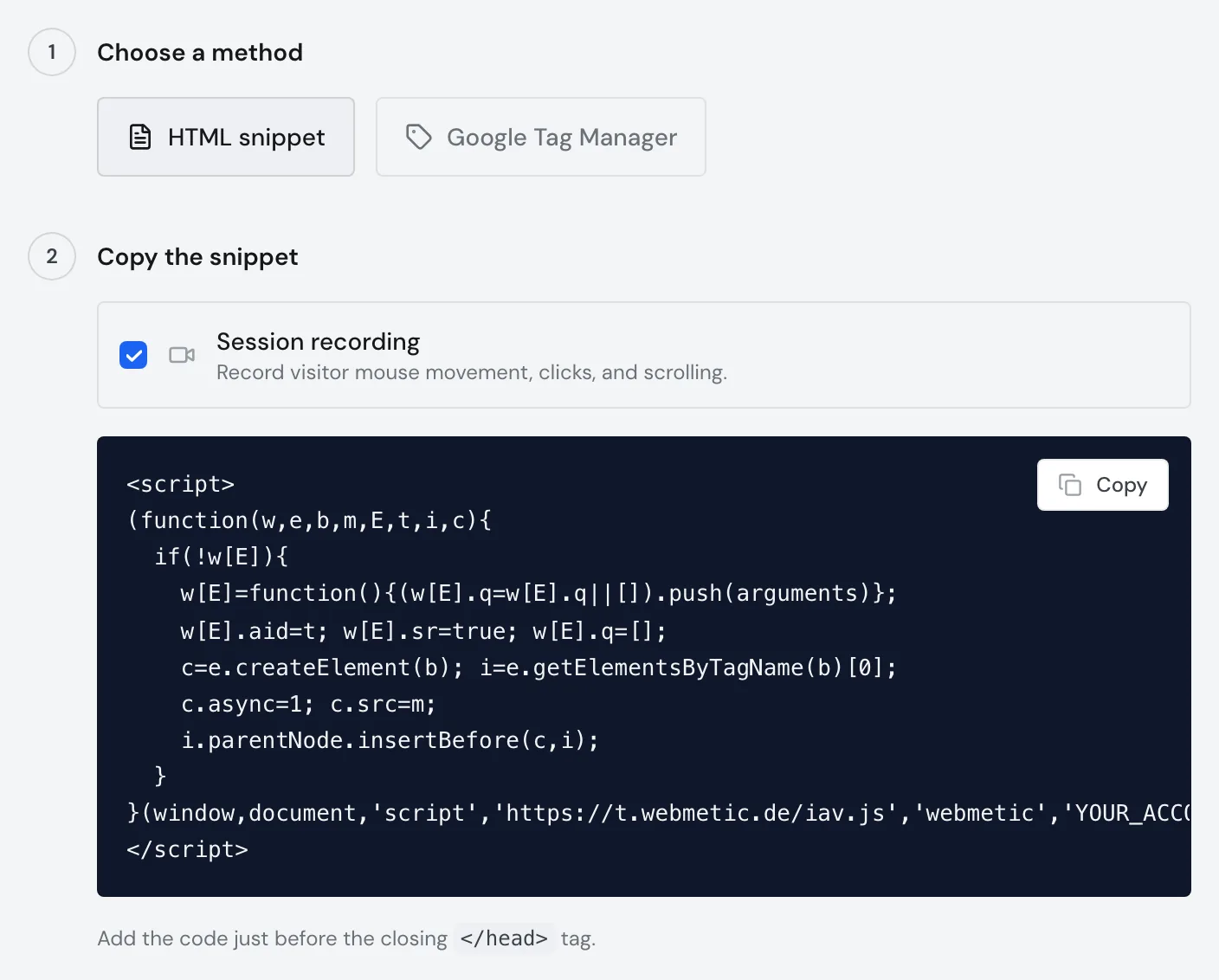
The copied code already contains your account ID, so you don't need to change anything in it.
While your company list is still empty, the **Show tracking code** button also opens this window.
**Session recording** captures mouse movement, clicks, and scrolling, and Webmetic hides anything typed into form fields.
You can watch the recordings during the trial and on the Growth plan or higher. If your plan includes this, leave the box ticked. Otherwise, untick it.
Copy the code from the dashboard, not from this page, because only there does it contain your account ID instead of `YOUR_ACCOUNT_ID`.
```html
```
Without session recording, only the part `w[E].sr=true;` in the fifth line is missing.
You need the short form if your website's Content Security Policy doesn't allow inline code. For every setting you need, see [Special cases](https://webmetic.de/docs/en/installation/sonderfaelle). Otherwise we recommend the dashboard code, because the short form differs in two ways:
- It has no protection against loading twice. If it appears on a page twice, Webmetic records every page view twice.
- For session recording, add `&sr=true` to the address, as in `?id=YOUR_ACCOUNT_ID&sr=true`.
```html
```
Replace `YOUR_ACCOUNT_ID` with the account ID at the end of the dashboard code. When you click **Google Tag Manager** under **Choose a method**, Webmetic shows the account ID on its own with the **Copy ID** button.
## 2. Add the code to every page [#2-add-the-code-to-every-page]
Webmetic only records pages that carry the tracking code, so add it in a place that every page uses.
1. Open the template or layout that builds the head of every page.
2. Paste the code directly before the closing `` tag.
3. Save the file.
If the code ends up on a page twice by mistake, it still loads only once, even alongside the template in Google Tag Manager.
For more domains, use the same code and add each domain under [**Menu** > **Websites**](https://app.webmetic.de/?menu=websites) so that it appears in your account.
How many domains you can add depends on your plan. Webmetic counts subdomains toward the main domain.
## 3. Publish your changes [#3-publish-your-changes]
1. Publish the change on your live website.
2. Clear every cache, for example in your CMS or in a caching plugin. Otherwise your website still serves the old version without the code.
3. Open a page of your website. This sends Webmetic its first page view.
## 4. Add the privacy notice [#4-add-the-privacy-notice]
1. In the **Tracking Code** window, scroll to the **Privacy notice** section.
2. Click **Copy**. Webmetic copies the text with all its links, both formatted and as plain text.
3. Paste the text into your privacy policy.
The window shows the notice in your dashboard's language. This page has both versions to copy, as plain text with the links as addresses in brackets. Choose the language of your website. The text has no placeholders, because it names neither your account ID nor your website. So you can use it unchanged.
```text title="Datenschutzhinweis"
Diese Webseite nutzt Webmetic (https://webmetic.de) für Zwecke des Marketings, der Marktforschung und der Optimierung. Gemäß Art. 6 Abs. 1 lit. f DSGVO werden unternehmensbezogene Daten erfasst und pseudonymisiert. Hierfür wird ein spezieller Code implementiert, der relevante Daten sicher erfasst. Die Daten werden ab der Administration verschlüsselt, um ihre Integrität zu gewährleisten. Die erfassten Daten werden ausschließlich pseudonymisiert verarbeitet und nicht dazu verwendet, einzelne Besucher dieser Webseite persönlich zu identifizieren, was weder zulässig noch Bestandteil unserer Prozesse ist. Die Daten werden gelöscht, sobald der Zweck der Verarbeitung erfüllt ist und keine gesetzlichen Aufbewahrungspflichten mehr bestehen. Sie können der Datenerhebung und -speicherung jederzeit mit Wirkung für die Zukunft widersprechen, indem Sie den Opt-out Link (https://webmetic.de/opt-out) öffnen. Dort können Sie ein Opt-out aktivieren.
```
```text title="Privacy notice"
This website uses Webmetic (https://webmetic.de) for the purposes of marketing, market research, and optimization. In accordance with Art. 6 (1) (f) GDPR, company-related data is collected and pseudonymized. For this purpose, a dedicated code is implemented that securely collects the relevant data. The data is encrypted from the point of administration onward to safeguard its integrity. The collected data is processed exclusively in pseudonymized form and is not used to personally identify individual visitors of this website, which is neither permitted nor part of our processes. The data is deleted as soon as the purpose of processing has been fulfilled and no statutory retention obligations remain. You can object to the collection and storage of data at any time with effect for the future by opening the opt-out link (https://webmetic.de/opt-out). There you can activate an opt-out.
```
Webmetic processes the data in pseudonymised form. The script sets no cookies of its own, but reads the ID of a Google Analytics cookie if one exists. As the controller, you decide whether the code loads right away or only after consent.
Whether the code may load before consent is a question for your data protection advisor. If it should load only after consent, your consent tool blocks it until then, and Webmetic records only visits with consent.
## Check your installation [#check-your-installation]
1. In the **Tracking Code** window, scroll to the **Verify installation** section.
2. Click **Quick check**. As soon as data arrives, Webmetic shows the message **Data received**.
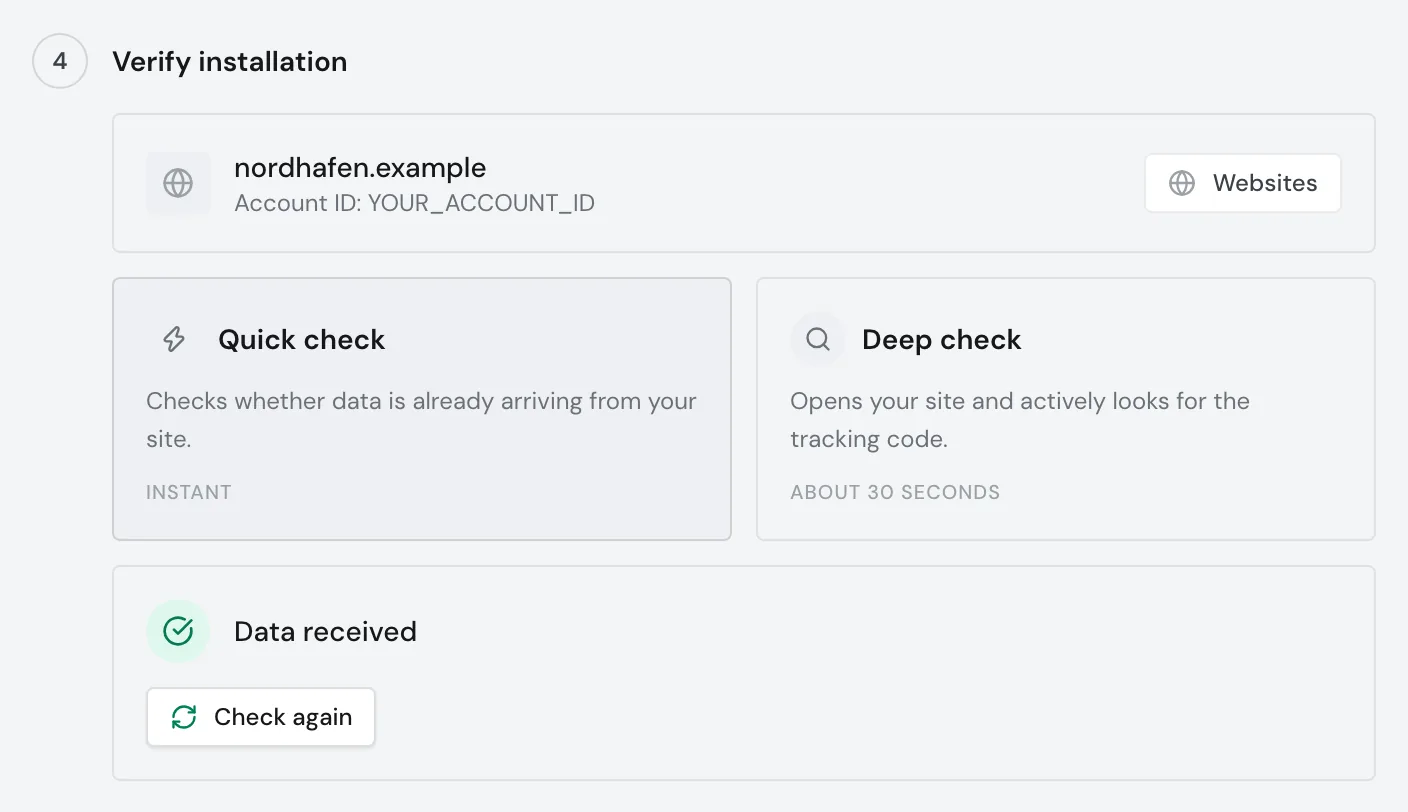
The quick check reports data as soon as any website in your account is **Active**. So check under [**Menu** > **Websites**](https://app.webmetic.de/?menu=websites) that this exact website shows **Active**. **Active** means Webmetic received data with your account ID in the last 24 hours.
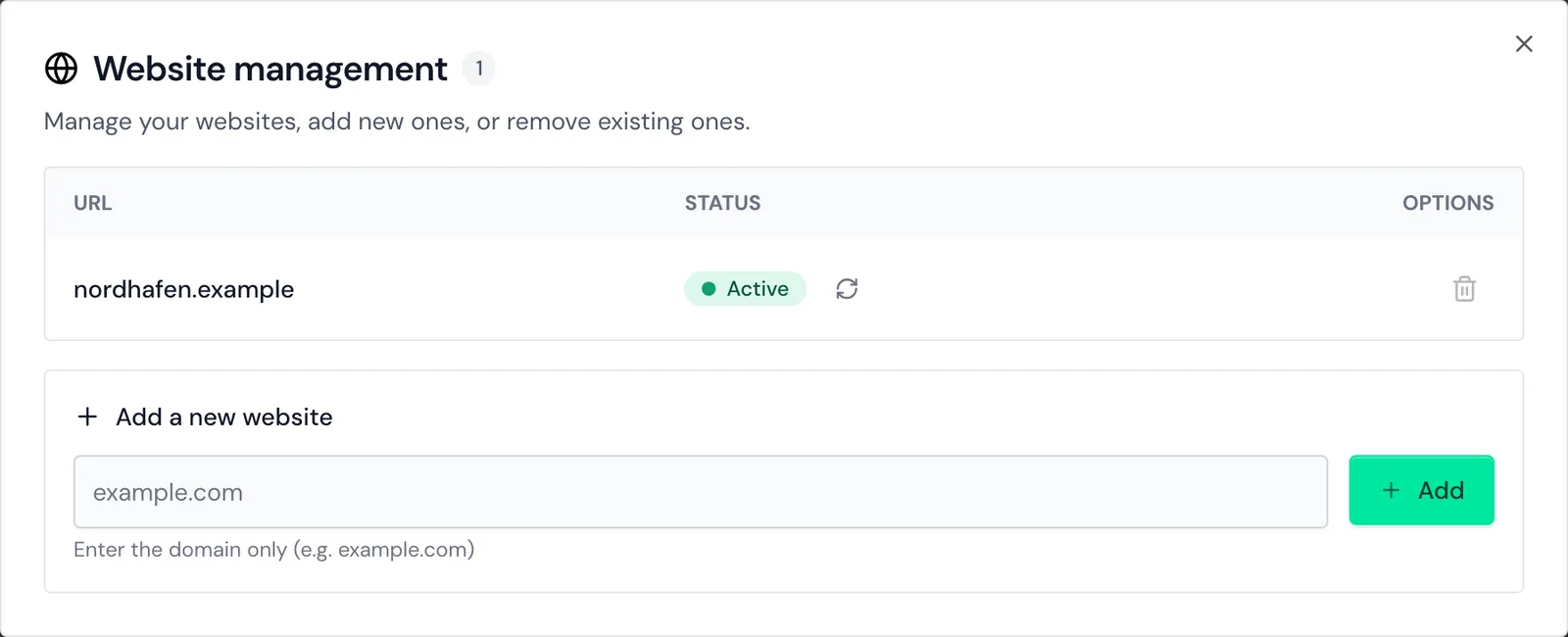
The **Deep check** opens your website and looks for the tracking code there in about 30 seconds, but it only checks the start page of the first website in your account.
### If nothing arrives [#if-nothing-arrives]
If the quick check shows the message **No data yet**, wait a few minutes and then click **Check again**. If the message stays, check these points:
- The code sits in the template that every page uses.
- The change is published, not only saved.
- No cache still serves old pages.
- The code comes from this Webmetic account. With another account's ID, the website stays **Not integrated**.
- The domain is listed under **Websites**.
For what else to check, see [Check your installation](https://webmetic.de/docs/en/installation/pruefen).
## Next steps [#next-steps]
- [Check your installation](https://webmetic.de/docs/en/installation/pruefen): Every result of the checks and what to do about errors.
- [Special cases](https://webmetic.de/docs/en/installation/sonderfaelle): Content Security Policy, several domains, caching, and consent tools.
- [How Webmetic works](https://webmetic.de/docs/en/wie-webmetic-funktioniert): How a visit turns into a company.