# Google Tag Manager (https://webmetic.de/docs/en/installation/google-tag-manager)
Recommended: Google Tag Manager, if your website already uses it. Then nobody has to touch your website's code.
At the end, the tracking code runs on every page and your website shows as **Active** in Webmetic.
## Before you start [#before-you-start]
- **Time**: Setup in Google Tag Manager takes a few minutes, and the first data arrives after a few minutes.
- **Account**: You need a Webmetic account, but no admin rights in it. Your website must be listed under [**Menu** > **Websites**](https://app.webmetic.de/?menu=websites).
- **Access**: Your website already runs a Google Tag Manager web container. The template doesn't support server containers or other container types.
- **Rights**: You can edit and publish the container in Google Tag Manager. Otherwise, pass this guide to the person who manages the container.
- **Plan**: The installation works on every plan and costs no credits. You can watch session recordings during the trial and on the Growth plan or higher.
If your website doesn't use Google Tag Manager, choose another method under [Installation](https://webmetic.de/docs/en/installation).
## 1. Copy your account ID [#1-copy-your-account-id]
The template needs your account ID so that Webmetic can assign the visits to your account.
1. In Webmetic, open [**Menu** > **Tracking code**](https://app.webmetic.de/?menu=tracking_code). The **Tracking Code** window opens.
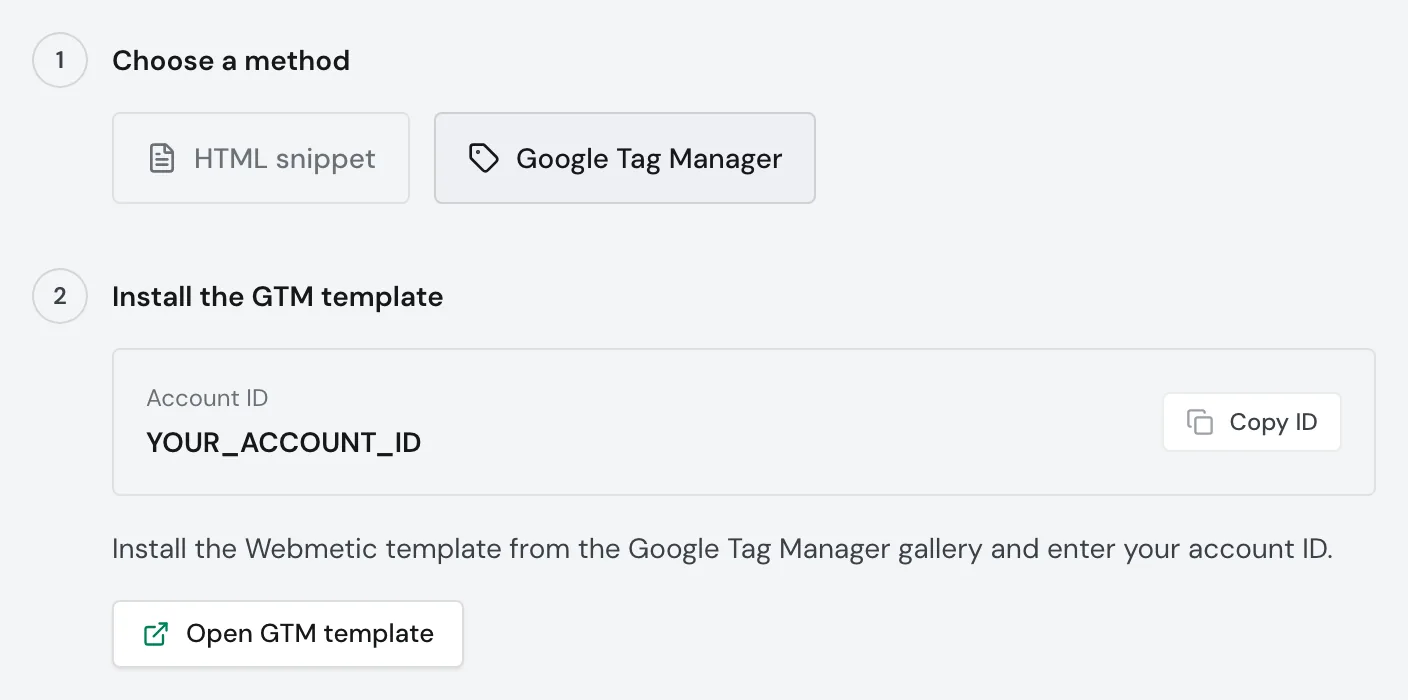
2. Under **Choose a method**, click **Google Tag Manager**. Webmetic shows the step **Install the GTM template** with your **Account ID**.
3. In the **Account ID** box, click **Copy ID**.
## 2. Add the template [#2-add-the-template]
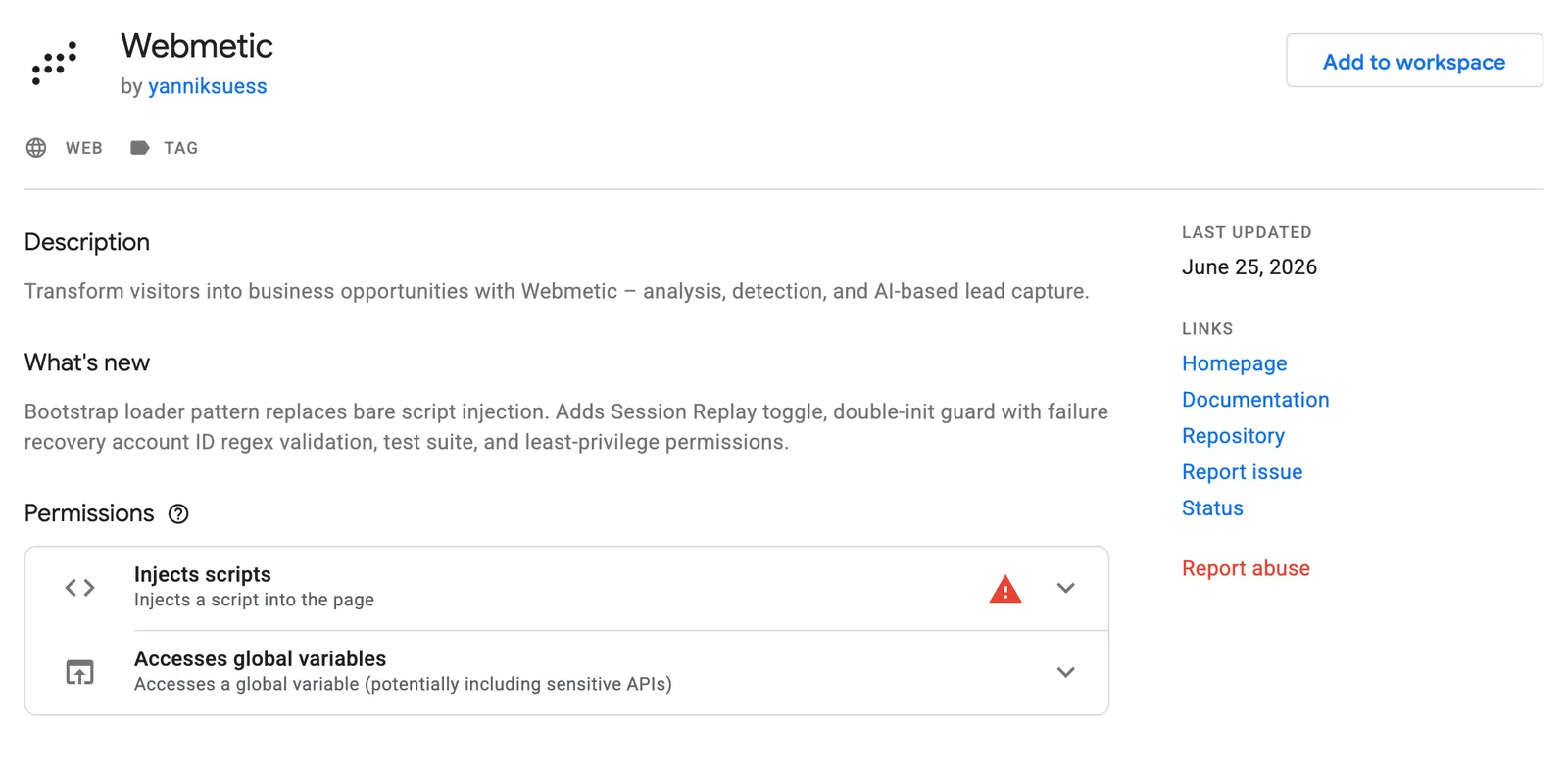
The template for the tracking code is called **Webmetic** and lives in the Google Tag Manager gallery. The **Open GTM template** button shows the template there, but you add it directly in your container:
1. Open [Google Tag Manager](https://tagmanager.google.com/) and select your website's account and container.
2. In your workspace, click **Templates**.
3. In the **Tag Templates** section, click **Search Gallery**.
4. Search for "Webmetic" and click the **Webmetic** template.
5. Click **Add to workspace**. A dialog shows what the template is allowed to do.
6. Confirm the dialog with **Add**. The template is now in your workspace.
## 3. Create the tag [#3-create-the-tag]
1. Click **Tags**, then **New**.
2. Click the **Tag Configuration** box.
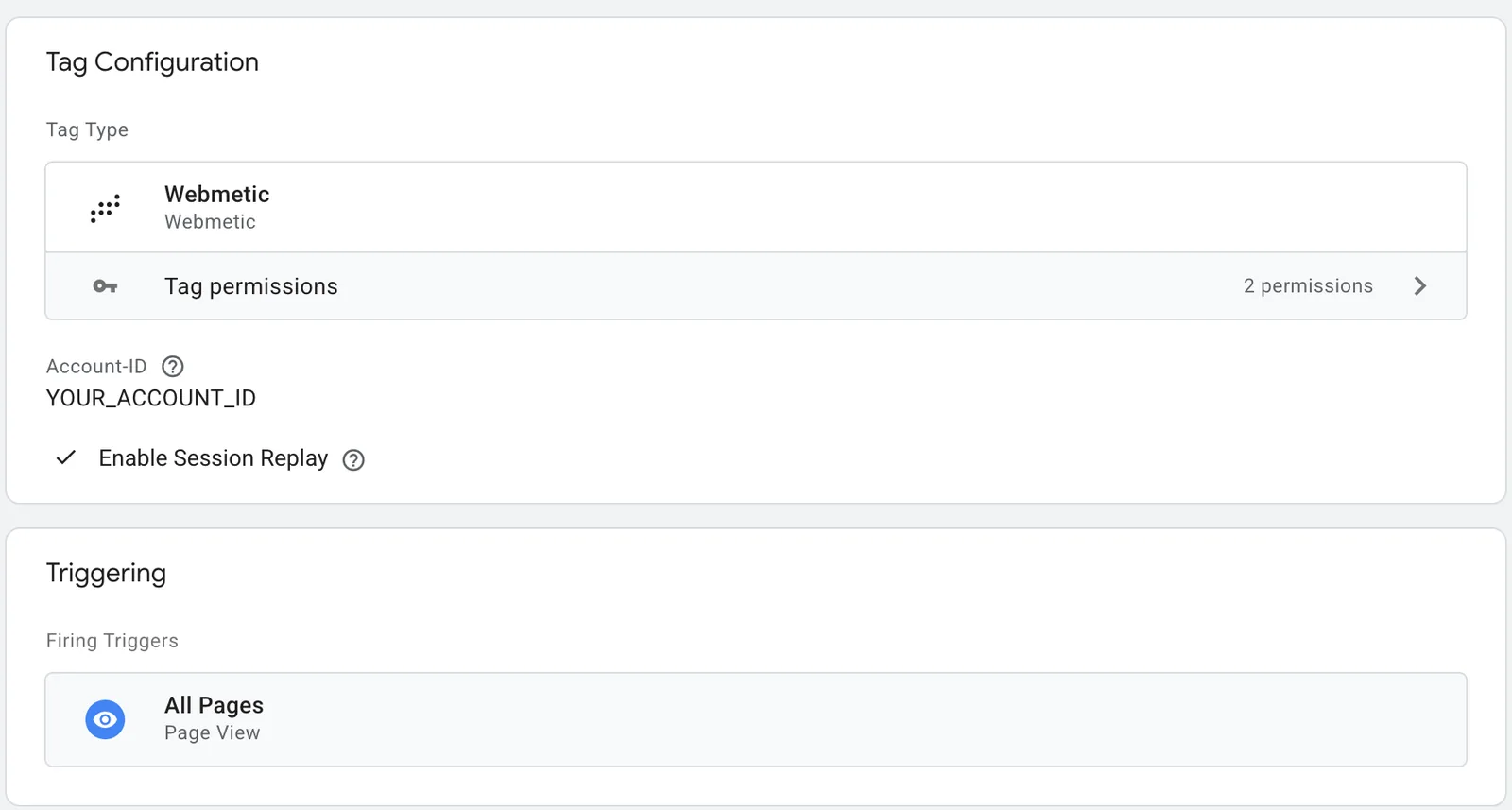
3. In the list of tag types, select **Webmetic**. The template shows the fields **Account-ID** and **Enable Session Replay**, in English in every Google Tag Manager language.
4. Paste your account ID into the **Account-ID** field. If the ID has the wrong format, the template reports "Invalid Account-ID".
5. Optional: If your plan includes session recording, turn on **Enable Session Replay**.
With the box ticked, Webmetic records mouse movements, clicks, and scrolling, and hides anything typed into form fields. The box is unticked by default in the template, but ticked in the HTML tracking code.
## 4. Choose the All Pages trigger [#4-choose-the-all-pages-trigger]
1. Below that, click the **Triggering** box.
2. Select the **All Pages** trigger, which has this name in every Google Tag Manager language. The tag now fires on every page view.
If your website changes pages without reloading, the tracking code picks that up by itself, and you don't need an extra trigger.
The Consent Initialization trigger isn't the right choice, because Google meant it only for consent tools.
The script doesn't set its own cookies, but it reads the ID of a Google Analytics cookie if one exists. Whether the code may load before consent is something to settle with your data protection advisor.
If it should load only after consent, choose a trigger that fires after consent instead of **All Pages**. Webmetic then only records visits with consent.
You'll find the text for your privacy policy in the **Tracking Code** window under **Privacy notice**. It's also under [Add the privacy notice](https://webmetic.de/docs/en/installation/alle-plattformen#4-add-the-privacy-notice) in German and English.
## 5. Save and publish [#5-save-and-publish]
Saved changes don't run on your website yet, because only publishing puts the tag live.
1. Give the tag a name, for example "Webmetic".
2. Click **Save**. The tag is now in your workspace.
3. Click **Submit** in the top right. The **Submit Changes** screen opens.
4. Select **Publish and Create Version**.
5. Optional: Under **Version Name**, enter a name, for example "Webmetic added".
6. Click **Publish**. From now on, every page of your website loads the tracking code through Google Tag Manager.
## Check your installation [#check-your-installation]
1. In Webmetic, switch to the **Tracking Code** window.
2. Under **Verify installation**, click **Quick check**. As soon as visits arrive, Webmetic shows the message **Data received**.
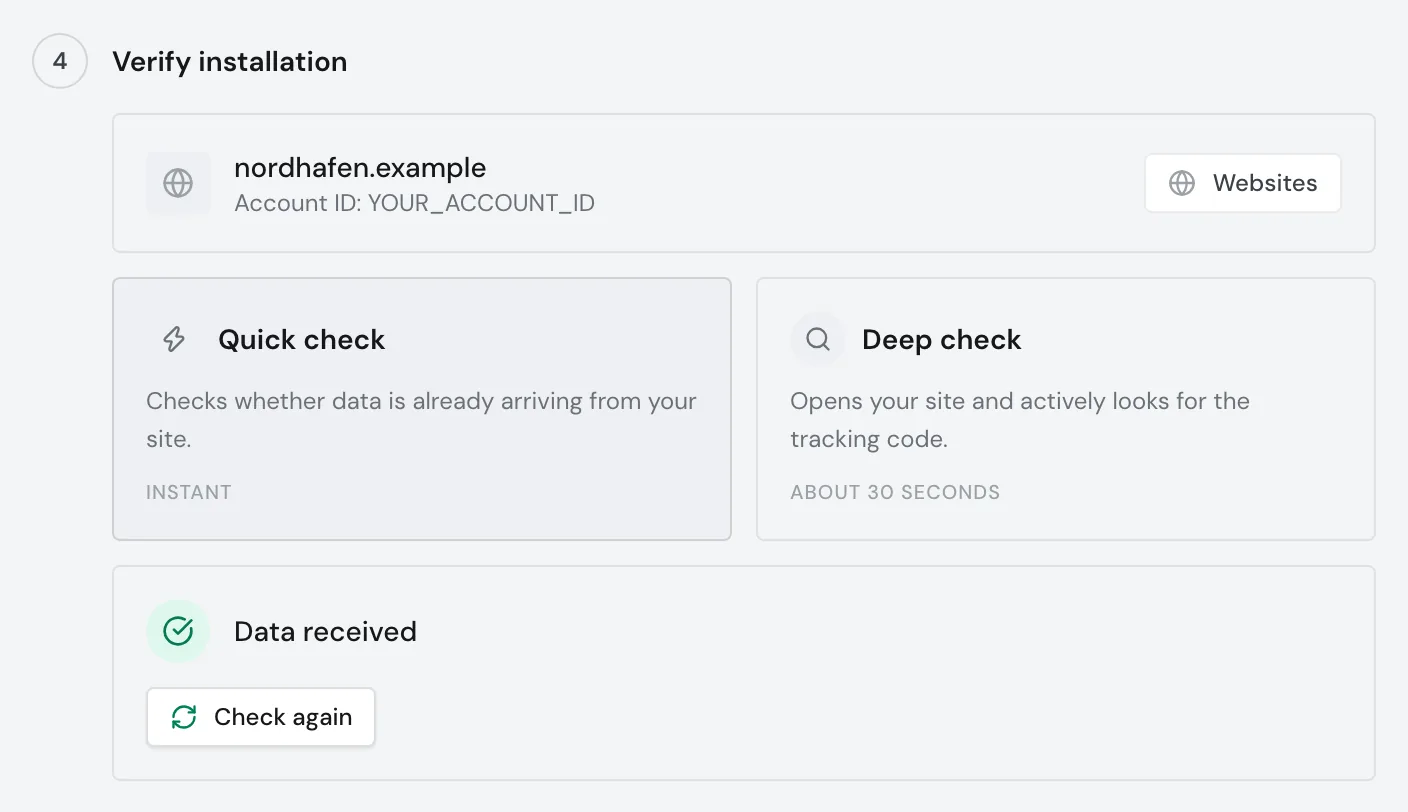
While Webmetic shows the message **No data yet**, wait a few minutes. If your website gets little traffic, open one of its pages yourself.
3. Optional: Under **Verify installation**, click **Deep check**. Webmetic opens your website and actively looks for the tracking code.
The deep check takes about 30 seconds and also recognizes an installation through Google Tag Manager. Webmetic only checks the first website in your account, and only its start page.
When the deep check finds the code, it shows the message **Tracking code installed correctly**. Below that, it shows whether the code loads only after cookie consent and whether session recording is active.
4. Open [**Menu** > **Websites**](https://app.webmetic.de/?menu=websites). In **Website management**, your website shows as **Active**.
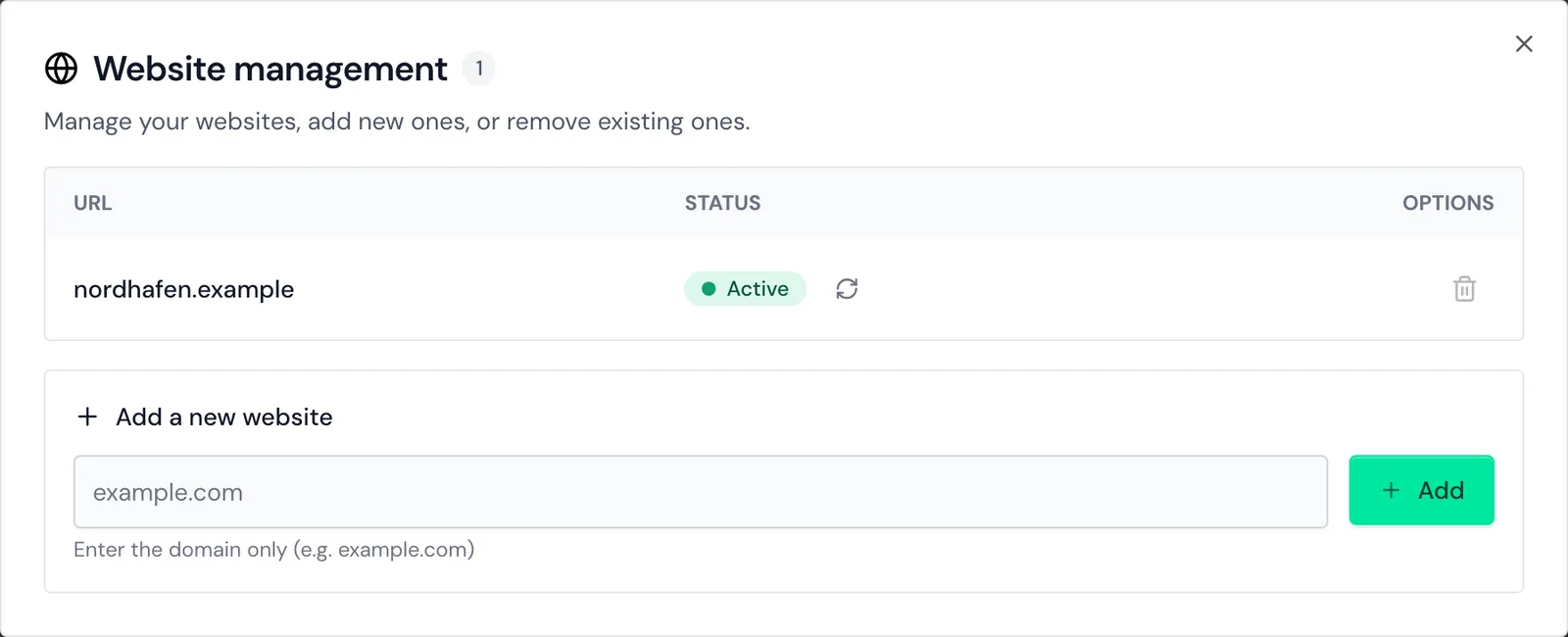
**Active** means that Webmetic received data with your account ID in the last 24 hours. If your account is new, this starts your trial.
When the first companies appear depends on how much traffic your website gets.
If nothing arrives, check these points:
- You published the container, because saving alone isn't enough.
- The tag uses the **All Pages** trigger. With a consent trigger, data only arrives once someone consents.
- The account ID in the tag is correct. Otherwise, the deep check shows the message **Wrong account ID found**.
- No cache is still serving the old version of your website.
For details, see [Check your installation](https://webmetic.de/docs/en/installation/pruefen).
1. On the **Workspace** tab, click **Preview**. Tag Assistant opens.
2. Enter your website's address and click **Connect**. Tag Assistant shows the status **Connected**.
3. Check that the **Webmetic** tag appears as fired.
## Next steps [#next-steps]
- [Check your installation](https://webmetic.de/docs/en/installation/pruefen): Read your website's status and find the cause when nothing arrives.
- [Special cases](https://webmetic.de/docs/en/installation/sonderfaelle): Track several domains, subdomains, and single-page apps correctly.
- [Get started](https://webmetic.de/docs/en/erste-schritte): See your first companies, create segments, and connect your CRM.