# Shopify (https://webmetic.de/docs/en/installation/shopify)
There's no Shopify app: you add the code from the dashboard to your theme yourself. At the end you'll have:
- the tracking code on every page of your Shopify theme
- your shop with the status **Active** in Webmetic
- the message **Data received** in the **Quick check**
## Before you start [#before-you-start]
- **Time**: The first data arrives after a few minutes. The first companies appear within minutes to hours, depending on how much traffic your website gets.
- **Account**: Your shop needs its own domain that's listed under [**Menu** > **Websites**](https://app.webmetic.de/?menu=websites). Otherwise, Webmetic doesn't count visits to `your-shop.myshopify.com` toward your domain.
- **Access**: You need access to the Shopify admin with permission to edit your theme's code. Otherwise, hand step 2 over to your agency.
- **Rights**: Admin rights in Webmetic aren't needed for the tracking code.
- **Plan**: The tracking code works on every plan and costs no credits. You can watch session recordings during the trial and on the Growth plan or higher.
If your shop runs on a subdomain such as `shop.your-website.com`, the main domain under **Websites** is enough, because Webmetic counts subdomains toward the main domain.
Webmetic records every page your theme serves, with two exceptions:
- **Checkout**: The checkout doesn't use your theme. That's why the tracking code doesn't run there, and the checkout pages are missing in Webmetic.
- **Custom pixels**: Shopify runs custom pixels in a sandbox, where the tracking code can't see your shop's page. That's why Webmetic doesn't support this route.
## 1. Copy the tracking code [#1-copy-the-tracking-code]
1. Open [**Menu** > **Tracking code**](https://app.webmetic.de/?menu=tracking_code), where **HTML snippet** is already selected under **Choose a method**.
2. Under **Copy the snippet**, decide whether the **Session recording** option stays ticked.
3. Click **Copy**. The copied code already contains your account ID, so there's nothing to change in it.
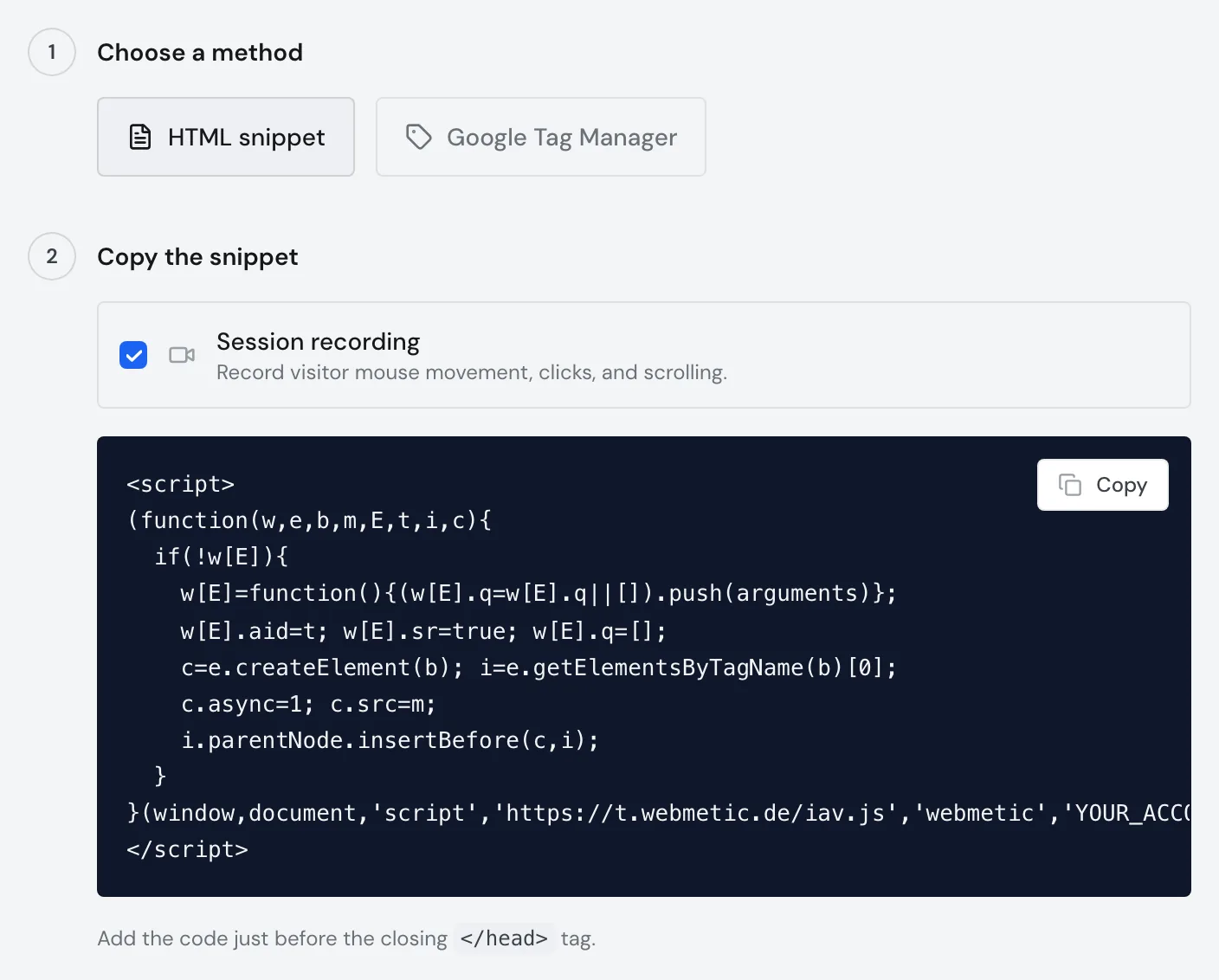
**Session recording** captures mouse movement, clicks, and scrolling, and Webmetic hides anything typed into form fields. If your plan includes session recording, leave the box ticked. Otherwise, untick it.
You copy the text for your privacy policy in the **Tracking Code** window under **Privacy notice**. You'll also find the text in German and English under [Add the privacy notice](https://webmetic.de/docs/en/installation/alle-plattformen#4-add-the-privacy-notice).
Copy the code from the dashboard, not from this page, because only the dashboard shows your account ID instead of `YOUR_ACCOUNT_ID`.
```html
```
Without session recording, line 5 lacks the part `w[E].sr=true;`. For details, see [Tracking code in the HTML](https://webmetic.de/docs/en/installation/alle-plattformen).
## 2. Add the code to your theme [#2-add-the-code-to-your-theme]
1. In the Shopify admin, open **Online Store** > **Themes**.
2. Duplicate the theme your shop currently uses. Shopify recommends this backup copy before any change to a theme's code.
3. On the theme your shop uses (not on the copy), click the button with the three dots (⋯), then click **Edit code** to open the code editor.
4. In the **layout** folder, click the file `theme.liquid`.
5. Paste the tracking code on a blank line in the `` section. We recommend the spot directly before ``, as the dashboard says.
6. Click **Save**, and from now on every page the theme serves loads the tracking code.
If your code changes aren't compatible with a theme update, Shopify removes them in the updated copy. After every theme update, check that the tracking code is still in `theme.liquid`.
## Check your installation [#check-your-installation]
1. Open the shop on its own domain in a new browser window and visit a few pages.
2. In Webmetic, open [**Menu** > **Tracking code**](https://app.webmetic.de/?menu=tracking_code) and click **Quick check** under **Verify installation**. Webmetic shows the message **Data received**.
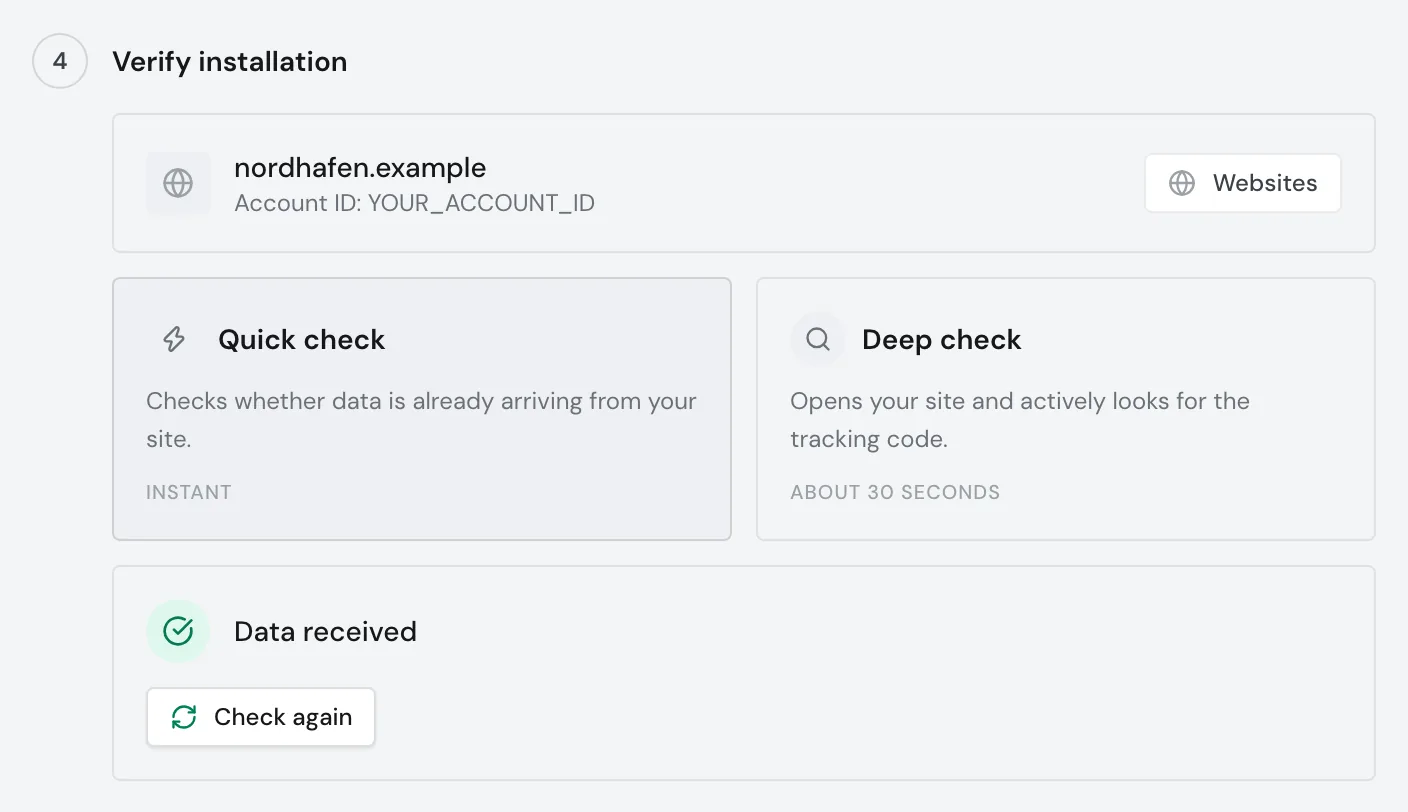
The quick check reports data as soon as any website in your account sends data. If you have several websites, also open [**Menu** > **Websites**](https://app.webmetic.de/?menu=websites) and check that your shop shows **Active** there.
### If nothing arrives [#if-nothing-arrives]
If the quick check shows the message **No data yet**, wait a few minutes and click **Check again**. If the message stays, confirm these points:
- The code is in the theme your shop uses, not in the copy.
- The change in `theme.liquid` is saved with **Save**.
- Your shop's domain is listed under **Websites**.
- No cache is still serving the old version of your pages.
Webmetic sets no cookies of its own and processes the data in pseudonymised form. If present, however, the script reads the identifier of a Google Analytics cookie.
Whether the code may load before consent is a question for your data protection advisor. If it loads only after consent, Webmetic records only the visits after consent.
If the code should load only after consent, you set that up yourself. According to Shopify, its cookie banner covers only Shopify's own tools. For your own code in the theme, Shopify suggests a third-party cookie banner or custom logic in the theme.
## Next steps [#next-steps]
- [Check your installation](https://webmetic.de/docs/en/installation/pruefen): Status, deep check, and common causes when no data arrives.
- [Special cases](https://webmetic.de/docs/en/installation/sonderfaelle): Several domains, caching, consent tools, and staging sites.
- [How Webmetic works](https://webmetic.de/docs/en/wie-webmetic-funktioniert): How a visit to your shop becomes a company.