# Install Smart Pages (https://webmetic.de/docs/en/smart-pages/einbinden)
The Smart Pages code is a separate script that swaps the texts of your Smart Pages. At the end you'll have:
- the Smart Pages code in the head of every page that has a Smart Page
- the message **Snippet installed correctly** after **Check integration**
- live Smart Pages that identified companies see on your website
## Before you start [#before-you-start]
- **Plan**: You can design Smart Pages, preview them, and test them on your website on every plan. You can publish them in the trial, the Growth plan, and Enterprise. White-label customers of a partner don't see the tab.
- **Rights**: Every user in your account can create, edit, publish, and delete Smart Pages. You don't need admin rights for this.
- **Cost**: Smart Pages cost no credits.
- **Smart Page**: You need at least one Smart Page, because Webmetic shows the code only in its editor. The Smart Page's address must belong to a website in your account.
- **Screen**: You open the editor on a screen at least 1,024 pixels wide. On smaller screens you only see the list of your Smart Pages.
- **Access**: You need write access to your website's head, meaning the template or the matching setting in your CMS. Otherwise, pass the code on to whoever maintains your website.
- **Tracking code**: You don't need the tracking code for texts to change. Only the comparison figures in the [report](https://webmetic.de/docs/en/smart-pages/auswertung) require it.
The Smart Pages code identifies the company by itself and works independently of the [tracking code](https://webmetic.de/docs/en/installation), so the two can sit on the same page.
## 1. Copy the Smart Pages code [#1-copy-the-smart-pages-code]
1. Click the [**Smart Pages**](https://app.webmetic.de/?menu=smart_pages) tab at the top. Webmetic shows the list of your Smart Pages.
2. Click a Smart Page. The editor opens.
3. At the top of the editor, click **Integration**. The **Install Smart Pages** dialog opens.
4. Click the icon with the tooltip **Copy snippet**. The icon briefly shows a check mark.
In a narrower window the tab shows only its icon, and the name appears when you point at it.
The copied code already contains your account ID and works for all Smart Pages and all websites in your account.
## 2. Add the code to the head [#2-add-the-code-to-the-head]
The code must be in the head of every page that has a Smart Page. So add it to the template that builds the head of all pages.
1. Open the template or layout for the head of your pages.
2. Paste the code as high up in the `` as possible, before all other scripts.
3. Save the file.
```html
```
Copy the code from the dashboard, not from this page: only the dashboard shows your account ID instead of `YOUR_ACCOUNT_ID`.
Don't add `async` or `defer`. The code has to run before the page appears, so that visitors from identified companies see the matching text right away.
Whether the code may load before consent is a question for your data protection advisor. If your consent tool blocks the code until consent, Webmetic shows the texts only after that. For questions about the data the code sends, contact [Support](https://webmetic.de/docs/en/konto/support).
If a caching plugin delays or bundles your scripts, exclude `api.webmetic.de/sp/` from that. Add the code only once per page, because it has no protection against loading twice.
The Webmetic template for [Google Tag Manager](https://webmetic.de/docs/en/installation/google-tag-manager) and the [Webmetic plugin for WordPress](https://webmetic.de/docs/en/installation/wordpress) only add the tracking code. The Smart Pages code goes directly into your website's HTML.
## 3. Publish the change [#3-publish-the-change]
1. Publish the change on your live website.
2. Clear all caches, for example in your CMS or in a caching plugin. Otherwise your website still serves the old version without the code.
After that, a page cache doesn't get in the way of Smart Pages, because the code fetches the texts again on every visit.
## Check the installation [#check-the-installation]
The check opens your Smart Page's address in a browser and looks for the code there, not on other pages of your website.
1. In your Smart Page's editor, click **Integration**.
2. Click **Check integration**. After up to a minute, Webmetic shows the result.
If the code sits correctly on the page, Webmetic shows the message **Snippet installed correctly**.
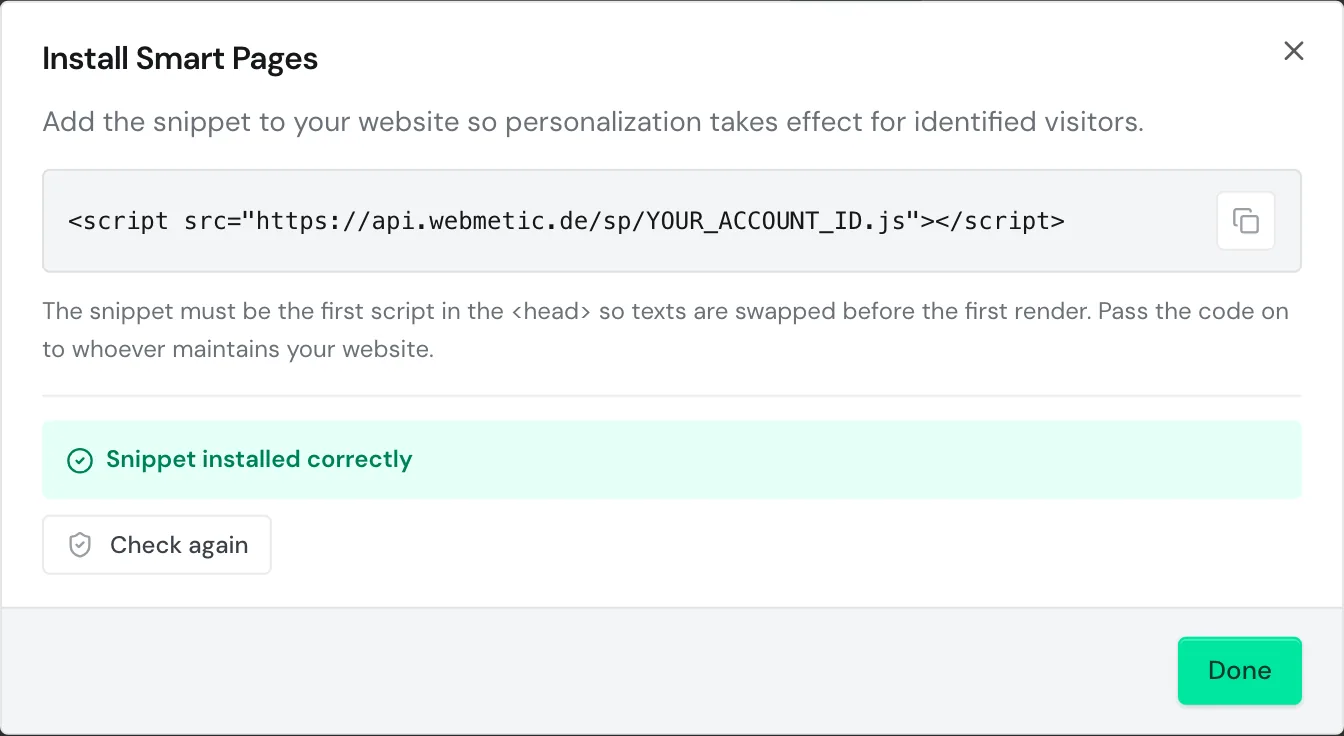
After that, the button reads **Check again**, and in the editor a green dot on the **Integration** button shows that Webmetic found the code. Webmetic also checks this when you open the editor.
A missing code blocks neither testing nor going live. If the code is missing, Webmetic opens this dialog by itself at both points. The **Test anyway** button then leads to the test link, and **Publish anyway** to the **Check & go live** dialog.
### If the check reports problems [#if-the-check-reports-problems]
If the check doesn't find the code, it shows one of these messages:
| Message | What you do |
| --- | --- |
| **Snippet not found. Please check the installation and clear the page cache if needed.** | Check that the code is on exactly this page and that the change is published. Then clear all caches. |
| **Check failed. Is the page reachable?** | Webmetic couldn't open the page, for example because of a login or bot protection. If you're sure the code is on the page, you can still test and go live. |
If the check finds the code but detects problems, it shows the message **Snippet found, but:** with one line per problem below:
| Line | What you do |
| --- | --- |
| **loaded with async/defer: please remove both, otherwise content visibly flickers** | Remove `async` and `defer`. Also check plugins that delay scripts. |
| **not placed in the <head>** | Move the code into the head, before all other scripts. |
| **only loads after cookie consent: visitors without consent see the original, after consent the texts change visibly** | Your consent tool blocks the code until consent. Whether it should stay that way is a question for your data protection advisor. |
| **script does not execute (blocker or error on the page)** | The code is on the page but doesn't run. Check your Content Security Policy and plugins that block scripts. |
| **wrong account ID** with two IDs | The code comes from another Webmetic account. Copy it again from this account. |
For more causes, see [Troubleshooting](https://webmetic.de/docs/en/smart-pages/fehlerbehebung).
If your website uses a Content Security Policy, add `https://api.webmetic.de` to `script-src` and `connect-src`. The code loads from there and fetches its texts from there.
```text
script-src https://api.webmetic.de;
connect-src https://api.webmetic.de;
```
Delete the code from your website's head, which is the only way to stop the script from loading. If you pause texts or delete Smart Pages in the dashboard, the code keeps loading but changes nothing.
## Next steps [#next-steps]
- [Test and go live](https://webmetic.de/docs/en/smart-pages/testen-und-live-schalten): Check your Smart Page with a test link and take it live.
- [Troubleshooting](https://webmetic.de/docs/en/smart-pages/fehlerbehebung): What to do when texts don't change.