# Assign tags (https://webmetic.de/docs/en/visitor-intelligence/tags)
A tag is a colored marker, for example Kunde (customer) or Kontaktiert (contacted). Webmetic shows tags in the profile and on the cards in the company list. A card shows up to two tags and groups the rest as "+N".
The tags themselves apply to your whole account, while assigning one to a company applies to one website only. At the end you'll have:
- companies with colored tags on their cards and in the profile
- optionally, a segment that tags new matching companies automatically
- optionally, known domains tagged in one go
## Before you start [#before-you-start]
- **Time**: You assign a tag with two clicks.
- **Account**: You need a Webmetic account with at least one website on which Webmetic has identified companies.
- **Rights**: Any user in your account can create, change, delete, and import tags. You don't need admin rights.
- **Plan**: Tags are available in every plan and don't cost credits. On the Free plan, you see the first 10 new companies per month by name. You can tag only these companies and the companies from your trial or paid period. For details, see [Free plan](https://webmetic.de/docs/en/visitor-intelligence/unternehmensliste#spot-hidden-companies-on-the-free-plan).
Deleting a tag cannot be undone.
## Assign a tag [#assign-a-tag]
When your trial starts, Webmetic creates four tags: Kunde (green), Kontaktiert (blue), Nicht relevant (red), and Lieferant (purple). The names stay in German, also when your dashboard is in English. The test company Webmetic GmbH already carries the tag Lieferant.
1. In the company list, click a company. The **Tags** section sits to the right of the profile.
2. Click **Assign tag**. You see all tags in your account, in the order they were created.
3. Click a tag. Webmetic assigns it at once, adds a check mark, and shows the tag above the button.
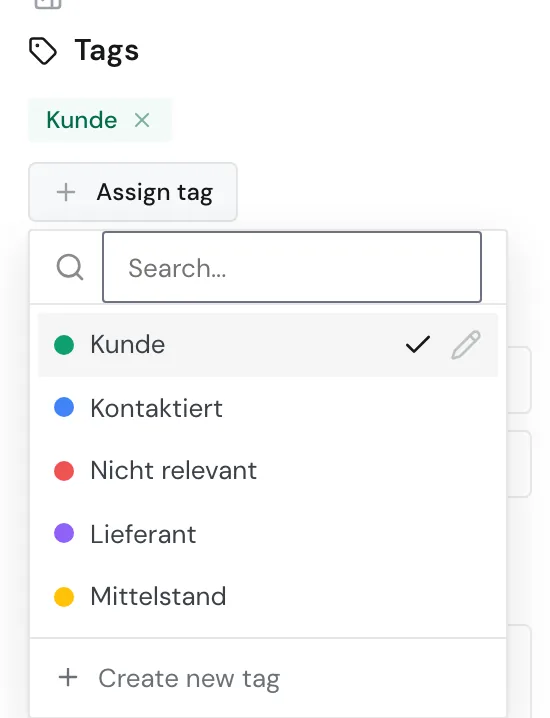
If you have many tags, narrow the list with the search field at the top. If the window is narrower, Webmetic only shows a strip of icons on the right. In that case, click **Open sidebar** first. On a smartphone and on a tablet in portrait mode, tap the sidebar icon at the top right of the profile.
## Remove a tag [#remove-a-tag]
You can remove a tag in two ways:
- In the profile, click the × on the tag.
- Under **Assign tag**, click the tag with the check mark again.
Webmetic removes the tag at once and without asking. The tag itself stays in your account and on every other company.
## Create a tag [#create-a-tag]
1. In the profile, click **Assign tag**.
2. Click **Create new tag**. The **New tag** form opens.
3. Enter a name.
4. Pick one of the eight colors: Blue, Green, Red, Purple, Sky, Amber, Pink, or Gray. Blue is the default. When you point at a color with the mouse, Webmetic shows its name.
5. Click **Save**. Webmetic creates the tag and assigns it to the open company right away.
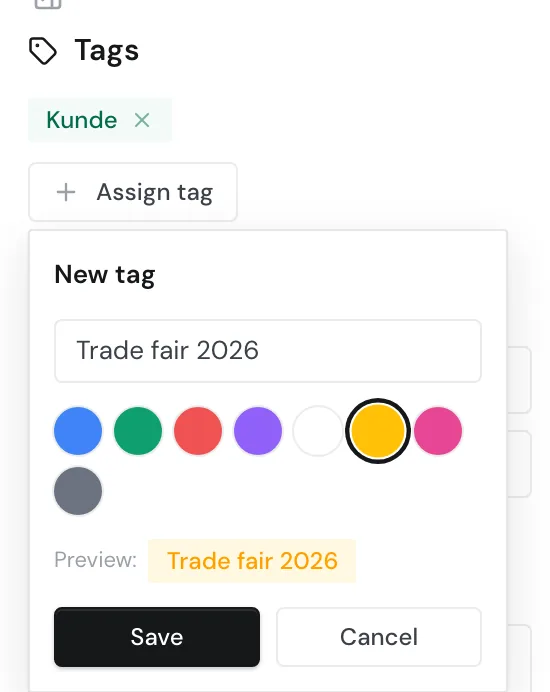
A preview in the form shows the finished tag. Each tag name may exist only once. If the name is already taken, nothing happens when you save.
## Rename a tag or change its color [#rename-a-tag-or-change-its-color]
1. In the profile, click **Assign tag**.
2. Point at the tag and click the pencil icon. The **Edit tag** form opens.
3. Change the name or the color.
4. Click **Save**.
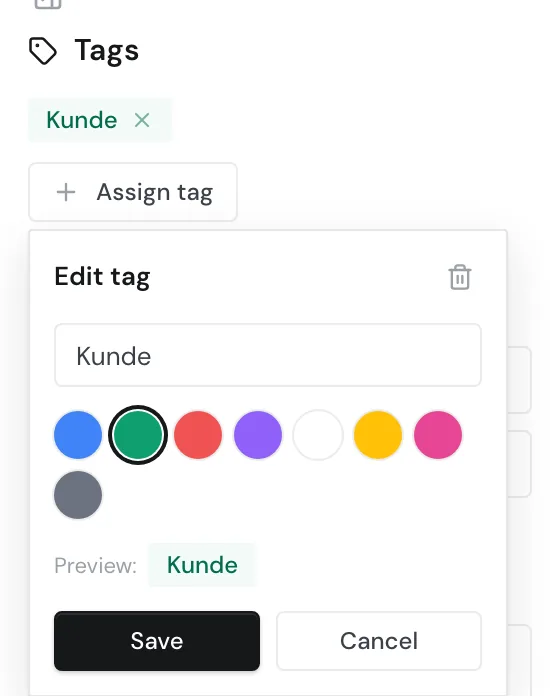
The change applies at once wherever the tag is assigned, including your other websites.
## Delete a tag [#delete-a-tag]
Webmetic deletes the tag without asking. It disappears from every company on every website and from every segment. This cannot be undone. If only one company should lose the tag, remove it there.
1. Open the **Edit tag** form as described above.
2. Click the trash icon **Delete tag**. Webmetic deletes the tag at once.
The tag picker in the segment builder offers the same trash icon, which also deletes the tag across the whole account.
## Assign tags through a segment [#assign-tags-through-a-segment]
You can't select several companies at once in the list. For that, use segments and the CSV tag import. A segment with tags assigns them to every matching company on its website when you save it. After that, Webmetic checks every 15 minutes during the day which companies newly match, and tags them too.
If a company later drops out of the segment, it keeps the tag. This also applies if you delete the segment.
If you remove a tag from a segment, Webmetic removes that tag from every company on the website, including companies where you assigned it by hand.
1. Above the list, click **Create segment**, or open an existing segment. The segment builder opens.
2. Click **Add condition** and define which companies belong in the segment.
3. In the **Tags** section at the bottom, click **Assign tag** and pick one or more tags.
4. Click **Save segment** or **Update segment**. Webmetic now assigns the tags to every matching company.
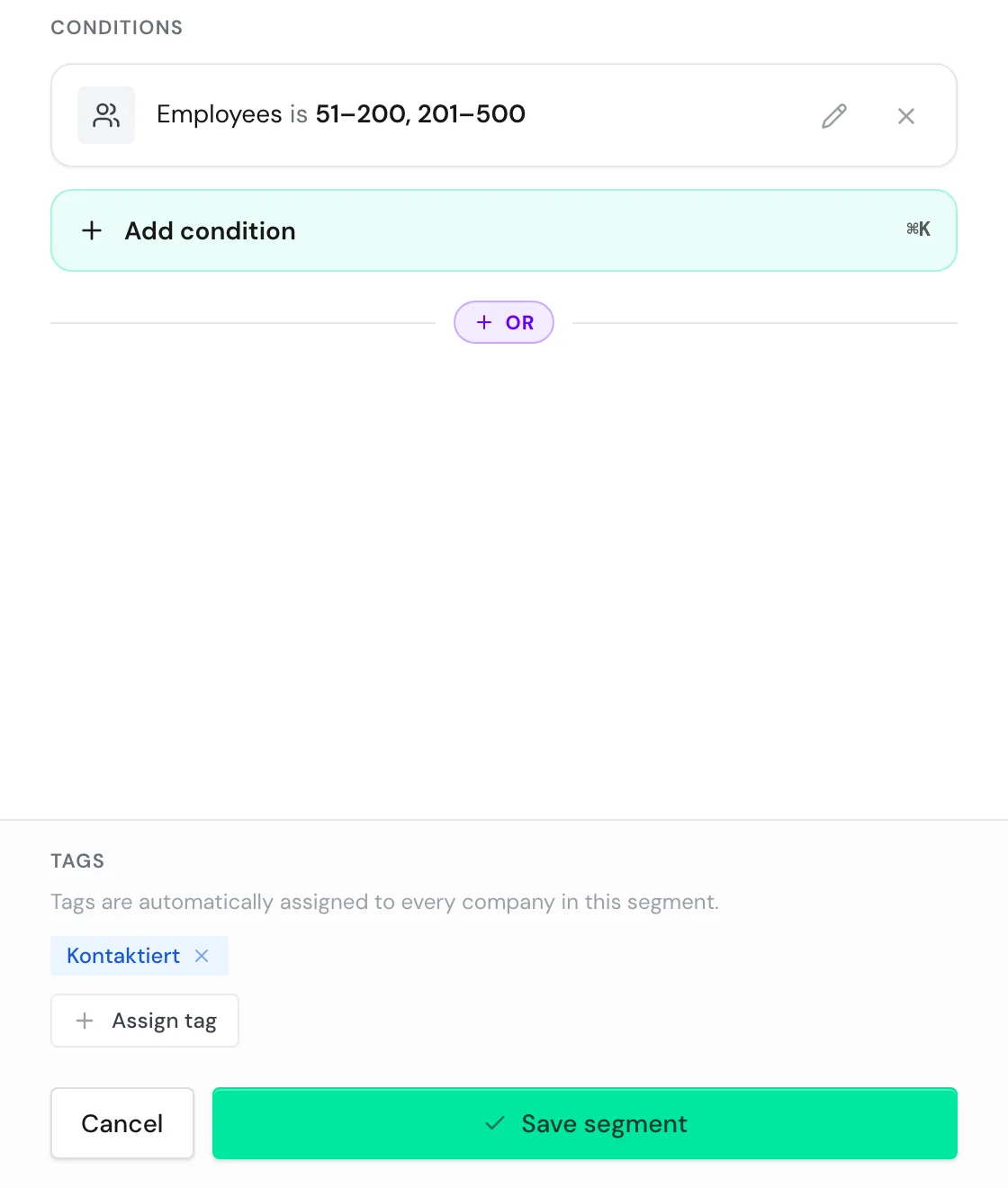
Webmetic assigns the tags only when you save. A tag you create inside the segment builder is available in your whole account right away, though, even if you cancel afterward.
## Filter by tag [#filter-by-tag]
The search above the list ignores tags, so you filter by tag with a condition in a segment.
1. Click **Create segment**.
2. Click **Add condition** and choose the field **Tag** in the **Tags** section.
3. Choose **is** or **is not**.
4. Pick a tag and apply the condition.
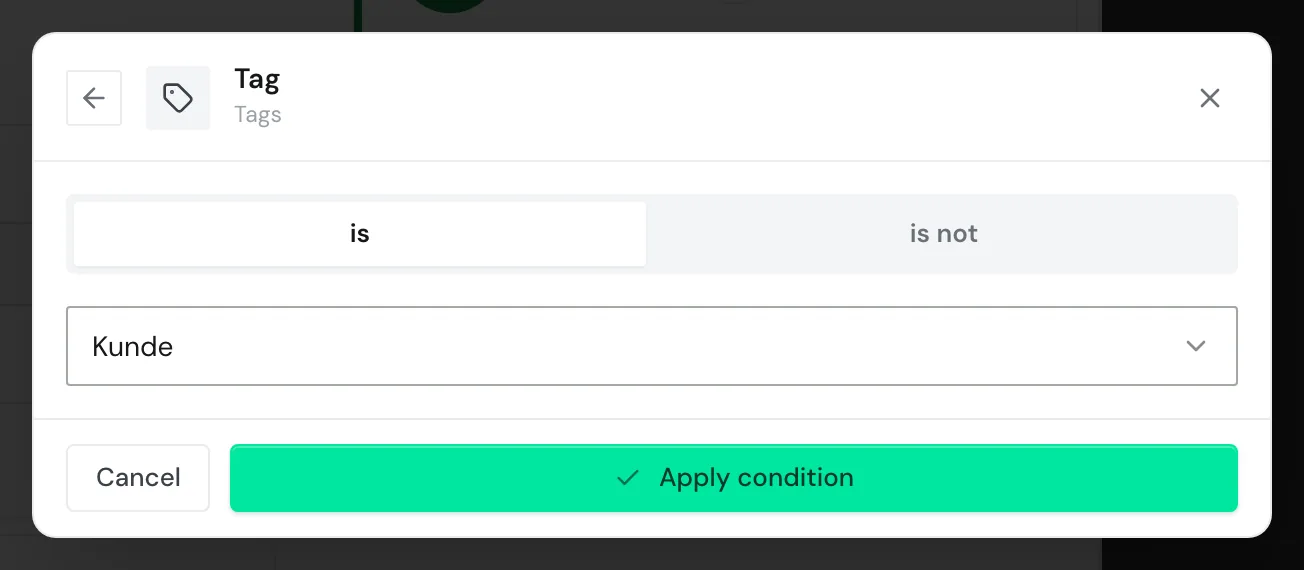
With each condition, you check exactly one tag. [Create a segment](https://webmetic.de/docs/en/segmente/segment-builder) describes how to save a segment. For combining segments with the search, see [Filters and search](https://webmetic.de/docs/en/visitor-intelligence/filter-und-suche).
## Import tags from a CSV file [#import-tags-from-a-csv-file]
With the CSV tag import, you mark known companies in one go, for example all customers or suppliers. This feature is in beta. Names and settings may still change.
The file is a CSV or text file with one domain per line in the first column:
```text
Domain
kunde-a.example
https://www.kunde-b.example/team
shop.kunde-c.example
```
Your file follows these rules:
- **First column**: Webmetic reads only the first value of each line. Comma, semicolon, and tab separate the columns.
- **Clean-up**: Webmetic strips `https://`, `www.`, paths, and ports. It skips lines without a dot, so a header such as `Domain` is skipped too.
- **Subdomains**: Webmetic compares the main domain, so `shop.kunde-c.example` matches `kunde-c.example`.
- **Matching**: Webmetic looks for the domains among the companies already in your lists, across all websites in the account. Date range and segment play no part.
- **Repeats**: Webmetic skips duplicate lines and tags that are already assigned, so a second import does no harm.
Webmetic doesn't remember unknown domains. If such a company visits your website later, it only receives the tag after a new import.
On the Free plan, companies without a visible name count as not found. The import cannot remove tags.
1. Open [**Menu** > **Company** > **CSV tag import**](https://app.webmetic.de/?menu=csv_tag). The **CSV tag import** window opens.
2. Click **Select CSV file** and choose your file. Webmetic shows the number of detected domains and the first five of them. Up to this point, the file doesn't leave your browser.
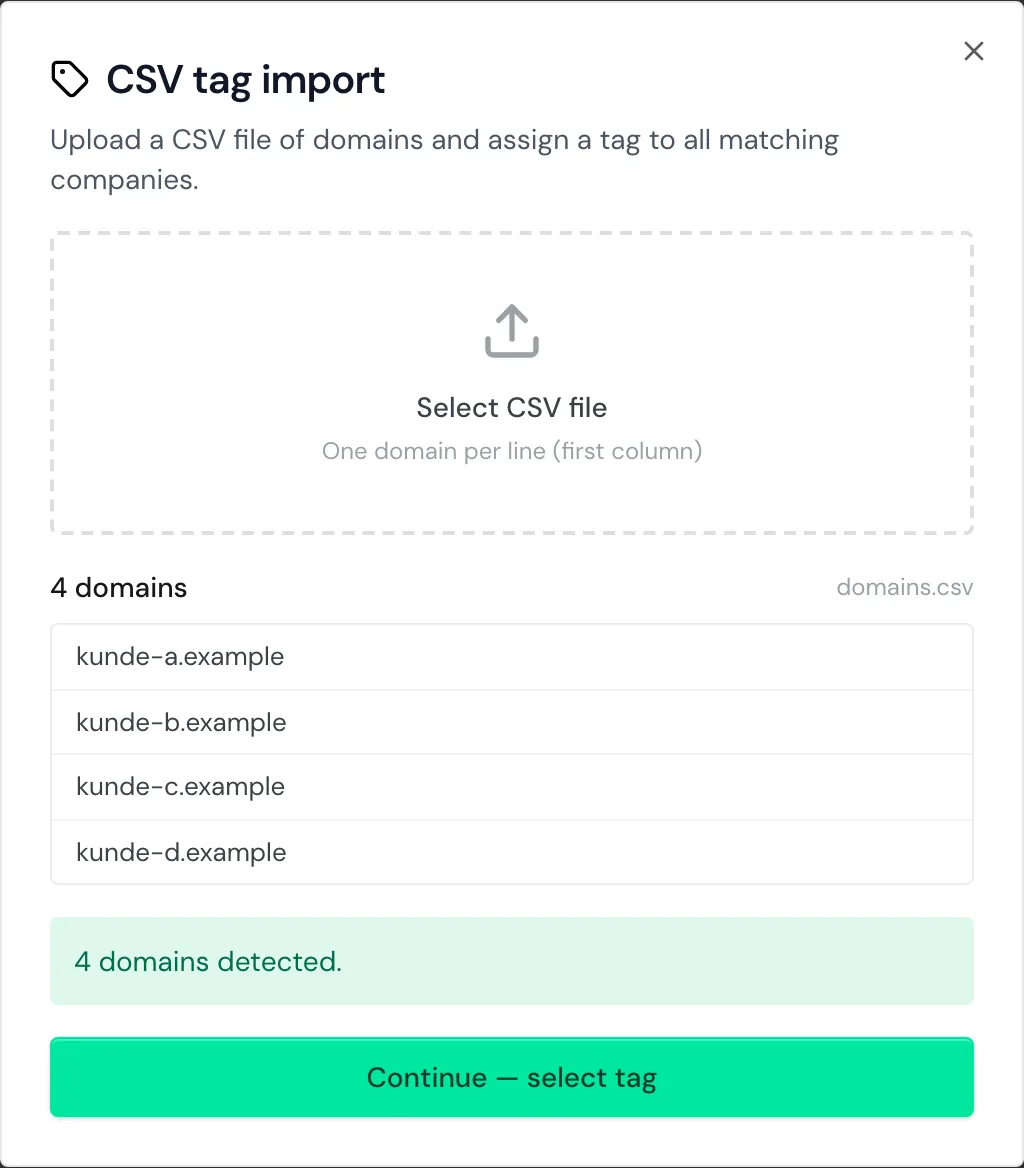
3. Click **Continue — select tag**.
4. Pick a tag, or create one with **Create new tag**.
5. Click the button **Assign tag “Kunde”**, which carries the name of the tag you picked.
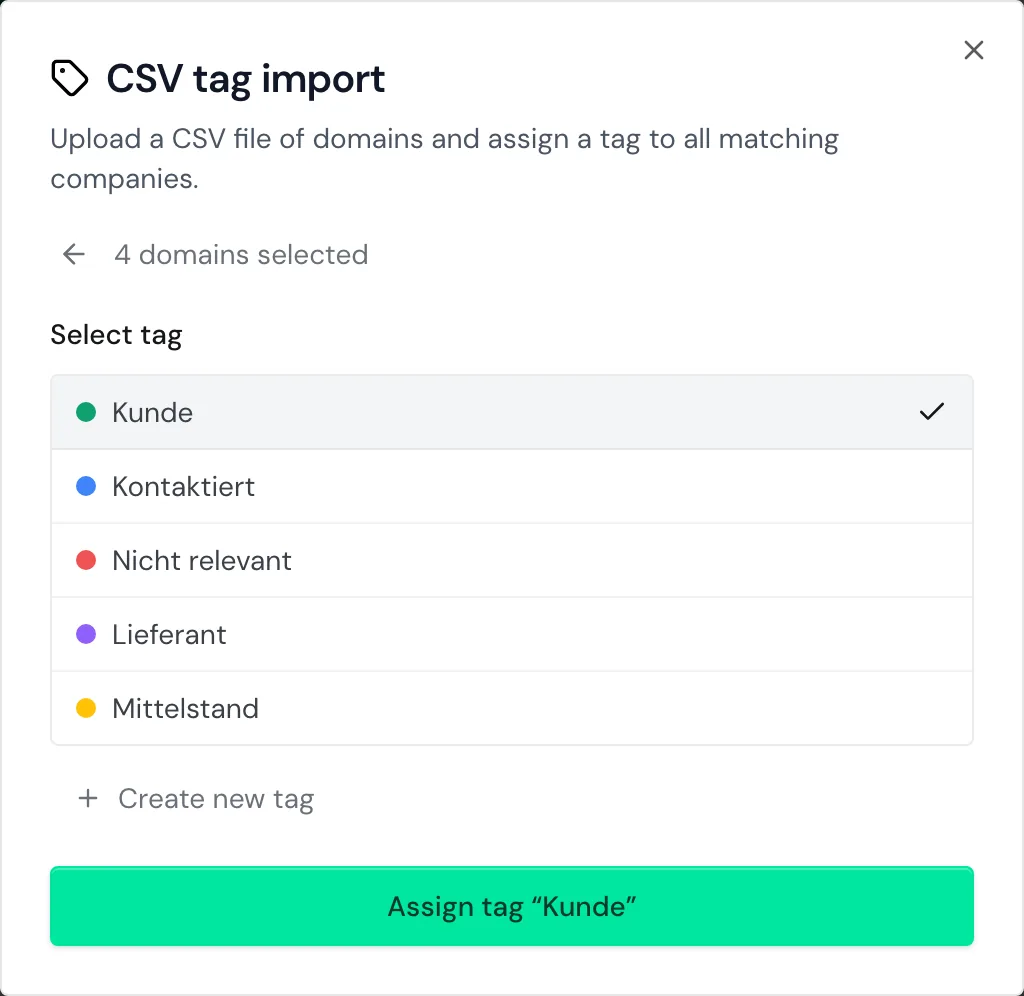
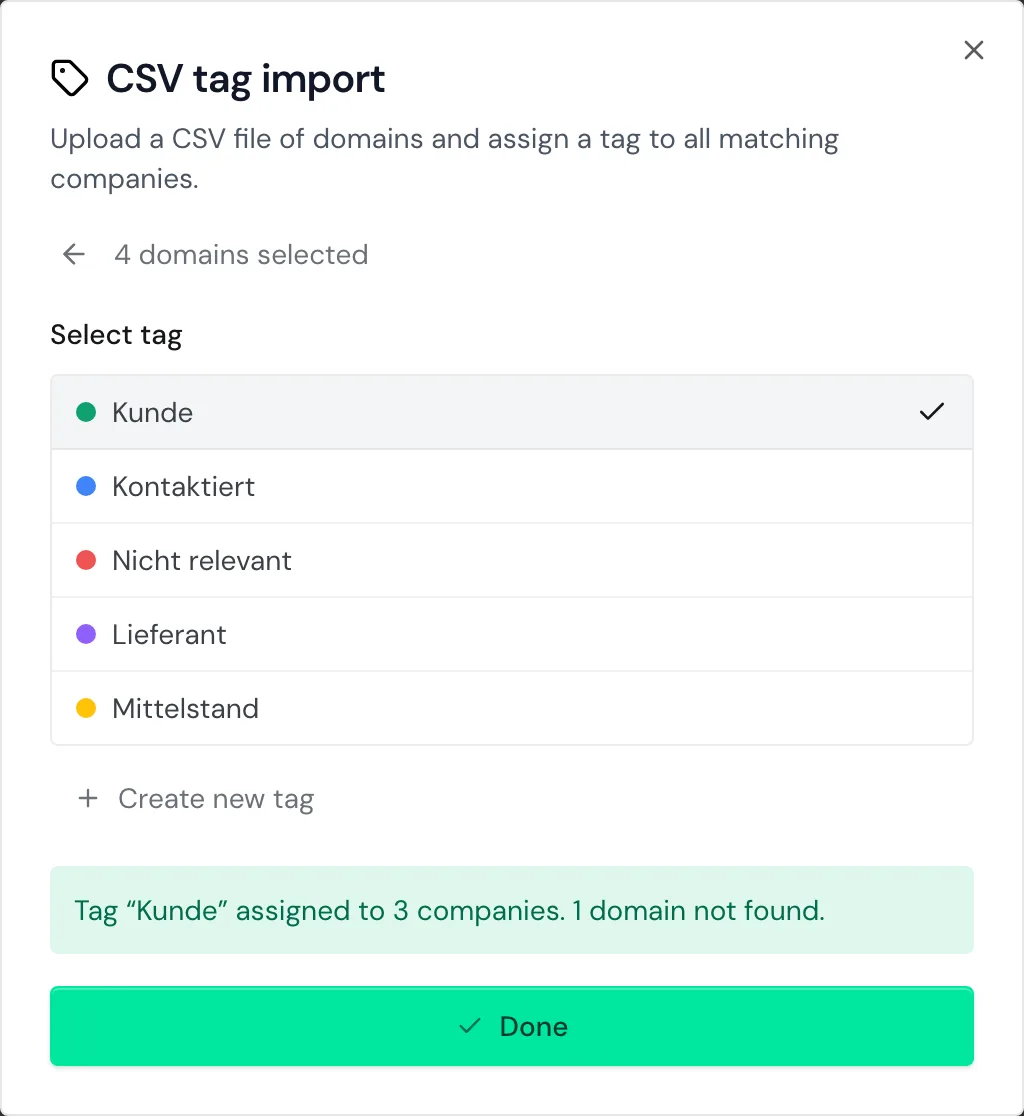
If Webmetic finds every domain, the window closes by itself after a moment. Otherwise, Webmetic reports how many companies it tagged and how many domains it didn't find.
The first number counts the matched domains. Click **Done** to close the window.
## Tags in exports and integrations [#tags-in-exports-and-integrations]
Tags stay in Webmetic: you won't find a tag column in the export, and Webmetic doesn't send tags to your CRM. Only the Evalanche integration can set its own tags in Webmetic that show which companies it has transferred.
## Next steps [#next-steps]
- [Filters and search](https://webmetic.de/docs/en/visitor-intelligence/filter-und-suche): Narrow the list with search and segments.
- [Comments](https://webmetic.de/docs/en/visitor-intelligence/kommentare): Leave comments on a company for your team.
- [Export companies](https://webmetic.de/docs/en/visitor-intelligence/export): Download the companies in your list as an Excel or CSV file.