

Connect LinkedIn so Webmetic turns a segment into an audience in your ad account and keeps it up to date.
With the LinkedIn integration, your campaigns reach the companies in a segment, for example every company that visited your pricing page. At the end you'll have:
- LinkedIn connected to your Webmetic account
- for each segment you choose, an audience of companies in your LinkedIn ad account
- an audience that Webmetic matches against the segment every hour
- the status of each audience and its size according to LinkedIn, shown in Webmetic
This feature is in beta. Names and settings may still change.
Before you start
- Time: Connecting and creating an audience take a few minutes, and LinkedIn then needs up to 48 hours to build the audience.
- Account: You need a Webmetic account with at least one segment on your website. For details, see Create a segment.
- Access: You sign in with your own LinkedIn account, which needs a role above Viewer in one of your company's ad accounts. Webmetic doesn't list test accounts or personal accounts for boosting posts.
- Rights: Only admins see the Integrations menu item and connect LinkedIn. If a partner runs your account under its own name, this integration isn't available yet. Once LinkedIn is connected, every user can create an audience from the segment picker.
- Plan: Integrations are available on every plan, including the Free plan. On the Free plan, Webmetic only sends the companies you see by name. For details, see Free plan.
- Cost: The integration costs no credits. You set the budget for your campaigns in LinkedIn as you did before.
1. Connect LinkedIn
You connect exactly one LinkedIn account to your Webmetic account. In the Integrations window, the LinkedIn tile sits in the Advertising group and carries the Beta badge.
-
Click Menu > Integrations > LinkedIn. The LinkedIn window shows what the integration does and the Connect LinkedIn button.
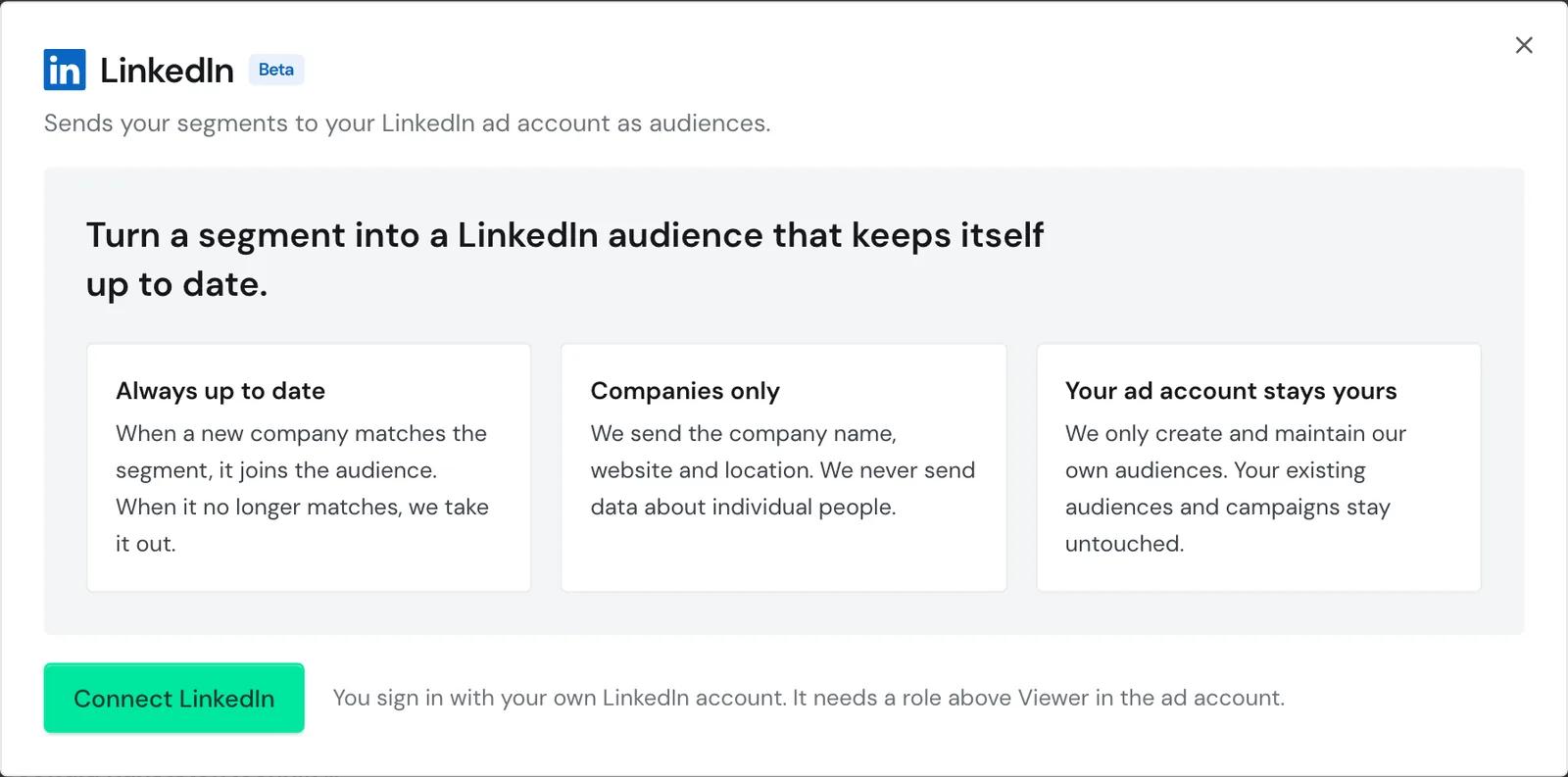
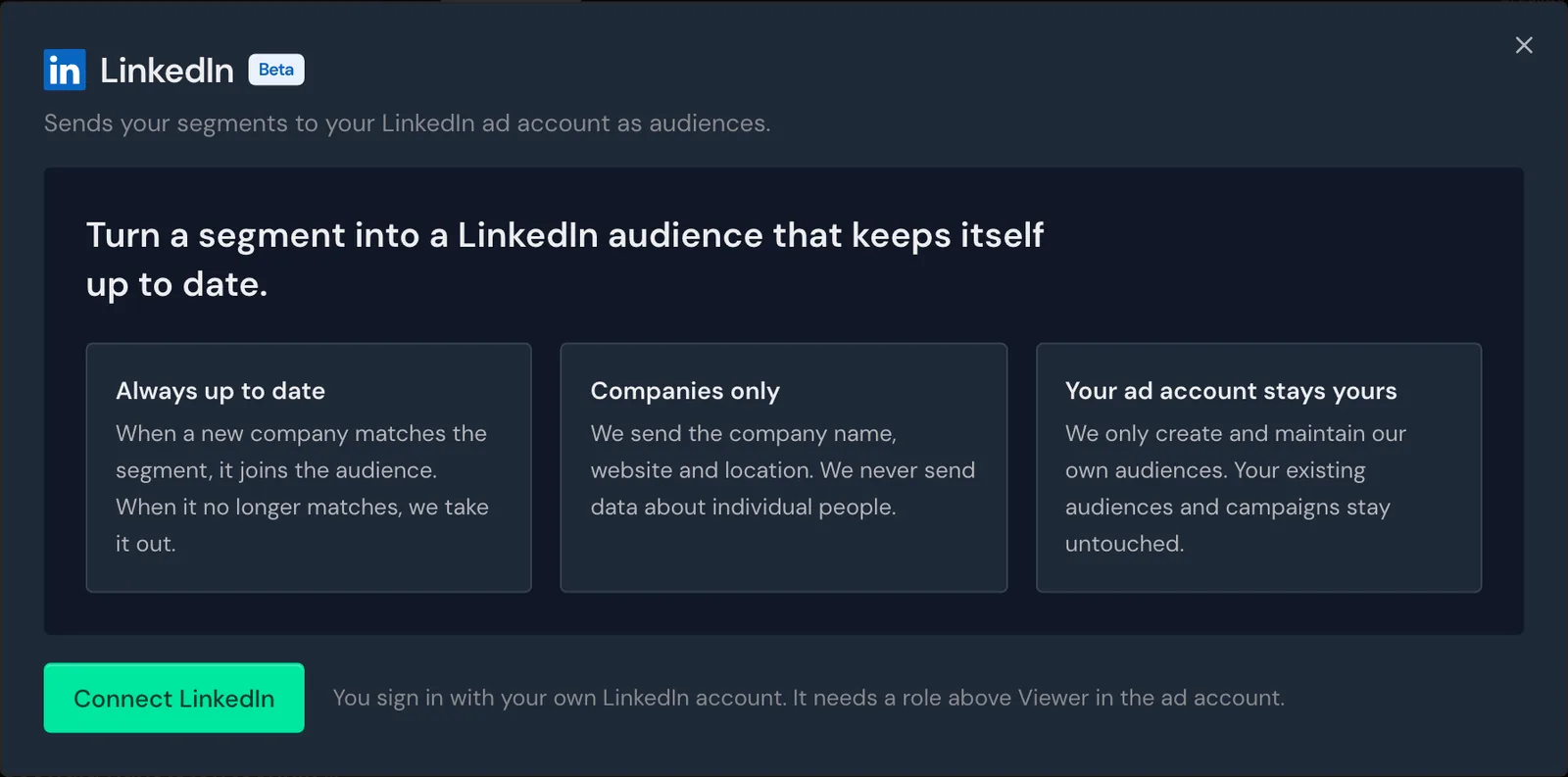
The LinkedIn window before connecting, with the Connect LinkedIn button -
Click Connect LinkedIn. Your browser switches to the LinkedIn sign-in.
-
Sign in to LinkedIn and allow Webmetic access. LinkedIn then sends you back to Webmetic.
Webmetic briefly shows the note Connecting to LinkedIn and then opens the LinkedIn window again.
If you cancel the LinkedIn sign-in, Webmetic shows the message LinkedIn is not connected and the Back to LinkedIn button. In that case, start again with step 1.
2. Create an audience
Each segment can have at most one audience, and the window shows only the segments and audiences of the website you have open. The Ad account select only appears when your LinkedIn account has more than one ad account. Otherwise, Webmetic picks the only ad account by itself.
- In the LinkedIn window, click New audience next to Audiences. The New audience dialog opens.
- Under Segment, choose the segment. Segments that already have an audience are grayed out and labeled Already in LinkedIn.
- Under Ad account, choose the ad account where the audience should be created.
- Optional: Change the name under Name in LinkedIn, where Webmetic suggests a name like "Webmetic: Visited pricing page".
- Click Create audience. The button shows Creating for a few seconds, and then the audience appears in the list with the status Building.
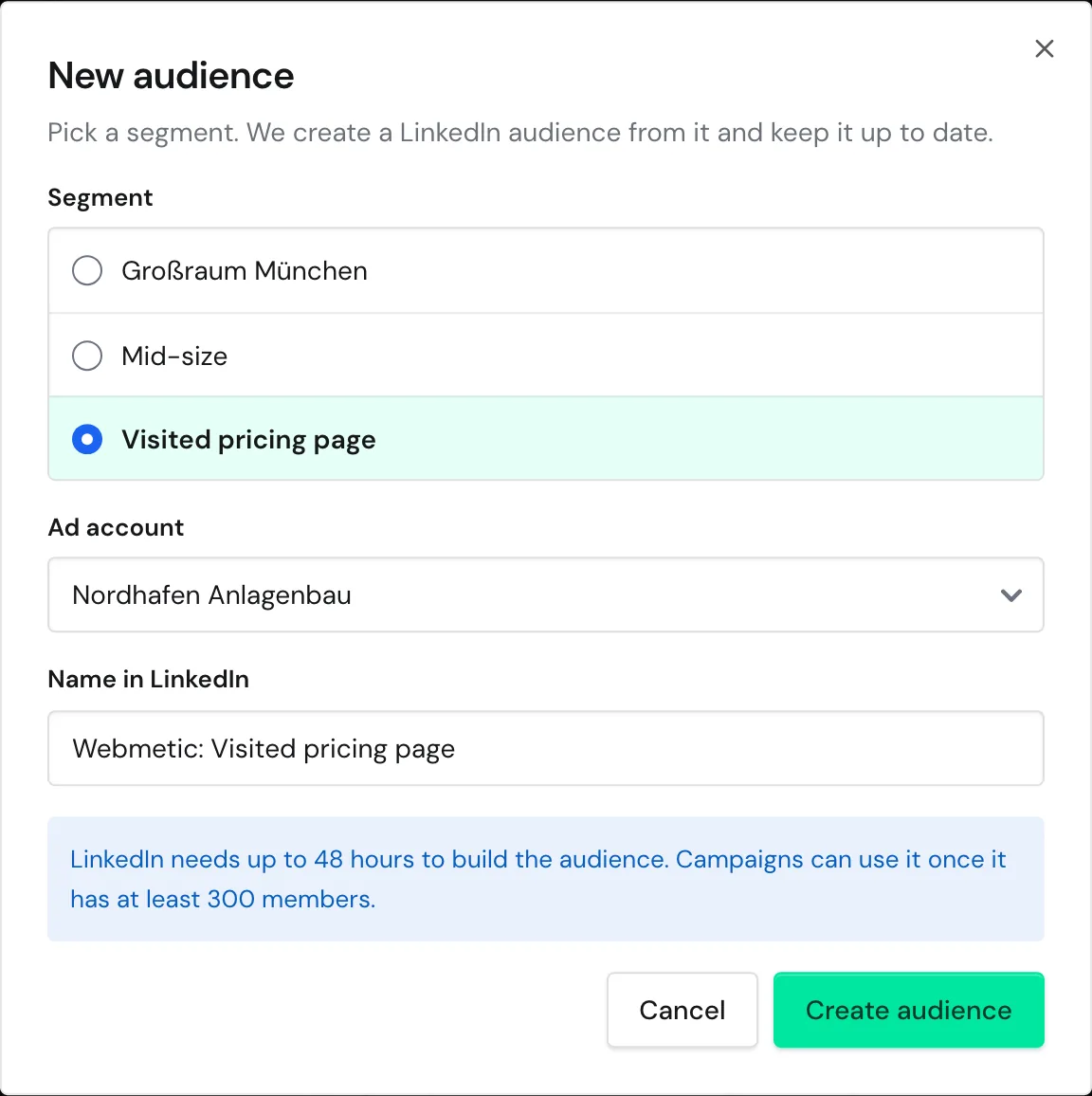
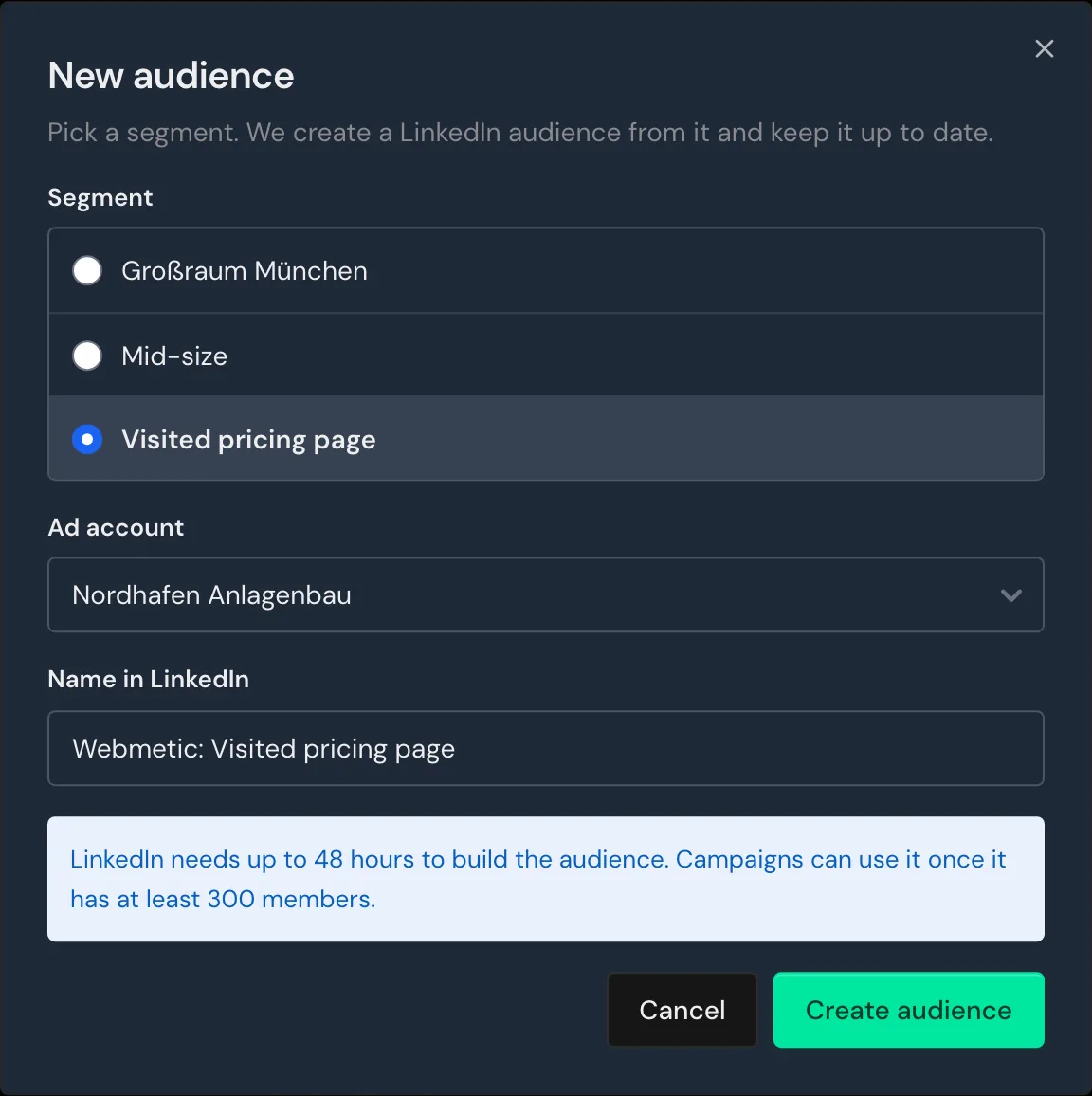
LinkedIn needs up to 48 hours to build the audience, and campaigns can use it once it has at least 300 members. Members are people with a LinkedIn profile at the matched companies, so the minimum counts people, not companies.
The audience follows the segment's conditions and date range, so a change to the segment applies from the next update.
Create from the segment picker
You can also create an audience right from the segment picker above the company list. The button for it only appears when LinkedIn is connected and the segment has no audience yet. Your browser window also needs to be at least 1,024 pixels wide.
- Open the segment picker and hover over the segment. The LinkedIn logo appears next to the pencil, copy, and delete icons.
- Click the LinkedIn logo with the tooltip Create a LinkedIn audience. The New audience dialog opens with this segment selected.
- Under Ad account, choose the ad account as described in step 3 above.
- Click Create audience. The audience appears in the list with the status Building.
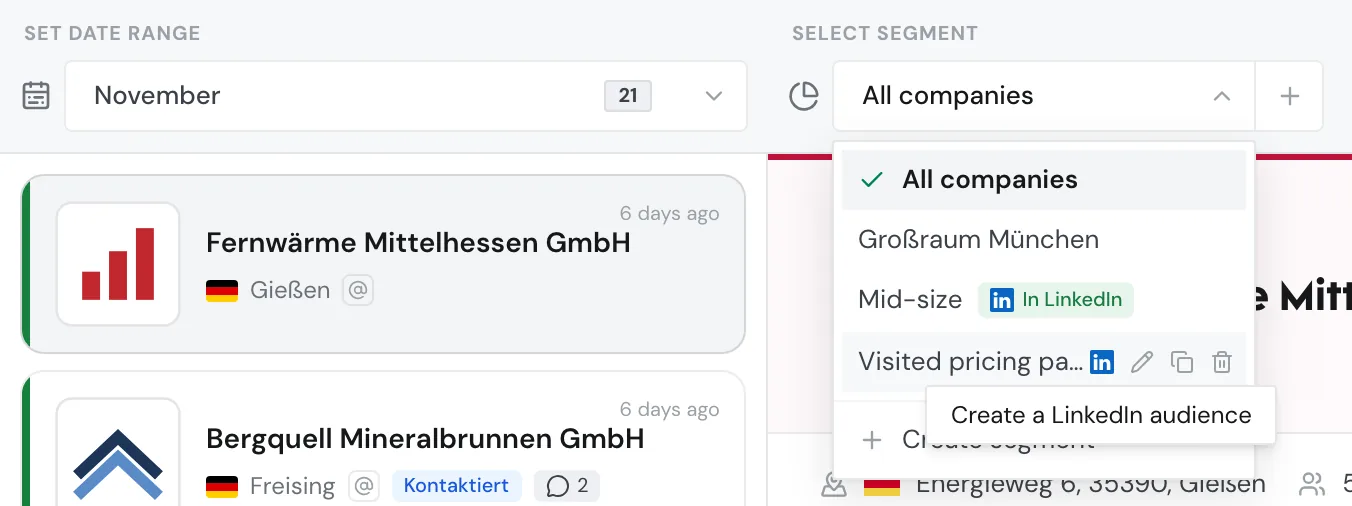
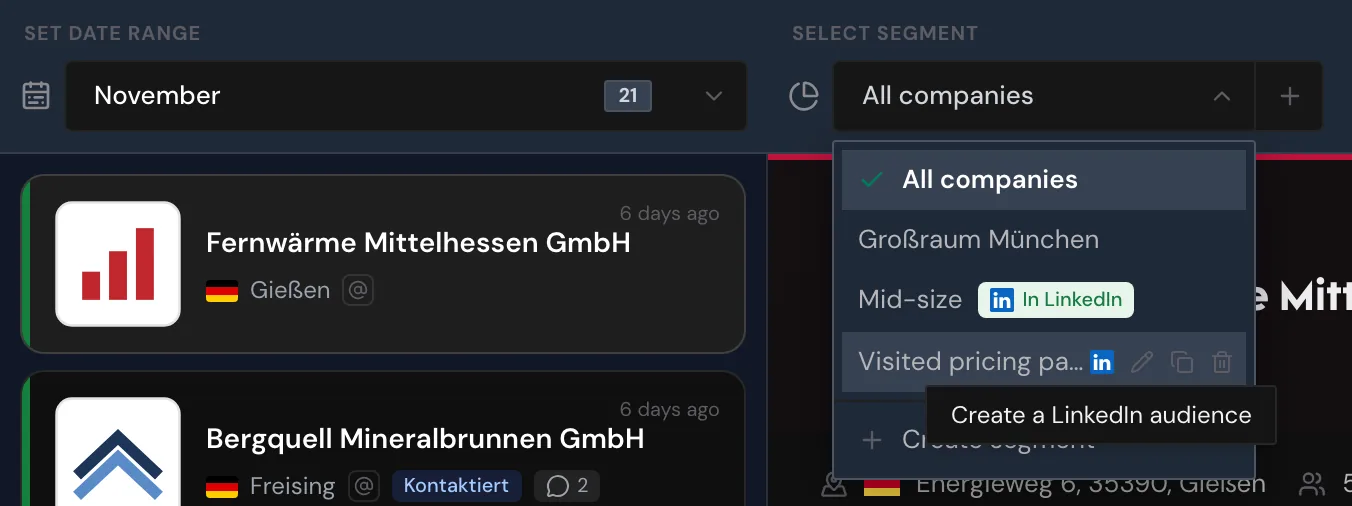
Segments that already have an audience carry the In LinkedIn badge in the segment picker.
Check the audience
- Click Menu > Integrations > LinkedIn. Under Audiences, each audience appears with its status.
- Click an audience. The row expands and shows, among other details, Sent, Size according to LinkedIn, and Last updated.
- Optional: Click Open in LinkedIn. LinkedIn then shows the audiences of this ad account in Campaign Manager.
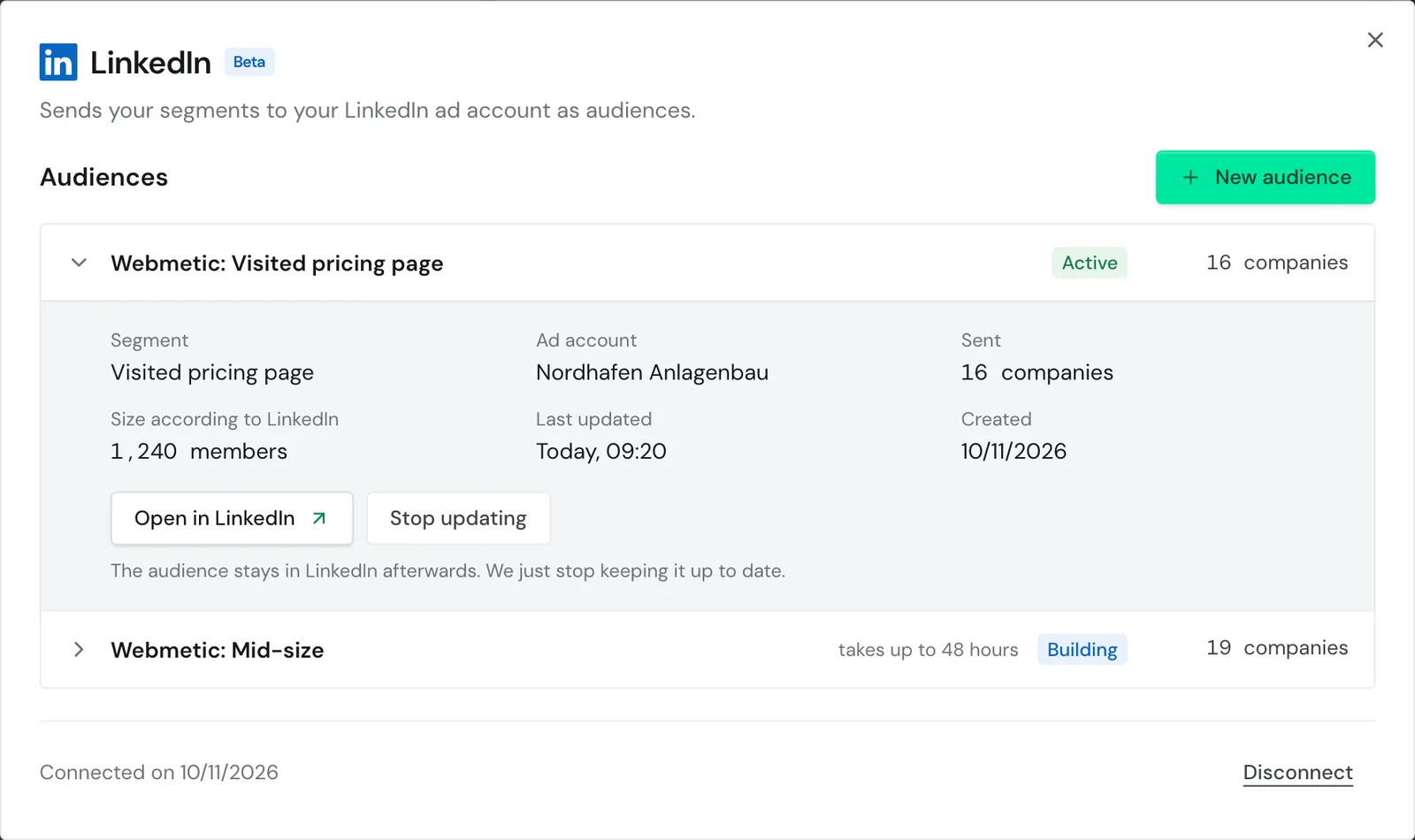
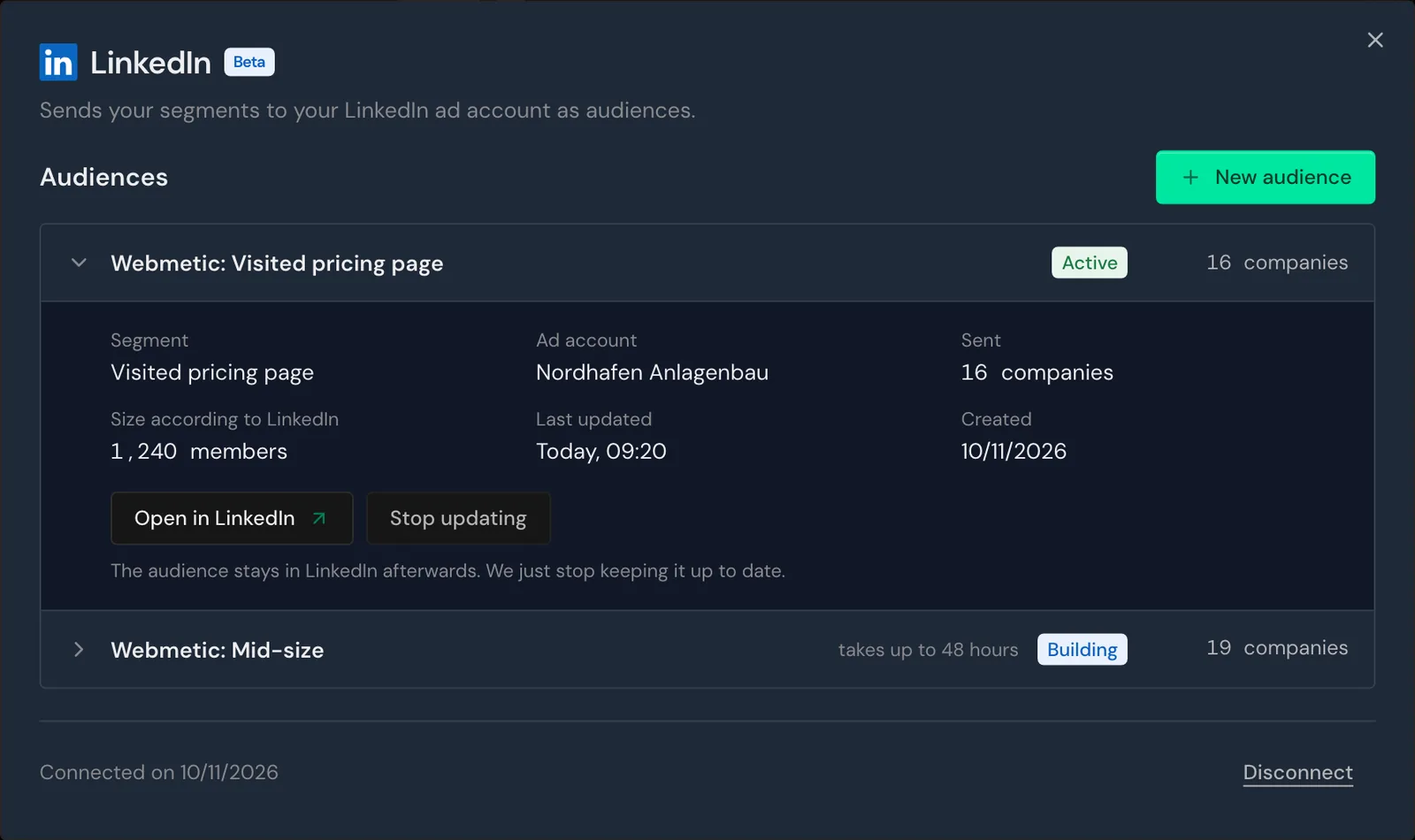
Sent counts the companies LinkedIn accepted, and Webmetic sends rejected companies again in the next update. Size according to LinkedIn counts members, and until LinkedIn reports a number, it shows Not known yet.
The status tells you whether your campaigns can use the audience:
| Status | Meaning | What you do |
|---|---|---|
| Building | LinkedIn is building or updating the audience, which takes up to 48 hours. | Wait until LinkedIn has finished building the audience. |
| Active | The audience has at least 300 members, so campaigns can use it. | Select the audience when you set up your campaigns. |
| Too small | The audience has fewer than 300 members, so campaigns can't use it yet. | Widen the segment so more companies match. |
| Failed | LinkedIn reports an error while building the audience. | Contact support. |
| Waiting for connection | The LinkedIn sign-in is missing, has expired, or was rejected. | Renew the connection. |
| No access to the ad account | LinkedIn refuses Webmetic access to this ad account. | Check that your LinkedIn account still has a role above Viewer there. Otherwise, contact support. |
For both statuses, Webmetic tries again in every update. With No access to the ad account, your other audiences carry on.
What gets sent
Webmetic only sends companies to LinkedIn, never people. For each company, Webmetic sends the name, the website domain, the LinkedIn company page, the country, the city, and the postal code. Webmetic leaves out any field that is empty.
Webmetic doesn't send contacts, not even unlocked ones, and no visits, activity, or relevance. Webmetic also doesn't change existing audiences or any campaigns in LinkedIn.
LinkedIn doesn't show which of the companies Webmetic sent it could match. That's why Webmetic only shows the status and the size according to LinkedIn.
When Webmetic updates
Right after you create the audience, Webmetic sends the segment's companies in the background. After that, Webmetic matches the audience against the segment every hour:
- Webmetic sends companies that newly match the segment or whose data has changed.
- Webmetic removes companies that no longer match the segment from the audience.
- Webmetic sends the companies again regularly so LinkedIn doesn't lose them.
You can't start an update yourself, because Webmetic runs it on a fixed hourly schedule.
Renew the connection
Webmetic renews the LinkedIn sign-in by itself as long as LinkedIn allows it. If renewing fails, the LinkedIn window shows the note Please renew your LinkedIn connection, and Webmetic stops updating your audiences.
- In the LinkedIn window, click Renew connection. Your browser switches to the LinkedIn sign-in.
- Sign in to LinkedIn and allow Webmetic access. LinkedIn sends you back to Webmetic.
After you sign in again, the audiences carry on with the next hourly update. Until you renew the connection, the window hides the New audience and Disconnect buttons.
Stop updating
You can't undo stopping an audience
Webmetic removes the audience from the list and never updates it again. If you later create an audience for the same segment, LinkedIn gets a second audience.
- In the LinkedIn window, click the audience. The row expands and shows its details.
- Click Stop updating. Webmetic doesn't ask for confirmation and removes the audience from the list.
The audience stays in LinkedIn as it is, so running campaigns can keep using it. Webmetic also stops updating the audience when you delete its segment in Webmetic. If you delete the audience in Campaign Manager, Webmetic stops updating it at the next update and doesn't create it again.
Disconnect LinkedIn
- At the bottom of the LinkedIn window, click Disconnect. Webmetic then shows the confirmation Disconnect LinkedIn?
- Click Disconnect. Webmetic shows the message LinkedIn is disconnected.
Webmetic then stops updating all audiences in your account and deletes the stored sign-in, but all audiences stay in LinkedIn as they are. If you connect LinkedIn again later, the old audiences don't resume, and you create new audiences.
Troubleshooting
Why doesn't LinkedIn accept the ad account?
If LinkedIn refuses the ad account, Webmetic creates no audience and shows this message: LinkedIn does not accept this ad account yet. We will unlock it and get back to you. Create the audience again once Webmetic has gotten back to you.
Why is my ad account missing from the list?
Your LinkedIn account needs a role above Viewer in an active ad account. Webmetic leaves out test accounts. If no ad account qualifies, the New audience dialog shows the message Your LinkedIn account has no ad account where its role is above Viewer. Have someone assign you such a role in LinkedIn, then open the dialog again.
Why does Webmetic report the maximum number of audiences?
The ad account has as many audiences as LinkedIn allows. Remove an audience in Campaign Manager, then create the new audience again.
FAQ
Can I upload the companies once instead?
Yes. The export creates a file in the LinkedIn Retargeting format from the company list, and you upload it to LinkedIn yourself. There's no integration for Google. There, you upload the file from the export.
Can I create an audience from individual companies?
No. Webmetic only creates audiences from whole segments, never from single companies. For individual companies, create a segment of their own, for example based on a tag.