

Tools and prompts
Your AI assistant reads your Webmetic data, sets up your account and answers questions from the documentation with these sixteen tools and six prompts.
Your AI assistant picks the right tool itself, and you only ask the question. Ten tools only read your data, and two read this documentation. The other four set up your account, but only when you agree.
Visitor data
Six tools read which companies visited your website, and they cost no credits.
| Tool | What it answers | What you can specify |
|---|---|---|
list_visiting_companies | Which companies visited in the range, with location, industry, relevance, activity, visits, time on site, and most-read page | Range (7 days if you name none) and every filter. Sort by last visit, relevance, activity, number of visits, or time on site |
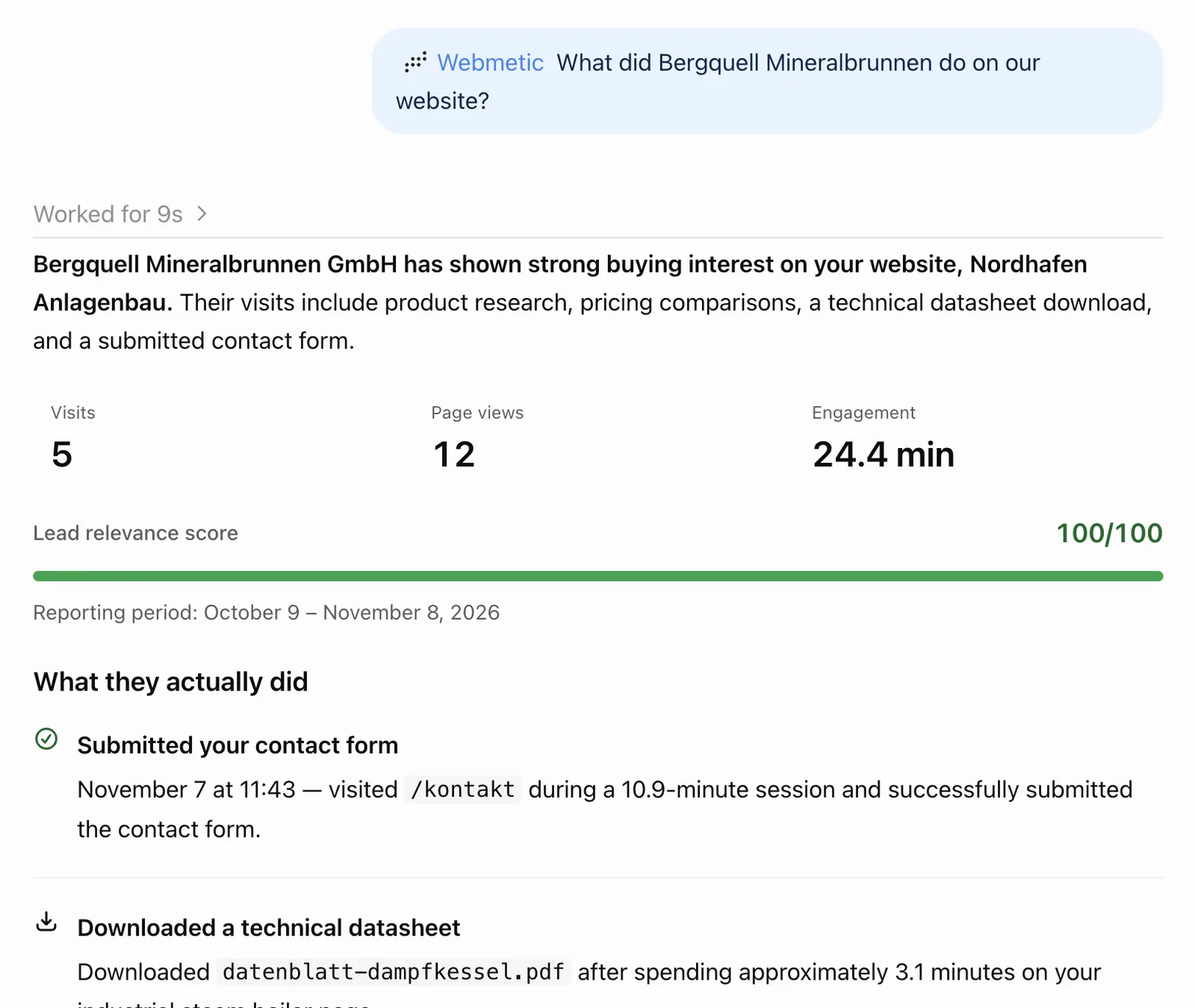
get_activity_summary | The overview of a range: totals, most active companies, top pages, sources with the share of paid visits, campaigns, events, industries, countries, and devices | Only the range (7 days if you name none). To compare with the week before, the assistant calls the tool twice |
get_company_profile | What kind of company it is: address, size and revenue as ranges, industry, NACE codes, general contact details, register entry, description, and target audience | One company by name, website, or ID, and the range (30 days if you name none). Description in German or English, short or detailed |
get_company_activity | What a company did on your website: the visits with duration, device, country, and source, the pages with time on page, scroll depth, and events such as a search term or a download | One company, the range (30 days if you name none), and the number of visits |
get_visit_highlights | New companies (the first visit your account recorded falls in the range), returning ones (at least two visits in the range), or engaged ones (one visit of 30 seconds or more), each with its source | One of the three kinds and the range (7 days if you name none) |
check_accounts | Whether your target accounts visited: visited or not seen, how closely the name matches, relevance, activity, and last visit | Names, websites, or IDs, and the range (30 days if you name none) |
The tools only return profile and history for companies that visited your website in the range. "Not seen" means that Webmetic identified no visit or that the name differs. Check matches that are not exact yourself.
Contacts
Two tools find contacts at a company that visited your website. The search is free, but unlocking costs credits.
Your AI client asks before unlocking unless you have allowed it permanently. It may also ask for confirmation before a search.
| Tool | What it answers | What you can specify |
|---|---|---|
find_contacts | Who works there: name, position, and whether an email address, phone number, and LinkedIn profile are on file. Free | One company per call, departments such as Marketing, levels such as C-level. If you name none, your Contact profile applies |
reveal_contact | The email address with the LinkedIn profile, the phone numbers, or both, for one person from the search. Costs credits | One person and what you want to unlock |
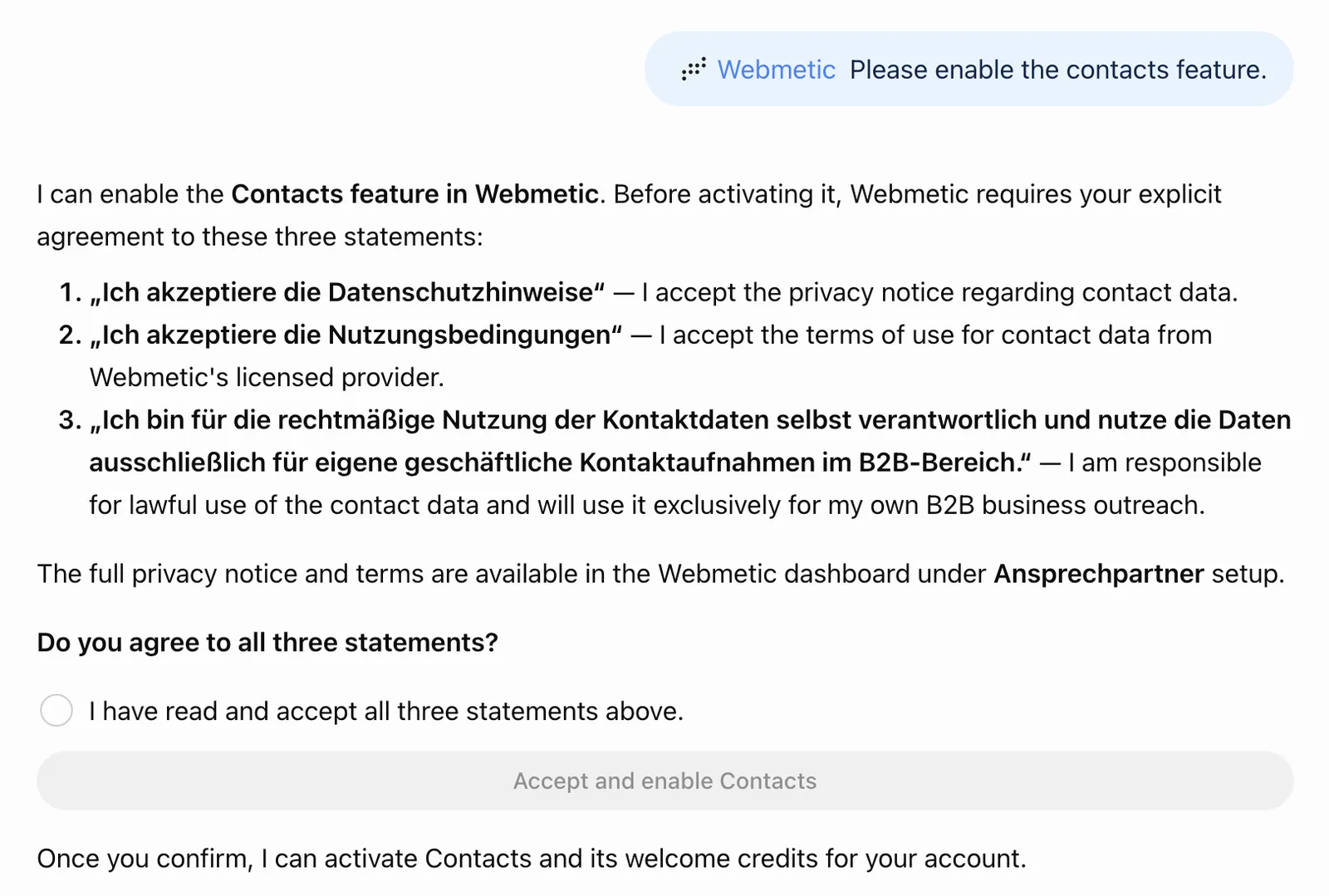
Both tools require contacts to be enabled in your account. The assistant does that in the chat with enable_contacts, as described under Setup. In the dashboard you set up contacts as described in Set up contacts. Webmetic searches the company's country first. If there are no contacts there, Webmetic searches worldwide.
Details your account has already unlocked cost nothing again. An unlock cannot be undone. For details, see Unlock contact details.
Setup
Two tools check whether your account and your website are ready. In your AI client they appear with their German titles, Kontostatus (account status) and Tracking-Einbindung prüfen (check tracking setup). Neither costs credits.
| Tool | What it answers | What you can specify |
|---|---|---|
get_account_status | Your account's state in one call: every website you set up with its first and last recorded visit, your plan and whether the Free cap limits how many companies are readable, whether the contact setup is complete, and how many credits you have. As long as a website has no visit yet, the answer contains your account's tracking code | Nothing |
check_tracking_setup | Whether the tracking code is on a website, whether it belongs to your account, and whether it loads before the cookie banner | One website from your account. Only needed if your account has several websites. The tool checks no other address |
Ask for the account status when you set Webmetic up, before you spend credits, or when someone sees no data. At the end the account status names what is still needed, and that is only ever the tracking code. Everything else is optional, and the assistant suggests it only when it fits. The account status doesn't say whether the tracking code is on your website right now. The check_tracking_setup tool answers that question.
Webmetic opens your website in a real browser for the check and accepts the cookie banner there. Nothing on your website changes. A check usually takes 2 to 30 seconds, and up to a minute on a slow website. Each check covers one website, and the assistant doesn't check several websites one after another.
A check ends with one of these results:
- Installed and loading before the banner: The tracking code loads before anyone accepts the cookie banner. This is the case you want, and nothing more is needed. The first companies appear after minutes to hours.
- Installed, but only after consent: Webmetic then records no visit where someone declines the banner.
- A Webmetic reference without an account id: A link to webmetic.de produces this result too. So it is no proof of a working installation.
- No tracking code found: The page contains no Webmetic code.
- A tracking code for another account: The code on the page belongs to a different Webmetic account.
- Page unreachable: The page doesn't load, or the check runs into a timeout.
Four more tools set up your account. In your AI client they appear with their German titles, Zielkundenprofil speichern (save ideal customer profile), Ansprechpartner freischalten (enable contacts), Benutzer einladen (invite user) and E-Mail-Benachrichtigung anlegen (create email alert). Because each of these tools changes your account, your AI client asks before the call. The assistant suggests each tool separately when it fits and calls it only after you confirm the details.
| Tool | What it does | What you can specify |
|---|---|---|
set_target_profile | Saves the ideal customer profile of a website. Webmetic then re-rates every identified company of that website, and relevance follows the new profile within a minute | Industries, NACE codes, employees from and to, revenue from and to, region (Germany, DACH or worldwide) and a goal page. The website only if your account has several |
enable_contacts | Enables contacts. The assistant shows you the three consents from the dashboard. Once you agree, Webmetic records the consent and credits your welcome credits | Departments and levels as the default for later searches |
invite_user | Adds a login with the User role. Webmetic sends the person a password by email, which they use to connect their own AI assistant. Webmetic refuses an address that already has a Webmetic login | Email address, first name, last name |
create_email_alert | Creates a notification. Webmetic sends an email with the matching companies as an Excel file on the chosen workdays at the chosen time | Type (new, returning or engaged companies), workdays, a full hour from 6 am to 8 pm and recipients. Without recipients, Webmetic sends the emails to every user. Edit and delete the notification in the dashboard |
The account status shows what the four tools saved: the ideal customer profile of every website, the consent, the users and the notifications. What stays in the dashboard is listed under Start in the chat.
Documentation
Two tools read this documentation. In the AI client they are called Dokumentation durchsuchen (search documentation) and Dokumentationsseite lesen (read documentation page). Ask your assistant, for example, how to add the tracking code in Google Tag Manager. It finds the matching page, answers with its steps and gives you the link.
| Tool | What it answers | What you can specify |
|---|---|---|
search_docs | Which pages of the documentation match a question, with the matching sections and their addresses | The question in a few words and the language, German or English |
get_doc_page | One page of the documentation as text | The address of a page |
Both tools read only the public documentation and cost no credits. Without a Webmetic account, connect the documentation through its own MCP server.
Filters
You name filters in your question. Range and website apply to every tool except the account status and unlocking. The other filters apply to the company list. When you combine filters, all of them must match.
| Filter | How you ask | What applies |
|---|---|---|
| Range | "this week", "since 01.10.2026" | 7 or 30 days if you name none, depending on the tool |
| Website | "on nordhafen.example" | Only needed if your account has several websites |
| Industry | "from Industrie & Fertigung" (industry & manufacturing) | One of Webmetic's 19 industries. The filter doesn't know sub-industries such as mechanical engineering |
| Country | "from Switzerland" | In German, English, or as a code such as AT |
| City | "from Munich" | The company's seat |
| Visited page | "on our pricing page", "/pricing" | Part of the address is enough |
| Source | "via LinkedIn", "via paid ads" | A visit counts as paid when its medium is paid, for example cpc |
| Campaign | "from the dampfkessel-2026 campaign" | Part of the utm_campaign value is enough |
| Event | "abandoned a form", "download" | The recorded events for forms, downloads, outbound clicks, search, video, and printing |
| Minimum activity | "with an activity above 70" | The activity from 0 to 100 |
Visited page and source don't have to occur in the same visit. If the range has no events at all, the assistant says so. Then the signal is missing from the data, not the interest.
Unavailable data and actions
| Request | Why it doesn't work | Instead |
|---|---|---|
| Companies from Bavaria | Federal states are not in the data | Ask by city or country |
| The city of the person who visited | The location is the company's seat. Per visit, Webmetic only passes the country on to the assistant | Ask for the visit history |
| Only companies above a certain relevance | Relevance is a sort order, not a filter | Have the list sorted by relevance |
| Clicks on an email address or phone number | This signal doesn't reach the data | Ask about forms |
| Managing directors or the email pattern in the profile | The profile contains neither | find_contacts with the right level |
| Segments, tags, comments, export | The assistant doesn't change or export these | In the Webmetic dashboard |
| Websites, domain blacklist, payment and plan | These settings stay in the dashboard | In the Webmetic dashboard |
| Editing or deleting users or notifications | The tools only create new ones | In the Webmetic dashboard |
| Companies that have not visited your website | All tools read only your visitor data | Check target accounts with check_accounts |
Several websites
One connection covers every website in your account. If your account has several, name the website in your question: "Who visited nordhafen.example this week?"
If the website is missing, the assistant asks. Write it exactly as it is set up in Webmetic, because www. and subdomains count.
German input
| Input | Example | How Webmetic reads it |
|---|---|---|
| Date | "01.08.2026" | Day first: August 1, 2026. A date without a time includes the whole day |
| Date without a year | "since 18.08." | The assistant converts the date itself. Better to name the year |
| Relative dates | "heute" (today), "gestern" (yesterday), "last week" | Today and yesterday start at midnight German time. The assistant turns "last week" into dates |
| Umlauts | "Muenchen", "Strasse" | Like "München" and "Straße" |
| Part of a name | "Bergquell" | Finds "Bergquell Mineralbrunnen". If several match, the assistant asks |
The assistant answers in the language of your question and gives times in German time.
Prompts
Prompts are ready-made tasks with a fixed German question. In claude.ai you find the prompts in the plus menu (+) of the input field, and in other clients in the prompt menu.
| Prompt | What it does | What you specify |
|---|---|---|
einrichten (set up) | Checks what is still missing for the first data, usually only the tracking code, and does it with you. The assistant suggests optional setup only when it fits | Nothing |
wochenbericht (weekly report) | Companies, top pages, sources, and buying signals of the last 7 days | Nothing |
heisse-leads (hot leads) | The most relevant companies of the last 7 days with buying signals from their visits | Nothing |
unternehmens-analyse (company analysis) | One company in detail: profile, visits, interests, and openers for a conversation | The company's name or website |
zielkunden-check (target account check) | Checks your target account list against the visitor data | Names or websites, separated by commas |
ansprechpartner (contacts) | Searches for contacts at a visiting company and unlocks nothing | The company's name or website |
Limits
| What | Limit |
|---|---|
| Companies in a list | Up to 50 per call. If there are more, the assistant pages through |
| Companies in a range | Up to 600. Above that, the answer warns that the list and the numbers are incomplete. Choose a shorter range then |
| Visits of one company | Up to 50. For very long histories, Webmetic leaves out older visits and notes it |
| Target accounts in one check | Up to 50 per call |
| Contacts in one search | 25 per page |
| First question about a range | Takes a few seconds. The assistant answers follow-up questions faster |
| Free plan | The assistant only reads companies whose names you see. Others appear as hidden, with only an ID and the visit time. For details, see Free plan |
An empty result is a valid answer, not an error. No data exists from before the tracking code was installed.