

Book and manage licences
Book a licence for customers you invoice yourself, so they keep seeing every company after the trial.
With a licence, your customer keeps using Starter or Growth and sees every identified company by name. You book, change, and cancel the licence yourself, and Webmetic bills you for all licences of a month on one consolidated invoice. At the end you have:
- a running licence for your customer with the features of Starter or Growth
- a payment method that Webmetic uses for every licence invoice of your partner account
- one consolidated invoice per month, with its lines previewed under Billing
Before you start
- Time: You book a licence in a few minutes and add the payment method only once for your whole partner account.
- Account: You need an account with a partner area. Licences are only for customers set to By you under Billing.
- Access: You'll find everything under Menu > Partner area > Customers.
- Rights: Every user of your partner account can book, change, and cancel licences and add the payment method. You don't need admin rights for this.
- Plan: Your partner account needs no plan of its own. Licences cost no credits, and Webmetic charges nothing when you book.
Keep track of the trial
Only customers you invoice yourself need a licence. Webmetic invoices customers set to By Webmetic directly, and these customers sit in the Licensed column without a licence, marked Billed by Webmetic.
A customer you invoice yourself uses the Growth plan for 30 days from the day you created it, without a licence. After that, its account moves to the Free plan.
On the Free plan, the customer sees only the first 10 new companies each calendar month by name, and features such as Smart Pages, ICP Analytics, and Enrichment are locked. It never sees a price or a way to buy, only the note Your provider decides which features your account includes.
- Open Menu > Partner area > Customers. The window opens on the Customers tab with the columns Setup, Trial, and Licensed.
- Look at the Trial column. The customers whose trial ends first are at the top, and each card shows how many days are left.
Webmetic assigns each customer to a stage based on its data, and you never move a card yourself.
As soon as Webmetic identifies the first company, a customer moves from Setup to Trial. The 30 days still count from the day you created the customer, and the customer page shows the end date.
Add a payment method
Webmetic charges every licence invoice of your partner account to one payment method that you add once. If you book a licence before a payment method is on file, Webmetic opens the same window by itself and then continues with the booking.
- Open Menu > Partner area > Customers.
- Click the Billing tab.
- Click Add payment method. The Add payment method window opens with your Billing address, which Webmetic takes from your company details.
- Click Continue to payment once the address and country are correct. Webmetic saves the address and shows the payment form.
- Enter your payment details, for example a card or SEPA Direct Debit.
- Click Save payment method. As soon as Webmetic has confirmed the payment method, it appears on the Billing tab.
If your bank sends you to its own page to confirm, return to the Billing tab afterwards, where Webmetic finishes the setup. Later, you can add a different one with Change payment method.
Book a licence
You book a licence on the customer page while the customer is in the Trial stage. For customers in Setup, you can't book a licence yet. There are two plans to choose from:
- Starter: identification, export, CRM sync, and API for a limited number of websites
- Growth: everything in Starter, plus Smart Pages, ICP Analytics, session recording, and CRM Enrichment for any number of websites
Webmetic recommends a licence once the current billing month has seven days of data or there is a full month with identified companies. Until then, the customer page shows the note Recommendation follows.
The recommended step covers the larger of two numbers: the companies expected this month or the companies in the last full month. Above 100 companies a month, Webmetic recommends Growth.
-
In the Trial column, click the customer's name. The customer page opens with the Trial section and the Our recommendation box.
-
Choose the step under Identified companies per month. Webmetic has already selected the recommended step.
-
Choose Annual or Monthly. Monthly is the default.


A customer's trial with the recommendation, the companies-per-month choice, and the billing switch -
Click the Starter or Growth card. The recommended card is marked Recommended.
-
Click the booking button, for example Book Starter 50 monthly. The Book licence window shows the last day of the first term.
-
Click Book licence. The customer moves to the Licensed column, and the customer page shows the Licensed section.
If you choose a different step, the Apply button brings the recommendation back. Growth starts at a higher step than Starter. If you pick Growth with a smaller step, the Growth card names its smallest step, and Webmetic books that one.
The licence applies right away, and your customer sees every company again, including those hidden on the Free plan. The first term starts at the moment you book and lasts one month or one year. After that, it renews by the same term each time until you cancel the licence.
Change plan
A higher plan, meaning Growth instead of Starter or a larger step, applies right away. The difference for the rest of the term then appears on your next consolidated invoice.
A lower plan applies only from the end of the current term, and the current plan stays active until then. A switch between monthly and yearly always applies at the end of the current term and starts a new term there.
- In the Licensed column, click the customer's name. The Licensed section shows the plan, the term, and the Change plan and Cancel licence buttons.
- Click Change plan. The Change plan window opens.
- Choose Plan, Companies per month, and Term. The window says from when the new plan applies.
- Click Change plan. Anything that applies only at the end of the term then appears in the Licensed section below the plan.
If you no longer want a planned switch, click Keep current plan or Undo switch. The customer then keeps its current plan.
Cancel a licence
When you cancel a licence, it ends with the current term. Until then your customer keeps using the licence, and you can undo the cancellation. Webmetic bills the cancelled term in full and refunds no part of it.
-
On the customer page, click Cancel licence in the Licensed section. The window with the question Cancel licence? names the day the licence ends.
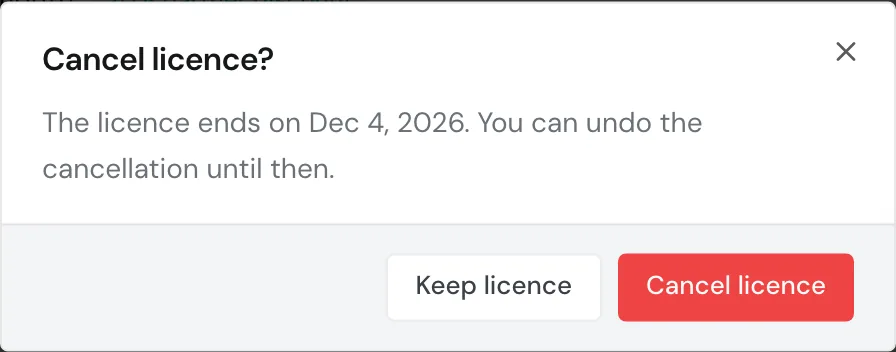
The window for cancelling a licence with the end date -
Click Cancel licence. The Licensed section shows the end of the licence and the Undo cancellation button.
While the licence is cancelled, you can't change the plan, and any planned switch is dropped. If you want to change the plan after all, first click Undo cancellation.
Once the licence has ended, the customer is back in the Trial column. It then uses Growth only while its 30 days from creation are still running, and otherwise the Free plan.
If Webmetic should invoice the customer directly from then on, choose By Webmetic only after the licence has ended. Manage customers describes the billing setting.
Read the consolidated invoice
Webmetic bills each licence per term. On the 1st of every month you receive a consolidated invoice for all terms that started in the previous month and for all upgrades made in it. For example, a licence you book on November 23 first runs until December 22 and appears on the consolidated invoice of December 1.
A monthly licence therefore appears on every consolidated invoice. A yearly licence appears once a year with the whole term. Webmetic charges the amount automatically to your payment method and adds VAT.
- Open Menu > Partner area > Customers.
- Click the Billing tab. The tab shows your payment method and, below it, the date of the next consolidated invoice with the number of customers on it.
Below that, Webmetic lists every line with plan, term, customer, and period. Upgrades are marked Upgrade.
The preview shows the current calendar month as your licences stand right now, and all amounts in it are net.
Pay an open invoice
If a licence invoice stays unpaid, Webmetic pauses all licences of your partner account until the open invoice is paid. While the licences are paused, your customers use Growth again if their 30 days are still running, and otherwise the Free plan. Your customers see no note about the open invoice.
During the pause you can't book a licence or choose a higher plan. You can still choose a lower plan or a different term and cancel licences. On the Customers tab the affected customers are marked Paused, and the Billing tab lists every open invoice.
- On the Billing tab, click Open invoice next to the open invoice. The invoice opens on its own page.
- Pay the invoice on that page. As soon as no licence invoice is open any more, Webmetic lifts the pause by itself.
If the payment failed on your payment method, add a new one with Change payment method. Webmetic then immediately tries to pay all open licence invoices with it.