

Set up a white-label domain
Connect a subdomain of your domain to Webmetic so your customers sign in there with your logo.
With a white-label domain, your customers open the dashboard at your own address. All it takes is a registered subdomain and a CNAME record at your DNS provider. At the end you have:
- a subdomain such as
leads.agency-example.comwith the status Active and a valid SSL certificate - a login page and an opt-out page with your logo at this address
- the dashboard for your customers at your own address
Before you start
- Time: Activating and registering take a few minutes, and when the CNAME record becomes publicly visible depends on your DNS provider.
- Account: You need an account with a partner area.
- Access: If you don't have access to the domain's DNS settings, hand the CNAME record to your IT team.
- Rights: Every user of your partner account can add and delete white-label domains.
- Domain: You need a subdomain such as
leads.agency-example.com, because Webmetic only checks CNAME records. - Cost: The white-label domain costs no credits.
Activate white-label
On first opening, the window only shows the start screen, and you register domains only after activation.
-
Open Menu > Partner area > White-label domain. The White-label window shows the White-label solution for partners in three steps.
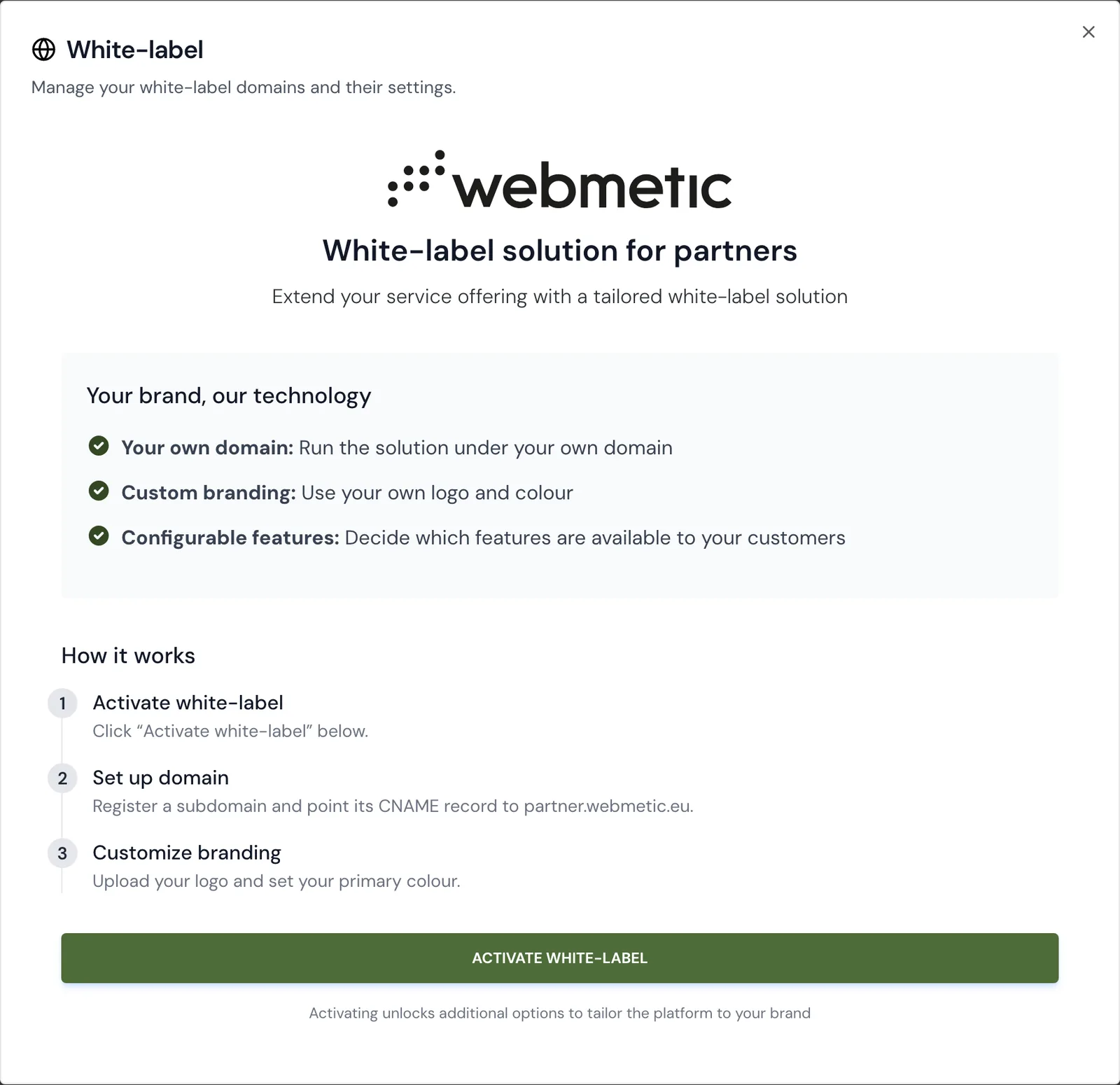
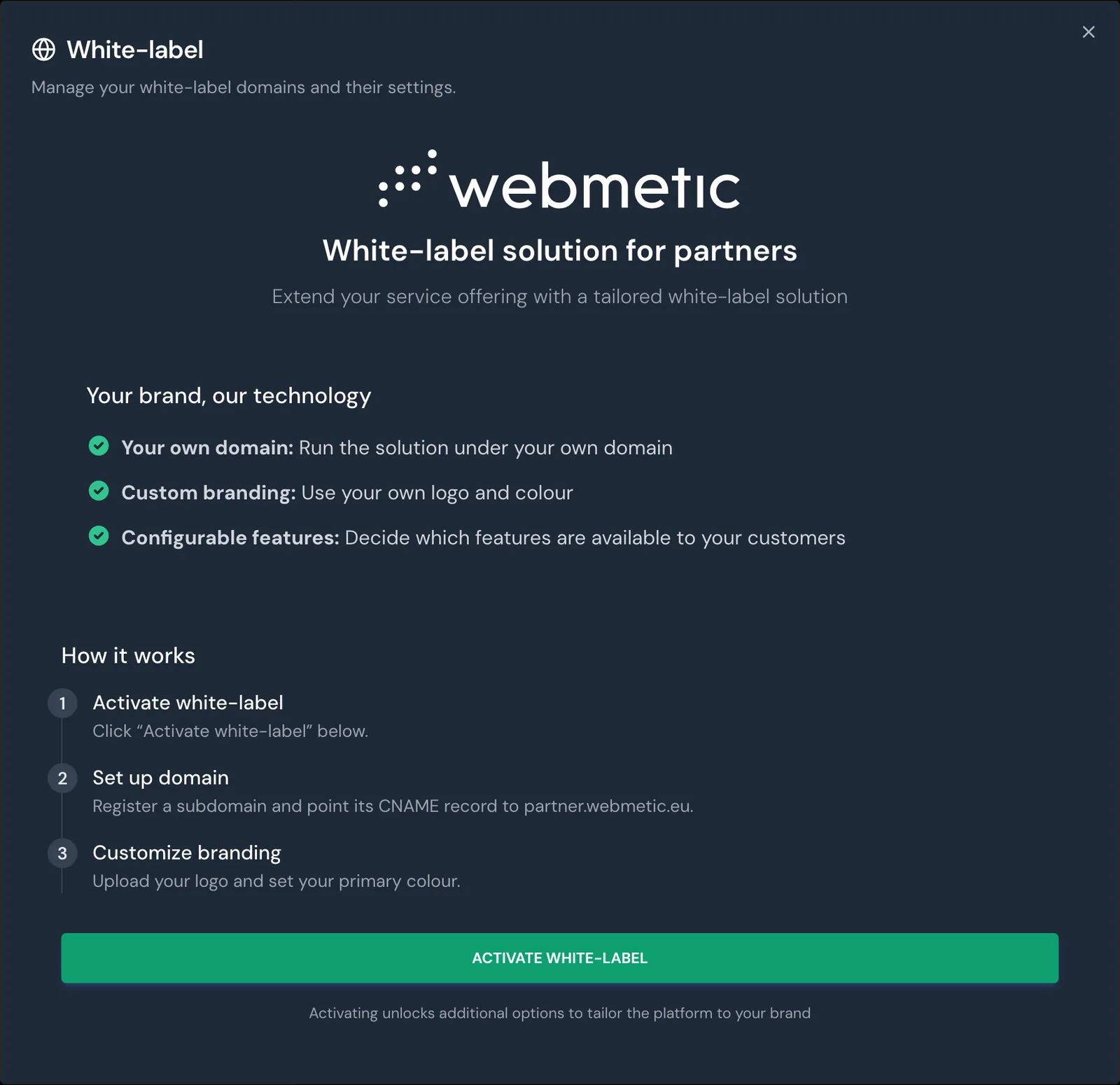
The White-label window before activation -
Click Activate white-label. The window is now called Domain settings and shows the White-label domains section.
When you activate, Webmetic turns on Websites, Tracking code, API, Export, and Support for your white-label customers, even if they were off before. Choose features for customers describes how to change what your customers see. You can use Branding, Features, and Customers without activation too.
Register a subdomain
- Open Menu > Partner area > White-label domain.
- Under Register a new domain, enter the subdomain. The field suggests
leads.in front of your own domain. - Click Register. Webmetic shows the values for the CNAME record, and the domain shows Pending under Registered domains.
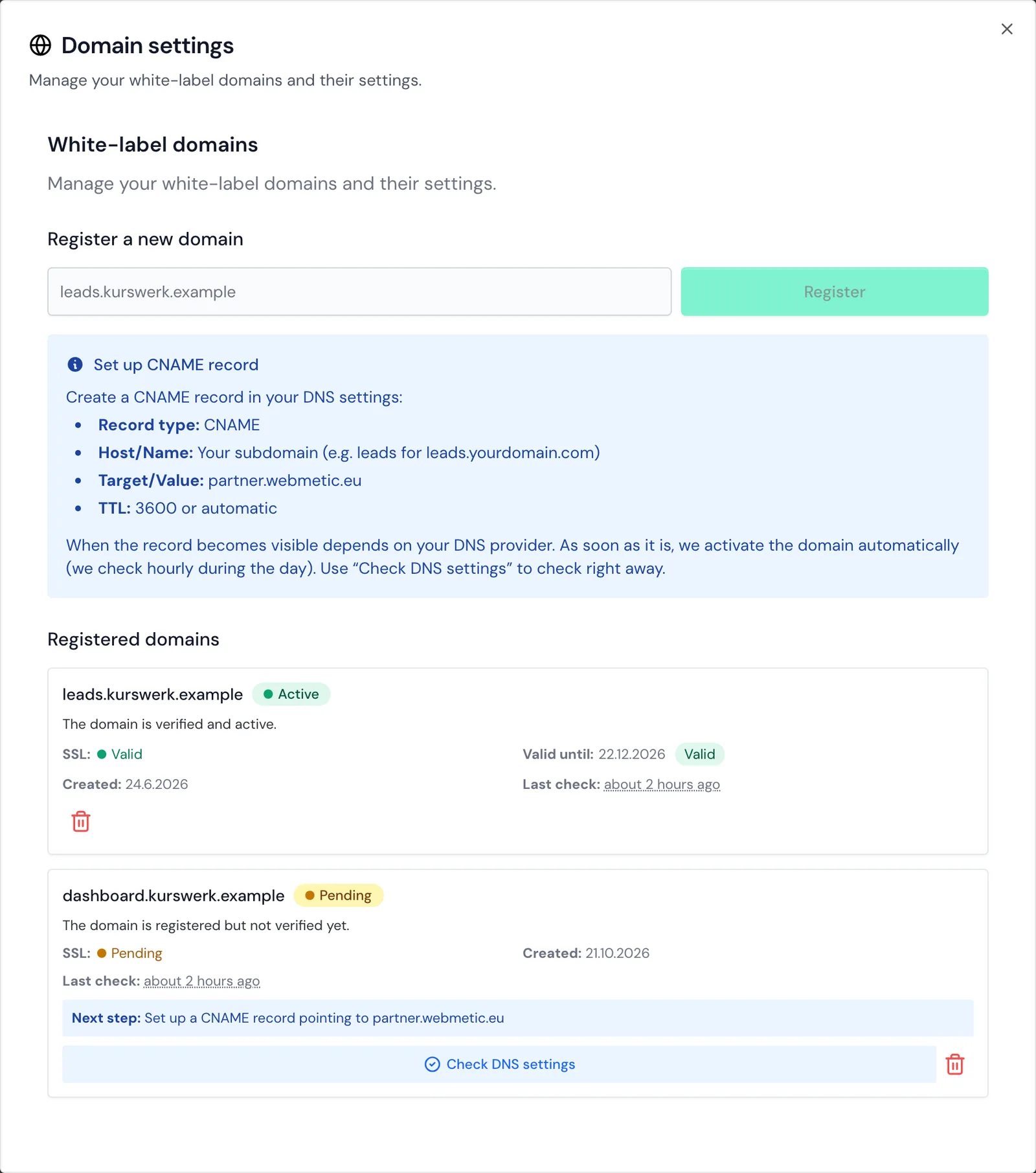
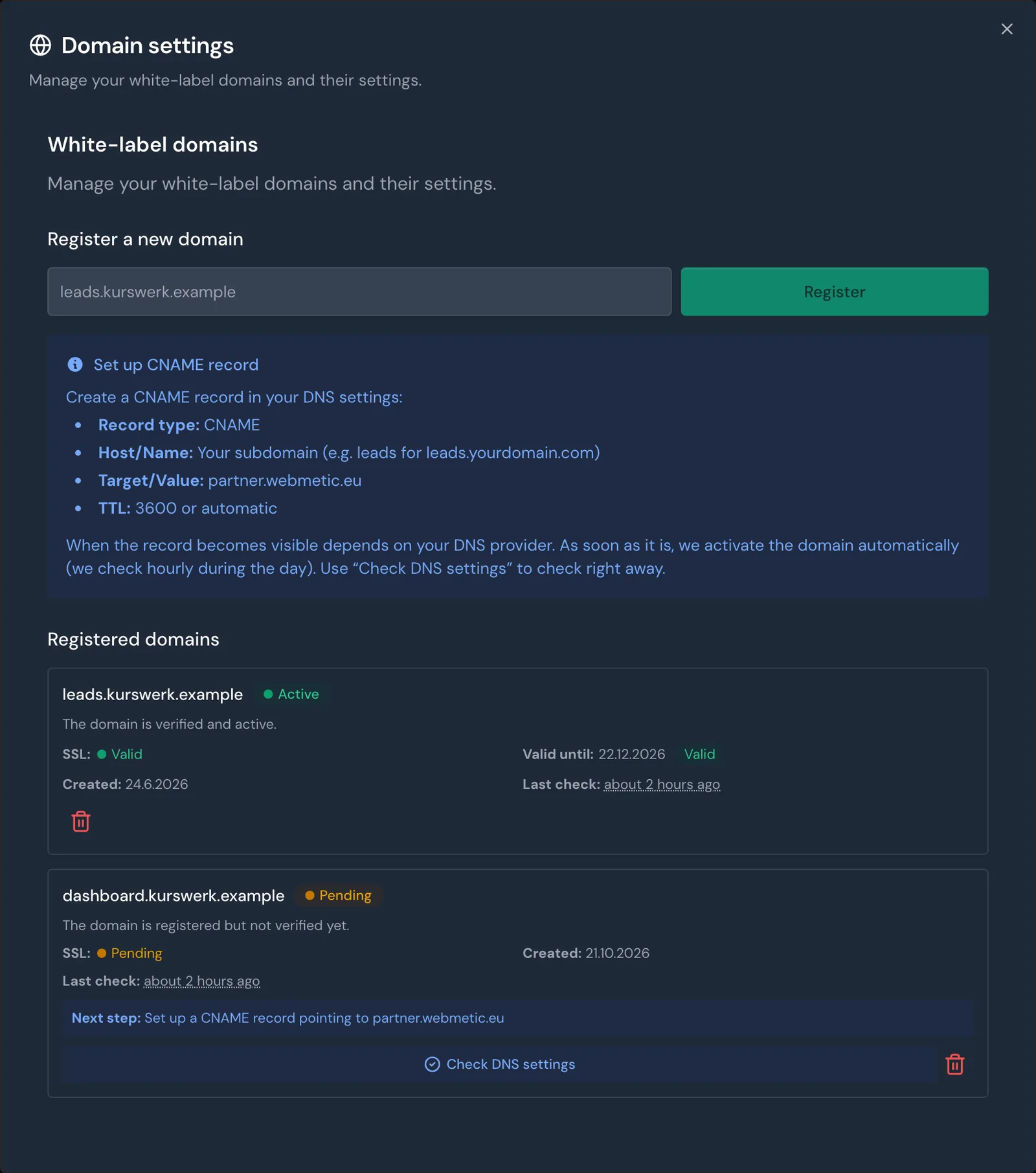
Several white-label domains are possible, and each receives its own card with its status. If you register a domain a second time, Webmetic doesn't create a second card.
Create the CNAME record
Create the record at the provider that manages the domain's DNS settings. While a domain is pending, Webmetic also shows the values in the Set up CNAME record box.
| Field | Value |
|---|---|
| Record type | CNAME |
| Host/Name | The part in front of your domain, for example leads |
| Target/Value | partner.webmetic.eu |
| TTL | 3600 or automatic |
For app.clients.agency-example.com, the host is app.clients. If the subdomain already has an A record, remove it and create the CNAME record.
Check the domain
Webmetic activates the domain automatically as soon as the record is publicly visible, and checks for it hourly during the day. If you don't want to wait, check the domain right away:
- Open Menu > Partner area > White-label domain.
- In the domain's card, click Check DNS settings. Webmetic shows the message Checking domain, and the check takes a few seconds.
- Read the result. If Webmetic finds the record, the domain shows Active, and Webmetic issues the SSL certificate automatically.
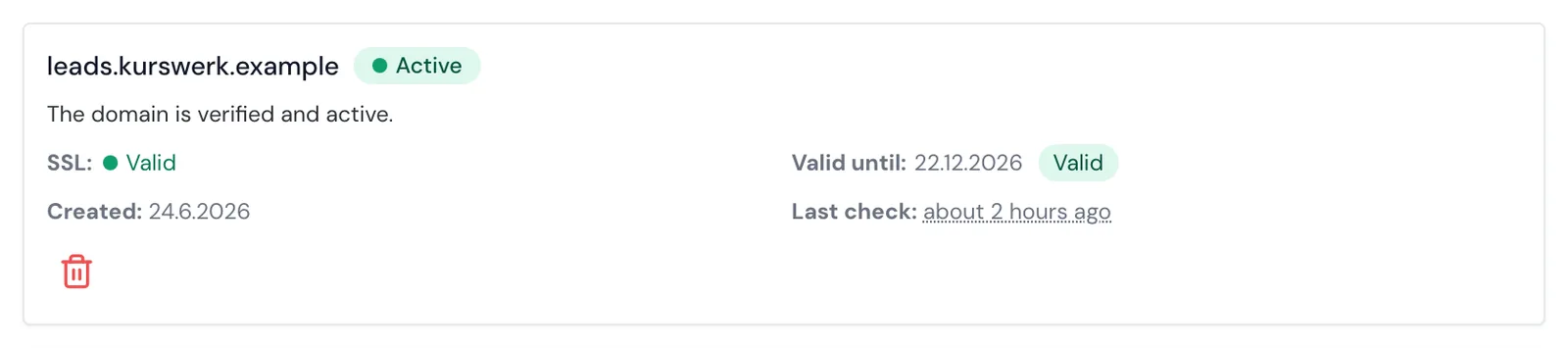
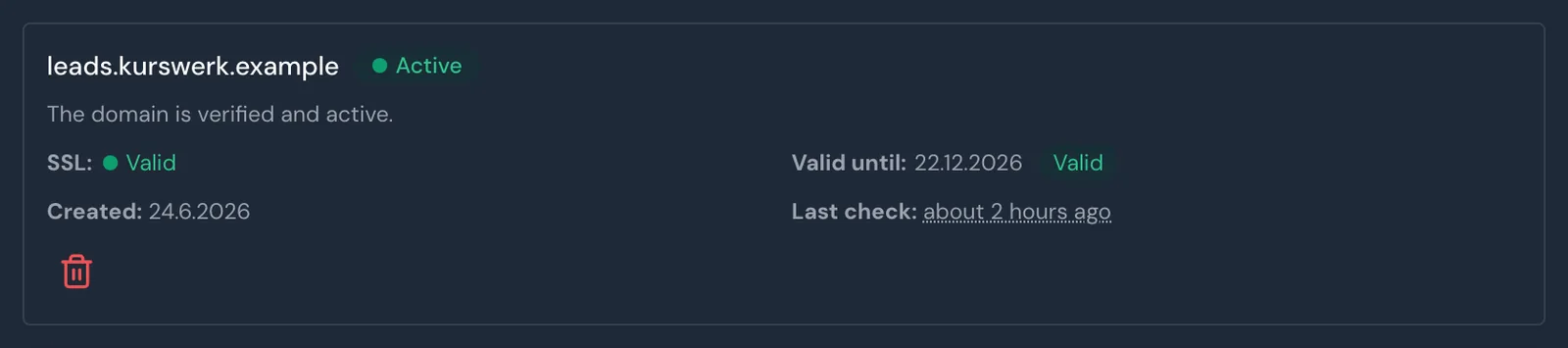
If the check fails, the message gives the reason:
| Message | What to do |
|---|---|
| No CNAME record was found. | Check the host and the target. If both are right, the record isn't publicly visible yet, and Webmetic activates the domain automatically later. |
| The CNAME record points to a different address. | Change the target to partner.webmetic.eu. |
| An A record was found instead of a CNAME record. | Remove the A record for this subdomain and create the CNAME record. |
| The domain is verified, but the SSL certificate isn't set up. | Contact Support. |
Last check shows when Webmetic last checked the domain, also after a check that failed.
Read the status
Each card shows two statuses: one for the domain and one for the SSL certificate.
| Display | Meaning |
|---|---|
| Active | The domain is verified and active. |
| Pending | The domain is registered but not verified yet. Next step names the CNAME record. |
| Error | The domain is neither active nor pending. Check the record and click Check DNS settings. |
| SSL Valid | The certificate is set up, and Valid until shows the expiry date. |
| SSL Pending | Webmetic hasn't issued the certificate yet. |
| SSL Error | The certificate couldn't be set up, or the CNAME record no longer points to partner.webmetic.eu. |
| Expiring soon | The certificate expires in less than 30 days. Webmetic renews the certificate automatically. |
| Expired | The certificate has expired. |
Webmetic checks active domains hourly during the day and records the certificate's expiry date.
Give the domain to your customers
As soon as the domain is active, it shows three things:
- Login page: The login page is at the address itself and at
/loginand shows your logo and the button in your colour. - Dashboard: After signing in, the dashboard shows your logo at the top.
- Opt-out page: The opt-out page is at
/opt-out, for exampleleads.agency-example.com/opt-out, and shows your logo and your colour.
For how to set the logo and colour, see Set up branding. The browser tab says Sign in on the login page and Dashboard in the dashboard. White-label explains what else a white-label customer receives.
Delete a domain
- Open Menu > Partner area > White-label domain.
- In the domain's card, click the trash icon Delete domain. Webmetic deletes the domain immediately, without asking for confirmation.
If you no longer need the subdomain, also remove the CNAME record at your DNS provider. If you need the domain again, register the subdomain again and check it once more.