

Set up branding
Upload your logo and set your colour so that the login page, opt-out page, and partner page show your brand.
You set the logo and colour once for your whole partner account. At the end you have:
- your logo and colour on the login page, the opt-out page, and the partner page
- your logo at the top of the dashboard when someone opens the dashboard on your white-label domain
- the link to the partner page, through which new customers sign up
Before you start
- Time: Setting the logo and colour takes a few minutes.
- Account: You need an account with a partner area.
- Access: You can set up branding without a white-label domain, but the login page and opt-out page only show it once your white-label domain is active.
- File: Have your logo ready as a PNG, JPG, WebP, or SVG file of up to 512 KB.
- Rights: Every user of your partner account can change the logo and colour.
- Cost: Branding costs no credits.
Upload your logo
The window has two fields: your main logo for light backgrounds and, optionally, a logo for dark backgrounds that Webmetic uses in dark mode.
- Open Menu > Partner area > Branding. The Branding window opens.
- Under Logo, click the field For light backgrounds and select your file. Webmetic saves the logo right away and shows the message Logo saved.
- Optional: Click the field For dark backgrounds and select a version of your logo for dark backgrounds. Webmetic saves this logo right away as well.
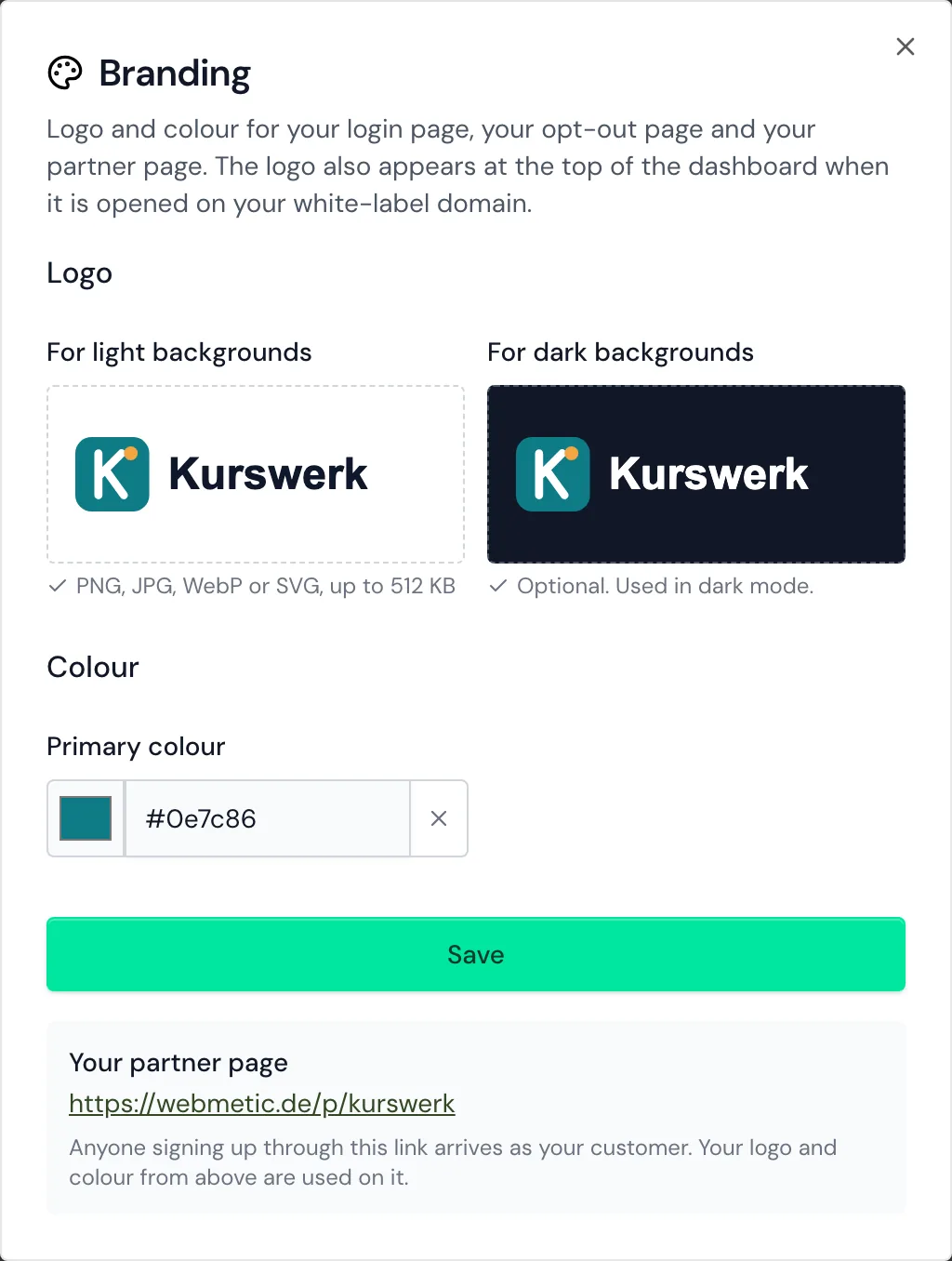
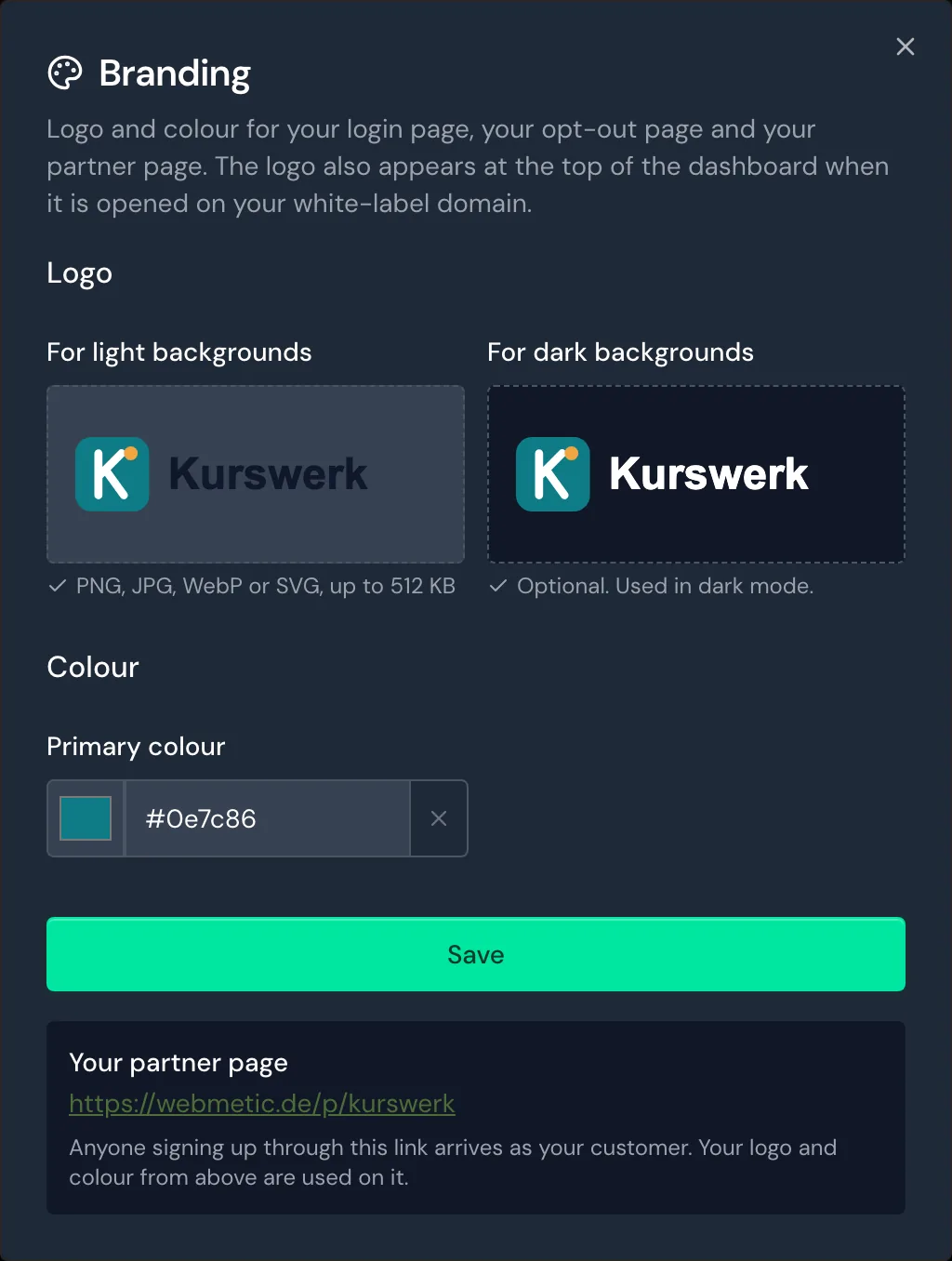
Webmetic scales PNG, JPG, and WebP files down to at most 512 pixels on the longest side but stores SVG files as they are.
Webmetic refuses other file types and larger files and shows the message Couldn't save the logo. Use a PNG, JPG, WebP or SVG file of up to 512 KB.
Set your colour
Your branding has one colour, the primary colour, and Webmetic uses it on the login page, the opt-out page, and the partner page. On the login page, the sign-in button takes this colour.
When you upload a PNG, JPG, or WebP for light backgrounds and the Primary colour field is empty, Webmetic suggests a colour from the logo if it finds one. Webmetic saves the suggestion together with the logo and shows the message Logo saved. We derived the primary colour from it, you can change it below. For an SVG file, Webmetic suggests no colour at all.
To set the colour yourself:
- Under Colour, enter a hex value in the Primary colour field, for example
#1f6feb. Webmetic adds the#itself. - Click Save. Webmetic shows the message Changes saved.
The × icon Remove colour clears the field, but this too only takes effect once you click Save.
Check your branding
Your branding appears in these places:
- Login page: logo and colour on your white-label domain.
- Opt-out page: logo and colour under
/opt-outon your white-label domain. - Dashboard: your logo at the top when someone opens the dashboard on your white-label domain.
- Partner page: logo and colour under
webmetic.de/p/….
To check the login page and the opt-out page:
- Open your white-label domain in the browser, for example
https://leads.agency-example.com. The login page shows the logo and a button in the chosen colour. - Add
/opt-outto the address. The opt-out page shows the logo and colour as well.
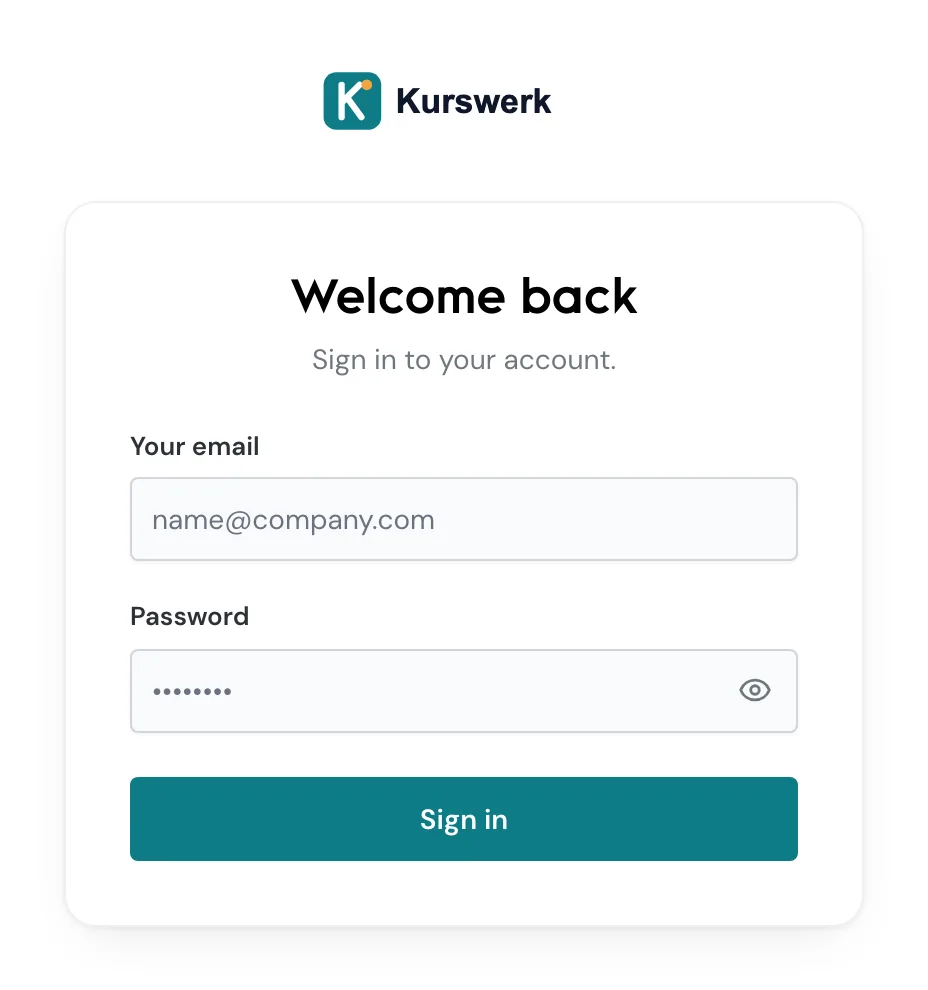
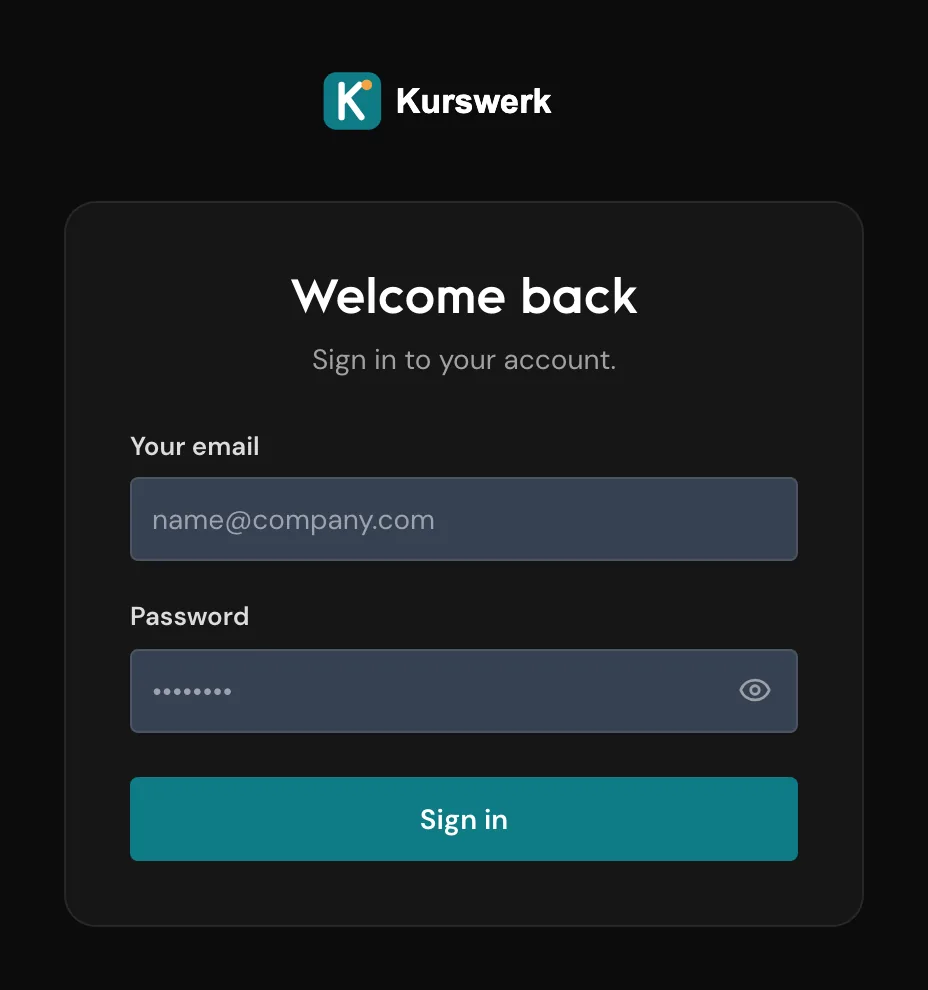
As long as no logo is saved, the login page shows the Webmetic logo.
Share your partner page
Your partner page lives at webmetic.de/p/…, and Webmetic derives the part after /p/ from your website. The page shows the logo and colour and contains a sign-up form.
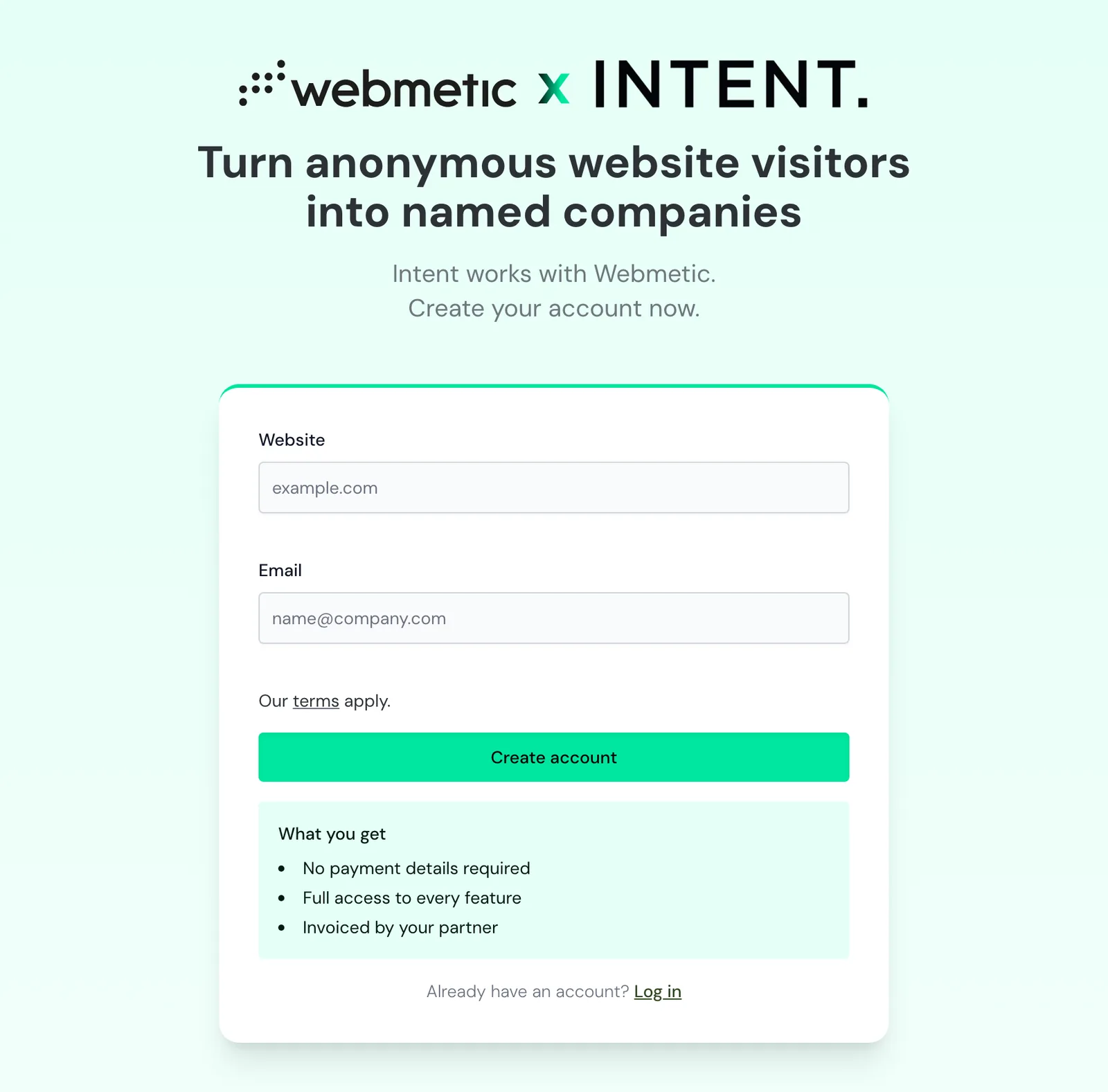
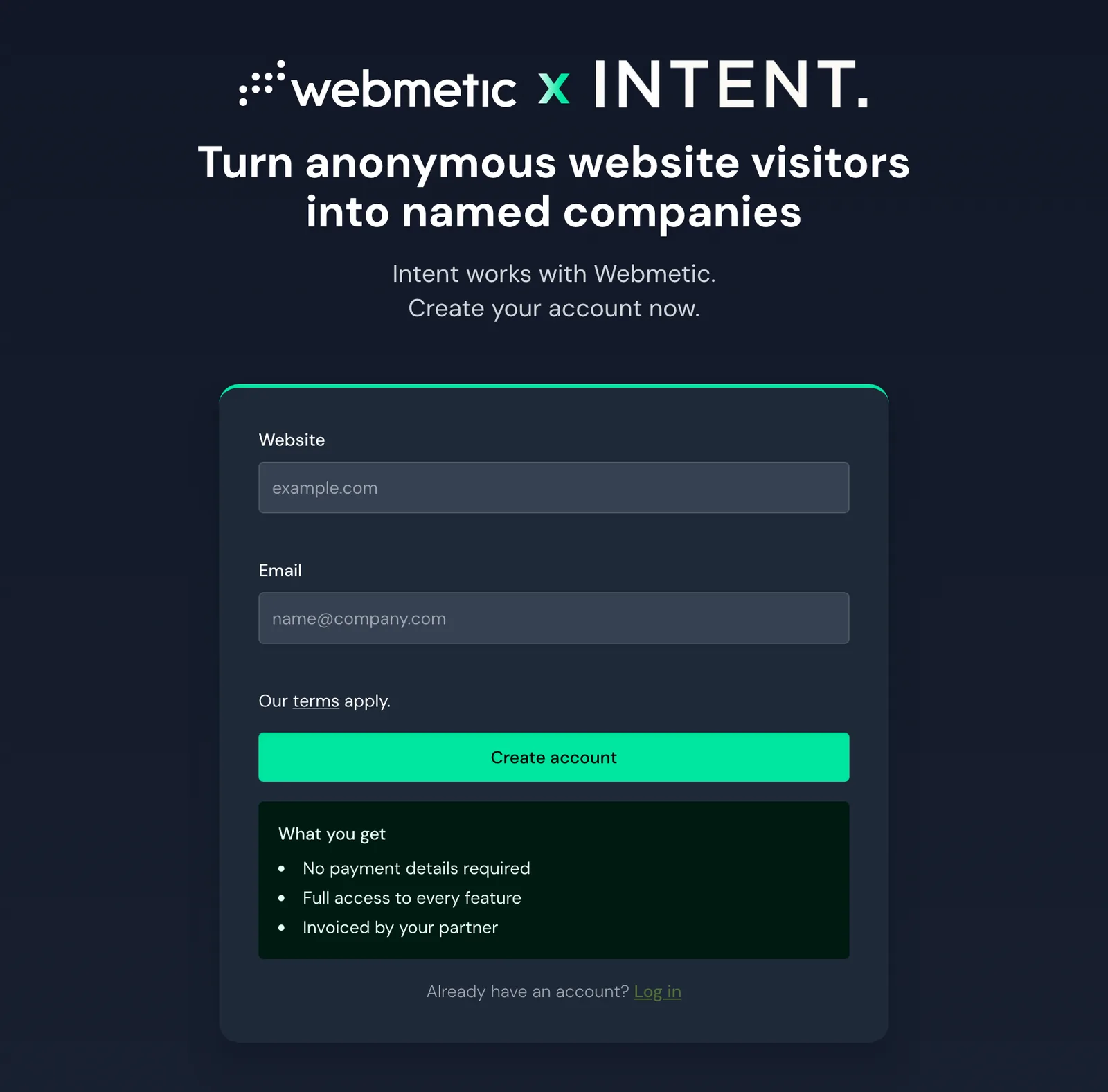
Anyone who signs up through your partner page becomes your customer, and you send the invoice. No trial starts through this page, and the page asks for no payment details.
- In the top right, click the Partner badge. The menu shows the Partner page section.
- Click Copy link. Webmetic briefly shows the message Copied.
- Pass the link on to prospects, for example by email or on your website.
With View page, you open the partner page itself, and the Branding window also shows the link under Your partner page.
Customers who sign up through the partner page aren't white-label customers. To switch on white-label for one of these customers, see Manage customers.