

Microsoft 365 Copilot
Connect Microsoft 365 Copilot to your account through an agent in Copilot Studio.
Microsoft 365 Copilot uses Webmetic through an agent that you create in Copilot Studio. Copilot Studio only runs the agent when your environment has Copilot Credits.
What you need beforehand is listed under Before you start.
-
Open Copilot Studio and click Agent on the home page. Give the agent a name, for example "Webmetic Assistant".
-
Click + next to Tools. In the Add a tool window, click Add, then Model Context Protocol (MCP).
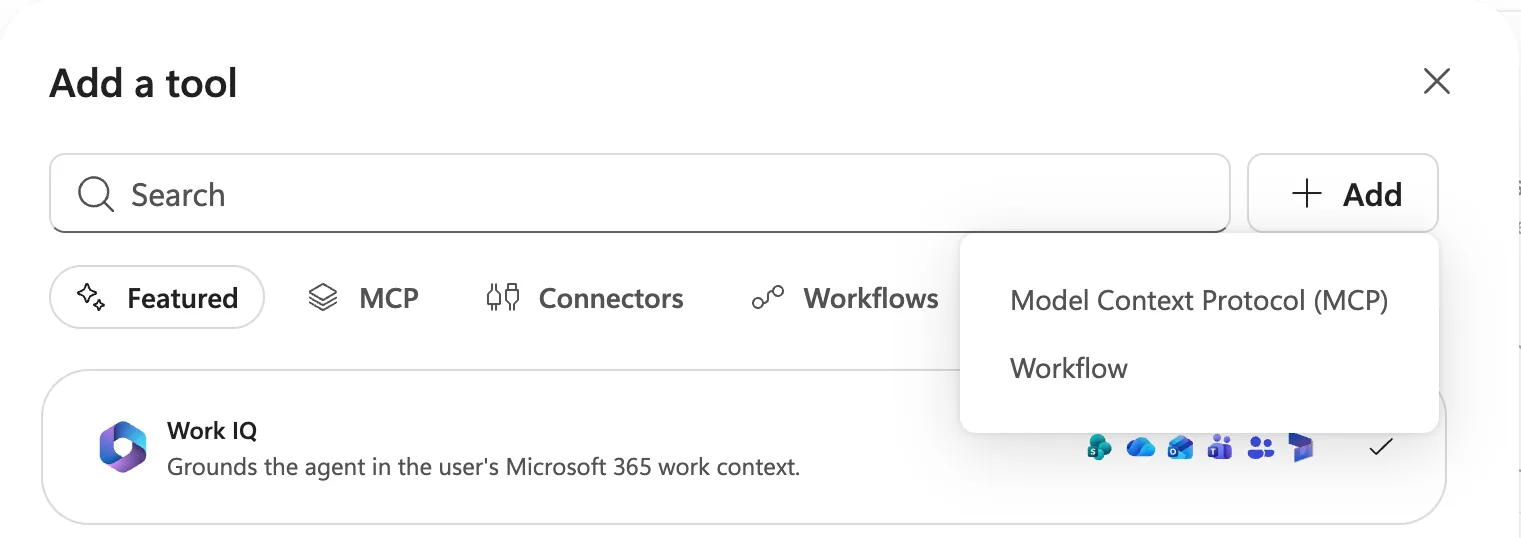
The Add a tool window with the Add menu open and the entry Model Context Protocol (MCP) -
Enter "Webmetic" under Server name and describe in one sentence under Server description what the agent uses Webmetic for. Enter this address under Server URL:
https://mcp.webmetic.de/mcp -
Under Authentication, select OAuth 2.0, and under Configuration type, select Dynamic (with discovery). Click Add.
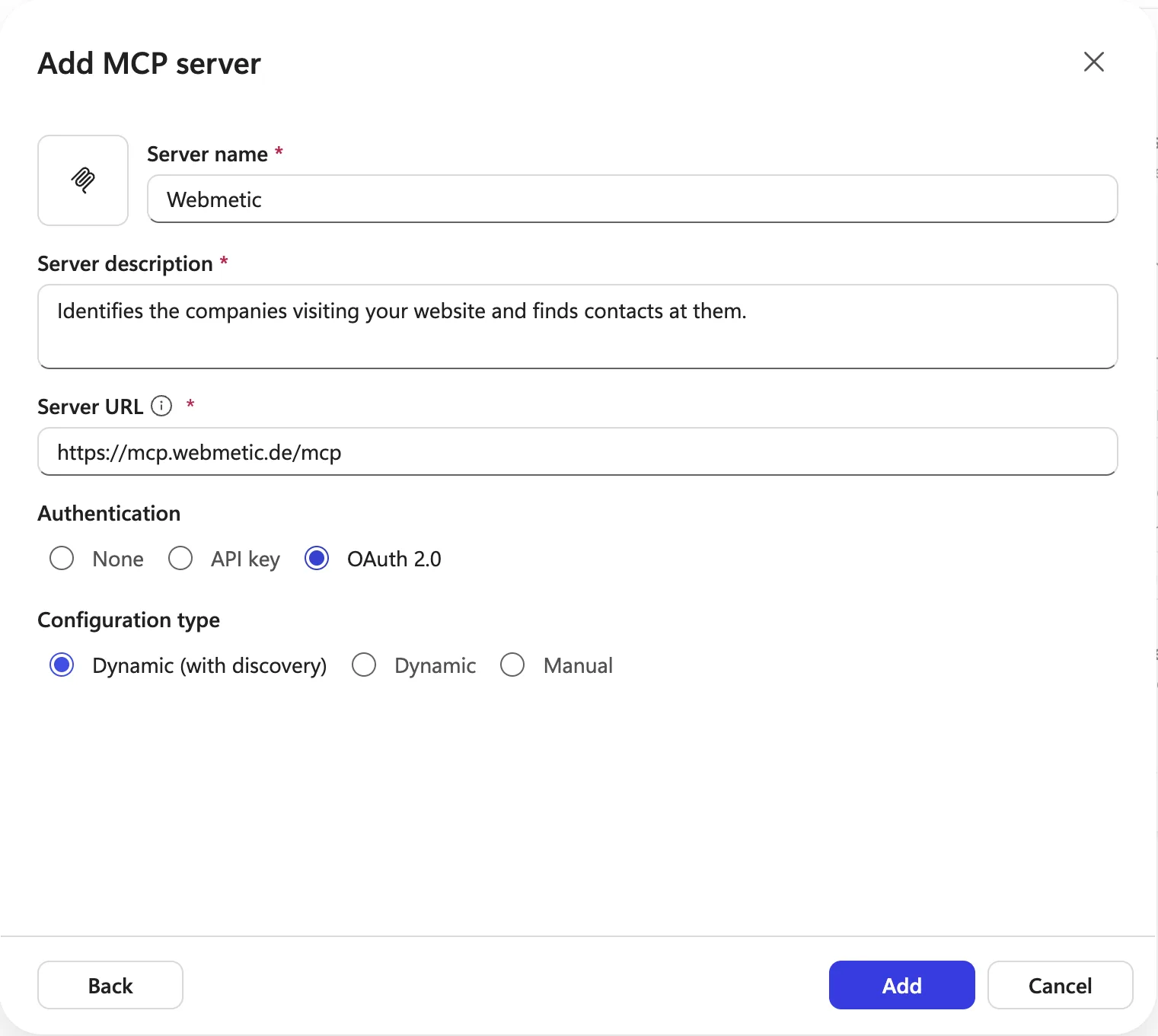
The Add MCP server window with name, description, server address, OAuth 2.0 and Dynamic (with discovery) -
In the Select a connection window, click the arrow next to Connection, then Create new connection. Then click Create.
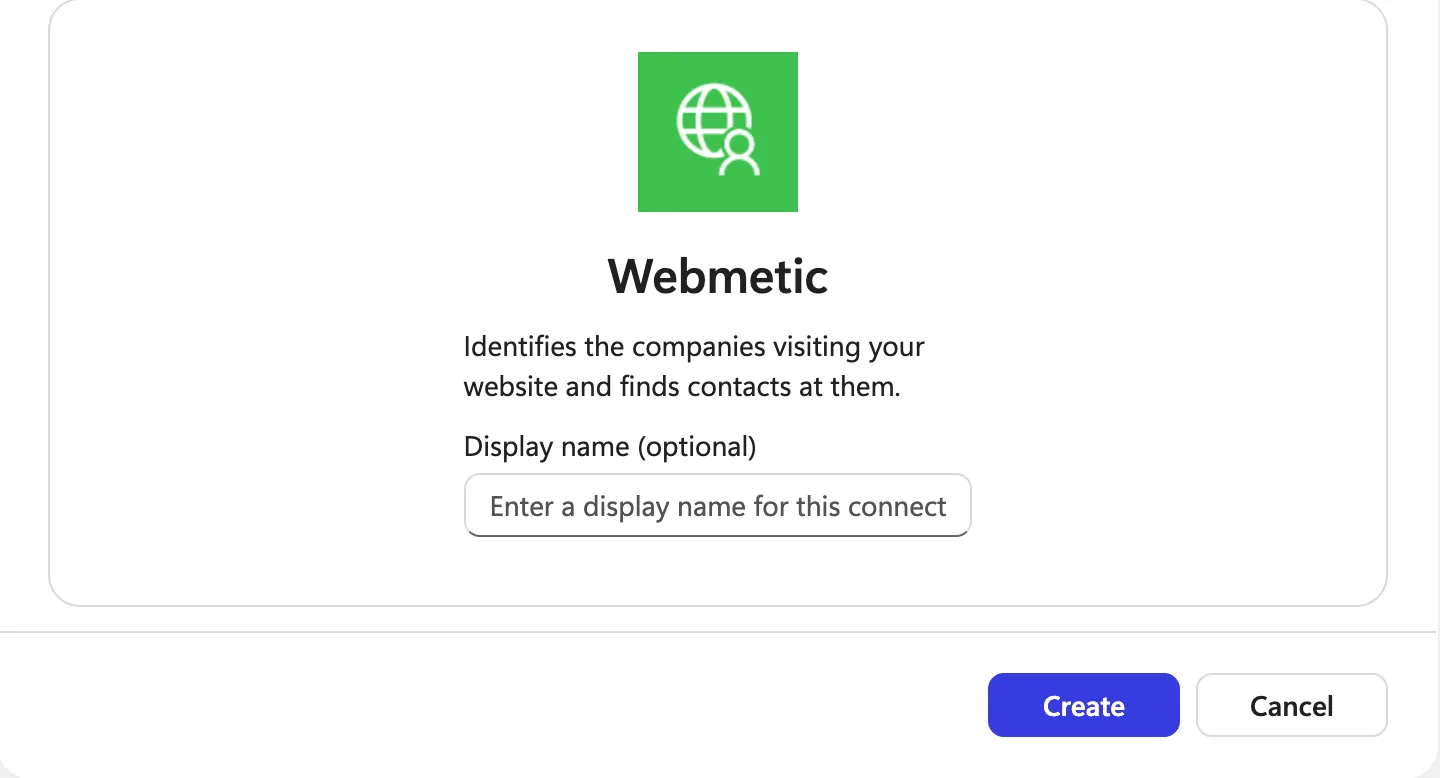
The window for creating the connection to Webmetic with the Create button -
As soon as the page Webmetic verbinden opens, enter your E-Mail-Adresse and Passwort and click Anmelden und verbinden. The page calls Copilot Studio "Credential Manager", because Copilot Studio signs in to Webmetic under that name.
-
In the Select a connection window, click Add. Webmetic now appears under Tools.
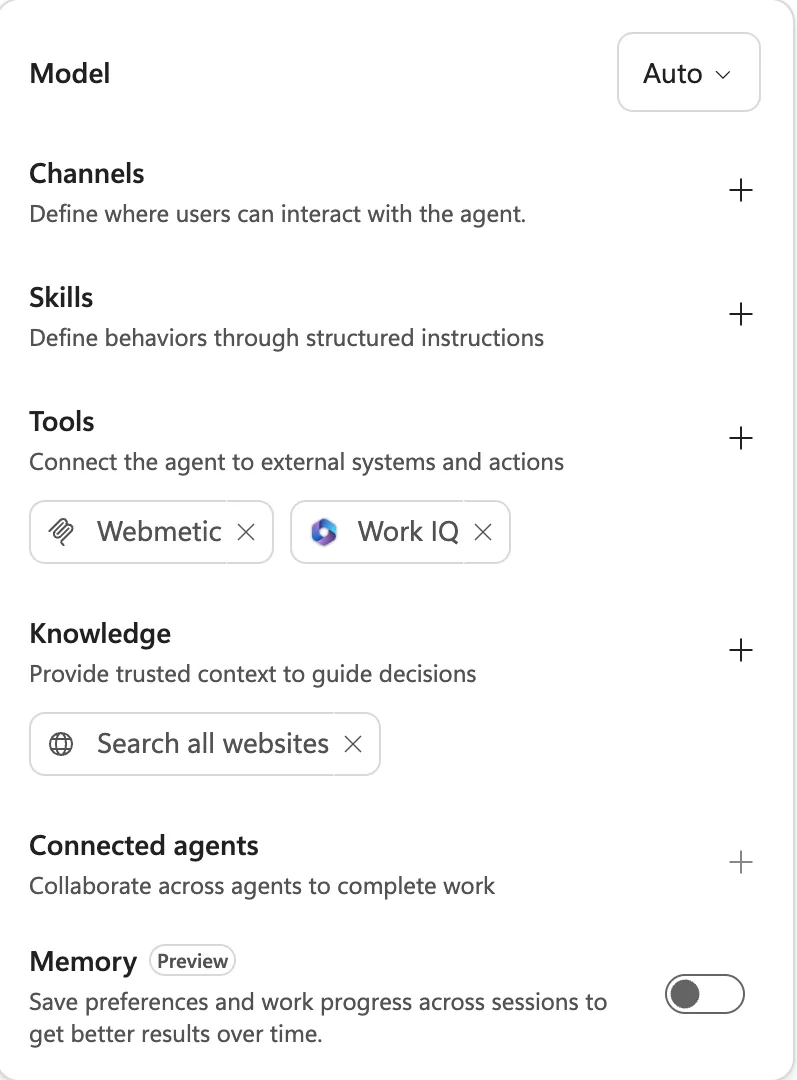
The agent in Copilot Studio with Webmetic under Tools
So that the agent appears in Microsoft 365 Copilot and in Teams, click + next to Channels, select Teams + Microsoft 365 and publish the agent with Publish.