

Quickstart
Send your first request to the Webmetic API and read the response.
In this guide you fetch the companies that visited your website. At the end you'll have:
- your API key from the dashboard
- a first API response with the companies from the last 30 days
- the
company_idof a company, which you use to find contacts, for example
Before you start
- Time: The first request takes about five minutes.
- Account: You need a Webmetic account with at least one website. The API only returns results once your tracking code runs and Webmetic has identified companies in the last 30 days.
- Access: You need a terminal with cURL or an environment for JavaScript or Python.
- Rights: Only admins see the API keys in the dashboard. If you're not an admin, ask an admin of your account for the key.
- Plan: The API is part of every plan, including the Free plan and the trial. The request on this page costs no credits.
Try it without an account
Without a Webmetic account, you can try the API with the public demo key wmtc_demo, in the samples on this page or in the playground of the Reference for /company. The demo key returns invented data in the same shape as real responses: ten companies on .example domains, led by Bergquell Mineralbrunnen GmbH from the examples in these docs. domain accepts any value, and unlocked contact details are invented too. It costs no credits, stores nothing, and sends no webhooks. Lists and webhooks you create with it are gone on the next read.
1. Copy your API key
To read companies and visits, you need the Visitor Intelligence key, which Webmetic creates when you sign up.
- Open Menu > Integrations > API. The API keys window opens.
- If the Visitor Intelligence card shows the note No key generated yet., click Generate key. Webmetic shows the new key right away.
- In the Visitor Intelligence card, click the Copy icon. Webmetic copies the full key, even while it's masked.
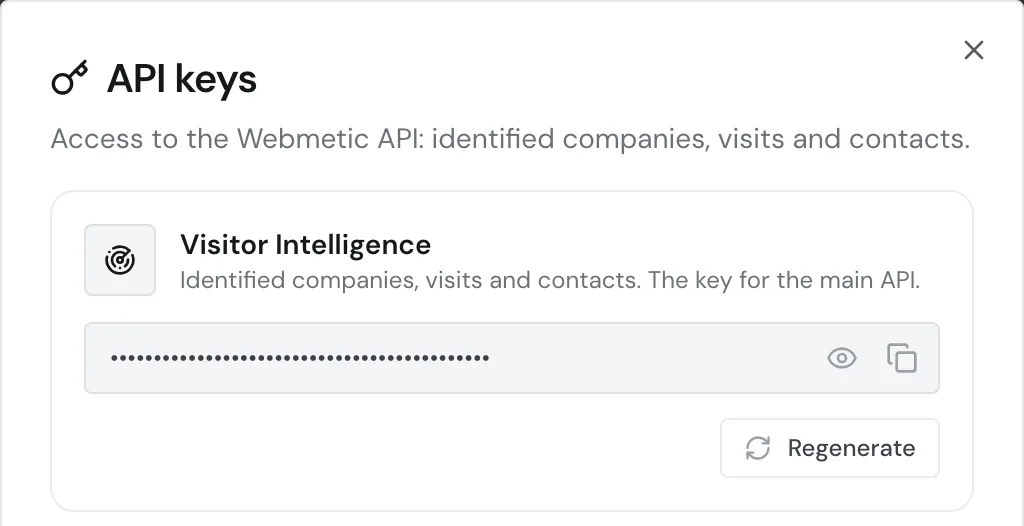
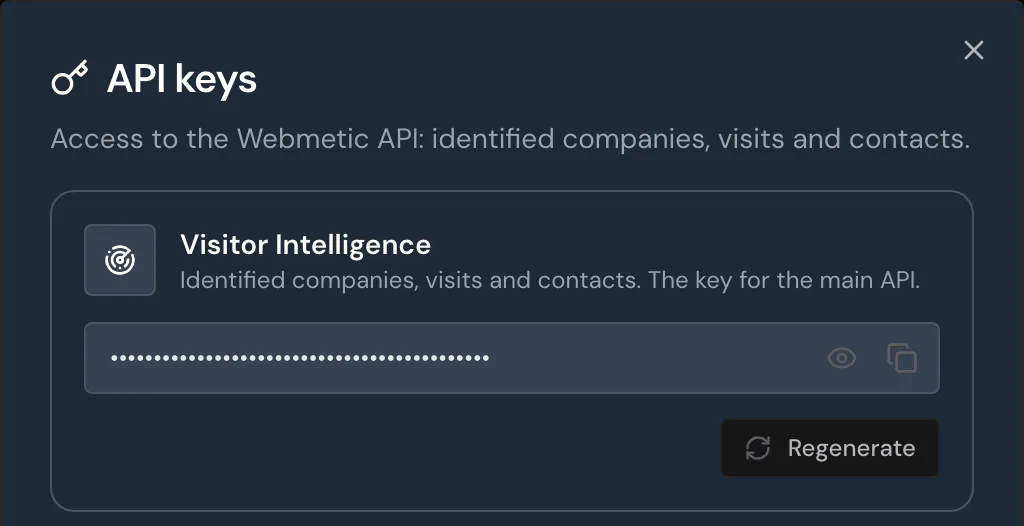
Don't click Regenerate, because afterwards the old key stops working, also in tools that already use it.
The key doesn't belong in the browser
Don't put your API key into code that runs on your website or in the browser. Anyone with the key can read your account's data and spend credits on contact data.
2. Fetch companies
The API lives at https://hub.webmetic.de and expects the key unchanged in the Authorization header, without a Bearer prefix. For details, see Authentication. Replace your-website.com with your domain, written exactly as it appears under Menu > Websites.
curl "https://hub.webmetic.de/company?domain=your-website.com&page_size=3" \
  -H "Authorization: wmtc_YOUR_API_KEY"
Put the URL in quotes when you use cURL, otherwise zsh, the default shell on macOS, stops at the ?. page_size=3 keeps the response short, because without the parameter the API returns up to 10,000 companies per page.
If the API responds with status 403, detail.error in the response names the reason:
API_KEY_INVALID: The key has the wrong format, for example withBearerin front.API_KEY_NOT_FOUND: No account has this key, for example because you copied the Enrichment key.API_KEY_NOT_AUTHORIZED: The domain doesn't belong to your account or is written differently.
All codes are listed under Errors. /company and the other visit endpoints each answer one request per second. If you send more requests, the API responds with status 429, as described under Rate limits.
3. Read the response
The Reference for /company describes every field. The response is a JSON object with two parts:
pagination: a list with exactly one entry.totalcounts all companies in the time range, andisLastmarks the last page. For details, see Pagination.result: the companies on this page, each as its own object.
{
  "pagination": [
    {
      "total": 32,
      "page_total": 11,
      "isFirst": true,
      "current": 1,
      "isLast": false,
      "page_size": 3
    }
  ],
  "result": [
    {
      "company_id": "41ea486a9c95",
      "company_name": "Bergquell Mineralbrunnen GmbH",
      "company_url": "www.bergquell.example",
      "city": "Freising",
      "country": "Deutschland",
      "country_code": "DE",
      "employee_count": [201, 500],
      "lead_score": 88.0,
      "fit_score": 92,
      "relevance_score": 80.96,
      "nace_codes": [
        {
          "code": "11.07",
          "full_code": "C 11.07",
          "section_code": "C",
          "section_description_de": "Verarbeitendes Gewerbe/Herstellung von Waren",
          "section_description_en": "Manufacturing",
          "division_code": "C11",
          "division_description_de": "Getränkeherstellung",
          "division_description_en": "Manufacture of beverages",
          "description_de": "Herstellung von Erfrischungsgetränken und Mineralwässern",
          "description_en": "Manufacture of soft drinks and bottled waters"
        }
      ]
    }
  ]
}
These are the fields you need first in the response:
company_id: the ID of the company, which you use to find contacts through/contacts/*. Set up contacts describes how to set up the contact search once beforehand.relevance_score: a value from 0 to 100 that combines activity and fit with your ideal customer profile and is the best value to sort by.lead_scoreandfit_score: activity and fit on their own, also from 0 to 100.
The order of the companies isn't fixed, so page_size=3 returns three arbitrary companies, not the most active ones. If a value is missing, the API usually leaves out the field. Without an ideal customer profile, fit_score is null.
Without dates, the time range is the last 30 days. Date ranges and time zones describes how to pick another one with from_date and to_date.
If result is empty and total is 0, Webmetic identified no companies in this time range. That's not an error. Then use Check your installation to see whether your tracking code runs.
On the Free plan the API returns all companies, but only the readable ones with data. The others contain only their company_id, "company_name": "Verborgenes Unternehmen", and "blurred": true. For details, see Plans.
What you set up
- You copied your API key and know where to find it.
- Your first request to the API returned a response with the data of your account.
- You know how the response is built, with
paginationandresult. - You have the
company_idof a company and can use it in further requests.