

Get started
Set up Webmetic and see which companies visit your website.
In this guide you set up Webmetic from start to finish. At the end you'll have:
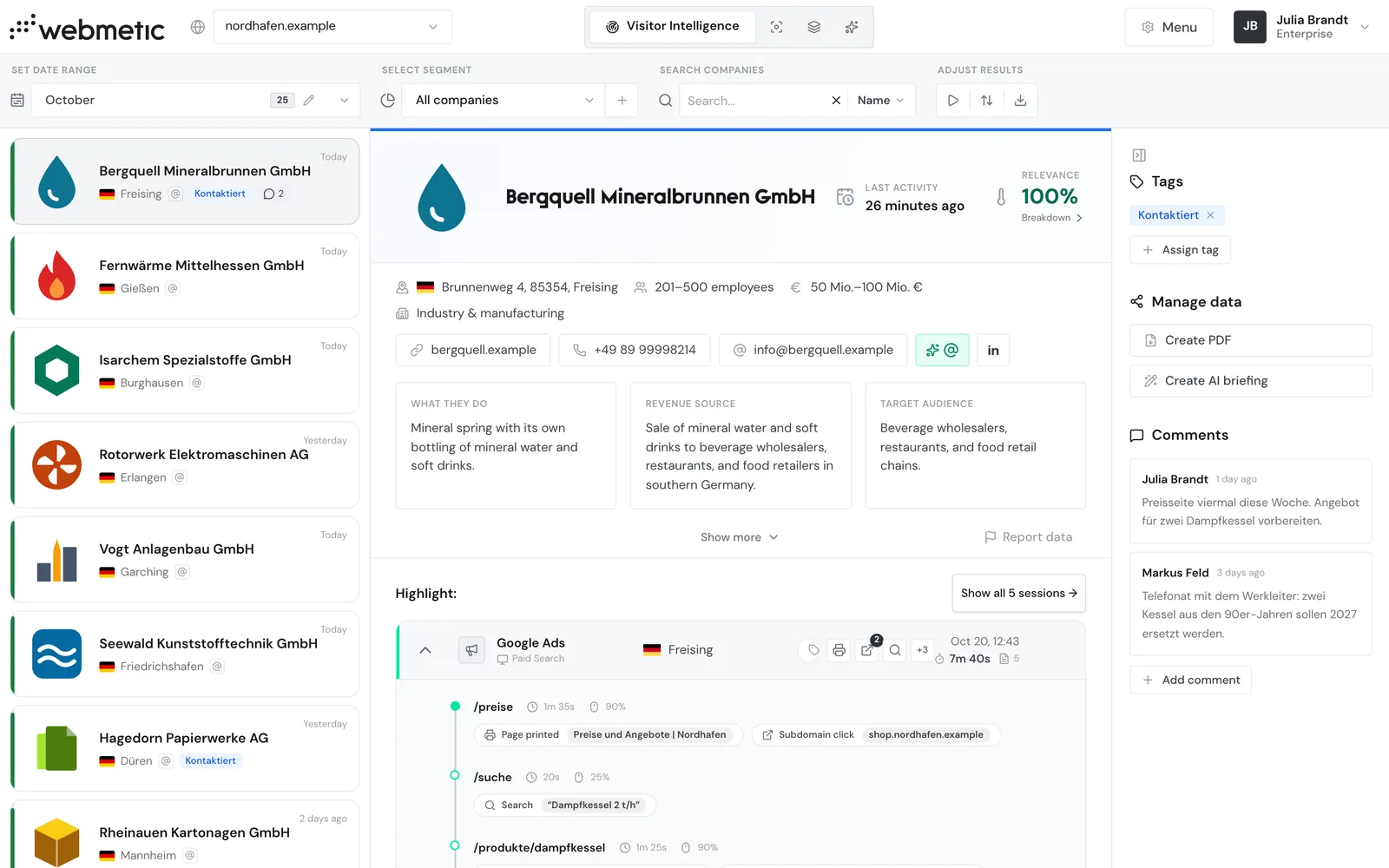
- a list of the companies visiting your website, with their profile and the pages they viewed
- a segment for your target customers
- an email whenever new companies from that segment visit your website
- the companies in your CRM and answers from your AI assistant
Before you start
- Time: Setup takes a few minutes, and the first data arrives shortly after. The first companies appear within minutes to hours, depending on how much traffic your website gets.
- Account: You need a Webmetic account. The trial lasts 14 days and only starts once Webmetic detects your tracking code for the first time.
- Access: If you don't have access to your website, hand step 1 over to your IT team or agency.
- Rights: For step 5, an admin connects the CRM. For step 6 you don't need admin rights. On the Free plan, only the companies you can read in the dashboard go to your CRM, and the AI assistant only knows those.
In the dashboard, the Getting started checklist in the bottom right shows which steps are still open.
1. Add the tracking code
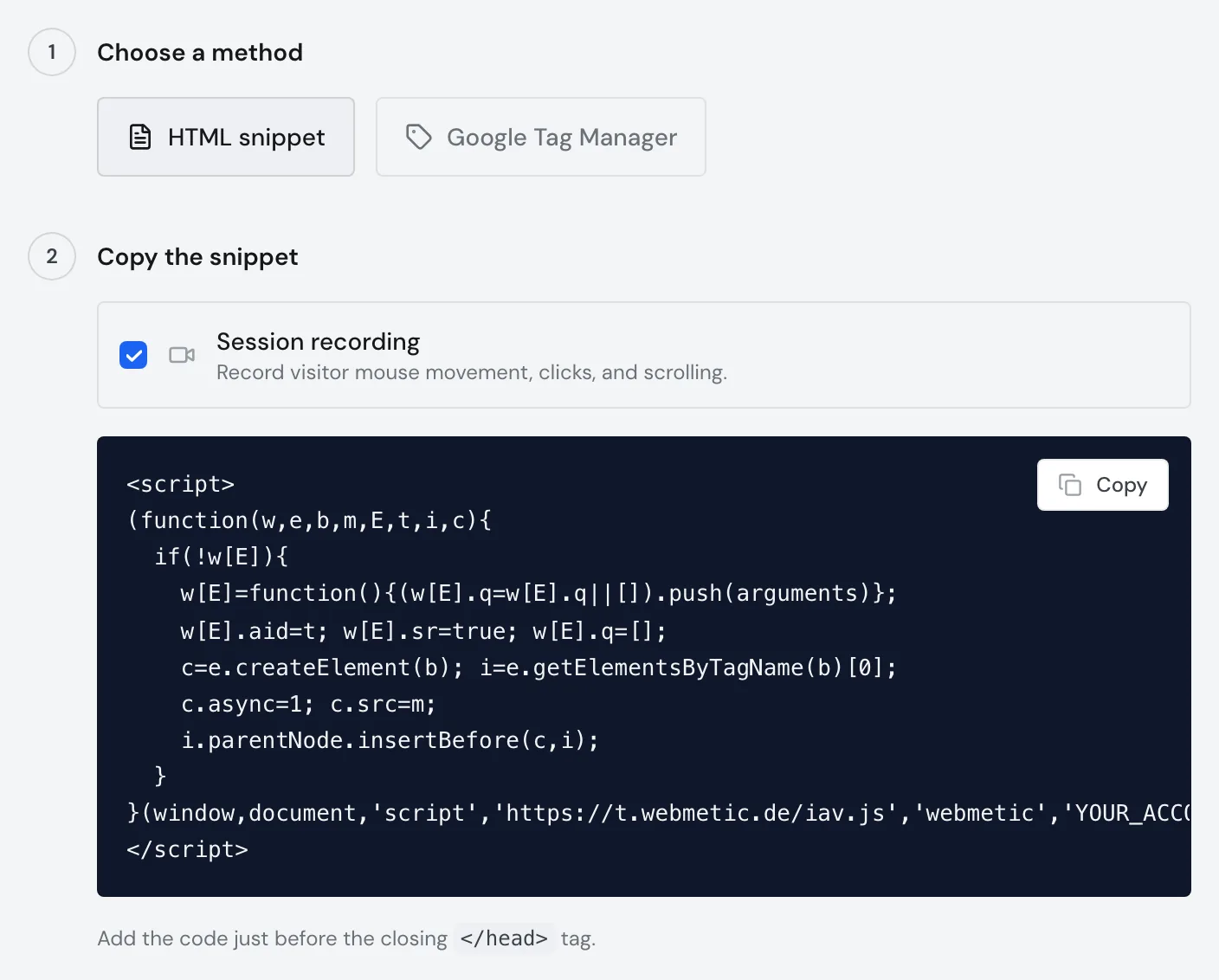
The tracking code reports every visit to your website to Webmetic. After you sign up, Webmetic opens the setup assistant for it. Sign-up and setup describes every path in the assistant. You'll find the instructions for your platform under Installation.
- If you have access to your website, choose Set it up yourself. Otherwise choose Hand over to your IT team or Hand over to your agency, and Webmetic sends them the instructions by email.
- Choose the method. Recommended: Google Tag Manager, if your website already uses it. Then nobody has to touch your website's code. Otherwise, add the tracking code in the HTML. For WordPress there's a WordPress plugin.
- Follow the instructions in the assistant.
You can always find the tracking code under Menu > Tracking code. Copy it from there, because it already contains your account ID.
<script>
(function(w,e,b,m,E,t,i,c){
  if(!w[E]){
    w[E]=function(){(w[E].q=w[E].q||[]).push(arguments)};
    w[E].aid=t; w[E].sr=true; w[E].q=[];
    c=e.createElement(b); i=e.getElementsByTagName(b)[0];
    c.async=1; c.src=m;
    i.parentNode.insertBefore(c,i);
  }
}(window,document,'script','https://t.webmetic.de/iav.js','webmetic','YOUR_ACCOUNT_ID'));
</script>
2. See your first companies
Here's how to check that data is arriving and see your first companies:
- Open Menu > Tracking code and click Quick check under Verify installation. As soon as visits arrive, Webmetic shows the message Data received.
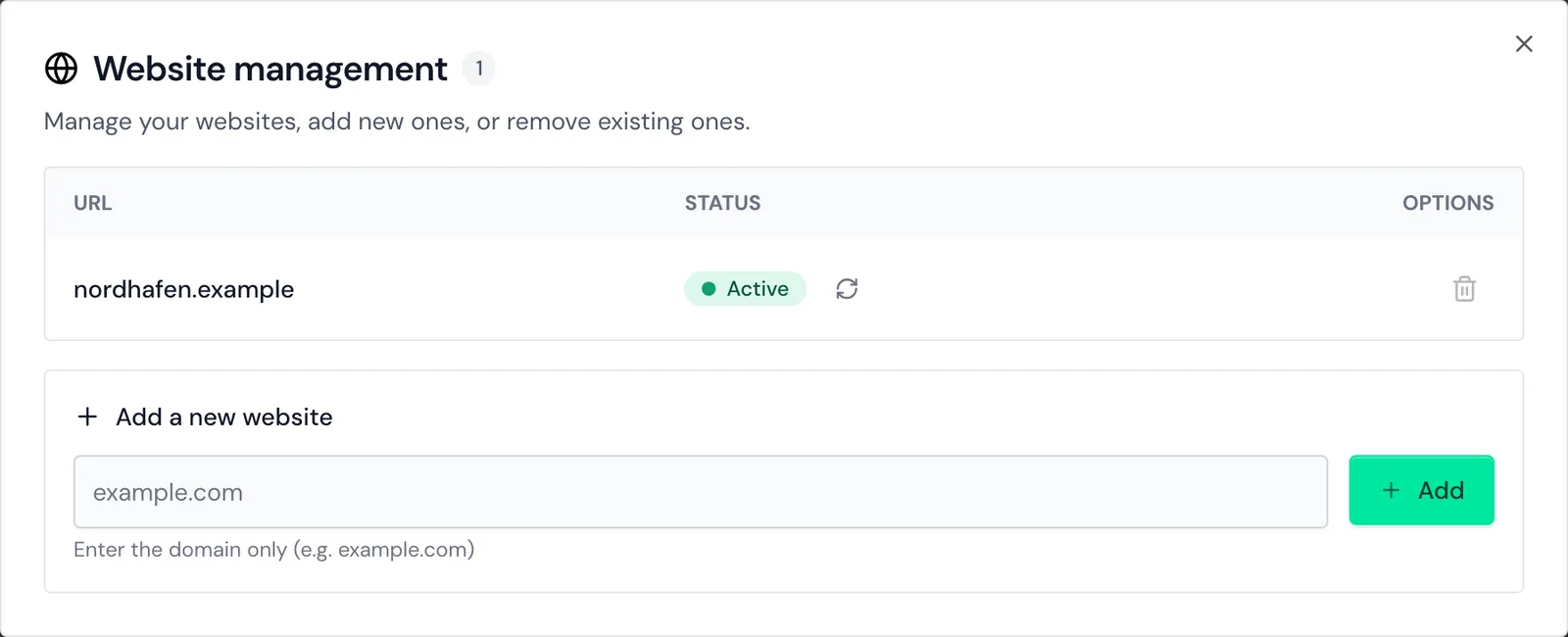
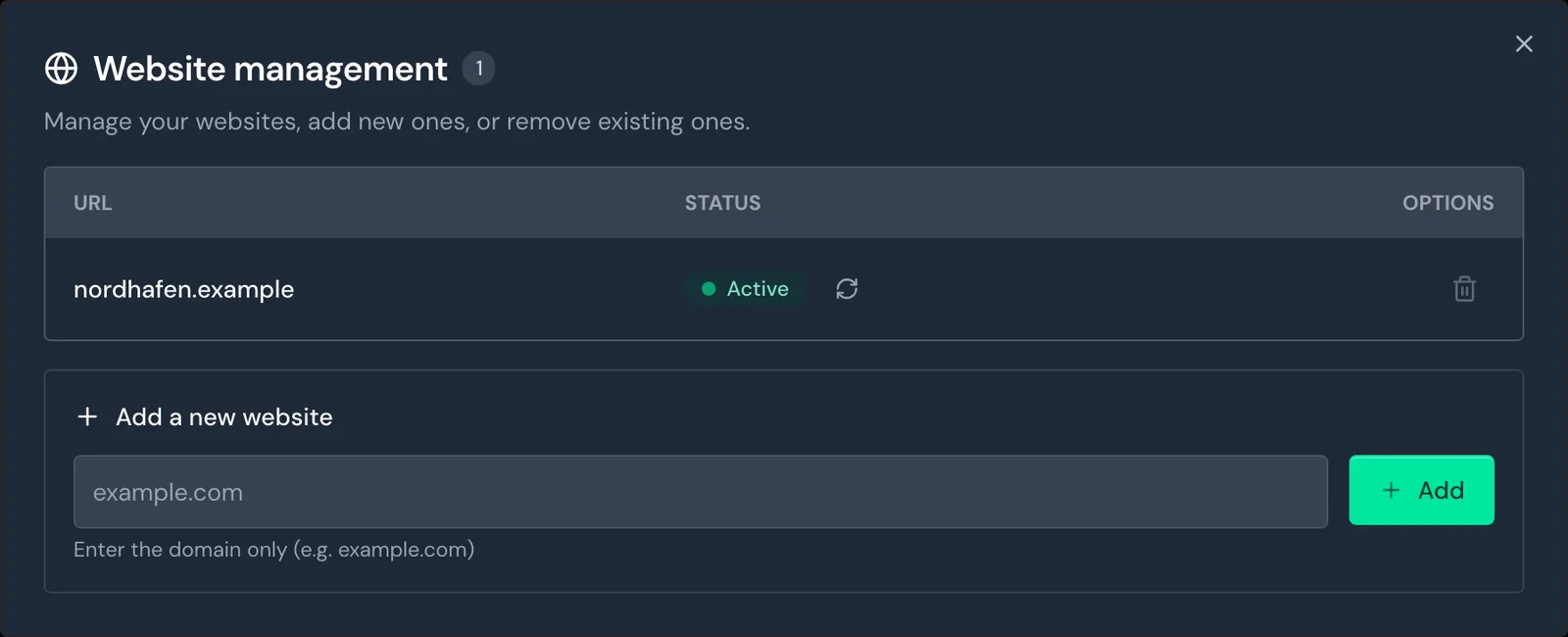
- Open Menu > Websites. Your website now shows Active.
- Open the Visitor Intelligence tab and click a company. The profile shows which pages it viewed and when.
How fast the first companies appear depends on how much traffic your website gets. If no data arrives, see Check your installation.
3. Save your target customers as a segment
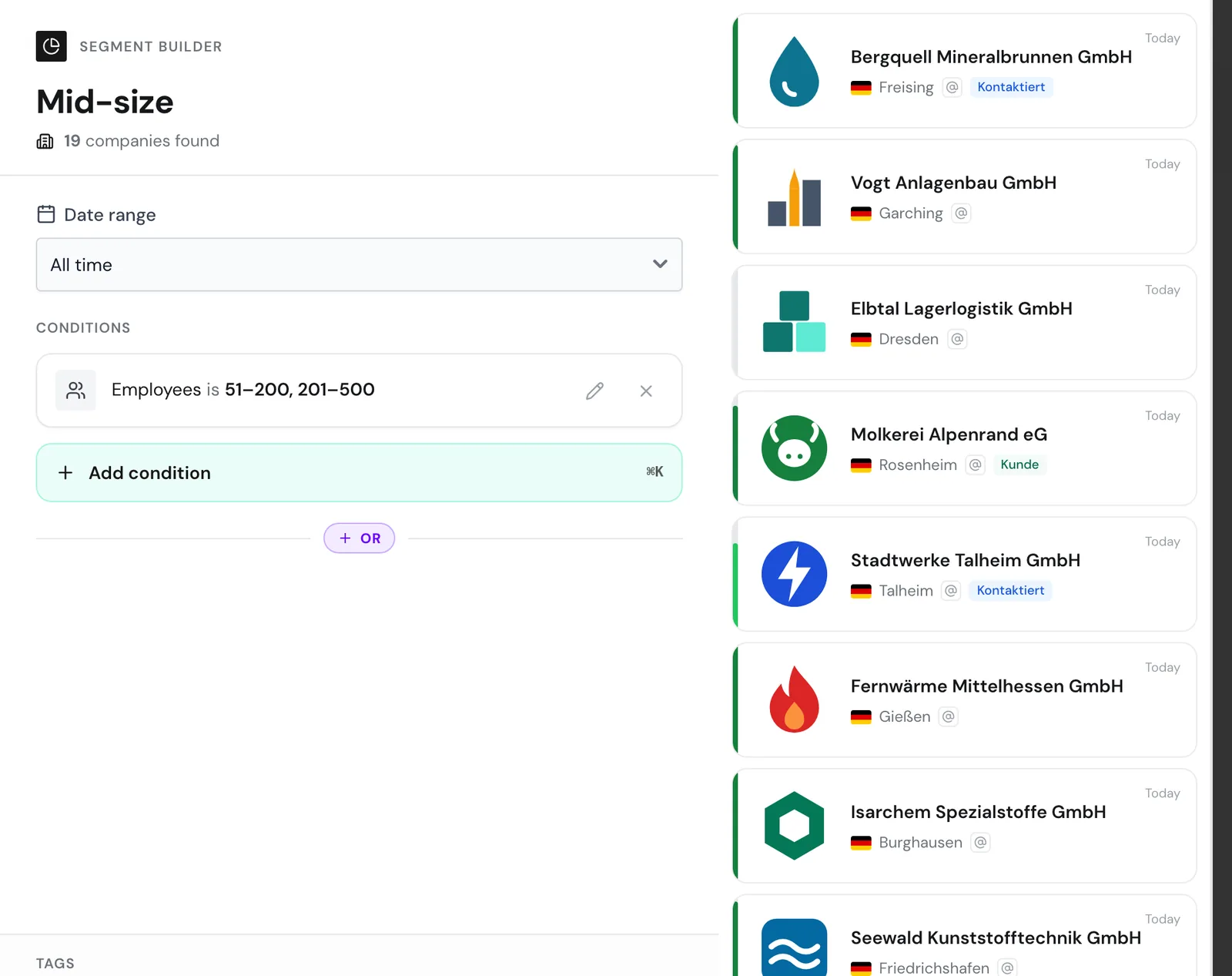
A segment is a saved selection, for example all machine builders with more than 50 employees. Webmetic creates the sample segment Großraum München (Greater Munich) for you at the start.
- Above the list, open the segment picker All companies.
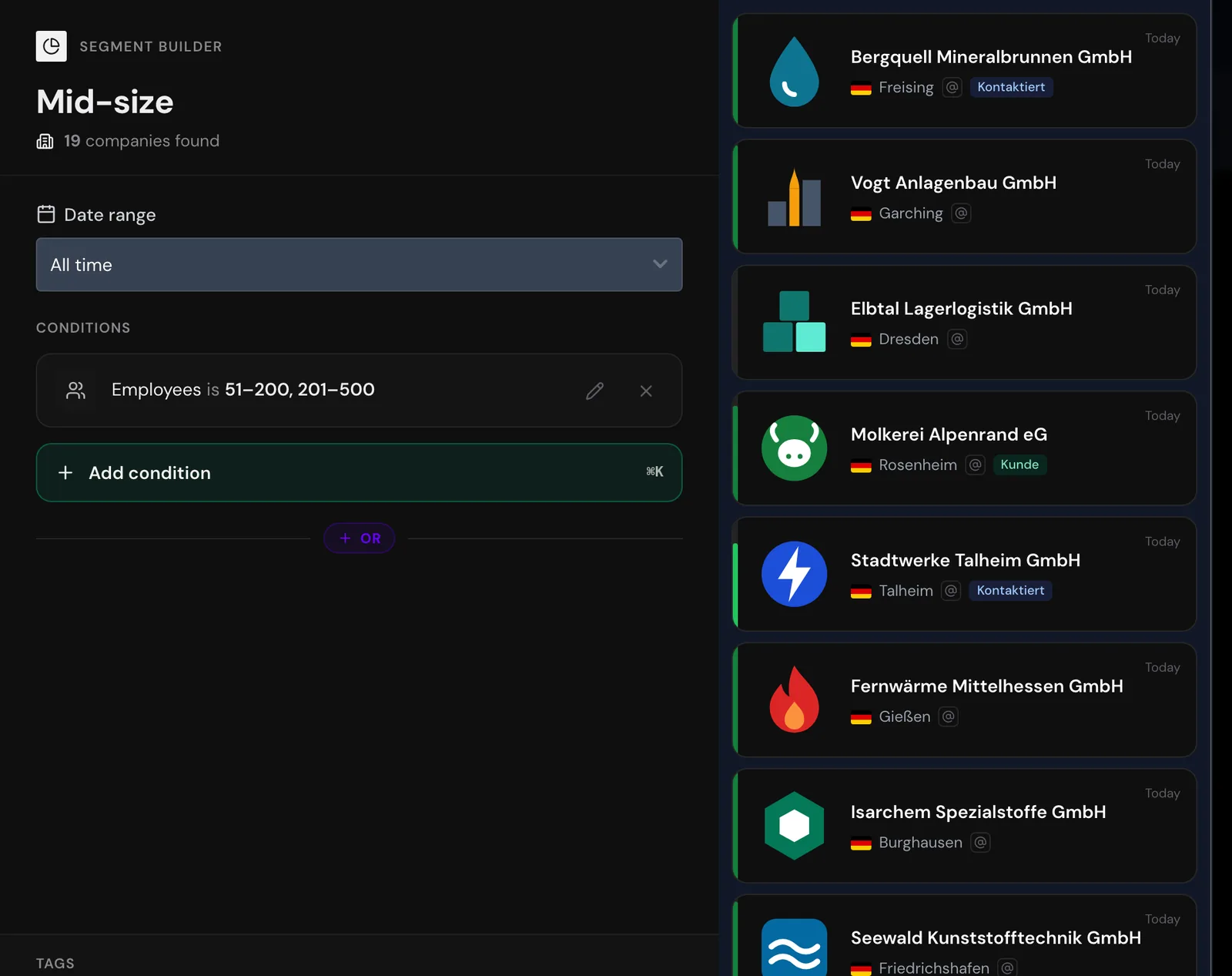
- Click Create segment. The Segment builder opens.
- Click Add condition, choose an attribute, and click Apply condition. Webmetic shows right away how many companies match.
- Enter a name and click Save segment.
4. Get notified about new companies
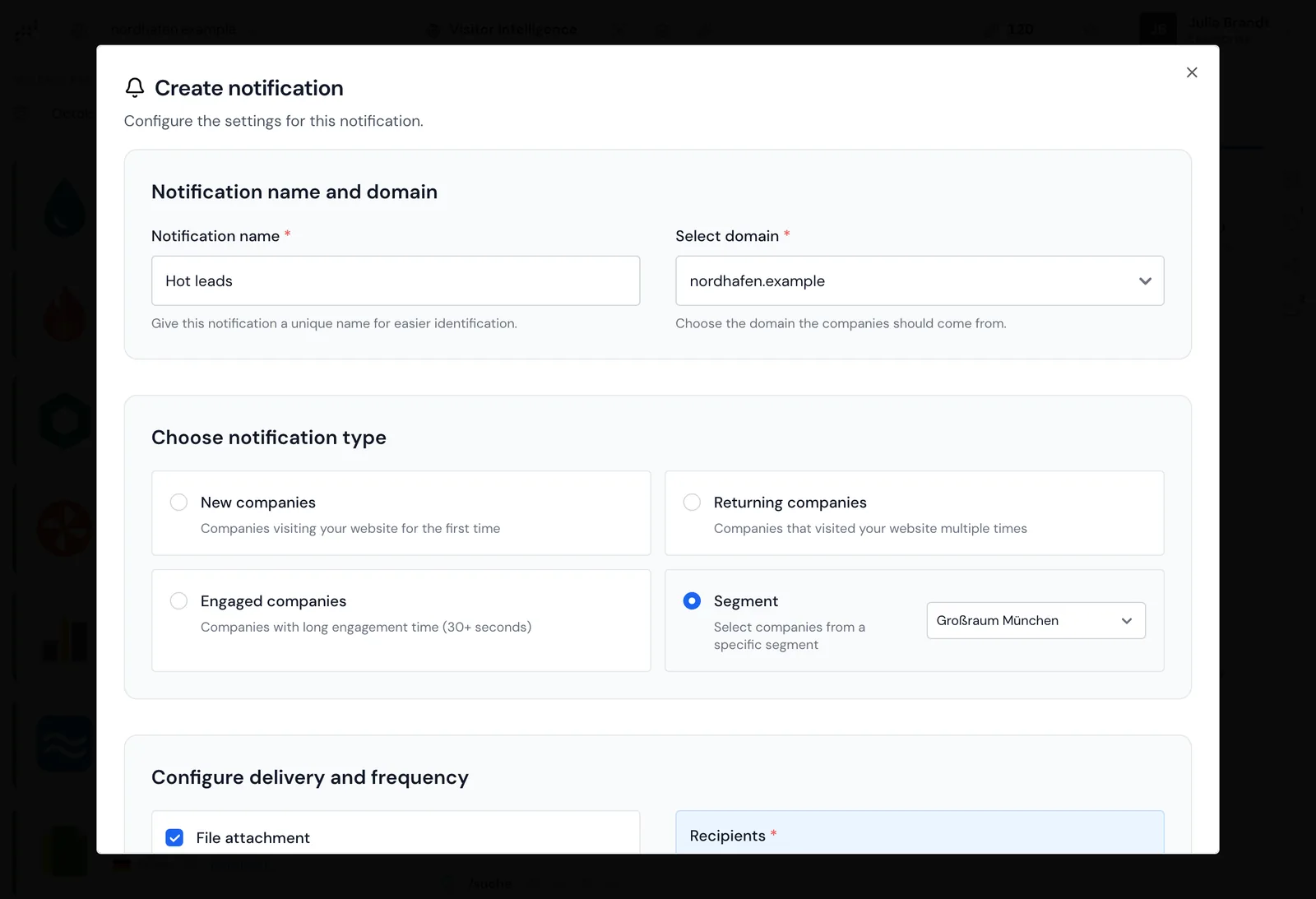
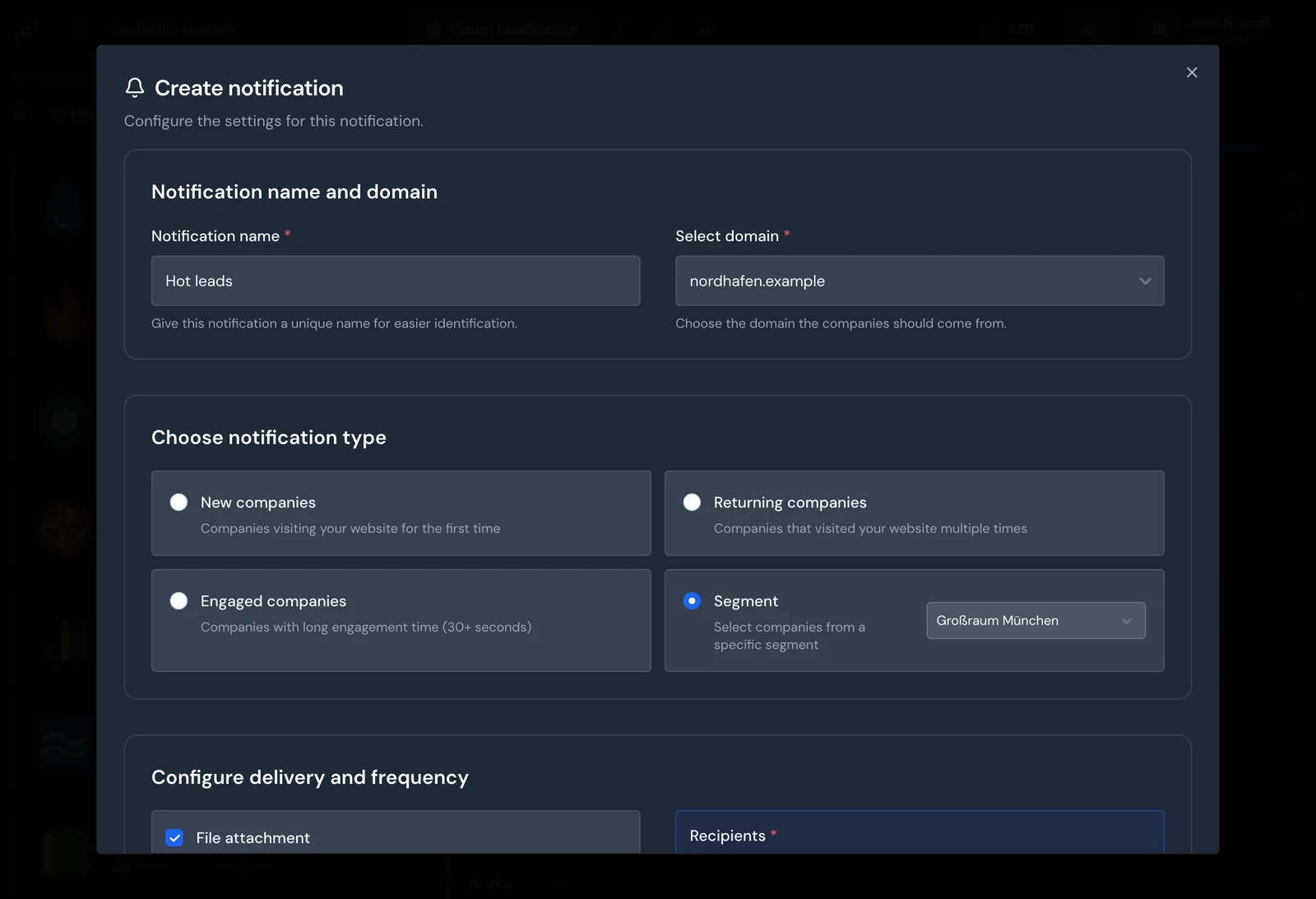
Webmetic sends you an email with a list of the companies that visited your website. At the start, the Besucher-Update notification is already active: on Mondays, Wednesdays, and Fridays at 8 a.m. How to limit the email to the companies added since the last one is explained under Notifications.
- Open your profile menu in the top right and click Notifications.
- Click New notification.
- Choose the type Segment, then your segment from step 3.
- Under Recipients, choose yourself or your colleagues.
- Choose the weekdays and the time, then click Save.
5. Send companies to your CRM
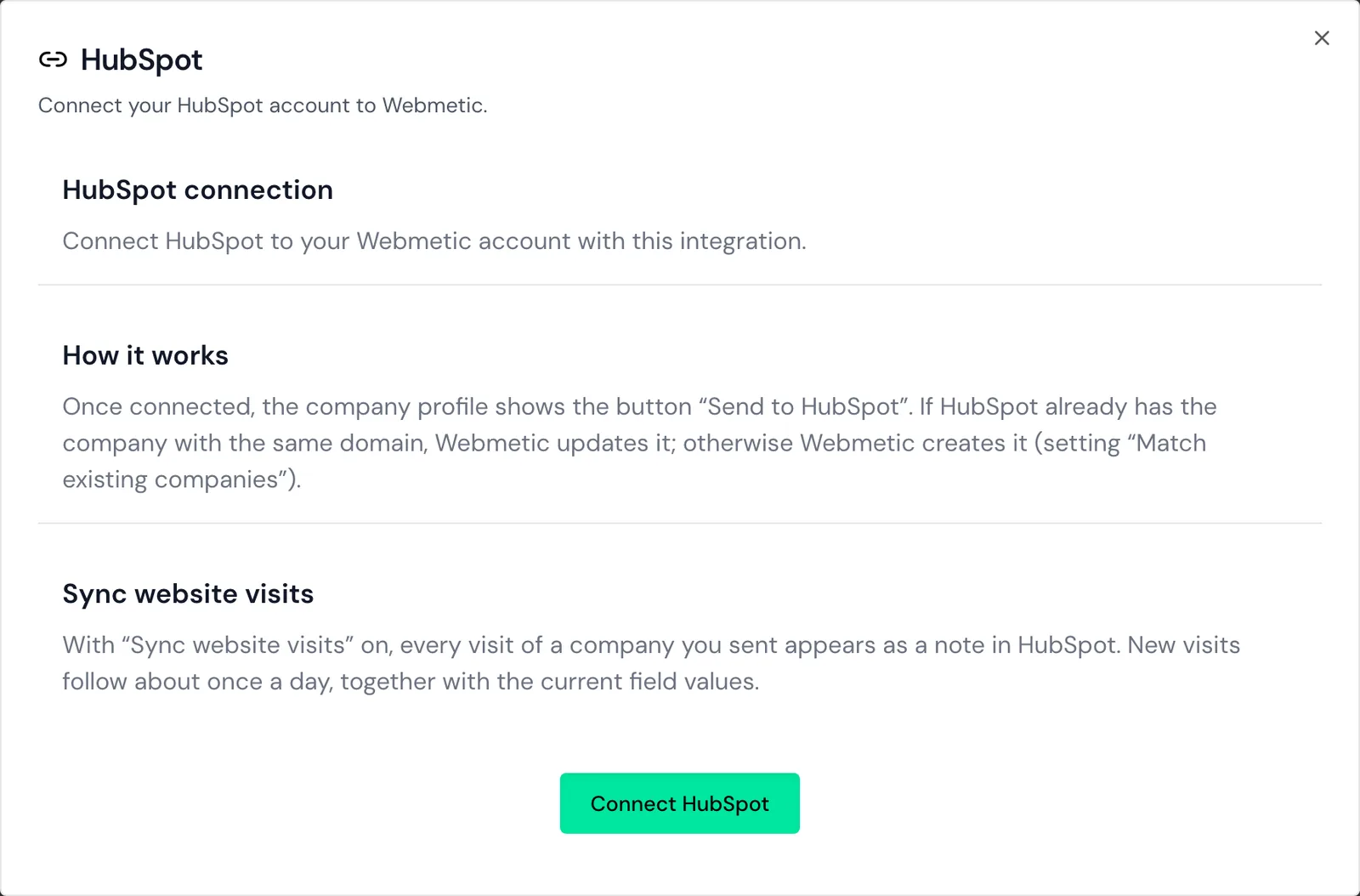
Webmetic sends companies to your CRM so your sales team can work on them there. You can choose HubSpot, Lexware Office, Samdock, and Evalanche. For details, see Integrations. For example, this is how you connect HubSpot:
- Open Menu > Integrations > HubSpot.
- Click Connect HubSpot and sign in to HubSpot.
- Open a company profile and click Send to HubSpot.
For n8n, Make, and Zapier you need an API key, which you'll find under Menu > Integrations > API.
6. Ask your AI assistant
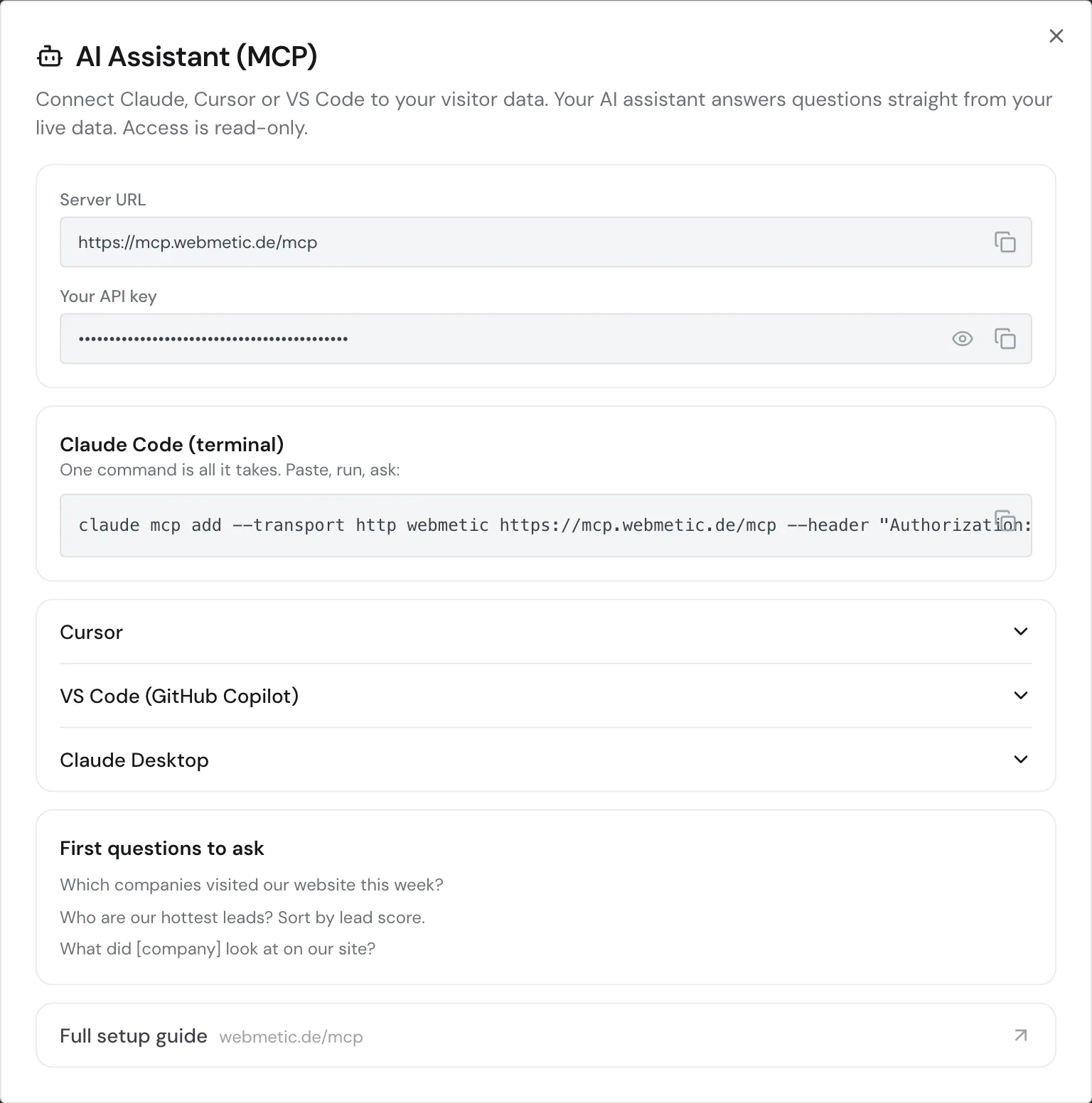
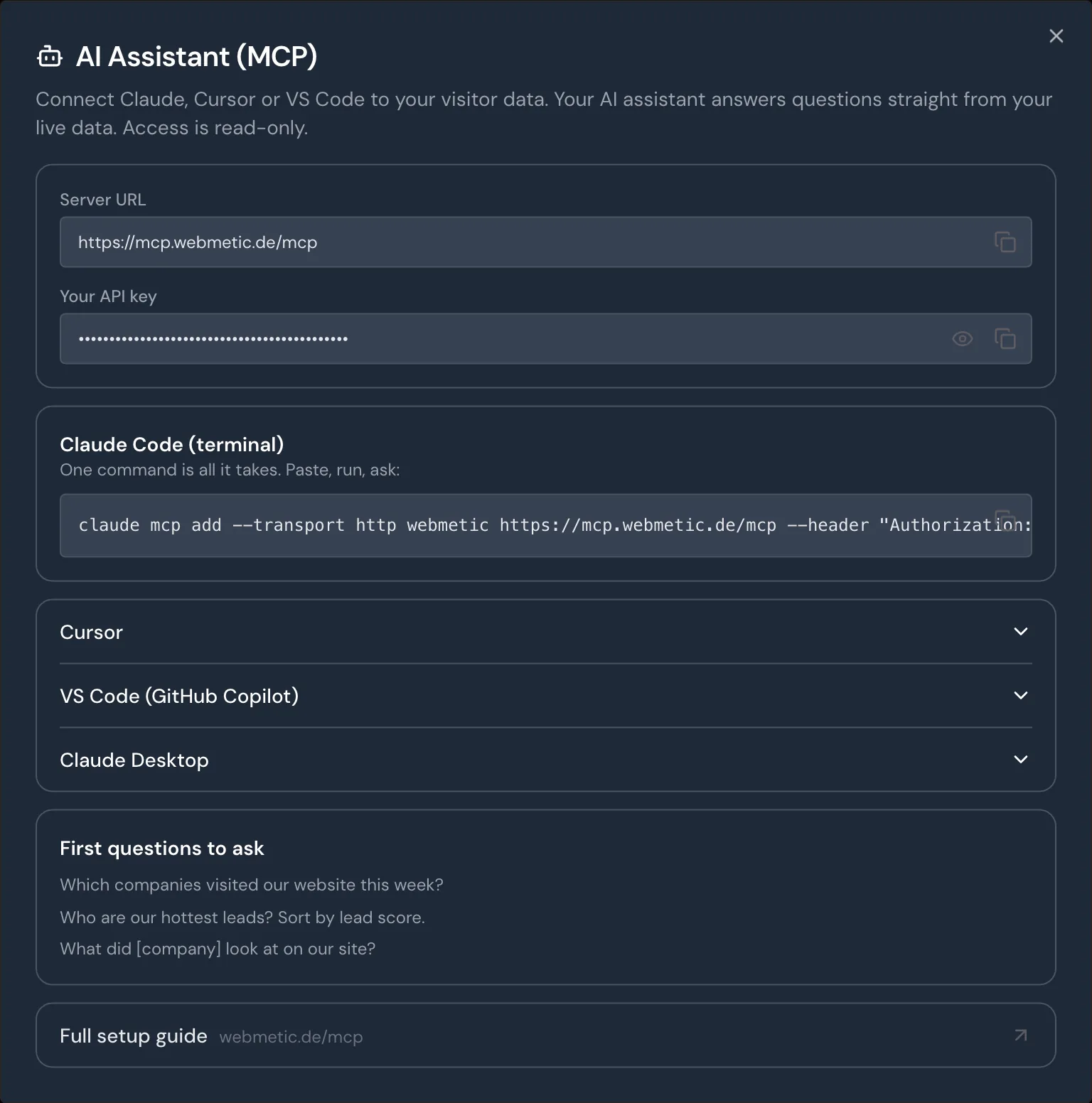
Your AI assistant answers questions like "Which companies looked at our pricing page this week?" straight from your data. It reads your data but doesn't change it.
- In ChatGPT, Claude, Claude Code, Cursor, or VS Code, add the server
https://mcp.webmetic.de/mcp. The steps for each client are in Connect the AI assistant. - Sign in with your Webmetic login. This works in each of these clients.
For scripts and accounts with single sign-on, you'll find the API key under Menu > Integrations > MCP.
What you set up
- The tracking code runs, and Webmetic identifies the companies behind the visits.
- Your target customers have their own segment.
- Webmetic emails you about new companies from that segment.
- Your CRM and your AI assistant work with the same data.