

Set up contacts
Set up contacts once for your account so that Webmetic can search for the right people at identified companies.
For your whole account, you decide once which people Webmetic searches for at identified companies, and you give your consent to using the contact details. At the end you'll have:
- a contact profile that all users in your account share
- your consent, which Webmetic stores for the account
- the first list of people, if you start from a company
Before you start
- Time: The setup takes a few minutes. If your account has no data processing agreement (DPA) yet, you also enter your company's details.
- Account: Any Webmetic account works. The wizard runs once per account, and the result applies to all users and all websites.
- Access: For the DPA, you need your company's name, street, postal code, and city.
- Rights: Every user in your account can set up contacts, even without admin rights.
- Plan: Contacts are part of every plan, including the Free plan and the trial. On the Free plan, you only search companies whose names you see. More under Free plan.
Whoever finishes the wizard gives consent for the whole account. So have the person who may sign contracts for your company finish the setup.
Unlocking an email address or a phone number costs credits. The search is free.
Start the wizard
The wizard opens from a company profile or from the menu.
- Open a company in the list. Company profile shows how.
- In the profile, scroll to the Contacts section.
- Click Find potential contacts. The Set up Webmetic Contacts wizard opens.
If you start without a company, open Menu > Contact profile. The window shows the status Not set up yet, and you click Set up now.
Choose departments and minimum level
In the first step, Departments, you decide whom Webmetic searches for at a company.
- Select one or more departments your contacts work in, for example Marketing and Sales.
- Under Minimum level, choose the lowest level Webmetic searches for. The default is manager and above, and division lead and above or executives only narrow the search.
- Click Next. The button only responds once at least one department is selected.
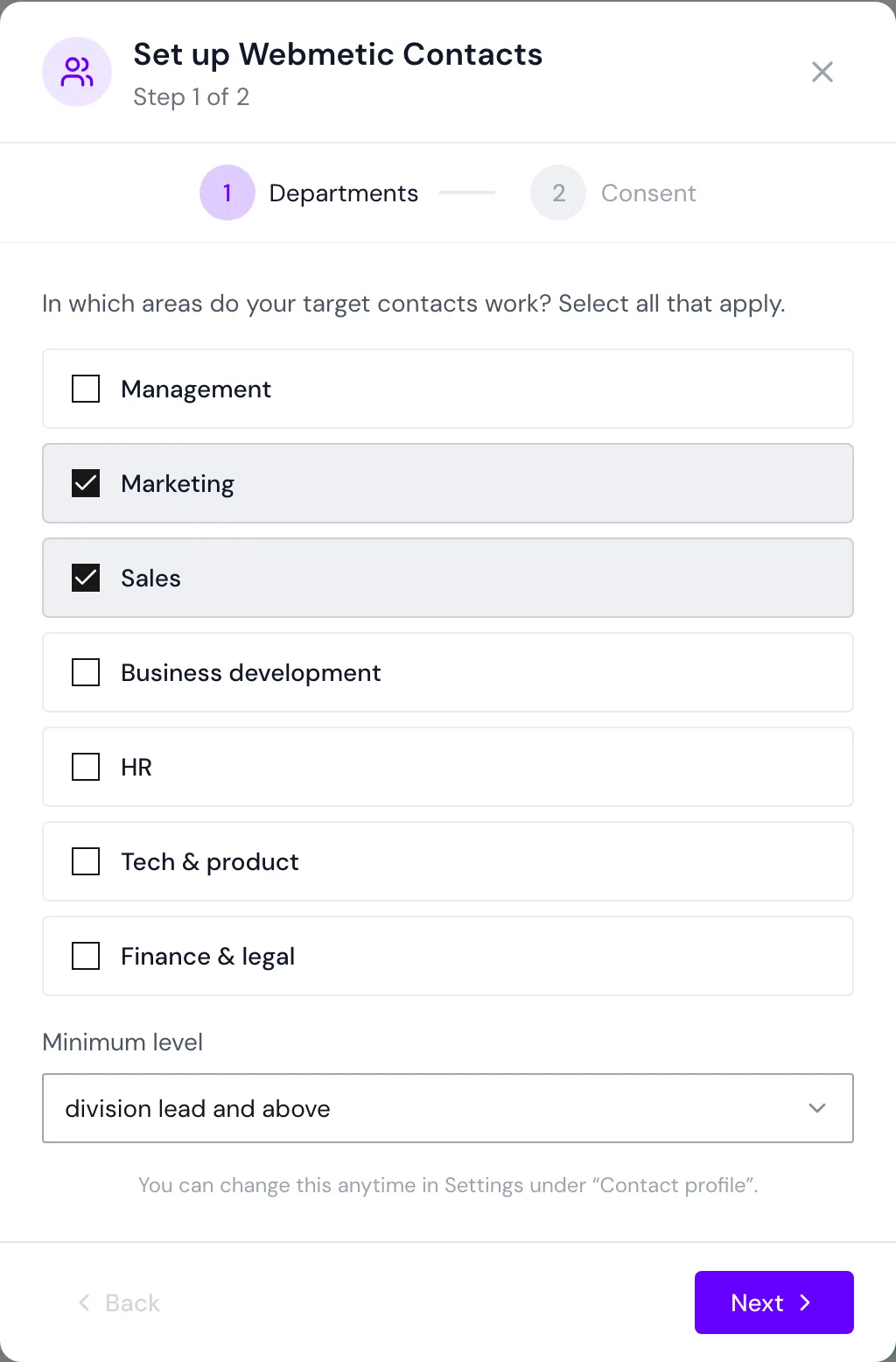
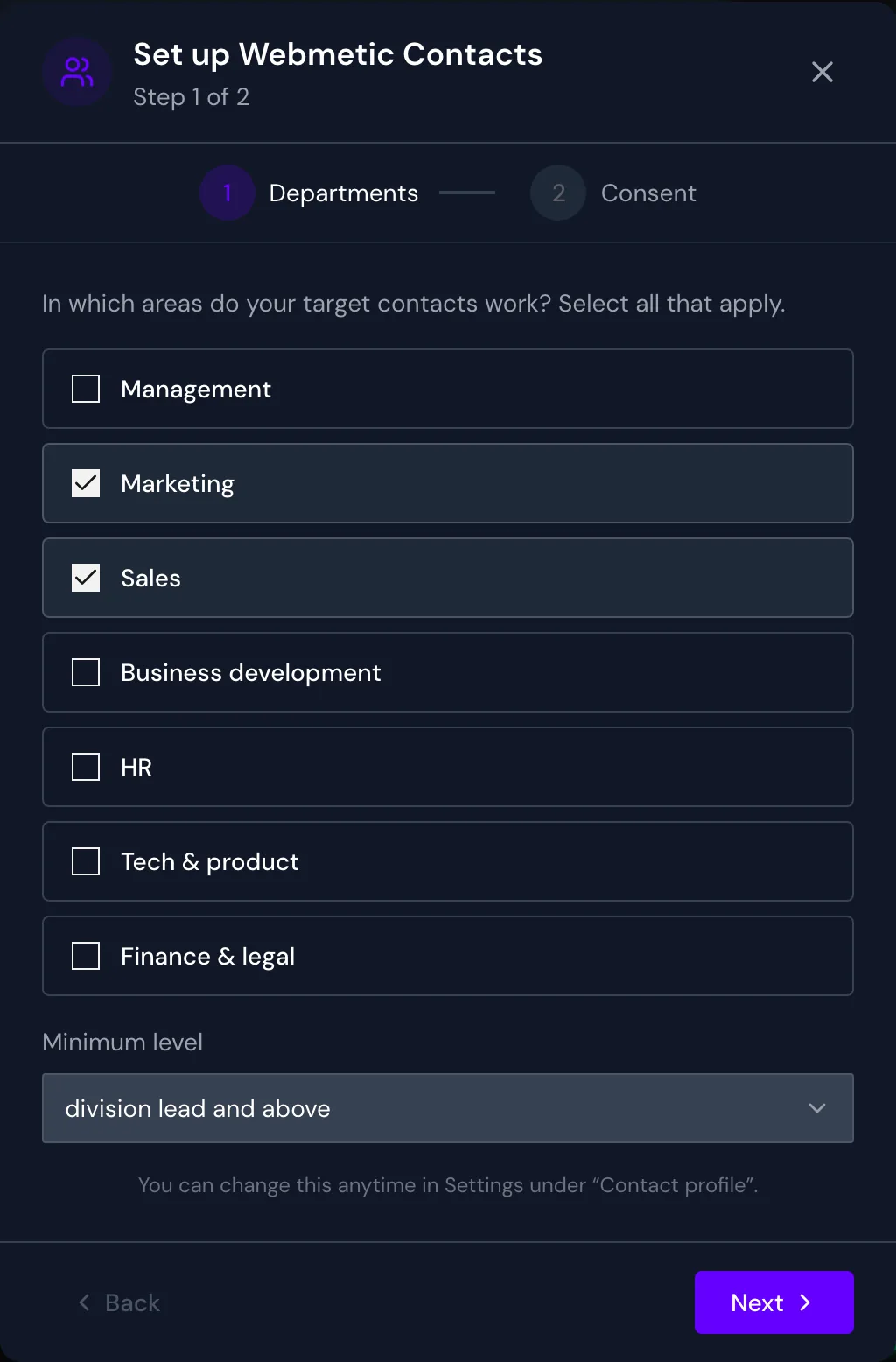
Webmetic searches for people who work in one of the selected departments and reach at least the minimum level, which applies to all selected departments together. Tech & product includes IT, and Management is a department, not a level.
Confirm your consent
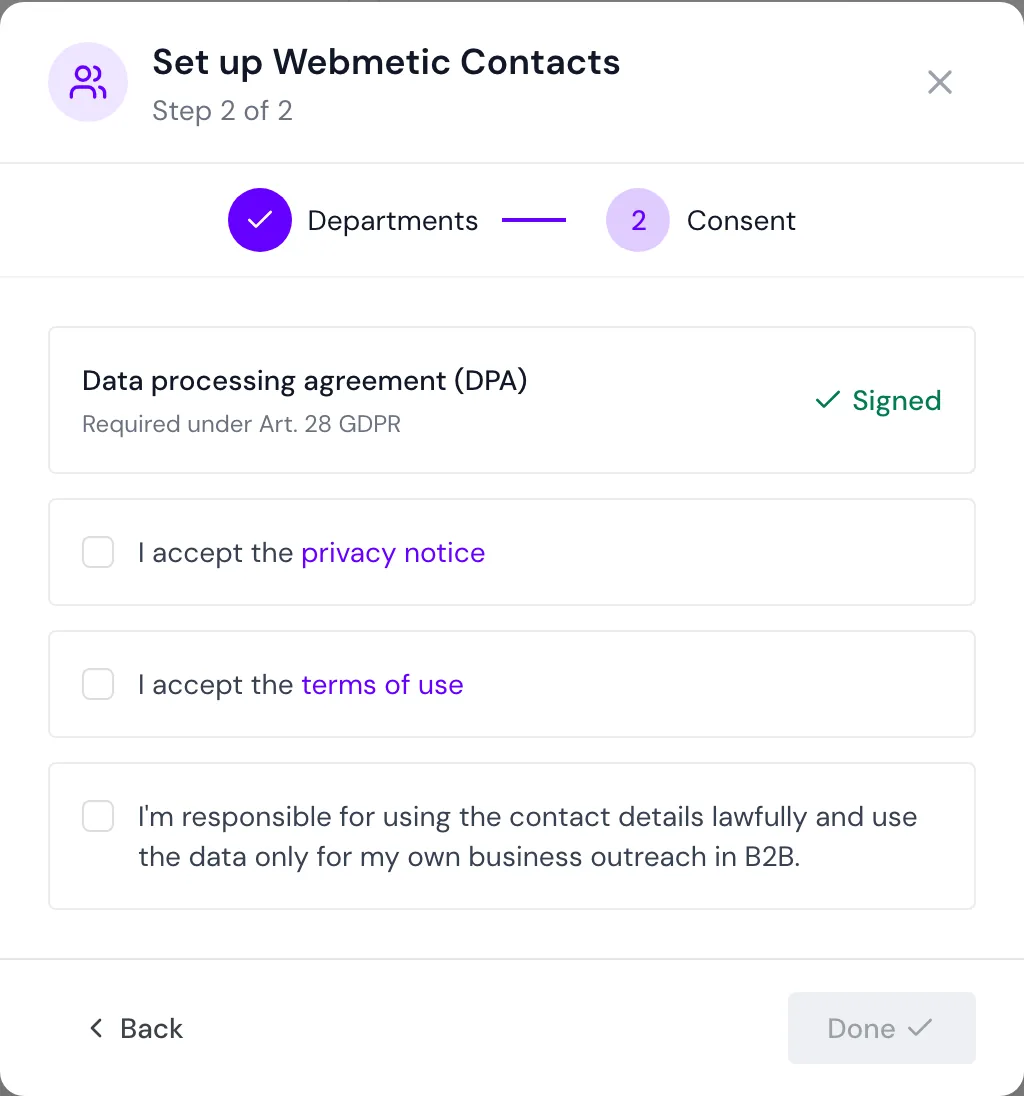
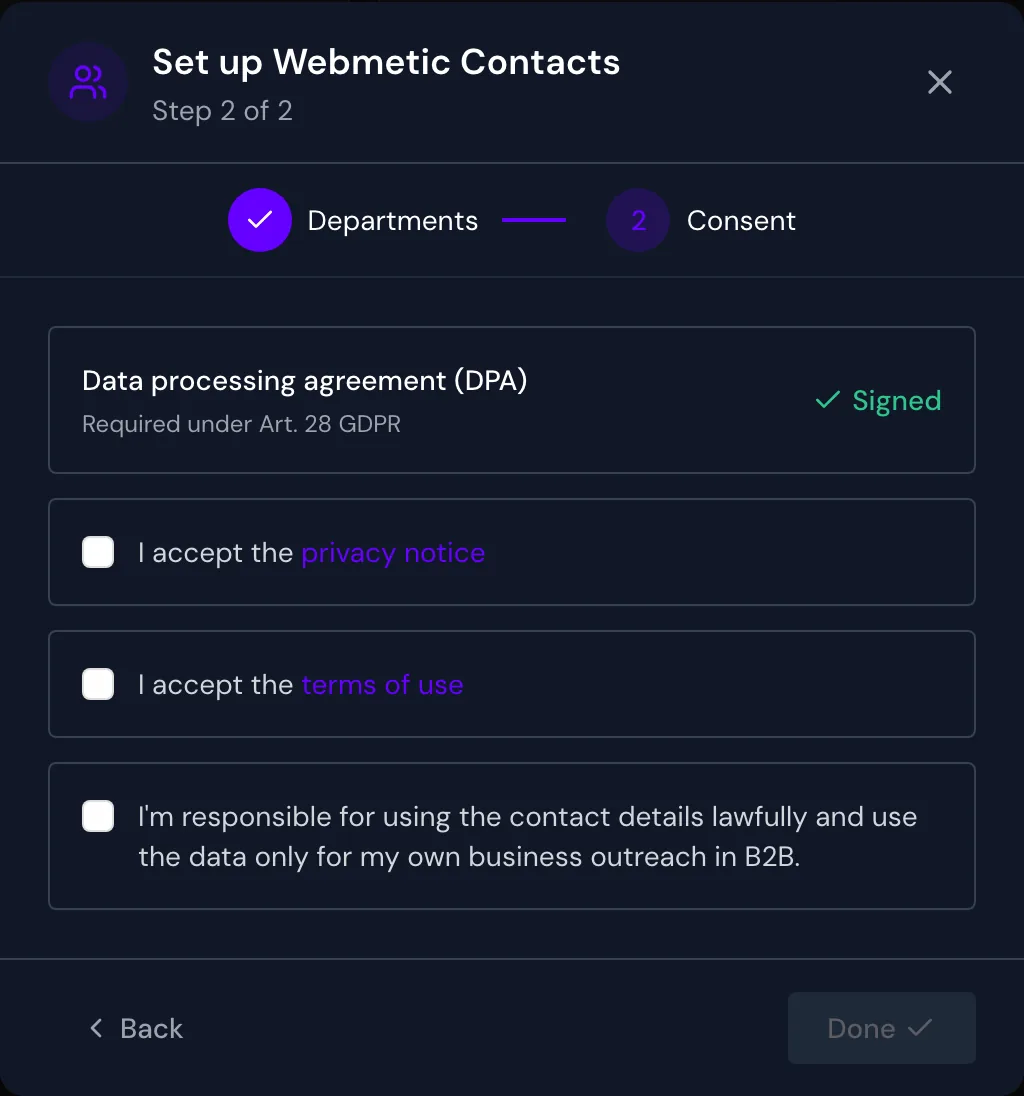
In the second step, Consent, your account needs a DPA. If the Data processing agreement (DPA) box already shows the status Signed, continue with step 5.
- Click Sign DPA. The DPA window opens and shows the details Webmetic has for your company.
- Fill in any details that are still missing in the form.
- Select the checkbox I confirm the agreement. and click Create DPA. Webmetic creates the DPA and downloads it as a PDF.
- Close the window with the X in the top right. The box now shows the status Signed.
- Read the privacy notice and the terms of use before you agree. Clicking the words opens the texts.
- Select the three checkboxes.
With the first checkbox, you accept the privacy notice, and with the second, the terms of use. With the third checkbox, you confirm that you're responsible for using the contact details lawfully. You also confirm that you use them only for your own business outreach in B2B.
Finish the wizard
Click Done. The button only responds once the DPA is signed and all three checkboxes are selected.
Webmetic now stores your profile and your consent. If you started from a company, Webmetic searches for matching people there right away, and the list appears in the Contacts section. If you started from the menu, the window closes without a search.
When you finish the setup for the first time, Webmetic adds credits to your account once. For details, see Credits. From now on, the API, the AI assistant, and n8n can search for contacts too.
Back returns to the first step, and the X closes the wizard without saving anything.
Change the contact profile
Because the wizard doesn't open again after the setup, you change departments and minimum level in the contact profile. Each account has exactly one profile, and what you save there applies to all users.
- Open Menu > Contact profile.
- Adjust your choice under Departments.
- Choose a different Minimum level.
- Click Save. Webmetic saves the profile, and the window closes.
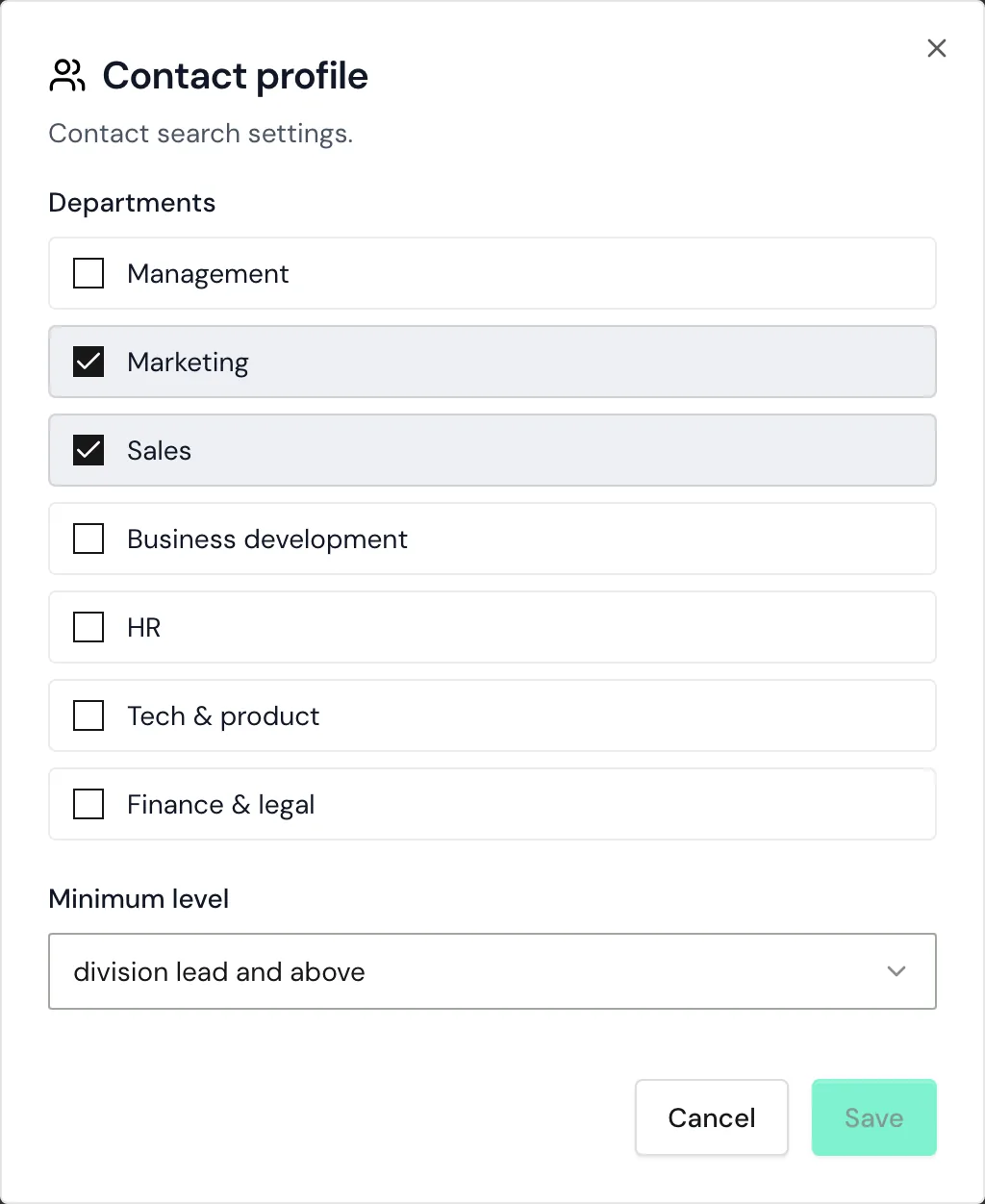
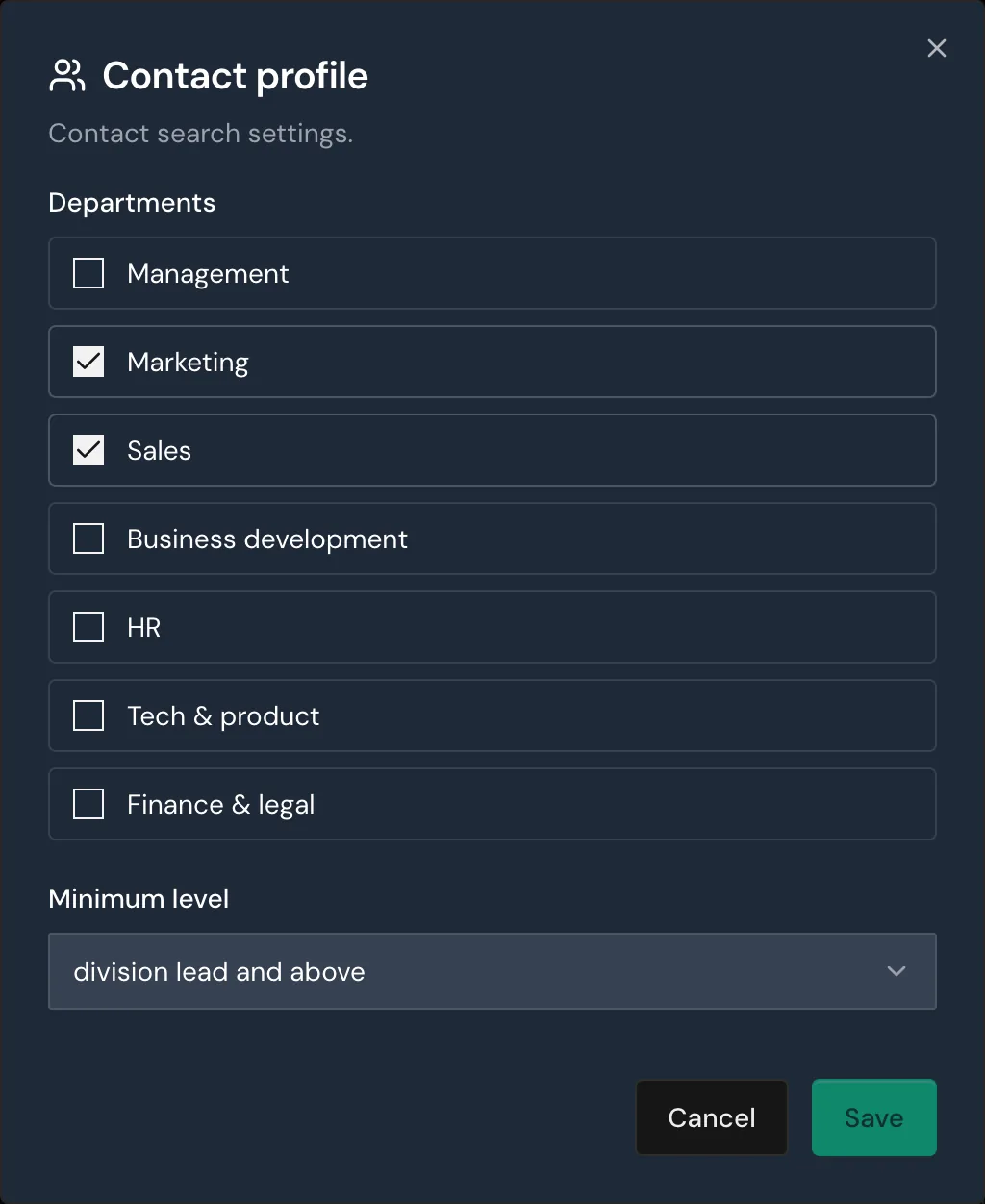
The Save button only responds once you've changed something and at least one department is selected.
Webmetic uses the departments from the profile in three places:
- for the first search right after the wizard
- for the saved list that appears when you open a company
- as the default for the API, the AI assistant, and n8n when a request names no departments
In the dashboard, the minimum level applies to every search. For the API, the AI assistant, and n8n, it's the default when a request names no level. When you save the profile, Webmetic doesn't start a new search by itself.
Withdraw your consent
You can't withdraw your consent or switch off contacts in the dashboard. Contact support to do so.