

Check your installation
Check that Webmetic receives visits from your website, and find the cause when nothing arrives.
If this page doesn't solve your problem, open Support in your profile menu. Tell us your website and the text Webmetic shows in the check.
Before you start
- Time: The quick check shows its result instantly, and the deep check takes about 30 seconds.
- Account: You need a Webmetic account. Your trial starts as soon as your website is Active for the first time or the deep check finds the tracking code.
- Access: For the deep check, your website must be publicly reachable on the internet. For the browser check, you need a desktop browser.
- Permissions: Every user sees Websites and Tracking code in the menu, even without admin rights.
- Plan: All checks work on every plan and cost no credits.
Website status
The status shows whether visits with your account ID are arriving. Webmetic calculates it again every time you open the list.
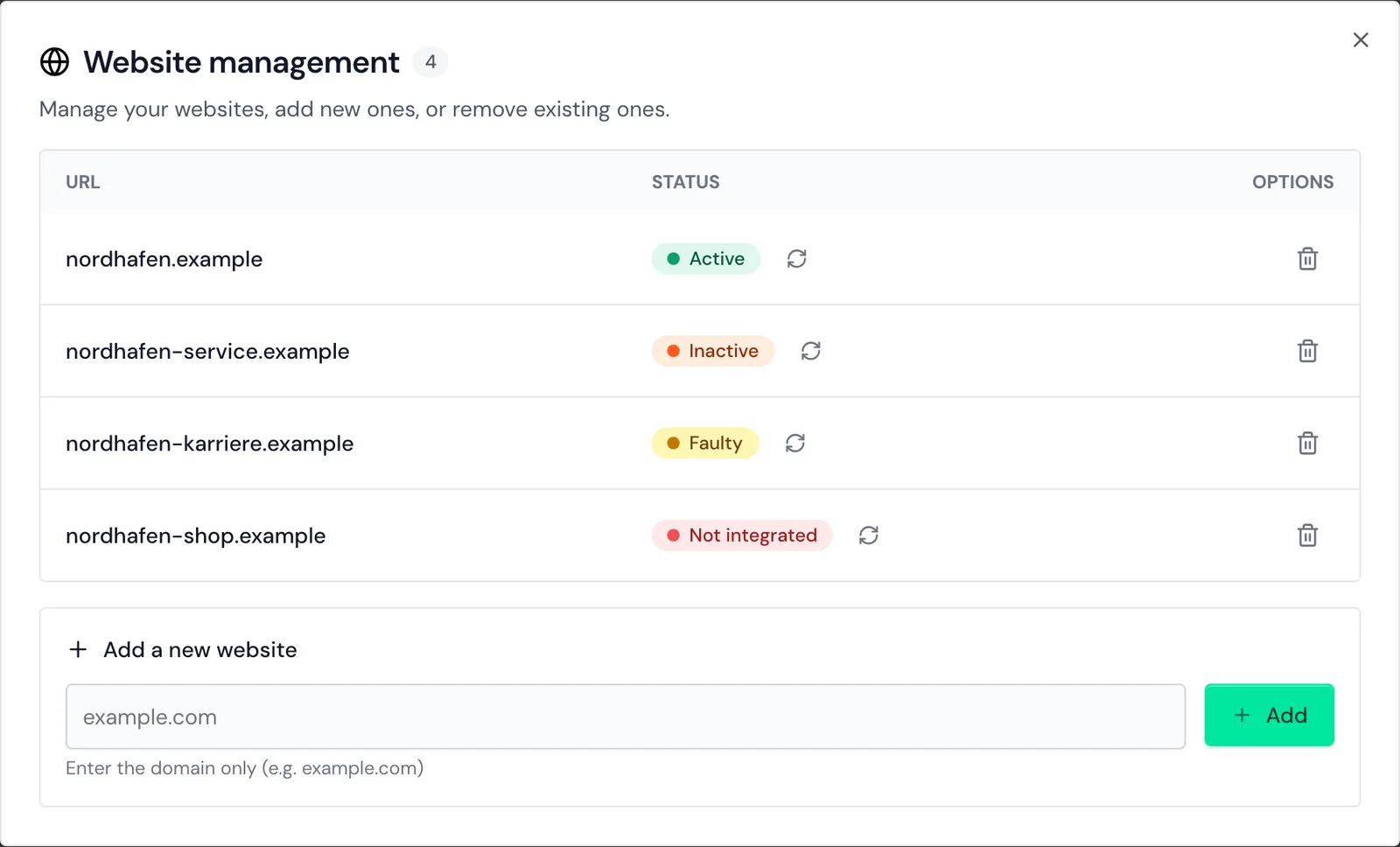
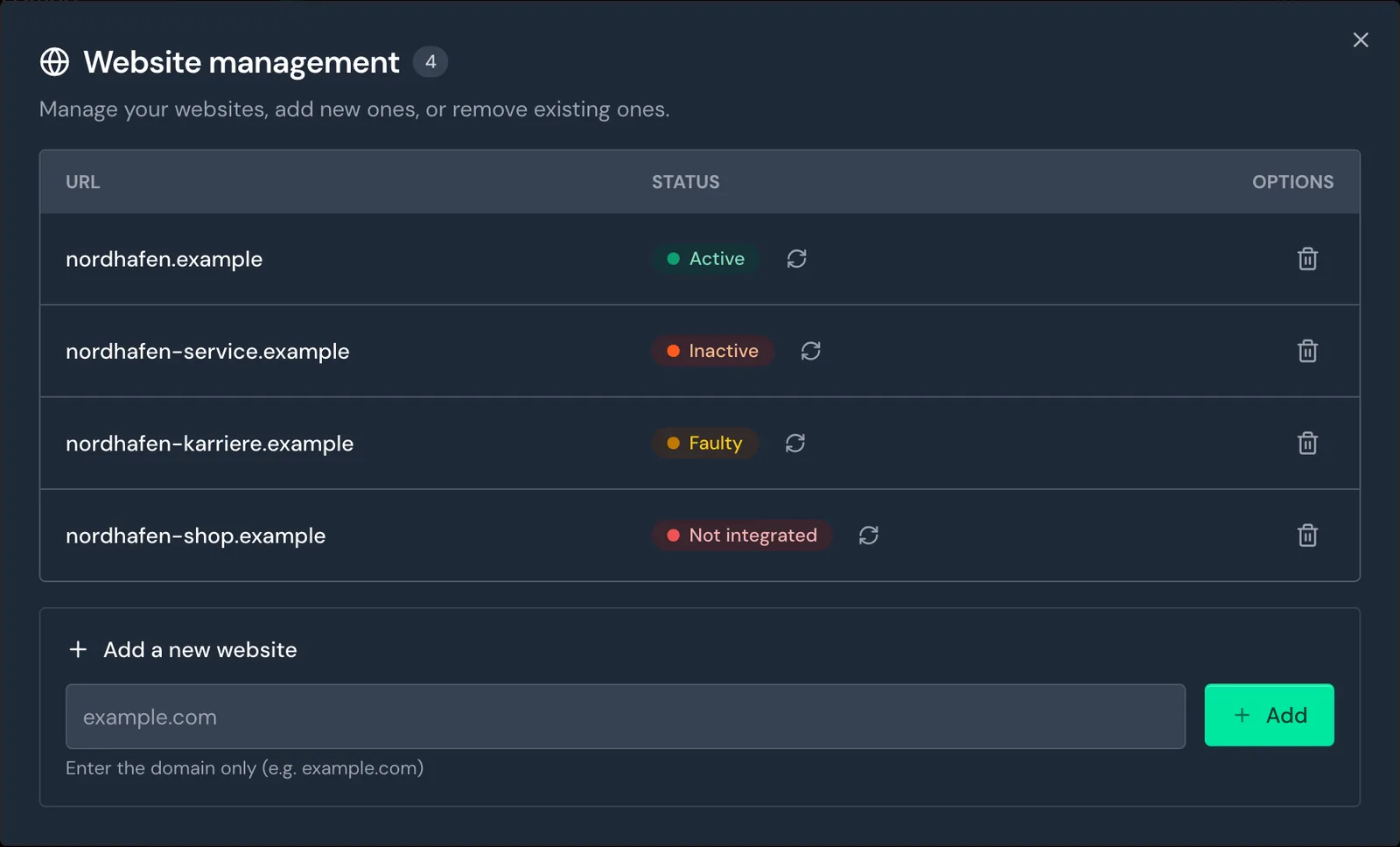
- Open Menu > Websites. The Website management window shows your websites with a Status column.
- Hover over a status to see a tooltip with the date data started arriving or the date of the last visit.
- Click the icon with the tooltip Refresh status to reload the list.
| Status | What it means |
|---|---|
| Active | At least one visit with your account ID arrived in the last 24 hours. |
| Inactive | Visits with your account ID arrived in the last 30 days, but none in the last 24 hours. |
| Faulty | Data arrived in the last 30 days, but without an account ID. |
| Not integrated | In the last 30 days, either no data arrived or only data with another account's ID. |
After 30 days without data, the status Inactive changes back to Not integrated. Subdomains such as shop.your-website.com count toward the main domain.
Why is my website Inactive?
No visit with your account ID has arrived for more than 24 hours. Either your website had no visits, or the code is no longer there. Webmetic doesn't send an email about this and shows it only in the status.
To fix the problem:
- Open a few pages of your website, because your own visits count toward the status too.
- After a few minutes, click Refresh status.
- If the status doesn't change to Active, run the deep check.
Why is my website Faulty?
Visits arrive without an account ID, for example because a caching plugin bundles or rewrites the code. The short form iav.js?id=YOUR_ACCOUNT_ID loses its account ID in the process.
To fix the problem:
- In your caching plugin, exclude
t.webmetic.de/iav.jsfrom bundling and minifying. - Clear the plugin's cache.
- Open a few pages of your website and click Refresh status.
The Webmetic plugin for WordPress excludes the code from common caching plugins on its own.
Quick check
The quick check shows whether at least one website in your account is Active, without opening your website.
- Open Menu > Tracking code and scroll to Verify installation.
- Click Quick check. If data is arriving, Webmetic shows the message Data received.
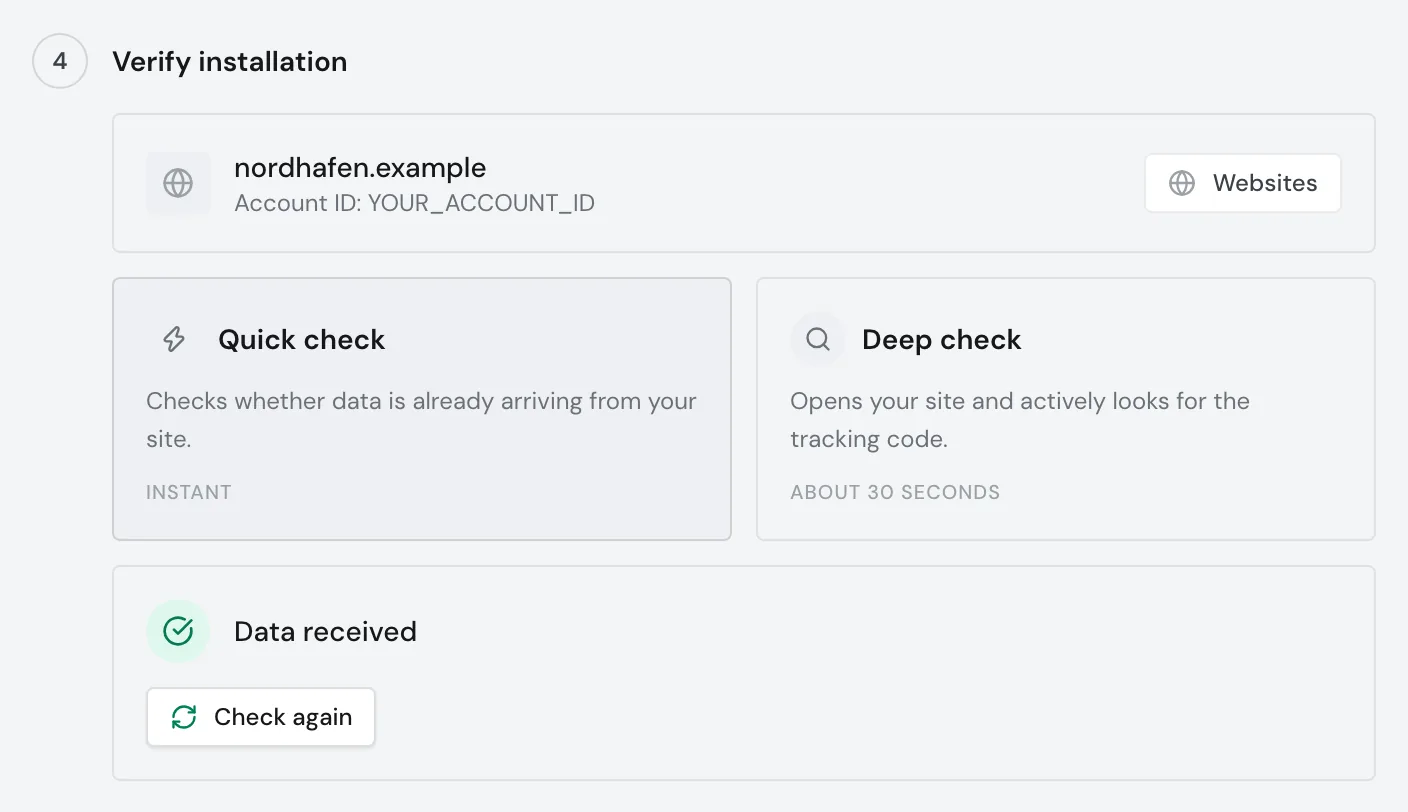
If you have several websites, one active website is enough for this result. You can see the status of each website under Websites.
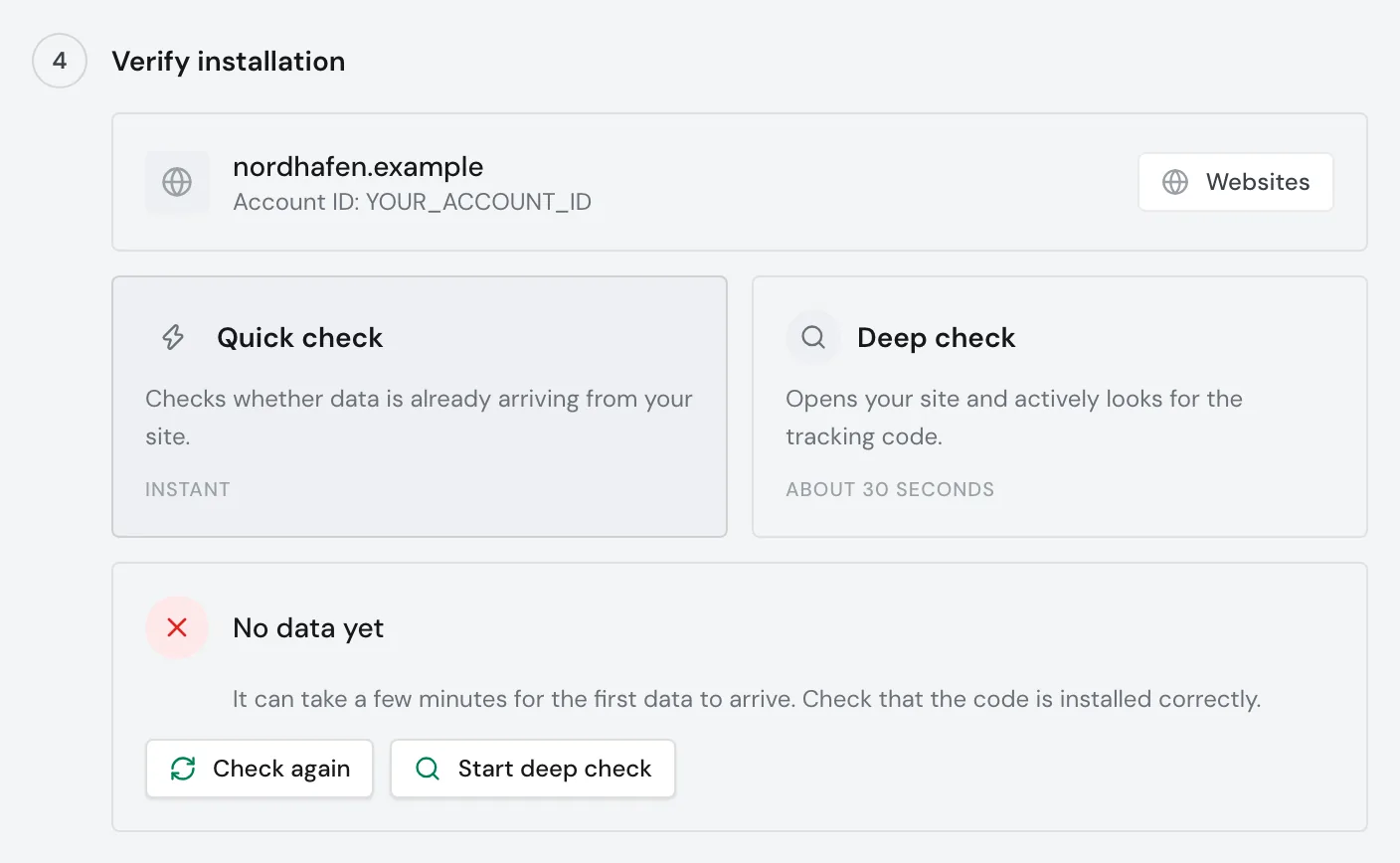
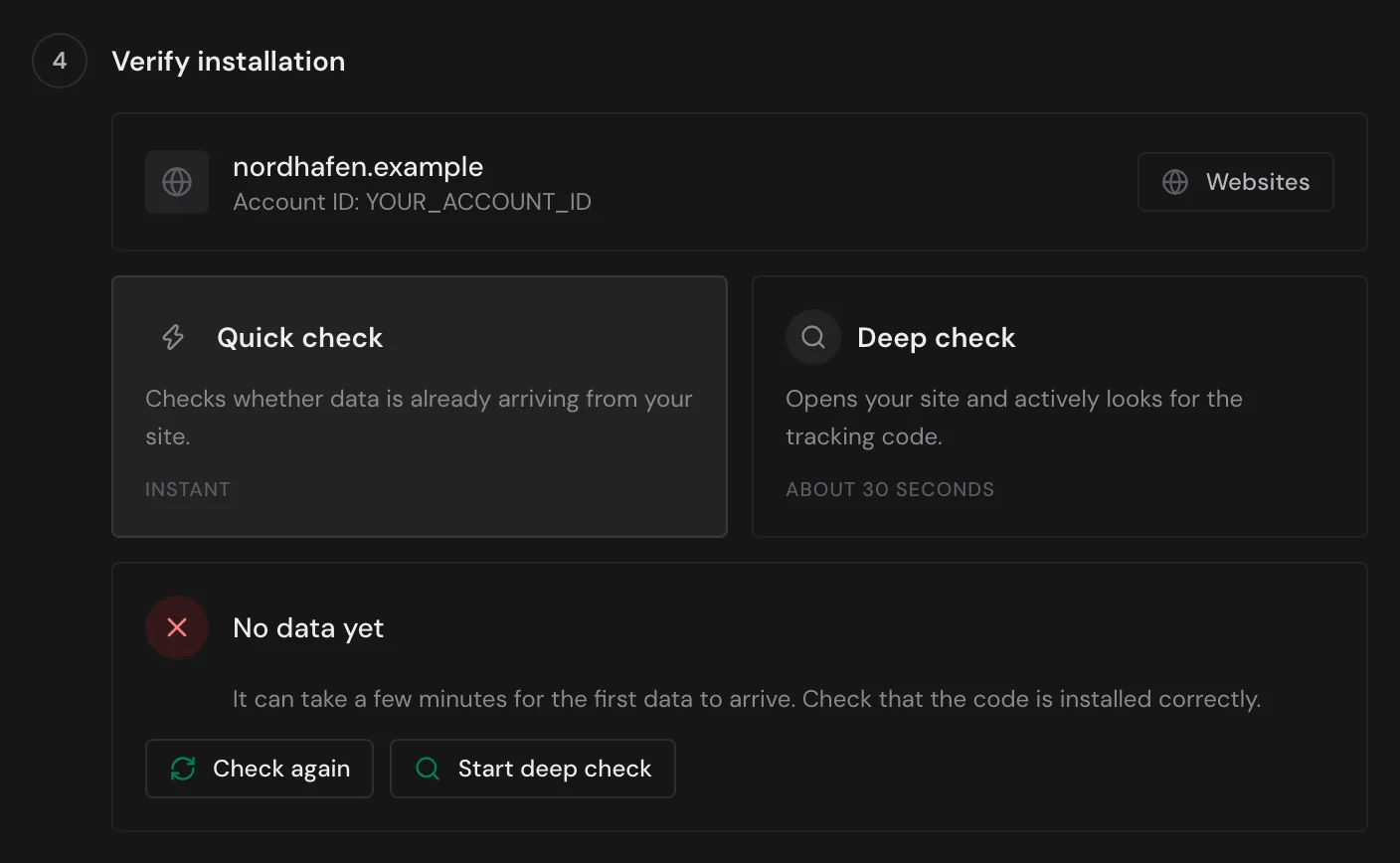
Why does the quick check show no data?
Webmetic shows the message No data yet when no website in your account is Active. That's normal right after you add the code, because the first data arrives after a few minutes.
To fix the problem:
- Open a few pages of your website.
- After a few minutes, click Check again.
- If the message No data yet still appears, click Start deep check.
Deep check
The deep check opens the start page of your website and looks for the tracking code there. It also shows whether the code loads before or only after consent in the cookie banner. Webmetic checks only the first website in your account and only its start page, no subpages and no password-protected pages.
- Open Menu > Tracking code and scroll to Verify installation.
- Click Deep check. A progress bar shows what Webmetic is checking.
- Read the result. Check again runs the check one more time.
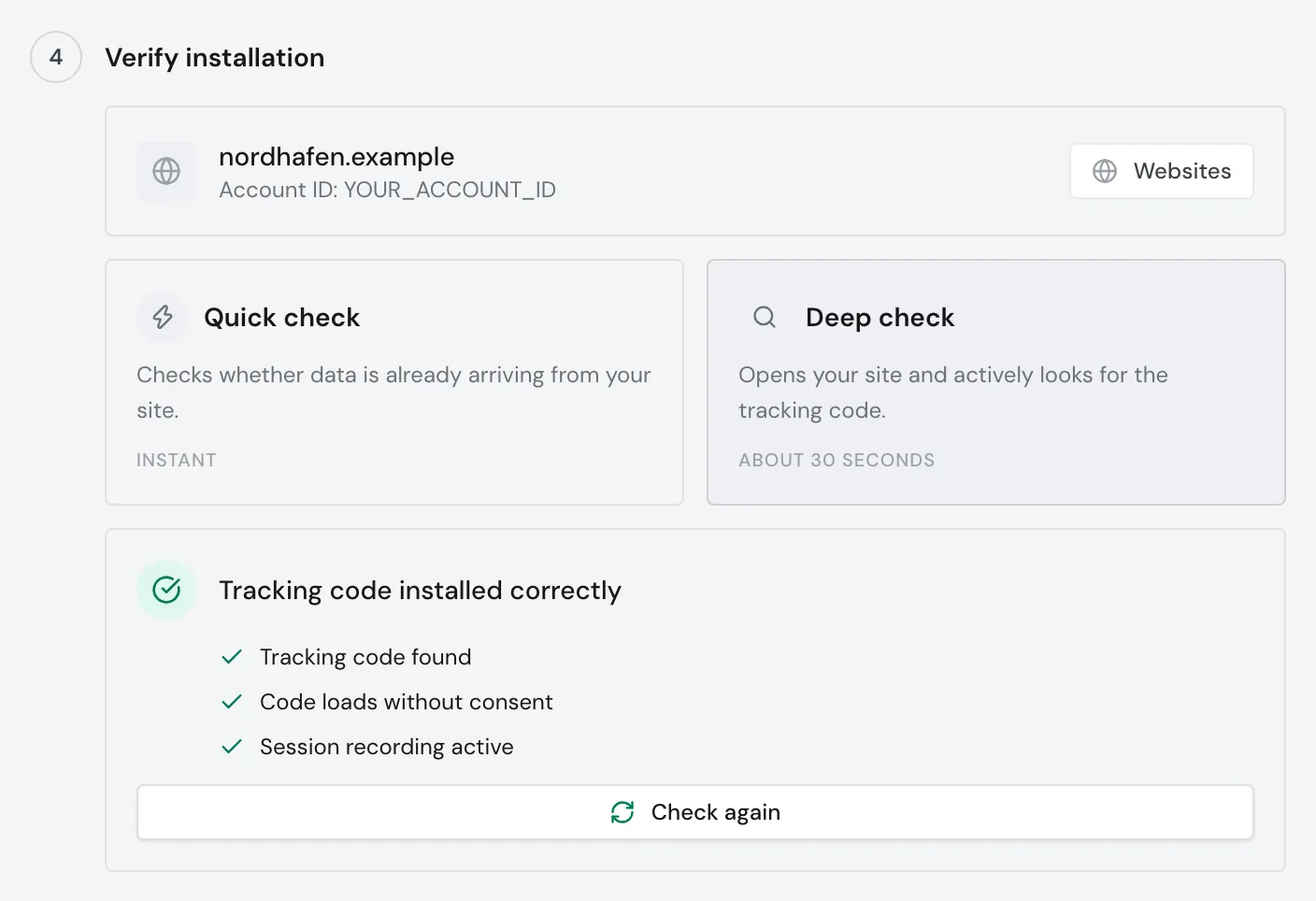
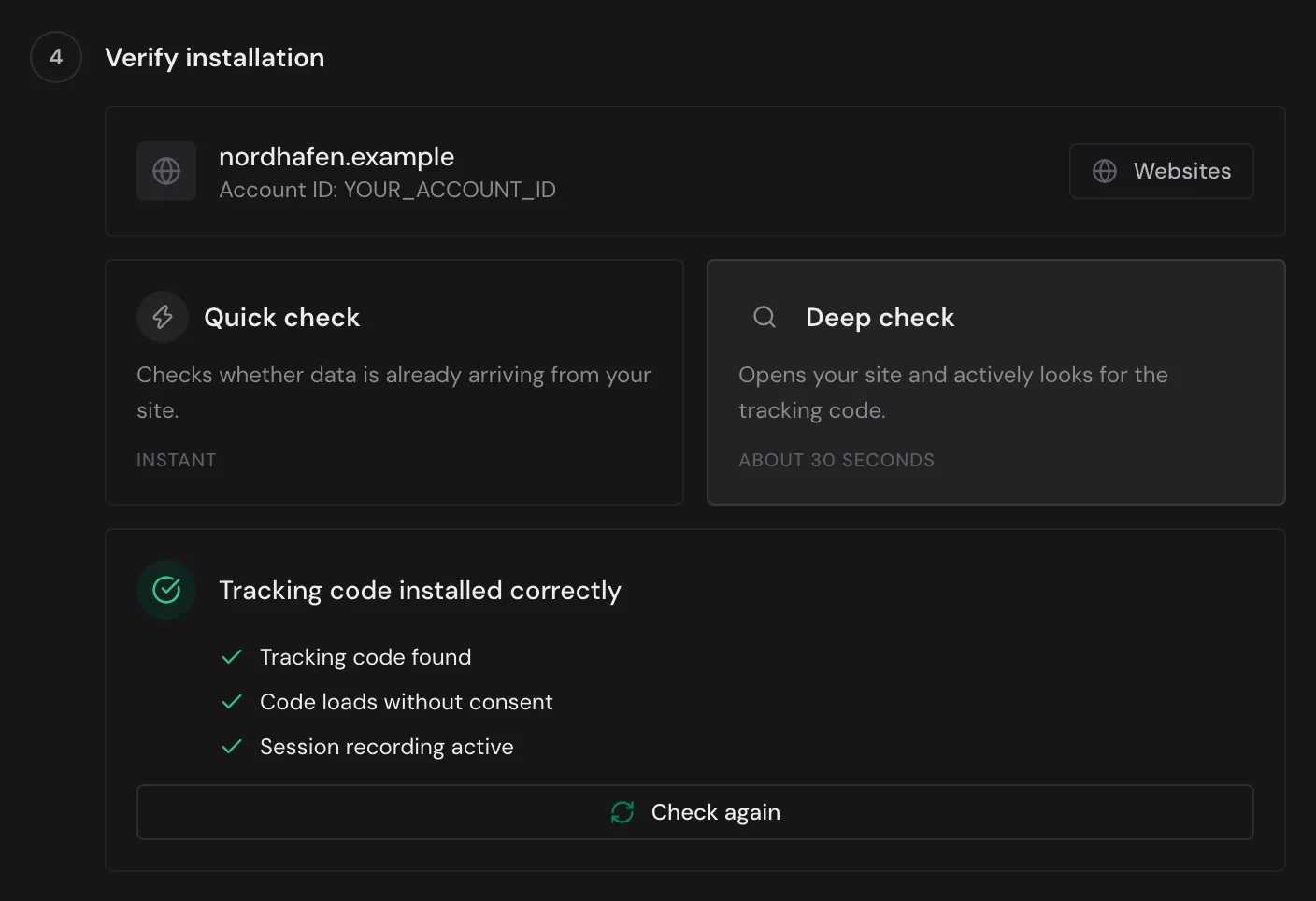
If everything is in place, Webmetic shows the message Tracking code installed correctly with three rows:
- Tracking code found: The code is on your start page.
- Code loads without consent: The code loads before anyone consents in the cookie banner. Confirm this in the browser (see below).
- Session recording active or Session recording inactive: Webmetic shows whether the code includes session recording.
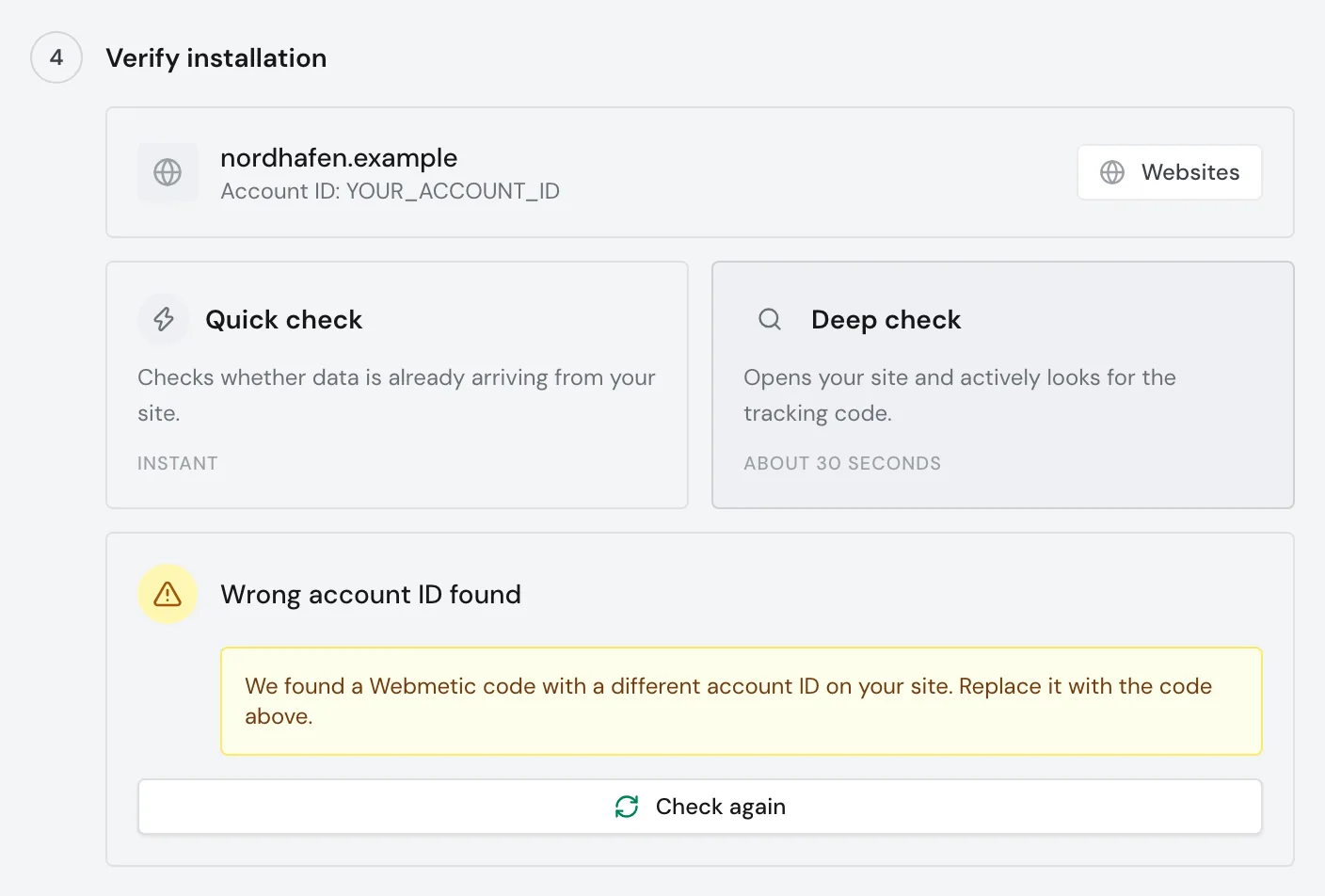
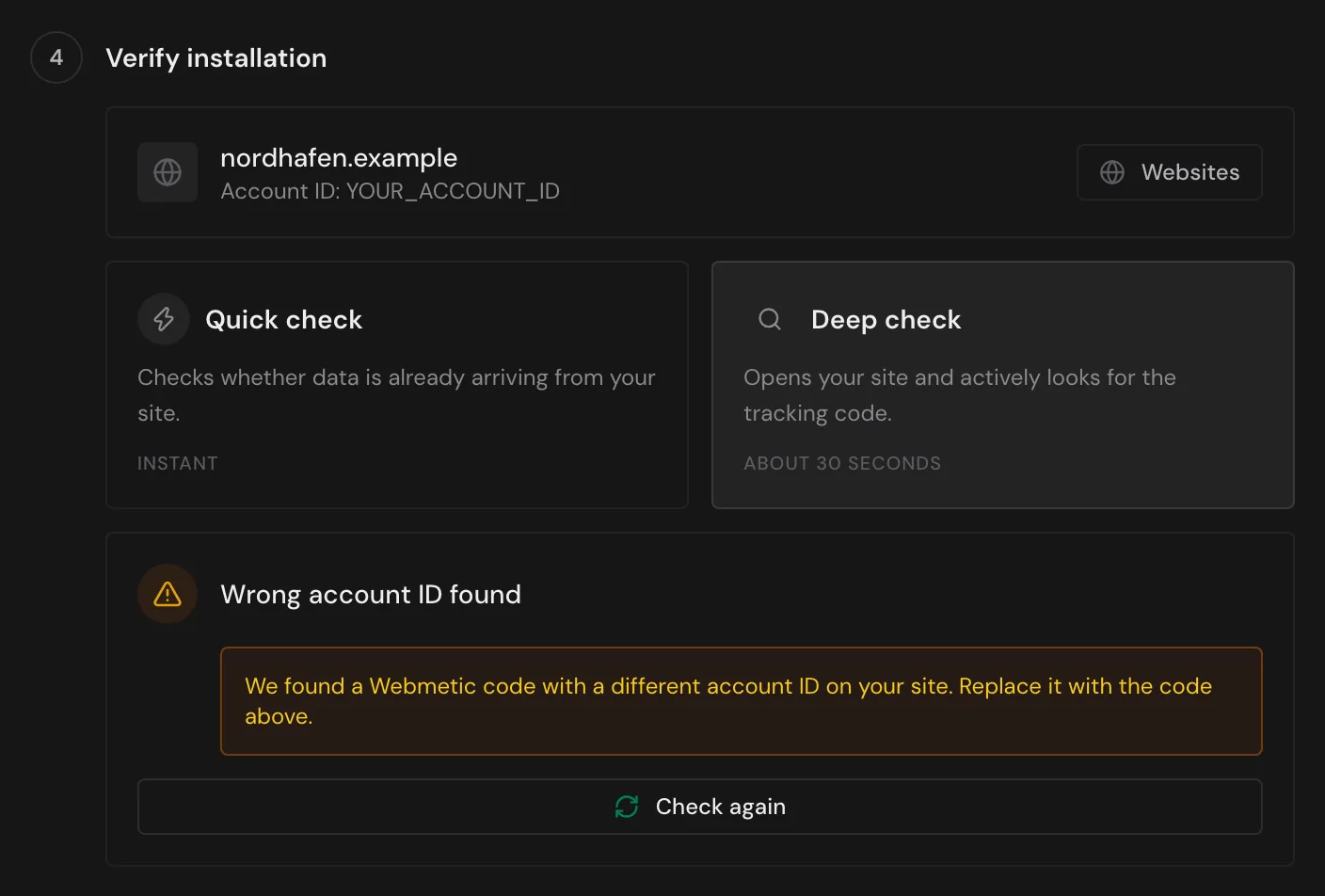
Why does the check find a wrong account ID?
Your start page has a Webmetic code with a different account ID. This happens, for example, when someone pastes the sample code with YOUR_ACCOUNT_ID unchanged or copies the code from another account. These visits don't count for your account, and your website shows Not integrated.
To fix the problem:
- Copy the tracking code under Menu > Tracking code. It already contains your account ID.
- Replace the old code on your website, including in your tag manager or plugin.
- Publish the change and click Check again.
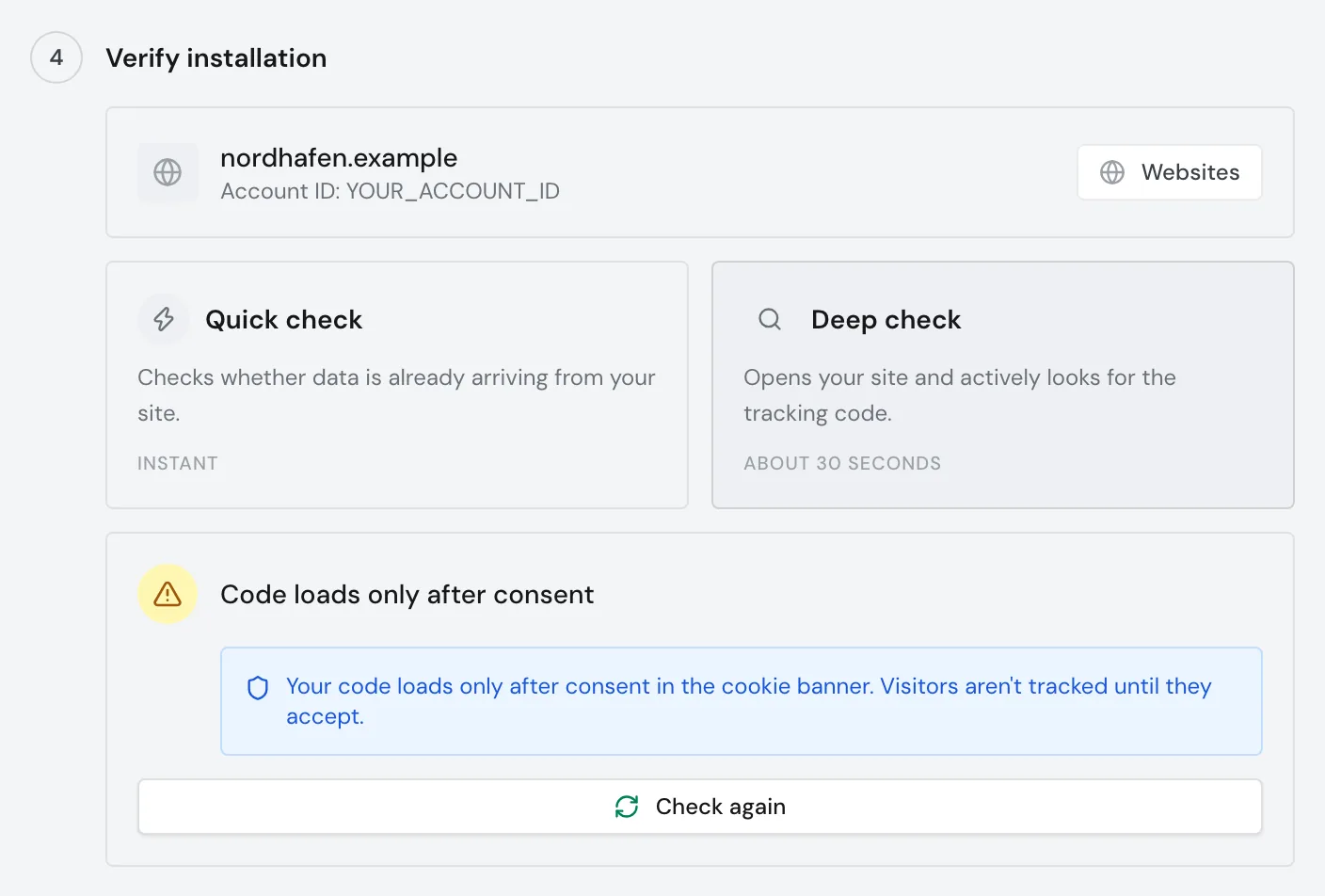
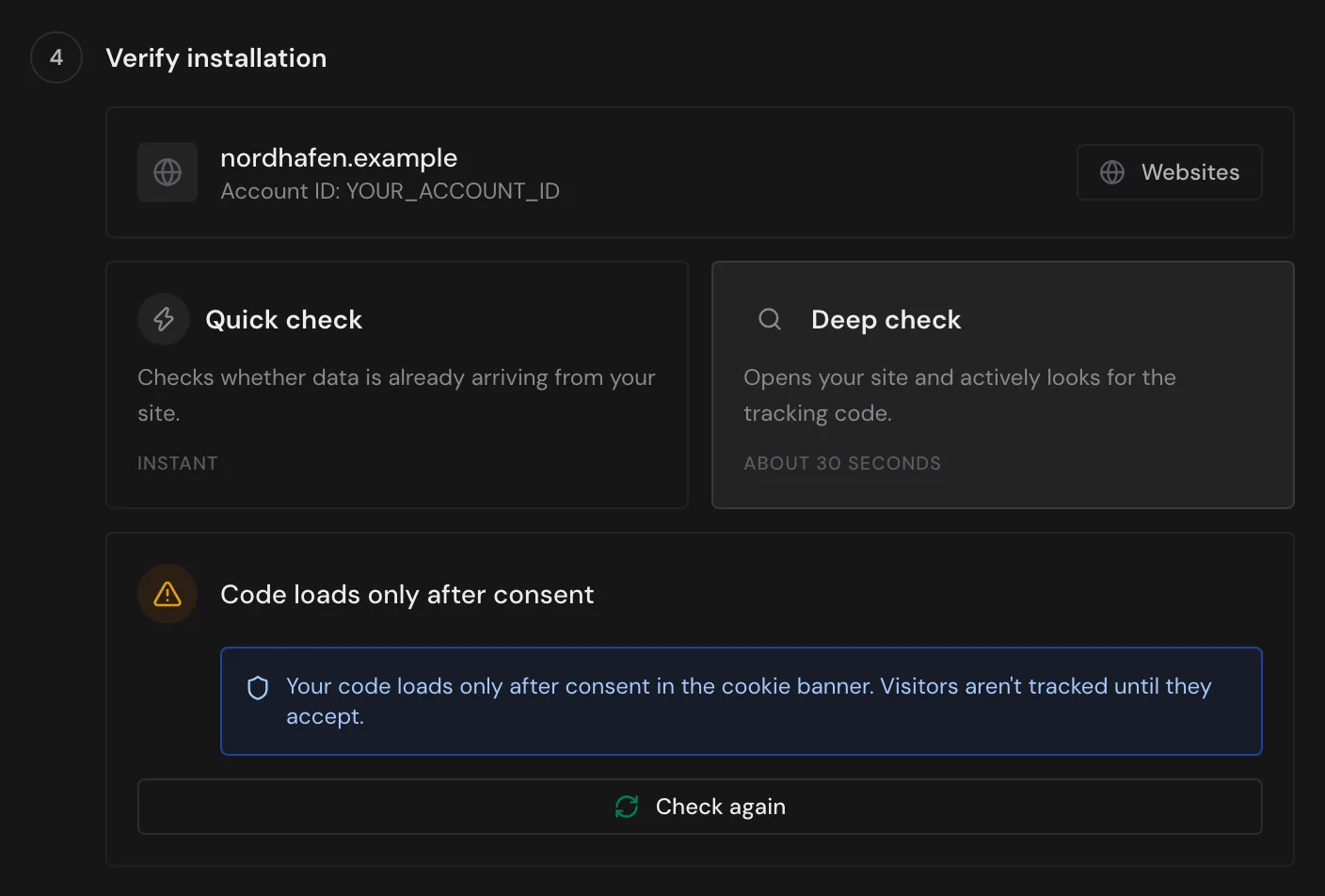
Why does the code load only after consent?
Your consent tool or tag manager loads the code only when someone consents in the cookie banner. Webmetic then records only visitors who consent. This isn't an error but your decision. The script sets no cookies of its own, but it reads the ID of a Google Analytics cookie if one exists. Webmetic processes the data in pseudonymized form. Whether the code may load before consent is a question for your data protection advisor.
If the code should load before consent, follow these steps:
- In your consent tool or on the tag in Google Tag Manager, set the tracking code to load without consent.
- Publish the change and check in the browser that the code now loads before consent.
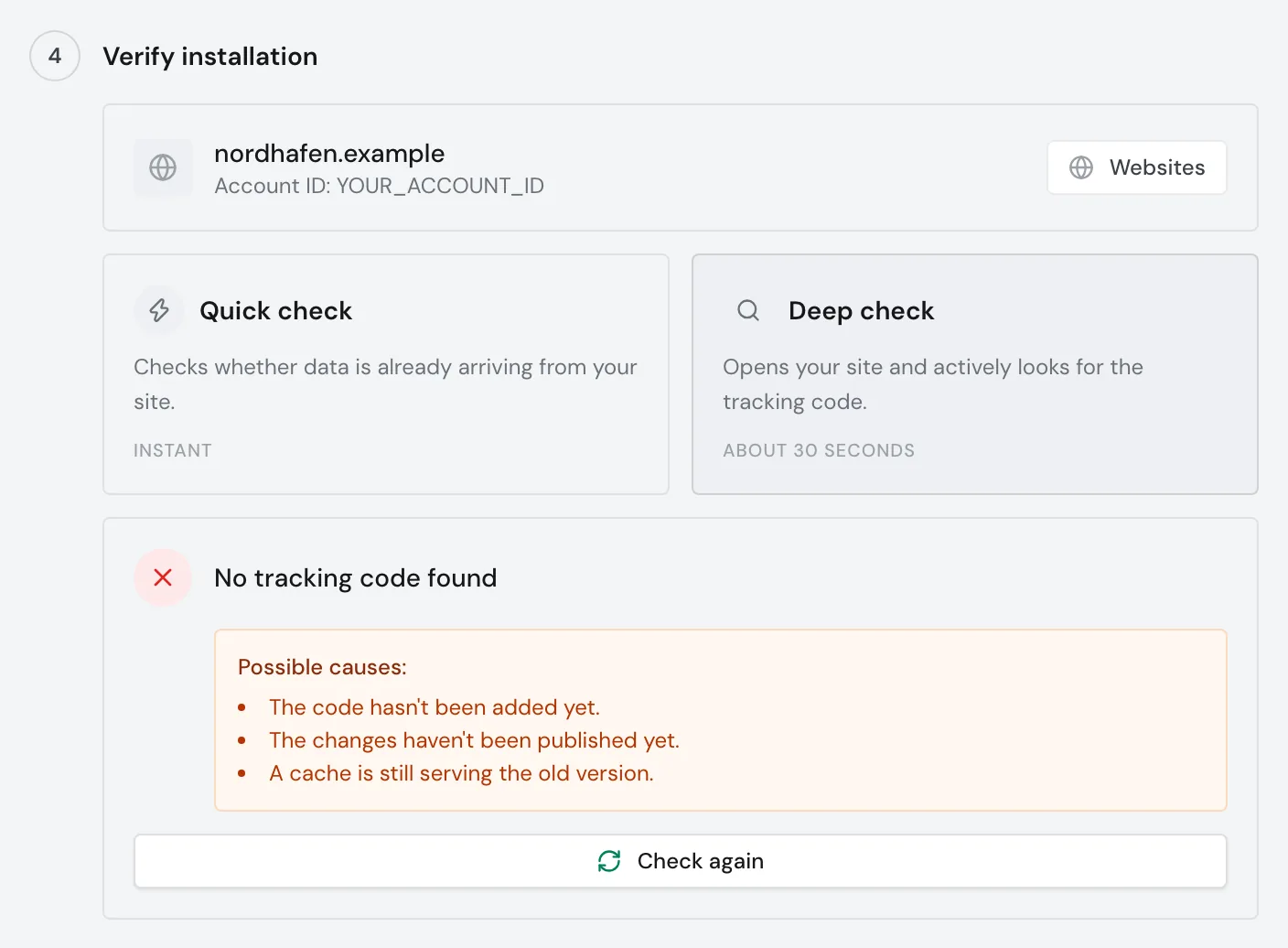
Why does the check find no tracking code?
Your start page has no Webmetic code. Webmetic lists three causes: the code hasn't been added yet, it hasn't been published yet, or a cache is still serving the old version.
To fix the problem:
- Check that the code is also on the start page.
- Publish the change, for example a new version in Google Tag Manager.
- Clear the cache of your website and your caching plugin.
- Click Check again.
If data is arriving at the same time, Webmetic doesn't list the three causes, because a website in your account is already sending visits.
Check in the browser
Your browser shows most reliably whether your website sends visits to Webmetic. Every page view sends a tr request to t.webmetic.de.
- Open your website in a desktop browser and don't consent in the cookie banner yet.
- Open your browser's developer tools and the tab for network traffic (Network).
- Type
webmeticinto the filter. - Reload the page. The list shows
iav.jsandtr, both with status 200. - Click
trand open the data it sent. Theaidfield contains your account ID. - Consent in the cookie banner and reload the page. If
tronly appears now, the code loads only after consent.
How to read the result:
- If
iav.jsis missing, the code isn't on the page or hasn't been published. Also test in a browser without an ad blocker. - If
iav.jsloads buttris missing, check your website's Content Security Policy. - If
aidis empty, your website shows Faulty. If it contains a different ID, replace the code.
If the browser loads iav.js from its cache, that's not an error. If tr shows status 200 and your account ID but your website still shows Not integrated after a few minutes, contact us via Support.
When no data arrives
The deep check finds the most common causes, but it can't see two others.
Is a security policy blocking the code?
Some websites use a Content Security Policy (CSP) to allow content only from certain addresses. If t.webmetic.de is missing from it, the browser blocks the code.
To fix the problem:
- Pass this section on to your IT team.
- Your IT team adds
https://t.webmetic.deto three directives of the CSP:
script-src https://t.webmetic.de;
connect-src https://t.webmetic.de;
img-src https://t.webmetic.de;
The tracking code from the dashboard is an inline script. If your CSP doesn't allow 'unsafe-inline', it needs a nonce or a hash. You can find a form without an inline script under Special cases.
Is the code running on another domain?
Webmetic assigns each visit to the domain of the page where it happens. Visits on a test domain therefore don't count for your website. Pages under localhost, under an IP address such as 127.0.0.1, or opened as a local file never count.
To fix the problem:
- Open Menu > Websites and check that your domain is in the list.
- If it's missing, enter the domain under Add a new website and click Add. How many domains you can add depends on your plan.
- Test on your live domain. We recommend leaving the code off test domains.
Companies in the list
When do the first companies appear?
That depends on how much traffic your website gets. The list reloads when you open it, and every 15 seconds with the Turn on real-time updates option.
Why is my own company missing?
Webmetic hides your own company automatically if the tracked website belongs to your company. Webmetic has no test mode that shows your own visit as a company. Your visits still count for the status and the quick check.
Your company can appear on other domains in your account. To hide it there:
- Open Menu > Company > Domain blacklist.
- Enter your company's domain.
- Click Save.
Webmetic can't exclude your office by IP address. Use the domain blacklist to hide your own company.
Why are visits from home offices missing?
Webmetic doesn't show visits through private internet connections, mobile networks, VPNs, or cloud services as companies. This isn't caused by your installation. For details, see Identification rate and data quality.
All messages
| Message | Cause | Solution |
|---|---|---|
| Data received | At least one website in your account is Active. | Nothing to do. |
| No data yet | No website in your account is Active. | Wait a few minutes, then Check again or Start deep check. |
| Data is already flowing | At least one website in your account is Active. | Nothing to do. |
| Tracking code installed correctly | The code is on your start page. | Nothing to do. |
| Wrong account ID found | The code contains a different account ID. | Copy the code from the dashboard and replace the old one. |
| Code loads only after consent | The code loads only after consent in the cookie banner. | Clarify with your data protection advisor whether it should stay that way. |
| No tracking code found | The code is missing, unpublished, or a cache serves the old version. | Check the code, publish it, clear the cache. |
| Site unreachable | Webmetic couldn't load your start page. | Check that the website is publicly reachable, then Check again. If the message stays, contact support. |
| Check timed out | The check took too long. | Check again. |
| Check failed | An unknown error occurred during the check. | Click Contact support. An email to support@webmetic.de opens. |