

Connect the AI assistant
Connect your AI client to Webmetic so it answers questions about the companies on your website.
Pick your AI client below. At the end you'll have:
- an AI client that answers questions about the companies on your website from your Webmetic data
- contacts at companies that visited your website, when you ask for them
Before you start
- Time: You enter a server URL and sign in once in your browser.
- Account: You need a login for a Webmetic account with the tracking code installed, because without it the assistant has no data.
- Access: To sign in, you need your Webmetic email address and password.
- Rights: Every user of your account can connect, even without admin rights.
- Plan: The AI assistant works on every plan, including the Free plan and the trial. On the Free plan, the assistant only sees the companies whose names you see. For details, see Free plan.
The assistant reads your visitor data and doesn't change, delete, or configure anything in Webmetic. Searching for contacts is free. Unlocking contact details costs credits, and your AI client asks before unlocking unless you have allowed it permanently.
In every client, you sign in with your Webmetic login on the page Webmetic verbinden and grant access that way. The page is only available in German. You can disconnect in the AI client at any time. One connection covers all websites of your account.
ChatGPT
Set up Webmetic as a plugin of its own in ChatGPT on the web.
-
Open ChatGPT Plugins.
-
Click the plus button, then Add custom MCP server.
-
Enter "Webmetic" as the name.
-
Under Connection, enter this address in the Server URL field:
https://mcp.webmetic.de/mcp -
Select OAuth as the authentication.
-
Read the risk warning and click I understand and want to continue.
-
Click Create as a plugin.
-
Install the plugin from your personal plugins.
-
As soon as the page Webmetic verbinden opens, enter your E-Mail-Adresse and Passwort.
-
Click Anmelden und verbinden. ChatGPT is now connected to your account.
To have ChatGPT use your Webmetic data, type @ in a chat and select Webmetic.
Claude
Claude on claude.ai and Claude Desktop use the same connector, so you set it up only once. The free Claude plan allows exactly one custom connector.
In Team and Enterprise organizations, an Owner adds the connector under Organization settings > Connectors and selects Register automatically. You then click Connect next to Webmetic under Customize > Connectors.
-
In Claude, open Customize > Connectors.
-
Click + Add, then Add custom connector.
-
Enter "Webmetic" as the name and this address as the server URL:
https://mcp.webmetic.de/mcp -
Click Continue. Claude shows the sign-in settings it detected.
-
Review the settings and click Continue again.
-
Under Authentication, select Sign in now.
-
If Claude asks under OAuth client, select Register automatically. Webmetic doesn't support the recommended option Use Claude's published identity.
-
Click Add.
-
If the sign-in doesn't start by itself, click Connect next to Webmetic. The page Webmetic verbinden opens.
-
Enter your E-Mail-Adresse and Passwort and click Anmelden und verbinden. Claude is now connected to your account.
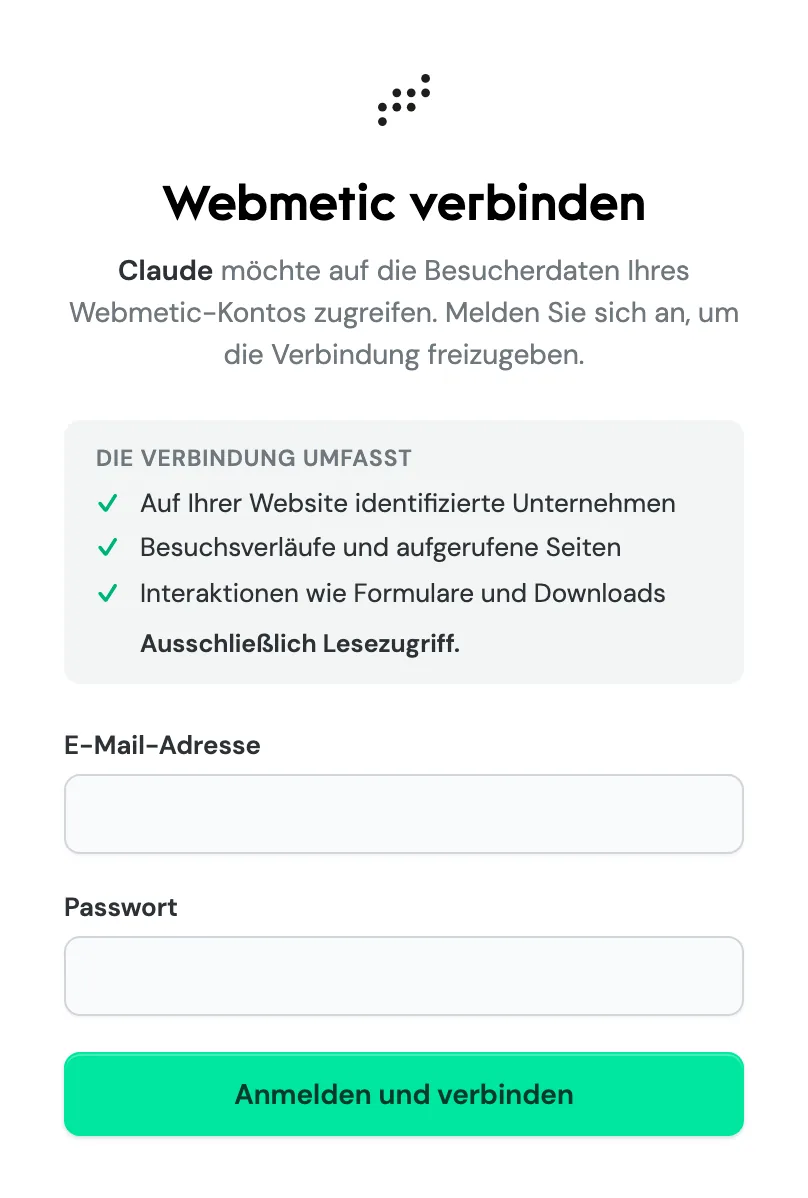
The Webmetic verbinden sign-in page with the Anmelden und verbinden button
In a chat, you turn Webmetic on or off under + > Connectors.
Claude Code
-
Run this command in your terminal:
claude mcp add --transport http --scope user webmetic https://mcp.webmetic.de/mcp -
Start the sign-in:
claude mcp login webmeticYour browser opens the page Webmetic verbinden.
-
Enter your E-Mail-Adresse and Passwort and click Anmelden und verbinden. Claude Code is now connected to your account.
The Claude plugin adds four skills for Claude Code.
Cursor
-
Open the file
~/.cursor/mcp.json. For a single project, use.cursor/mcp.jsonin the project folder. -
Add Webmetic under
mcpServers:{ "mcpServers": { "webmetic": { "url": "https://mcp.webmetic.de/mcp" } } } -
Save the file. Cursor shows Webmetic on the Customize page.
-
Start the sign-in for Webmetic there. Your browser opens the page Webmetic verbinden.
-
Enter your E-Mail-Adresse and Passwort and click Anmelden und verbinden. Cursor is now connected to your account.
VS Code
-
Open the Command Palette and run MCP: Add Server.
-
Select HTTP (HTTP or Server-Sent Events).
-
Enter this address:
https://mcp.webmetic.de/mcp -
Enter
webmeticas the server ID. -
Select Global, then Copilot Global, so the server works in all your projects.
-
Confirm the sign-in prompt. Your browser opens the page Webmetic verbinden.
-
Enter your E-Mail-Adresse and Passwort and click Anmelden und verbinden. VS Code is now connected to your account.
Connect with an API key
The API key replaces the sign-in, for example in these cases:
- No sign-in in a browser: You connect scripts, CI pipelines, or clients that don't start a sign-in.
- Single sign-on: You sign in to Webmetic with single sign-on and have no password.
The AI Assistant (MCP) window shows the key, and only admins see the menu item for it. If you aren't an admin, ask an admin for the API key.
-
Open Menu > Integrations > MCP. The window shows the fields Server URL and Your API key.
-
Click the copy icon in the Your API key field. Webmetic copies the full key, even while it's hidden.
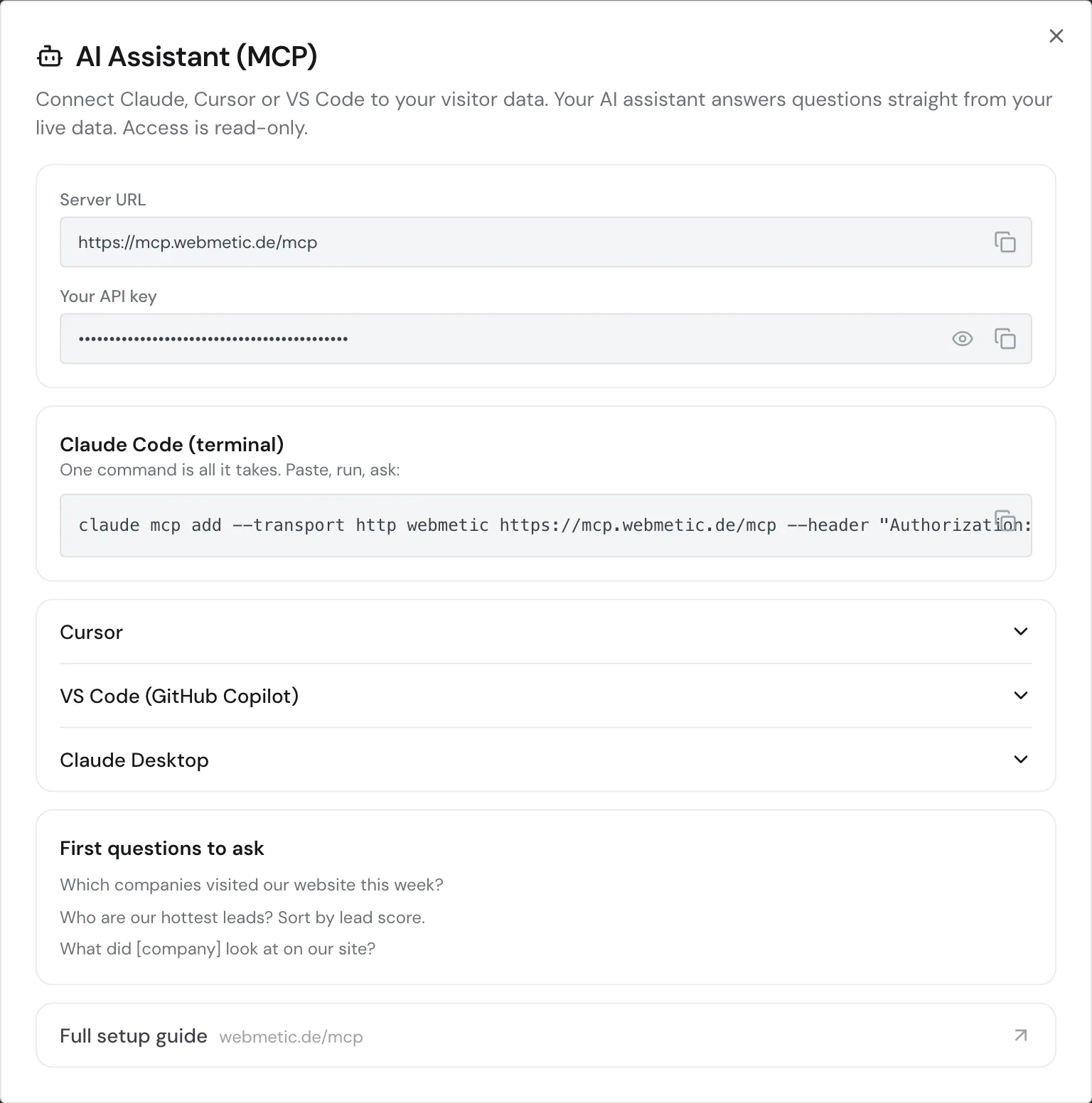
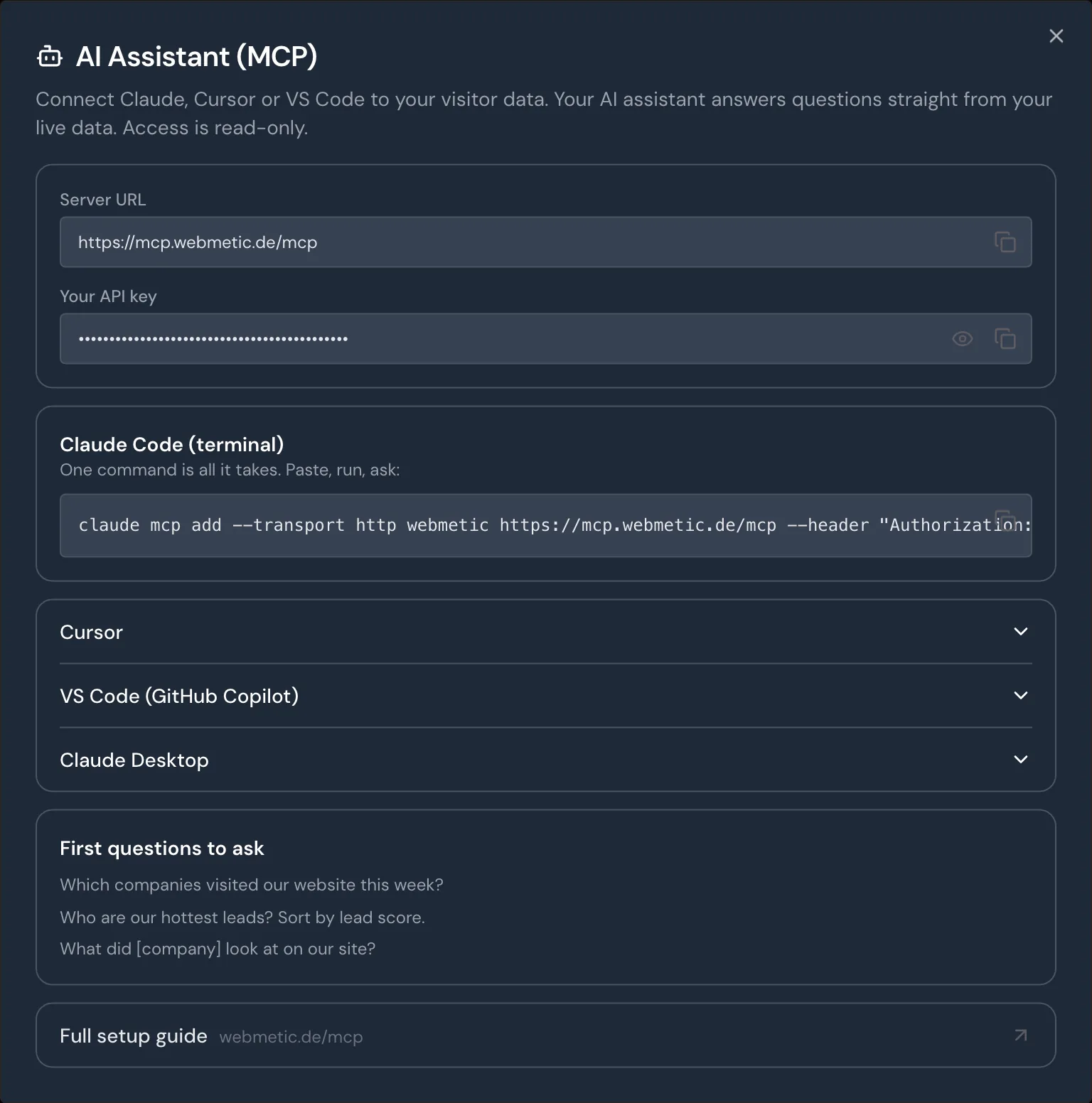
The AI Assistant (MCP) window with the server URL and the hidden API key -
Enter the key in your client in the
Authorizationheader, without "Bearer" in front of it. In Claude Code, it looks like this:claude mcp add --transport http --scope user webmetic https://mcp.webmetic.de/mcp --header "Authorization: wmtc_YOUR_API_KEY"In Cursor, add
headers:{ "mcpServers": { "webmetic": { "url": "https://mcp.webmetic.de/mcp", "headers": { "Authorization": "wmtc_YOUR_API_KEY" } } } }
Don't put your API key in public code. Anyone with the key can fetch your account's data.
The connection ends when you remove the key from the client, or when an admin creates a new one under Menu > Integrations > API. The old key then stops working in other applications too.
Check the connection
Ask your assistant a question about your website, for example "Which companies visited our website this week?". The assistant calls Webmetic and names the companies with their visits.
If the connection doesn't work
- The page shows "E-Mail oder Passwort ist falsch.": Check your email and password. If you have no password because you use single sign-on, connect the client with the API key.
- The page shows "Ihr Konto verwendet Single Sign-On.": Connect the client with the API key.
- The assistant asks which website you mean: Your account has several websites, so name the website in your question.