Company list
Read the list of companies that visited your website and put them in the order you need.
The company list is where the Visitor Intelligence tab starts. At the end you'll have:
- a list of the companies that visited your website in the date range you chose
- that list in the order you need, with the most relevant first by default
- if you like, a list that updates itself while it's open
Before you start
- Time: The steps take a few minutes.
- Account: You need a Webmetic account with a website where Webmetic has already identified companies.
- Access: You set a custom date range and create segments only in the desktop view.
- Rights: Every user of your account sees the list. You don't need admin rights.
- Plan: The list is part of every plan, and nothing on this page costs credits. On the Free plan, not every company is readable. For details, see Free plan.
Open the list
- Open the Webmetic dashboard. Webmetic shows the list for your first website.
- Optional: Click your website's name in the top left and choose another website.
- Click a company, and its profile opens in the middle.
On desktop, Webmetic selects the first company for you. Above your list sits the filter bar with the sections Set date range, Select segment, Search companies, and Adjust results.
Webmetic loads 20 companies at a time and more as you scroll down. When you switch to another website, Webmetic resets the date range, segment, and subdomain view.
When Webmetic has drafted your ideal customer profile and nobody has reviewed the draft yet, a notice with Confirm, Adjust, and Hide for now appears above the list.
Read the company cards
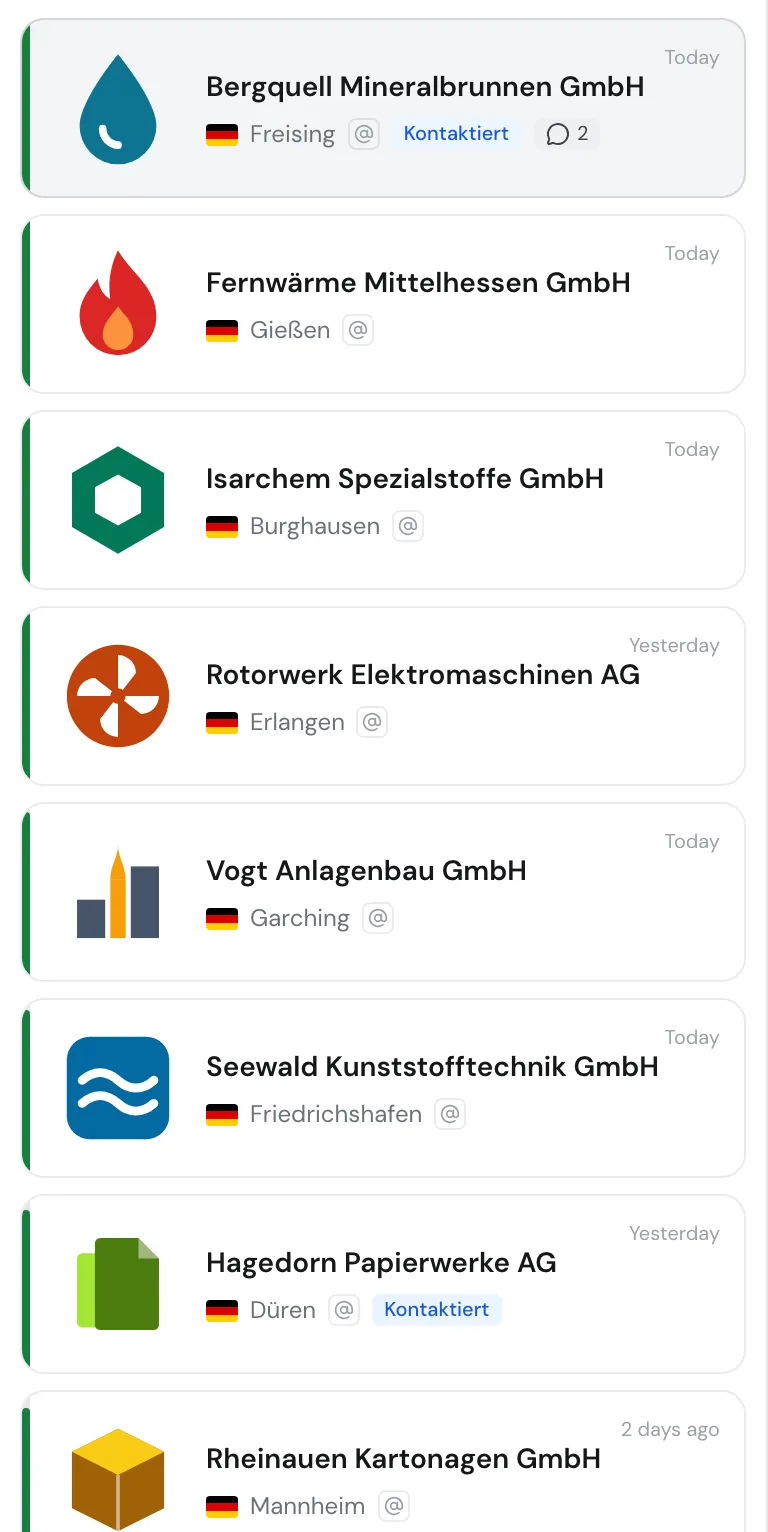
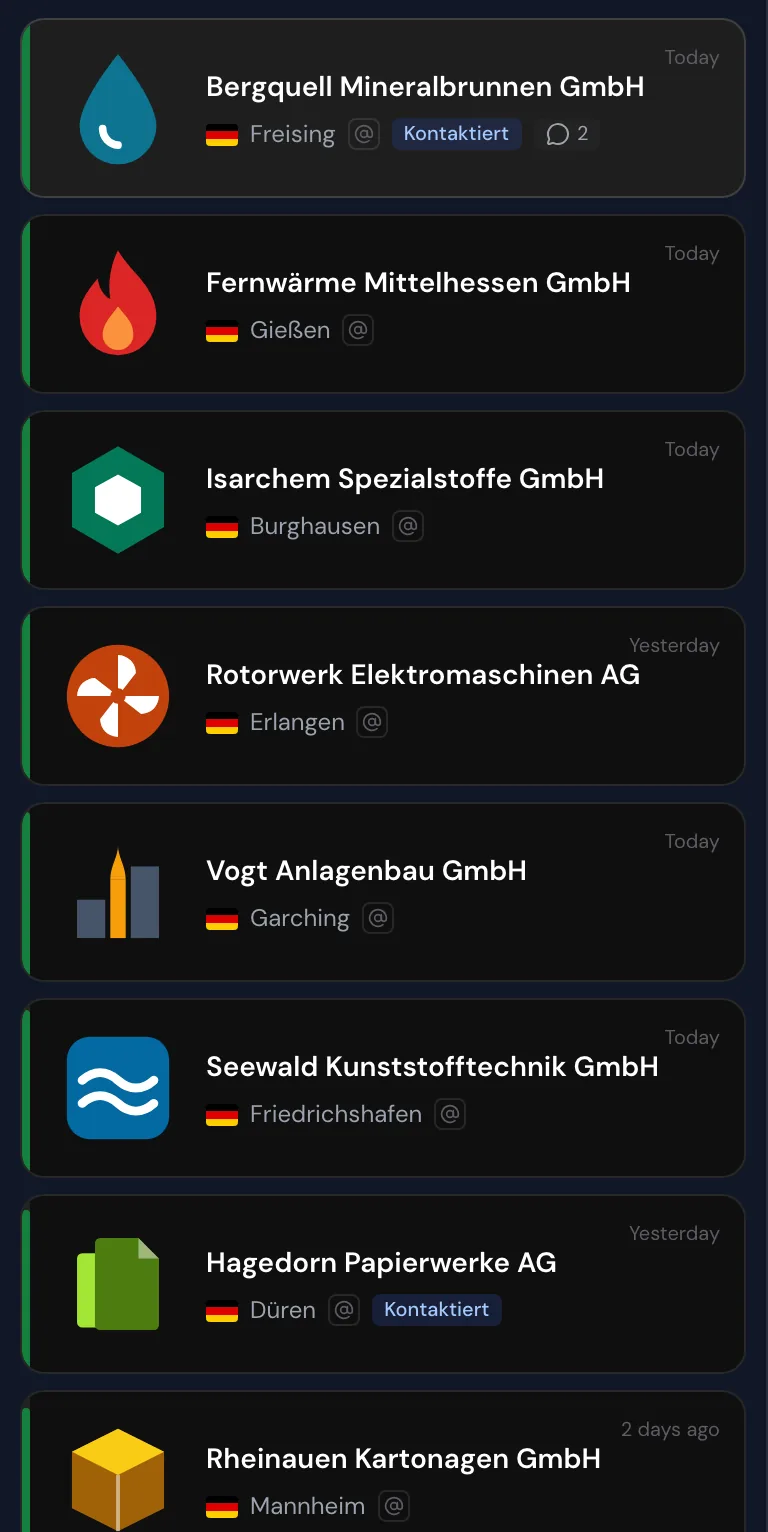
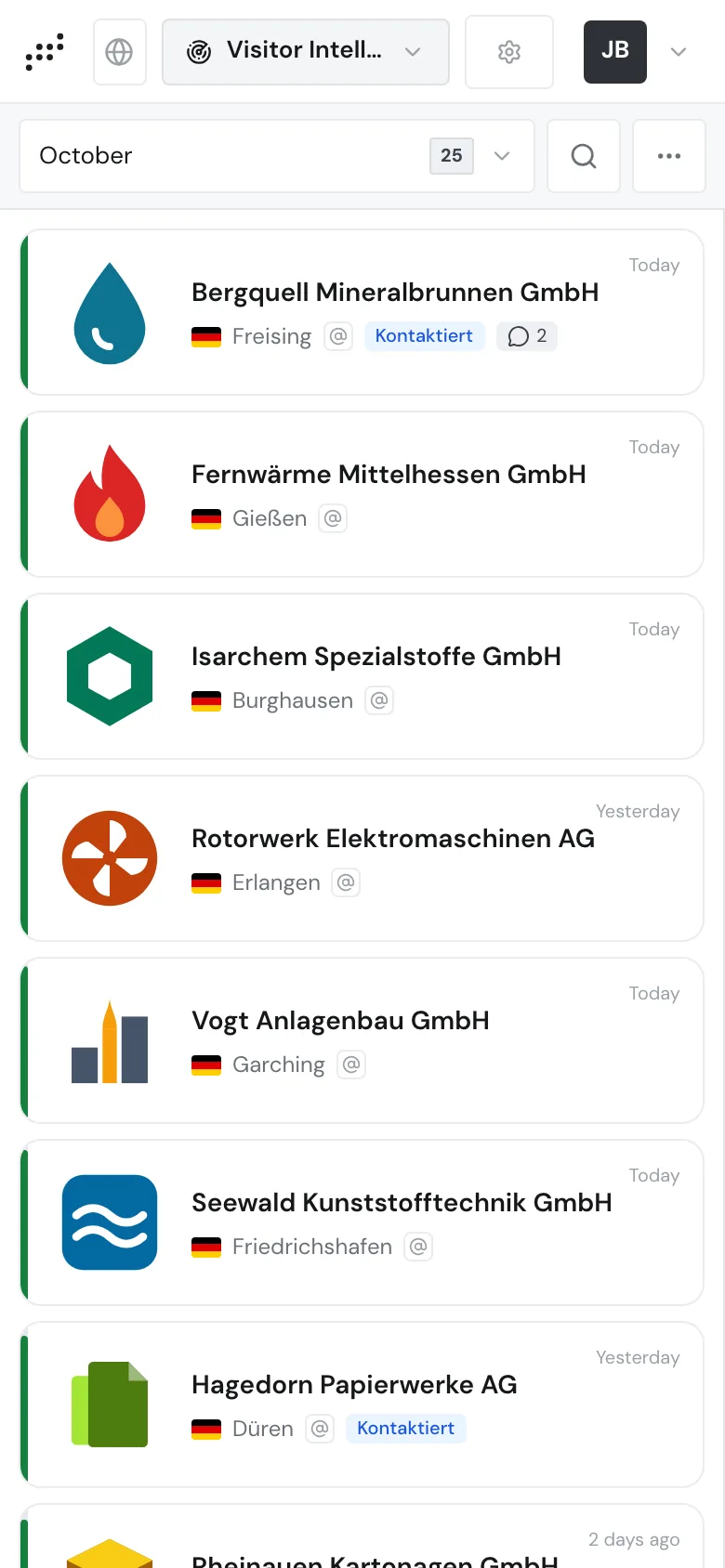
Each card stands for one company and shows:
- the logo, or two initials when there's no logo
- the company name
- a German flag and the city for companies in Germany
- an @ icon when an email address or email pattern is known
- up to two tags, further ones as "+N"
- the number of comments
- in the top right, the date of the last visit, for example "Today" or "3 days ago"
The date shows the last visit in the date range you chose, not the last visit ever. You find the industry and the relevance as a number in the company profile.
The bar on the left edge shows relevance: the higher the relevance, the taller the bar. Its color goes from gray through yellow to green for high relevance. Relevance, activity, and fit explains how Webmetic calculates it.
Choose a date range
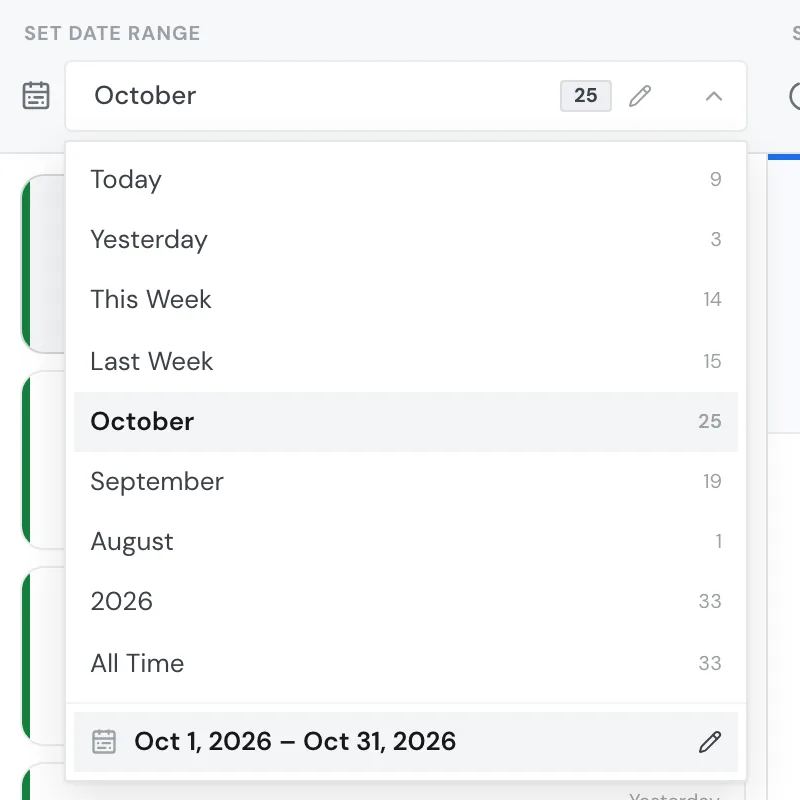
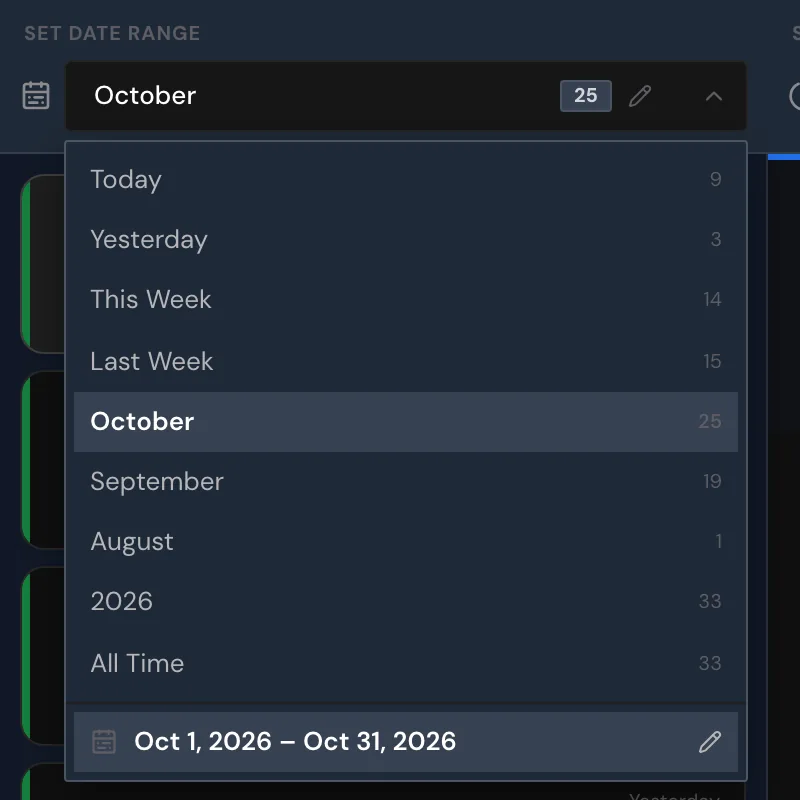
By default, your list shows the current month, but during the first seven days of a month it shows the previous month if that month has companies. The filter bar shows the active date range and the number of companies.
- Under Set date range, click the active date range.
- Choose a date range, and the list shows the companies from that range.
You can choose from:
- Today, Yesterday, This week, and Last week, where a week runs from Monday to Sunday
- the current month and the two months before it
- the current year and the two years before it, if they have companies
- All time for the whole period
Next to each range you see the number of its companies, without search and segment. The number in the date range at the top shows your current result with search and segment.
When you choose a new date range, Webmetic ends an active segment, but search, sort order, real-time updates, and the subdomain view stay as they are.
Set a custom date range
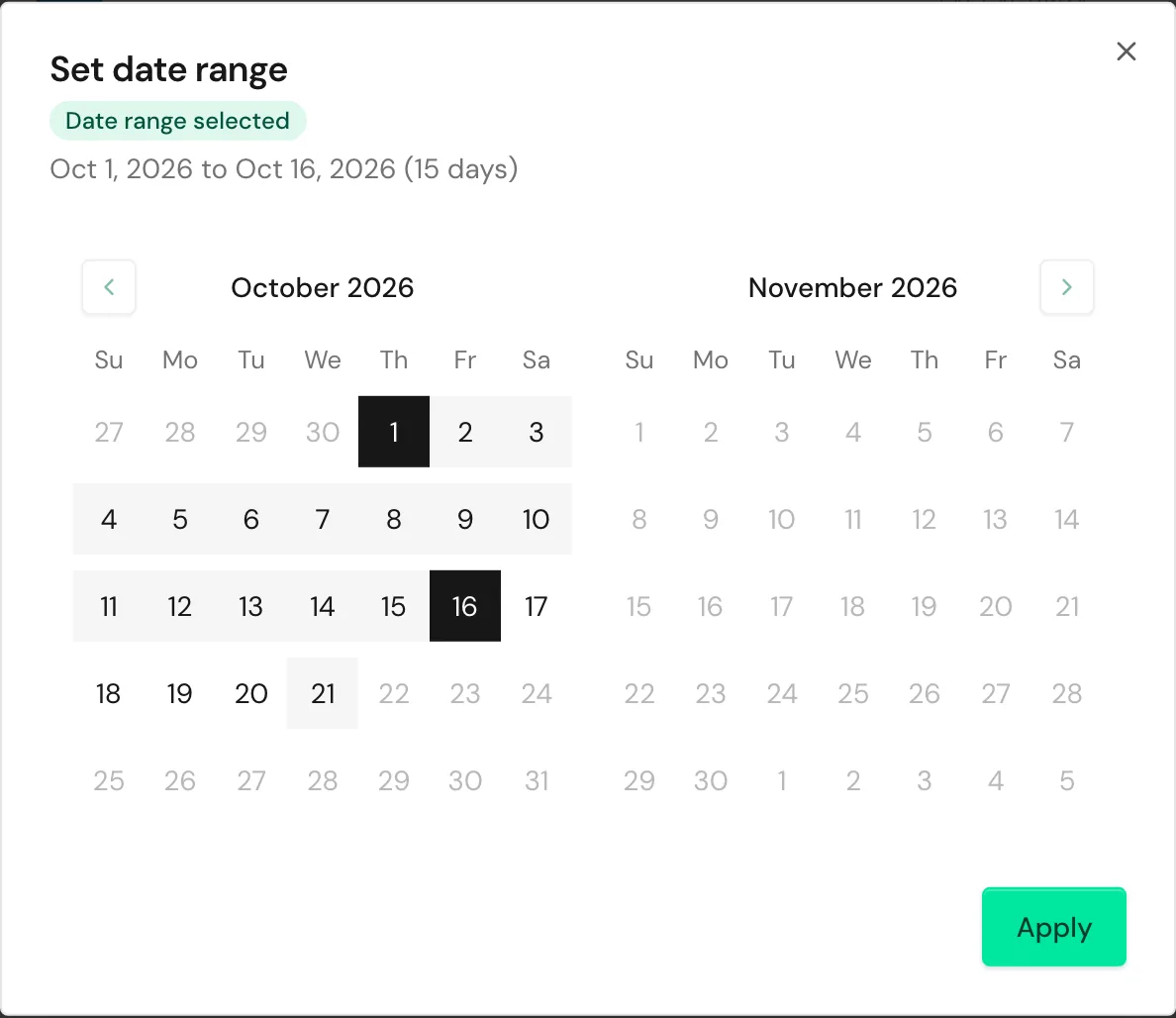
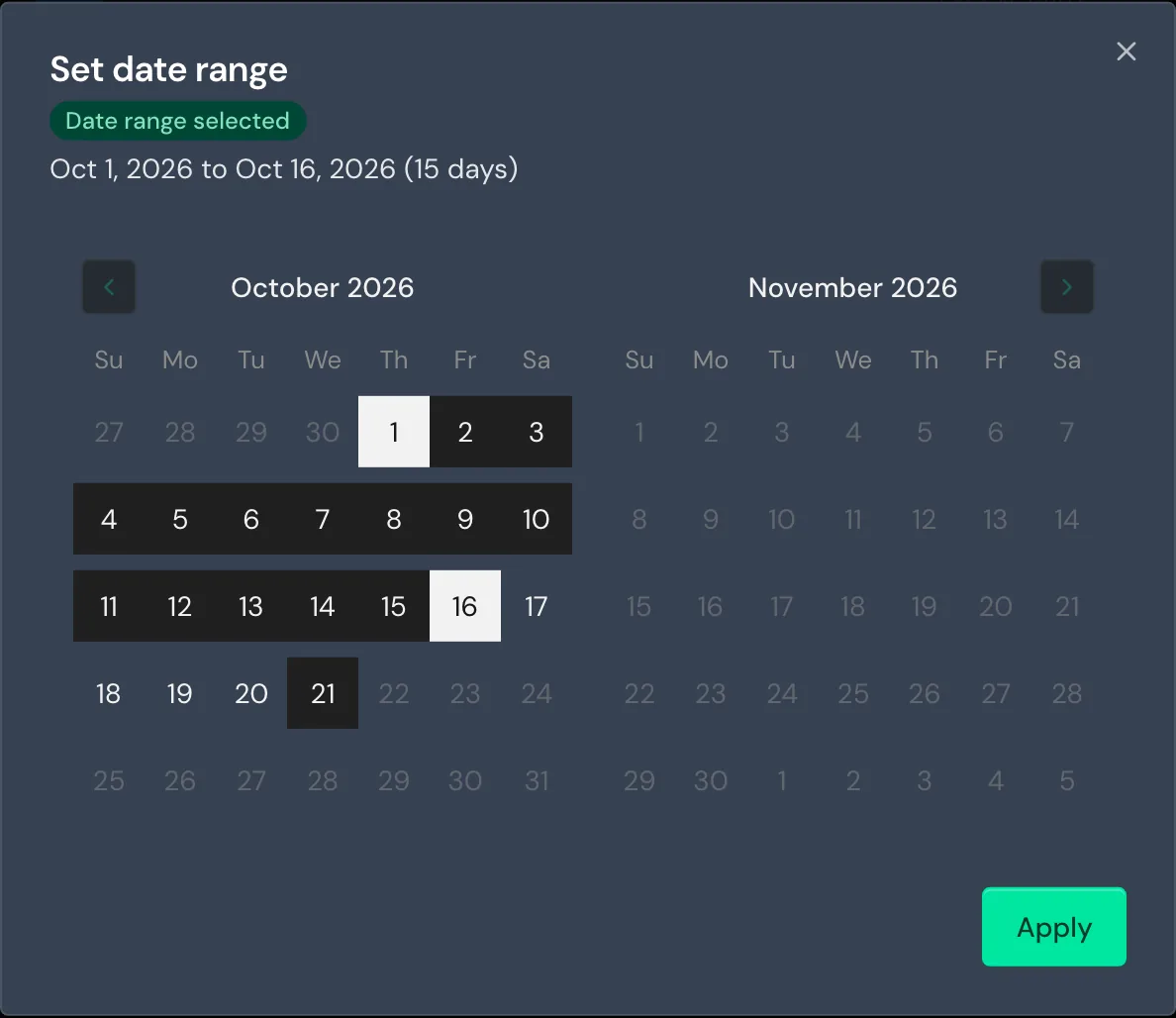
- Under Set date range, click the calendar icon or choose Set custom date range in the date range menu. The Set date range window opens.
- Click the start date in the calendar.
- Click the end date. Webmetic shows the message Date range selected.
- Click Apply.
The calendar runs from January 1, 2025 to today, and you can set a custom date range only in the desktop view.
Choose a segment
A segment is a saved selection, for example all companies in the Munich area.
- Under Select segment, click the picker, which shows All companies or the name of the active segment.
- Choose a segment. Your list now shows only its companies, and the date range switches to the segment's own range.
- To end the segment, choose All companies. The date range then switches to All time.
To create a new segment, open the segment builder with Create segment in the menu or with the plus button next to it. When you hover over a segment on desktop, icons for editing, copying, and deleting appear. Create a segment shows how to save a segment.
Deleting a segment can't be undone. Webmetic first shows the question Delete segment?, and only a click on Yes deletes the segment.
Change the sort order
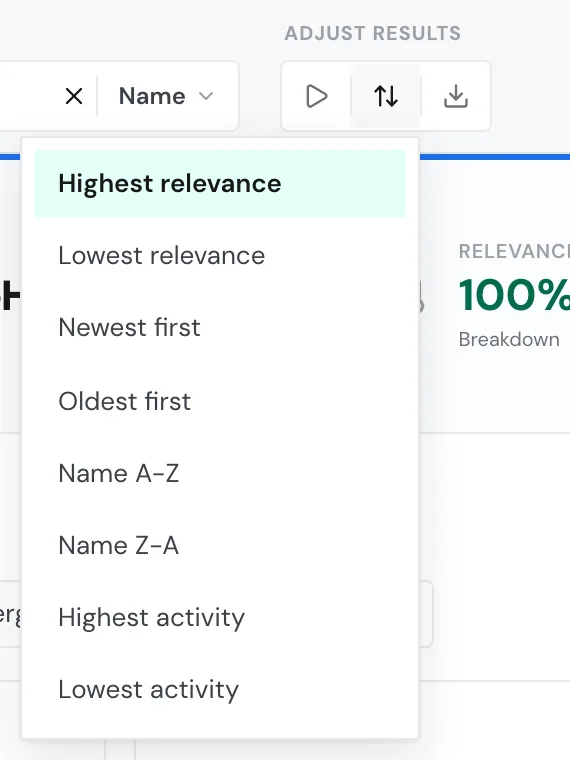
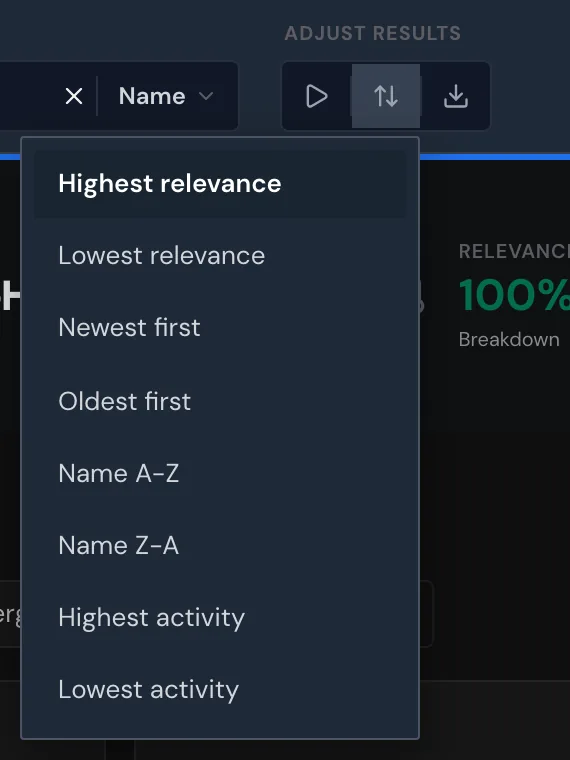
- Under Adjust results, click the icon with the two arrows. A menu with the sort orders opens.
- Choose a sort order, and the list rearranges itself.
| Sort order | Order |
|---|---|
| Highest relevance | Highest relevance first; with equal relevance, the newest visit first. Default. |
| Lowest relevance | Lowest relevance first. |
| Newest first | Last visit in the date range, newest first. |
| Oldest first | Last visit in the date range, oldest first. |
| Name A-Z | Alphabetical by name. |
| Name Z-A | Reverse order by name. |
| Highest activity | Highest activity first. |
| Lowest activity | Lowest activity first. |
On the Free plan, the two name sort orders are missing. Filters and search shows how to reset a sort order.
Turn on real-time updates
With real-time updates, Webmetic reloads the list every 15 seconds.
- Under Adjust results, click the play icon with the hint Turn on real-time updates. The icon changes to pause with a pulsing dot.
- Keep the list open. New companies appear with a highlighted frame, and in the bottom right Webmetic reports, for example, "2 new companies found".
- To stop the updates, click the icon again.
You only see new companies when the date range includes today.


View a subdomain
If your website has subdomains, for example shop.your-website.com, you can narrow the list to one of them.
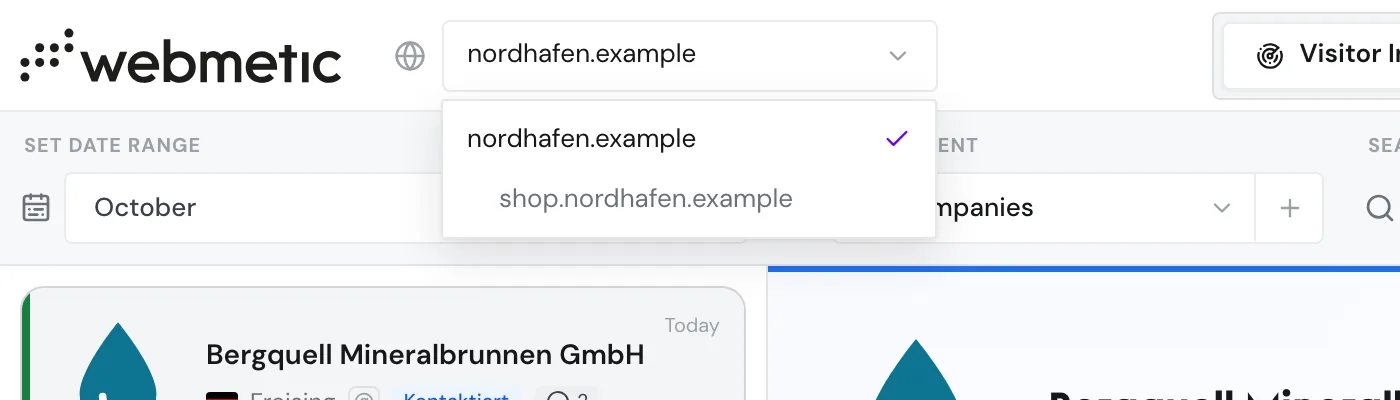
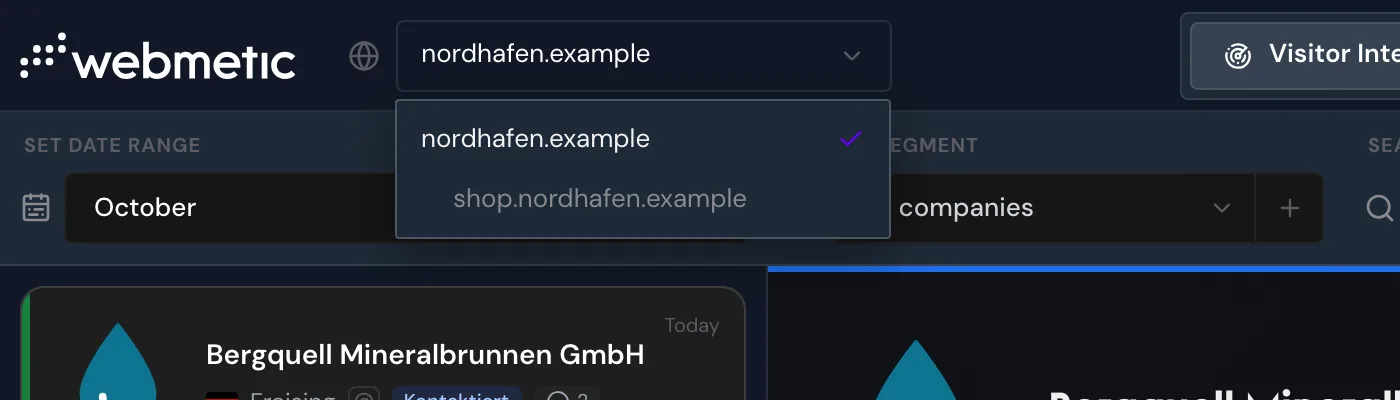
- Click your website's name in the top left.
- Choose one of the indented subdomains below your website's name. The list shows only companies that viewed at least one page on that subdomain in the date range.
- To return to the whole website, choose your website's name again.
The website picker only lists subdomains with enough visits, and your tags and comments still belong to the main domain. A segment you create in this view applies only to the subdomain. For details, see Manage segments.
Use the list on a smartphone
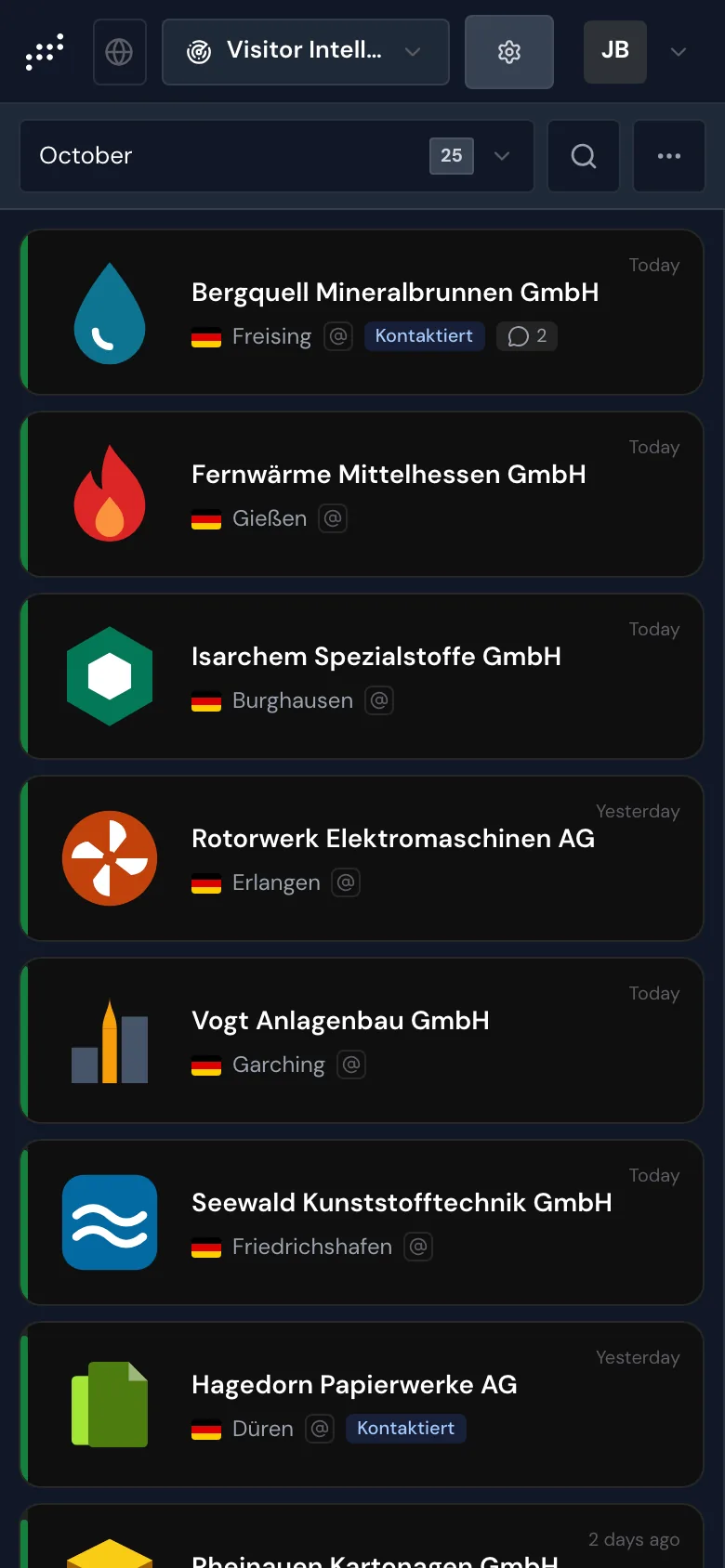
On a smartphone, you always see one part at a time: first the list, then the profile after you tap a card. The arrow in the top left takes you back to the same spot in the list.
Instead of the filter bar, Webmetic shows one row with the date range, a magnifier for search, and the More options menu. It holds the segment picker, Sort, real-time updates, Export, and Reset filters. To edit segments or set custom date ranges, switch to the desktop view.
Check an empty list
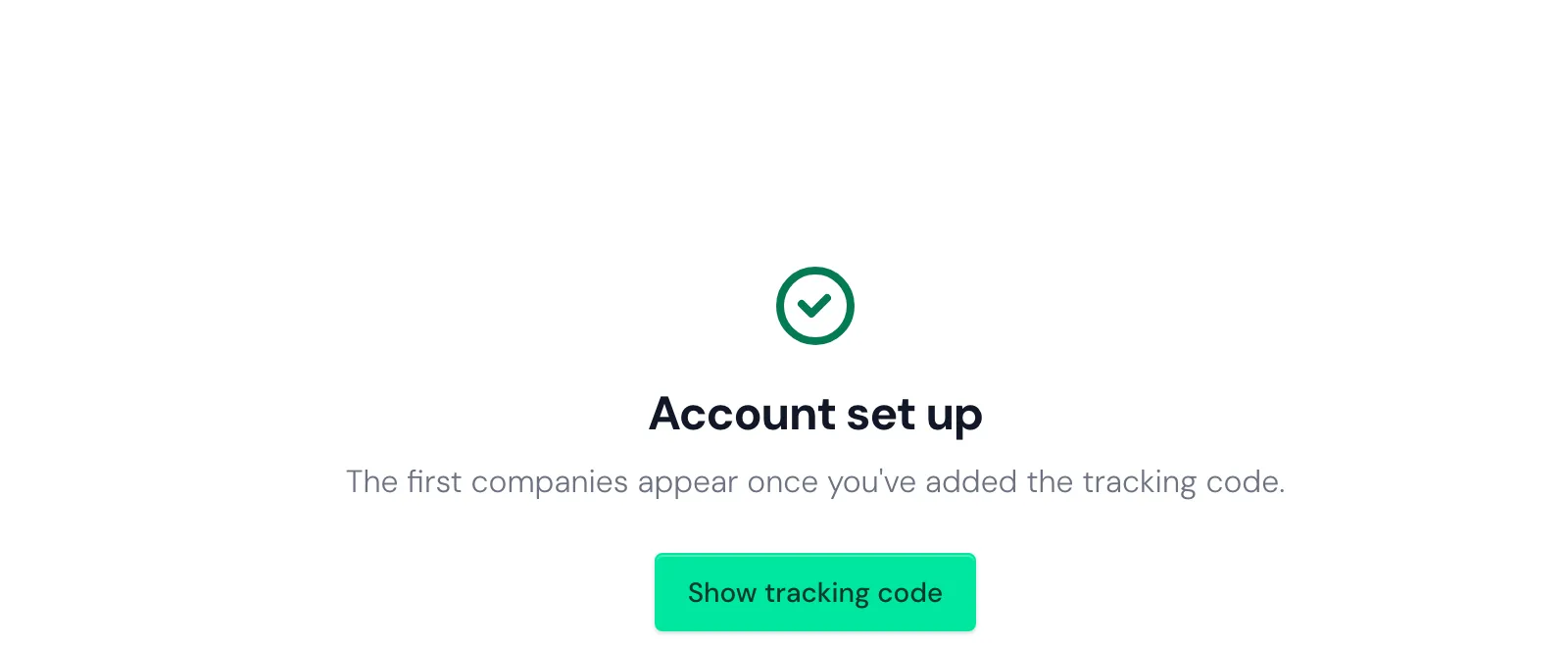
As long as Webmetic hasn't identified any company for your website, the list shows the message "Account set up". Show tracking code opens your tracking code, and Installation explains how to add it.
If your website already has companies but your selection matches none, the list shows the message "No results found". In that case, choose a longer date range or reset your filters.
Spot hidden companies on the Free plan
On the Free plan, you see the first 10 new companies each month with their name, counted across all websites in your account. Companies from your trial or paid time stay readable, as does any company that was readable once. A hidden company can become readable in a later month.
You can spot hidden companies by these signs:
- Logo, name, and city are blurred.
- The relevance bar, tags, and comments are missing.
- The visit date is real.
- At the top, Webmetic shows the notice "Free plan" or the number of hidden companies, with Upgrade next to it.
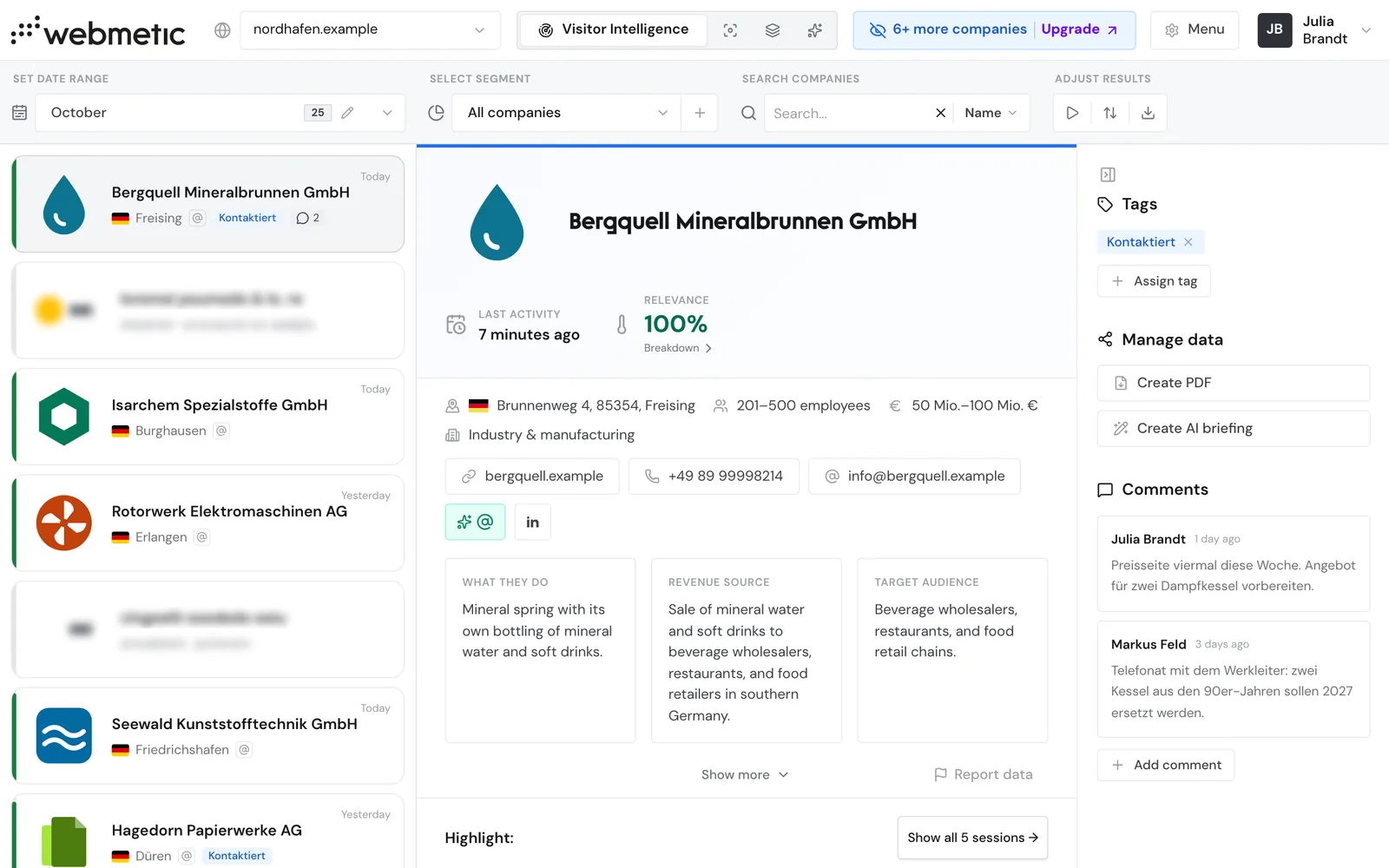
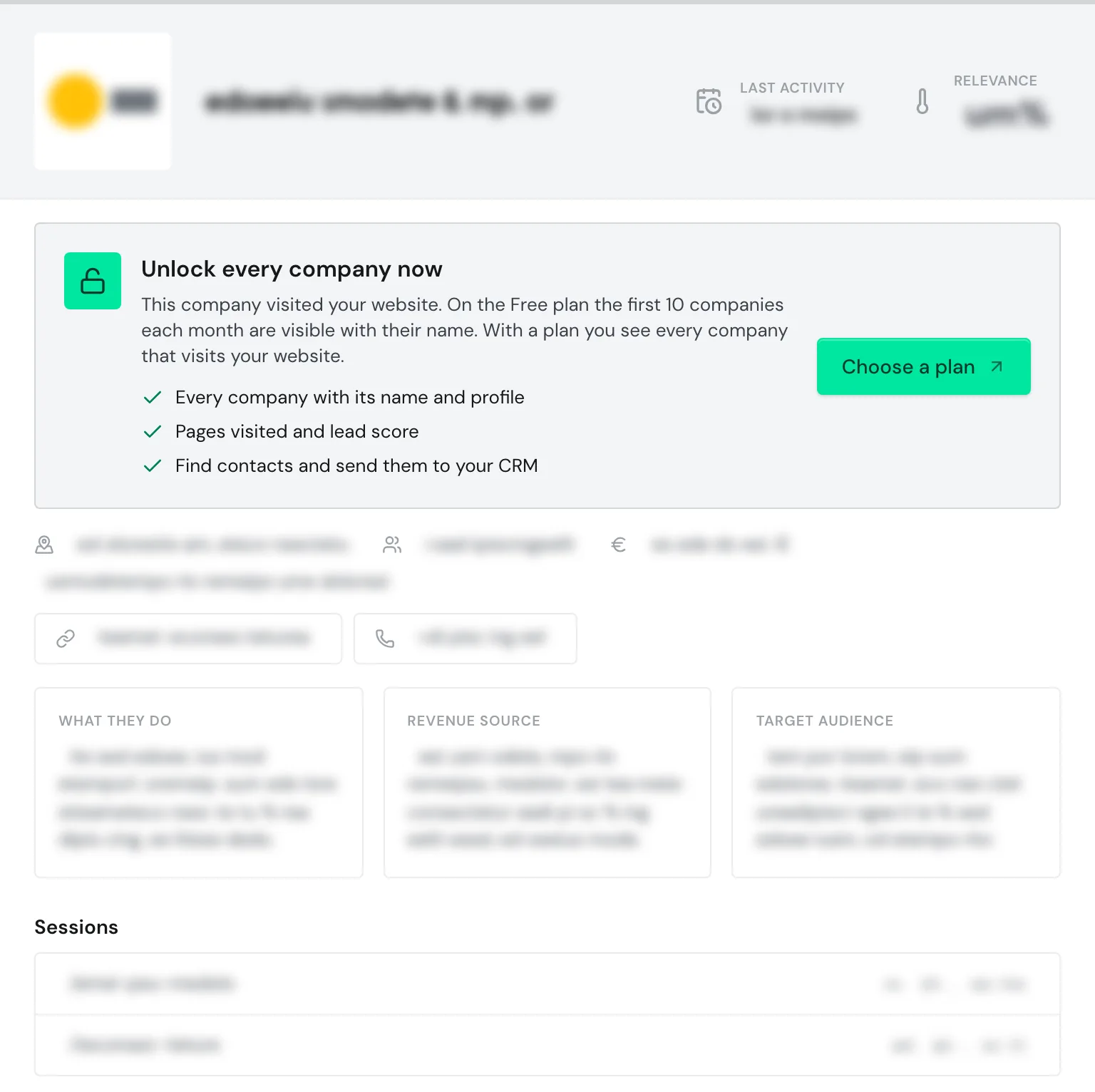
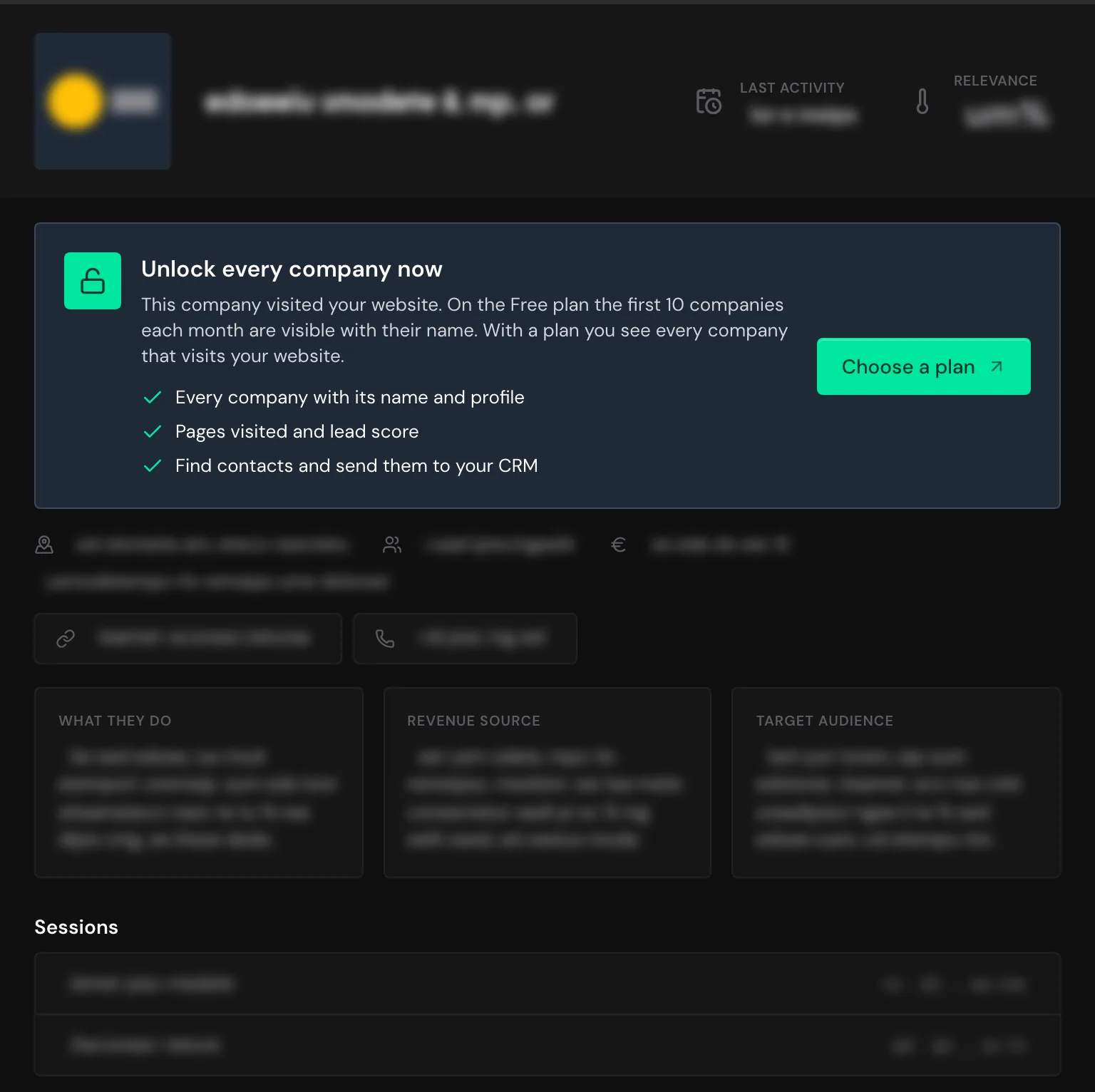
When you open a hidden company, you see a blurred profile too. Above it is the notice "Unlock every company now" with the Choose a plan button. On the Free plan, export, notifications, integrations, API, and the AI assistant only work with readable companies.