

Choose features for customers
Decide which areas of the dashboard your white-label customers see.
Under Features, you switch nine areas of the dashboard on or off for your white-label customers. The choice applies to all white-label customers at once, and every other customer sees every area. At the end you have:
- a saved selection of the areas your white-label customers see in the dashboard
- an overview of which areas white-label customers always see and which they never see
Before you start
- Time: Choosing and saving the areas takes no more than a few minutes.
- Account: You need an account with a partner area.
- Rights: Every user of your partner account can open the window and change the selection.
- White-label: Your selection takes effect even before you click Activate white-label.
- Cost: The selection costs no credits.
You can't save a separate selection for single customers, because the selection applies to all white-label customers. When you add the customer, you decide whether they are a white-label customer.
Switch areas on or off
- Open Menu > Partner area > Features. The Features for white-label customers window shows nine checkboxes, and a tick means the area is visible.
- Tick the box of each area you want your white-label customers to see.
- Clear the tick for each area you want to hide from these customers.
- Click Save features. Webmetic saves the selection and applies it to all your white-label customers.
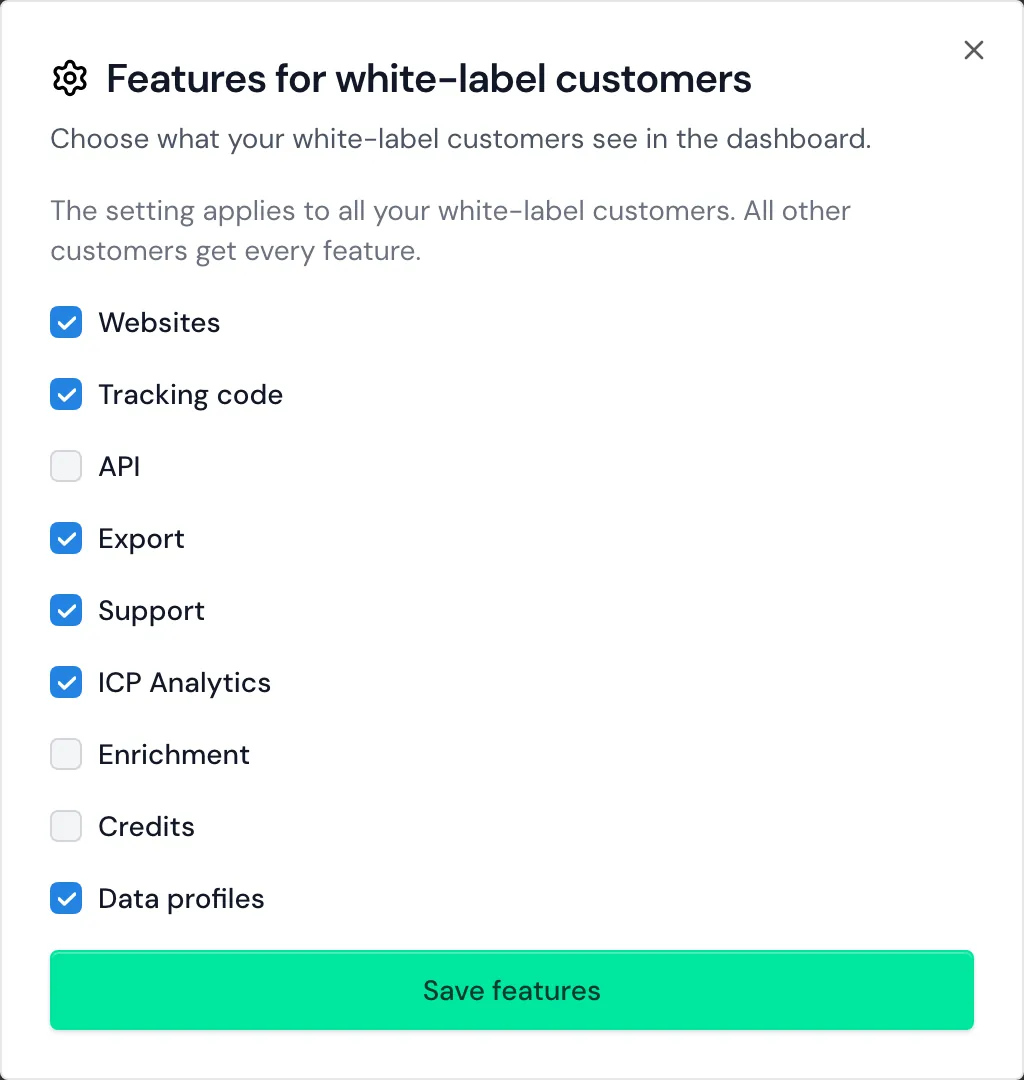
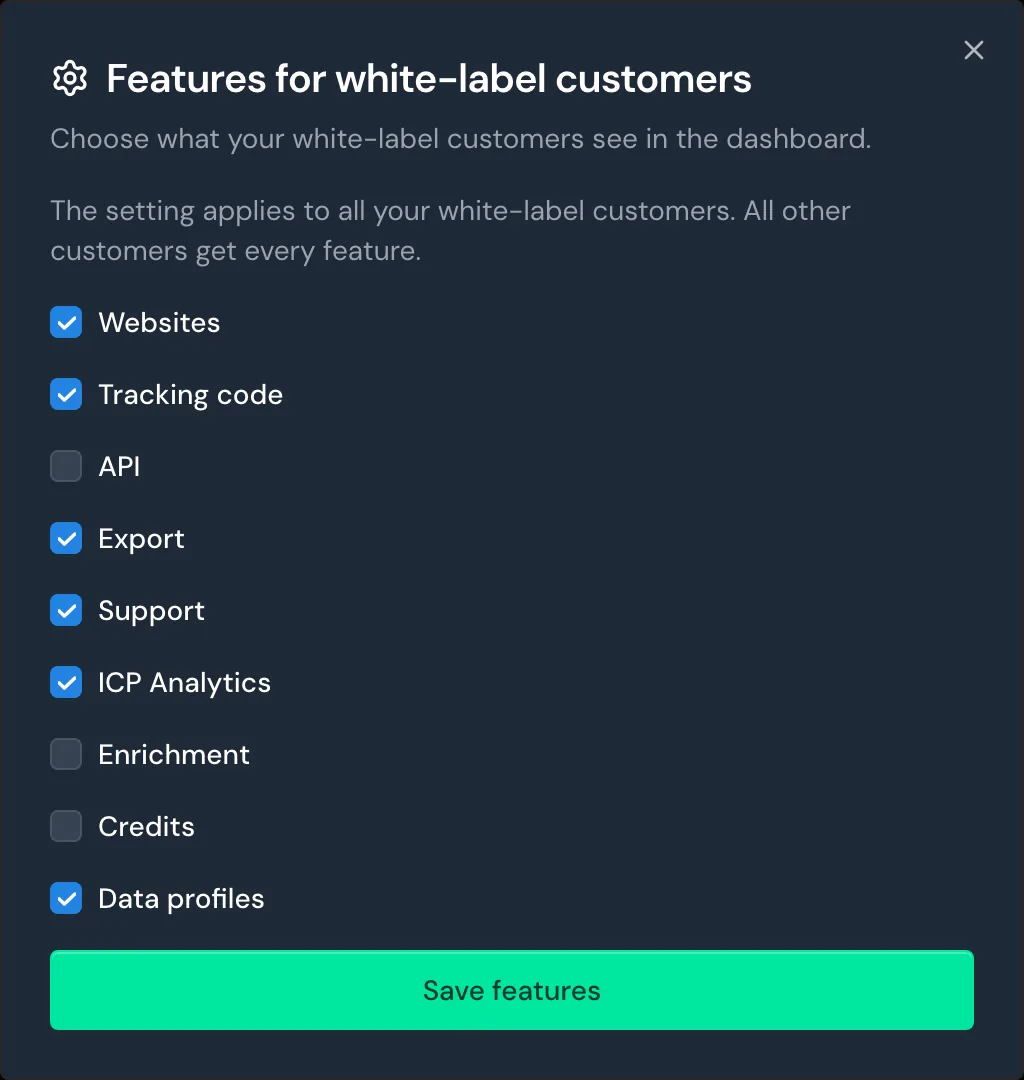
If an area has no tick, it's missing from the menu or the tabs of these customers.
Areas and defaults
The table shows what a white-label customer sees when the box is ticked. As long as you have never saved a selection, the first default applies. Once you click Activate white-label under Set up a white-label domain, the second one applies.
| Checkbox | What your customer sees | Never saved | After Activate white-label |
|---|---|---|---|
| Websites | The Websites menu item, where they add and remove domains | Off | On |
| Tracking code | The Tracking code menu item with the neutral tracking code | Off | On |
| API | The API, MCP, and Webhooks menu items under Integrations, for admins only | Off | On |
| Export | The export of the company list, the CSV file of the top accounts in ICP Analytics, and Create PDF and Create AI briefing | Off | On |
| Support | The Support item in the profile menu and its window | Off | On |
| ICP Analytics | The ICP Analytics tab | On | unchanged |
| Enrichment | The Enrichment tab | On | unchanged |
| Credits | Their credits and buying more credits | Off | unchanged |
| Data profiles | Contact profile, Organization types, and the contacts in the company profile | On | unchanged |
A few boxes also work as follows:
- Activate white-label: The click ticks the first five boxes, even if you cleared those ticks before. It leaves the other four as they are.
- Export: Without a tick, the server also refuses the export, the PDF, and the AI briefing.
- Support: What your customer writes in the Support window goes to Webmetic support. For details, see Support.
- Data profiles: Without a tick, your customer also can't search for contacts, but they still see the Ideal customer profile.
- Credits: Customers without white-label whom you invoice never see their credits, even if this box is ticked.
Fixed areas for white-label customers
Some areas don't depend on your selection. White-label customers always see the Visitor Intelligence tab with the list of companies, and Ideal customer profile, Company details, and Usage in the menu.
White-label customers never see these areas:
- Users: Admins of your partner account add logins for your customer, as described in Manage customers.
- Domain blacklist, CSV tag import, SSO settings, Billing, and DPA in the menu
- Notifications in the profile menu
- Smart Pages and integrations such as HubSpot
- the getting started checklist
White-label describes what else a white-label customer receives and where their emails go.