

Manage customers
Check your customers' tracking and numbers, and set billing, white-label, and logins for each of them.
Under Customers you see every customer of your partner account with its tracking status and the number of identified companies. On the customer page you decide who invoices the customer, switch white-label on, and add users. At the end you have:
- an overview of which customers have working tracking and how many companies Webmetic identifies for them
- the right billing for each customer and white-label where you need it
- more logins for your customers
Add customers describes how new customers join.
Before you start
- Time: Each task on this page takes a few minutes.
- Account: You need an account with a partner area.
- Access: You'll find everything under Menu > Partner area > Customers.
- Rights: Every user of your partner account can manage customers, but only admins can add users to a customer.
- Cost: The partner area costs no credits.
A trial through Webmetic starts only once per customer. So choose By Webmetic only when Webmetic should invoice the customer directly.
Read the customer list
- Open Menu > Partner area > Customers. The sentence at the top says how many companies Webmetic identified for all your customers so far this billing period.
- Under All customers, type a name, a website, or an email address into the Search customers field. You now see only the customers that match.
- Click a customer's name. The customer page opens.
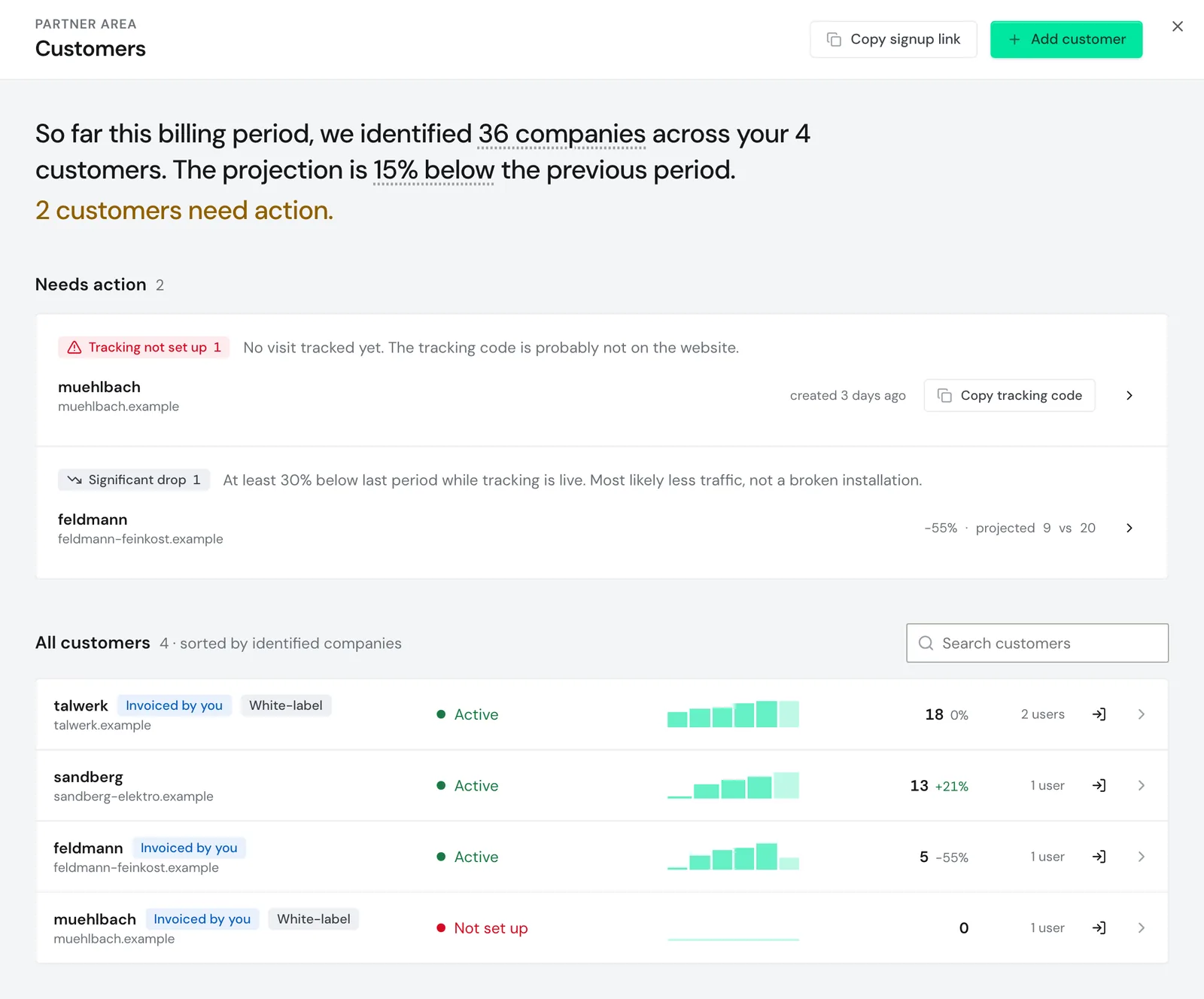
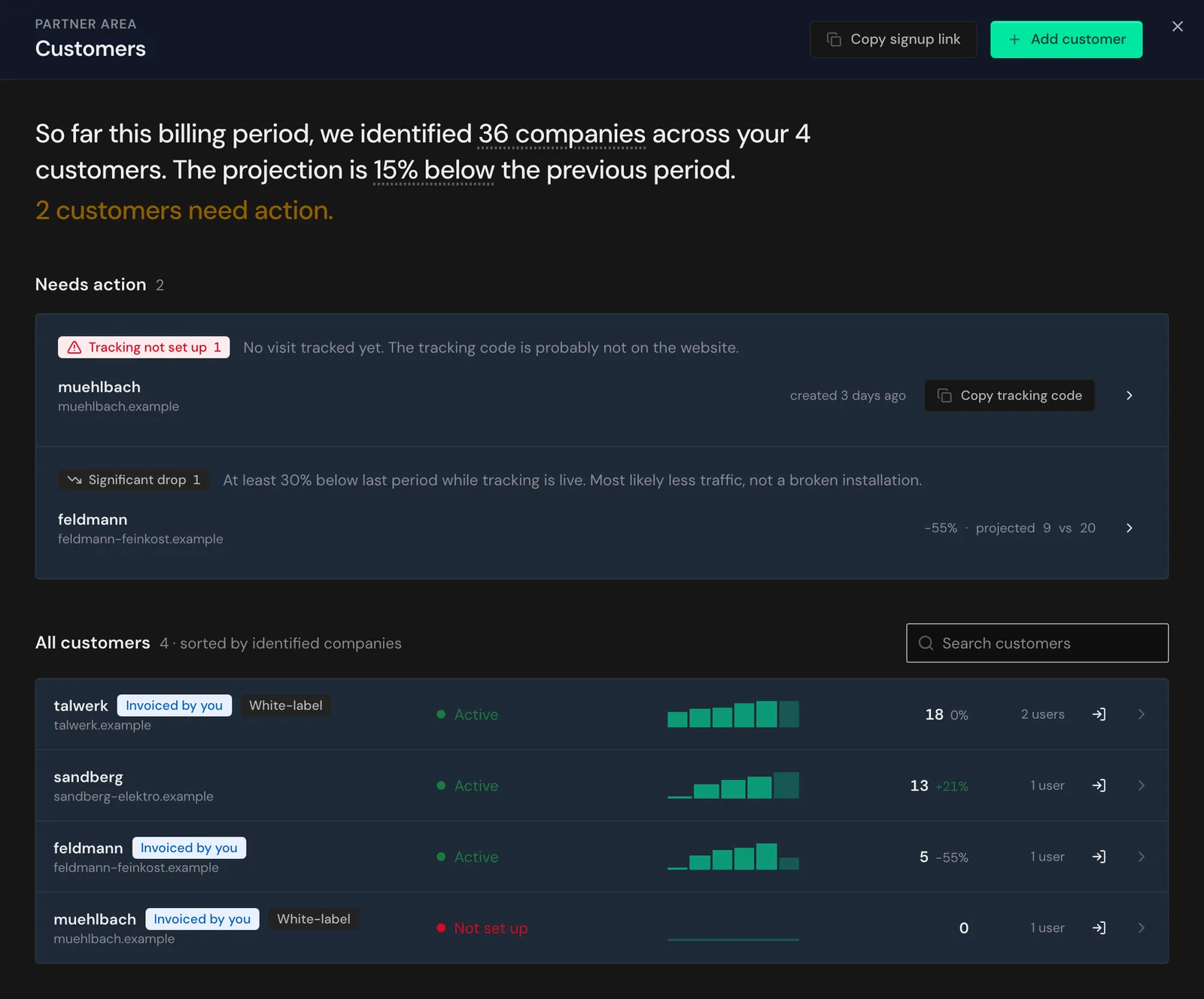
The sentence at the top also compares the projection with the previous period and tells you how many customers need action.
The All customers list is sorted by the number of identified companies, and each row shows:
- the customer's name and website
- Invoiced by you for customers you invoice, and Trial for a trial through Webmetic
- White-label for white-label customers
- the website's tracking status
- the companies identified so far this billing period and how the projection compares with the previous period
- the number of users and the Sign in as customer button
Fix what needs action
Under Needs action, Webmetic collects customers whose tracking is missing or whose numbers fall sharply. Each reason appears once, with every affected customer below it.
| Reason | Meaning | What you do |
|---|---|---|
| Tracking not set up | In the last 30 days, no visits arrived with the customer's account ID, and none without an account ID either. | Have the tracking code from the customer page added to the website. If a code from another account is there, replace it. |
| Tracking faulty | In the last 30 days, data arrived, but without an account ID. The code is probably incomplete. | Replace the code on the website with the code from the customer page. |
| No recent data | Data with the customer's account ID arrived in the last 30 days, but nothing for more than 24 hours. | Check whether the code is still on the website after a change to the site. |
| Significant drop | The projection is at least 30% below the previous period, although tracking is running. | Check with your customer whether their website gets fewer visits. It's rarely a technical problem. |
Rows with Significant drop don't have the Copy tracking code button.
- In a customer's row, click Copy tracking code. You can then pass the code straight to your customer or their IT team.
- Click the arrow Open customer. The customer page opens.
Which form of the tracking code fits is covered in Add customers. Check your installation describes how to check whether data arrives.
Read a customer's numbers
- Under All customers, click the customer's name. The customer page opens at the Overview section.
- Click a billing period in the chart. The numbers for that period appear below it.
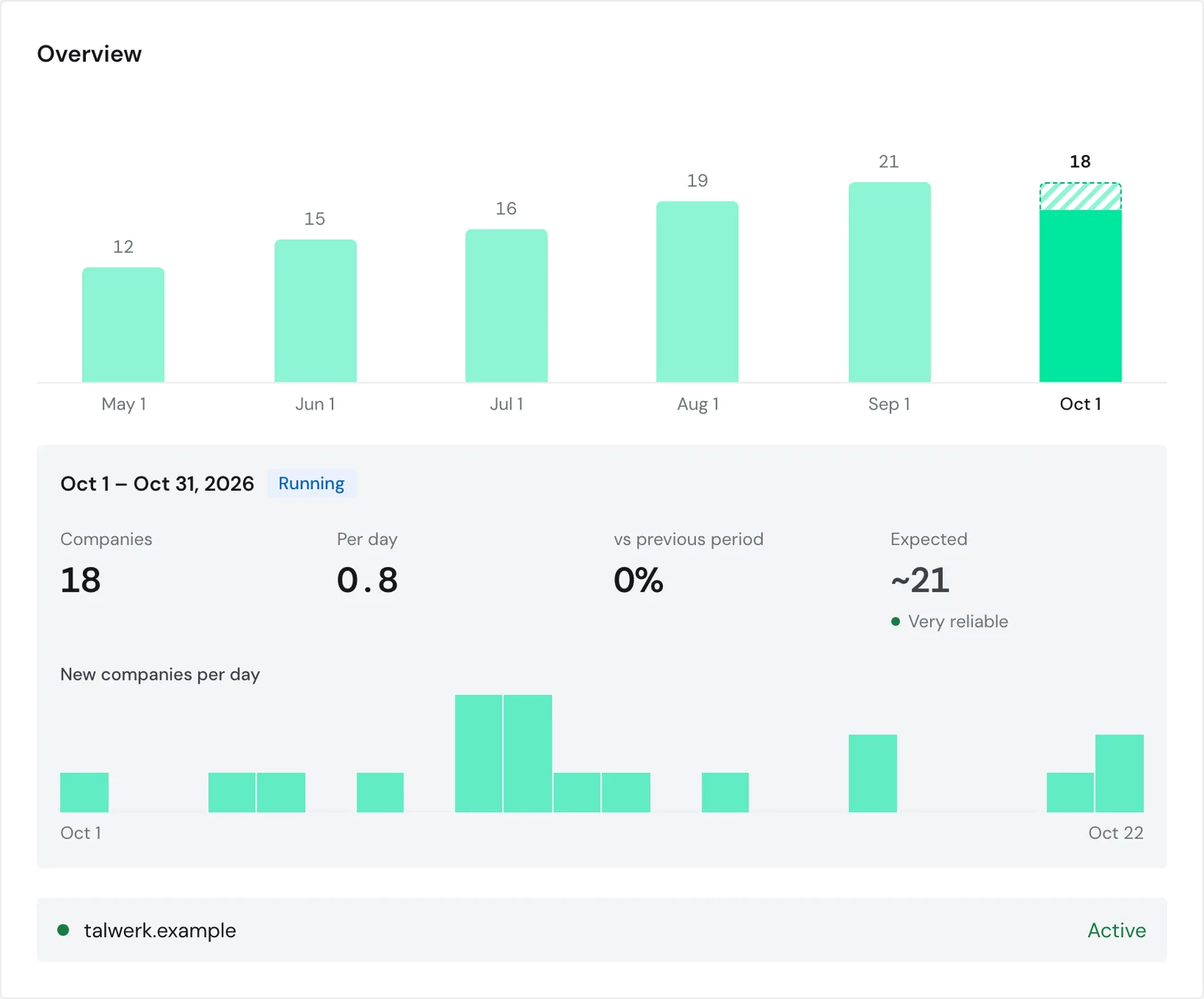
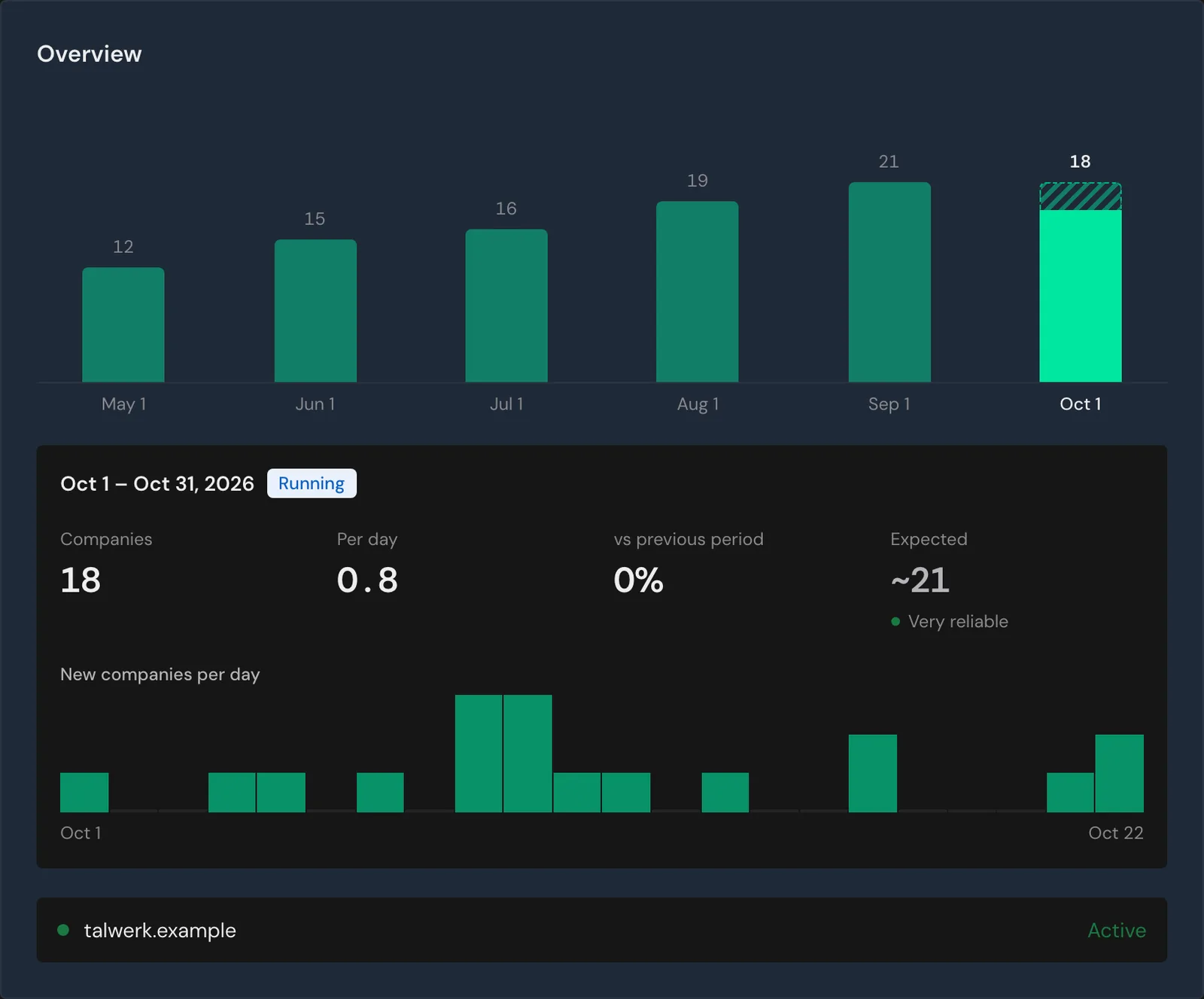
For the selected period, the overview shows:
- Companies: new companies identified since the billing period started
- Per day: the average per day
- vs previous period: for the running period, the projection compared with the previous period
- Expected: the expected total by the end of the period, with a rating from Very reliable to Very rough
- New companies per day: one bar for each day
The running period is marked Running, and for periods marked Settled, you see Best day instead of the projection.
Below that are the customer's websites with their tracking status: Active, No recent data, Faulty setup, or Not set up. Where possible, Webmetic also shows you an estimate of how many companies per month are realistic for the website. If no tracking code is active yet, the overview shows the note No data yet.
Set billing and white-label
For each customer you decide who invoices them and whether they're a white-label customer. White-label explains what white-label means.
- By you: You invoice the customer, and the customer receives no Webmetic plan. Customers without white-label also see no credits.
- By Webmetic: Webmetic invoices the customer directly. If the customer had no trial and no plan yet, a 14-day trial starts. Afterwards they choose a plan in the checkout, or their account moves to the Free plan.
- Open the customer page and click Billing and white-label on the left. The page jumps to that section.
- Under Billing, select By you or By Webmetic. The top of the customer page then shows Invoiced by you or Invoiced by Webmetic.
- Switch White-label on or off.
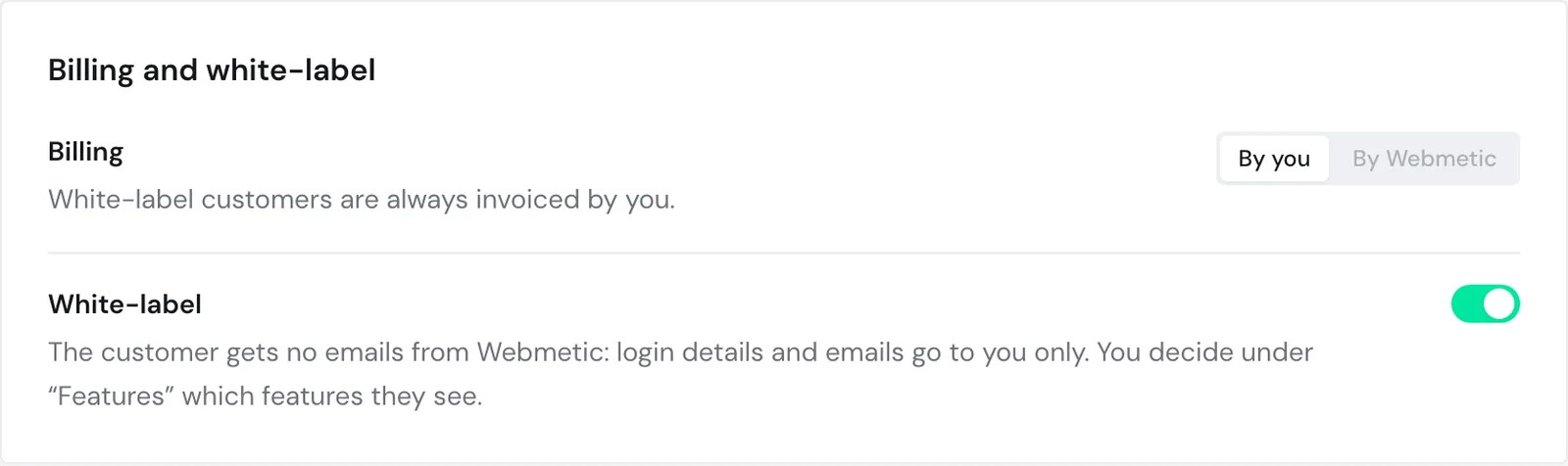
White-label and By Webmetic exclude each other: white-label customers are always invoiced by you, so you can switch White-label on only while you invoice the customer.
When you switch white-label on, Webmetic stops sending emails to this customer's users. Everything meant for the customer goes to the first admin of your partner account, for example login details and notifications.
Under Menu > Partner area > Features, you decide which features the customer sees. For details, see Choose features for customers.
If you switch back to By you during the trial, you invoice the customer again, and no second trial is possible later. If the customer has a plan with Webmetic, you can take over the billing only once that plan has ended. A cancelled plan keeps running until the end of its term.
Add users
The Users section lists everyone who can log in to the customer's dashboard, with their role.
- Open the customer page and click Users on the left.
- Enter First name, Last name, and Email address.
- Click Add user. The new login appears in the list with the User role.
Webmetic emails the login details to the new user. For white-label customers they go to the first admin of your partner account, and the user receives no email from Webmetic.
Each email address belongs to exactly one Webmetic account, so if someone already has a login in another account, they need a different address for your customer.
Get the account ID and API key
- Open the customer page and click Account details on the left. Webmetic shows Account ID, API key, Login email, and Created.
- Copy the account ID or the API key with the button next to it.
The account ID is part of the customer's tracking code. You need the customer's API key in the Partner API for the contacts and Enrichment endpoints.
Webmetic shows the API key shortened, and the button next to it copies the full key. Don't put it in public code. Anyone with the key can read the customer's data.
Sign in as a customer
Sign in as customer opens a customer's dashboard, for example to set something up or check it there. The button sits at the top of the customer page and in every row under All customers.
- Click Sign in as customer. The customer's dashboard opens in the same tab, and a bar at the top tells you whose account you're in.
- When you're done, click Back to your account in the bar. You're back in your partner account.