

Add customers
Create a Webmetic account for each of your customers and give them the right tracking code.
Each customer receives their own account, which you invoice at first, and a tracking code for their website. Customers can also sign up themselves through your partner page, or come in through the Partner API. At the end you have:
- an account for your customer, with or without white-label
- the right tracking code for their website
- a signup link through which more customers sign up themselves
Before you start
- Time: Adding a customer in the dashboard takes a few minutes.
- Account: You need an account with a partner area.
- Access: The email address for the customer's login and the domain of their website must not belong to a Webmetic account yet.
- Rights: Every user of your partner account can add customers and copy their tracking code.
- Cost: Adding customers costs no credits, including through the Partner API.
Add a customer in the dashboard
- Open Menu > Partner area > Customers. The Customers window shows your customer list with the tracking status of each customer.
- Click Add customer at the top of the window. The Add a customer dialog opens.
- Under Email address, enter the address the customer signs in with.
- Under Domain, enter only the domain of their website, for example
customer-example.com. - Optional: Enter First name and Last name, which Webmetic stores for the first login.
- Optional: If all emails for this customer should go to you, tick White-label customer.
- Click Add customer. Webmetic creates the account and confirms that it has sent the login details and tracking code by email.
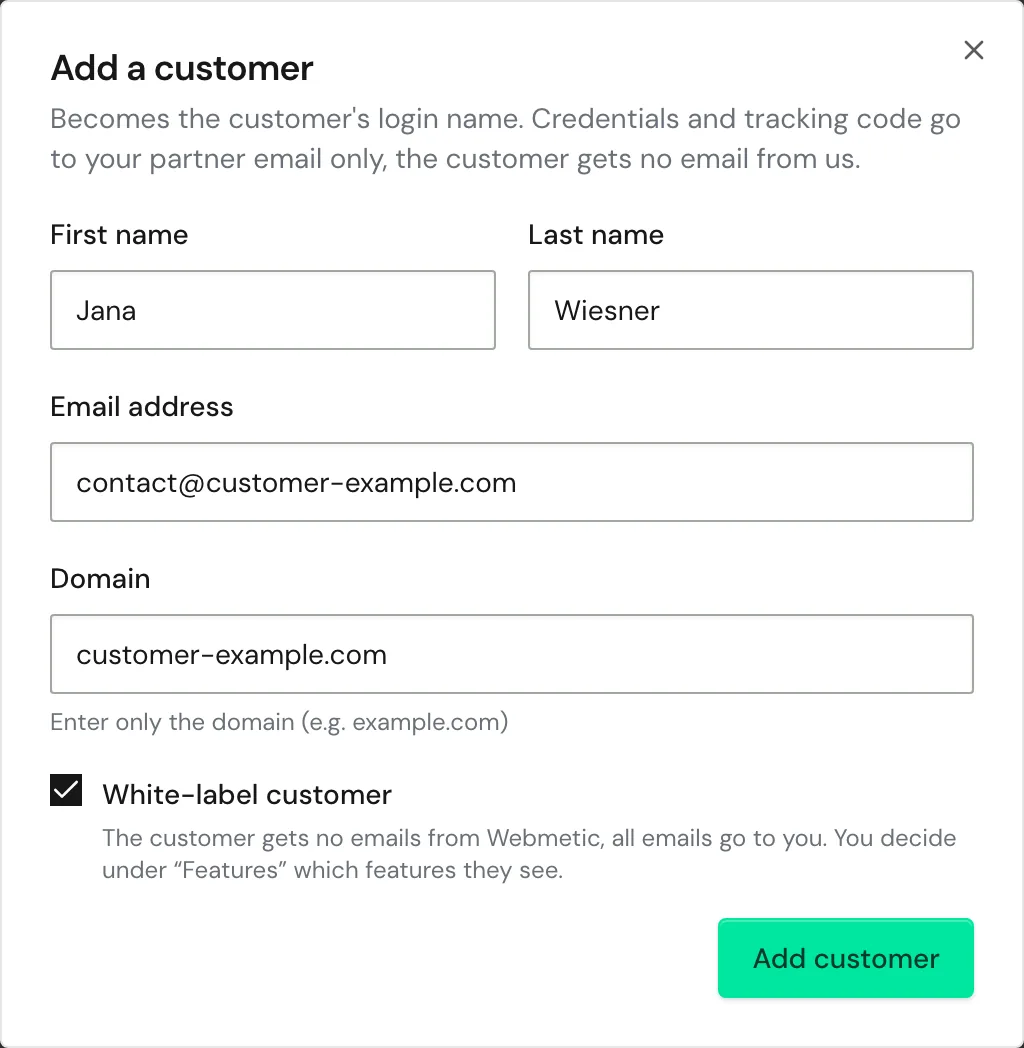
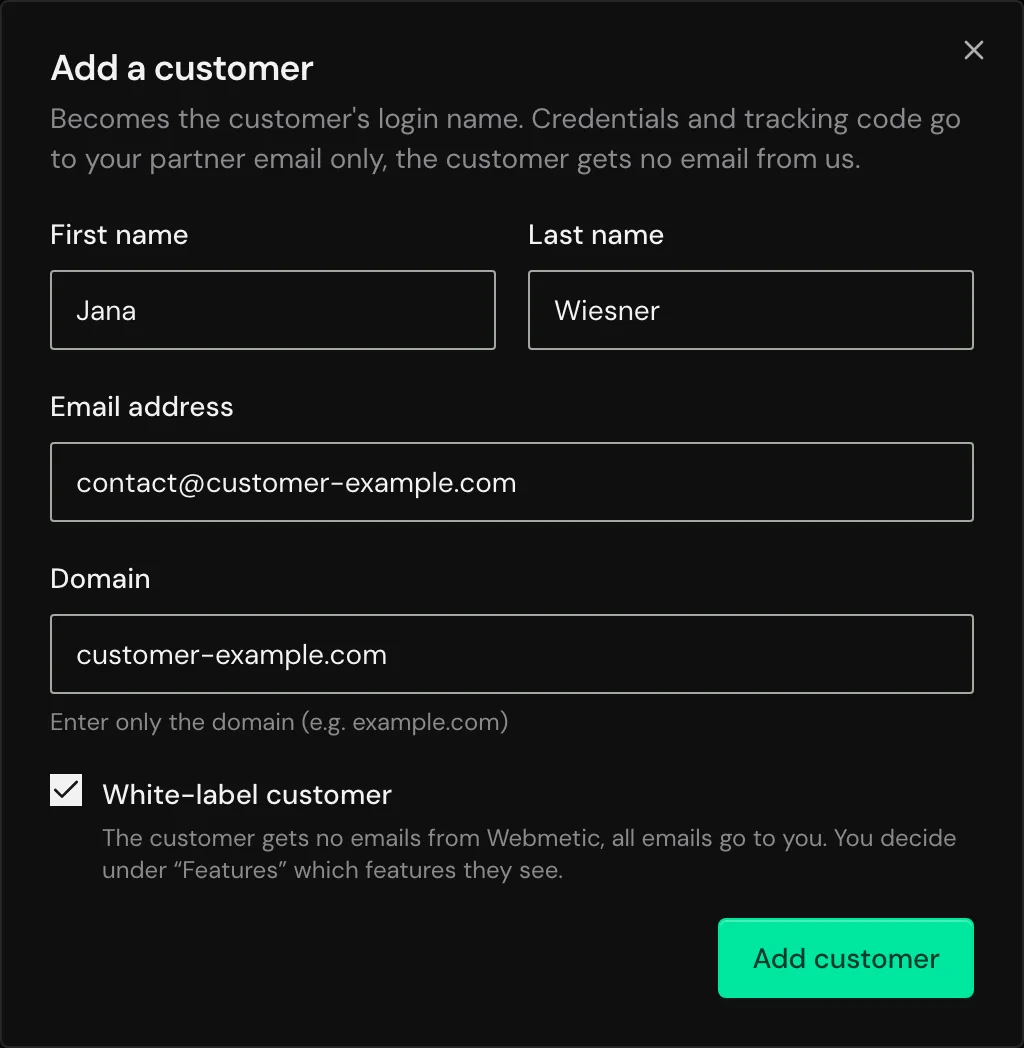
The first login of the new account has the Admin role. You invoice the customer: Billing is set to By you, and the customer receives no Webmetic plan.
The White-label customer checkbox changes the following:
| Without white-label | With White-label customer | |
|---|---|---|
| Login details and tracking code | by email to the customer | only to the first admin of your partner account |
| Password emails and notifications | to the customer's users | to the first admin of your partner account |
| Features | all features | your selection under Features |
| Billing | by you, later also by Webmetic | always by you |
For details, see White-label and Choose features for customers. On the customer page, you later change who invoices and whether white-label applies, as described in Manage customers.
Fix errors when adding a customer
| Message | Cause | Solution |
|---|---|---|
| "This email is already registered." | The address already belongs to a Webmetic account, and each address can exist only once in Webmetic. | Enter a different address for the customer's login. |
| "An account for this website already exists." | Another Webmetic account already uses the website. | Check the domain. If the website belongs to your customer, contact support. |
| "Couldn't add the customer." | Webmetic couldn't create the account for another reason. | Contact support. |
Hand over the tracking code
Webmetic sends the tracking code with the login details, and the customer page shows it again at any time.
- Open Menu > Partner area > Customers.
- Click the customer's name in the list. The customer page opens.
- In the Tracking code section, select the White-label form or the Webmetic form.
- Decide whether Session recording stays ticked. The box is ticked at the start, and Webmetic updates the code right away with every change.
- Click Copy tracking code. The button shows Copied for a moment.
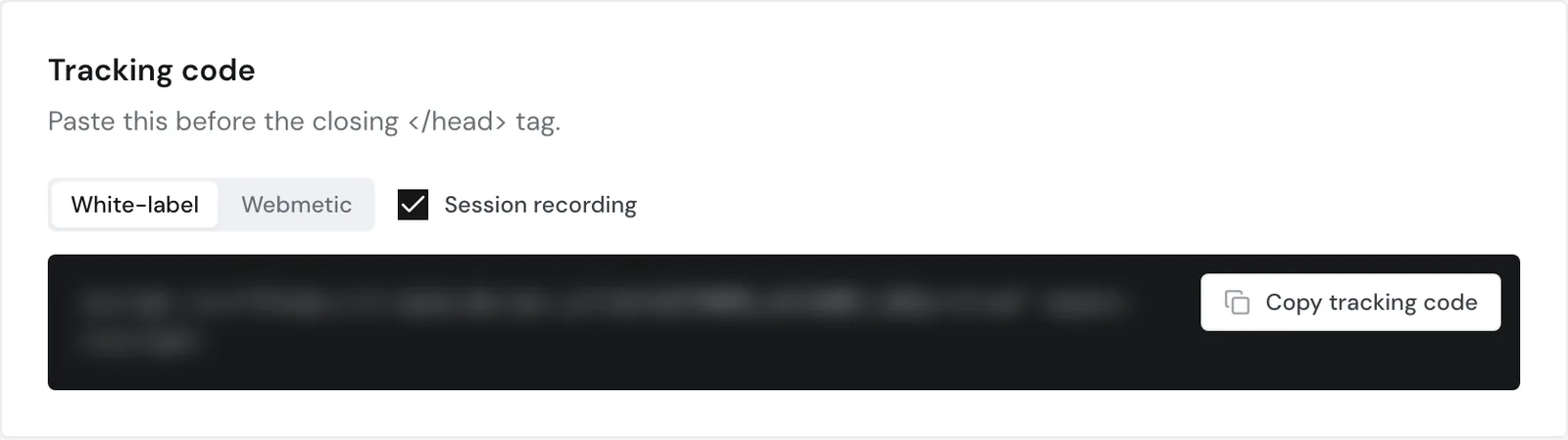
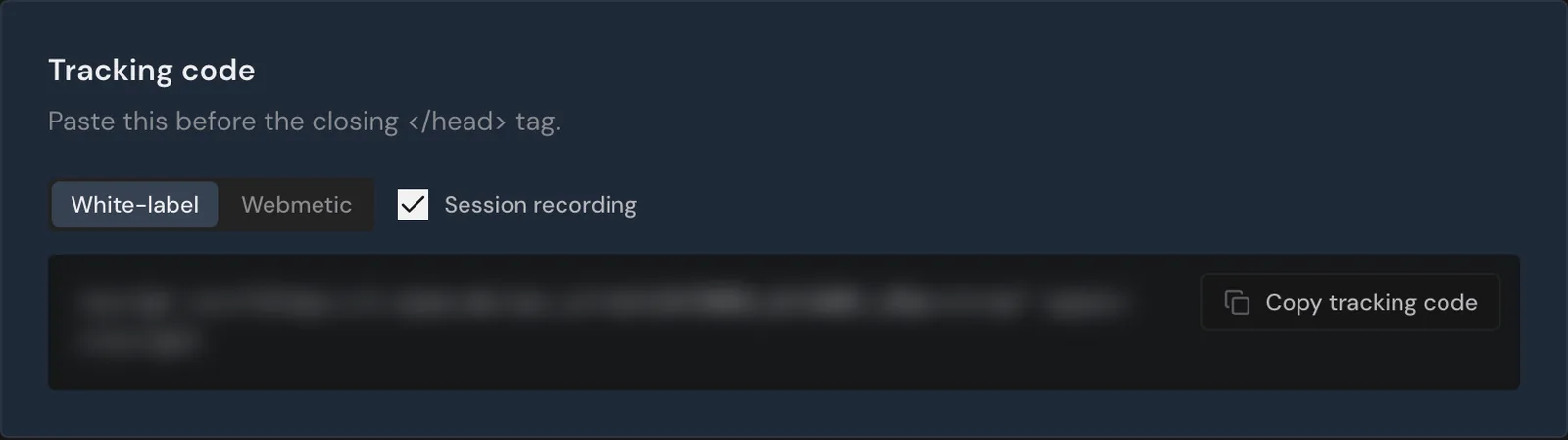
The White-label form is a neutral tracking code without the name Webmetic. Webmetic preselects it for white-label customers and the Webmetic form for all other customers.
The code already contains the customer's account ID and goes on every page of their website. Installation shows how to add it on each platform.
Session recording captures mouse movement, clicks, and scrolling, and Webmetic hides anything typed into form fields.
If Tracking code is ticked under Features, a white-label customer also finds the neutral code themselves in their dashboard under Menu > Tracking code. The customer list shows under Needs action whether data arrives.
Share the signup link
Through your partner page, customers sign up themselves, with no account to create on your side. The address starts with webmetic.de/p/, and Webmetic derives the last part from your website.
- Open Menu > Partner area > Customers.
- Click Copy signup link at the top of the window. The button shows Copied for a moment.
- Send the link to prospects who want to sign up themselves.
You can also copy the same link through the Partner badge at the top right with Copy link.
Anyone who signs up through the link becomes your customer, and you invoice them. The page tells your prospects that they need no payment details, and it shows the logo and colour from your branding.
These customers start without white-label, and you switch it on as needed on the customer page.
Add customers through the API
If you want to create customers from your own system, use the Partner API. When you create a customer through the API, Webmetic sends no login details. The password appears only in the response, and you pass it on to your customer yourself.