

ICP Analytics
ICP Analytics shows how many of the companies identified on your website match your ideal customer profile (ICP).
You see the matching companies by channel, industry, size, region, and page. This tells you whether LinkedIn sends more companies from your ideal customer profile to your website than Google, for example machine builders from the DACH region.
Start with your ideal customer profile, because only then does ICP Analytics show all its reports.
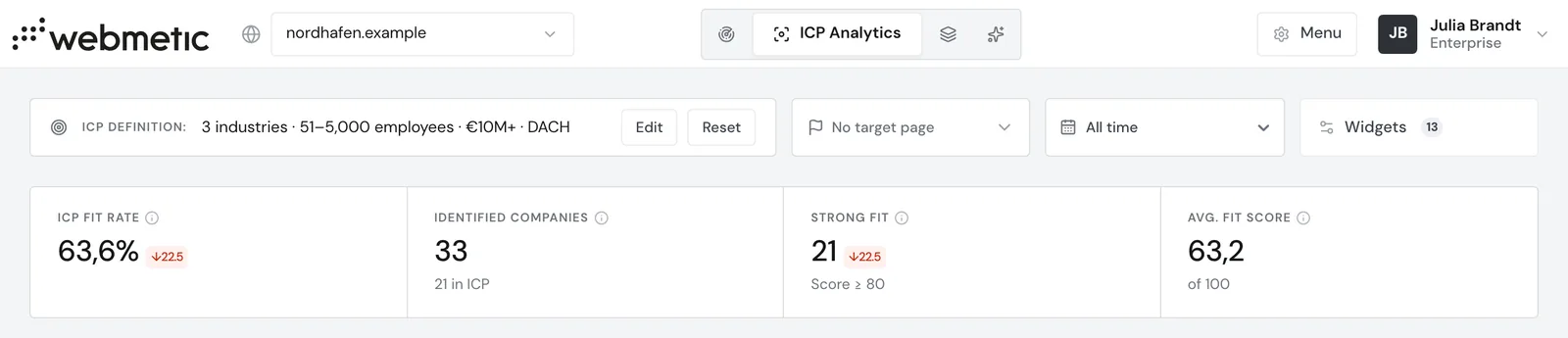
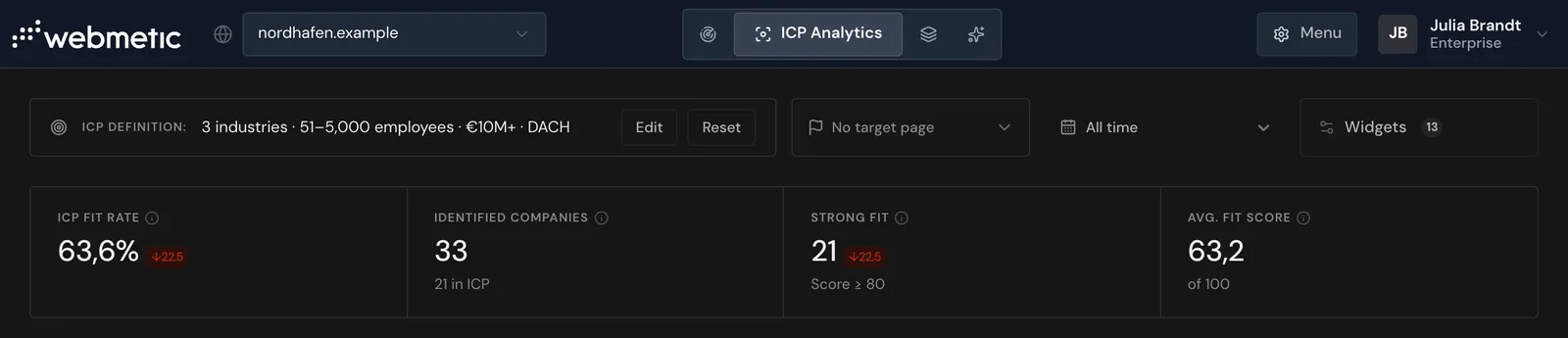
Open ICP Analytics
Click the ICP Analytics tab at the top. It sits in the top bar, not in the Menu. In a narrower window the tab shows only its icon. When you point at it, its name appears.
The link ICP Analytics opens the page directly, for the first website in your account. For another website, first click your website's name in the top left and pick the website.
On a smartphone, choose ICP Analytics in the dropdown at the top.
Who can use ICP Analytics
ICP Analytics is included in the trial, the Growth plan, and Enterprise. On Starter and Free you see a preview with sample data and the Choose Growth button. If a partner manages your account, the partner decides whether the tab appears.
ICP Analytics costs no credits. Every user of your account can use the page and change the ideal customer profile, the target page, and the widgets. You don't need admin rights for this.
The page needs at least 20 identified companies in the selected date range. Until then it shows the message Not enough data yet with a counter, for example "12/20".
Settings at the top of the page
Above the widgets, four settings sit from left to right:
- Next to ICP definition: Webmetic summarizes your ideal customer profile with industries, size, revenue, and region. The Edit button opens the same Ideal customer profile dialog as Menu > Ideal customer profile. Without a profile, the box shows the Define target audience button.
- In the Target page select, you pick one of your most visited pages, for example the contact page. Widgets such as ICP funnel, Top Accounts, and Channel efficiency then show how many companies visited this page.
- ICP Analytics has its own date range, from Last 7 days to All time. The date range, filters, and segments of the company list don't apply here.
- The Widgets button opens the Dashboard widgets dialog, where you show or hide widgets and change their order.
Without an ideal customer profile, the Target page select is missing, and ICP Analytics hides six of the 15 widgets. If no target page is chosen, the select reads No target page.
Reset clears the profile without asking
The Reset button clears the ideal customer profile and the target page at once, without asking. You can't undo it, and it also changes the relevance in the company list. Note down your profile first if you want to keep it.
What Webmetic saves
The ideal customer profile, the target page, and the widget choice apply to all users of your account on this website. If someone on your team changes one of these settings, your whole team sees the change. Webmetic saves the settings by itself. Each website has its own profile and its own widget choice.
Webmetic saves the map view for each user separately. Channel efficiency remembers the amounts in this browser, separately for each website and date range. Your team doesn't see the amounts, and in another browser the fields are empty.
Webmetic doesn't save the date range. The next time you open the page, it starts at All time again.