

Segment notifications and export
Get the companies in a segment by email, or export them as a file.
A saved segment does more than filter the list: Webmetic also emails you the segment's companies, and the export picks up an active segment too. At the end you'll have:
- an email on fixed weekdays with the companies in a segment, optionally with a file
- a file with the companies in a segment
- an overview of which tools outside Webmetic know your segments
Before you start
- Time: You can set up a notification in a few minutes, and an export takes a few clicks.
- Account: You need a website with a saved segment. Create a segment shows how to create one.
- Rights: Every user in your account can create notifications and export, even without admin rights.
- Plan: Notifications and export are available on every plan and cost no credits. On the Free plan, the email and the export contain only the companies you see by name. For details, see Free plan.
Set up a segment notification
A notification of type Segment sends you a list of the companies in a segment on fixed weekdays. This section covers only what applies to segments. Set up notifications describes all other settings.
- Open your profile menu in the top right and click Notifications.
- Click New notification. The Create notification form opens.
- Choose the website under Select domain.
- Click Segment under Choose notification type. The Select segment... list appears next to it.
- Choose the segment. The list shows only segments of this website.
- Set the file, recipients, weekdays, and time as described in Create a notification.
- Click Save. The new card shows the type Segment and the name of your segment.
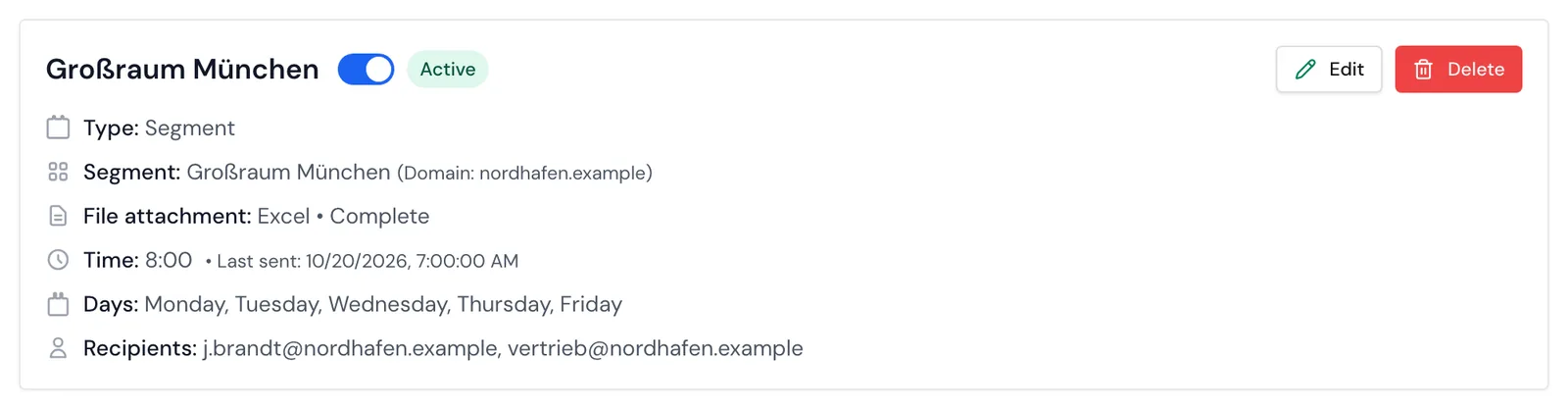
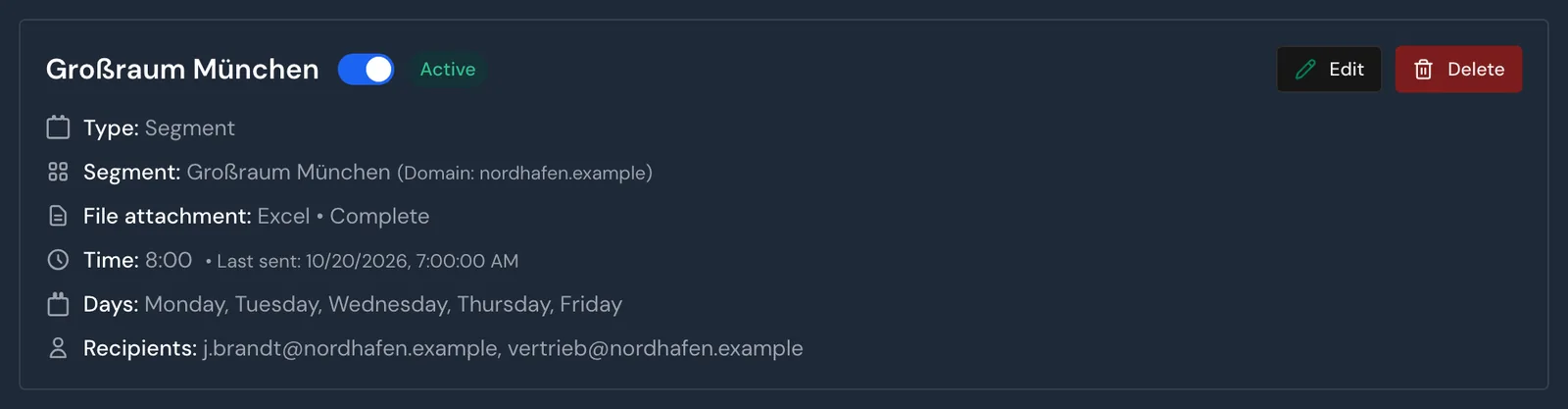
A segment belongs to the website you create it on and always shows that website's companies. Webmetic reads the segment again at every send and checks it by the same rules as the list. Changes to its conditions or date range apply from the next email on. Webmetic recalculates Today, Yesterday, This week, and Last week at every send, while every other date range stays as you saved it.
Choose the file content for segments
Under File content, you decide which companies in the segment the email contains:
- Complete: Every email contains all companies that match within the segment's date range.
- Incremental: Every email contains only companies whose first visit to the website came after the previous email. Only the first email contains all of them.
So a company that visited your website before and only now matches the segment is missing with Incremental. Without File attachment, the notification behaves like Complete.
Recommended: Complete with the date range Last week and sending on Monday if you want to know which companies from your segment visited your website the week before. That way no visit goes missing, including weekend visits. You set the date range in the segment, as described in Create a segment.
For a segment, the overview in the email shows at most 20 companies, namely the ones with the most recent visit. You'll find all others in the file. The email and the file show only the visits of each company that match the segment.
Export a segment
The export picks up the active segment with its date range. Each row shows only the visits that match the segment. Export companies describes formats, fields, and the file layout.
- Open the company list of your website.
- Under Select segment, click the All companies list.
- Choose the segment. The list now shows only its companies.
- Click the download icon Export in the Adjust results group. The Export company data window opens.
- Choose the format under Choose export format.
- Click Export. Your browser downloads the file.
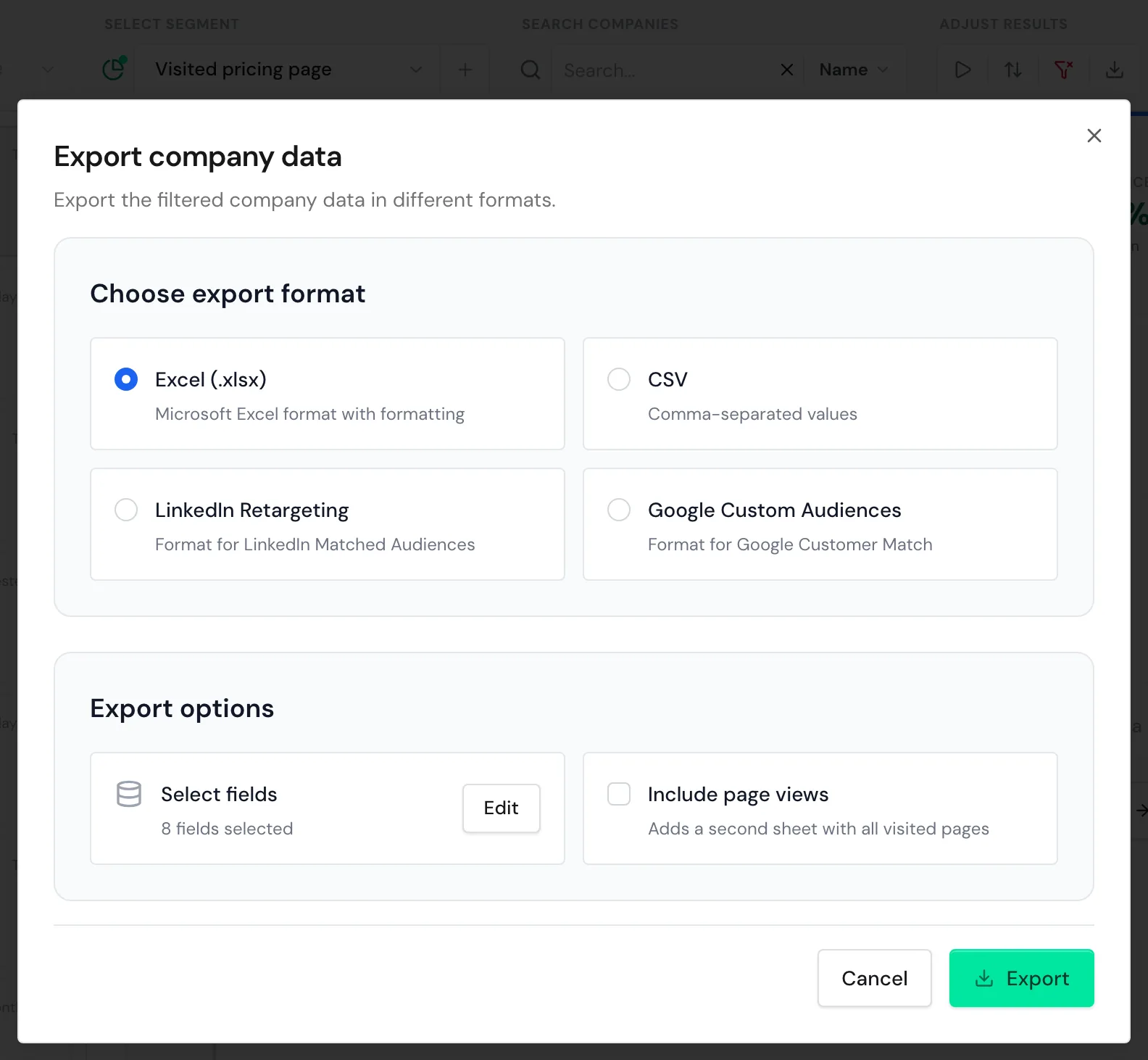
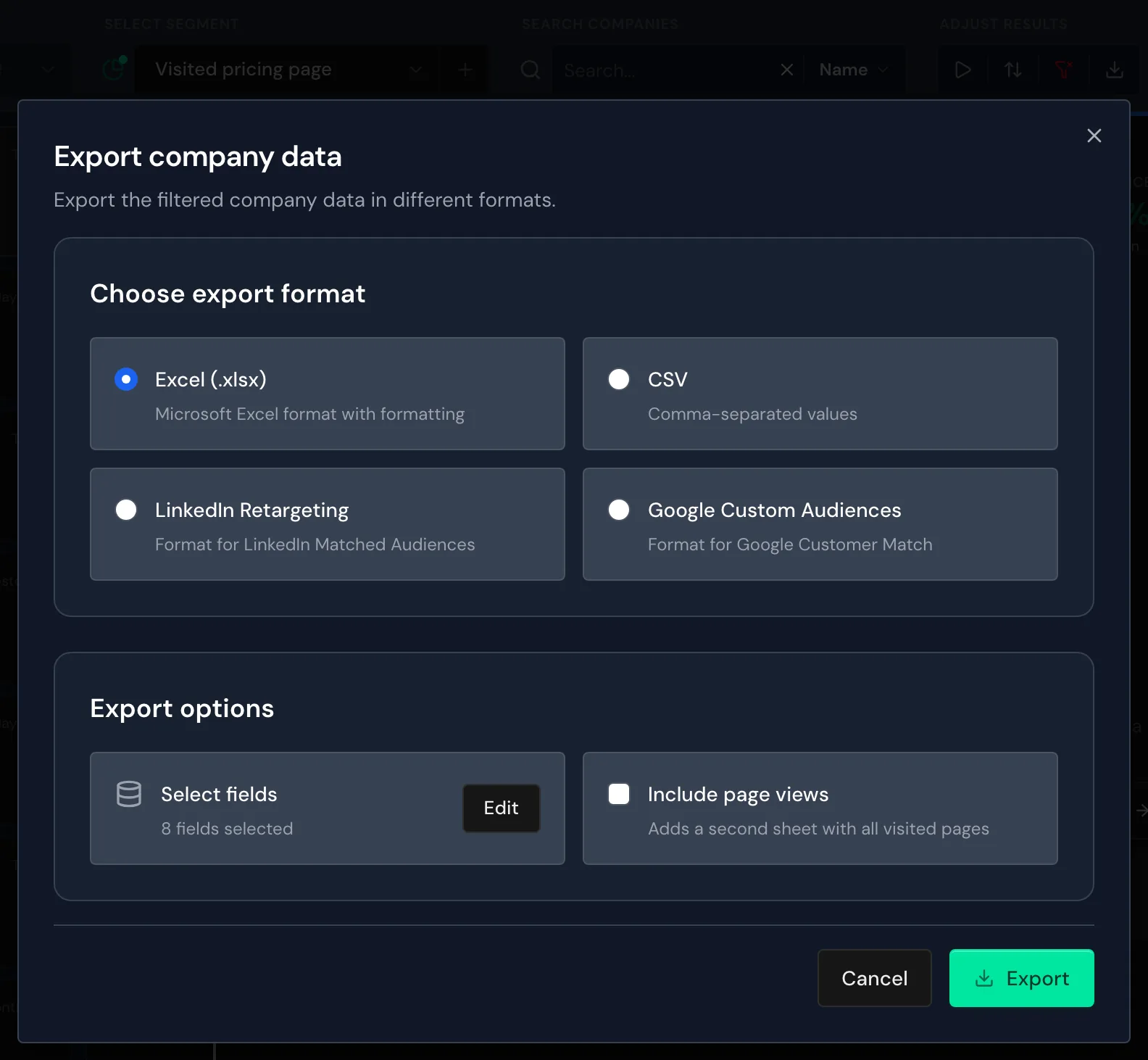
All four formats work with a segment, including the files for LinkedIn and Google. On a smartphone, you'll find the segment picker and Export under More options. For how segment, search, and date range work together, see Filters and search.
Segments in other tools
Webmetic transfers segments to no integration, with one exception: Evalanche. Each time Webmetic transfers a company, it writes the names of the company's segments into the field WM_Webmetic Segmente. The API, n8n, and the AI assistant don't filter by segment. If you need the companies in a segment in another tool, export the segment as a file.
Tags stay in Webmetic and aren't in the export, the API, or your CRM. For details, see Assign tags.
Delete a segment used by a notification
A deleted segment pauses the emails
When you delete a segment, Webmetic pauses its active notifications. The Delete segment? prompt names those notifications. To keep the emails coming, choose another segment in the notification first.
You can't undo deleting a segment. If you copy a segment, the copy is a new segment, and the notification stays with the original.
- Open the Notifications window.
- Click Edit on the card with the segment.
- Choose another segment.
- Click Save.
- Then delete the segment as described in Manage segments.
If you no longer need the notification, delete the notification instead of steps 2 to 4. Tags that the segment assigned stay on the companies after you delete it.