Widgets
ICP Analytics shows 15 widgets whose numbers change with the ideal customer profile, the target page, and the date range.
A widget is a card on the ICP Analytics page. It breaks down the identified companies on your website by one attribute, for example by channel or region. Six of the 15 widgets need an ideal customer profile.
Click the ICP Analytics tab at the top. In a narrower window the tab shows only its icon. When you point at it, its name appears.
On a smartphone, choose ICP Analytics in the dropdown at the top. ICP Analytics describes what the page requires.
ICP Analytics is included in the trial, the Growth plan, and Enterprise. On Starter and Free you see a preview with sample data. If a partner manages your account, the partner decides whether the tab appears. Nothing on the page costs credits.
Widget picker
In the Dashboard widgets dialog, you choose which widgets appear and in which order:
- Click Widgets at the top of the page. The number on the button counts the widgets currently on screen.
- To hide a widget, click its ticked box. The widget then moves to Hidden.
- To show a widget again, click it under Hidden. The widget returns to its original position.
- To change the order, drag a widget by its handle to another position.
- Click Done.
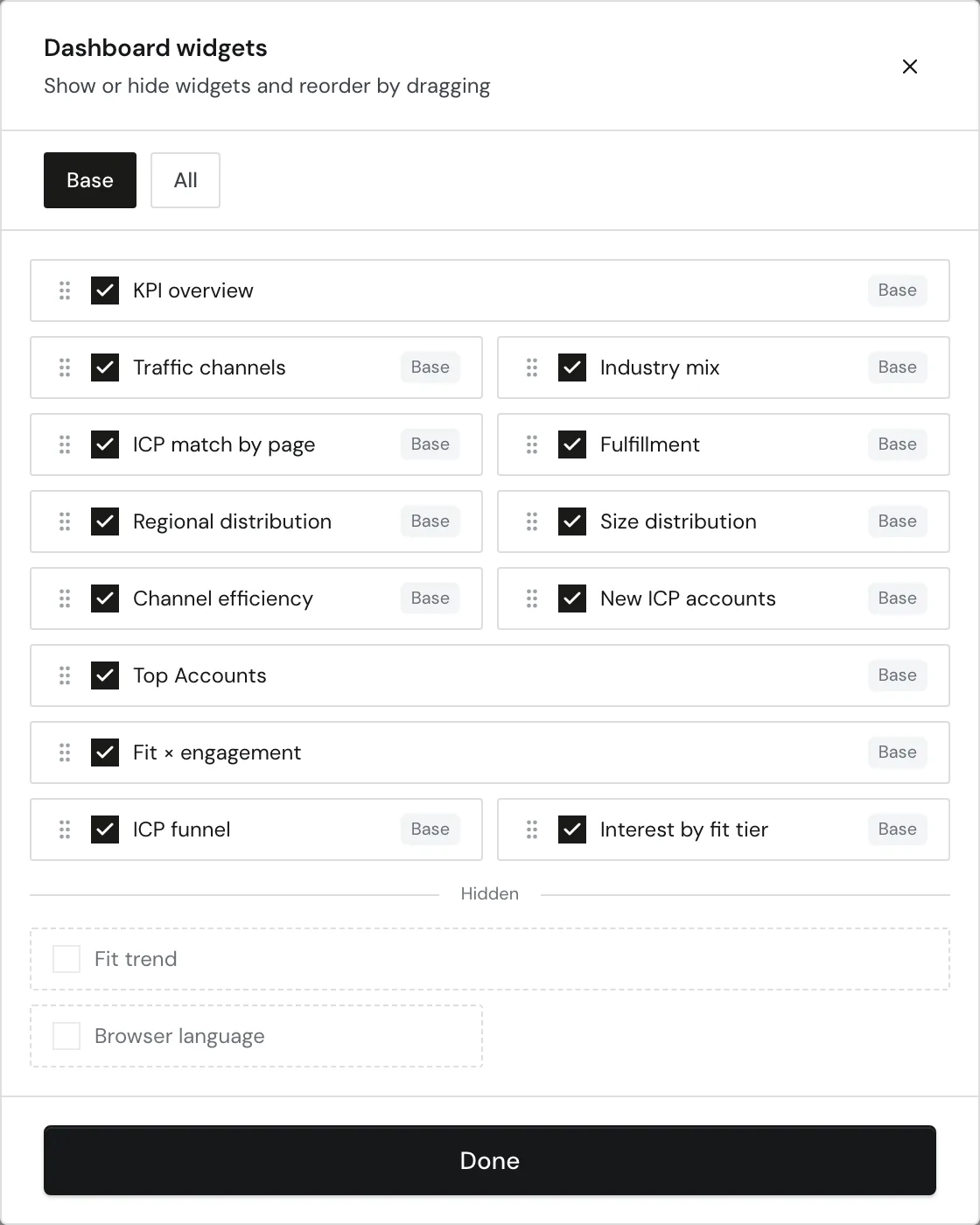
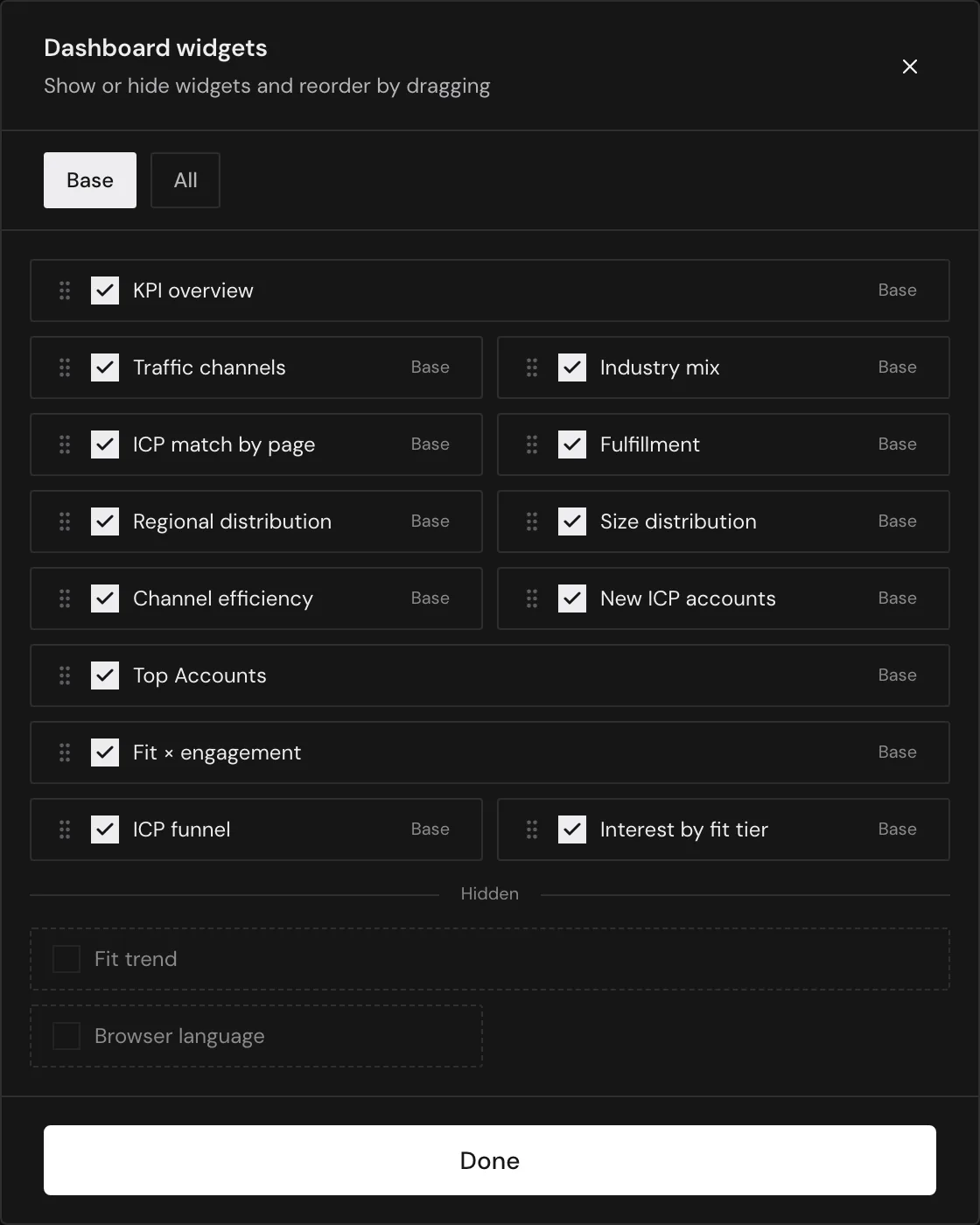
The Base button restores the 13 default widgets in their original order, and All shows all 15 widgets.
Webmetic saves every click right away, so the dialog has no cancel button.
Any user can change the selection, without admin rights. The selection applies to all users of your account on this website.
Without an ideal customer profile, the six widgets that need one stay switched on but don't appear. The dialog marks them with ICP.
Widgets at a glance
| Widget | Shows | Needs a profile | Shown at first | Opens companies |
|---|---|---|---|---|
| KPI overview | Key figures as tiles | No | Yes | No |
| Traffic channels | Companies per channel | No | Yes | No |
| Industry mix | Share per industry | No | Yes | No |
| ICP match by page | Companies and fit per page | No | Yes | Yes |
| Fulfillment | How well the companies meet each criterion | Yes | Yes | No |
| Regional distribution | Map of locations | No | Yes | Yes |
| Size distribution | Companies per employee class | No | Yes | No |
| Channel efficiency | Budget and fit per paid channel | Yes | Yes | No |
| New ICP accounts | Companies with a first visit in the last 7 days | No | Yes | Yes |
| Top Accounts | All companies by score | No | Yes | Yes |
| Fit × engagement | Companies by fit and activity | Yes | Yes | Yes |
| ICP funnel | Stages from identified to target page | Yes | Yes | No |
| Interest by fit tier | Return rate per fit tier | Yes | Yes | No |
| Fit trend | ICP fit rate per calendar week | Yes | No | No |
| Browser language | Companies per language | No | No | Yes |
Data basis
Every widget counts the companies Webmetic identified on this website in the selected date range. Channels, pages, language, and first visit come only from the visits in that range.
You pick the date range in the select with the calendar icon at the top. Webmetic doesn't save it, and the page starts with All time every time.
The date range, filters, and segments of the company list don't apply here. The page needs at least 20 identified companies in the range; otherwise it shows the message Not enough data yet.
With an ideal customer profile, Webmetic gives every company a fit score from 0 to 100. It shows how well industry, size, and region match the profile. These terms appear in many widgets:
| Term | Meaning |
|---|---|
| In ICP | A fit score at which Webmetic counts the company as matching the profile. Strong fit and moderate fit together |
| Strong fit | A fit score of 80 or more |
| Moderate fit | In the ICP, but below 80 |
| Poor fit | Not in the ICP |
| Active | A high lead score, several visits in the range, or a visit to a pricing page |
| Channel | The source and medium that occur most often among a company's visits. For details, see Campaigns and channels |
| Lead score | The value the company list shows as activity, from 0 to 100. It doesn't change with the date range; see Relevance, activity, and fit |
Target page
The target page is a page you want companies to reach, for example /kontakt. Once a profile exists, you choose one of your most visited pages in the Target page select next to the ideal customer profile.
Without a target page, the select shows No target page. A company reached the target page when it visited exactly that path in the date range.
Webmetic saves the target page together with the profile for all users of your account on this website.
When you choose a target page, Webmetic shows the ICP funnel and Interest by fit tier widgets again if they were hidden.
In the Traffic channels, Industry mix, and Size distribution widgets, the Goal value on each bar shows the share of companies that reached the target page. The section on each other widget describes what it adds with a target page.
The Reset button clears the ideal customer profile and the target page at once, without asking. For details, see ICP Analytics.
Key figures
KPI overview
The KPI overview is the row of tiles at the top of the page. With an ideal customer profile, the widget shows four tiles:
- ICP fit rate: the share of companies in the ICP.
- Identified companies: all companies in the date range, including the number in the ICP.
- Strong fit: the number of companies with a strong fit.
- Avg. fit score: the average fit score.
Without a profile, the widget shows only Identified companies. With a target page, the Goal page reached tile is added. It shows the share and number of all companies that visited the target page.
ICP funnel
The widget shows the stages Identified, In ICP, and Active, plus Target page visited with a target page. Each stage shows the number of companies and their share of the previous stage.
The Target page visited stage counts only active companies in the ICP, so it is at most as large as the Goal page reached tile, which counts all companies.
Interest by fit tier
The widget shows one row per fit tier with the number of companies. The Return rate column gives the share of companies that visited your website more than once in the date range. With a target page, the Target page visited column is added.
Fit trend
The widget draws two lines across the calendar weeks: ICP fit rate and the share of Strong fit, plus Goal page reached with a target page. Each week counts the companies whose first visit in the range falls in that week.
The widget leaves out weeks with few new companies. If too few weeks remain, it shows the message Not enough data to show a trend, and a longer date range helps.
Sources
Traffic channels
The bars show the number of companies per channel, for example google Organic or Direct. The widget hides channels with few companies.
With a profile, each bar splits into In ICP and Not in ICP. The headline gives the share of companies in the ICP and counts companies, not visits.
Channel efficiency
The widget is a table of your paid channels. You enter your budget per channel, and the widget shows which part of it reaches companies in the ICP. With a target page, the Goal rate column is added.
The widget remembers the amounts in this browser, separately for each website and date range. Your team doesn't see the amounts, and in another browser the fields are empty. For details, see Channel efficiency.
ICP match by page
The widget lists the most visited pages with the number of companies. With a profile, the Fit rate per page is added, with a target page the Goal rate. Without a profile, the widget is called Pages visited.
Pages with few companies are missing from the table. You still find these pages with the select above the table.
When you click a row, the widget shows Companies, In ICP, and Fit rate for the page, with a target page also Goal rate, and the companies with the best fit. The Clear selection button takes you back. Webmetic doesn't save the choice.
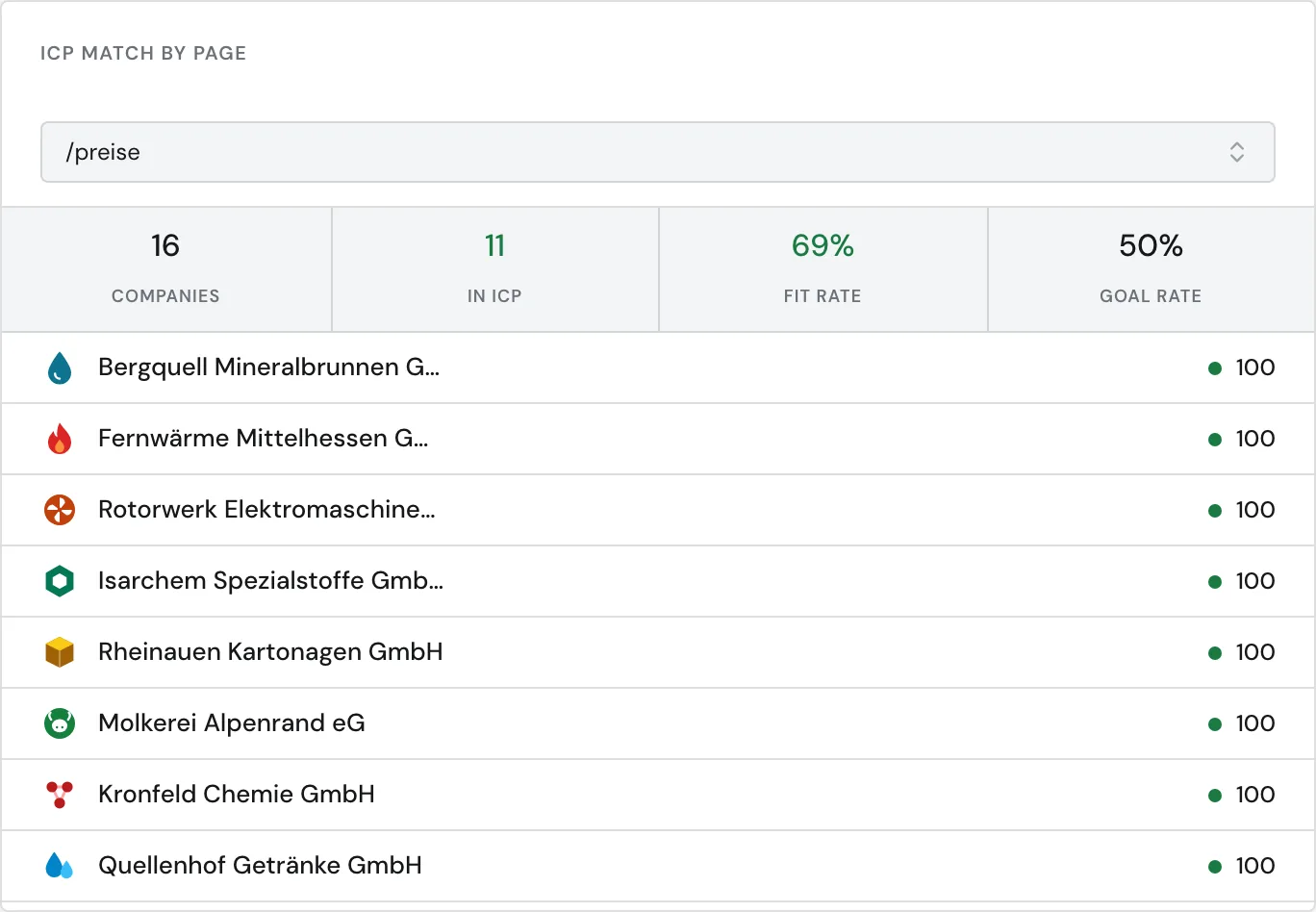
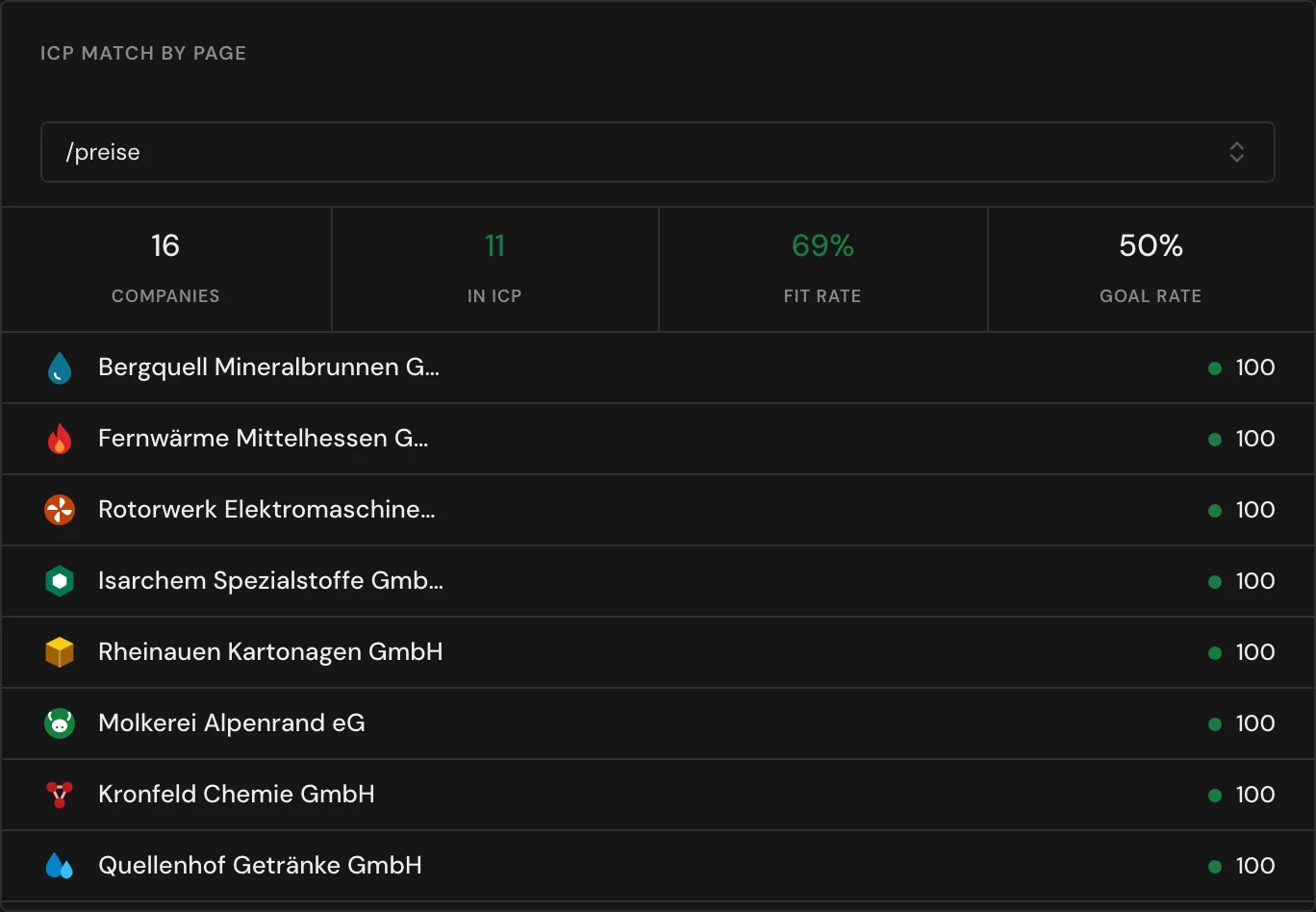
Webmetic counts pages as a path without domain and parameters. So /suche?q=pumpe counts as /suche.
Browser language
The widget shows the most common browser languages with the number of companies and their share. With a profile, the share in the ICP is added, with a target page the share that reached the target page.
A company's language is the most common browser language of its visits, without the region: de-AT counts as German. When you choose a language, the widget shows its figures and the companies with the best fit.
Fit
Industry mix
The bars show the share of companies per industry, that is per NACE section. Companies without a NACE code are not counted.
With a profile, sections with a target industry are dark (Target industry), and the headline gives their share.
Size distribution
The bars show the number of companies per employee class, from 1–10 to 1,000+, plus the Unknown class.
If your profile sets an employee range, the matching classes are dark (Target range). The headline then gives the share of companies with a known size inside it.
Fulfillment
On the page, the widget is called Fulfillment by dimension. Three bars for Industry, Company size, and Region show as a percentage how well your companies meet the criterion on average.
The color ranges from green through orange to red. A criterion your profile leaves open shows 100%. The target page doesn't change the widget.
Regional distribution
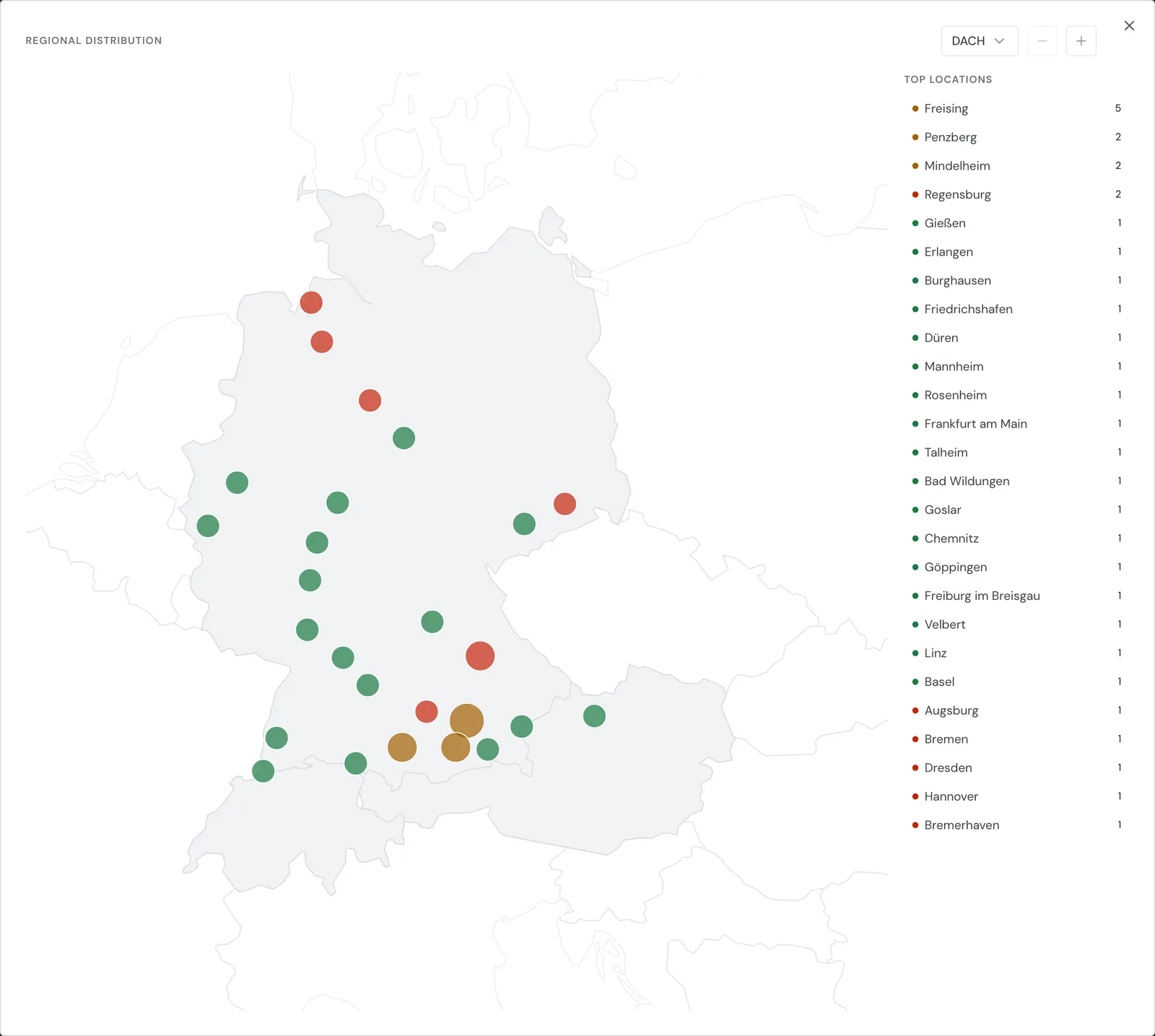
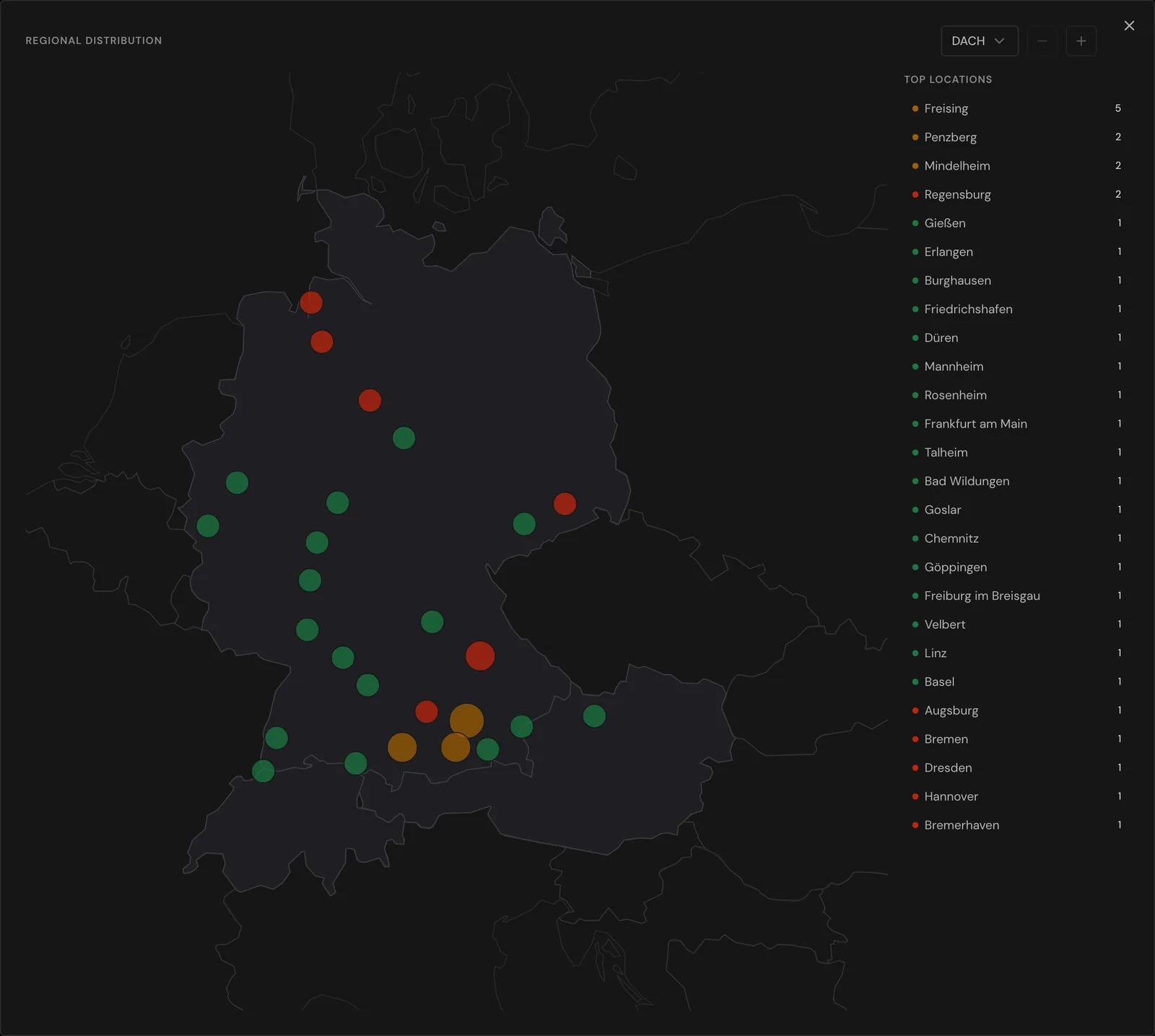
The widget shows a map with one dot per location and the Top locations list next to it. A location groups the companies of one postal code area.
A company appears on the map when Webmetic can place its country and postal code. The map doesn't show companies outside Europe.
The more companies a location has, the larger the dot. With a profile, the color shows the share in the ICP, from green for a high share to red for a low one.
Under Map region you choose the view:
- Germany: locations in Germany with the borders of the federal states.
- DACH: locations in Germany, Austria, and Switzerland.
- Europe: one dot per country.
- A single country: every European country with visits, with the number of its companies.
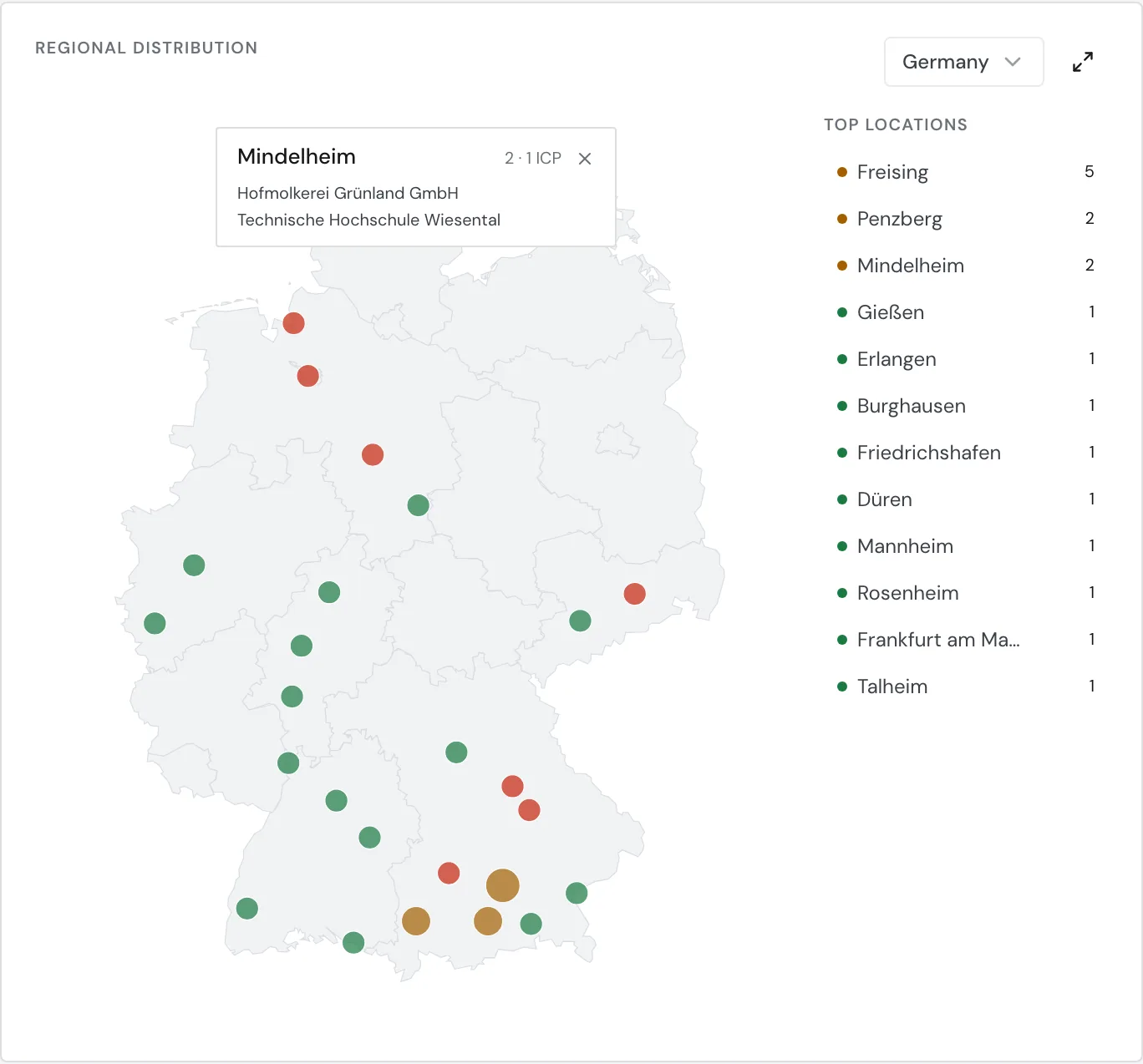
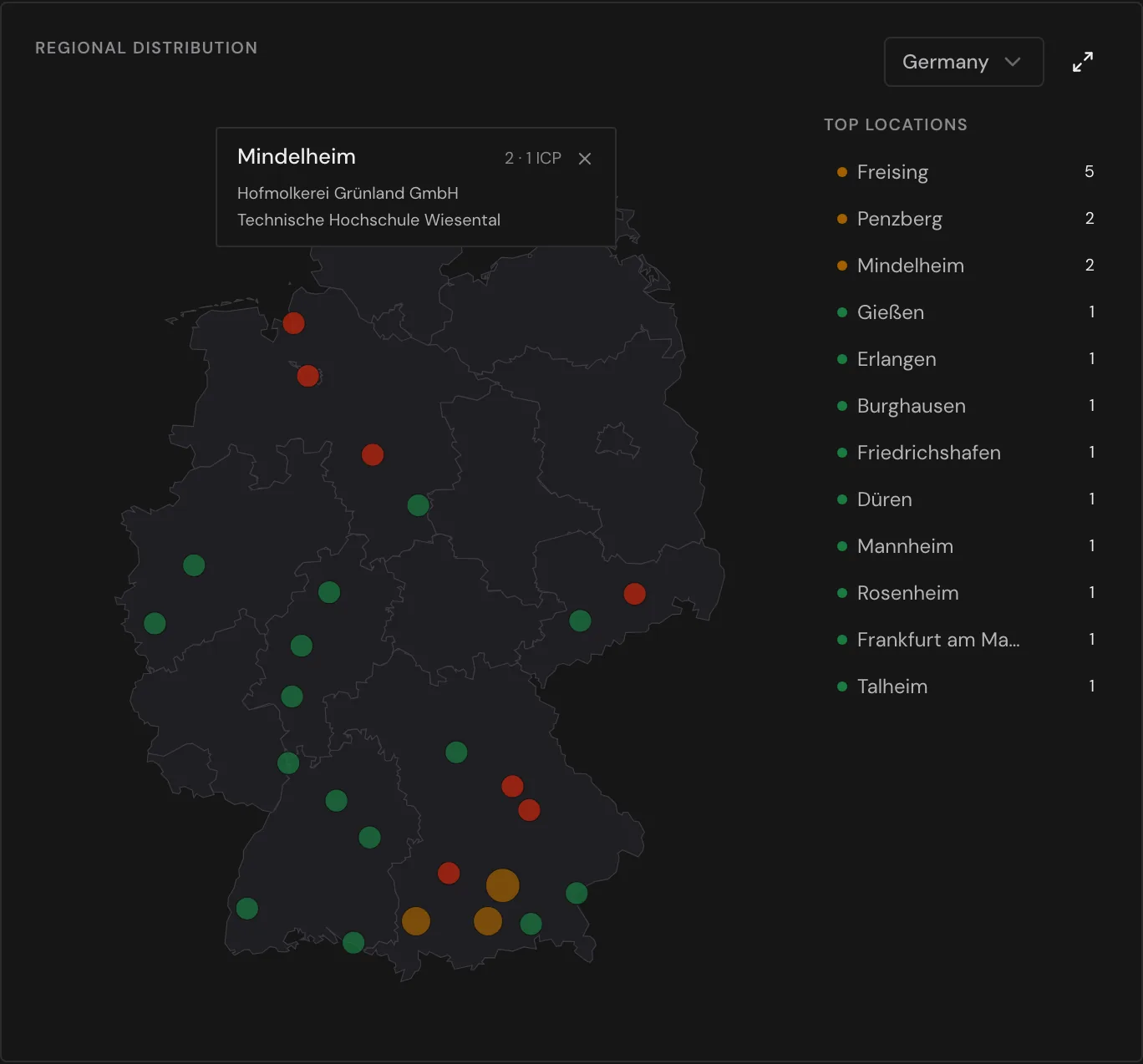
When you point at a dot or a list entry, you see the place, the count, and the first companies. With a profile it also gives the number in the ICP, with a target page the number that reached it.
A click pins the box. The pinned box lists all companies sorted by fit, and you unpin it with the x or a second click.
The first time, the map starts in the smallest view that holds most of your companies: Germany, otherwise DACH, otherwise Europe. Webmetic saves your choice for you and this website, so every user keeps their own view.
The Full screen icon opens the map large, with the same select. Only there do you zoom with Zoom in and Zoom out. The locations get finer as you zoom, and Europe then shows locations instead of countries.
Companies
New ICP accounts
The widget lists companies whose first visit was in the last 7 days, newest first. With a profile, the widget lists only companies in the ICP, with fit tier and fit score. Without a profile, it is called New accounts.
With a target page, a flag marks the companies that reached the target page.
Top Accounts
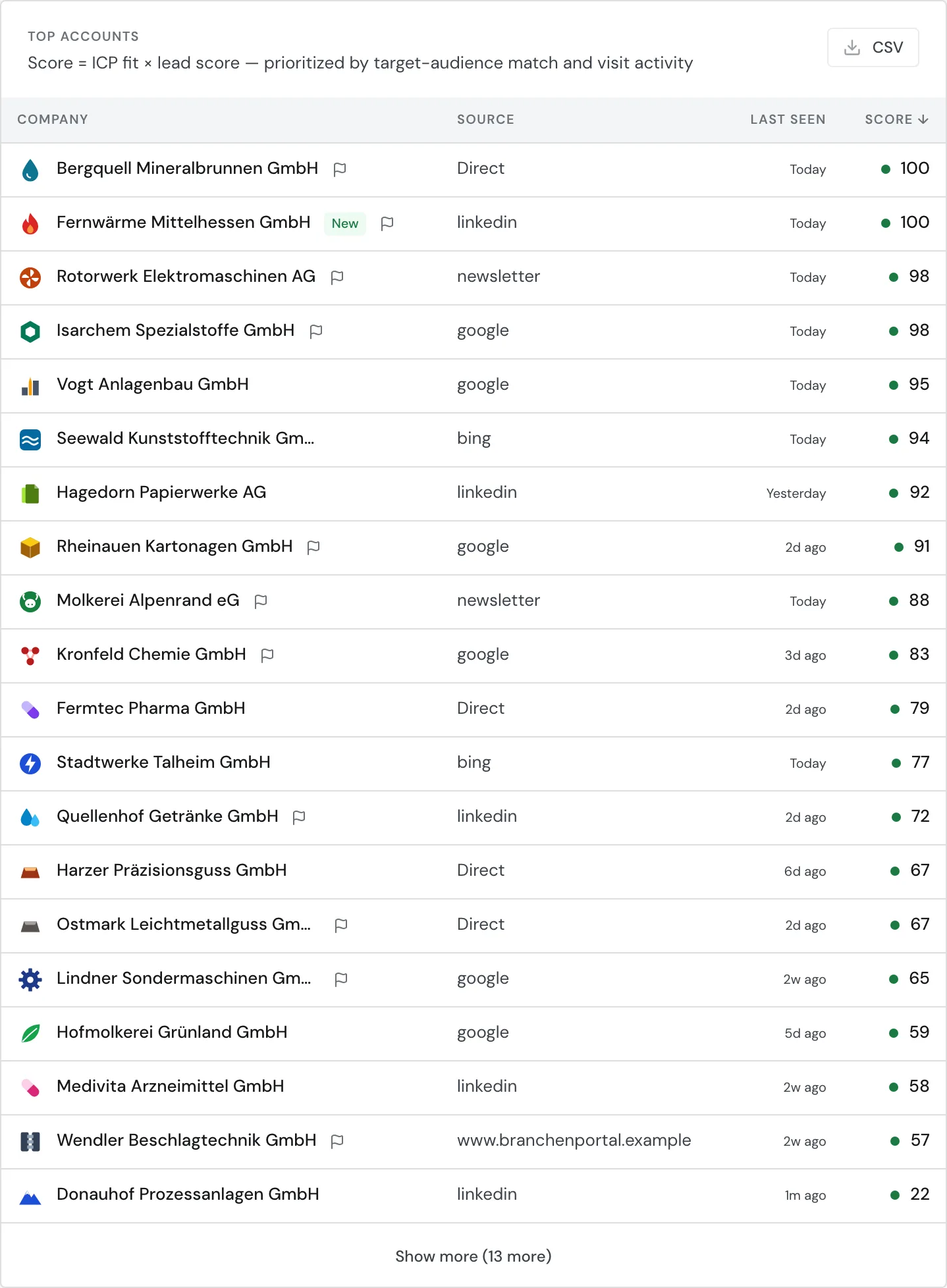
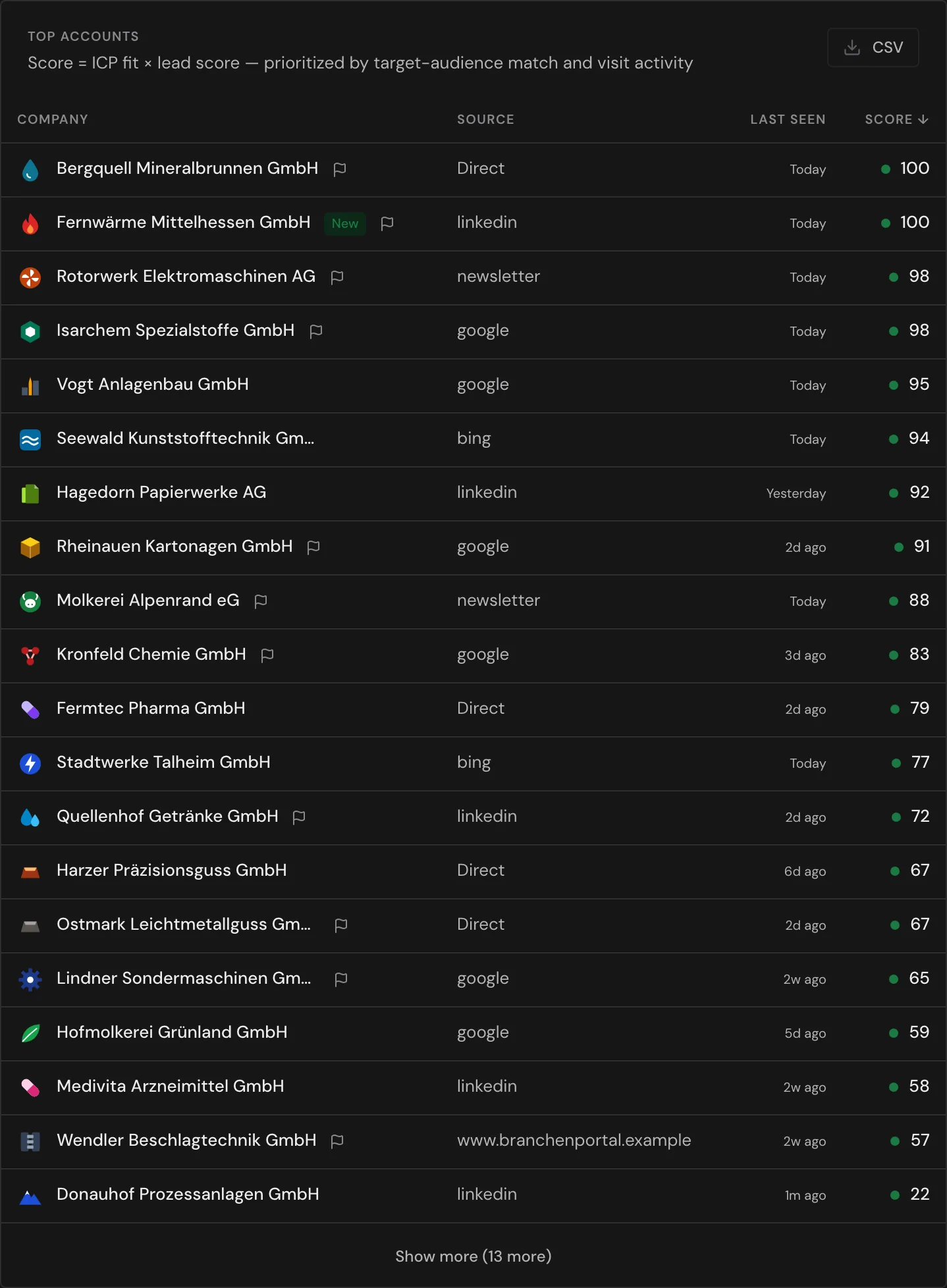
The widget is a table of all companies in the date range. With a profile it sorts by Score, the ICP fit times the lead score, without a profile by Lead score.
| Column | Content |
|---|---|
| Company | The name. New marks a first visit in the last 7 days, a flag a reached target page |
| Industry | NACE section |
| Emp. | Employees |
| Source | Only the source of the channel, for example google for both ads and organic search |
| Sessions | The number of visits in the date range |
| Last seen | The last visit in the date range |
| Score (without a profile Lead score) | The value from 0 to 100 the table sorts by. The tooltip gives ICP fit and lead score |
Clicking Company, Sessions, Last seen, or Score sorts the table. A second click reverses the order, and Show more loads more rows.
In a narrow window the table hides columns, first Emp. and Sessions, then Industry.
The CSV button downloads all companies in the date range, not only the rows on screen, sorted by score. The file separates columns with semicolons and is prepared for Excel.
The ICP fit score, Score, and Fit tier columns are in the file only with a profile, the Goal page reached column only with a target page. The Country column holds a two-letter country code.
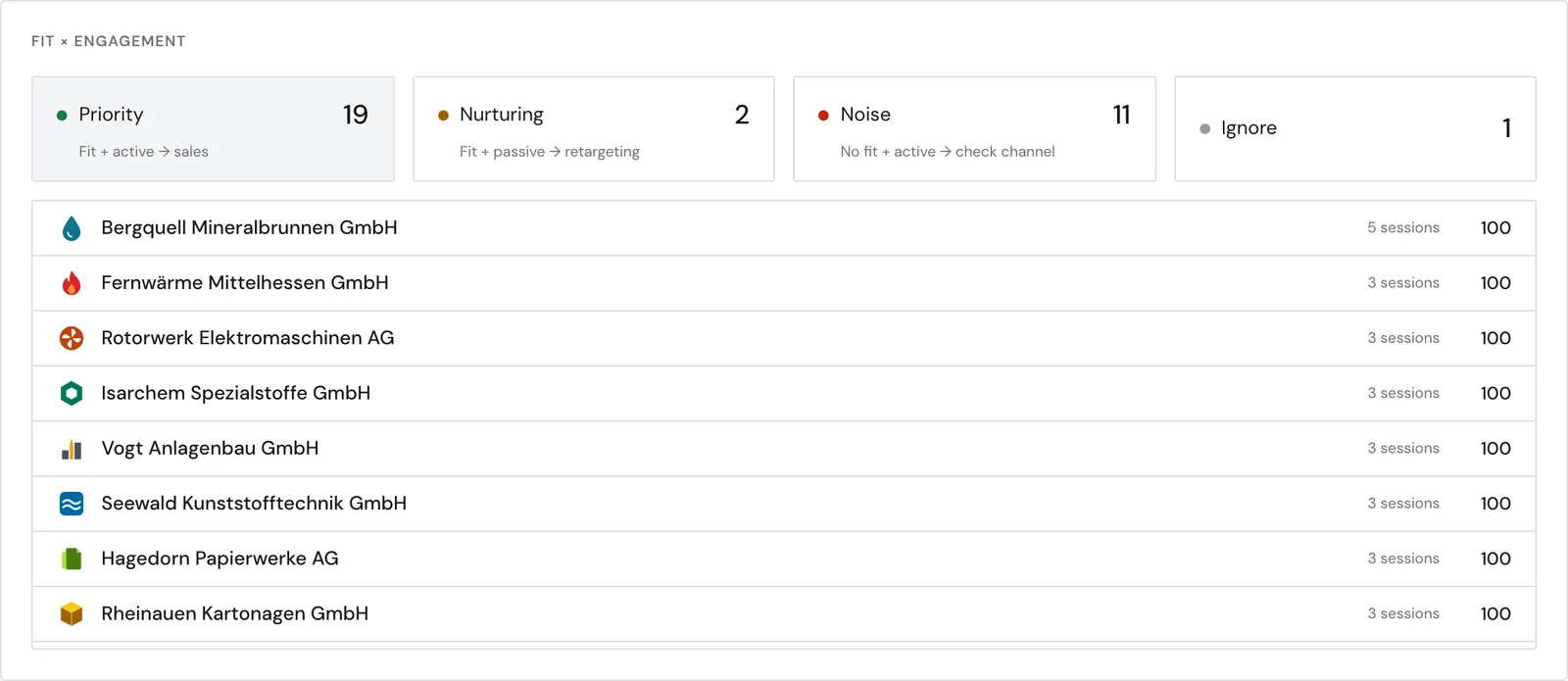
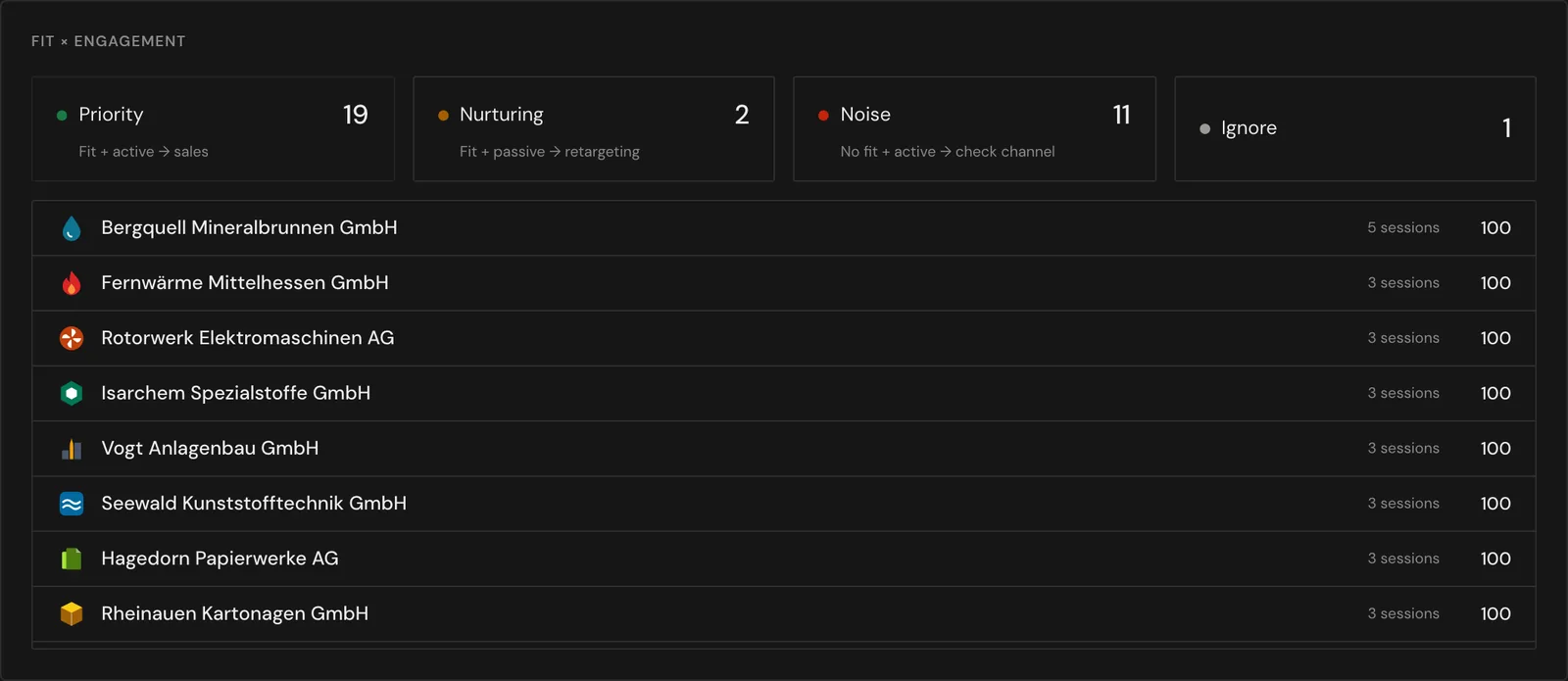
Fit × engagement
The widget shows four tiles with the number of companies. Fit means in the ICP, and a company is active when it meets the condition under Data basis.
| Tile | Companies | Suggestion in the widget |
|---|---|---|
| Priority | Fit and active | Hand over to sales |
| Nurturing | Fit, but not active | Retargeting |
| Noise | No fit, but active | Check the channel |
| Ignore | Neither fit nor active | None |
Clicking a tile lists its companies with sessions and fit score. A second click closes the list. The target page doesn't change the widget.
Company window
The table under Widgets at a glance shows in which widgets a click on the name opens the company.
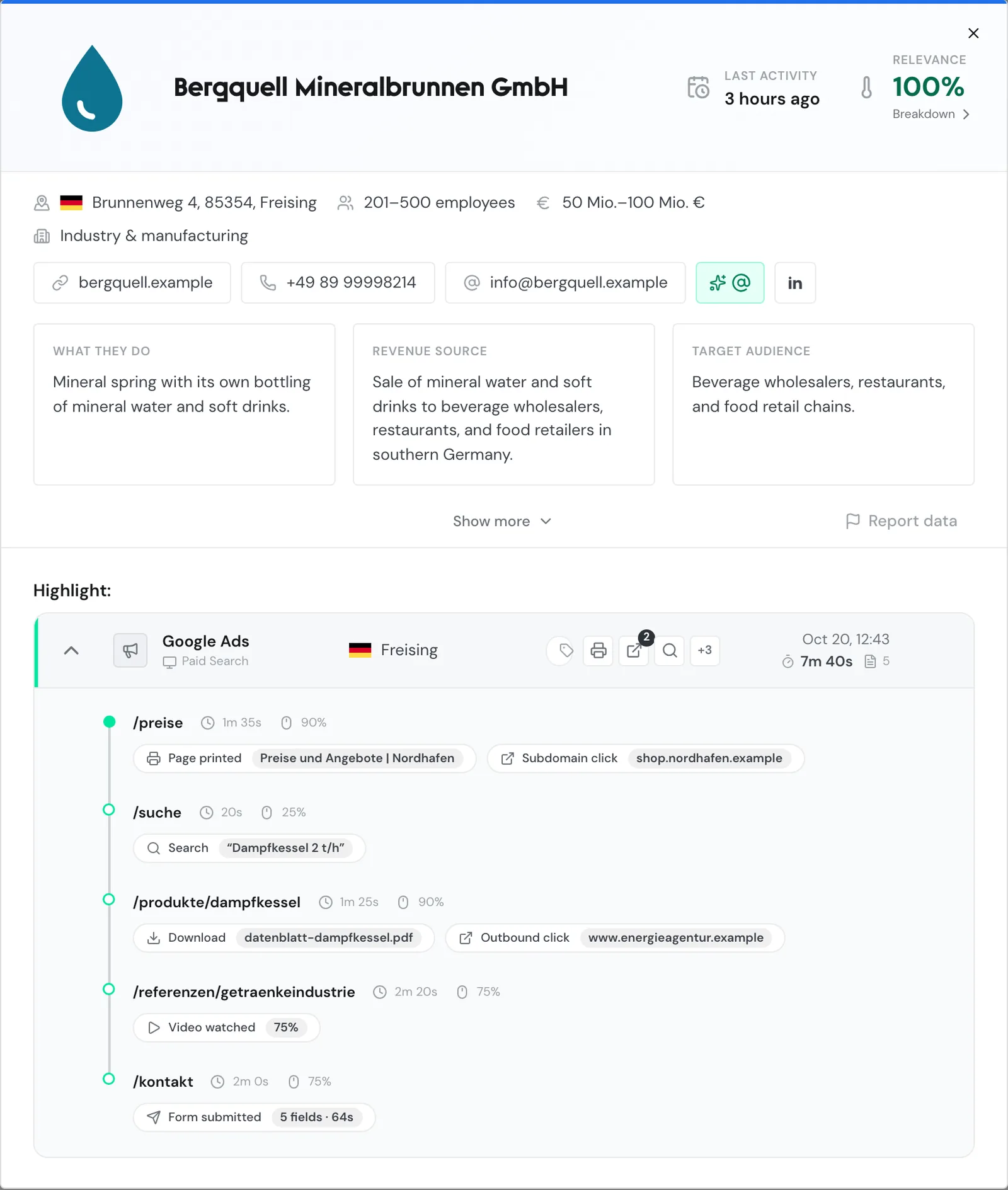
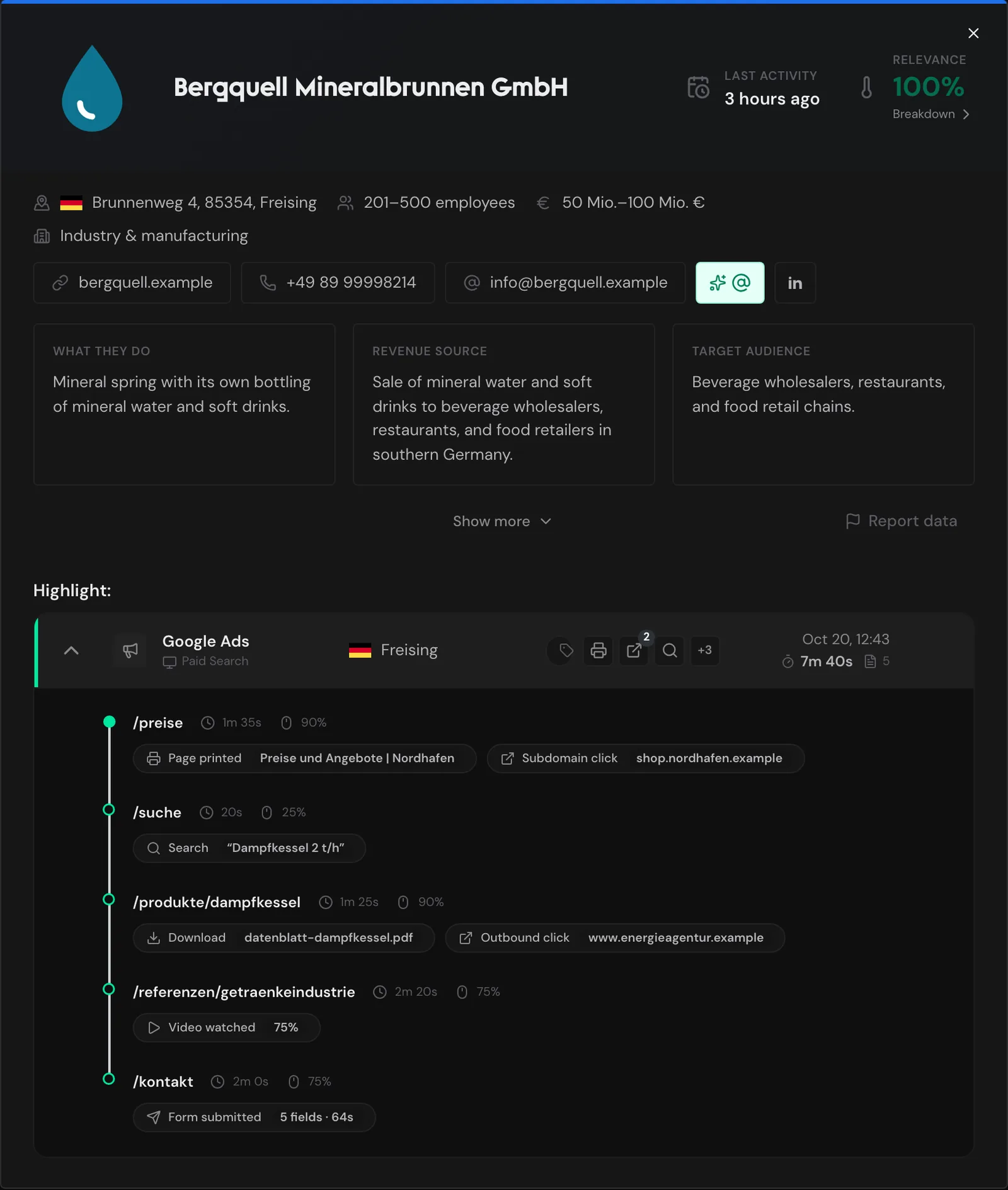
The window opens over the page. At the top are relevance, company data, the email generator, and the descriptions.
Below, Highlight: shows the most active of the latest sessions, also from visits before the date range. The full company profile shows all sessions along with tags, comments, and contacts.
You close the window with the x or by clicking outside it. If Webmetic can't load the company, the window shows the message Company not found.