

Ideal customer profile
Define which companies match your offer so that Webmetic shows them first in your list.
The ideal customer profile describes your target customers by region, size, and industry. At the end you'll have:
- an ideal customer profile for your website with region, size, and industries
- a list where matching companies sit at the top under Highest relevance and companies outside the profile drop to a relevance of 0
- the Fit value in every company's profile
Relevance, activity, and fit explains how Webmetic calculates these values.
Before you start
- Time: setting up a profile takes a few minutes. If you use an AI suggestion, it takes a few seconds.
- Account: you need a Webmetic account with at least one website added to it.
- Rights: every user of the account can change the profile, also without admin rights. All users share the same profile, so a change you make applies to your whole team.
- Plan: the ideal customer profile is part of every plan, including the Free plan and the trial. NACE codes and the counts per industry belong to ICP Analytics and are missing on the Free and Starter plans.
- Credits: the profile and the AI suggestion cost no credits.
- Undo: every change you make applies right away. Webmetic keeps no history, and you can't undo an AI suggestion.
Each website has its own ideal customer profile, so if your account has several websites, you set up a profile for each one.
Open the ideal customer profile
- If your account has several websites, click your website's name in the top left and pick the website.
- Click Menu; on narrow screens the button only shows an icon.
- Under Data profiles, click Ideal customer profile. The dialog opens, and its first sentence names the website the profile applies to.
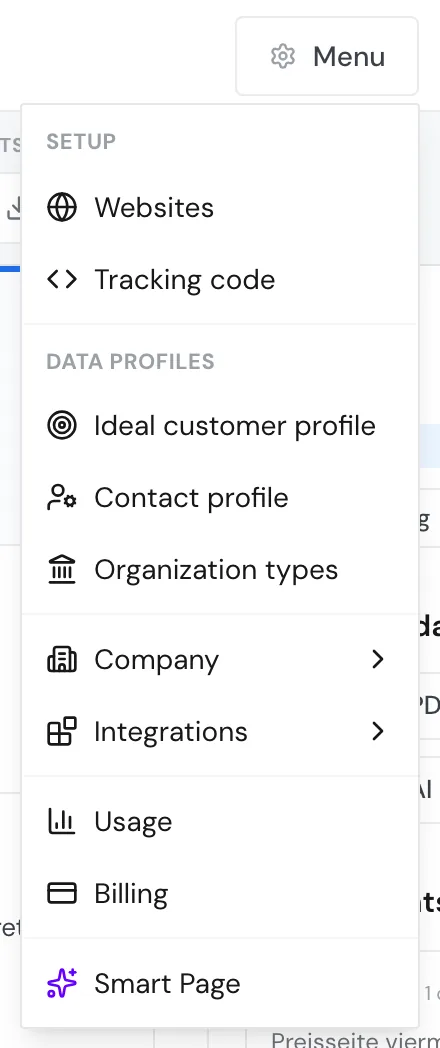
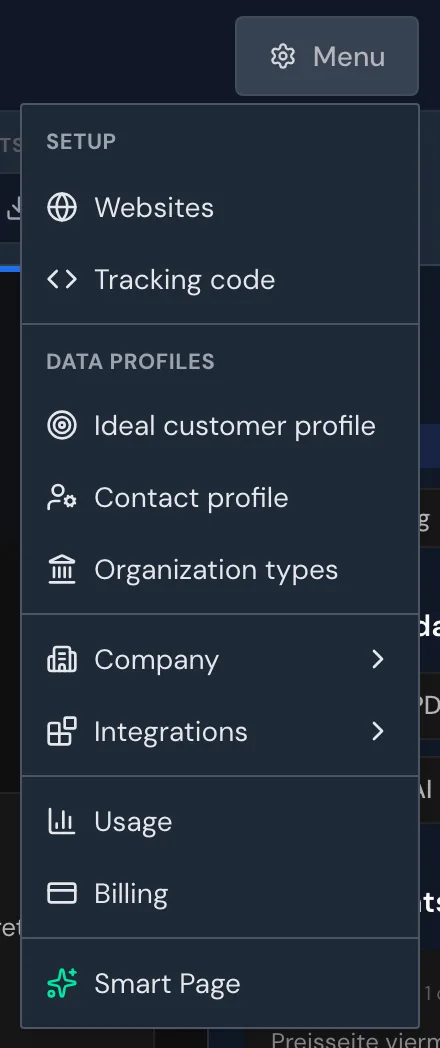
The link Menu > Ideal customer profile opens the dialog directly, for the first website in your account. These buttons open the same dialog:
- Adjust in the banner above the list
- Edit in ICP Analytics
- Adjust ideal customer profile in the relevance breakdown
Don't confuse the ideal customer profile with two other items. Contact profile only controls the search for contacts, and Organization types shows or hides educational institutions and the public sector. Both also sit under Data profiles, but neither changes fit or relevance.
Set or adjust the profile
A criterion you leave open does not restrict anything. If you leave every criterion open, it works as if there were no profile: relevance then equals activity.
- Under Region, choose DE only, DACH, or Worldwide. There are no single countries, states, or postal codes.
- Drag the Employees slider to the range you want. The steps go from 1+ to 10,001+; across the full width the slider shows All.
- Drag the Revenue slider to the range you want, in euros. Here too, All means revenue does not restrict.
- Under Industries, tick the industries of your target customers. Each of the 19 industries lists examples, such as Industry & manufacturing with machinery, automotive, electronics, and metal. Select all and Select none change the whole selection at once.
- From the Growth plan up and in the trial: optionally click NACE codes → to choose more precisely than by industry. Webmetic groups the NACE divisions by section and lists only those that occur among your visits. The division names are in German, also in the English dashboard. ← Industries takes you back.
- Close the dialog when you're done.
You don't need to save: after each change, Webmetic saves the profile after a short pause. The dialog tells you so with the hint Changes are saved automatically.
Webmetic then rescores every company of this website, and the list reloads about two seconds later.
From the Growth plan up and in the trial, the dialog also shows how many of your companies belong to each industry. It adds the figures Fit rate, Qualified, and Total.
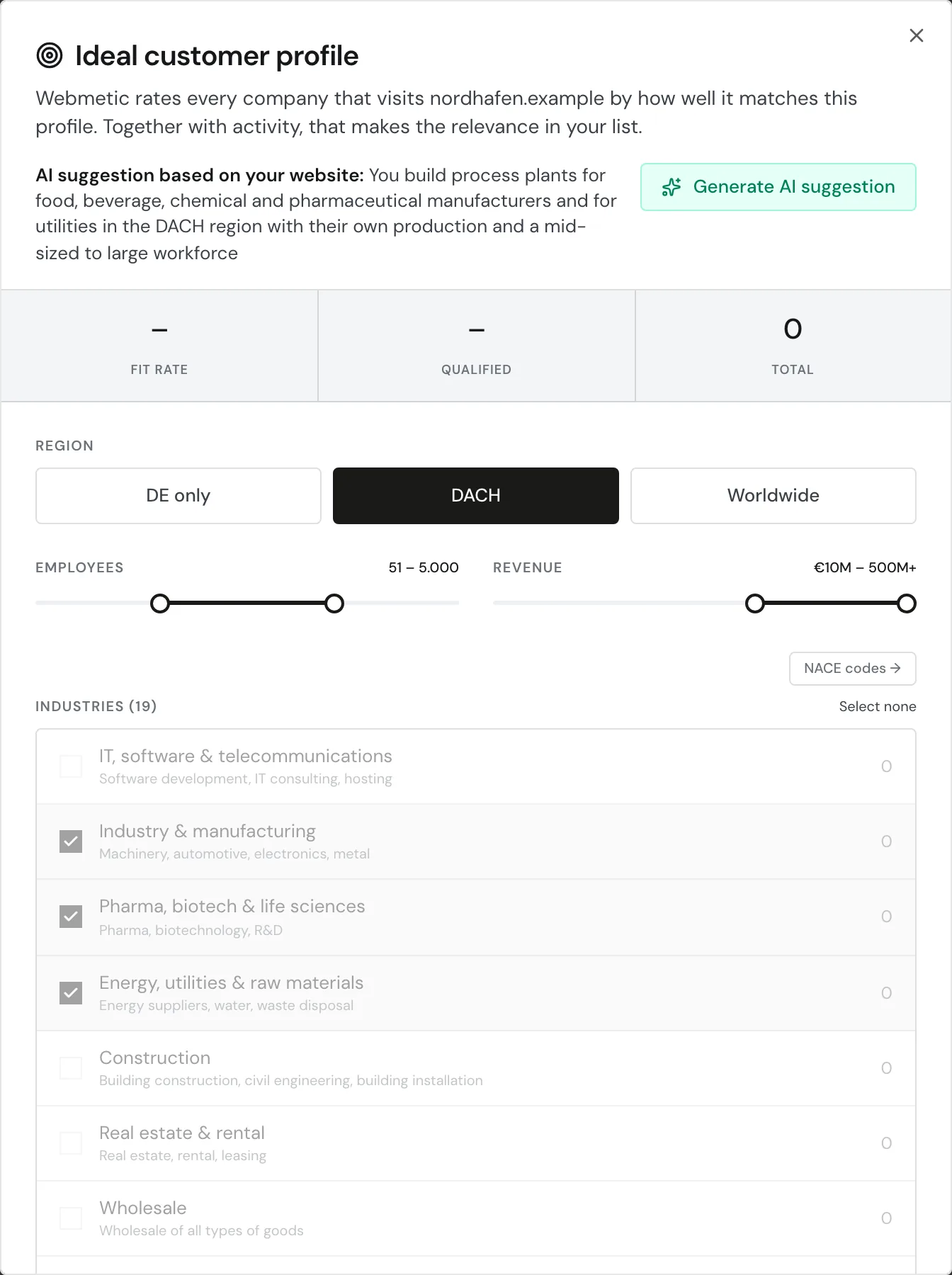
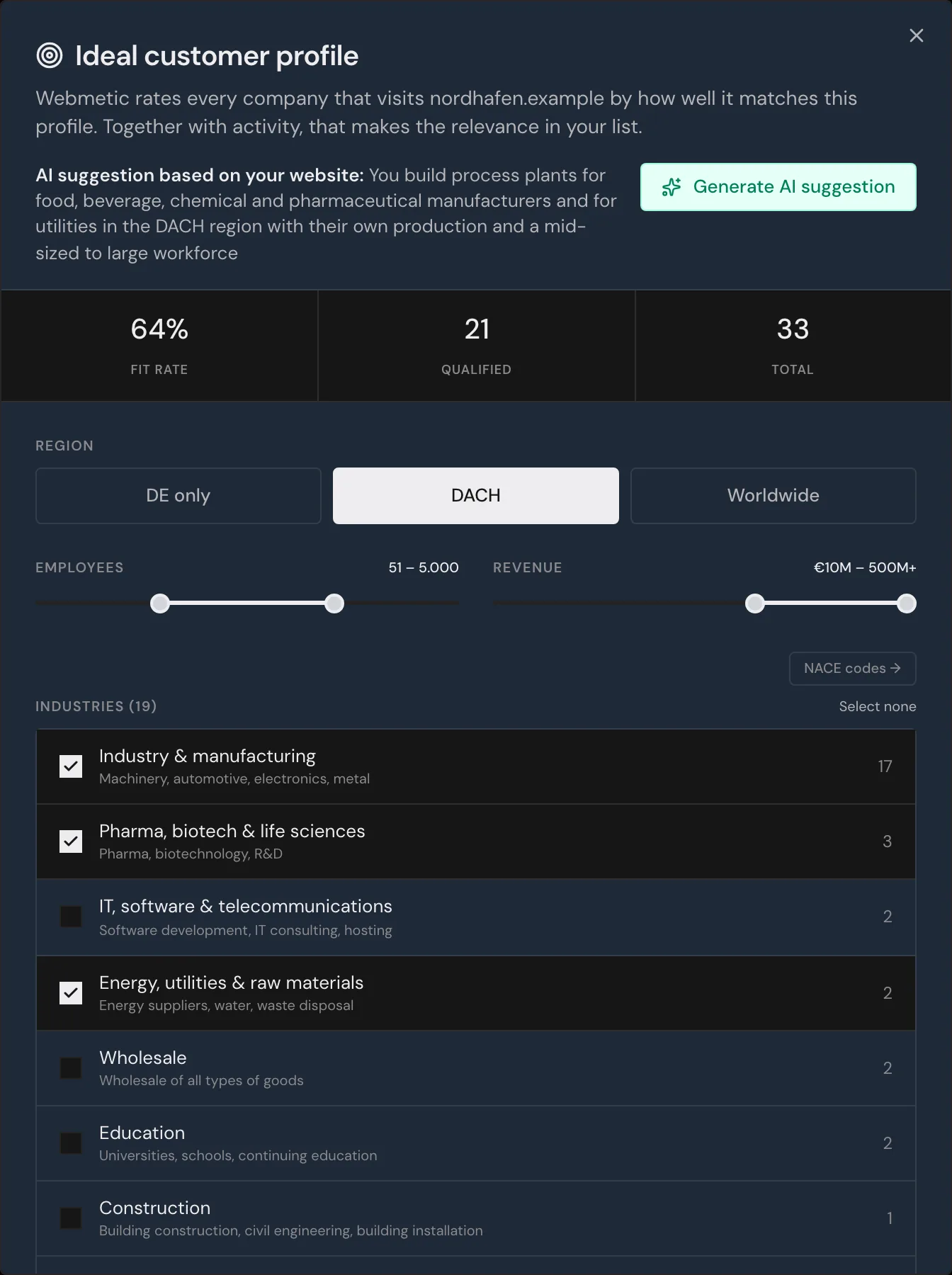
You can't weight criteria, create several profiles per website, or import a profile.
In ICP Analytics you edit the same profile, and the Reset button there clears the ideal customer profile and the target page without asking.
Generate an AI suggestion
The AI reads the description of your own website and derives a profile from it; it does not use your visits or your CRM.
The AI suggestion replaces your profile
Clicking Generate AI suggestion replaces the whole current profile without asking: region, sizes, industries, and selected NACE codes. You can't undo this, so write down your current selection first if you want to keep it.
- Open Menu > Ideal customer profile.
- Click Generate AI suggestion. A progress bar shows the message The AI is analysing your website and preparing a suggestion.
- Wait a few seconds until Webmetic shows the message The AI suggestion has been applied and is active.
- Check the values the AI has set. Above the criteria, the hint AI suggestion based on your website: appears with one sentence of reasoning.
- Change anything that doesn't fit, and close the dialog.
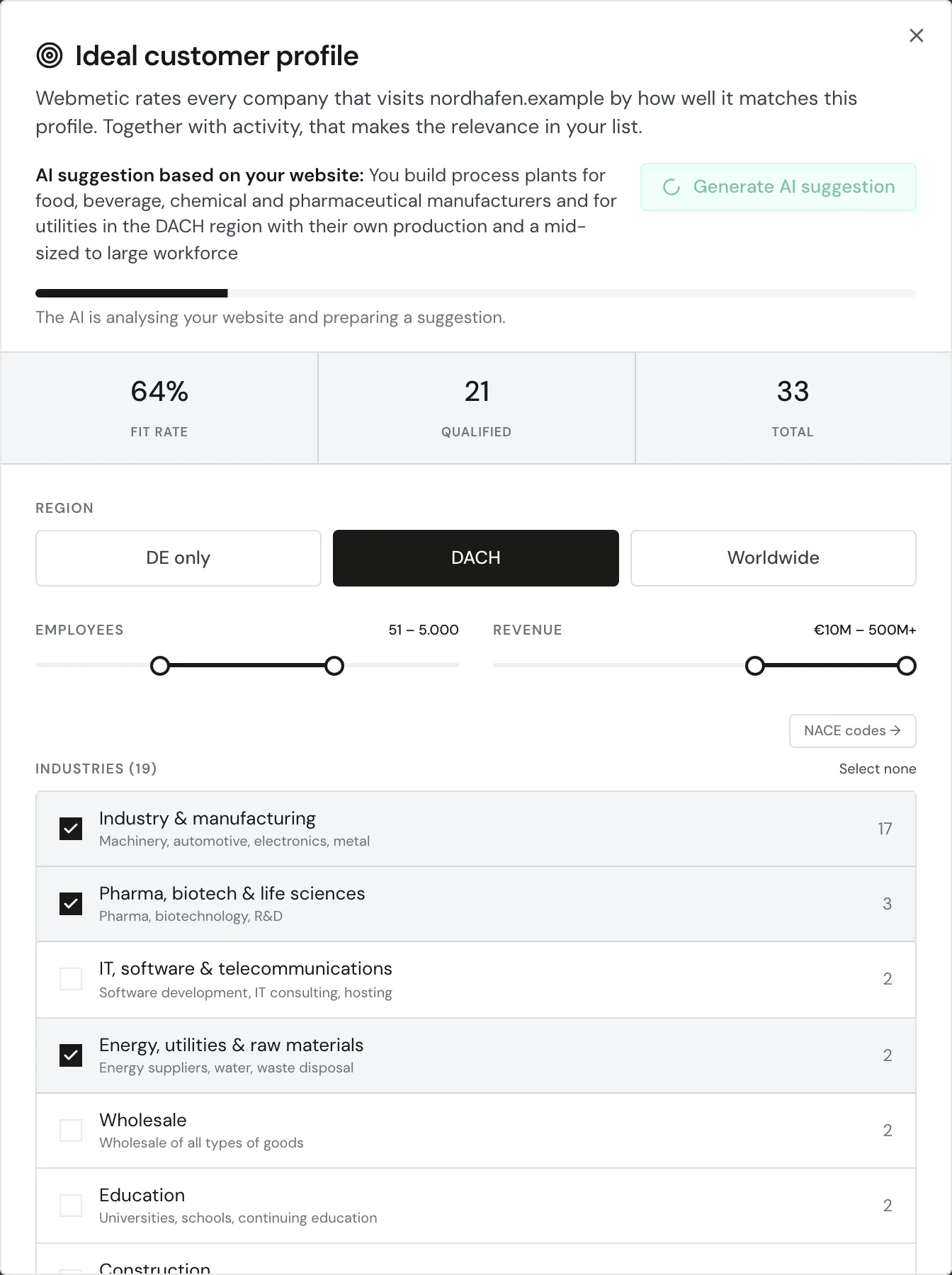
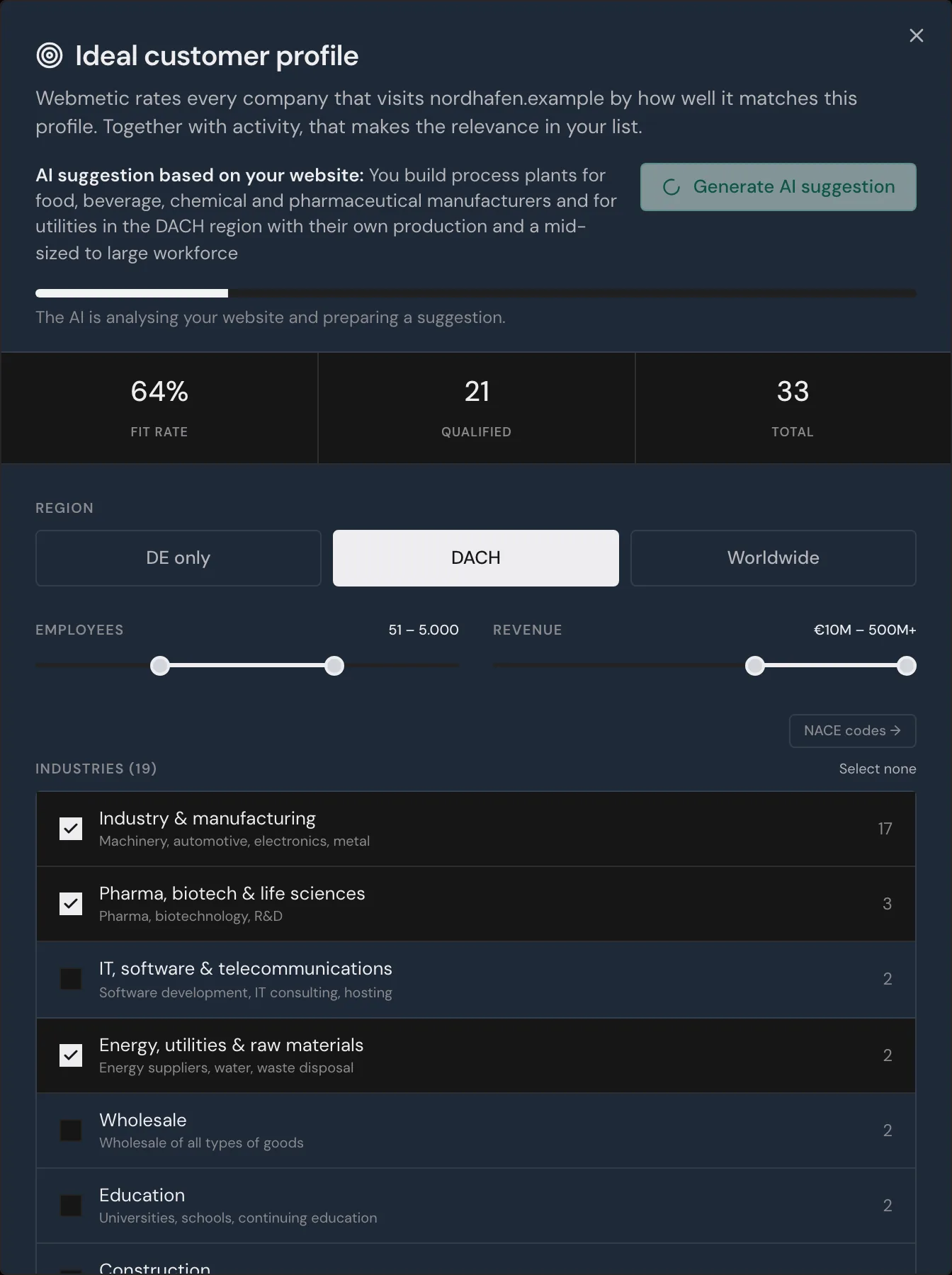
The suggestion picks up to four industries and sets the region and the Employees and Revenue sliders. The AI never selects NACE codes.
The suggestion applies right away, and Webmetic rescores every company of the website, so you see the new order in your list.
Instead of a suggestion, one of these messages can appear:
| Message | Meaning | What you do |
|---|---|---|
| There is not enough data for a suggestion yet. | Webmetic could not describe your website, for example because it has no content. | Set up the profile by hand. |
| Your website is being analysed. | The description of your website is not ready yet. | Click Generate AI suggestion again later. |
Review the automatic AI suggestion
If a website has no ideal customer profile yet, the AI creates an AI suggestion when you open the list. It applies right away, and a banner with the AI's reasoning appears above the list.
- Read the reasoning in the banner above the list.
- If the profile fits, click Confirm. The banner disappears.
- Otherwise click Adjust to open the Ideal customer profile dialog.
- Change anything that doesn't fit, and close the dialog. The AI suggestion then counts as reviewed, even without a change.


Hide for now (X) hides the banner for seven days in this browser, and the profile stays active.
Webmetic never replaces an existing profile by itself. You only get a new suggestion with Generate AI suggestion.
Check the result
- Open the Visitor Intelligence tab and sort the list by Highest relevance. Matching companies are at the top, companies outside the profile at the very bottom.
- Click a company to open its profile.
- At the top of the profile, click the number next to Relevance. The breakdown opens and shows for Industry, Size, and Region, with a check mark, a cross, or a dash, whether the company matches.
If a company sits lower than you expect, check the region, the size ranges, and whether the company has an industry first. A single criterion that clearly does not match sets relevance to 0.