

Chrome extension
Check a prospect's website with the Chrome extension and add the prospect as a customer right away.
The Webmetic Partner Chrome extension shows you on any website how many companies Webmetic is likely to identify there and which tools already run on it. At the end you have:
- the extension in Chrome, signed in with your partner account
- for every website, an estimate of identifiable companies and a list of the tools that run there
- a way to add the prospect behind the website as a customer with one email address, as a white-label customer if you like
- on your customers' websites, the tracking status and their dashboard one click away
Before you start
- Time: Installing and signing in take a few minutes. For a website Webmetic doesn't know yet, the first estimate can take up to a few minutes.
- Account: You need an account with a partner area. For other accounts, the extension shows the message No partner access.
- Access: You work in Google Chrome and sign in to the dashboard at app.webmetic.de.
- Rights: Every user of your partner account can use the extension and add customers, including users without admin rights.
- Cost: The extension is free, and neither estimates nor new customers cost credits.
Install the extension and sign in
The extension has no password of its own and takes over your login from the dashboard at app.webmetic.de. If the dashboard was already open before the installation, reload the tab after installing.
- Open Webmetic Partner on the Chrome Web Store and add the extension to Chrome.
- Optional: Pin the extension to the Chrome toolbar so that its icon is always visible.
- Sign in at app.webmetic.de with your partner account.
- Click the Webmetic Partner icon in the toolbar or in Chrome's Extensions menu. The extension window opens and checks the website in the current tab.
The extension only takes over the login from app.webmetic.de. If you usually sign in through your white-label domain, sign in once at app.webmetic.de as well.
If nobody is signed in at app.webmetic.de, the window shows the message Sign-in required. Click Go to Webmetic then, and open the window again after you've signed in.
As soon as you sign out of the dashboard, the extension signs out too.
Check a prospect's website
The extension detects in your browser which tools run on the open page. It also estimates how many companies Webmetic could identify on the website. If Webmetic has estimated the website before, the icon shows the number of companies before you click it.
The list shows two tools first, and a row below it expands the rest.
- Open the prospect's website and wait until the page has fully loaded.
- Click the Webmetic Partner icon. The window shows the domain with the tools it found and, below it, the Estimate card.
- Optional: Click the row with the remaining tools, for example 2 more tools. The list then shows every tool it found.
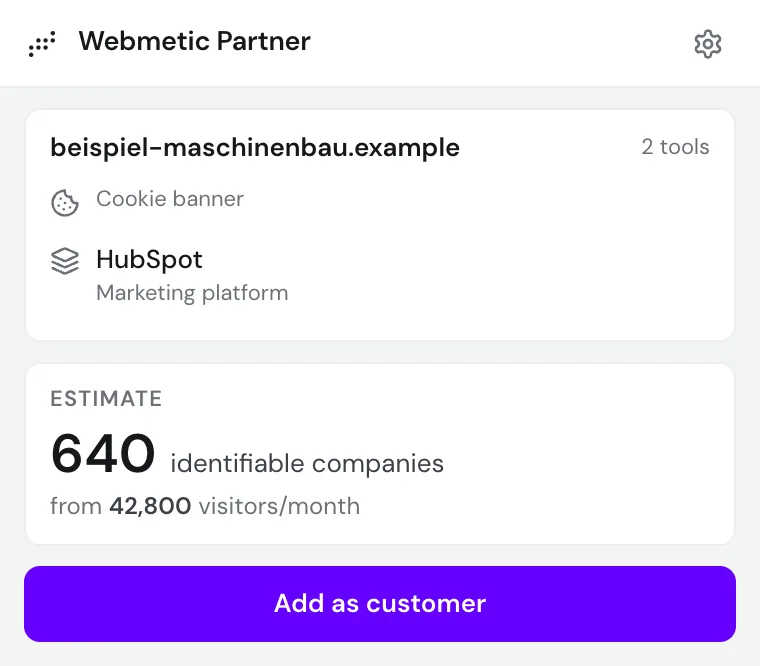
The Estimate card shows how many companies are identifiable per month and how many visits the website gets per month. Webmetic estimates both values from traffic figures and doesn't measure them on the website.
If Webmetic doesn't know the website yet, the card shows a note after about 45 seconds that it's taking longer. You can close the window then and open it again later, because Webmetic keeps working.
Every tool found appears in one of these rows:
- Webmetic active: The Webmetic tracking code runs, and the line below it shows Account with the account ID. The note no account ID means the code is probably incomplete.
- Tracking active: The tracking code runs through a white-label domain of your partner account. The extension recognises the neutral tracking code from the customer page as Webmetic, though. Most white-label customers therefore get Webmetic active.
- Competitor: Another vendor identifies the companies behind the visits on the website.
- ABM platform: The website uses a platform for account-based marketing (ABM).
- Marketing platform: The website uses a platform such as HubSpot.
- Cookie banner: A tool on the website asks visitors for their consent.
The extension only sees the open page at the moment you click. A tool that loads only after consent therefore appears only if it has already loaded at that point.
To detect the tools, the extension sends no page content. For the estimate, it sends the domain and the address of the open page to Webmetic.
Add a prospect as a customer
With the Add as customer button, you add a customer straight from the extension, the same way as with Add customer in the dashboard. The button only appears on prospects' websites and is missing wherever the extension finds the Webmetic tracking code. On your own website, the Go to dashboard button appears in its place.
In the extension, you can neither edit nor delete a customer you've added. So check the email address before you create the account.
- Click Add as customer in the extension window. The form opens.
- Enter the email address your customer signs in with.
- Optional: If Webmetic should send all emails for this customer to you, tick the White-label customer box.
- Click Add. Webmetic creates the account, and the window then shows the new customer's card.
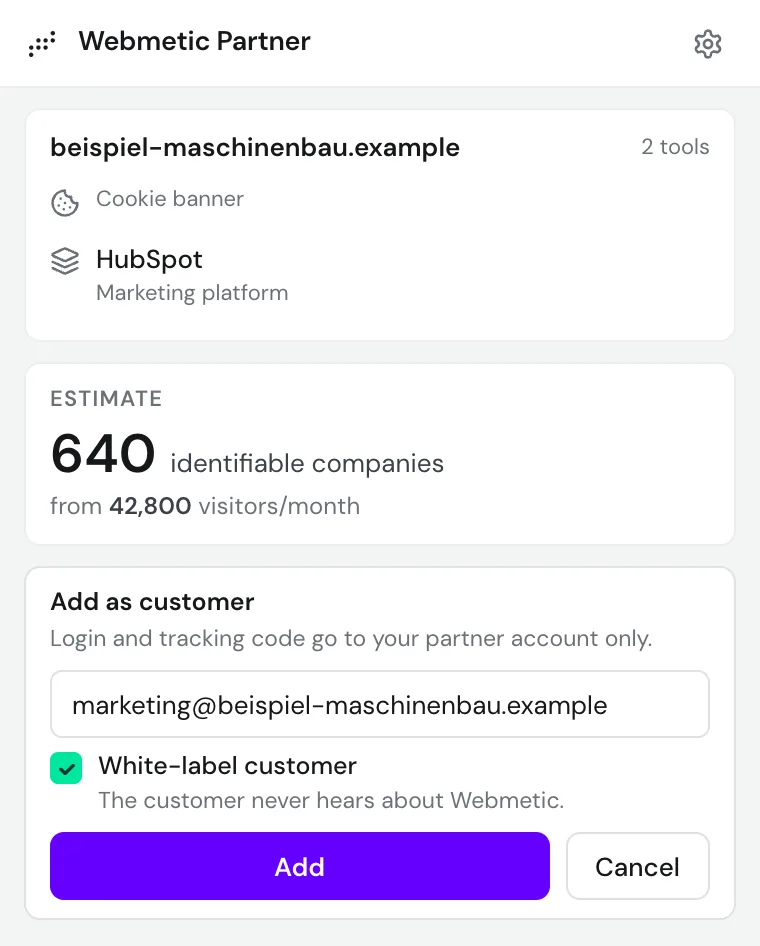
Webmetic creates the account for the main domain of the open tab, so on shop.customer-example.com it's for customer-example.com. The extension doesn't ask for a first or last name. At first, you invoice the new customer, and Manage customers describes how to change that later on the customer page.
Who receives the login details and tracking code by email depends on the White-label customer box. The form tells you before and after adding which address Webmetic sends both to. The table in Add customers shows both cases.
The extension doesn't show the tracking code, but you find it on the customer page in the dashboard at any time.
If the email address already belongs to a Webmetic account, the form reports an error, and you enter a different address. For a website that already has an account, the extension doesn't create a second customer. For any other error, add the customer in the dashboard.
Open a customer's dashboard
On your customers' websites and their subdomains, the extension shows the customer's card at the top of the window. A customer you added in the dashboard appears there within 5 minutes.
- Open a page on your customer's website.
- Click the Webmetic Partner icon. At the top is your customer's card with the badge Your customer.
- Click Sign in as customer. The customer's dashboard opens in a new tab, and a bar at the top names the account you're signed in to.
- When you're done, click Back to your account in the bar. You're then working in your partner account again.
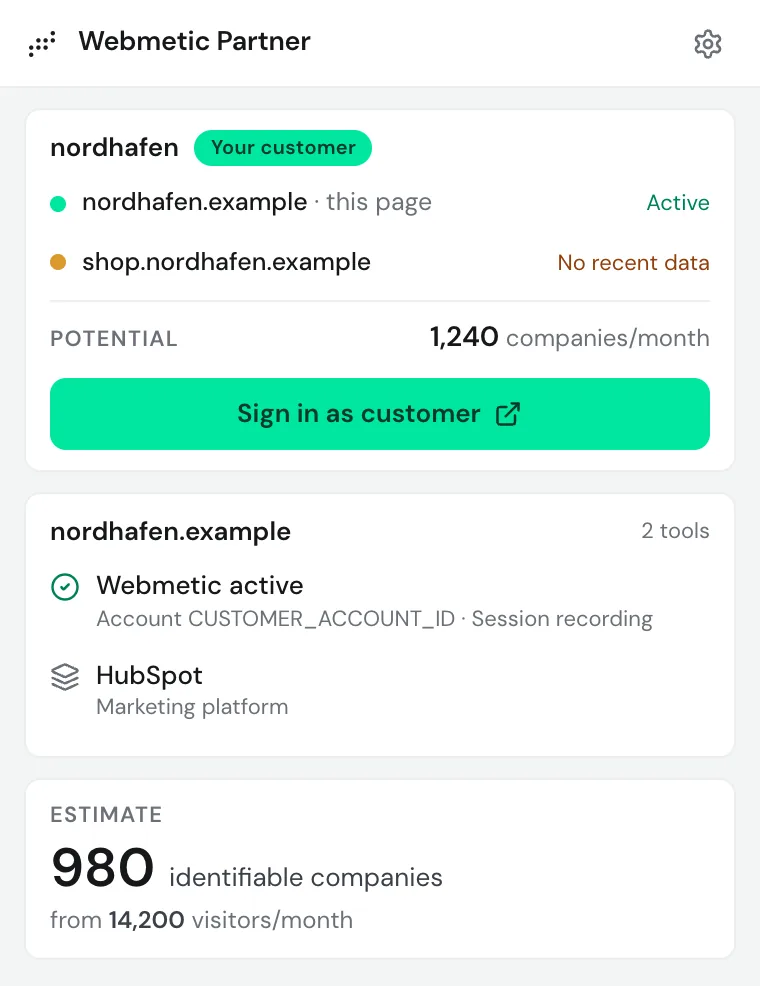
In the customer's dashboard, you have the same role as in your partner account. The Sign in as customer button works like the button of the same name in your customer list in the dashboard.
The card names the account after its first website without the ending, for example nordhafen. For white-label customers, it also carries the badge White-label.
Potential shows how many identifiable companies per month to expect across all of the customer's websites. Below it are the customer's websites with their status, the open website first:
| Status | Meaning |
|---|---|
| Active | Webmetic has received data from the website in the last 24 hours. |
| No recent data | Data arrived in the last 30 days, but none for more than 24 hours. |
| Faulty setup | Data arrived in the last 30 days, but without an account ID. The code is probably incomplete. |
| Not set up | No data arrived in the last 30 days. |
On your customers' websites, the extension hides the Add as customer button and the Price card.
Change the settings
In the settings, you see which account the extension is signed in with, and you show or hide the Price card.
- Click the Settings gear at the top right of the window. Signed in as shows the account the extension is signed in with.
- Under Show, tick or untick the Price card box.
- Click Save settings.
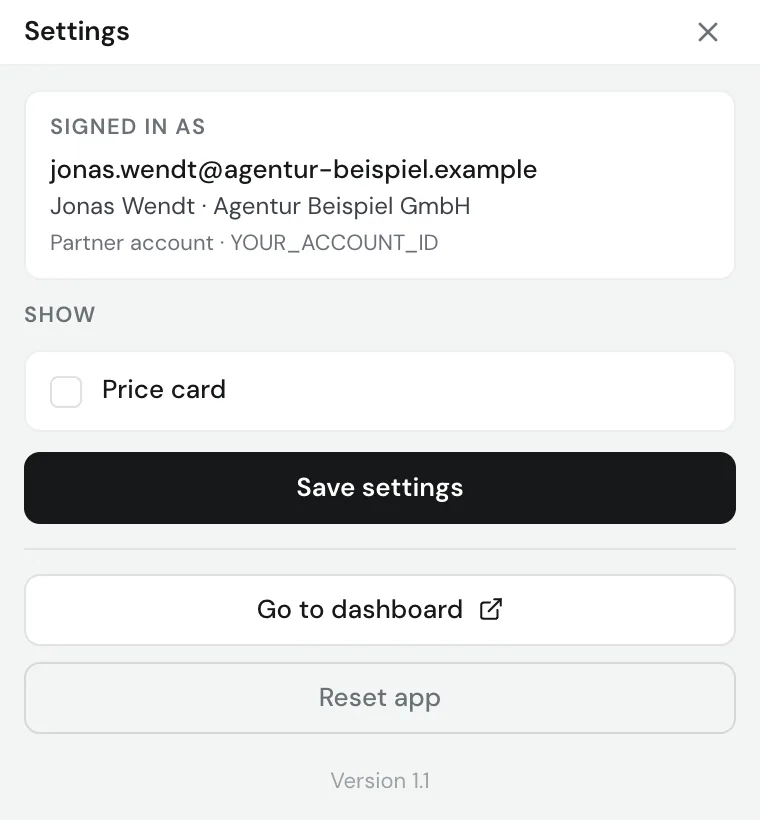
The Price card box is ticked at the start and shows or hides the Price card.
The Price card shows the Starter and Growth plans in the size that fits the estimate, with the prices from the pricing page. For very high volumes it points to Enterprise.
The Price card only appears on prospects' websites, at first as a placeholder. Once the estimate is ready, the extension fills the card. If the estimate fails, it hides the card.
In the card, you choose between Annual and Monthly, and the extension remembers your choice.
The Reset app button deletes all extension data, including your login. The extension only signs in again when you open a page at app.webmetic.de while you're still signed in there with your partner account.