

Installation
Add the tracking code to your website so Webmetic can match visits to companies.
The tracking code reports every visit to your website to Webmetic. You'll find it in the dashboard under Menu > Tracking code, with your account ID already filled in. If your website uses Google Tag Manager, start with Google Tag Manager.
Choose your platform
Google Tag Manager
Recommended if your website already uses Tag Manager, because you add the Webmetic template without changing your website's code.
WordPress
Add the tracking code with the official Webmetic plugin.
Tracking code in the HTML
Paste the code straight into your website's source code, on any platform.
Shopify
Add the tracking code to the theme of your Shopify store.
Matomo Tag Manager
Deliver the tracking code through your Matomo Tag Manager.
Sign-up and setup
Without access to your website, hand the setup over to your IT team or agency in the assistant.
What the dashboard offers
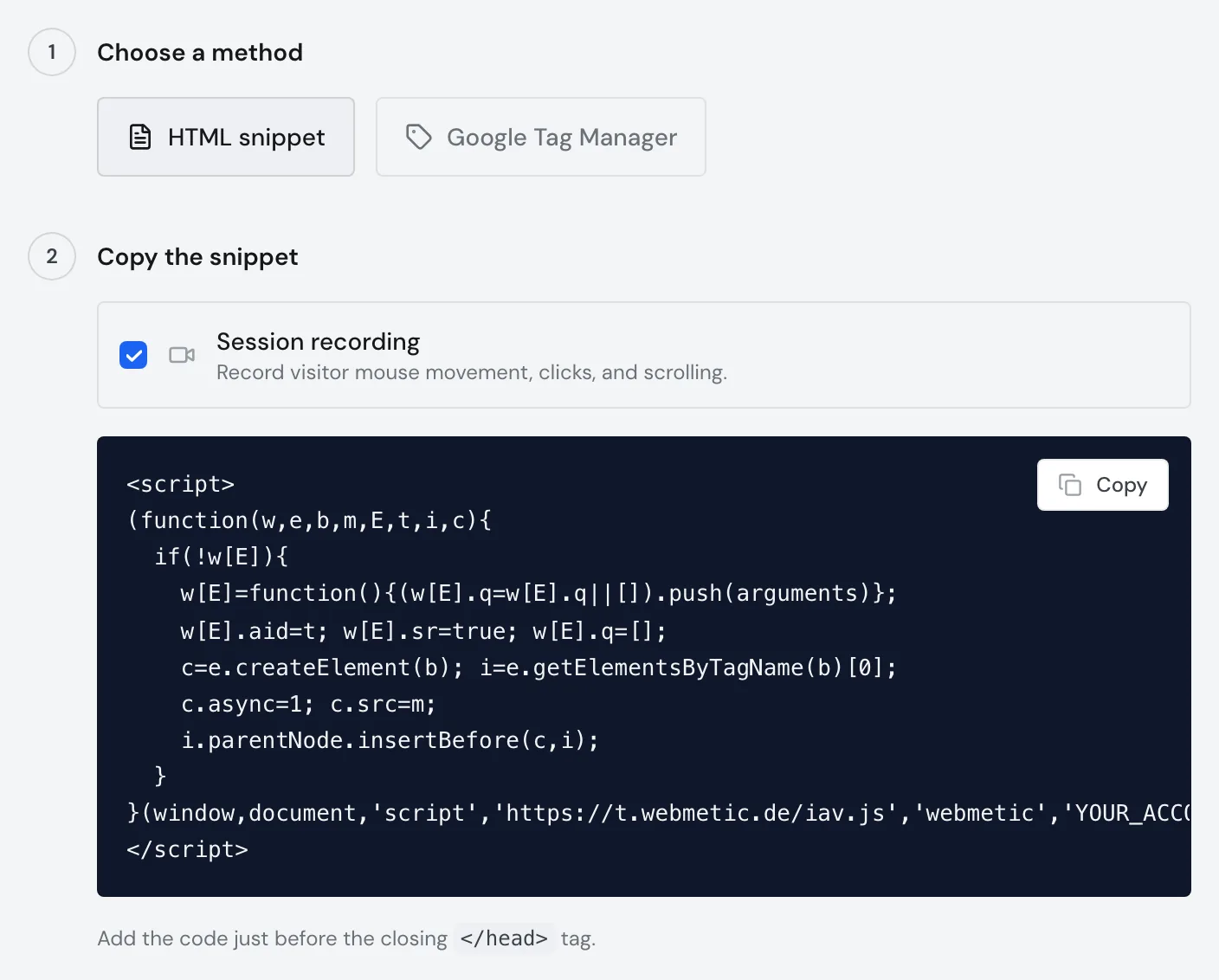
The Tracking Code window under Menu > Tracking code offers two methods and two more sections:
- HTML snippet: the ready-made tracking code to copy, with the Session recording checkbox
- Google Tag Manager: your account ID with Copy ID and the Open GTM template link
- Privacy notice: a text to copy into your privacy policy
- Verify installation: Quick check and Deep check for the code you added
The window has no section of its own for WordPress, Shopify, or Matomo Tag Manager. The pages above show what you need there.
After you add the code
Your website shows Active under Menu > Websites as soon as data with your account ID has arrived in the last 24 hours.