

Support
Write to Webmetic support right from the dashboard when this documentation doesn't answer your question.
You send your message to our support team right from the dashboard. At the end you'll have:
- the question with Webmetic support, sent with the account and the sender's name
- the reply by email at the address you sign in to Webmetic with
Before you start
- Time: Sending a message to support takes three clicks.
- Account: You need a Webmetic login. If you can't sign in, you can reach us through the contact form.
- Rights: Every user in the account can write to support and doesn't need admin rights for it.
- Plan: Support is available on every plan, including the Free plan and the trial, and a message costs no credits.
Send a message from the dashboard
-
Click your name or initials in the top right. The profile menu opens.
-
Click Support. The Support window opens.
-
Type your question into the Message field.
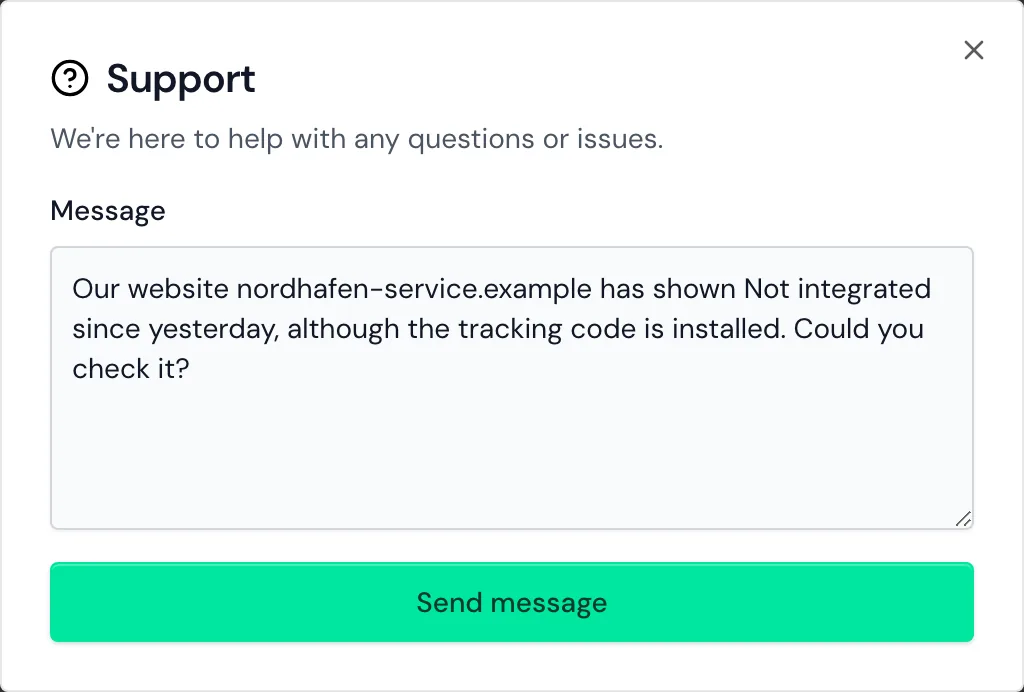
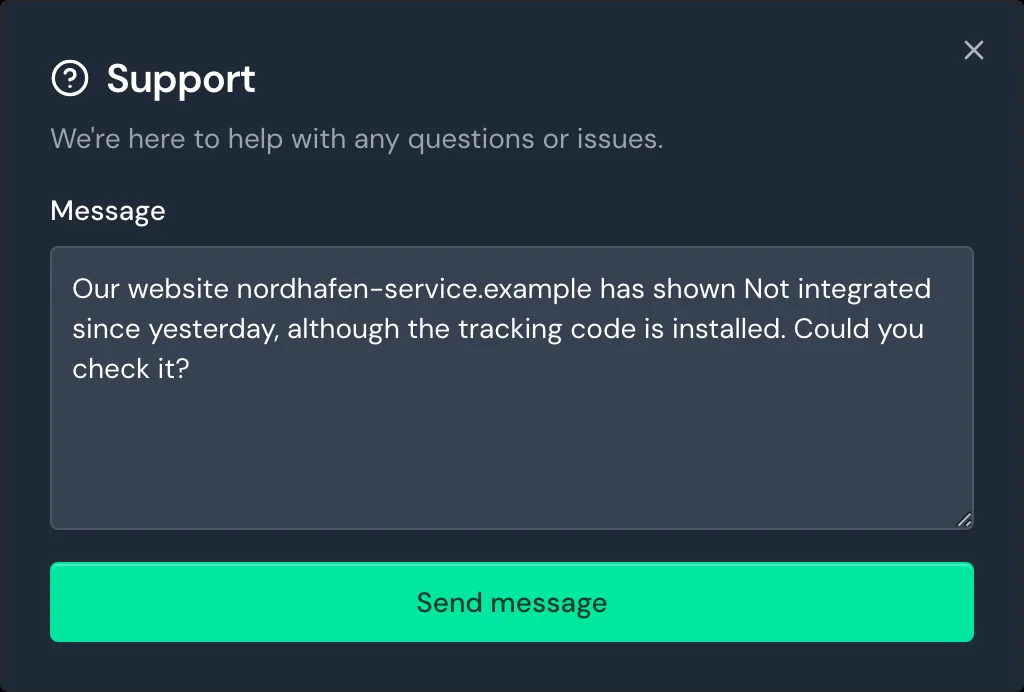
The Support window with a question in the Message field -
Click Send message. The window shows the notice Message sent.
Webmetic doesn't send a confirmation email or assign a ticket number. If sending fails, the text stays in the field. You can then send it by email to support@webmetic.de or use the contact form.
Describe your question clearly
Webmetic adds the account, the sender's name, and the login email to the message by itself. To help us give a precise answer, also name:
- the website your question is about
- what you clicked last and what you expected to happen instead
- the exact wording of any message Webmetic shows in the dashboard
Because you can't attach files or screenshots, describe in words what you see on the screen.
If the data of a single company is wrong, report it in the profile with the Report data button. For details, see Report wrong data.
Reach support without signing in
If you can't sign in, use the contact form on webmetic.de.
- Under Email, enter the address you use to sign in to Webmetic.
- Under Message, name your website and your question.
- Click Send message.
Reach support from an error message
An error page in the dashboard and a failed installation check show the Contact support button. The button opens a new email to support@webmetic.de in your email program, where you name the website and the text of the message.
Request changes from support
Support makes these account changes for you, because the dashboard doesn't offer them:
- change the email address of your login
- switch to a smaller plan or a different billing period
- delete your account
To request one, write to us as described above.