%20--%3e%3csvg%20version='1.1'%20id='Logo'%20xmlns='http://www.w3.org/2000/svg'%20xmlns:xlink='http://www.w3.org/1999/xlink'%20x='0px'%20y='0px'%20viewBox='0%200%20227.7%2039.7'%20style='enable-background:new%200%200%20227.7%2039.7;'%20xml:space='preserve'%3e%3cstyle%20type='text/css'%3e%20.st0{fill:%231D1D1B;}%20%3c/style%3e%3cg%3e%3cpath%20class='st0'%20d='M218.6,38.9c-6.5,0-11.4-4.9-11.4-11.3s4.9-11.3,11.4-11.3c3.4,0,6.4,1.3,8.4,3.6l0.1,0.2l-3.3,3.2l-0.2-0.2%20c-1.2-1.4-3.1-2.3-5.1-2.3c-3.9,0-6.6,2.8-6.6,6.8s2.8,6.8,6.6,6.8c2,0,3.9-0.8,5.1-2.3l0.2-0.2l3.3,3.2l-0.1,0.2%20C224.9,37.7,222,38.9,218.6,38.9z'/%3e%3cpath%20class='st0'%20d='M87.5,38.9c-6.4,0-11.3-4.8-11.3-11.1s4.8-11.4,11.3-11.4S98.4,21,98.4,27.6v2H81c0.7,3,3.2,5,6.5,5%20c2.5,0,4.3-1.1,5.2-2.1l0.2-0.2l3.2,3.1l-0.2,0.2C94,37.7,91,39,87.5,38.9L87.5,38.9z%20M93.5,25.4c-0.3-2.7-2.9-4.7-6.1-4.7%20s-5.5,1.8-6.3,4.7H93.5z'/%3e%3cpath%20class='st0'%20d='M112.9,38.9c-2.4,0-4.7-0.7-6.6-2.2v1.6h-4.7V8h4.7v10.5c1.9-1.4,4.2-2.1,6.6-2.1c6.5,0,11.4,4.8,11.4,11.3%20S119.5,38.9,112.9,38.9L112.9,38.9z%20M112.9,20.9c-3.8,0-6.6,2.9-6.6,6.8s2.8,6.8,6.6,6.8s6.6-2.9,6.6-6.8S116.7,20.9,112.9,20.9z'%20/%3e%3cpath%20class='st0'%20d='M151.9,38.4V24.6c0-2.1-1.6-3.7-3.7-3.7s-3.8,1.6-3.8,3.7v13.9h-4.7V24.6c0-2.1-1.6-3.7-3.7-3.7%20s-3.8,1.6-3.8,3.7v13.9h-4.6V16.9h4.2v1.6c0,0,1.6-2.2,4.7-2.2c2.3,0,4.4,1,5.9,2.7c0.9-1.1,2.8-2.7,6.1-2.7c4.4,0,8,3.5,8,7.9%20v14.2H151.9L151.9,38.4z'/%3e%3cpath%20class='st0'%20d='M170.9,38.9c-6.4,0-11.3-4.8-11.3-11.1s4.9-11.4,11.3-11.4s10.9,4.6,10.9,11.2v2h-17.3c0.7,3,3.2,5,6.5,5%20c2.5,0,4.3-1.1,5.2-2.1l0.2-0.2l3.2,3.1l-0.1,0.2C177.4,37.7,174.4,39,170.9,38.9L170.9,38.9z%20M176.9,25.4%20c-0.3-2.7-2.9-4.7-6.1-4.7s-5.5,1.8-6.3,4.7H176.9L176.9,25.4z'/%3e%3crect%20x='199.4'%20y='17.2'%20class='st0'%20width='4.7'%20height='21.3'/%3e%3cpolygon%20class='st0'%20points='195.9,17.2%20191.9,17.2%20191.9,12.1%20187.1,12.1%20187.1,17.2%20183.1,17.2%20183.1,21.1%20187.1,21.1%20187.1,38.4%20191.9,38.4%20191.9,21.1%20195.9,21.1%20'/%3e%3cpolygon%20class='st0'%20points='70.7,16.9%2065.5,31%2060.8,19.3%2057.5,19.3%2052.7,31%2047.6,16.9%2042.5,16.9%2050.7,38%2054.8,38%2059.1,26.3%2063.4,38%2067.5,38%2075.8,16.9%20'/%3e%3c/g%3e%3cg%3e%3ccircle%20class='st0'%20cx='3.5'%20cy='34.8'%20r='3.2'/%3e%3ccircle%20class='st0'%20cx='3.5'%20cy='24.4'%20r='3.2'/%3e%3ccircle%20class='st0'%20cx='13.9'%20cy='24.4'%20r='3.2'/%3e%3ccircle%20class='st0'%20cx='24.3'%20cy='24.4'%20r='3.2'/%3e%3ccircle%20class='st0'%20cx='13.9'%20cy='14'%20r='3.2'/%3e%3ccircle%20class='st0'%20cx='24.3'%20cy='14'%20r='3.2'/%3e%3ccircle%20class='st0'%20cx='34.6'%20cy='14'%20r='3.2'/%3e%3ccircle%20class='st0'%20cx='34.6'%20cy='3.6'%20r='3.2'/%3e%3c/g%3e%3c/svg%3e)
Partner API
Connect your system to Webmetic
Webmetic runs through the systems your agency already works with. Your CRM or client portal adds new clients, and their visit data appears in your own reporting.
- Client accounts from your CRM
- Visit data in your own reporting
- Login details under your name
Your system takes over the routine
Your team keeps working in your CRM or client portal. Your system handles four tasks that would otherwise need someone in the dashboard.
New clients without double entry
When your team adds a client in your CRM or client portal, your system opens their Webmetic account with an email address and website. It can make them a white‑label client from the start.
Adding clients in the docsFirst contact through your agency
Webmetic sends your client no email. Your system receives the email address and password, and your agency passes them on in its own welcome email. Your client signs in with them, on your subdomain too.
White label in the partner areaMore websites without extra work
When a client gets another website, your system adds it to their account. When it removes a website, its visit data stays.
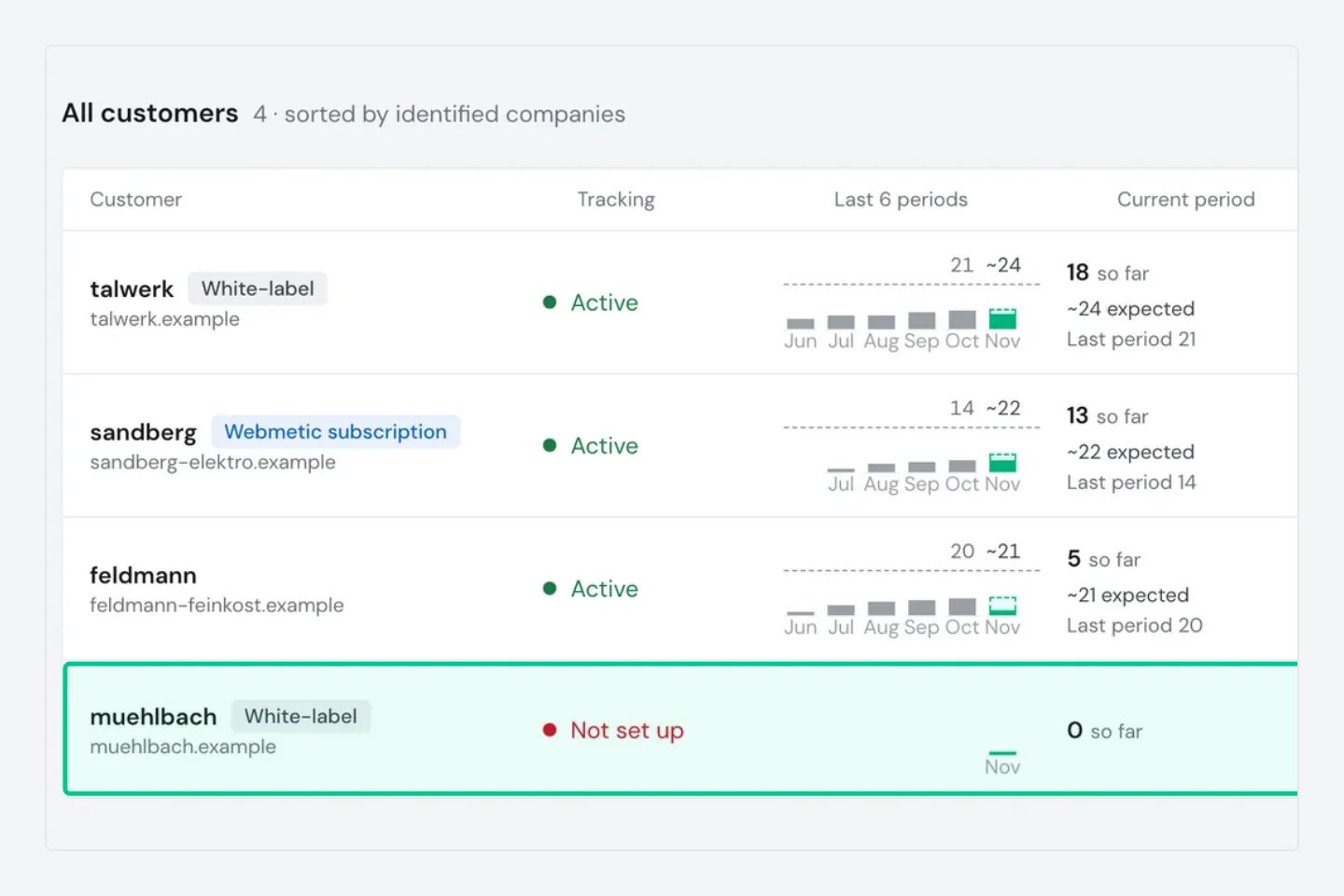
Websites in the docs- muehlbach.example
- muehlbach‑shop.examplenew
Visit data in your agency's reporting
Your client reports list the companies that visited their websites. Your system reads the same data as the dashboard, optionally for several clients in one query.
Visit data in the docs- talwerk.example18
- sandberg‑elektro.example13
- feldmann‑feinkost.example5
Four moments your system prepares
For each one, you see what your system does and what is then ready for your agency and your client.
New client
Your systemWhen you add a client in your CRM or client portal, your system creates their Webmetic account, optionally as a white‑label client, and receives the login details.
ResultYour client gets the login details in your agency's welcome email and signs in on your subdomain. As a white‑label client, they see the features you switch on.
Monthly report
Your systemFor each of the client's websites, your system reads the month's companies, new and returning companies and the companies that looked most closely.
ResultYour client gets the report from your agency, with the same data they see in the dashboard.
Client meeting
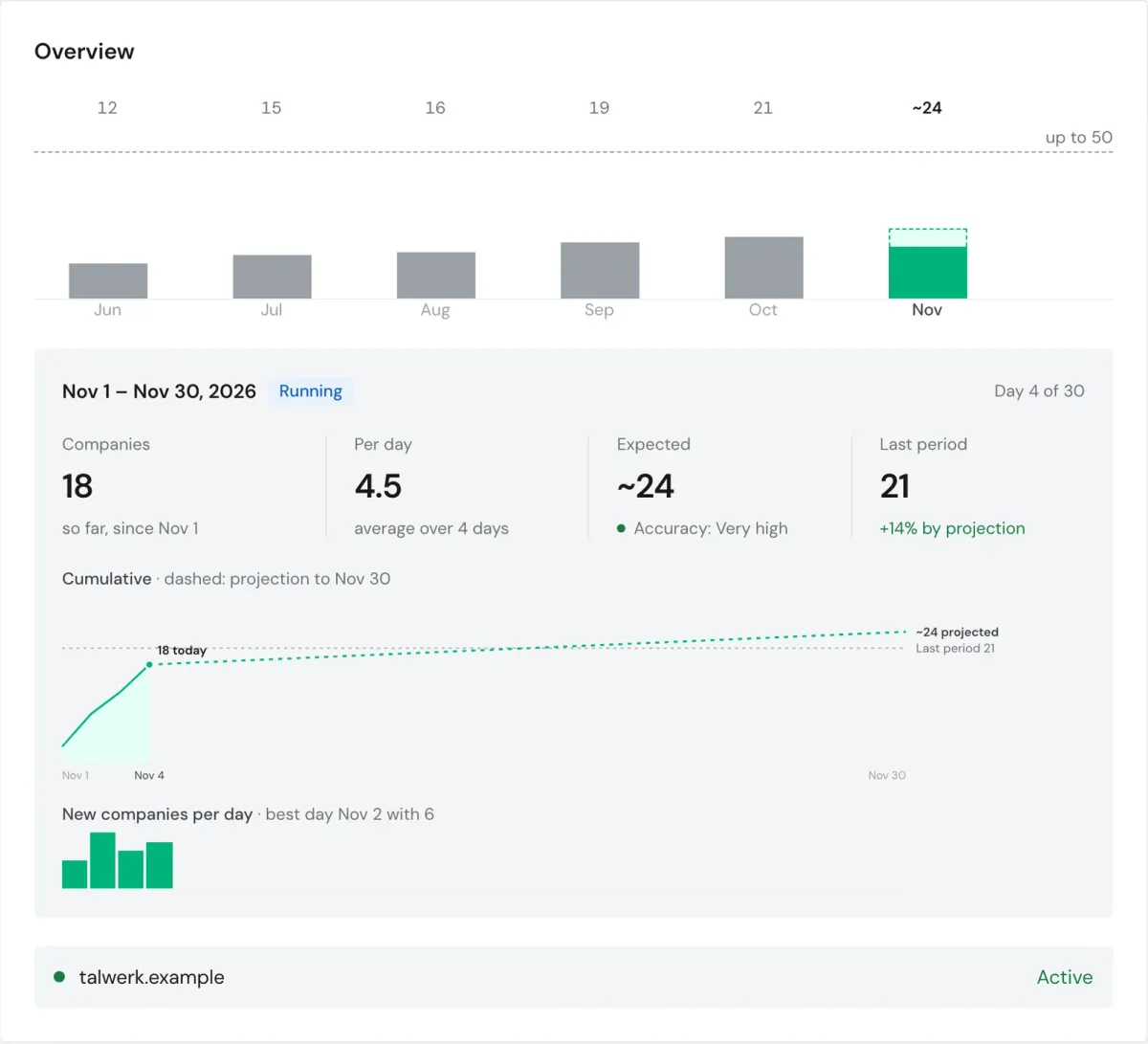
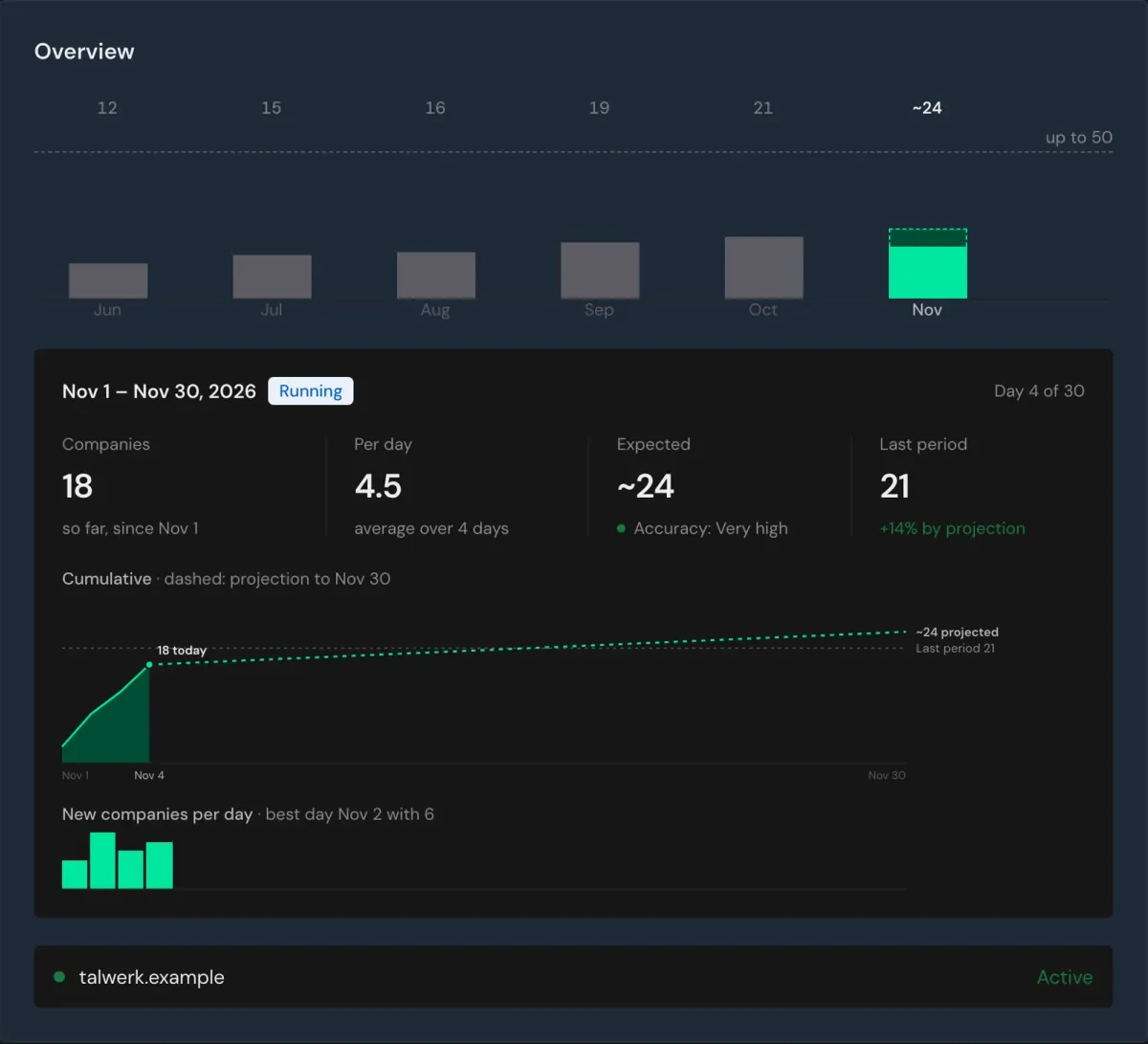
Your systemYour system pulls the companies identified so far this month for the client, along with the expected total and its accuracy.
ResultYour team goes into the meeting knowing where the client's month stands.
CRM sync
Your systemYour system reads the list of all clients in your partner account, including the ones you added in the dashboard.
ResultYour CRM holds every client with account ID, websites, white‑label status and creation date.
Every client's figures in your own system
Your agency sees where every client stands without opening each account. Your system reads two sources for this: the client list and the visit data.
Client list
See every client's month in one list
Your system reads every client in your partner account with the companies identified so far this month and the expected total with its accuracy. Your team sees which client has little coming in.
- Account ID, websites and white‑label status
- Companies identified per month
- Expected total for the current month
Visit data
Bring each client's visits into your reports
Your reports show the same data your client sees in the dashboard, for each of their websites. One query can combine the companies of several clients.
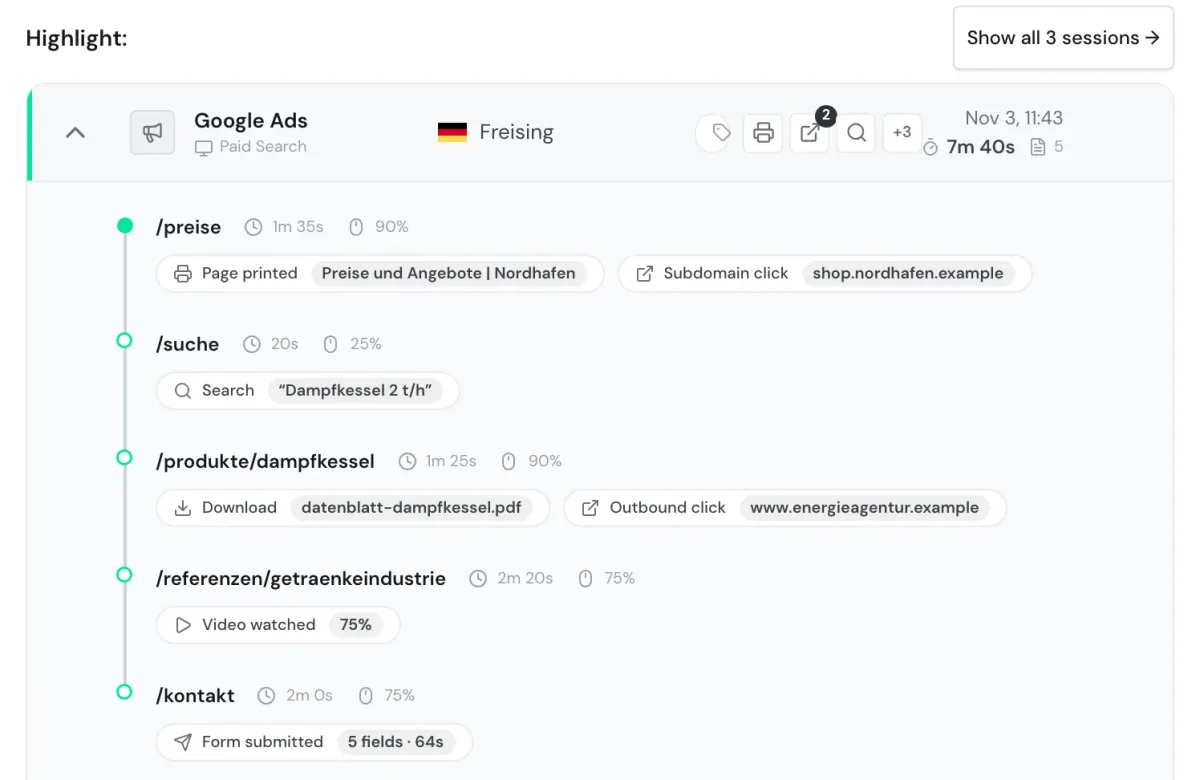
- Companies with their industry
- Visits with every page view
- New and returning companies
- Companies that looked most closely
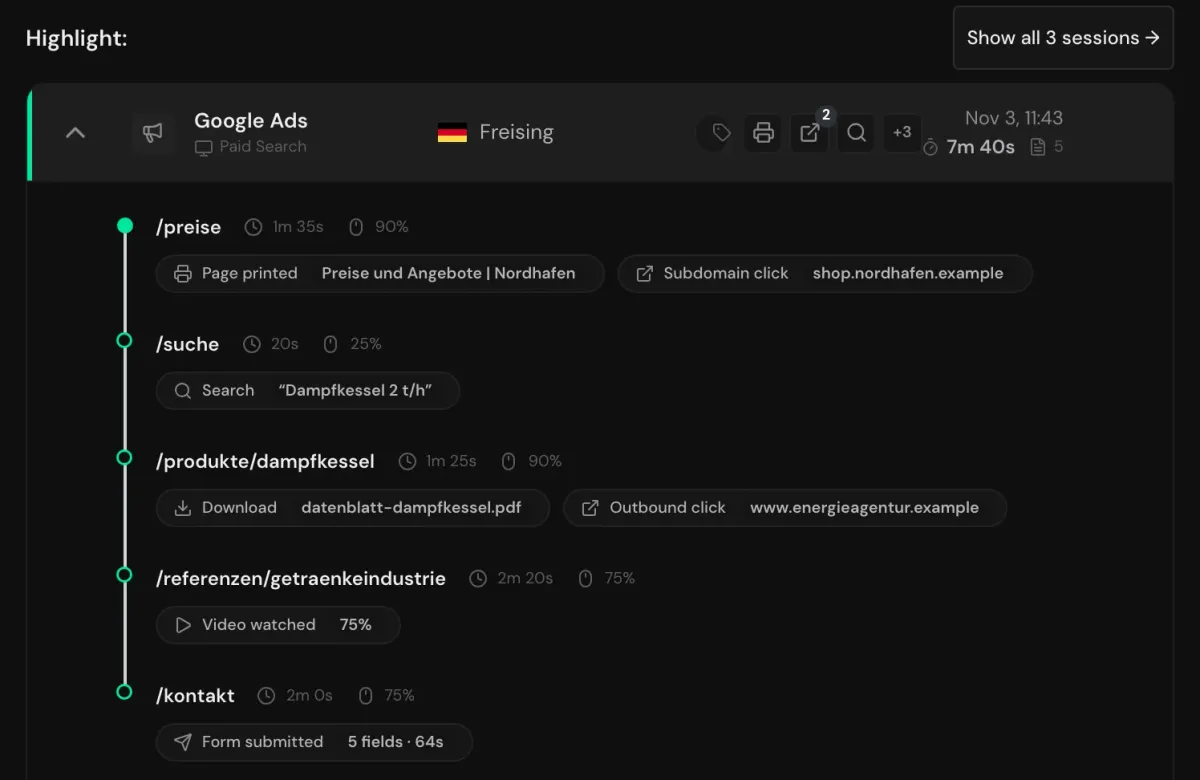
Routine in your system, setup in the dashboard
The partner API handles what repeats with every client: adding clients and reading data. Your team sets up brand, features and tracking code in the dashboard.
Through the partner API
Your system
- New clients from your CRMWith an email address and website, optionally as a white‑label client.
- Login details in your nameWebmetic sends no email. Your system receives the email address and password to pass on.
- Websites without manual upkeepYour system adds and removes websites. The visit data of a removed website stays.
- Data for your reportsThe client list with the month's figures and the visit data of all clients.
In the partner area
Your dashboard
- One brand for all clientsYour team sets the white‑label domain, logo and color once.
- Features you chooseYou decide which features your white‑label clients see.
- White label per clientThe partner API sets white label when it adds a client. Your team changes it later on the client page.
- Tracking code for each clientYour team finds the code with the client's account ID on their client page.
Limits of the partner API
- Password only at creationWebmetic shows a new client's password once. Your system stores it when it adds the client.
- Each address only onceIf an email address or website already belongs to a Webmetic account, Webmetic does not accept it for a new client. Subdomains count toward the main domain.
- Combined queries without the clientWhen a query combines several clients, it does not show which client a company belongs to.
- Contacts per client accountContacts and Enrichment run through each client's own account, not your partner account.
Set up once, used for every new client
Partner API in the docsScoping in a call
We set up the partner area for your account and agree with you which tasks your system takes over.
Connection by your developers
Your developers connect your CRM or client portal to Webmetic, and an admin of your account grants access in the dashboard. The docs cover every step.
Accounts for every new client
From then on, every client your team adds in your system gets their Webmetic account. Data arrives once their tracking code runs on the website.
More in the partner area
Frequently asked questions
We walk you through the partner area in a call.
We set it up for your account and answer your questions.