%20--%3e%3csvg%20version='1.1'%20id='Logo'%20xmlns='http://www.w3.org/2000/svg'%20xmlns:xlink='http://www.w3.org/1999/xlink'%20x='0px'%20y='0px'%20viewBox='0%200%20227.7%2039.7'%20style='enable-background:new%200%200%20227.7%2039.7;'%20xml:space='preserve'%3e%3cstyle%20type='text/css'%3e%20.st0{fill:%231D1D1B;}%20%3c/style%3e%3cg%3e%3cpath%20class='st0'%20d='M218.6,38.9c-6.5,0-11.4-4.9-11.4-11.3s4.9-11.3,11.4-11.3c3.4,0,6.4,1.3,8.4,3.6l0.1,0.2l-3.3,3.2l-0.2-0.2%20c-1.2-1.4-3.1-2.3-5.1-2.3c-3.9,0-6.6,2.8-6.6,6.8s2.8,6.8,6.6,6.8c2,0,3.9-0.8,5.1-2.3l0.2-0.2l3.3,3.2l-0.1,0.2%20C224.9,37.7,222,38.9,218.6,38.9z'/%3e%3cpath%20class='st0'%20d='M87.5,38.9c-6.4,0-11.3-4.8-11.3-11.1s4.8-11.4,11.3-11.4S98.4,21,98.4,27.6v2H81c0.7,3,3.2,5,6.5,5%20c2.5,0,4.3-1.1,5.2-2.1l0.2-0.2l3.2,3.1l-0.2,0.2C94,37.7,91,39,87.5,38.9L87.5,38.9z%20M93.5,25.4c-0.3-2.7-2.9-4.7-6.1-4.7%20s-5.5,1.8-6.3,4.7H93.5z'/%3e%3cpath%20class='st0'%20d='M112.9,38.9c-2.4,0-4.7-0.7-6.6-2.2v1.6h-4.7V8h4.7v10.5c1.9-1.4,4.2-2.1,6.6-2.1c6.5,0,11.4,4.8,11.4,11.3%20S119.5,38.9,112.9,38.9L112.9,38.9z%20M112.9,20.9c-3.8,0-6.6,2.9-6.6,6.8s2.8,6.8,6.6,6.8s6.6-2.9,6.6-6.8S116.7,20.9,112.9,20.9z'%20/%3e%3cpath%20class='st0'%20d='M151.9,38.4V24.6c0-2.1-1.6-3.7-3.7-3.7s-3.8,1.6-3.8,3.7v13.9h-4.7V24.6c0-2.1-1.6-3.7-3.7-3.7%20s-3.8,1.6-3.8,3.7v13.9h-4.6V16.9h4.2v1.6c0,0,1.6-2.2,4.7-2.2c2.3,0,4.4,1,5.9,2.7c0.9-1.1,2.8-2.7,6.1-2.7c4.4,0,8,3.5,8,7.9%20v14.2H151.9L151.9,38.4z'/%3e%3cpath%20class='st0'%20d='M170.9,38.9c-6.4,0-11.3-4.8-11.3-11.1s4.9-11.4,11.3-11.4s10.9,4.6,10.9,11.2v2h-17.3c0.7,3,3.2,5,6.5,5%20c2.5,0,4.3-1.1,5.2-2.1l0.2-0.2l3.2,3.1l-0.1,0.2C177.4,37.7,174.4,39,170.9,38.9L170.9,38.9z%20M176.9,25.4%20c-0.3-2.7-2.9-4.7-6.1-4.7s-5.5,1.8-6.3,4.7H176.9L176.9,25.4z'/%3e%3crect%20x='199.4'%20y='17.2'%20class='st0'%20width='4.7'%20height='21.3'/%3e%3cpolygon%20class='st0'%20points='195.9,17.2%20191.9,17.2%20191.9,12.1%20187.1,12.1%20187.1,17.2%20183.1,17.2%20183.1,21.1%20187.1,21.1%20187.1,38.4%20191.9,38.4%20191.9,21.1%20195.9,21.1%20'/%3e%3cpolygon%20class='st0'%20points='70.7,16.9%2065.5,31%2060.8,19.3%2057.5,19.3%2052.7,31%2047.6,16.9%2042.5,16.9%2050.7,38%2054.8,38%2059.1,26.3%2063.4,38%2067.5,38%2075.8,16.9%20'/%3e%3c/g%3e%3cg%3e%3ccircle%20class='st0'%20cx='3.5'%20cy='34.8'%20r='3.2'/%3e%3ccircle%20class='st0'%20cx='3.5'%20cy='24.4'%20r='3.2'/%3e%3ccircle%20class='st0'%20cx='13.9'%20cy='24.4'%20r='3.2'/%3e%3ccircle%20class='st0'%20cx='24.3'%20cy='24.4'%20r='3.2'/%3e%3ccircle%20class='st0'%20cx='13.9'%20cy='14'%20r='3.2'/%3e%3ccircle%20class='st0'%20cx='24.3'%20cy='14'%20r='3.2'/%3e%3ccircle%20class='st0'%20cx='34.6'%20cy='14'%20r='3.2'/%3e%3ccircle%20class='st0'%20cx='34.6'%20cy='3.6'%20r='3.2'/%3e%3c/g%3e%3c/svg%3e)
All your clients in one place
Your team runs every client from the partner area. It adds them in a few minutes, sees where tracking is missing and sets up their dashboard.
- New clients added in a few minutes
- Tracking issues across all clients in view
- Every client dashboard one click away
Setup and support stay in your hands
A new client takes a few minutes
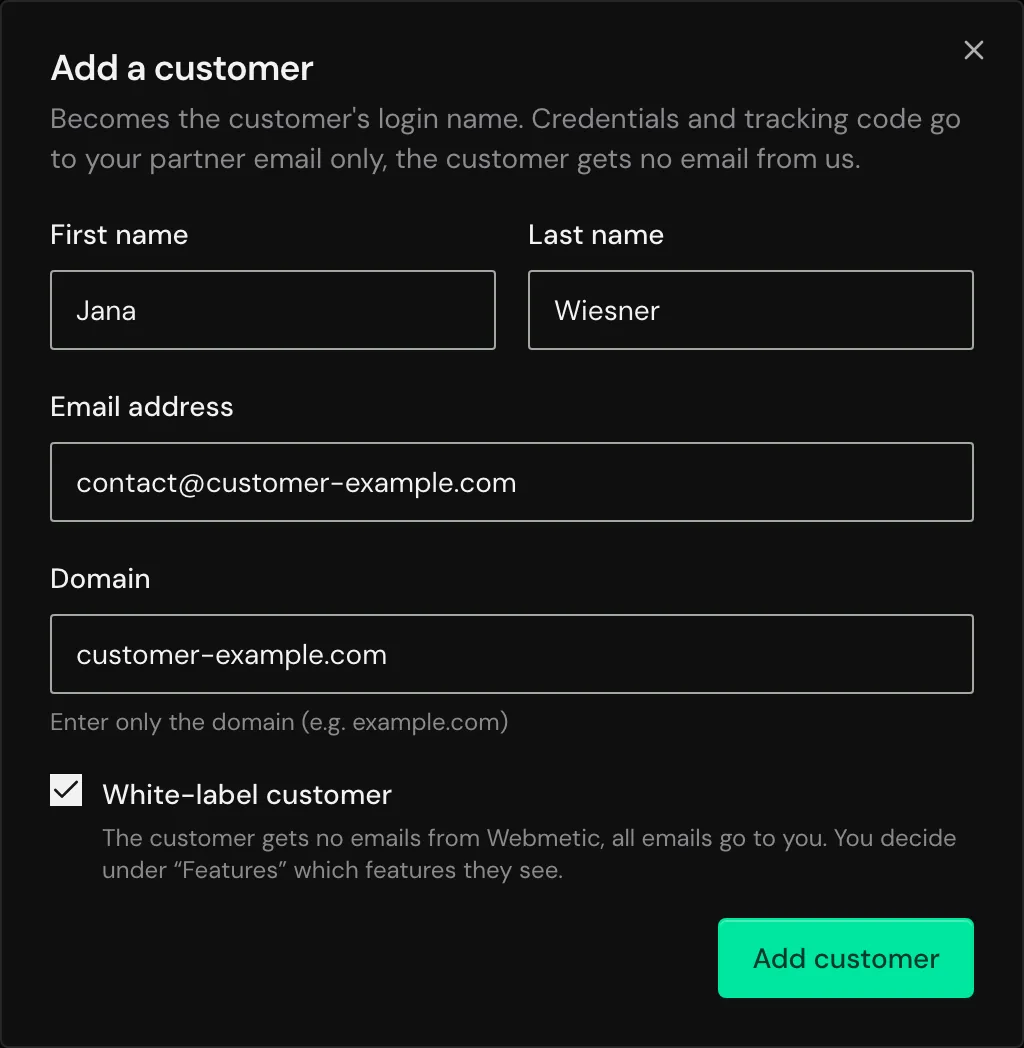
Your team enters the client's email address and the domain of their website. Webmetic creates an account for them and sends the login details and tracking code, for white‑label customers only to you.
Adding clients in the docs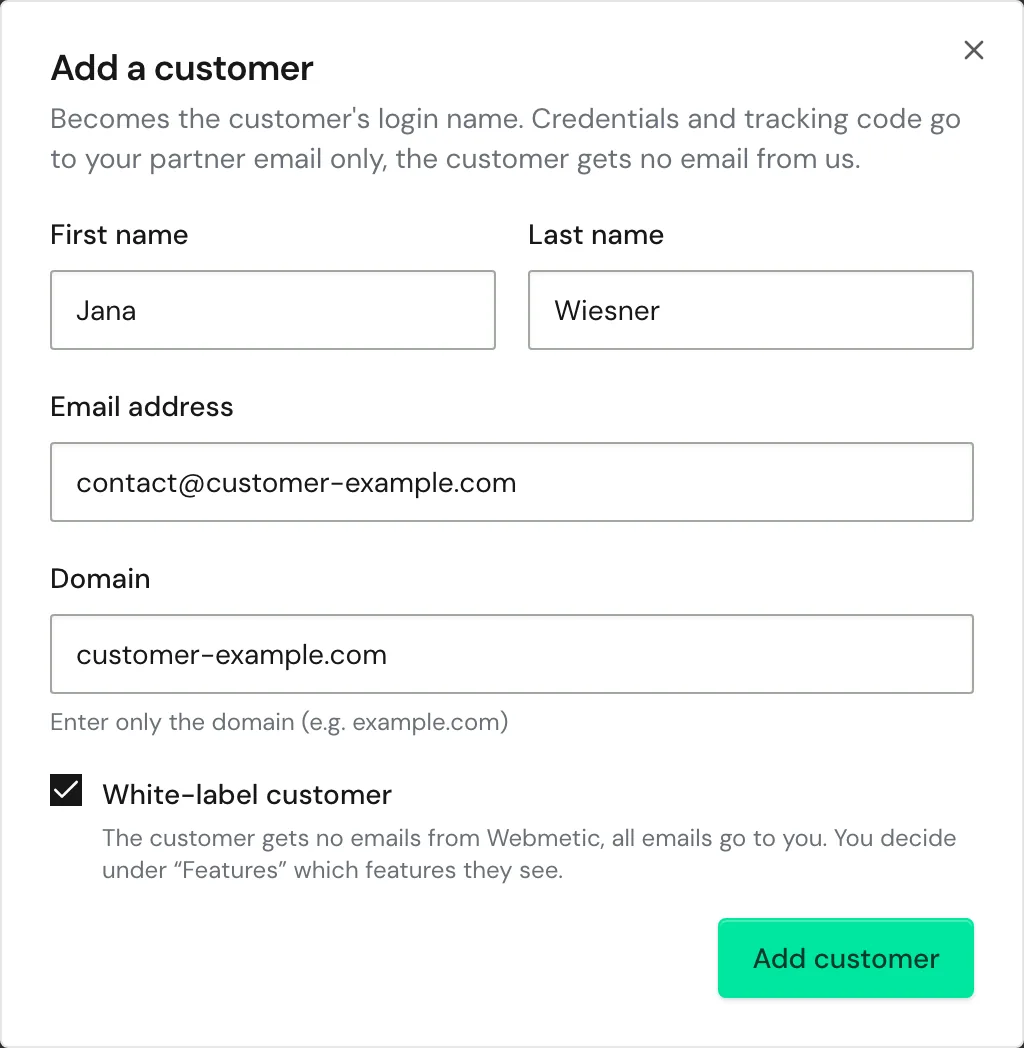
No client goes without data unnoticed
The client list moves clients that need action to the top, for example when tracking is not set up or no data has come in for more than a day. Your team copies the right tracking code right there.
The client list in the docs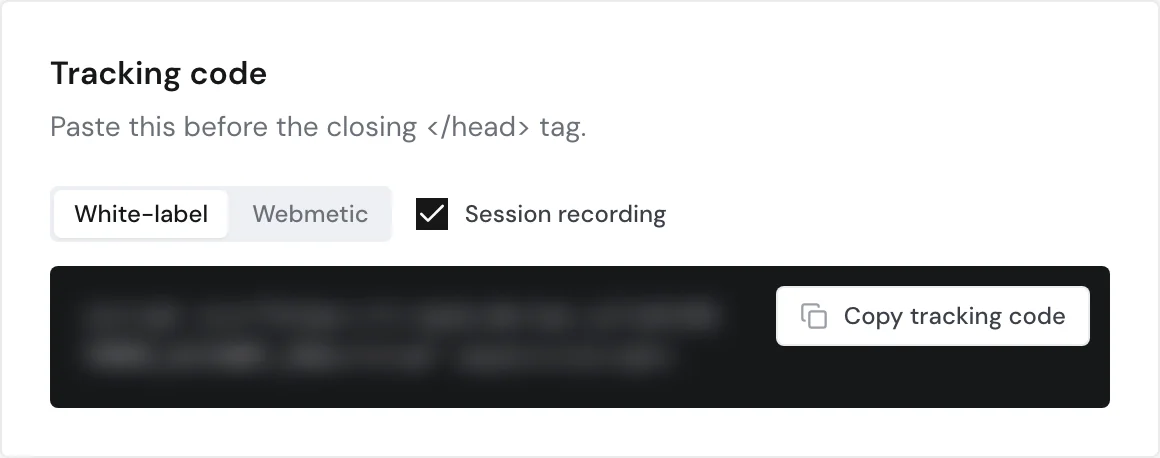
Your client gets a dashboard set up for them
With “Sign in as customer”, your team opens the client's dashboard in the same tab and sets up what they need.
Managing clients in the docs- On every row of the client list
- A bar at the top names the account
- One click takes you back to your account
Your client's team works with its own logins
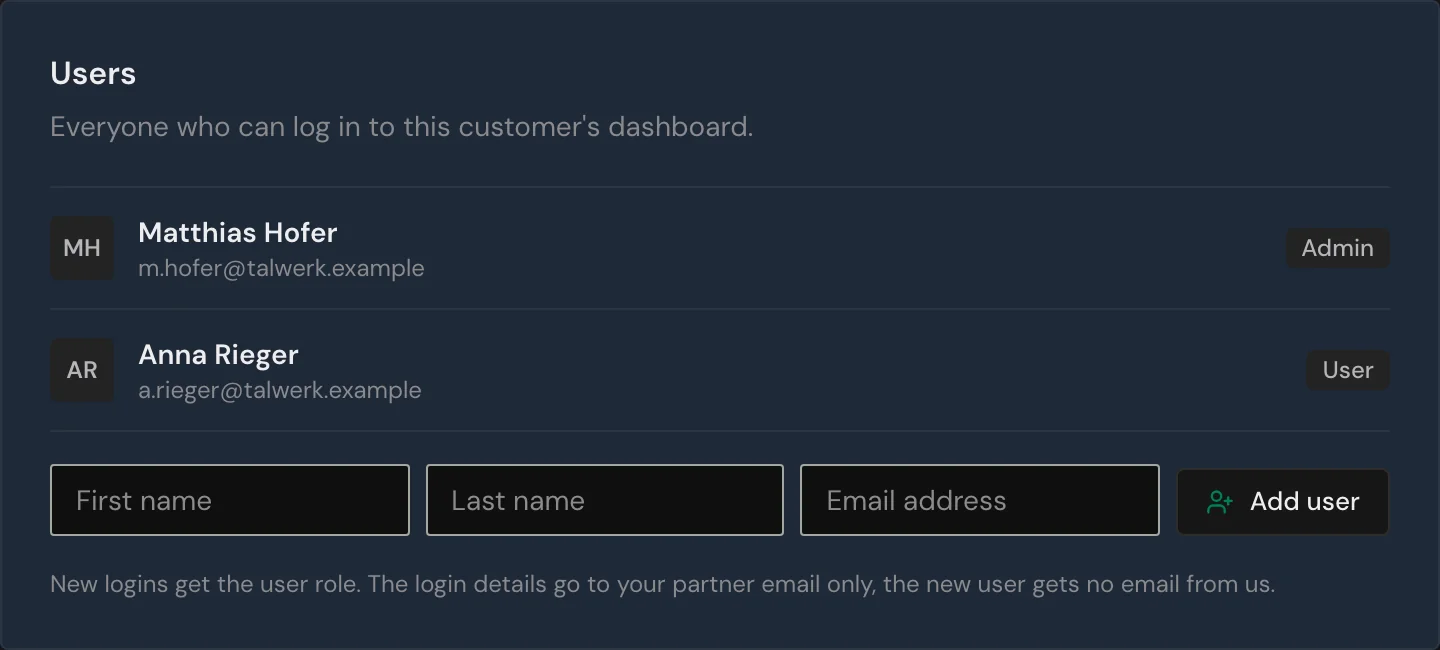
Under Users, you give more people at your client their own login with the User role. For white‑label customers, the login details go to you, not to your client.
What white label covers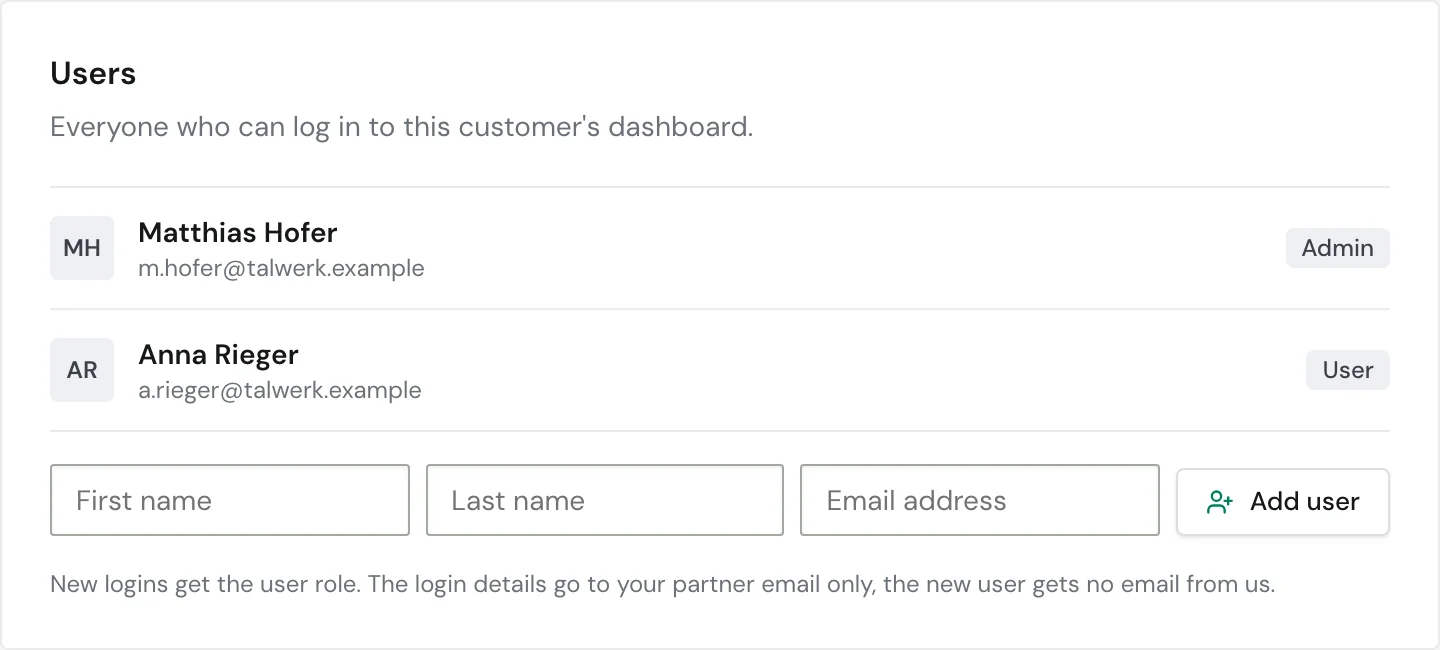
Look after many clients without checking each one
Every client of your partner account sits in one list, and whatever needs doing is at the top.
Managing clients in the docsSpot failures and drops
The top of the client list shows clients whose tracking is missing or whose numbers fall sharply. Webmetic names each reason once and lists every affected client below it.
Pass on the tracking code directly
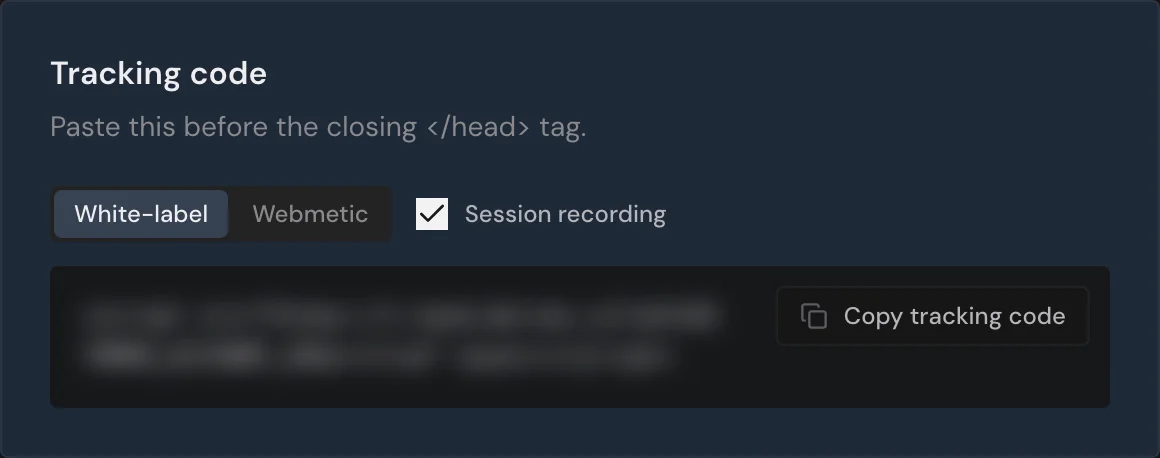
Your team copies the right tracking code from the client's row and sends it to the client or their web team without opening the customer page.
Find any client through search
Under All customers, your team searches by name, website or email address. The list is sorted by the number of identified companies.
Walk into client meetings with numbers
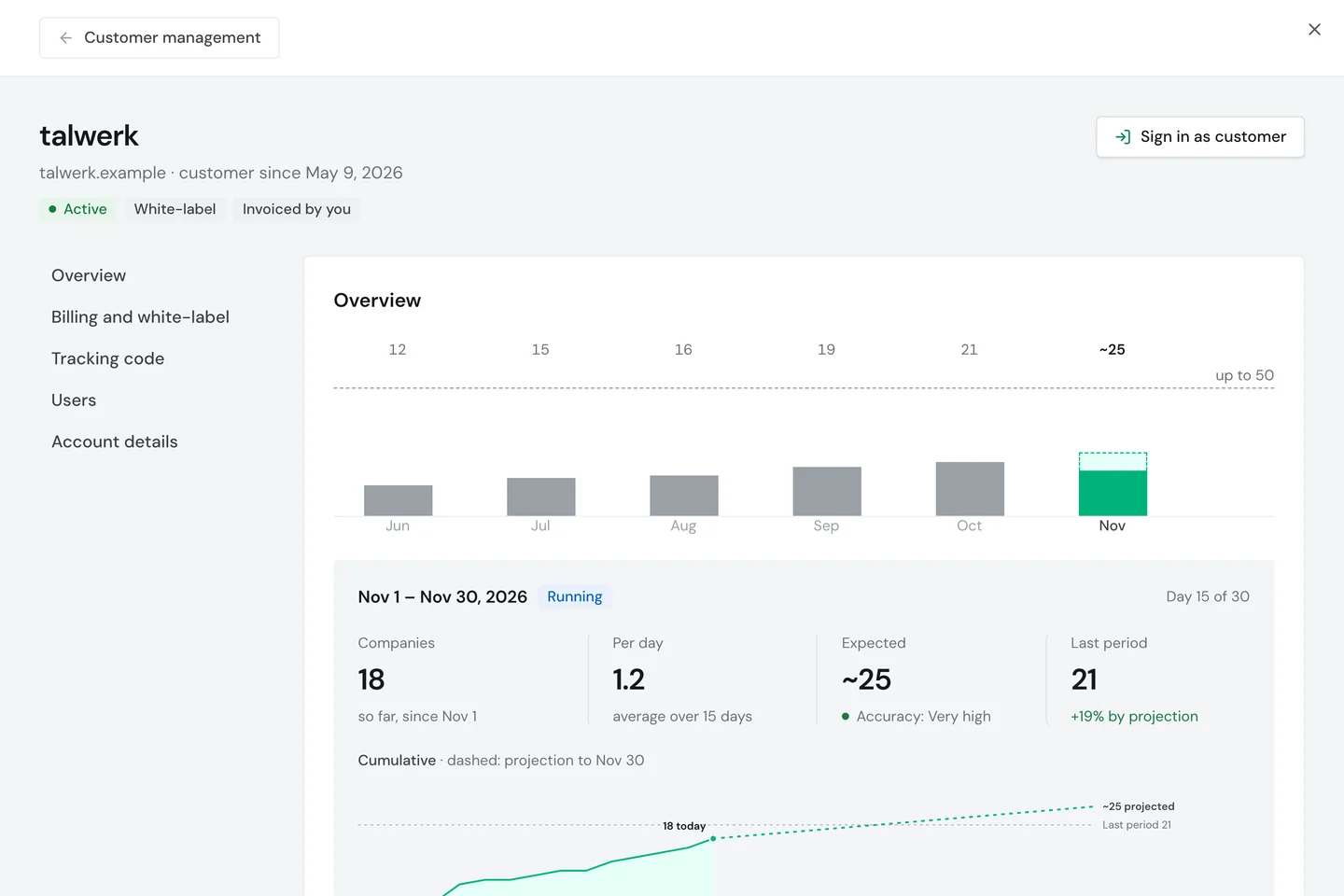
The customer page shows the new companies since the start of the month, the projection to month end and the previous month, so your team knows how the client's month is going before the meeting.
Set up the client's dashboard yourselves
“Sign in as customer” opens the client's dashboard in the same tab. One click in the bar at the top takes your team back to your partner account.
Take on new clients three ways
Your team adds a new client with an email address and a domain. Prospects sign up through your partner page, or your team adds them on their own website with the Chrome extension.
Every issue with its reason and next step
Webmetic places each client that needs action above All customers, with one of four reasons. Below, each row shows the tracking status, the last six months as bars, the current month with its projection and the previous month, and the number of users.
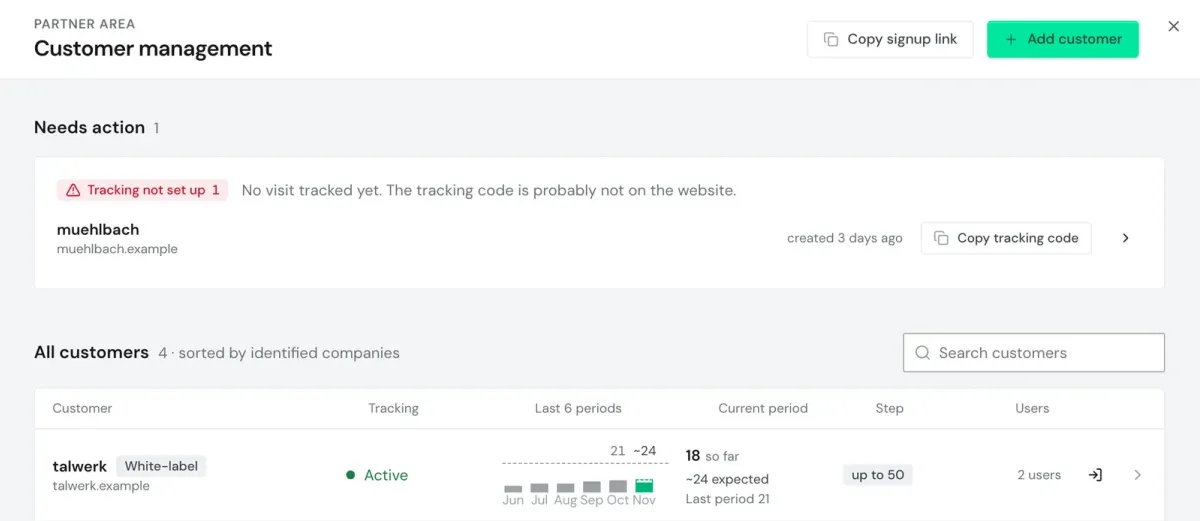
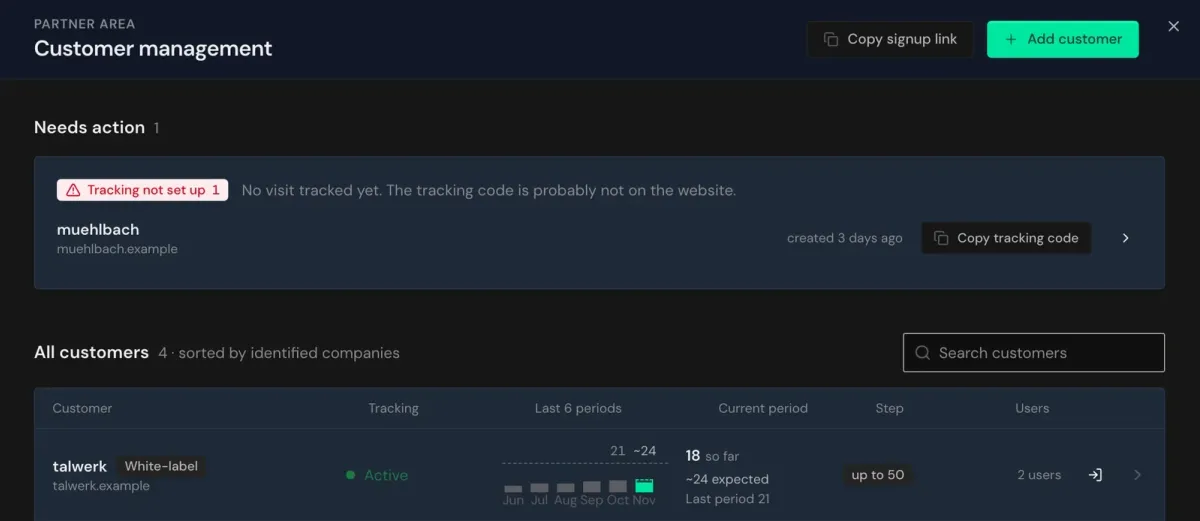
Tracking not set up
- What it means
- No visit arrived in the last 30 days, with or without the client's account ID.
- What your team does
- Your team has the tracking code from the customer page added to the website and replaces any code from another account.
Tracking faulty
- What it means
- Data arrived in the last 30 days, but without an account ID. The code is probably incomplete.
- What your team does
- Your team replaces the code on the website with the code from the customer page.
No recent data
- What it means
- Data with the client's account ID arrived in the last 30 days, but nothing for more than 24 hours.
- What your team does
- Your team checks whether the code is still on the website after a change to the site.
Significant drop
- What it means
- The projection is at least 30% below the previous month, although tracking is running.
- What your team does
- Your team checks with the client whether their website gets fewer visits. It is rarely a technical problem.
For the first three reasons, your team copies the tracking code right in the client's row.
Each client's results on one page
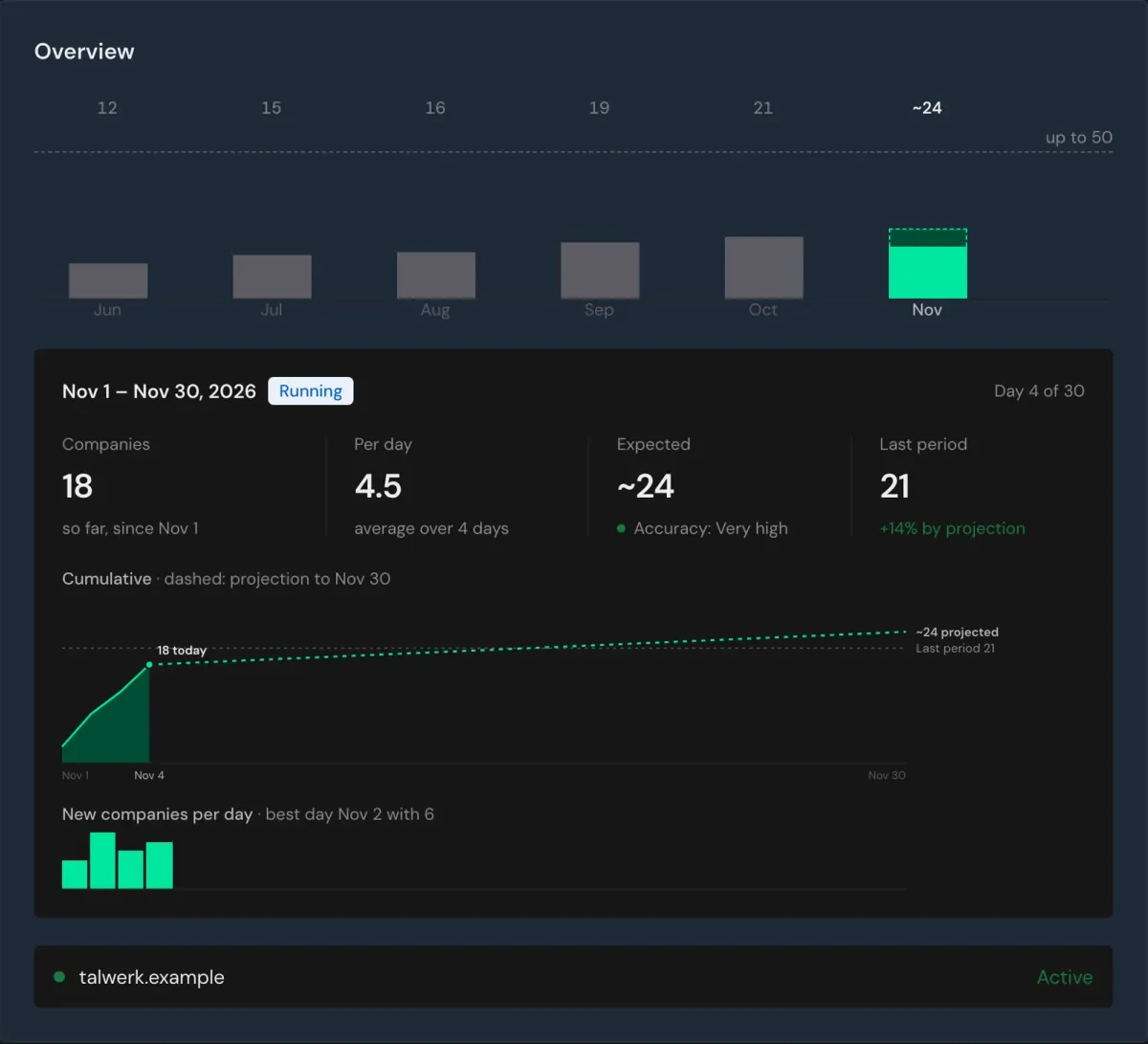
Before a client meeting, your team sees how many companies Webmetic identifies for that client. The overview on the customer page shows the last six months as bars, and a click on a month shows its numbers below.
- Companies
- new companies identified since the start of the month
- Per day
- the daily average
- Expected
- the expected total by month end, with its accuracy
- Last period
- the previous month's total and how the projection compares
- Cumulative
- companies added up day by day, with the projection and the previous month
- New companies per day
- one bar for each day
Below that are the client's websites with their tracking status. Where possible, Webmetic estimates how many companies per month are realistic.
A client's numbers in the docs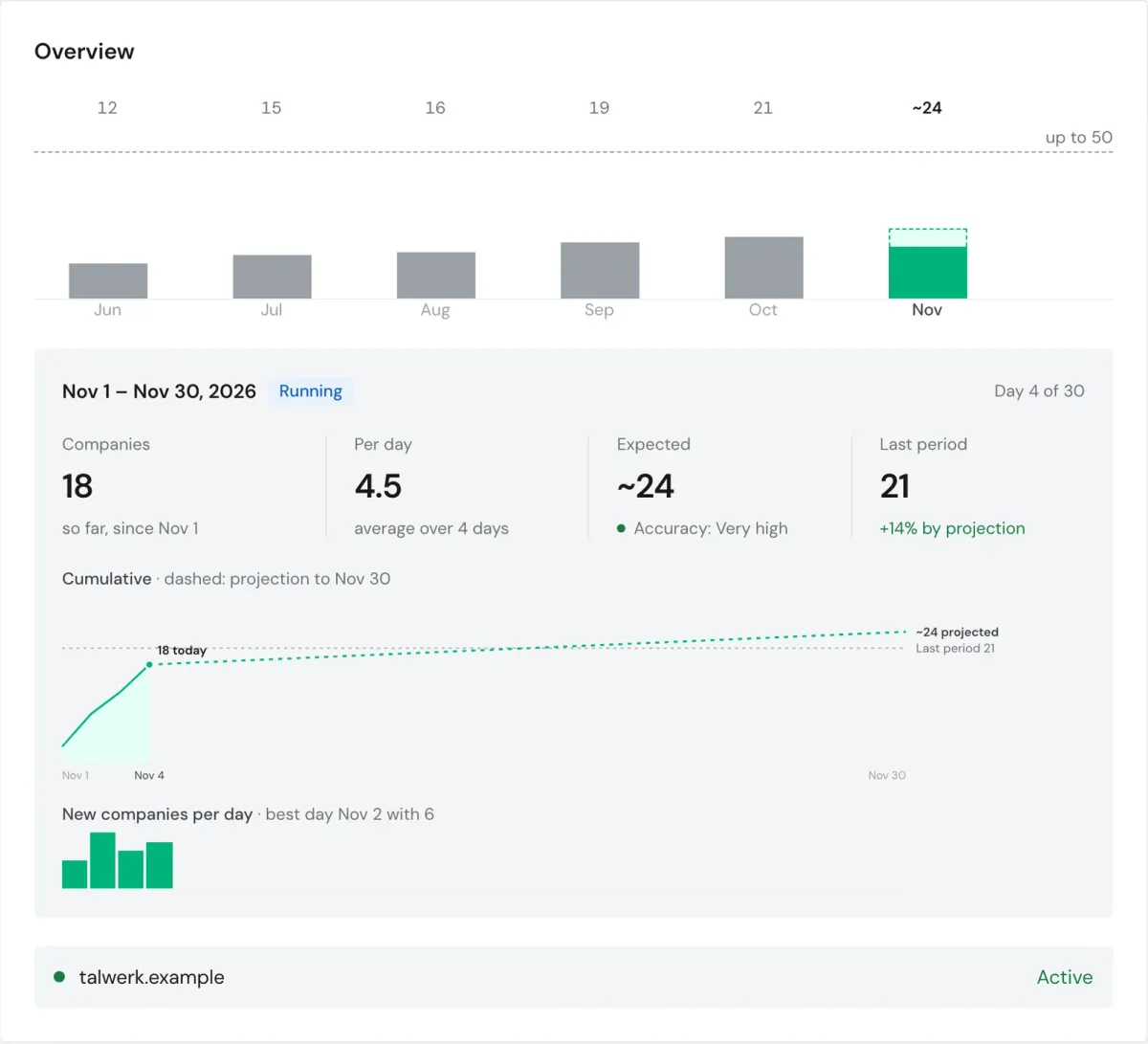
You decide whether Webmetic emails your client
When you add a client, the White‑label customer checkbox decides whether emails from Webmetic go to your client or only to you. You can change it later on the customer page.
Without white label
Emails go to your client
- Login details and tracking code
- by email to your client
- Password emails and notifications
- to your client's users
- Features in the dashboard
- all features
- Preselected tracking code
- the Webmetic version
White‑label customer
Emails go only to you
- Login details and tracking code
- only to the first admin of your partner account
- Password emails and notifications
- to the first admin of your partner account
- Features in the dashboard
- your selection under Features
- Preselected tracking code
- the neutral White‑label version without the Webmetic name
More logins follow the same rule
Admins of your partner account give more people at your client a login with the User role under Users. Depending on the setting, the login details go to your client or to you.
With the Partner API, you hand over the login
For clients from the Partner API, Webmetic sends no login details by email. You pass the password on to your client yourself.
Go to the Partner APISelf‑registered clients start without white label
Anyone who signs up through your partner page becomes your client. You can switch on white label on the customer page when needed.
Your first client in three steps
The partner area in the docsThe client gets an account
Your team clicks “Add customer” in the partner area and enters the client's email address and domain.
The website sends data
Webmetic sends the login details and tracking code to the client, or only to you if you choose. The code needs to be on every page of the website.
Your team looks after the client
The client list shows whether data is coming in. With “Sign in as customer”, your team sets up what the client needs.
Frequently asked questions
We walk you through the partner area in a call.
We set it up for your account and answer your questions.