Your clients sign in with your agency
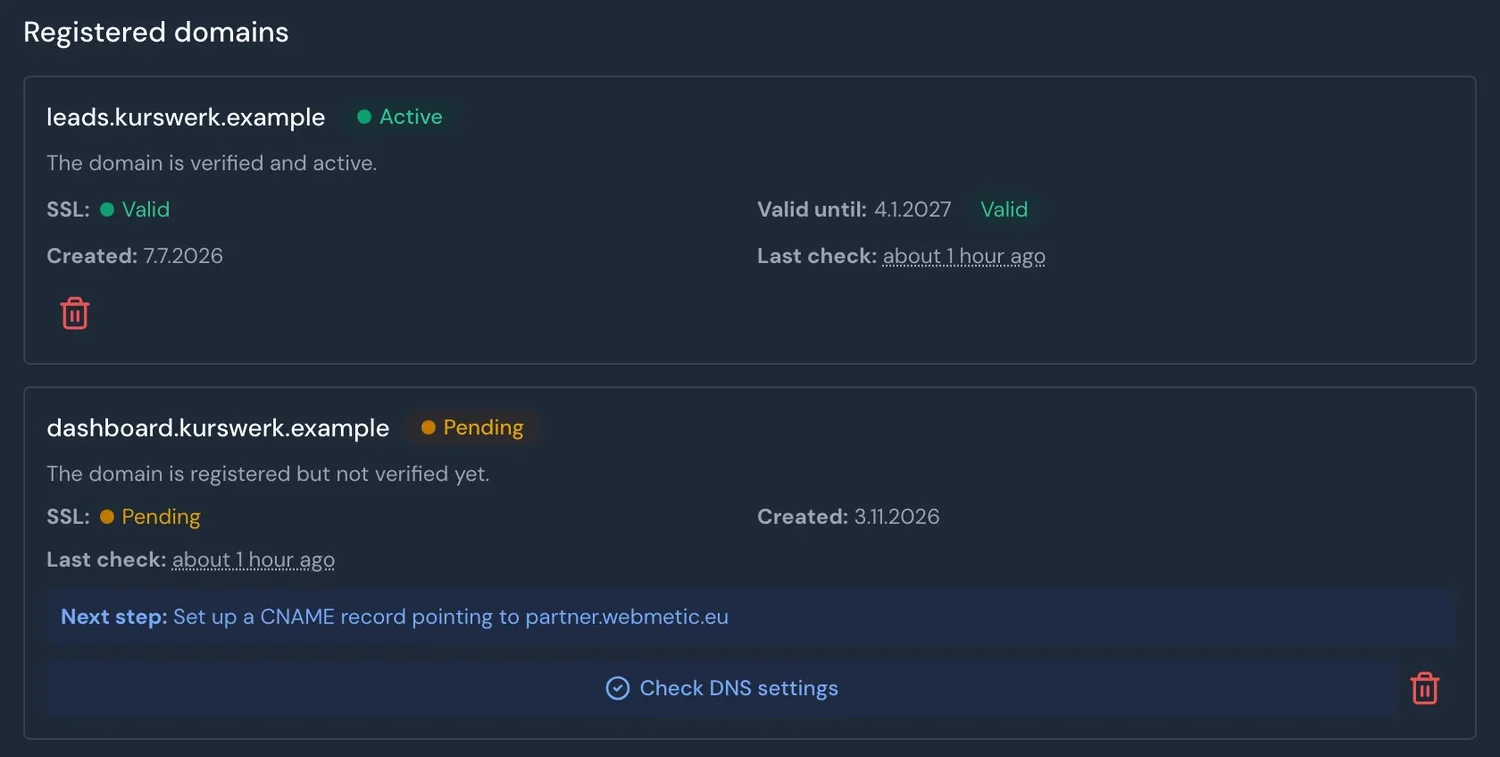
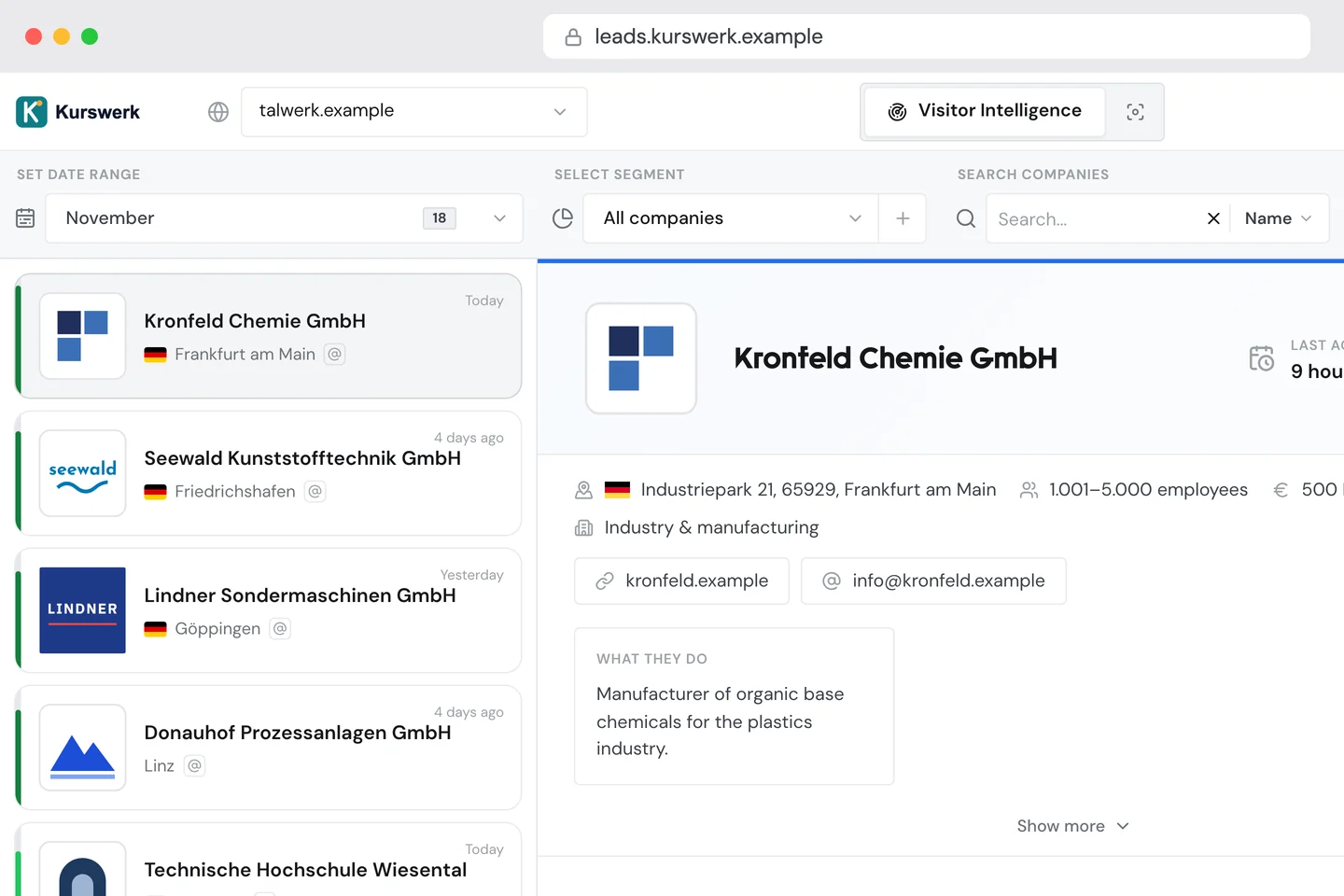
Your client opens a subdomain of your agency, such as leads.agency‑example.com.
That is where they find their login page, the opt‑out page and their dashboard.
White‑label
Your agency gives its clients a dashboard under its own brand, where they see which companies visit their website.
Your agency sets the address, the logo and the scope of the dashboard your clients work with.
Your client opens a subdomain of your agency, such as leads.agency‑example.com.
That is where they find their login page, the opt‑out page and their dashboard.
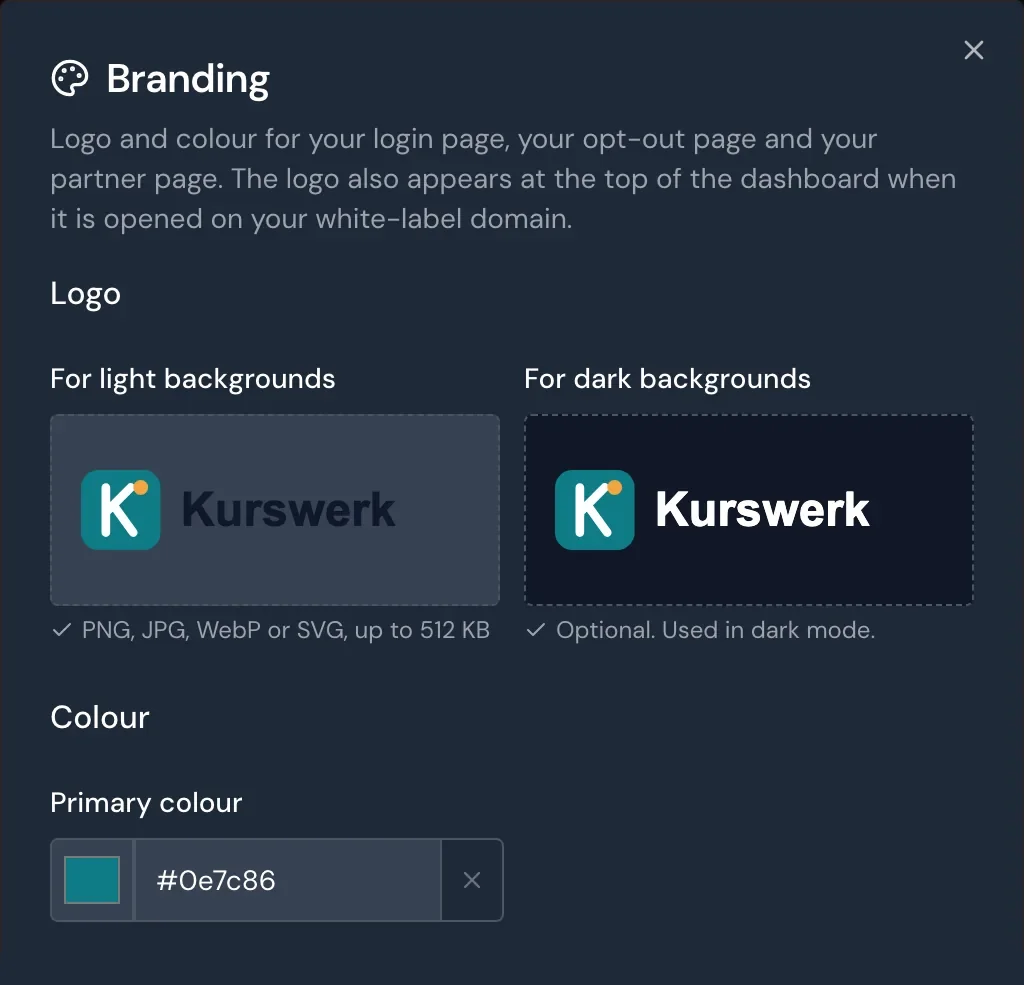
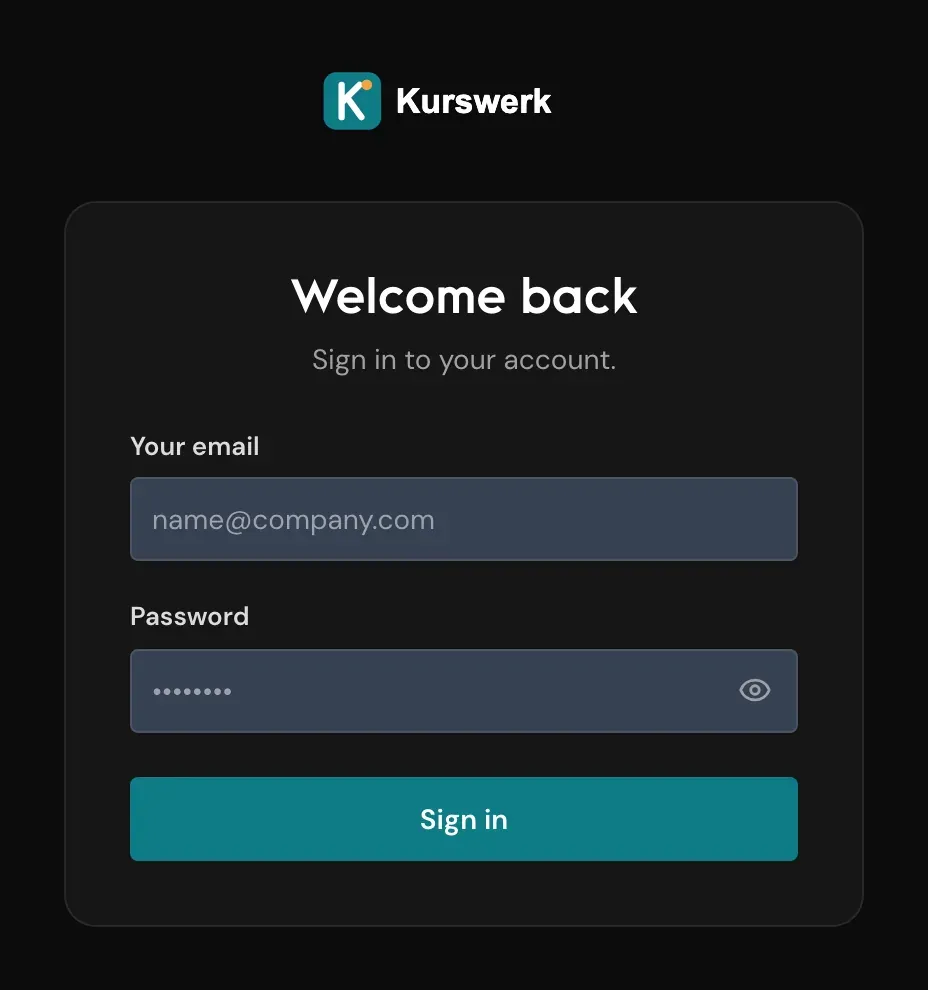
The login and opt‑out pages show your logo, and the sign‑in button takes your color. In the dashboard, your logo sits at the top.
Branding in the docs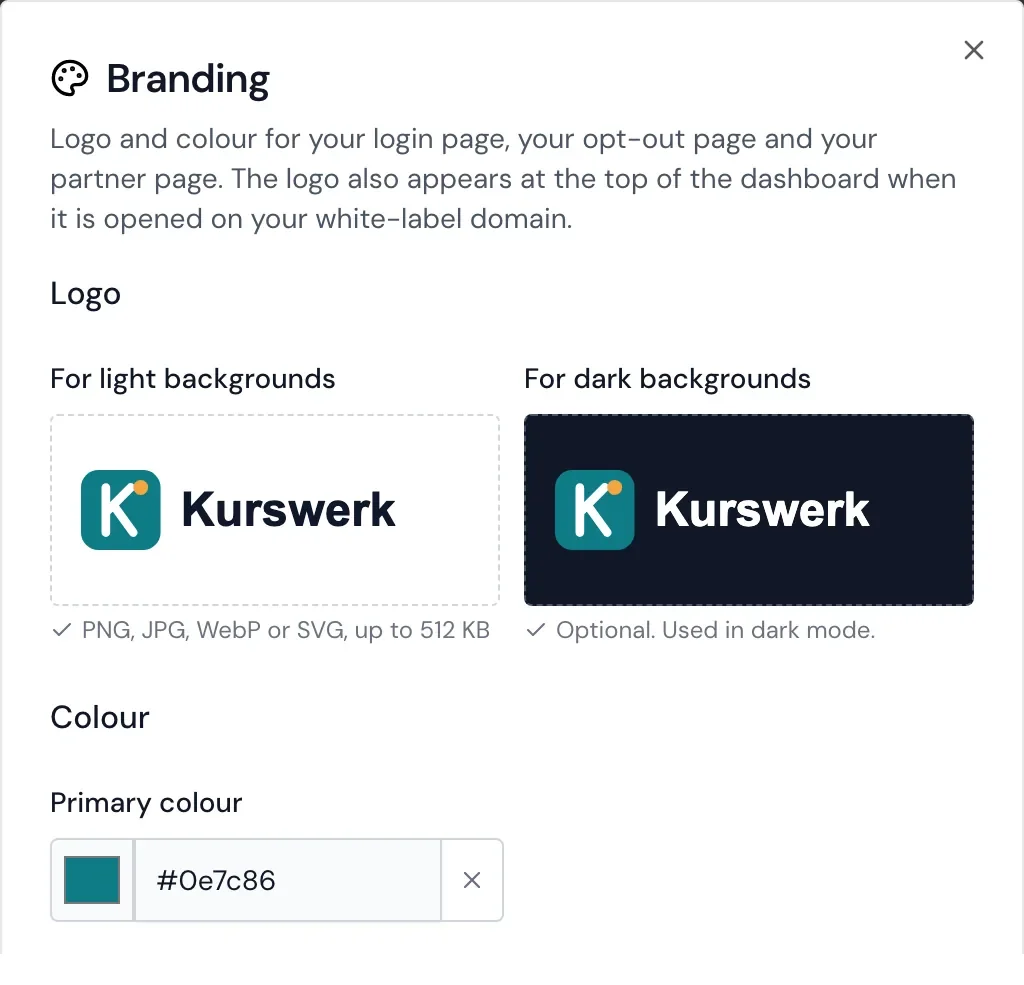
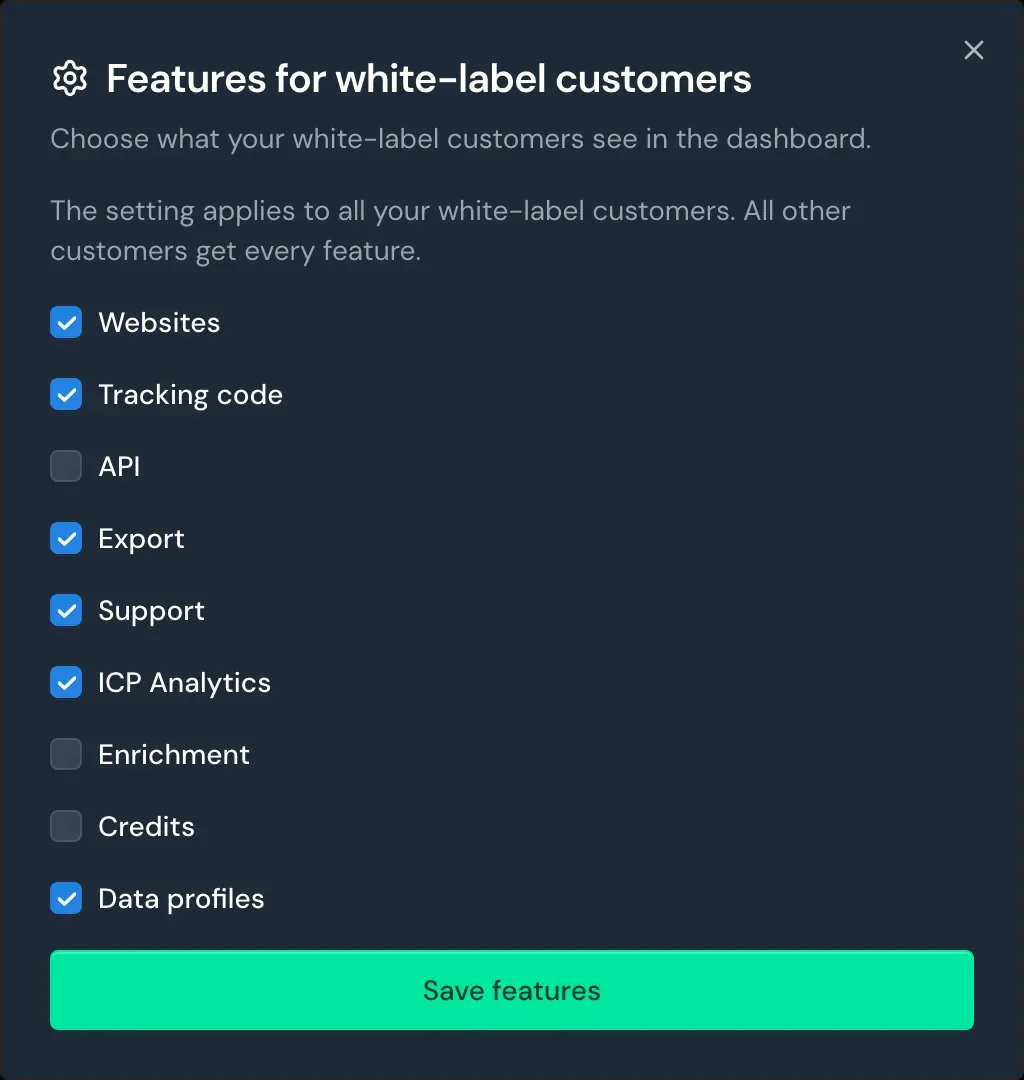
You switch nine areas on or off, from Websites to Export and Enrichment. Areas left unticked do not appear in your clients' menu or tabs.
Features in the docs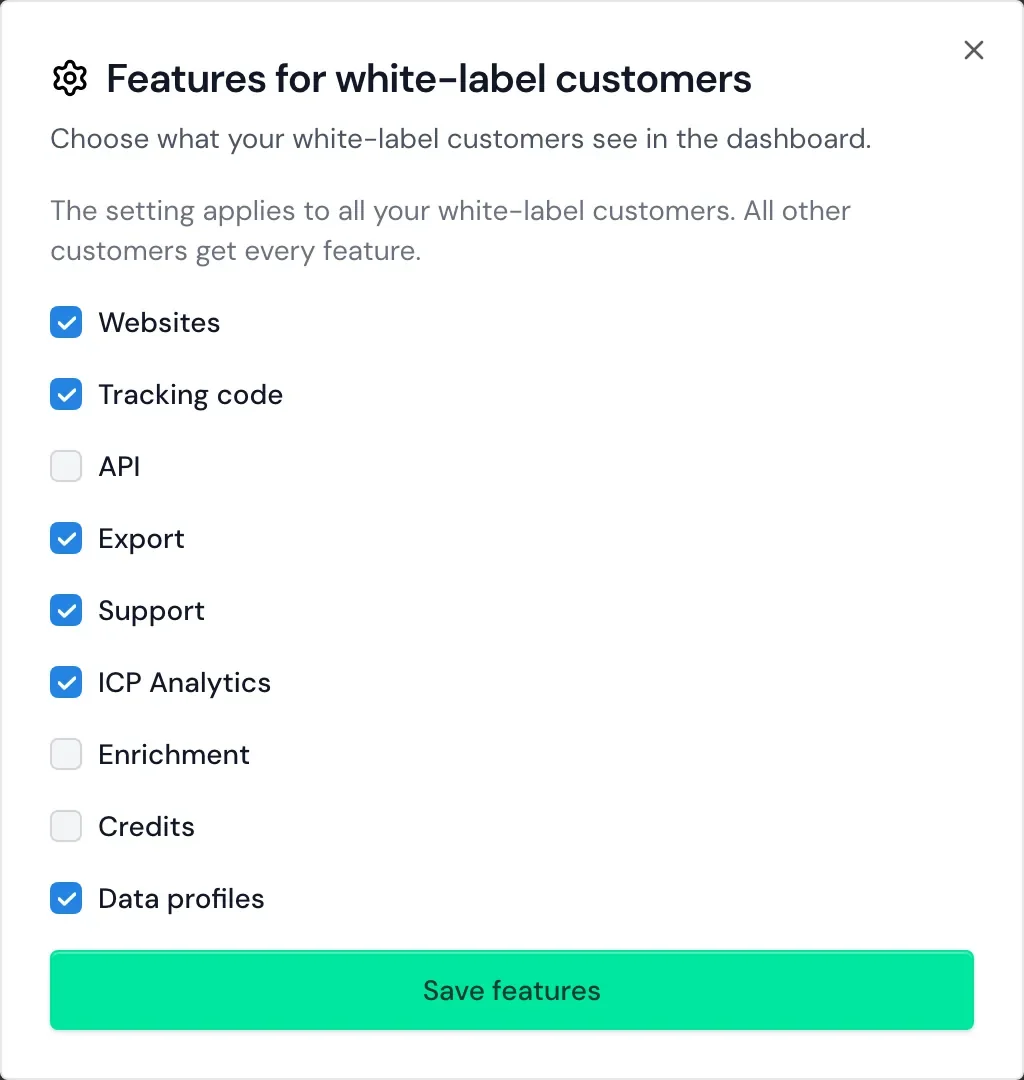
These areas stay on for every white‑label client, whatever you select.
Only clients without white‑label get email notifications and integrations such as HubSpot.
Your white‑label client meets your brand or your team in six places.
The login page on your subdomain shows your logo, and the sign‑in button takes your color.
After sign‑in, your logo sits at the top of the dashboard. For dark mode, your team can upload a second logo.
The opt‑out page also sits on your subdomain, with your logo and your color.
Webmetic sends your client no emails. Login details, password emails and notifications go to your agency.
The code on your client's website does not carry the Webmetic name. Your team copies it from the client page.
Webmetic issues the certificate for your subdomain and renews it automatically.
Until you save a logo, the login page shows the Webmetic logo.
Set up branding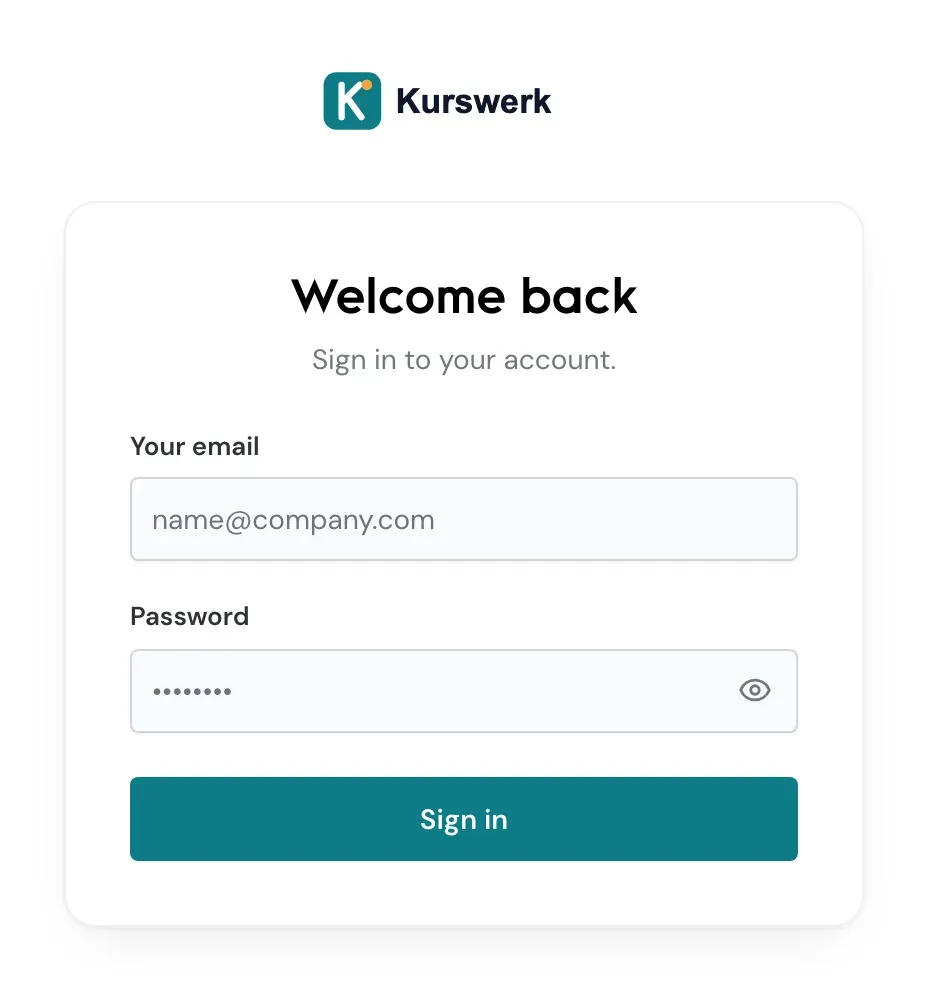
For each of the nine areas, you decide whether your white‑label clients see it. Your team ticks it under Features. Without a tick, the area is missing from the menu and tabs.
When you click Activate white‑label, Webmetic turns on the first five areas. The other four stay as they are.
Set features for clientsWebsites
Your client adds and removes domains themselves.
Tracking code
Your client finds the neutral tracking code in their own dashboard.
API
Your client's admins see API, MCP and Webhooks under Integrations.
Export
Your client exports the company list and creates PDFs and AI briefings. Without a tick, export is blocked at the technical level too.
Support
Your client writes to support from the profile menu. The message goes to Webmetic support.
ICP Analytics
The tab shows how many companies fit your client's ideal customer profile, by channel, industry, region and page.
Enrichment
Your client adds industry, employee count, revenue and phone number to their own company lists.
Credits
Your client sees their credits in the dashboard.
Data profiles
Your client sees the contact profile and organization types. Without a tick, they cannot search for contacts.
Your agency decides for each client whether they are a white‑label client. Both show the companies on the client's website. They differ in emails, logins and areas.
Without white‑label | With white‑label | |
|---|---|---|
| What your client sees | ||
| The companies on their website | Included | Included |
| Your agency's login, logo and color | Not included | Included |
| Dashboard areas | All | Your selection |
| Email notifications | Included | Not included |
| Smart Pages | Included | Not included |
| Integrations such as HubSpot | Included | Not included |
| Logins, emails and tracking code | ||
| Login details and tracking code go to | Your client | Your agency |
| Emails from Webmetic go to | Your client | Your agency |
| Additional logins are added by | Your client | Your agency |
| Tracking code | Webmetic version | Neutral version |
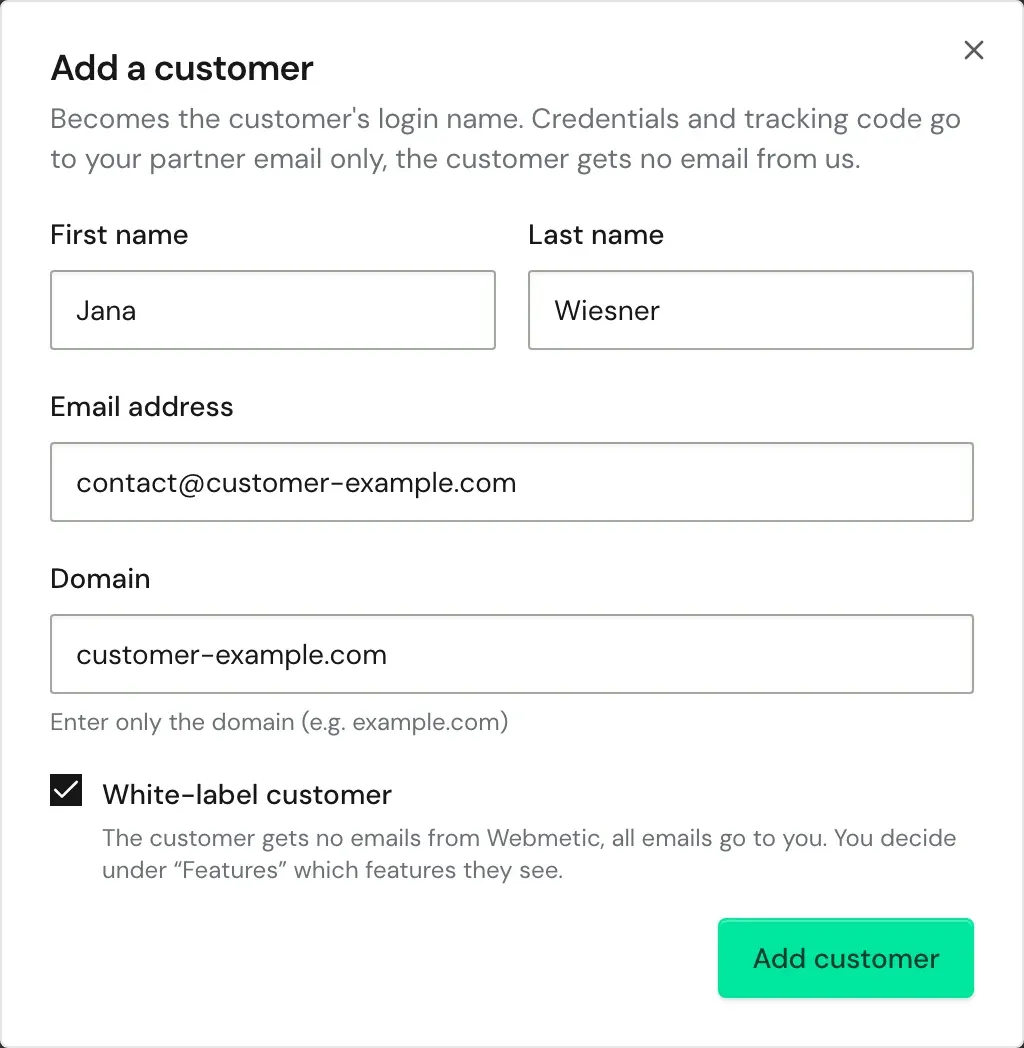
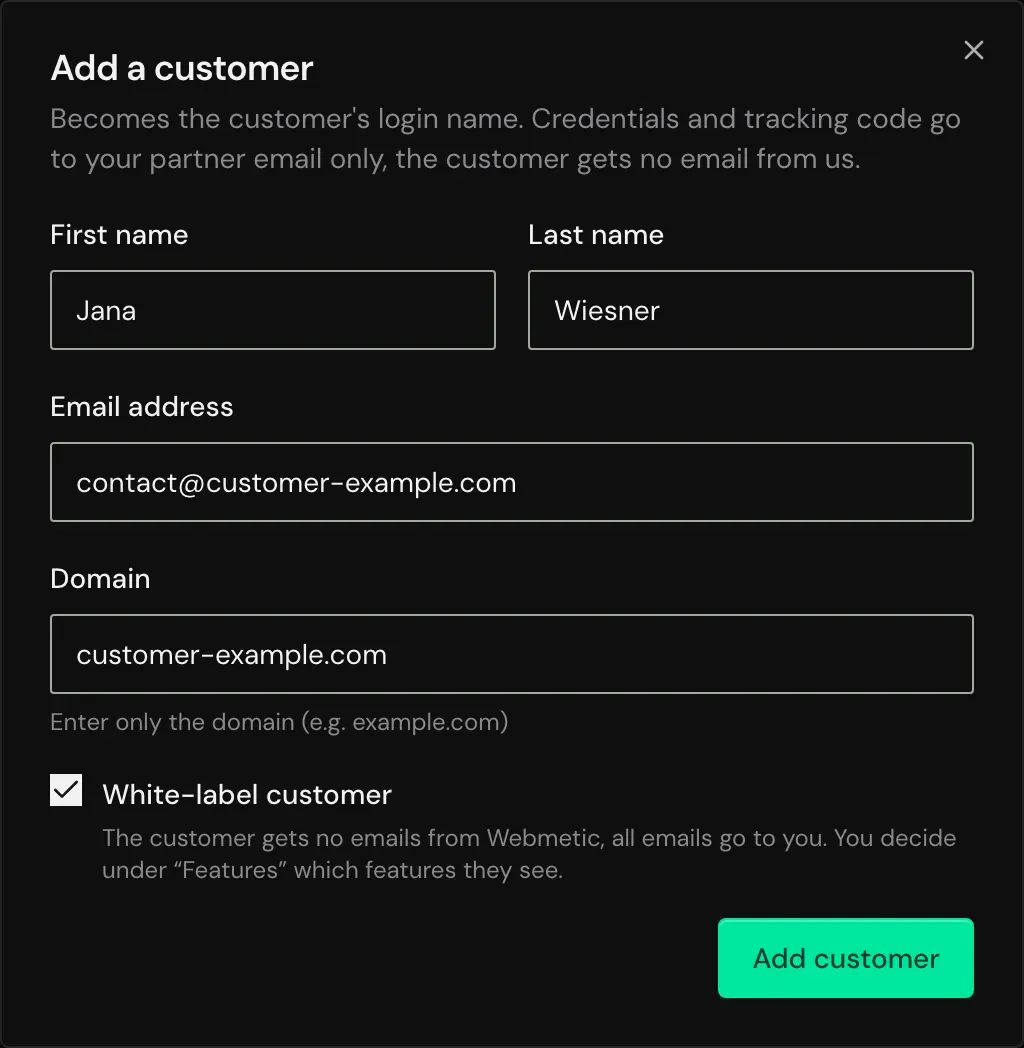
Your team ticks White‑label customer when adding the client. Later, your team turns white‑label on or off on the client page.
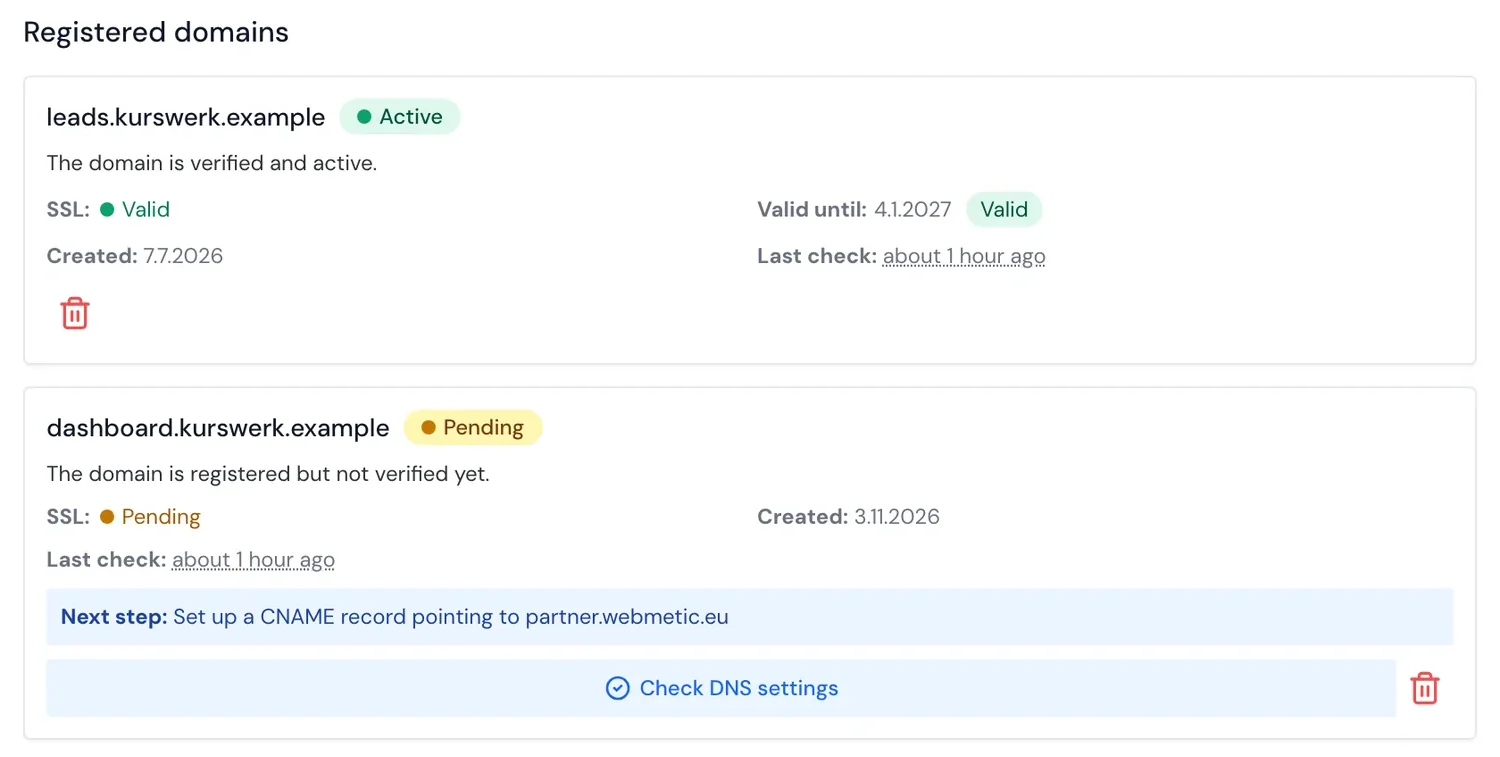
Add clients in the docsYour team registers a subdomain such as leads.agency‑example.com and connects it with a record at your DNS provider.
Your team uploads your logo and sets your color. Both apply to all your white‑label clients.
You decide which areas your white‑label clients see. The selection applies to all of them at once.
When adding a client, your team ticks White‑label customer. Webmetic sends the login details to your agency, which passes them on to the client.
We set it up for your account and answer your questions.
%20--%3e%3csvg%20version='1.1'%20id='Logo'%20xmlns='http://www.w3.org/2000/svg'%20xmlns:xlink='http://www.w3.org/1999/xlink'%20x='0px'%20y='0px'%20viewBox='0%200%20227.7%2039.7'%20style='enable-background:new%200%200%20227.7%2039.7;'%20xml:space='preserve'%3e%3cstyle%20type='text/css'%3e%20.st0{fill:%231D1D1B;}%20%3c/style%3e%3cg%3e%3cpath%20class='st0'%20d='M218.6,38.9c-6.5,0-11.4-4.9-11.4-11.3s4.9-11.3,11.4-11.3c3.4,0,6.4,1.3,8.4,3.6l0.1,0.2l-3.3,3.2l-0.2-0.2%20c-1.2-1.4-3.1-2.3-5.1-2.3c-3.9,0-6.6,2.8-6.6,6.8s2.8,6.8,6.6,6.8c2,0,3.9-0.8,5.1-2.3l0.2-0.2l3.3,3.2l-0.1,0.2%20C224.9,37.7,222,38.9,218.6,38.9z'/%3e%3cpath%20class='st0'%20d='M87.5,38.9c-6.4,0-11.3-4.8-11.3-11.1s4.8-11.4,11.3-11.4S98.4,21,98.4,27.6v2H81c0.7,3,3.2,5,6.5,5%20c2.5,0,4.3-1.1,5.2-2.1l0.2-0.2l3.2,3.1l-0.2,0.2C94,37.7,91,39,87.5,38.9L87.5,38.9z%20M93.5,25.4c-0.3-2.7-2.9-4.7-6.1-4.7%20s-5.5,1.8-6.3,4.7H93.5z'/%3e%3cpath%20class='st0'%20d='M112.9,38.9c-2.4,0-4.7-0.7-6.6-2.2v1.6h-4.7V8h4.7v10.5c1.9-1.4,4.2-2.1,6.6-2.1c6.5,0,11.4,4.8,11.4,11.3%20S119.5,38.9,112.9,38.9L112.9,38.9z%20M112.9,20.9c-3.8,0-6.6,2.9-6.6,6.8s2.8,6.8,6.6,6.8s6.6-2.9,6.6-6.8S116.7,20.9,112.9,20.9z'%20/%3e%3cpath%20class='st0'%20d='M151.9,38.4V24.6c0-2.1-1.6-3.7-3.7-3.7s-3.8,1.6-3.8,3.7v13.9h-4.7V24.6c0-2.1-1.6-3.7-3.7-3.7%20s-3.8,1.6-3.8,3.7v13.9h-4.6V16.9h4.2v1.6c0,0,1.6-2.2,4.7-2.2c2.3,0,4.4,1,5.9,2.7c0.9-1.1,2.8-2.7,6.1-2.7c4.4,0,8,3.5,8,7.9%20v14.2H151.9L151.9,38.4z'/%3e%3cpath%20class='st0'%20d='M170.9,38.9c-6.4,0-11.3-4.8-11.3-11.1s4.9-11.4,11.3-11.4s10.9,4.6,10.9,11.2v2h-17.3c0.7,3,3.2,5,6.5,5%20c2.5,0,4.3-1.1,5.2-2.1l0.2-0.2l3.2,3.1l-0.1,0.2C177.4,37.7,174.4,39,170.9,38.9L170.9,38.9z%20M176.9,25.4%20c-0.3-2.7-2.9-4.7-6.1-4.7s-5.5,1.8-6.3,4.7H176.9L176.9,25.4z'/%3e%3crect%20x='199.4'%20y='17.2'%20class='st0'%20width='4.7'%20height='21.3'/%3e%3cpolygon%20class='st0'%20points='195.9,17.2%20191.9,17.2%20191.9,12.1%20187.1,12.1%20187.1,17.2%20183.1,17.2%20183.1,21.1%20187.1,21.1%20187.1,38.4%20191.9,38.4%20191.9,21.1%20195.9,21.1%20'/%3e%3cpolygon%20class='st0'%20points='70.7,16.9%2065.5,31%2060.8,19.3%2057.5,19.3%2052.7,31%2047.6,16.9%2042.5,16.9%2050.7,38%2054.8,38%2059.1,26.3%2063.4,38%2067.5,38%2075.8,16.9%20'/%3e%3c/g%3e%3cg%3e%3ccircle%20class='st0'%20cx='3.5'%20cy='34.8'%20r='3.2'/%3e%3ccircle%20class='st0'%20cx='3.5'%20cy='24.4'%20r='3.2'/%3e%3ccircle%20class='st0'%20cx='13.9'%20cy='24.4'%20r='3.2'/%3e%3ccircle%20class='st0'%20cx='24.3'%20cy='24.4'%20r='3.2'/%3e%3ccircle%20class='st0'%20cx='13.9'%20cy='14'%20r='3.2'/%3e%3ccircle%20class='st0'%20cx='24.3'%20cy='14'%20r='3.2'/%3e%3ccircle%20class='st0'%20cx='34.6'%20cy='14'%20r='3.2'/%3e%3ccircle%20class='st0'%20cx='34.6'%20cy='3.6'%20r='3.2'/%3e%3c/g%3e%3c/svg%3e "Webmetic")
Personalize your website for every B2B visitor and turn anonymous traffic into qualified leads.
No cookies. 100% GDPR-compliant.
© 2026 Webmetic GmbH. All rights reserved.
Calendar booking interface