

Company profile
Open a company's profile and read its size, industry, contact details, and what it does.
The company profile shows what Webmetic knows about a company that visited your website. At the end you'll have:
- an open profile that you can pass on to your team as a link
- the company's size, industry, location, and contact options, and a description of what it does
- if you need it, a likely email address for a person whose name you know
Before you start
- Time: Reading a profile takes about two minutes.
- Account: You need a Webmetic account with a website where Webmetic has already identified companies.
- Access: The email generator and the Report data button are only available on a large screen. Both are missing on smartphones and on tablets in portrait mode.
- Rights: Every user of your account sees the profile, and you don't need admin rights.
- Plan: The profile is part of every plan, and nothing on this page costs credits. On the Free plan, you see the first 10 new companies each month with their name, and further profiles are blurred. For details, see Free plan.
Open a profile
- Open the Visitor Intelligence tab, which has the company list on the left.
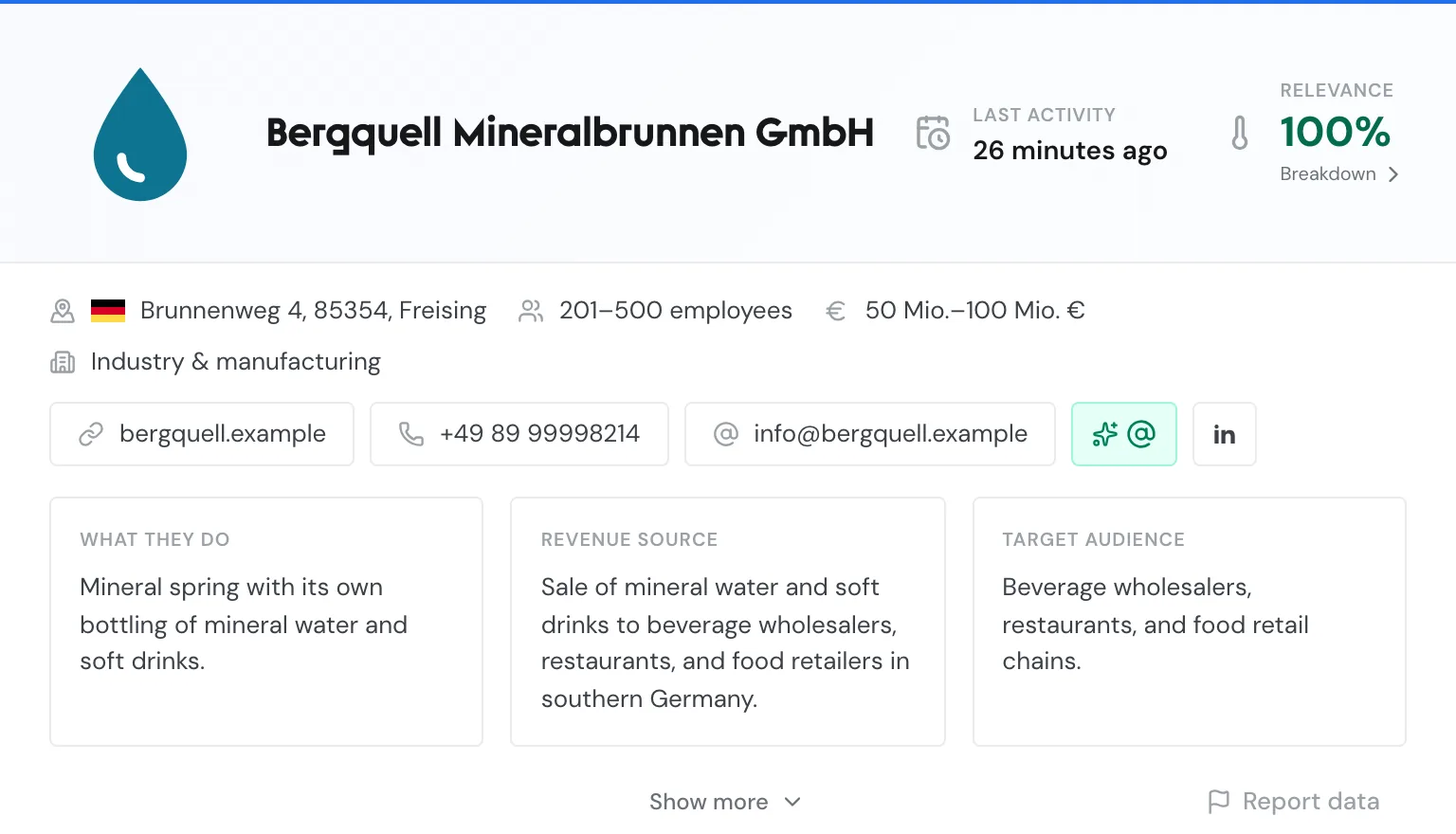
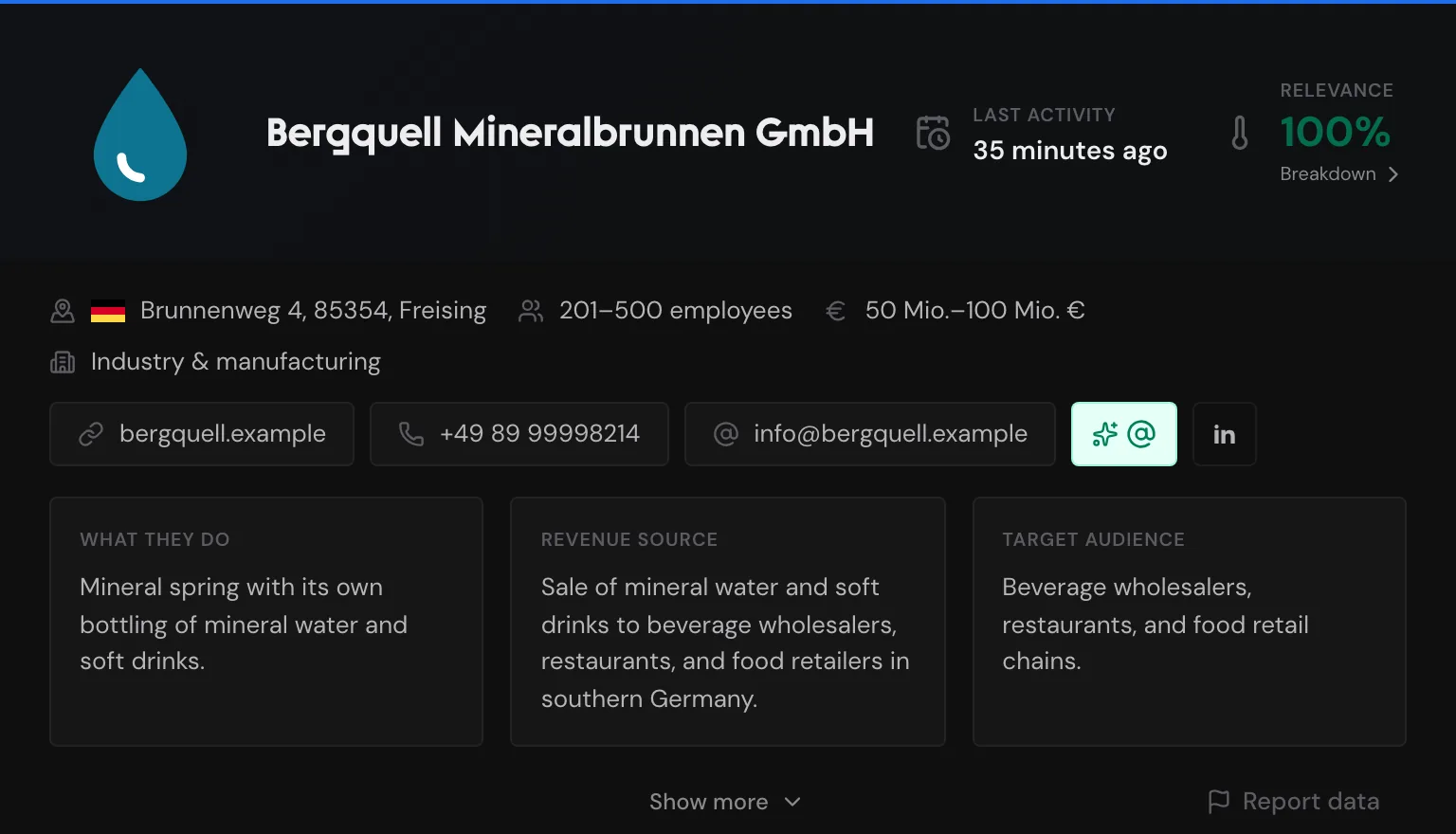
- Click a company's card. The profile opens in the middle.
On desktop, Webmetic opens the first company in the list by itself. To the right of the profile you find the Tags, Manage data, and Comments sections. If your window is narrower, Webmetic only shows a strip of icons there, as described in Manage data. Assign tags, Manage data, and Comments describe how to work with the sections.
Below the company details you see the visits, which Visits and page views explains in detail.
Share a profile as a link
Webmetic has no share button, but the address in your browser leads straight to the profile.
- Open the profile.
- Copy the address from your browser's address bar. The address contains
company_id=and the company's ID. - Send the address to your team. Users of your account who are logged in see the same profile.
The link opens the profile even when the company's last visit lies outside the date range you chose. The links Webmetic writes into your CRM work the same way.
If Webmetic can't find the company, the first company in the list opens on desktop, and the list itself opens on a smartphone. If the list has no companies at all right now, the link opens no profile.
Read the header
At the top you see the company's logo and name, or two initials if there is no logo. Next to them are two values:
- Last activity: when the company was last on your website, for example two hours ago. This is a point in time and not the same as the Activity value.
- Relevance: how important the company is for your sales team, as a percentage. The color of the number changes with its value.
Below the number you see Breakdown. When you click the number or rest your mouse on it for a moment, a card with the values behind it opens. Relevance, activity, and fit explains what the card shows and how Webmetic calculates relevance.
Read the company details
Below the name you see a line with the key facts:
- the address with the country's flag
- the number of employees as a range
- the revenue as a range
Below that you see the industry, one or more of 19 industry categories. You see the main industry first, and any further ones follow in gray.
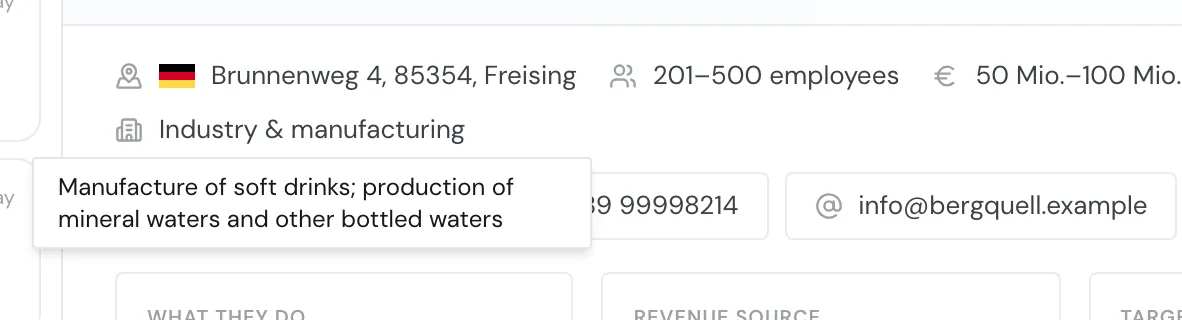
When you move your mouse over the industry, a tooltip shows the official descriptions of the industry classes. The industry code numbers don't appear in the profile, but you find them in the PDF and the AI briefing, which you download under Manage data.
For older records without a category, you see the descriptions directly as text and without a tooltip.
Contact the company
Below the industry you find the contact options as buttons:
- the website, which opens in a new tab
- the phone number, where a click starts the call in your phone app
- the email address, where a click opens a new email in your email program
- the email generator, the mint button with the @ sign
- the social networks LinkedIn, X, Facebook, Instagram, and YouTube, in that order
You only see a button when Webmetic knows the value. You can't edit the profile, but if a value is wrong, you can report it as described in Report wrong data.
Generate an email address
The email generator turns a name into the likely email address of a person at the company. It inserts the name into the address pattern Webmetic knows for the company, for example firstname.lastname. The button only appears when Webmetic has stored such a pattern.
- Below the industry, click the mint button with the @ sign. The email generator form opens.
- Enter the person's First name and Last name. For some patterns, Webmetic also asks for Middle name or Number.
- Click Generate email. The address appears under Generated email:.
- Optional: Click the copy icon (Copy email). Webmetic shows the message Email copied to clipboard.
The generator writes everything in lowercase, turns ä, ö, ü, and ß into ae, oe, ue, and ss, and removes other special characters. Anna Müller, for example, becomes anna.mueller with the company's domain.
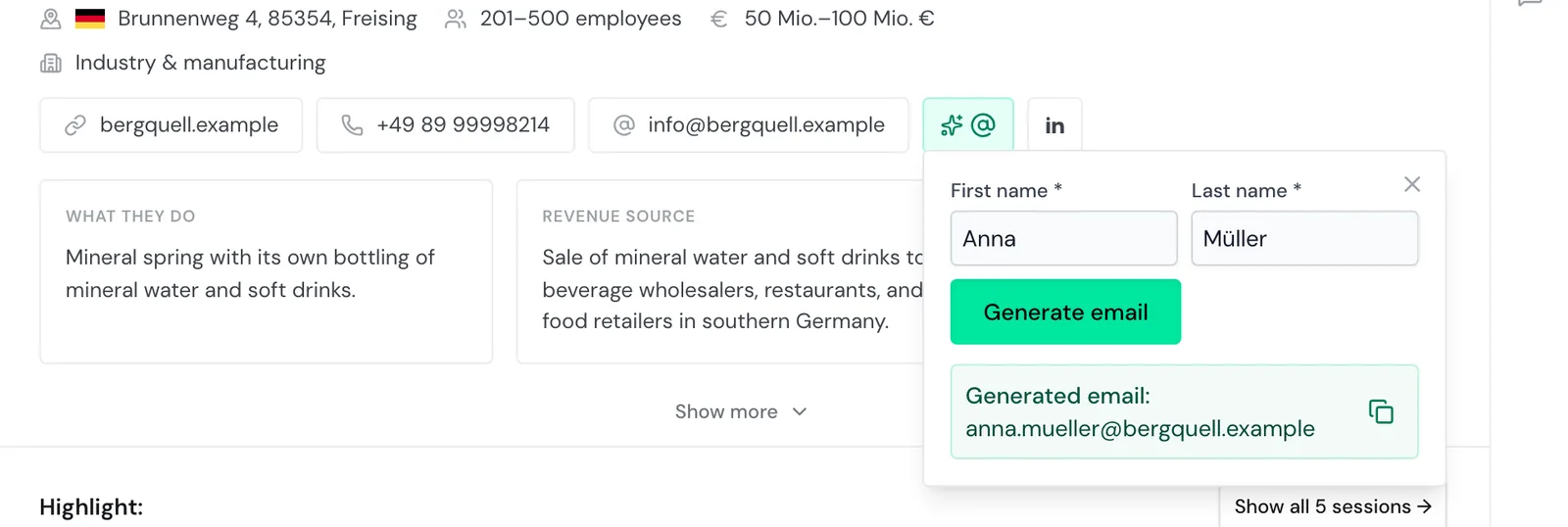
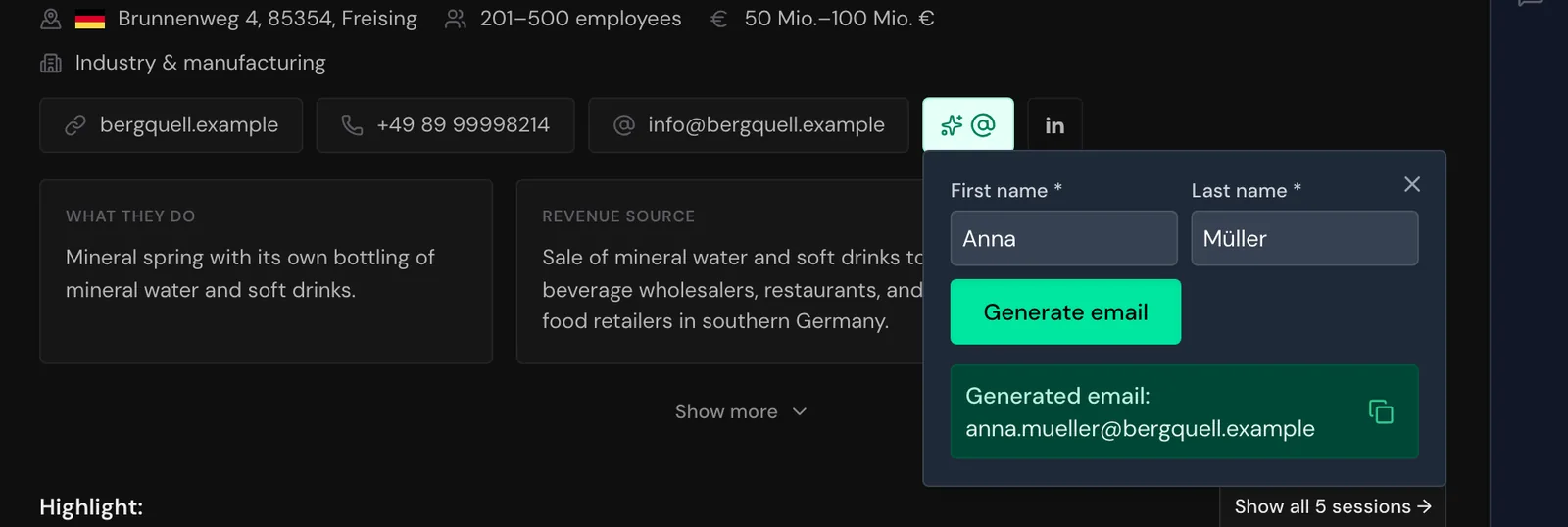
The address is a guess, because Webmetic doesn't check whether the mailbox exists. The generator works in your browser, sends nothing, and costs nothing. You need to know the names yourself, because the generator doesn't find any. Unlocking a contact's email address is a separate feature and costs credits.
Read the descriptions
Below the contact options you see up to three boxes:
- What they do: what the company does.
- Revenue source: how it makes money.
- Target audience: who it sells to.
Each box appears as soon as there is a text for it, and Webmetic shows the texts in the dashboard language. If there is no English version, you see the German text. Before a first call, you see here in a few sentences how the company makes its money.
Expand more details
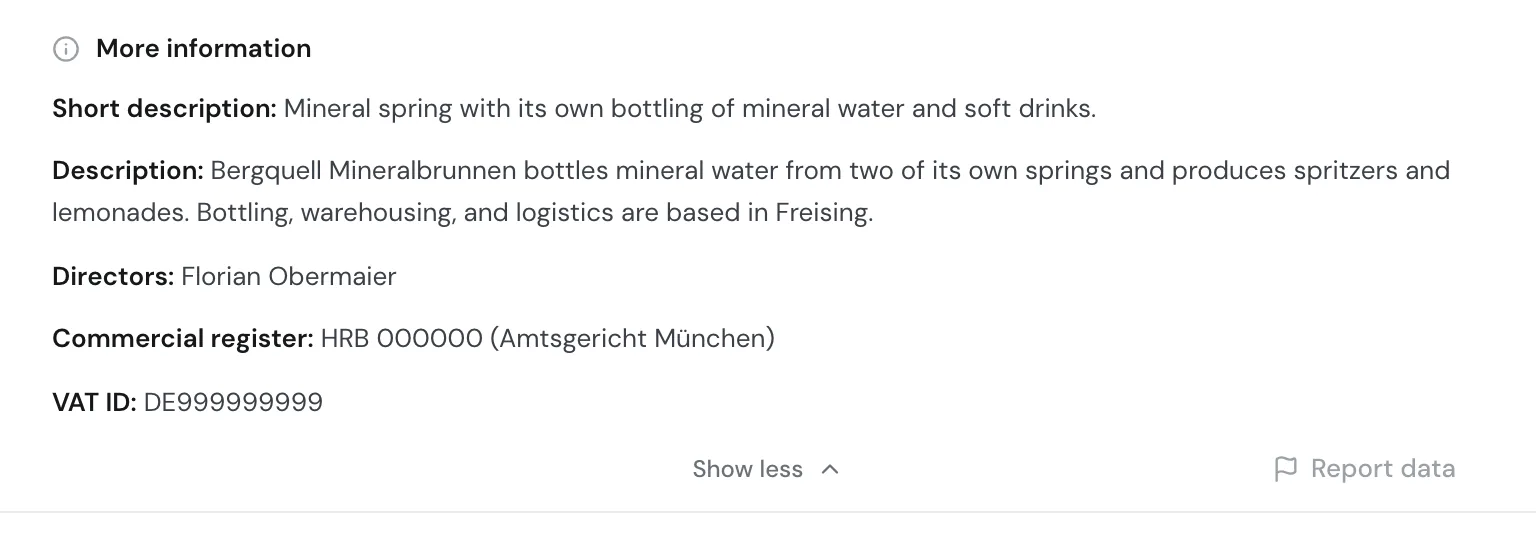
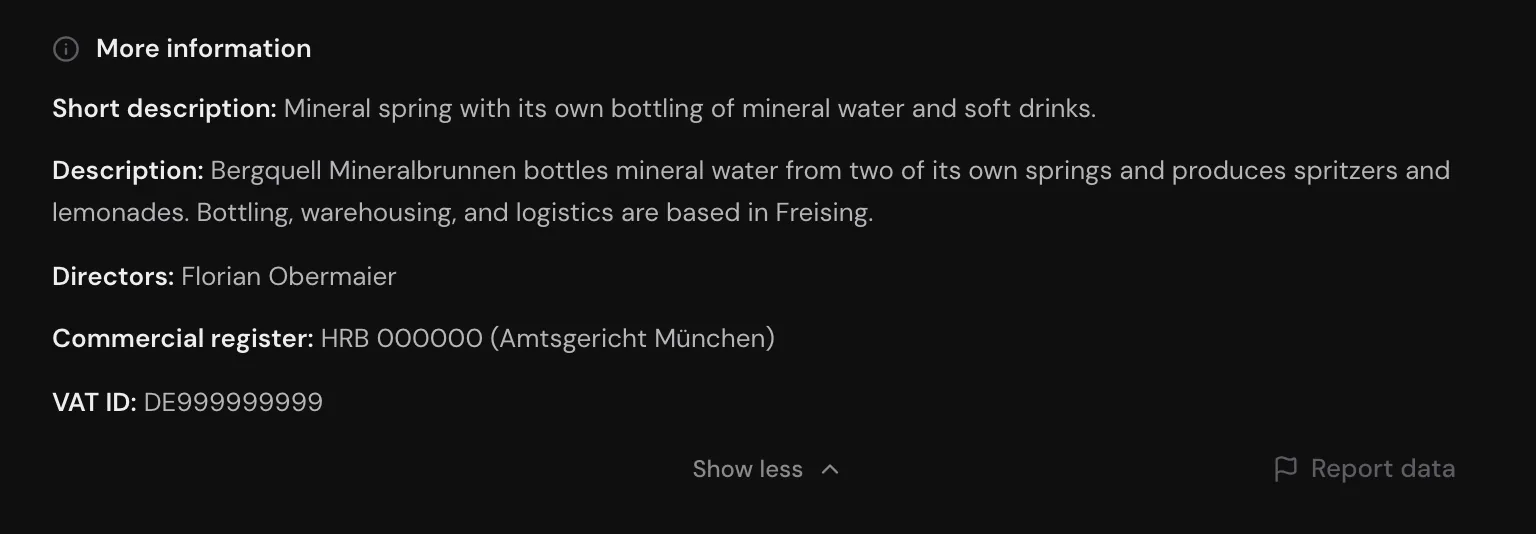
- Below the boxes, click Show more. The More information section opens.
- To close it again, click Show less.
The section shows the following details if Webmetic knows them:
- Short description: and Description: of the company
- Directors: the names of the managing directors
- Commercial register: number and registry court
- VAT ID: the VAT identification number
- Fax: the fax number
The Report data button sits at the right end of the same row. You only see both buttons when the company has a short description, a description, or a VAT ID.
Read the profile on a smartphone
On a smartphone and on a tablet in portrait mode, Webmetic arranges the profile differently:
- At the top are the logo, name, and Last activity, with the tabs Profile, Sessions, Contacts, and Notes below, each with the number of entries.
- The Profile tab shows industry, size, address, and Relevance with Breakdown.
- The contact options appear as icons, and only the website keeps its name.
- About the company holds the descriptions and can be expanded and collapsed.
- More details holds the commercial register details.
The sidebar icon in the top right opens the Tags, Manage data, and Comments sections. On a smartphone the profile fills the whole screen, and the arrow in the top left takes you back to the list.
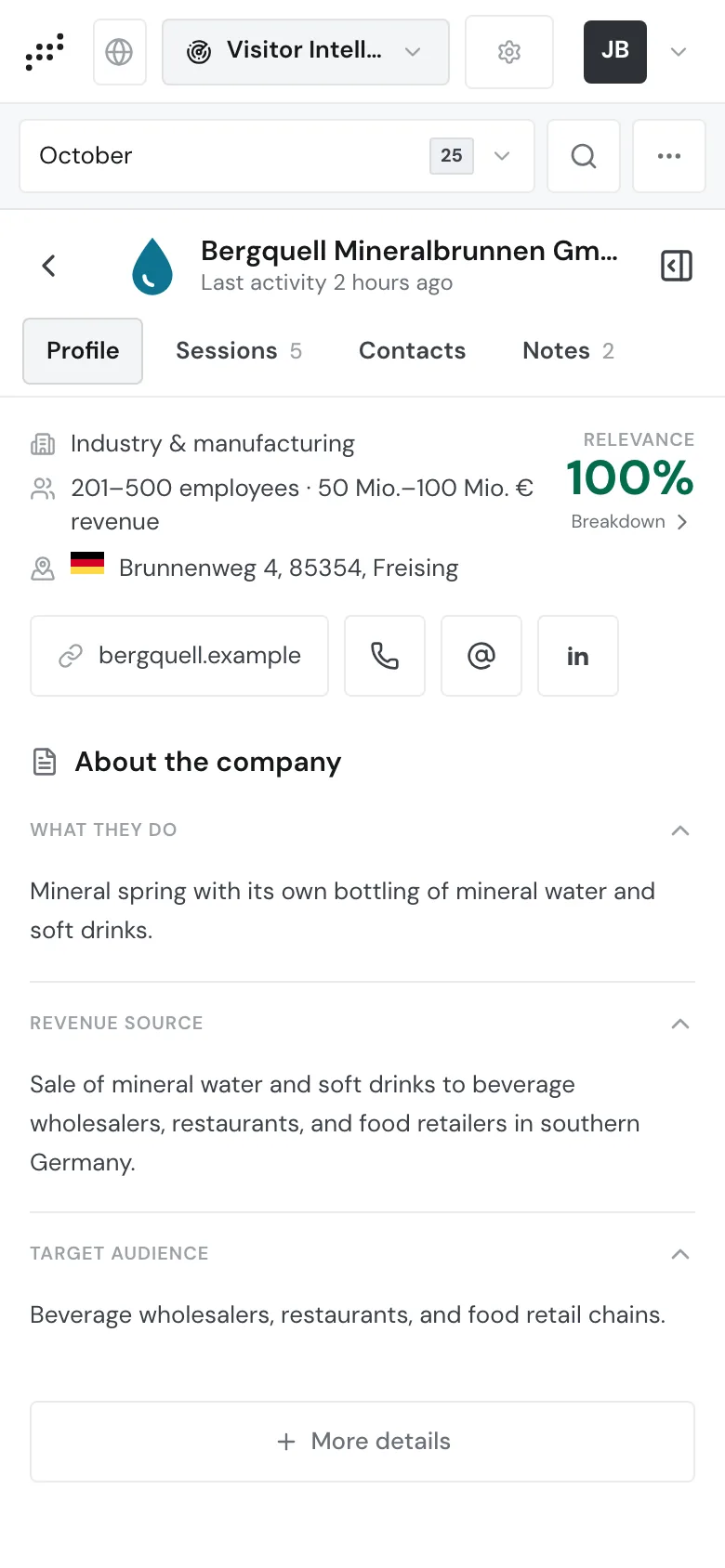
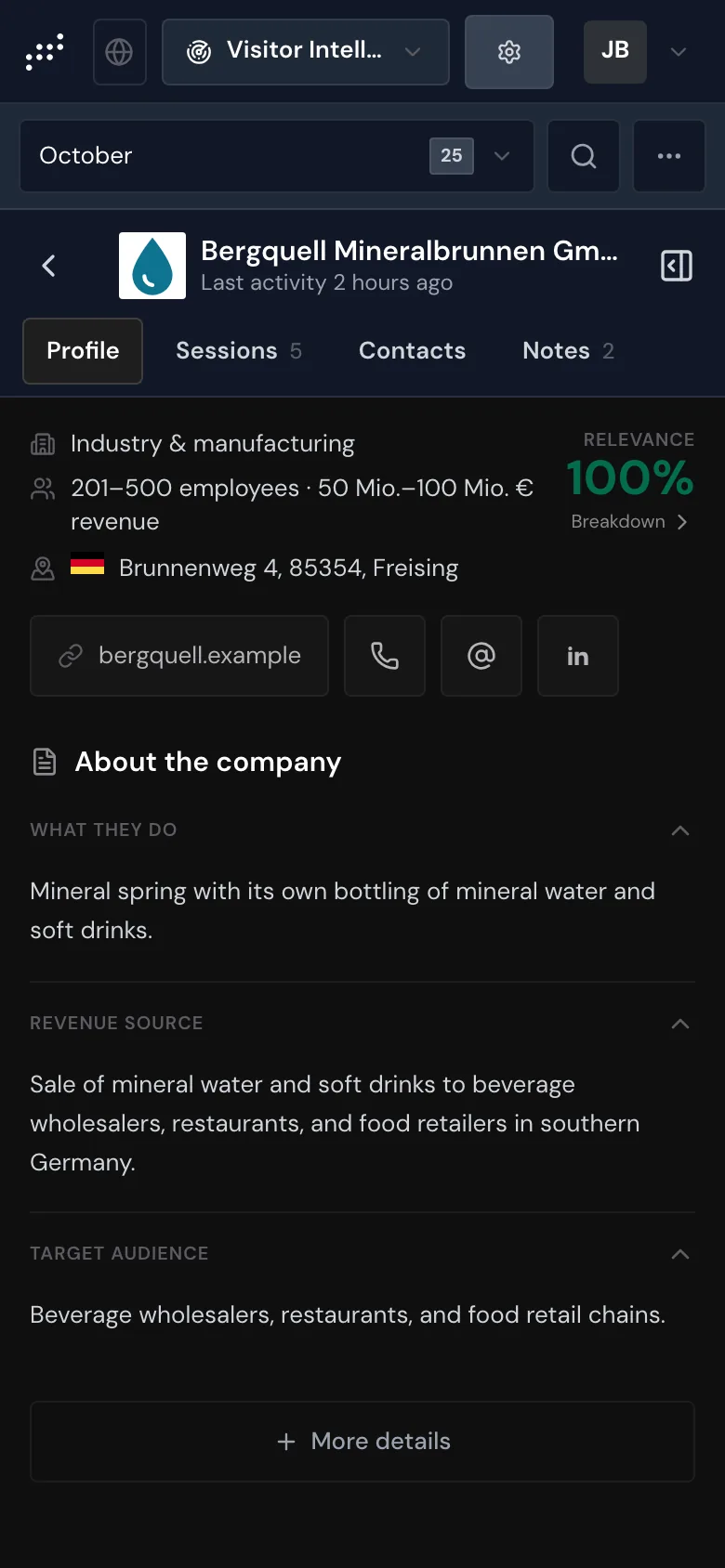
The email generator and the Report data button are missing here. If you need them, open the profile on a large screen.