

Results and export
Follow the enrichment, check and correct the results, and export the list as a CSV file.
Once you have added domains to a list, Webmetic enriches each company in the background. At the end you'll have:
- a list in which you have checked the results, removed wrong rows, and corrected values
- a CSV file of the whole list or of selected companies for your CRM
Before you start
- Time: Checking and exporting take a few minutes.
- List: You need a list with companies. Create a list and add companies describes how to create one.
- Plan: Enrichment is included in the trial, the Growth plan, and Enterprise. On Starter and Free you can still open, edit, and export existing lists. For new lists and imports, you need Growth. If a partner manages your account, the partner decides whether the tab appears.
- Rights: Every user of your account can create, edit, export, and delete lists. You don't need admin rights for this.
- Cost: Enrichment costs no credits until January 31, 2027. For details, see Credits.
You can't restore removed rows or deleted lists. Export the list first if you still need the data.
Open a list
- Click the Enrichment tab at the top. Webmetic shows your lists as cards.
- On the list's card, click Open. Webmetic shows the table with all companies in the list.
In a narrower window the tab shows only its icon. When you point at it, its name appears. On a smartphone, choose Enrichment in the dropdown at the top.
With Lists, you return from the table to the overview with all cards.
Track the progress
Webmetic enriches the list in the background and updates the table by itself, so you can close the page.
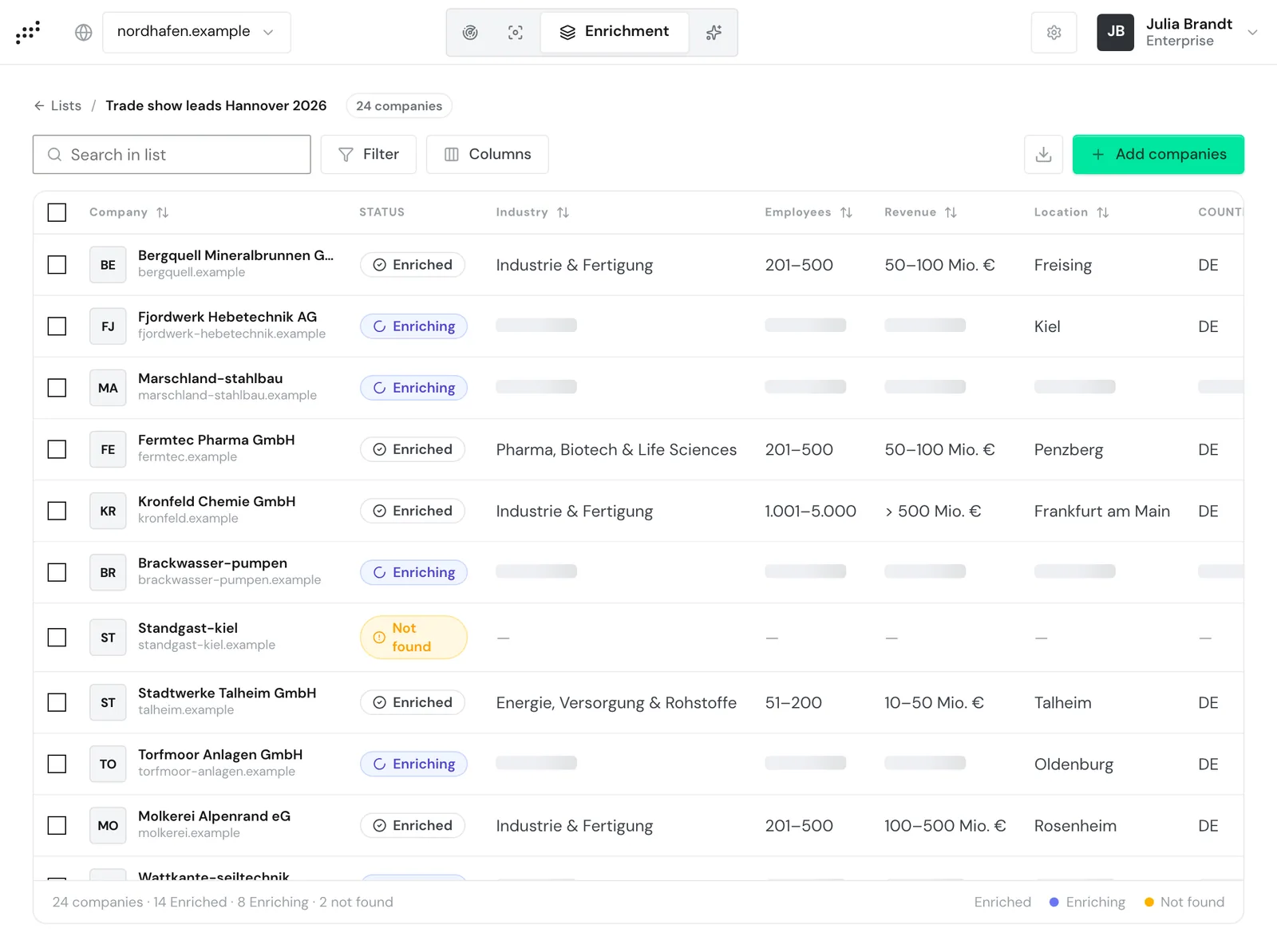
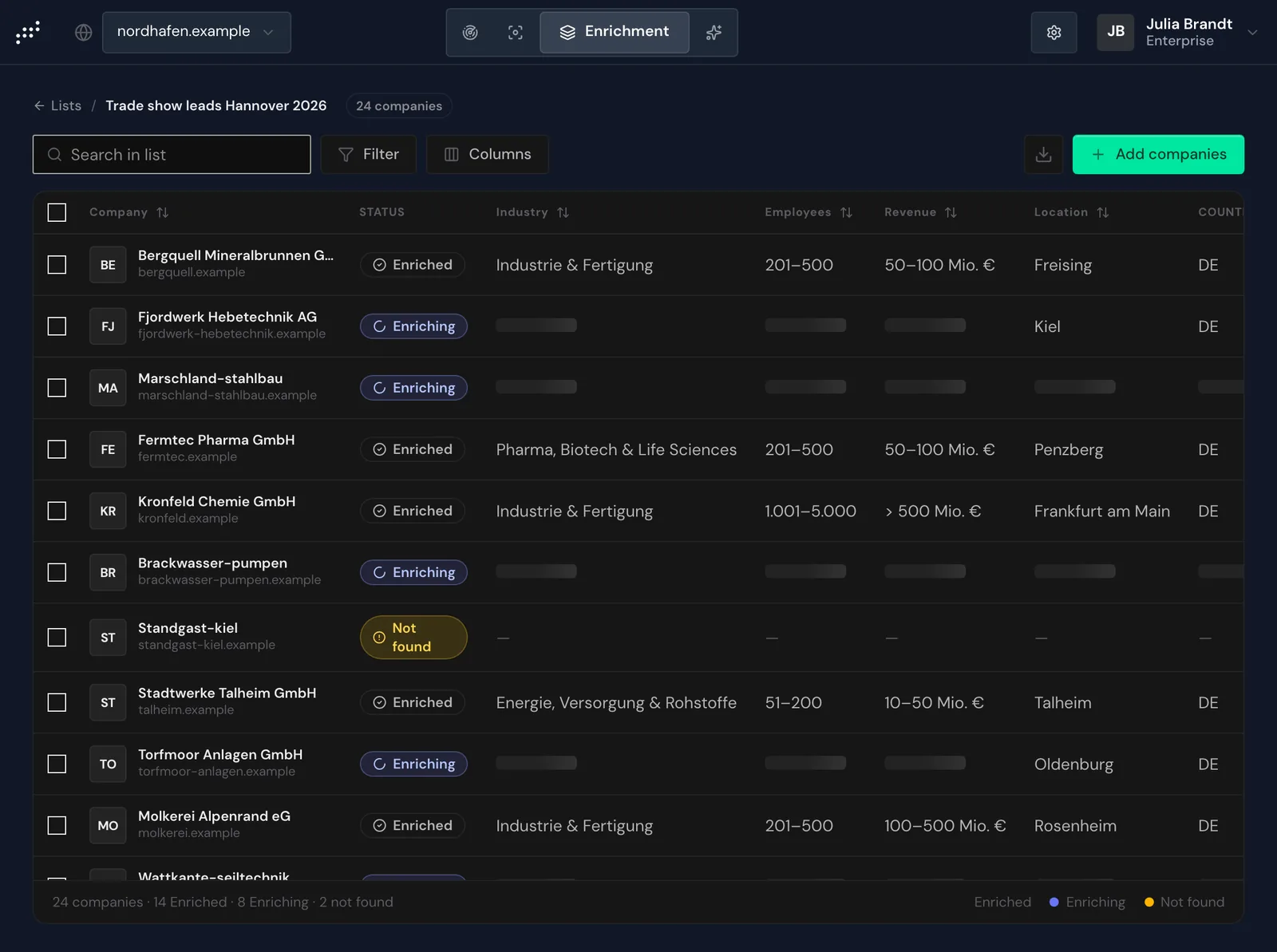
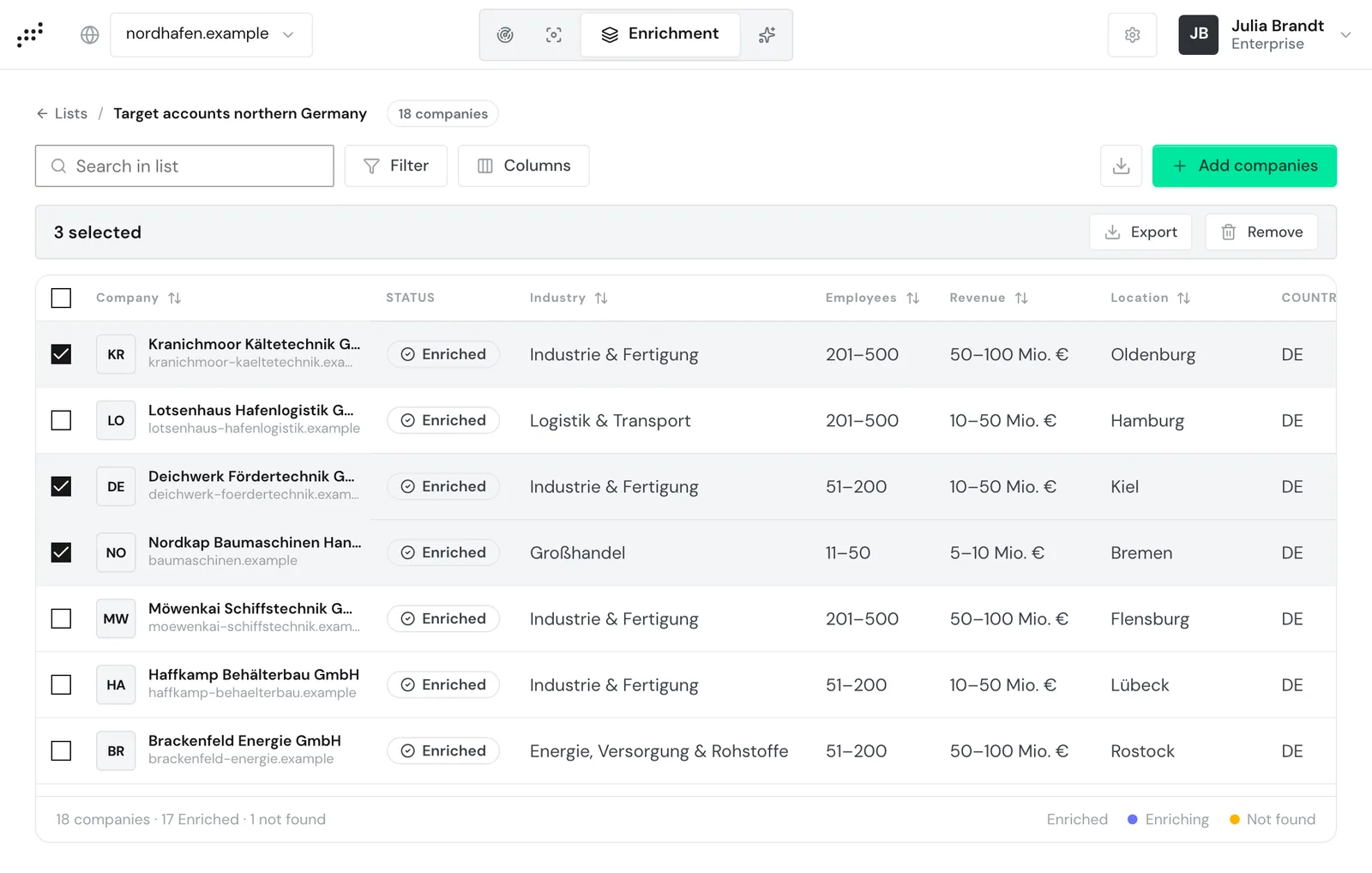
In the Status column, each row shows one of these values:
- Enriching: Webmetic is still working on the row. Cells without a value shimmer until data arrives.
- Enriched: Webmetic found data about the company and added it to the row. Some cells can still stay empty.
- Not found: Webmetic found no usable data about the company. Match rate explains the reasons.
Companies Webmetic already knows appear after a few seconds. If Webmetic first has to read the website, it can take hours to a few days.
The footer counts the rows per status. Once some rows finish while the page is open, the footer also shows a rough estimate of the time left, for example ~5 min left.
On the overview, each card shows a ring that gives the figures for Found, Not found, and Pending when you point at it.
Find companies
- Enter a term in Search in list. The search checks name, domain, Industry, and Location as you type.
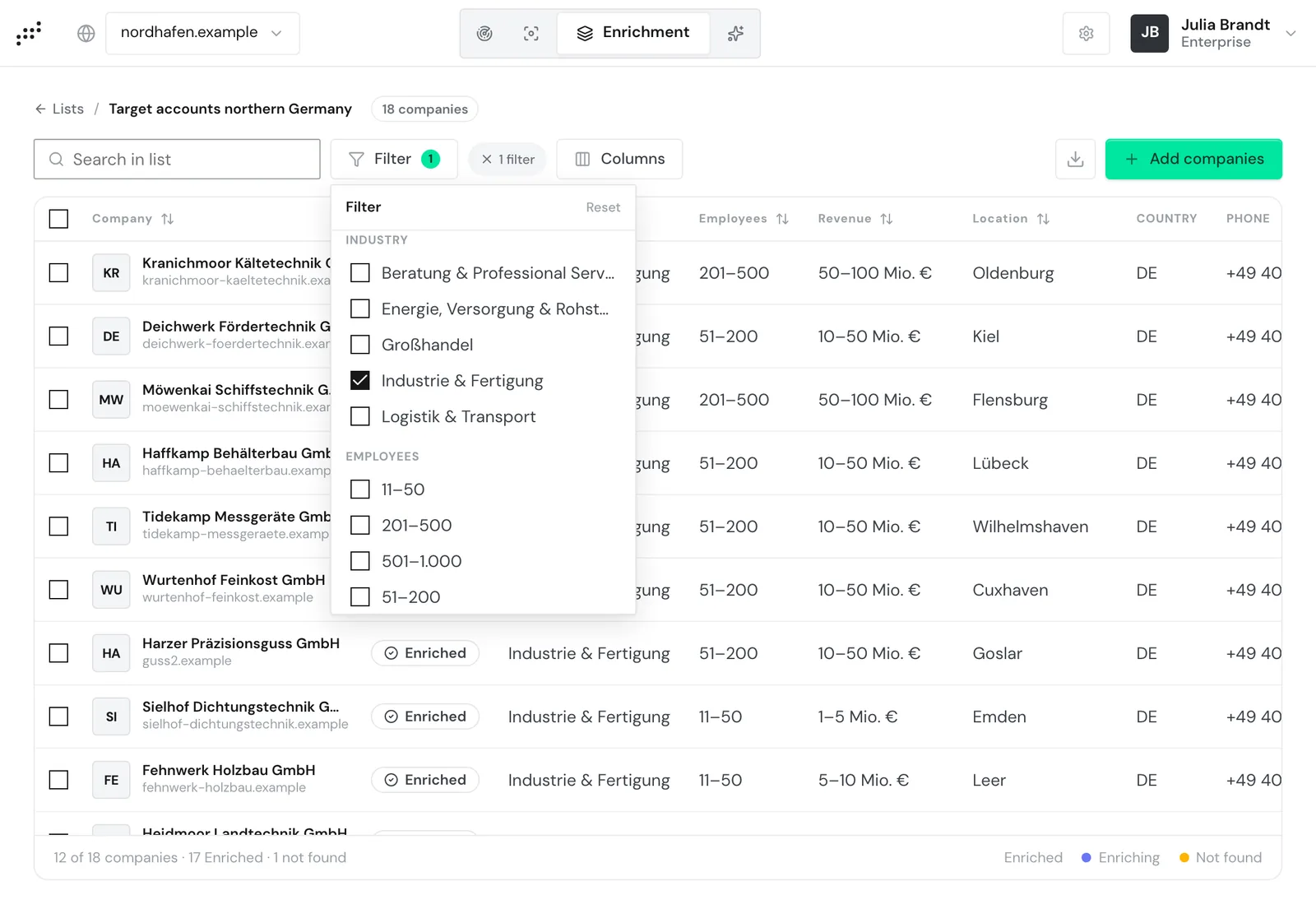
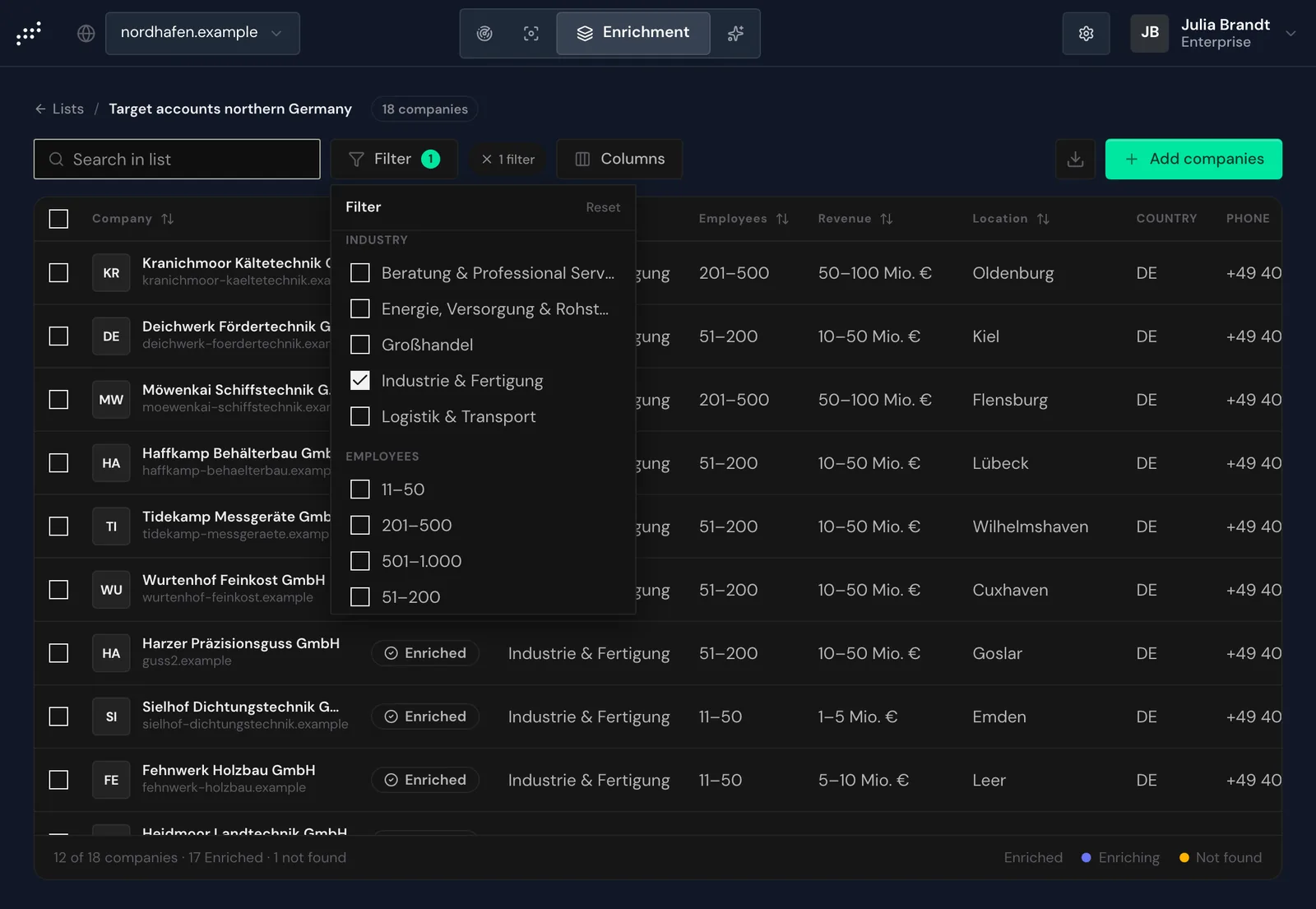
- Click Filter. The filter picker opens.
- Select values under Status, Industry, Employees, Location, or Country. The table now shows only matching companies.
- Optional: Click the heading Company, Industry, Employees, Revenue, or Location. The first click sorts in ascending order, the second in descending order.
Under Industry, Employees, and Location, the filter offers only values that occur in the list. The Country section appears when the list contains companies from more than one country. If you select several values in one section, the table shows companies that match any of them. If you select values in several sections, a company has to match all of them.
The footer then shows you how many companies match, for example 12 of 18 companies. To clear all filters again, click Reset in the filter.
Choose columns
- Click Columns. The Show/hide columns picker opens.
- Turn on the columns you want to see, for example Description or Directors.
Webmetic does not save the search, filters, sort order, or columns, so the table starts again with the default columns when you leave the list or reload the page.
Correct values
- Double-click a cell in one of the columns Industry, Employees, Revenue, Location, Country, Phone, Email, Description, Directors, and Company type.
- Enter the new value, or delete the old one to clear the field.
- Press Enter or click outside the cell, and Webmetic saves the value. Press Esc to cancel without saving.
All users of your account see the change, which applies only to this row of this list. The companies in Visitor Intelligence and in other lists stay unchanged.
Edit a row only once it shows the status Enriched. As long as it shows the status Enriching, new data can overwrite your value.
You cannot edit the name or the domain. If a domain is wrong, remove the row and add the correct domain instead, as described in Correct wrong entries.
Remove rows
Webmetic removes rows at once, without asking. You can't undo this.
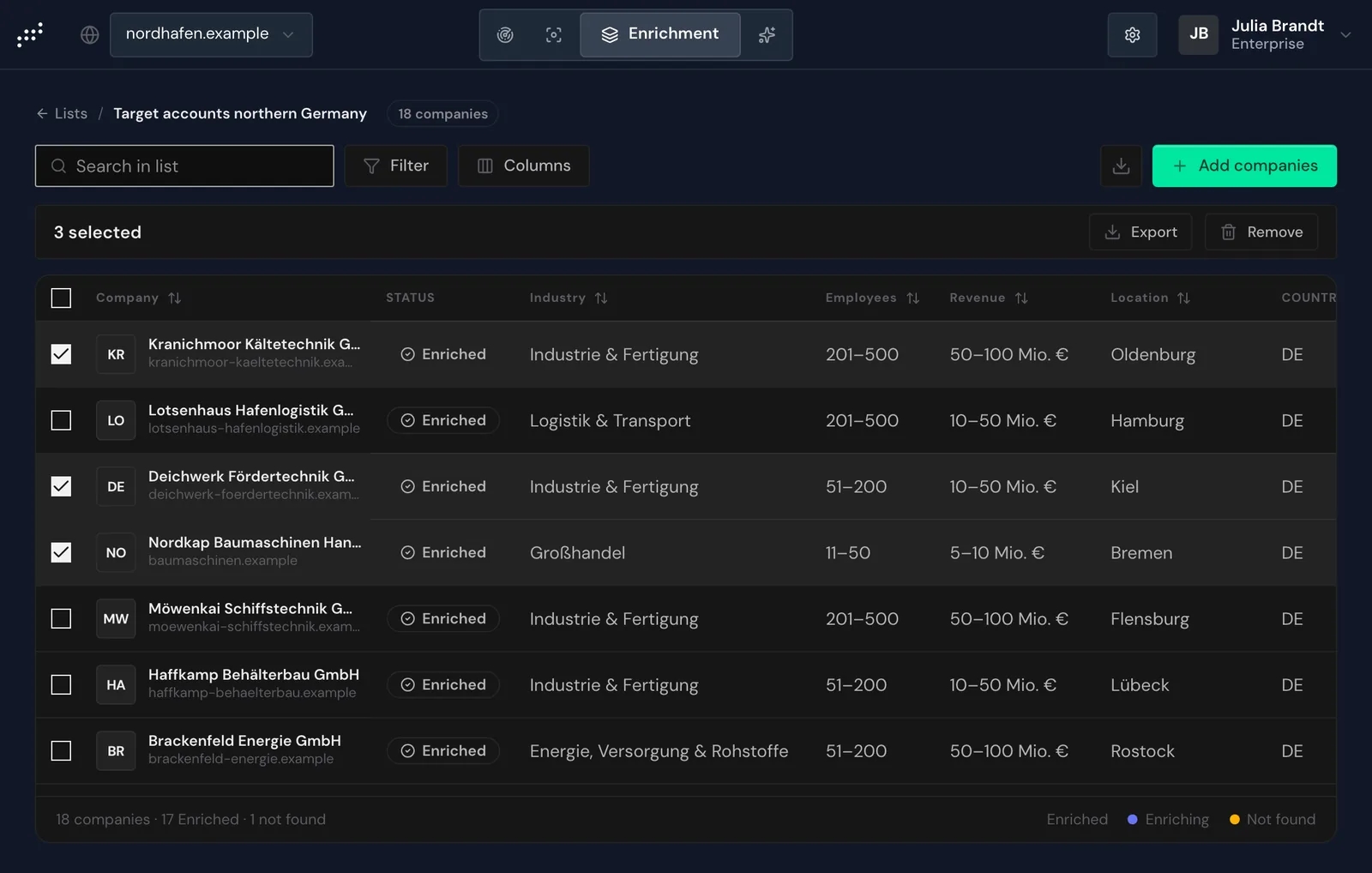
- Tick the boxes in front of the rows you want to remove. A bar with the number of selected rows appears.
- In the bar, click Remove. Webmetic deletes the rows from the list.
You can also remove a single row directly: point at the row and click the bin icon at its right end.
Before you export or remove, check which rows are selected.
Export the list
Webmetic exports the list as a CSV file, and your browser downloads the file right away.
To export the whole list, use the download icon Export (CSV) to the left of Add companies. The file contains every row of the list with all fields, whatever search, filters, sort order, or hidden columns you have set.
To export only some companies, select the rows as described above and click Export in the bar. The file then contains only these rows.
In the file, rows with the status Enriching contain only the values they have so far. So export only once no row shows Enriching anymore.
Companies from Enrichment do not appear in the company list of Visitor Intelligence. You transfer the companies to your CRM with the CSV file.
Delete a list
When you delete a list, Webmetic deletes all companies in the list with their data. You can't undo this. Export the list first.
- Click Lists. Webmetic shows the overview with your lists again.
- Point at the list's card. A bin icon appears at the top right.
- Click the bin icon. The Delete list dialog opens.
- Click Delete permanently.