

Create a list and add companies
Create an Enrichment list and add domains so that Webmetic fills in data on the companies.
You create a list in Enrichment, for example for the conversations at your trade show booth, and give Webmetic the domains of the companies. At the end you'll have:
- a named list that every user of your account can see
- your companies in it, one row per domain
- rows that Webmetic fills with data in the background
Before you start
- Time: Creating the list and importing take a few minutes, and after that Webmetic carries on without you.
- Plan: Enrichment is included in the trial, the Growth plan, and Enterprise. On Starter and Free you can still open, edit, and export existing lists. For new lists and imports, you need Growth. If a partner manages your account, the partner decides whether the tab appears.
- Rights: Every user of your account can create, edit, export, and delete lists. You don't need admin rights for this.
- Cost: Enrichment costs no credits until January 31, 2027. For details, see Credits.
- Data: You need a list with the domains of the companies, for example
marschland-stahlbau.example. Enrichment works with domains only, not with company names.
Open Enrichment
- Click the Enrichment tab at the top.
In a narrower window the tab shows only its icon. When you point at it, its name appears. On a smartphone, choose Enrichment in the dropdown at the top.
The page shows your lists as cards, newest first. Lists belong to your account, not to a website, so you see the same lists whichever website you have selected at the top. Lists you create through the API show up here as well.
Create a list
- Click New list at the top right, or click the dashed Create new list card. The Create new list dialog opens.
- Under Name, enter a name, for example "Trade show leads Hannover 2026". As long as the field is empty, the Create button stays grayed out.
- Optional: Under Description (optional), enter a short note that later appears on the list's card.
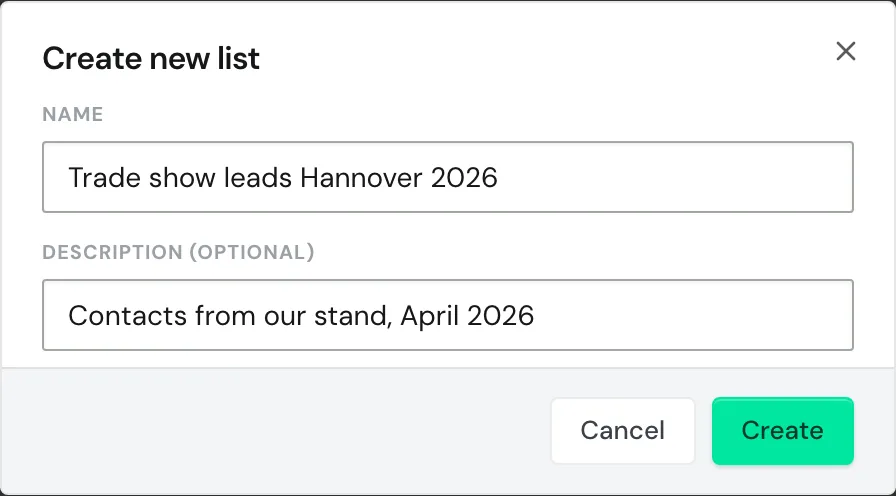
- Click Create. The new list opens right away, still without companies.
The name can be up to 200 characters long, the description up to 1,000 characters. Because you cannot change the name or the description later, check both before you click Create. Pressing Enter in the Name field also creates the list right away.
Add companies
You add companies in an open list, and you can also add to the same list more than once.
- Open the list by clicking its card or Open.
- Click Add companies. The Add companies dialog opens.
- Choose one of the three ways in the following sections. Webmetic only takes what is in the tab that is currently open.
Recommended: CSV upload if your domains are already in a spreadsheet. For a handful of domains Paste is enough, and for a single domain use Manual.
Upload a file
- Click the CSV upload tab.
- Click the dashed field.
- Choose a
.csvor.txtfile from your computer. The field then shows the file name and the number of domains found.
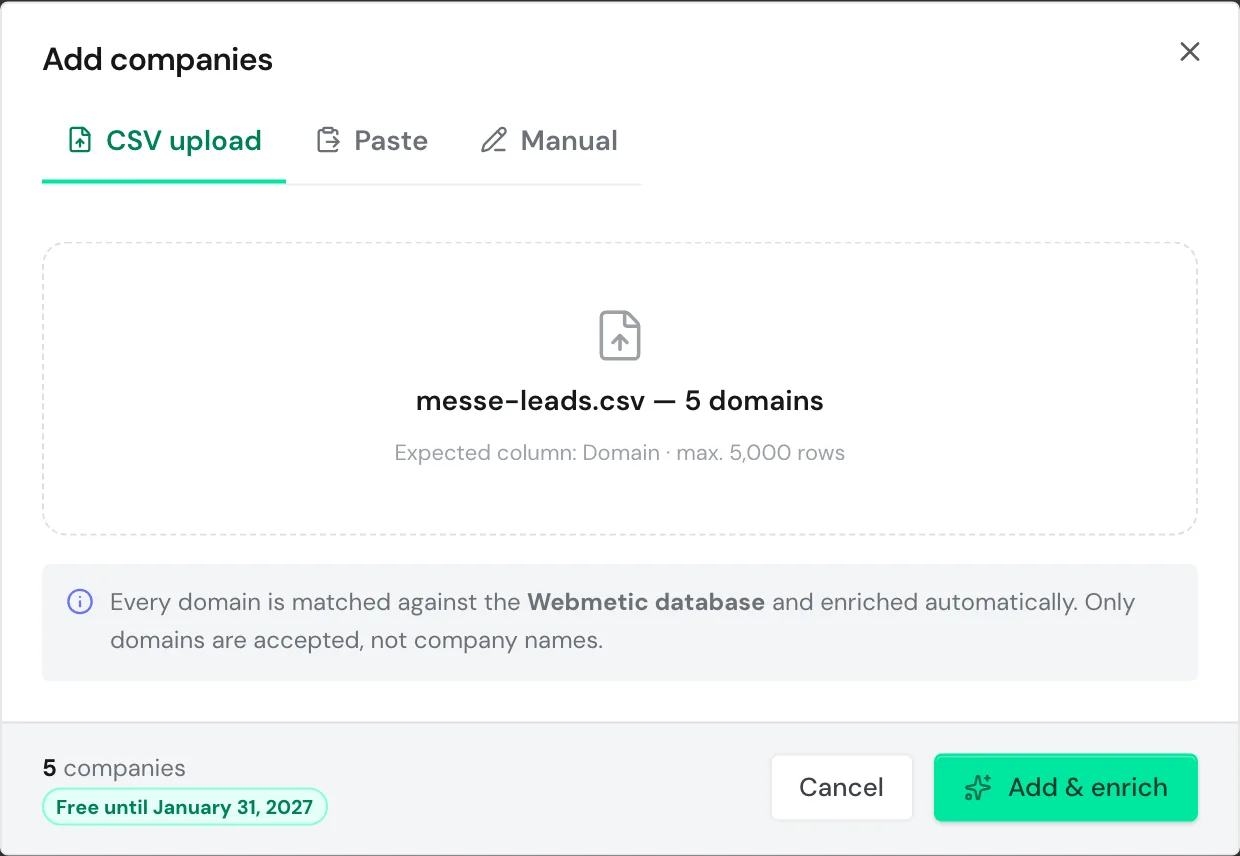
If the dialog finds no domain in a file, it shows the message No domains found in the file. and keeps the file you chose before. In that case, check the file against the rules under File format.
If you choose another file that contains domains, it replaces the first one. The dialog does not read Excel files, so save your spreadsheet in Excel as a CSV file encoded in UTF-8 first.
Paste domains
- Click the Paste tab in the Add companies dialog.
- Paste your domains into the text box, one domain per line.
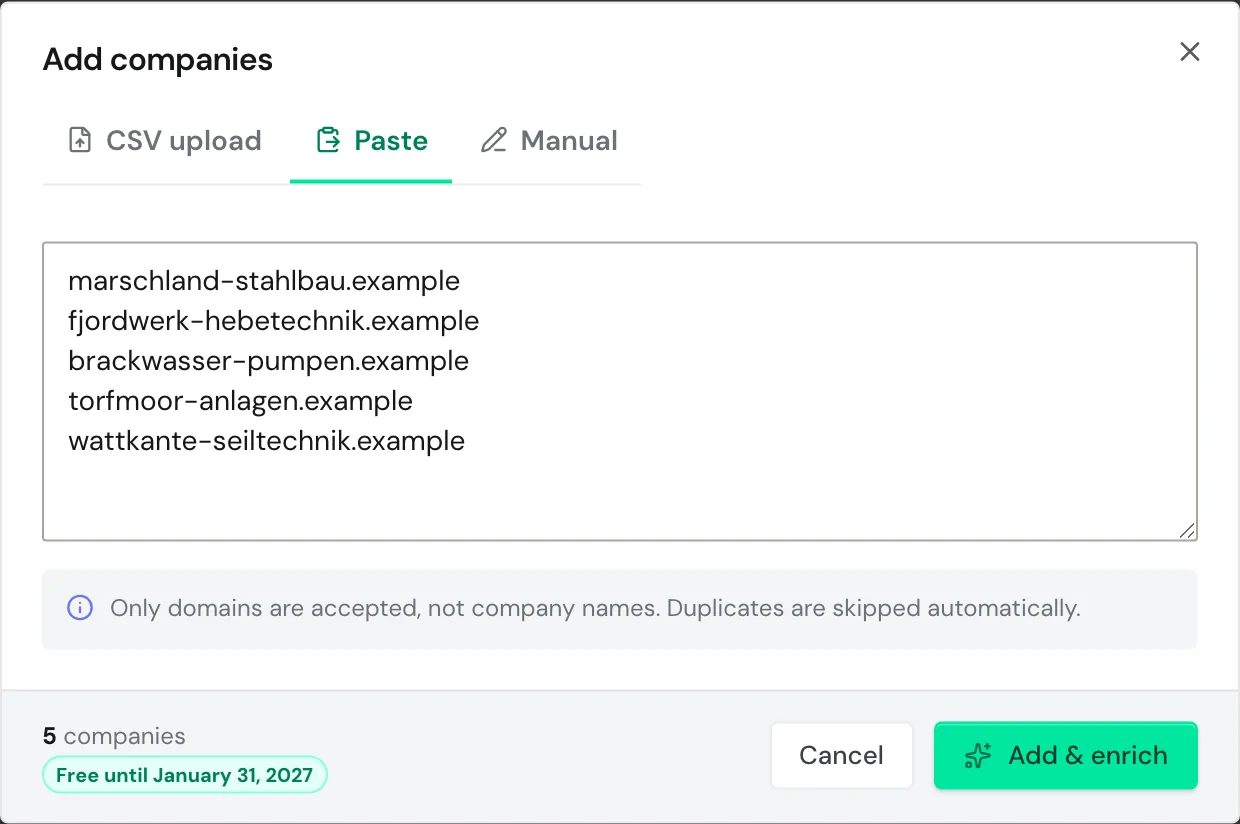
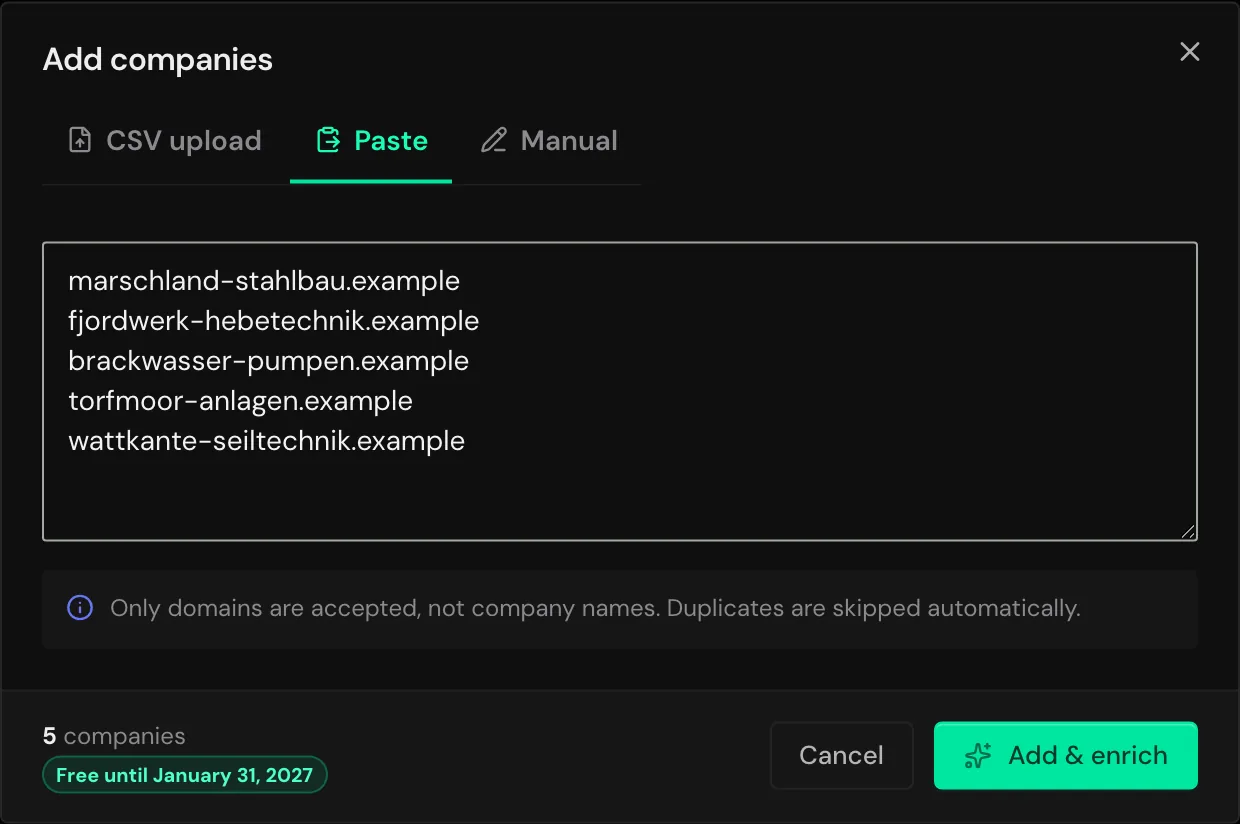
If you copy from Excel, select only the column with the domains. For spreadsheets with several columns, use CSV upload.
Enter one domain
- Click the Manual tab in the Add companies dialog.
- Under Domain, enter the domain of the company you want to add.
This way, you add exactly one company with each import.
Confirm the import
- Check the number of companies at the bottom left of the dialog.
- Click Add & enrich. The dialog closes, and enrichment starts right away.
As long as the dialog counts no company, the Add & enrich button stays grayed out. If the import fails, the dialog stays open with your input, so you can try again.
Webmetic does not take entries from your input that are not domains. If a domain is already in this list, Webmetic does not add it a second time.
Follow the progress
The new companies appear at the top of the table, each starting with the status Enriching. Until data arrives, the row shows a name that Webmetic builds from the domain.
Webmetic enriches the list in the background, so you can close the page. Companies Webmetic already knows appear after a few seconds. If Webmetic first has to read the website, it can take hours to a few days.
The statuses you see in the table mean:
- Enriching: Webmetic is still working on the row.
- Enriched: Webmetic found data about the company and added it to the row. Some fields can still stay empty.
- Not found: Webmetic found no usable data about the company.
Webmetic enriches each row once. After that, Webmetic does not update the data, and a new run isn't possible.
The companies do not appear in the company list in Visitor Intelligence. Results and export describes how to read, filter, and export the table.
File format
These rules apply when you use CSV upload:
- File type: The dialog reads files ending in
.csvor.txt, encoded in UTF-8. - Separators: Semicolon, comma, and tab all work, even mixed in one file.
- Header and empty lines: A header row such as
Domain;Nameis fine, because the dialog skips it along with any empty lines. - Columns in the file: Webmetic takes the first value in each line that looks like a domain. Webmetic ignores all other values in the line, including any names and contacts you have in the file.
- Amount: One import can contain up to 5,000 domains. Split very large data sets across several lists.
Recommended: Put the domain in the first column of your file. If dates or numbers with a dot come before it, Webmetic takes that value instead of the domain, and the company is then missing from the list. If an email address comes before it, Webmetic takes its domain.
Sample file
The dialog reads this file without errors:
Domain;Name;PLZ
marschland-stahlbau.example;Marschland Stahlbau GmbH;25813
www.fjordwerk-hebetechnik.example;Fjordwerk Hebetechnik AG;24103
https://brackwasser-pumpen.example/kontakt;Brackwasser Pumpen KG;27472
torfmoor-anlagen.example;Torfmoor Anlagen GmbH;26121

wattkante-seiltechnik.example;Wattkante Seiltechnik GmbH;26721
The dialog finds five domains in it and skips the header row and the empty line. Webmetic ignores the names and postal codes you have in the file.
Domains
Webmetic shortens every entry to the main domain of the website:
- Address with a path:
https://brackwasser-pumpen.example/kontaktbecomesbrackwasser-pumpen.example. - Subdomain:
www.fjordwerk-hebetechnik.examplebecomesfjordwerk-hebetechnik.example. This applies to every subdomain, not only towww.. - Email address:
info@torfmoor-anlagen.examplebecomestorfmoor-anlagen.example.
Two subdomains of the same company therefore end up as a single row. The same domain can still be in several of your lists.
If a company's website sits on a subdomain of a shop or website platform, the result is the platform's domain. In that case, enter the company's own domain if it has one.
For email addresses at an email provider, shortening gives you the provider's domain. So enter the domain of the company website, not that of the email provider.
Company names, IP addresses, and dates are not domains, so Webmetic does not take them.