

Sign-up and setup
Register your website and set up the tracking code so Webmetic recognises your first visits.
At the end you'll have:
- a Webmetic account with your website, shown as Active under Websites
- a running 14-day trial
- prepared examples to try out: tags, a notification, a segment, and a test company
- the Getting started checklist, which guides you through the dashboard
- if you need them, the data processing agreement (DPA) and the privacy text for your privacy policy
Before you start
- Time: Setup takes a few minutes, and the first data arrives shortly after. The first companies appear within minutes to hours, depending on how much traffic your website gets.
- Account: Your domain and your email address are enough to sign up.
- Access: To set it up yourself, you need access to Google Tag Manager, to WordPress, or to your website's code. Without that access, you hand the setup over to your IT team or agency.
- Rights: Whoever signs up automatically becomes the admin of the new account.
- Plan: You don't need a plan. Signing up and setting up cost no credits, and the trial starts on its own.
1. Create your account
Here's how to create your account:
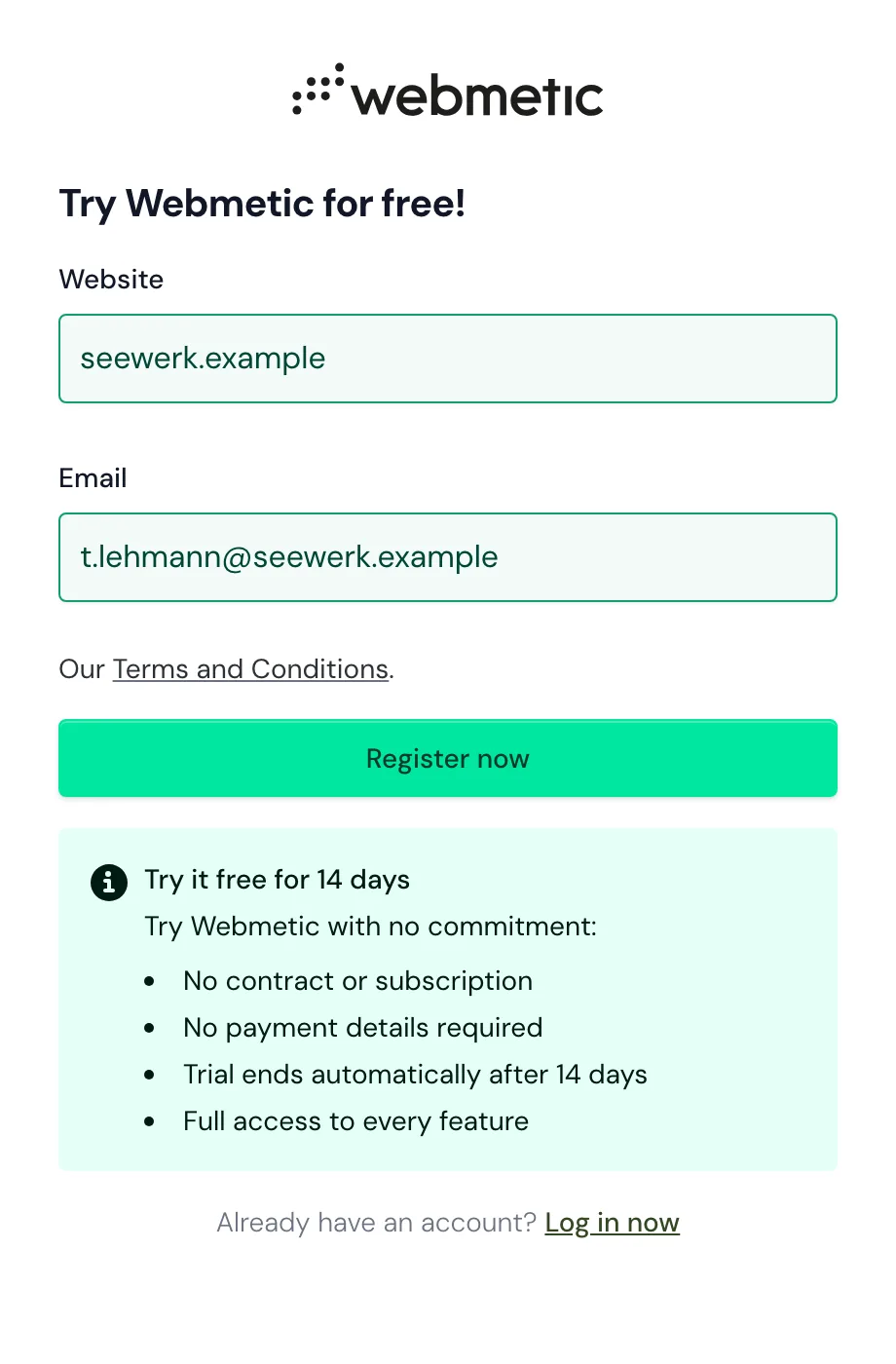
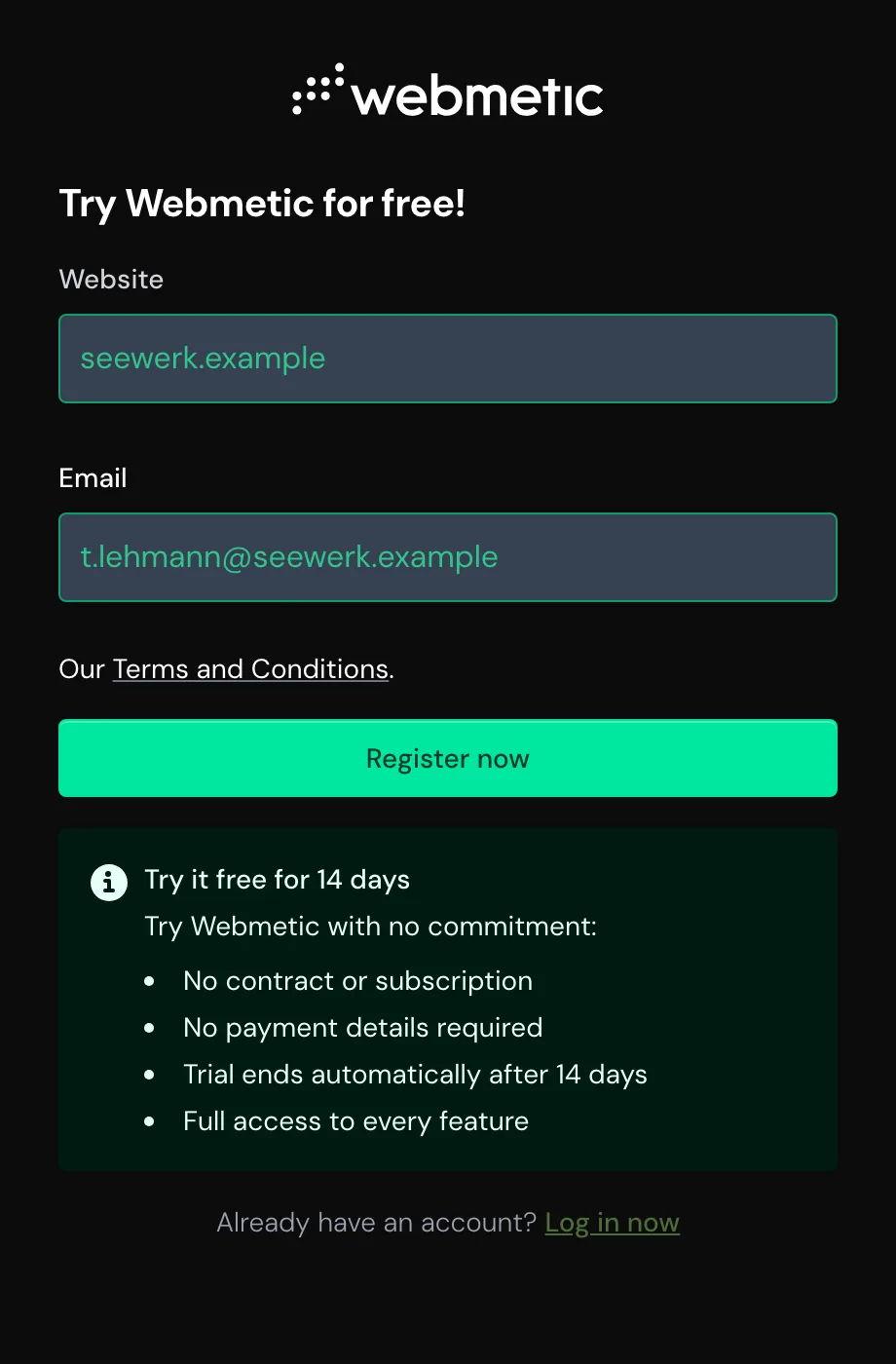
- Open webmetic.de/en/register.
- Under Website, enter your domain, for example
your-website.com. - Under Email, enter your email address.
- Click Register now. Webmetic confirms that your account has been created.
Webmetic only stores the root domain, so shop.your-website.com becomes your-website.com. Webmetic then sends two emails to the address you entered:
- one with your password for the dashboard
- one with your account ID and the instructions for adding the tracking code
Each email address belongs to exactly one account, and the same applies to each website. You add more websites later under Menu > Websites. How many domains you can add depends on your plan.
2. Sign in and choose a path
After signing up, you sign in with the password from the email:
- Open app.webmetic.de/login.
- Enter your address under Your email and the password from the email under Password.
- Click Sign in. Webmetic opens the setup assistant with the heading Welcome to Webmetic.
You can get a new password through the Forgot password? link on the sign-in page.
The assistant offers four paths, depending on who adds the code:
| Path | When to choose it |
|---|---|
| Set it up yourself | You have access to Google Tag Manager, WordPress, or your website's code. Continue with step 4. |
| Hand over to your IT team or Hand over to your agency | Someone else adds the code. Continue with step 4. |
| Documents only | Your data protection officer wants to see the documents first. Continue with step 3. |
| Already installed? Test now | The code is already on your website. Continue with step 5. |
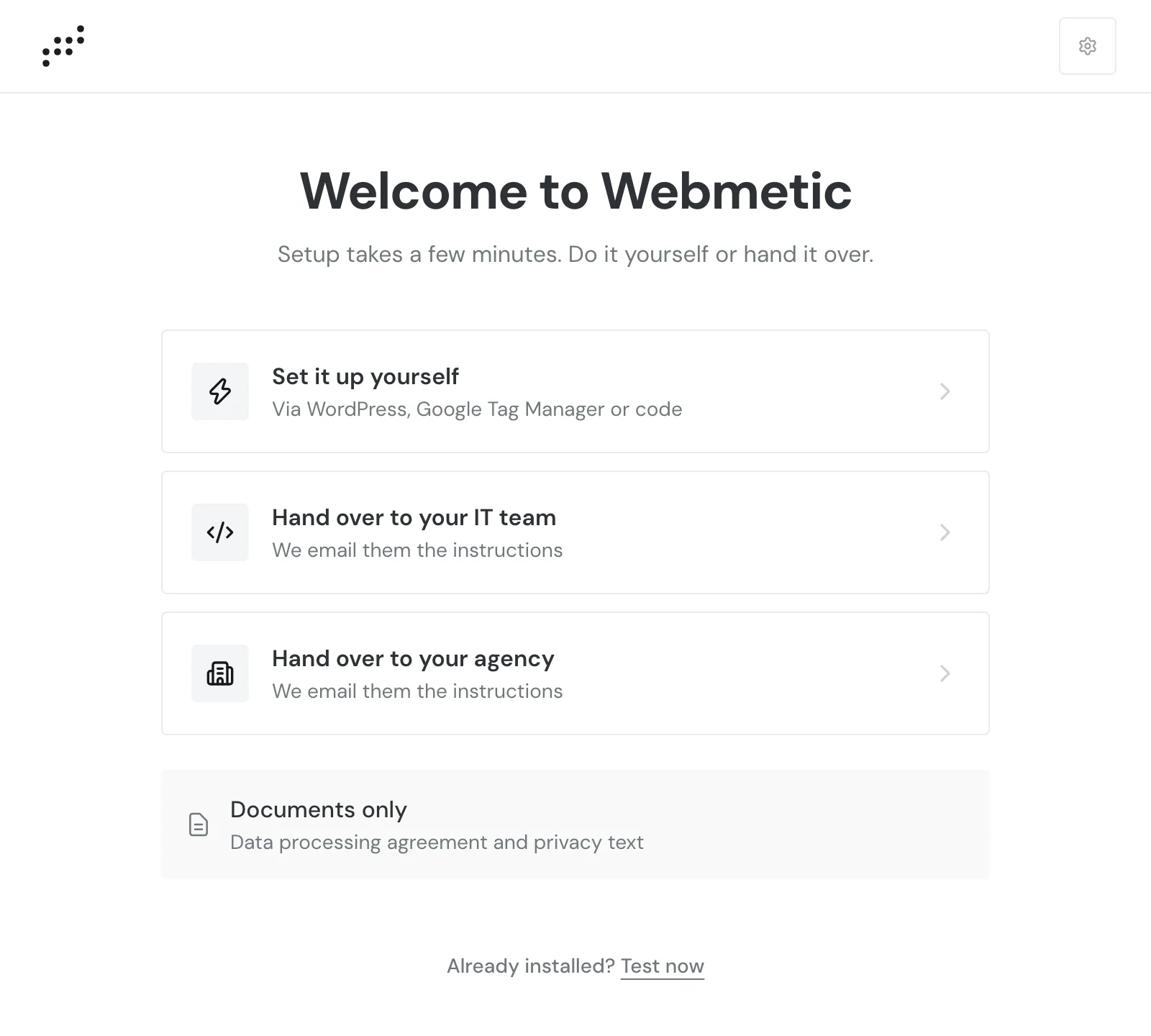
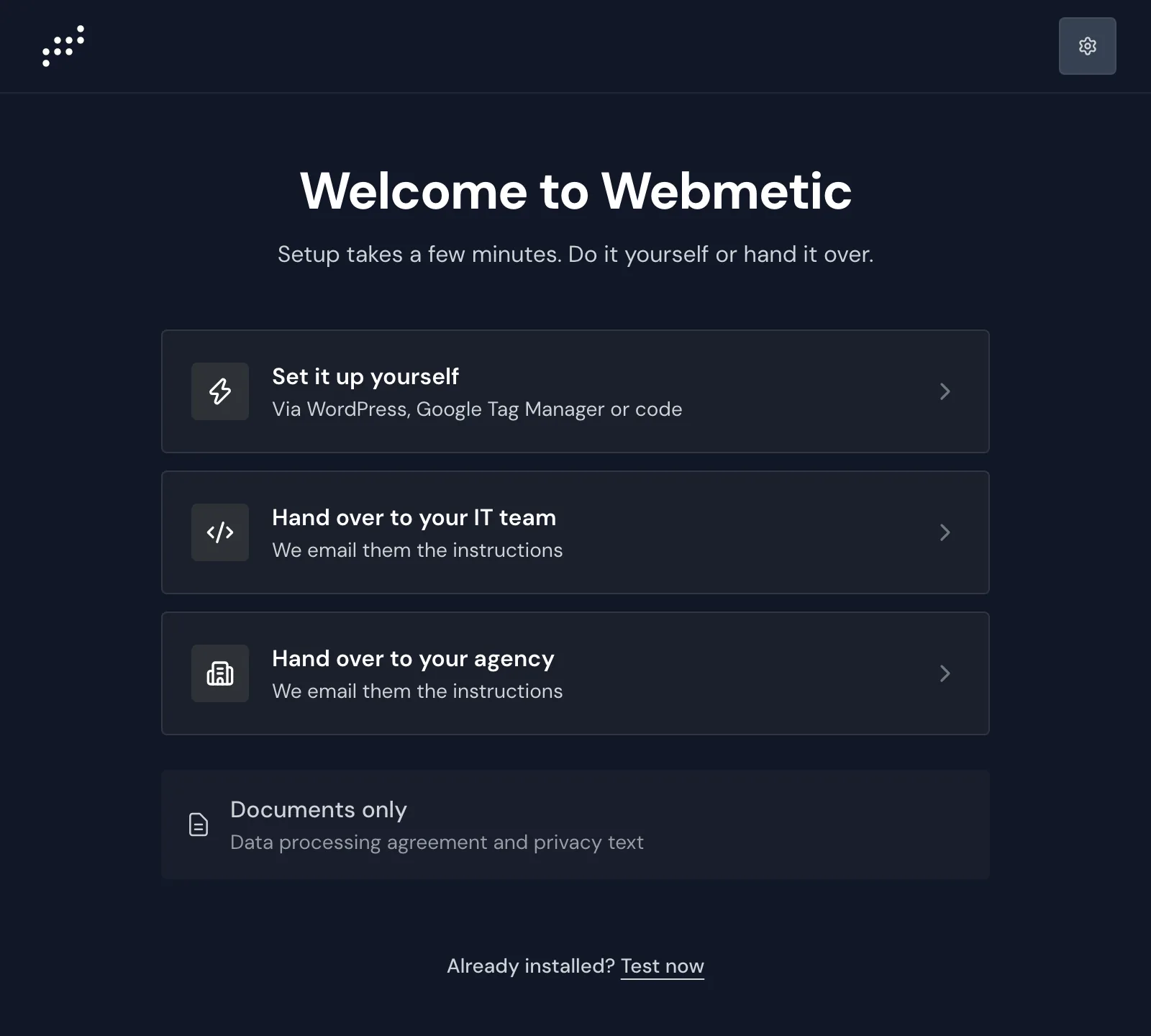
You can't close the assistant during setup, but the gear in the top right leads to Users and Logout, among others.
3. Get the data protection documents
This step is optional: it sets nothing up and doesn't end the setup.
- Click Documents only. The assistant shows Privacy documentation with two tabs.
- In the DPA tab, choose the contract language, German or English.
- Fill in your company details. Required fields are marked with *.
- Select the option I confirm the agreement.
- Click Create DPA, then download the contract with Download DPA.
- Open the Privacy text tab and copy the text for your privacy policy.
- Click Back to return to the four paths.
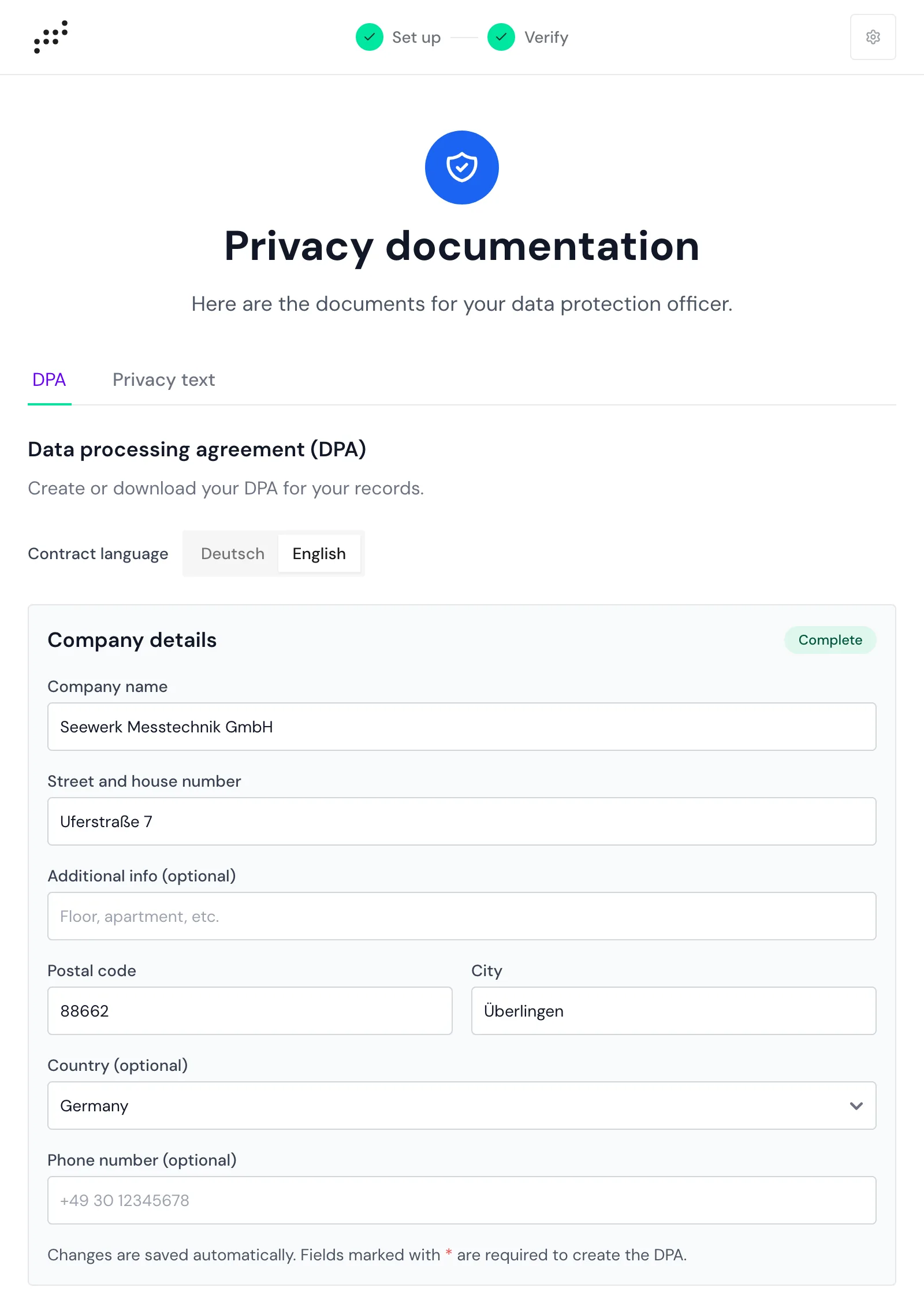
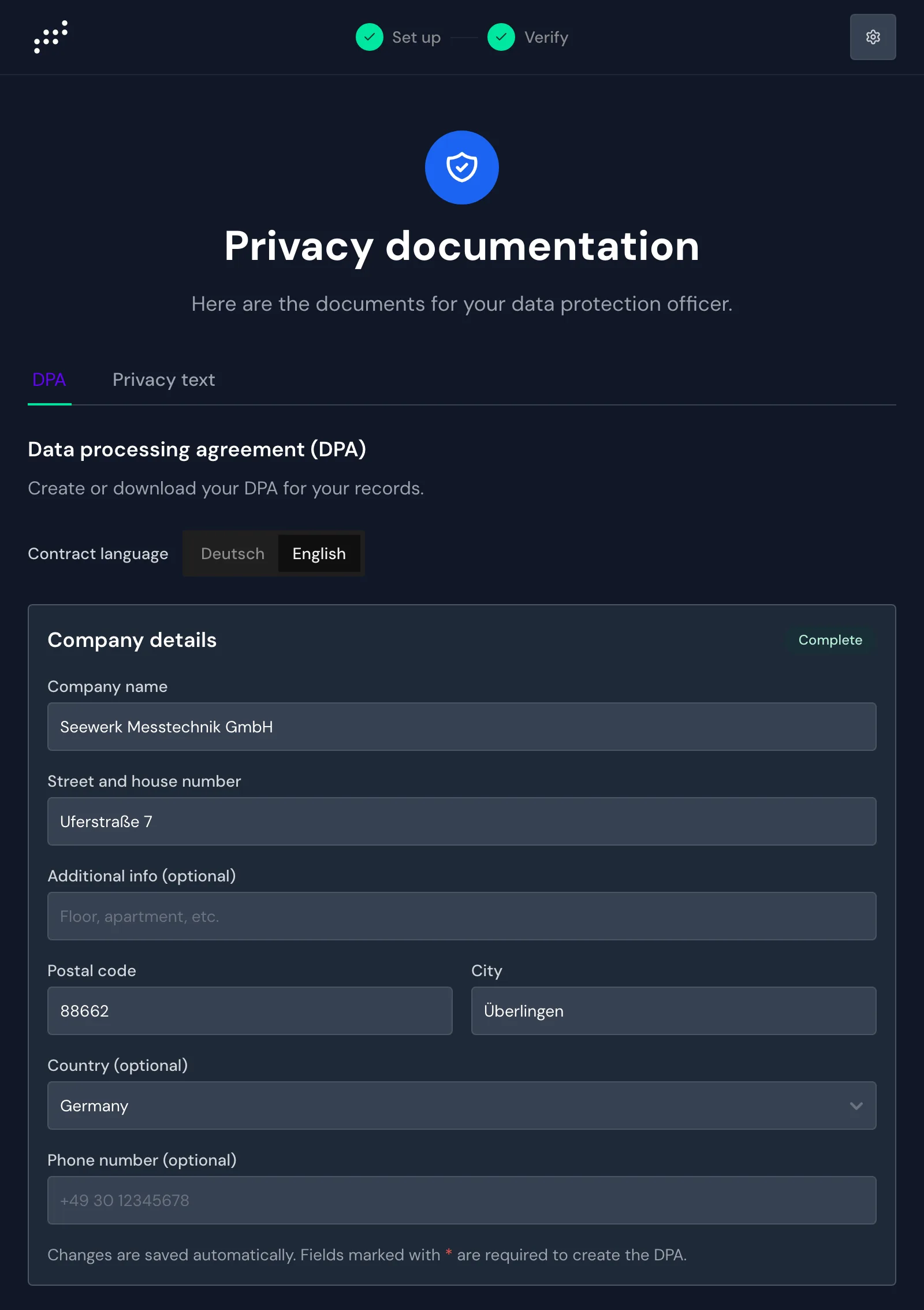
The DPA needs no separate signature, and you don't send anything back. You'll find the contract later under Menu > Company > DPA, a menu item that only admins see.
4. Add the tracking code
The tracking code reports every visit to your website to Webmetic. You'll find the guide for your platform under Installation.
Set it up yourself
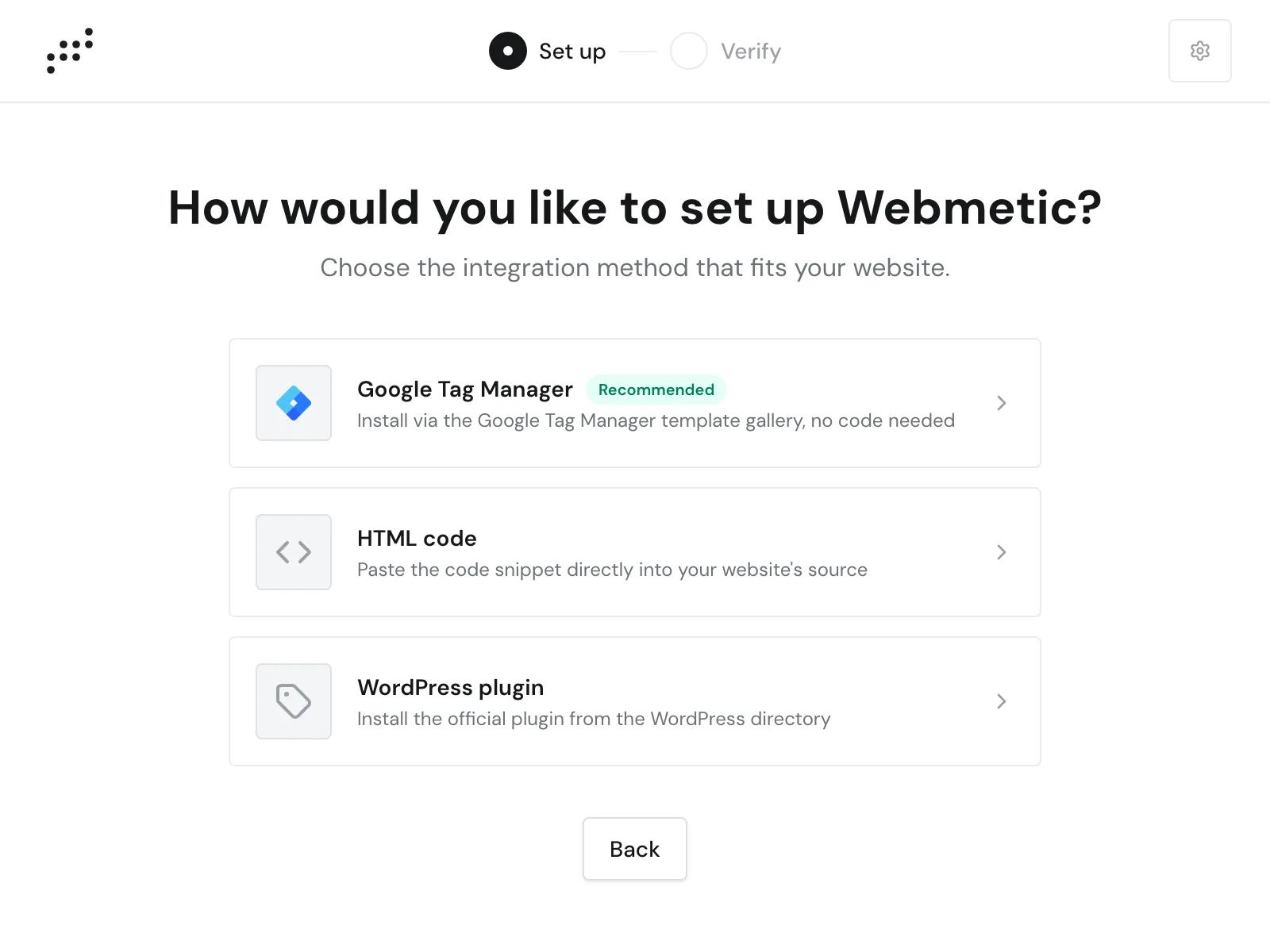
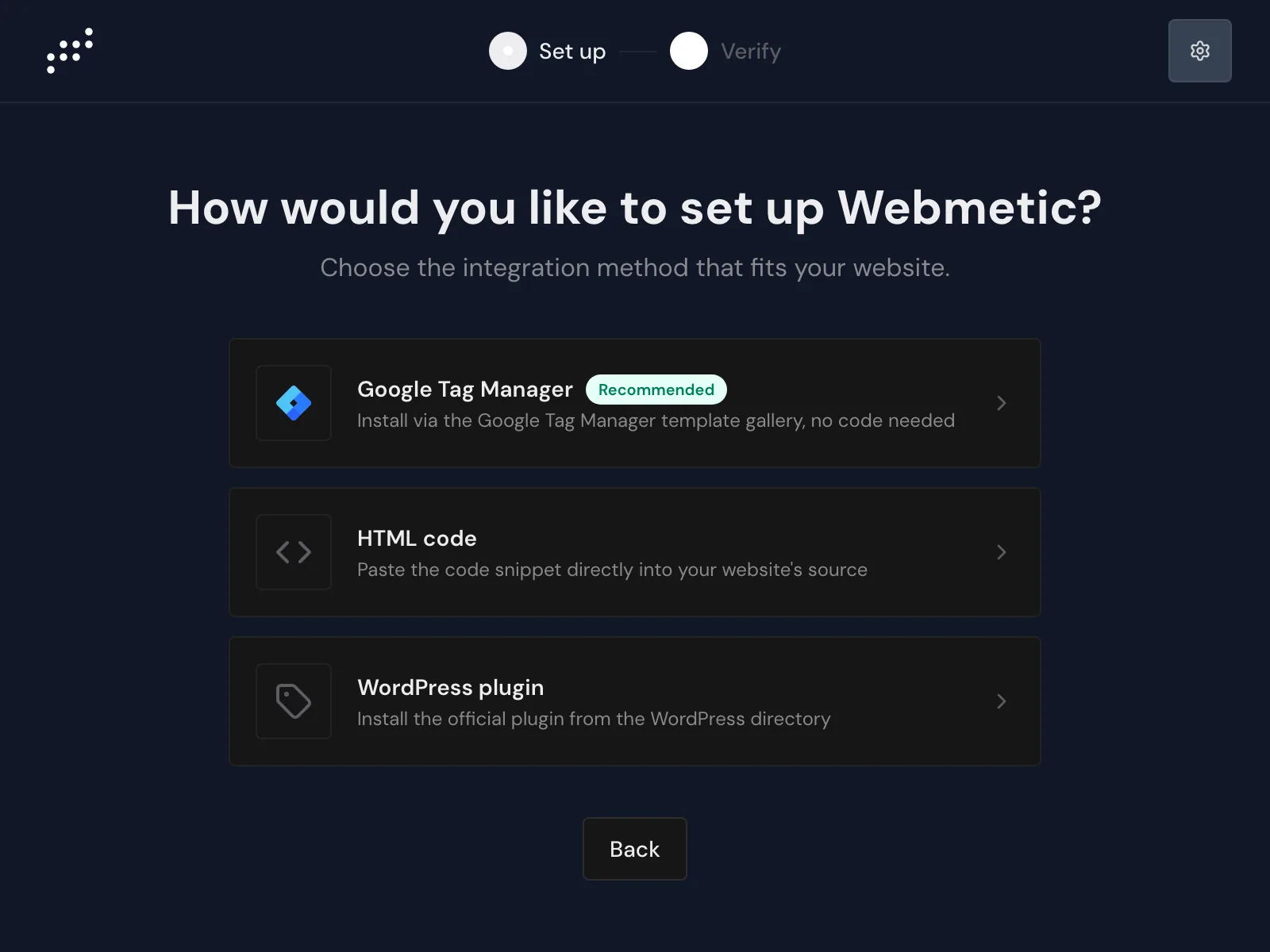
- Click Set it up yourself. The assistant asks: How would you like to set up Webmetic?
- Choose one of the three methods, each with its own guide in these docs:
- Google Tag Manager, marked Recommended: you add the Webmetic template without changing your website's code.
- HTML code: you paste the code into the source code of every page.
- WordPress plugin: you install the official plugin.
- Follow the steps in the assistant, which shows your account ID along the way.
- Click Continue to verification, then continue with step 5.
Hand over to your IT team or agency
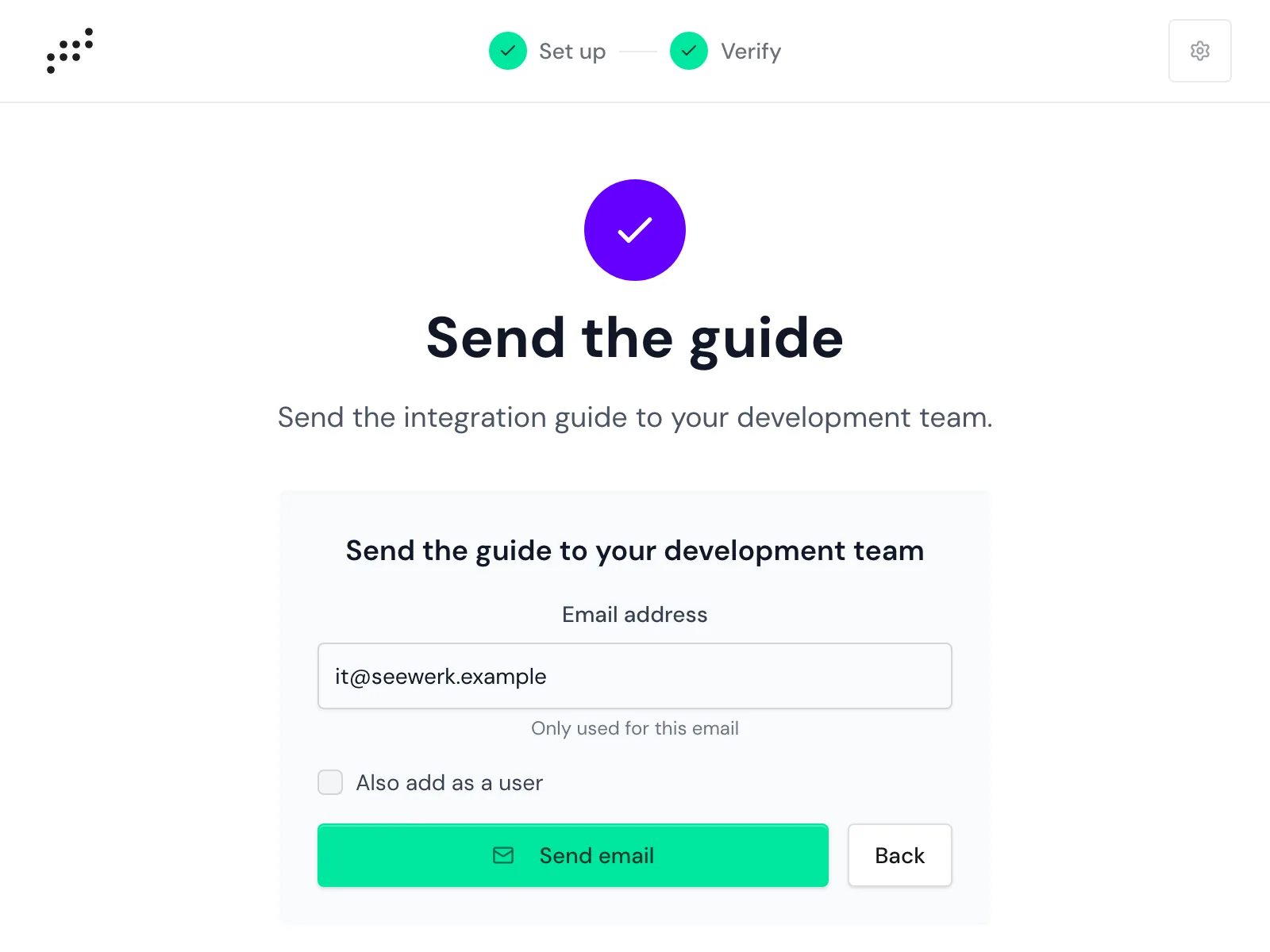
Webmetic sends a guide with your email address, your account ID, and your website. You can't preview or edit the email beforehand.
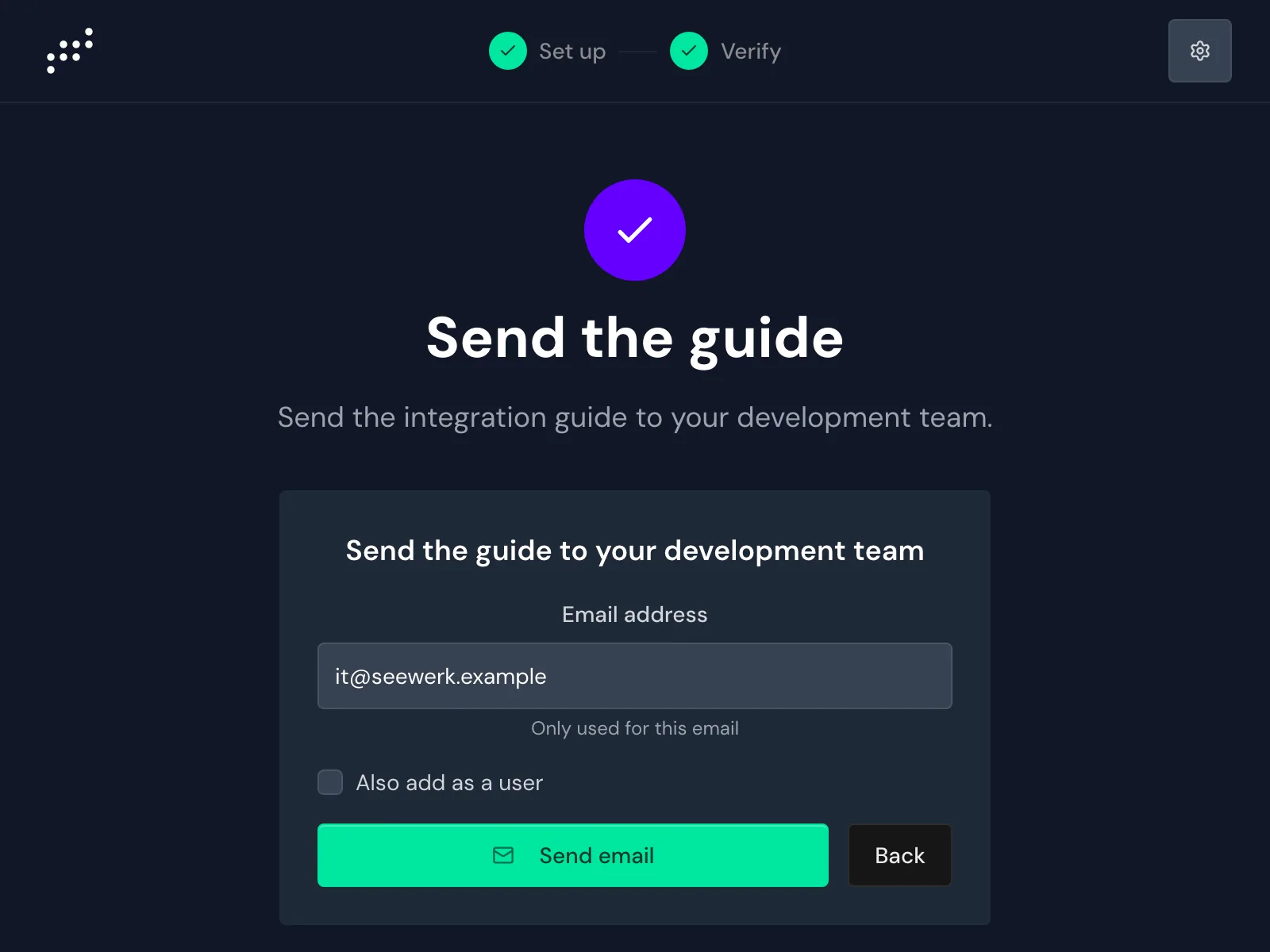
- Click Hand over to your IT team or Hand over to your agency. The assistant shows the Send the guide form.
- Under Email address, enter the address of the person who adds the code. For your IT team, your domain is already filled in.
- Optional: Select Also add as a user. Webmetic then adds the person as a user without admin rights and sends them their own login.
- Click Send email. The assistant shows the Email sent message.
- Once the code is in place, click Verify integration and continue with step 5.
If you come back later, click the Already installed? Test now button.
5. Verify your integration
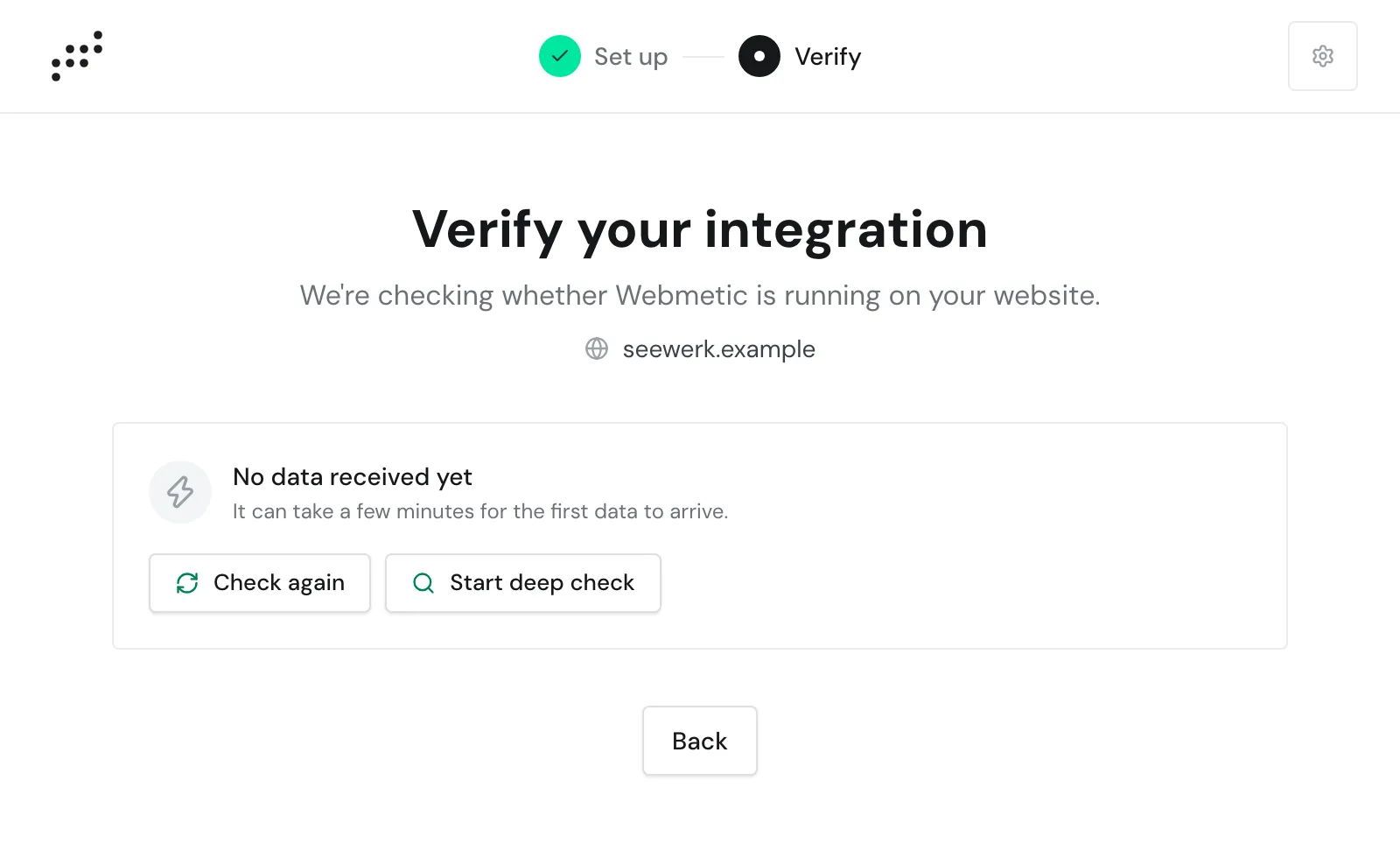
In the Verify your integration step, the quick check always runs first and shows whether data is arriving. If you arrive through Continue to verification or Test now, the deep check starts as well.
- If data is arriving, the assistant reports that everything is set up. Continue with step 6.
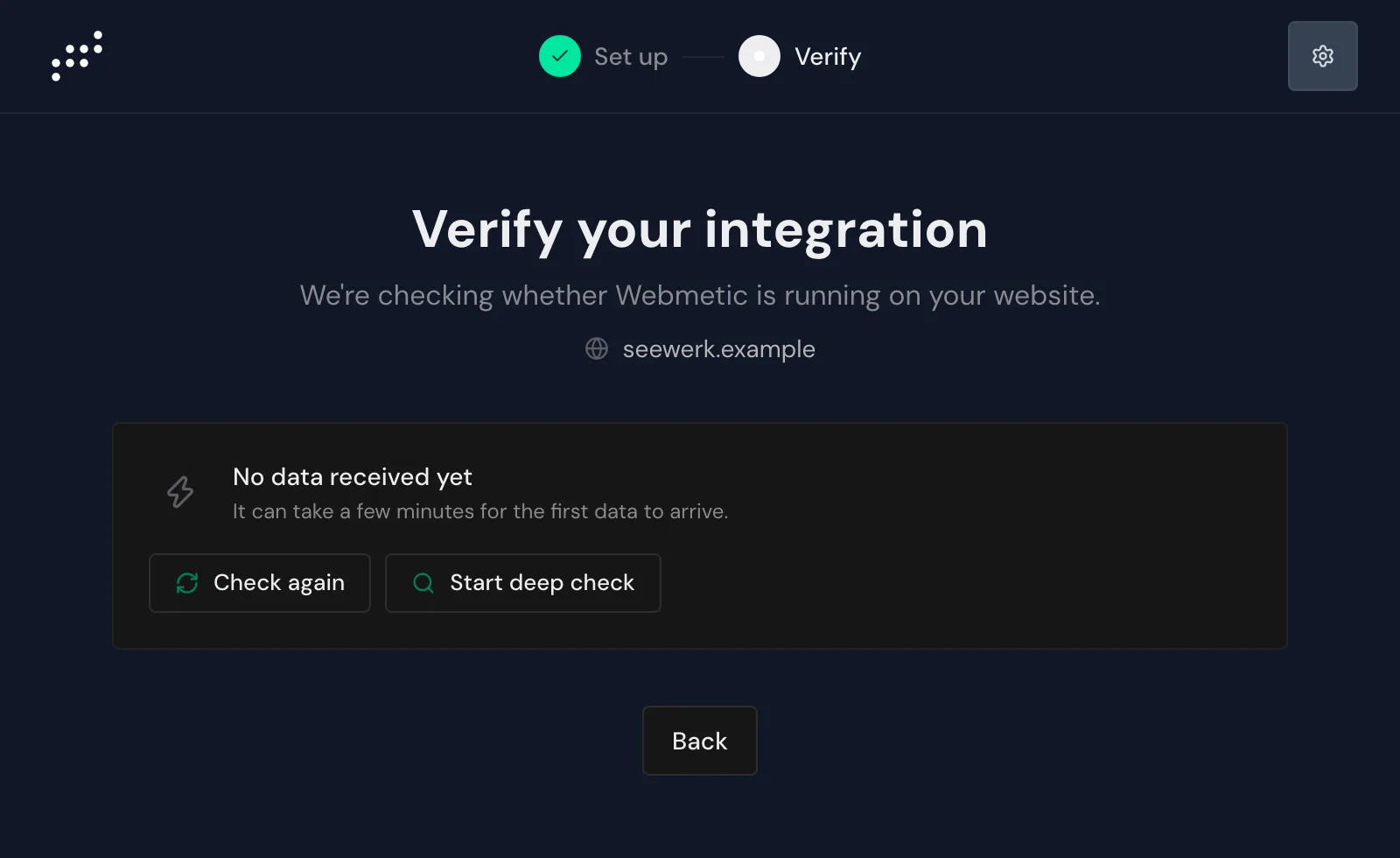
- If the assistant shows the message No data received yet, wait a few minutes, then click Check again.
- Optional: Click Start deep check. Webmetic then looks for the tracking code on your website, which takes about 30 seconds.
The deep check only ever checks the home page of the first website in your account. For what the results mean, see Check your installation.
6. See your trial and examples
Your trial starts when your website is Active for the first time or the deep check finds your code, not when you sign up. Active means that data with your account ID arrived in the last 24 hours.
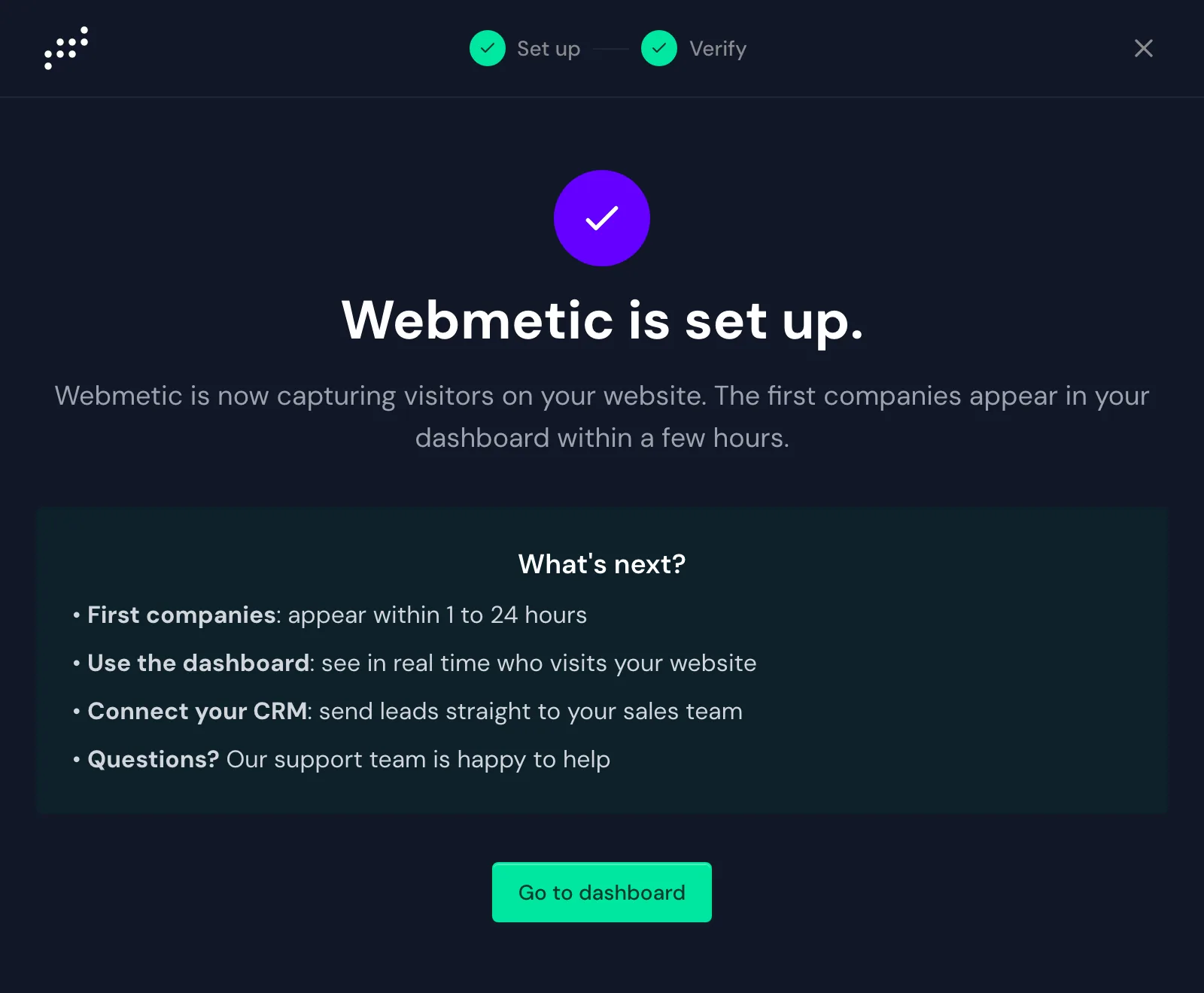
As soon as the trial starts, the assistant reports that Webmetic is set up.
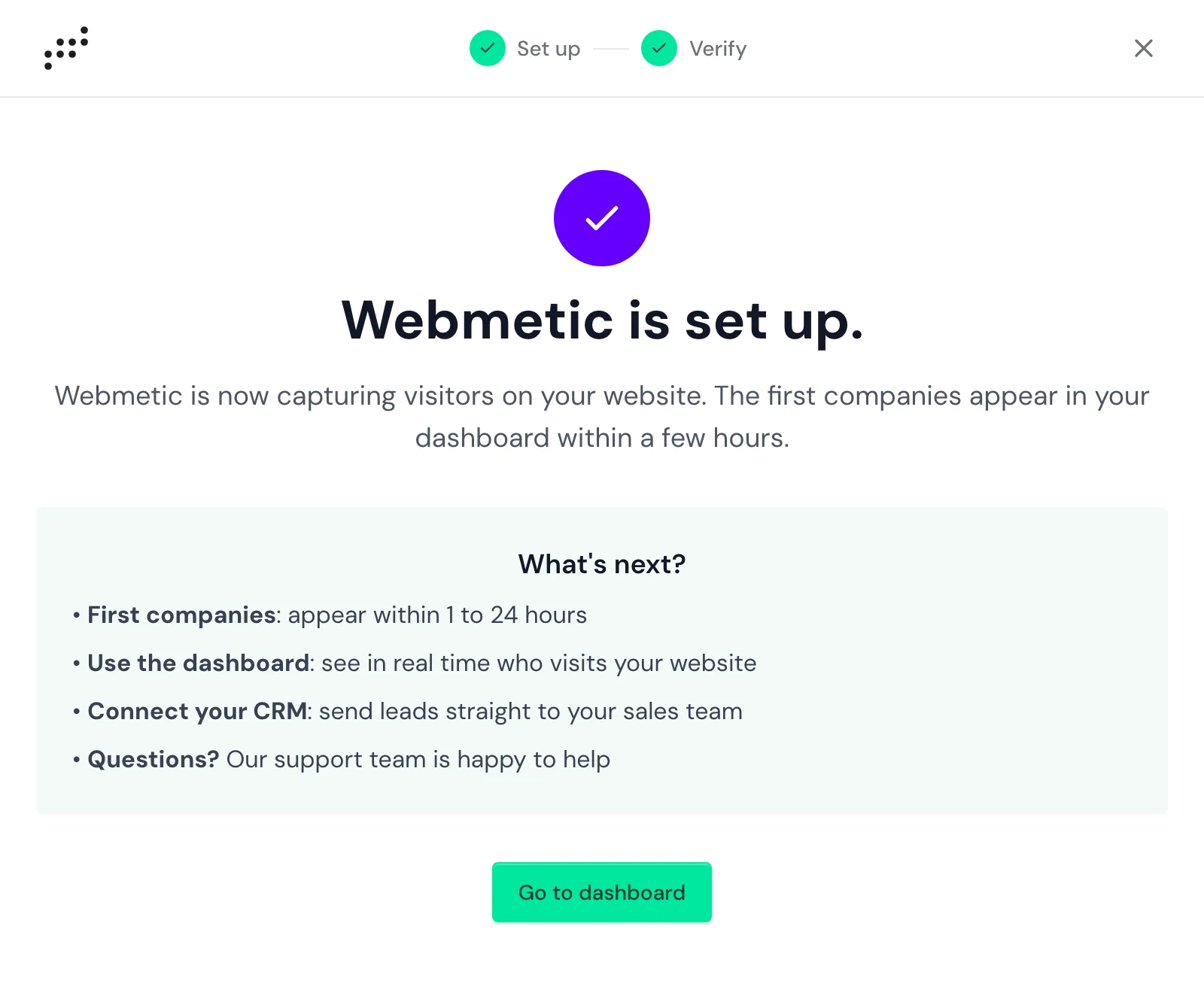
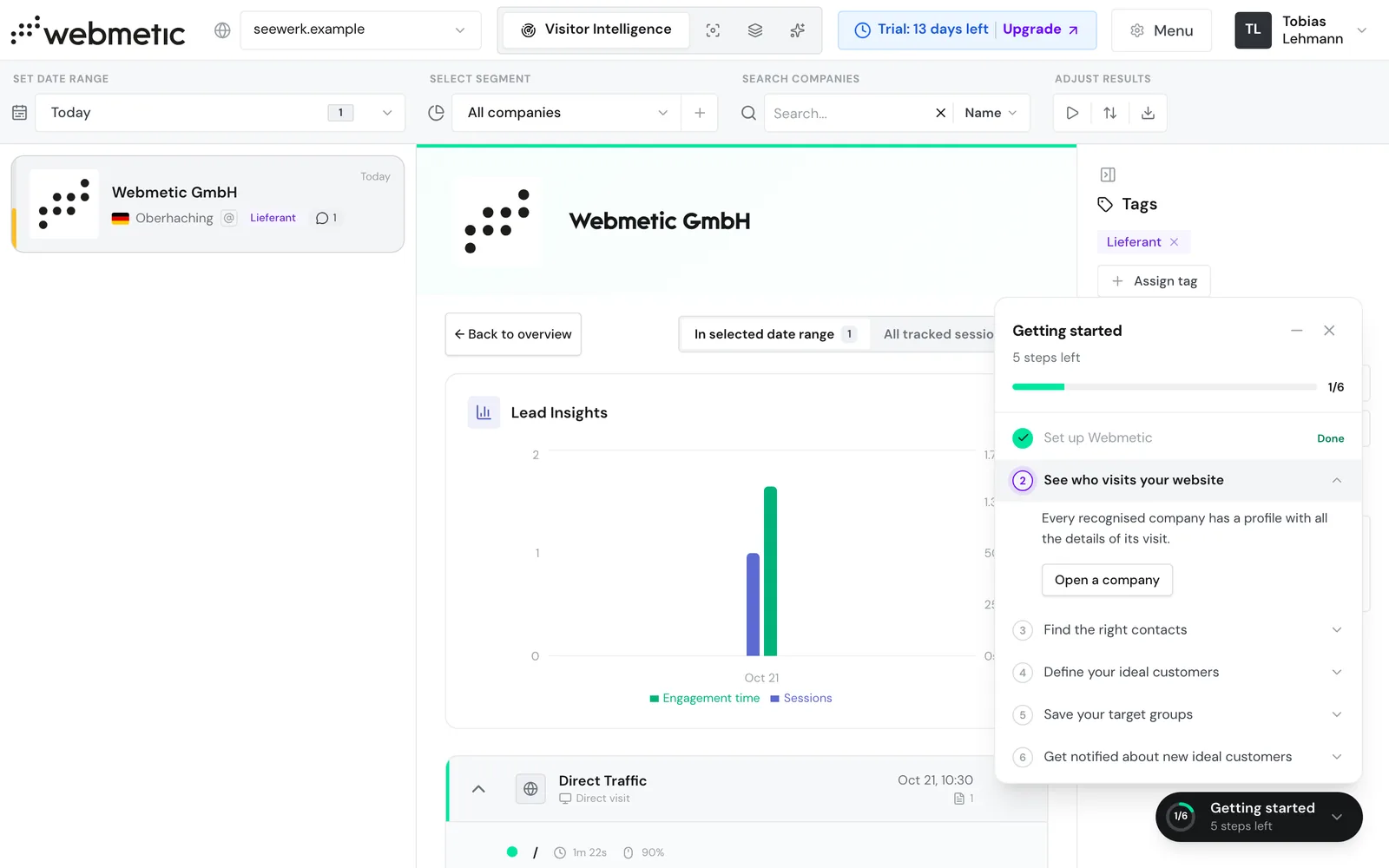
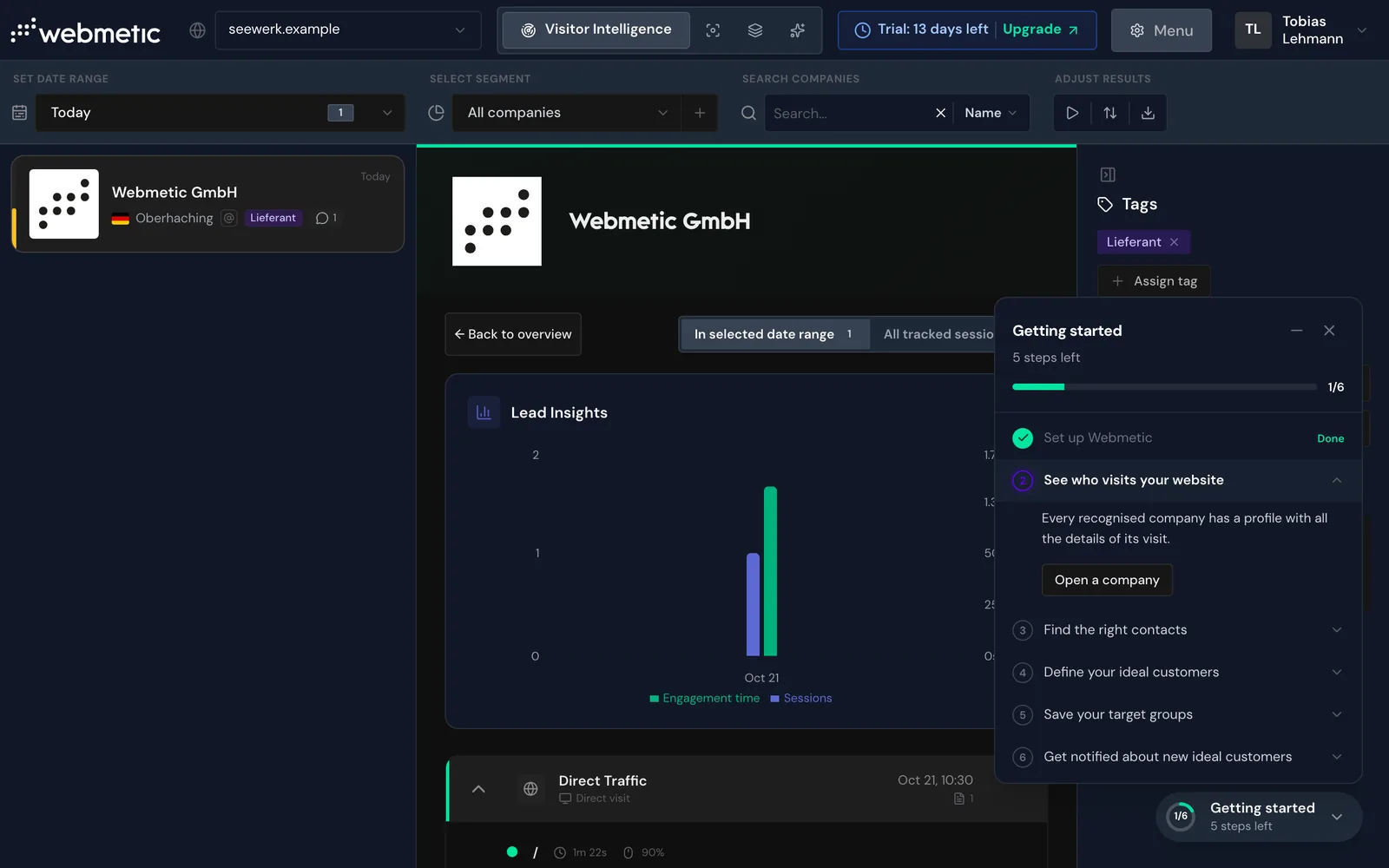
- In the assistant, click Go to dashboard. Webmetic opens Visitor Intelligence and shows how many trial days are left at the top, for example Trial: 13 days left.
- Open Menu > Websites. Your website shows Active.
During the 14 days of the trial, you get all the features of the Growth plan except single sign-on.
When the trial starts, Webmetic creates a one-time set of examples to try out. They're in German, even in the English dashboard:
- four tags: Kunde (customer), Kontaktiert (contacted), Nicht relevant (not relevant), and Lieferant (supplier)
- the notification Besucher-Update, which sends you an email with the companies that visited your website, every Monday, Wednesday, and Friday at 8 a.m.
- the segment Großraum München (Greater Munich)
- the test company Webmetic GmbH with one test visit, the tag Lieferant, and a comment
- three example contacts at Webmetic GmbH
7. Use the Getting started checklist
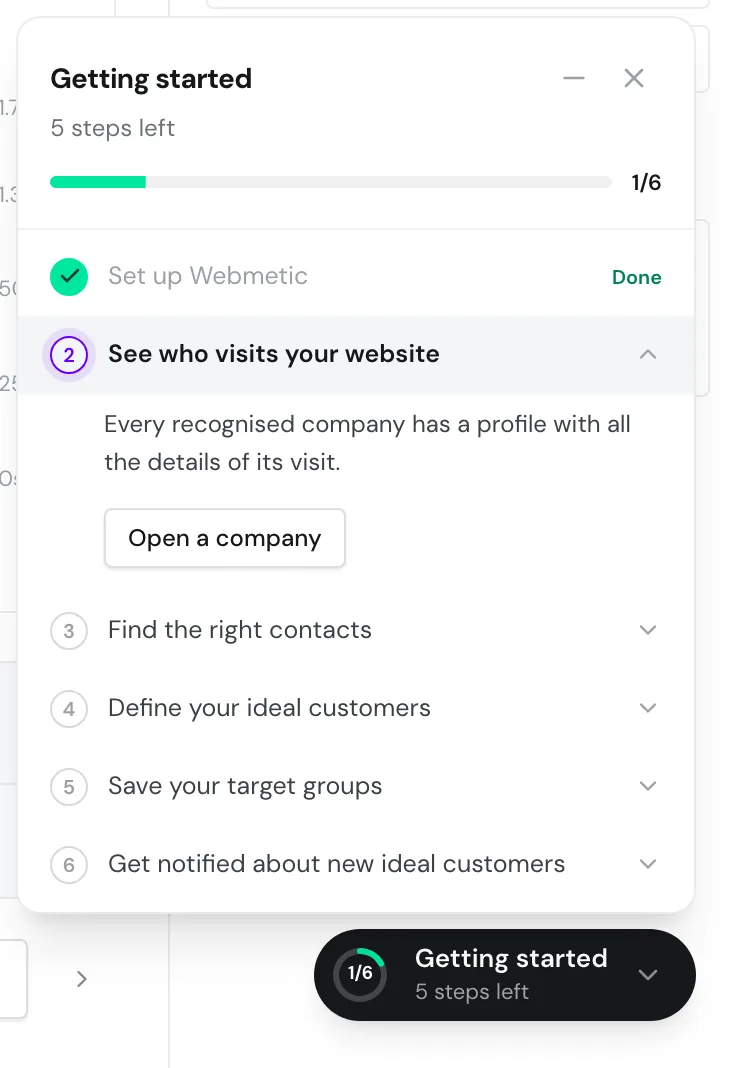
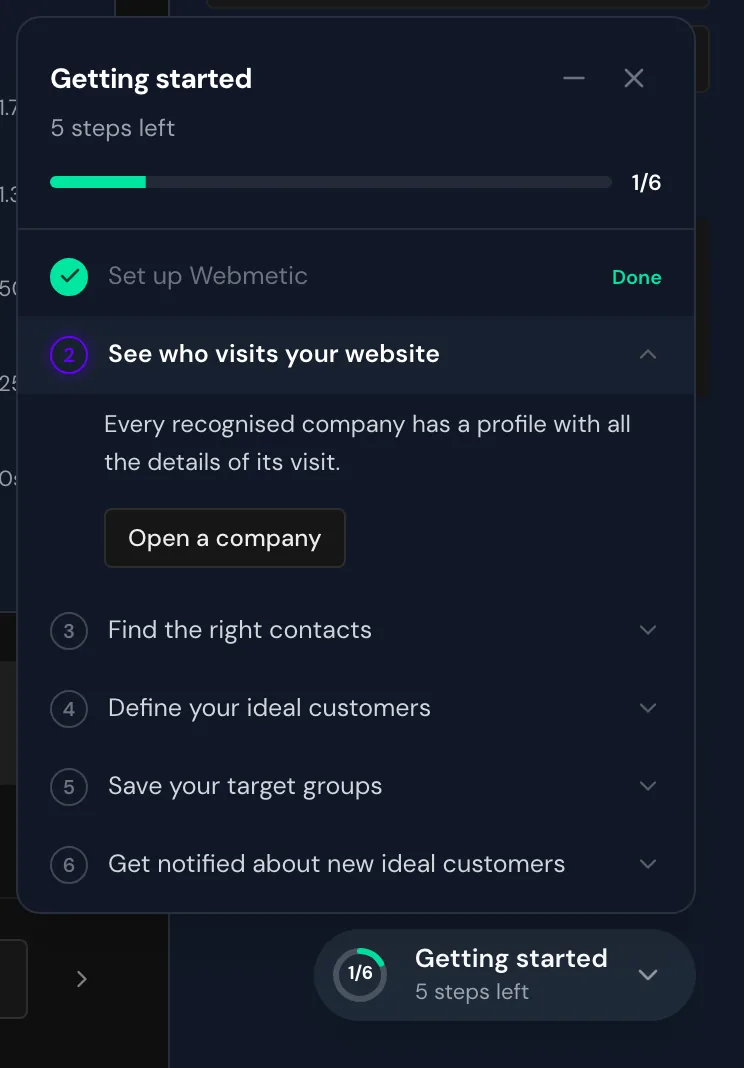
The Getting started checklist opens in the bottom right of the Visitor Intelligence page and guides you through six steps:
- Set up Webmetic
- See who visits your website
- Find the right contacts
- Define your ideal customers
- Save your target groups
- Get notified about new ideal customers
Webmetic ticks off the first step once setup is done, and the others count as done when you open them from the checklist. If you do a task somewhere else in the dashboard, the step stays open.
Hiding is permanent
If you choose Hide getting started, the checklist disappears for your user for good. This can't be undone. Use Minimize instead.
- Click a step's button, for example Open a company. Webmetic shows the matching place in the dashboard.
- If you don't need the checklist right now, click Minimize. The checklist then becomes a button in the bottom right, which opens it again.
When all six steps are done, the checklist disappears on its own.
What you set up
- Your account exists, and your website shows Active.
- The tracking code is running, added by you, your IT team, or your agency.
- Your trial is running, and Webmetic has created examples to try out.
- The Getting started checklist shows you what comes next.