

WordPress
Install the Webmetic plugin so your WordPress website reports every visit to Webmetic.
The official Webmetic plugin adds the tracking code to every public page of your WordPress website. You don't edit a theme file or write code, and when you're done, Webmetic shows your website as Active.
Before you start
- Time: Setup takes a few minutes.
- Account: You need a Webmetic account, but no admin rights in Webmetic. Your website must be listed in Website management, where Webmetic adds your sign-up website automatically.
- Access: Your website needs WordPress 5.7 or later and PHP 7.4 or later. If you don't have access, forward this page to your agency or IT team.
- Rights: In WordPress, only an administrator can install plugins, and on a multisite network only the super admin.
- Plan: The plugin works on every plan and costs no credits. The trial lasts 14 days and only starts once Webmetic detects your tracking code for the first time.
1. Copy your account ID
The plugin needs your account ID so Webmetic can assign the visits to your account.
The Tracking Code window has no WordPress option, so the ID appears there under Google Tag Manager.
- In Webmetic, open Menu > Tracking code. The Tracking Code window opens.
- Click Google Tag Manager. Webmetic shows the Account ID box with the Copy ID button.
- Click Copy ID.
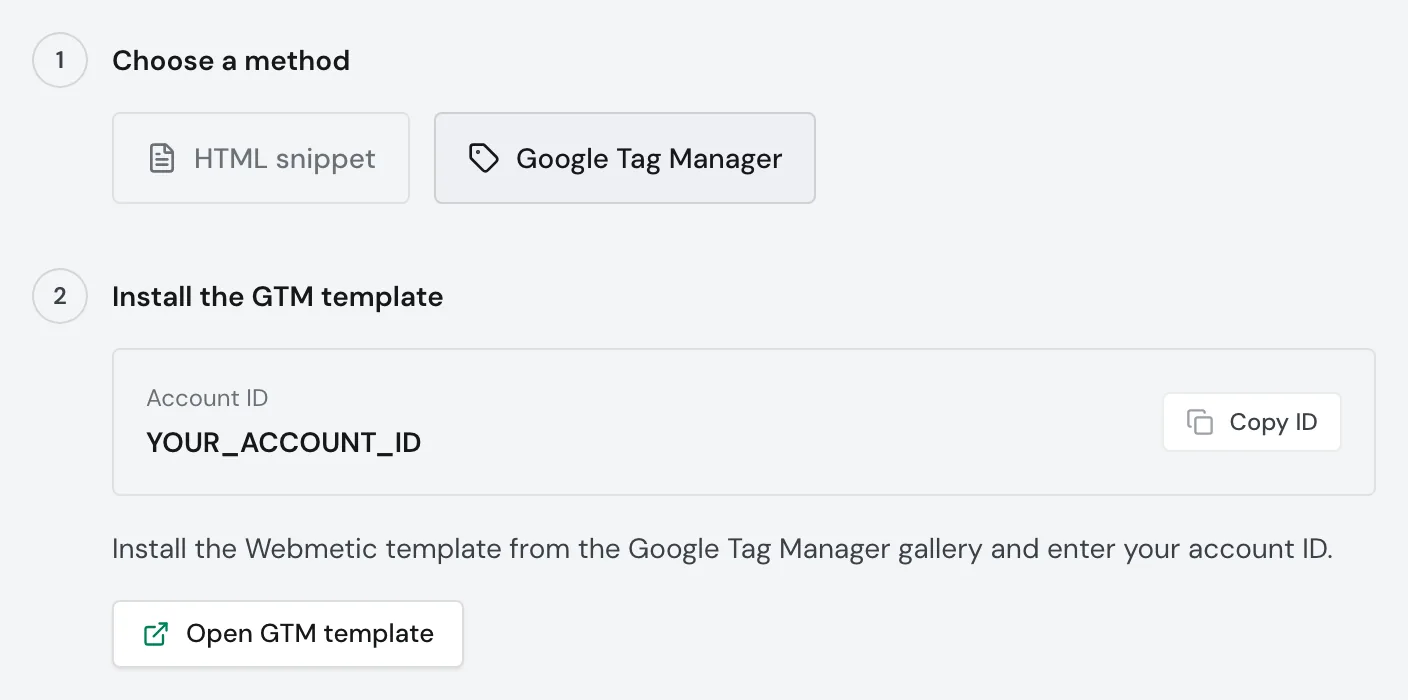
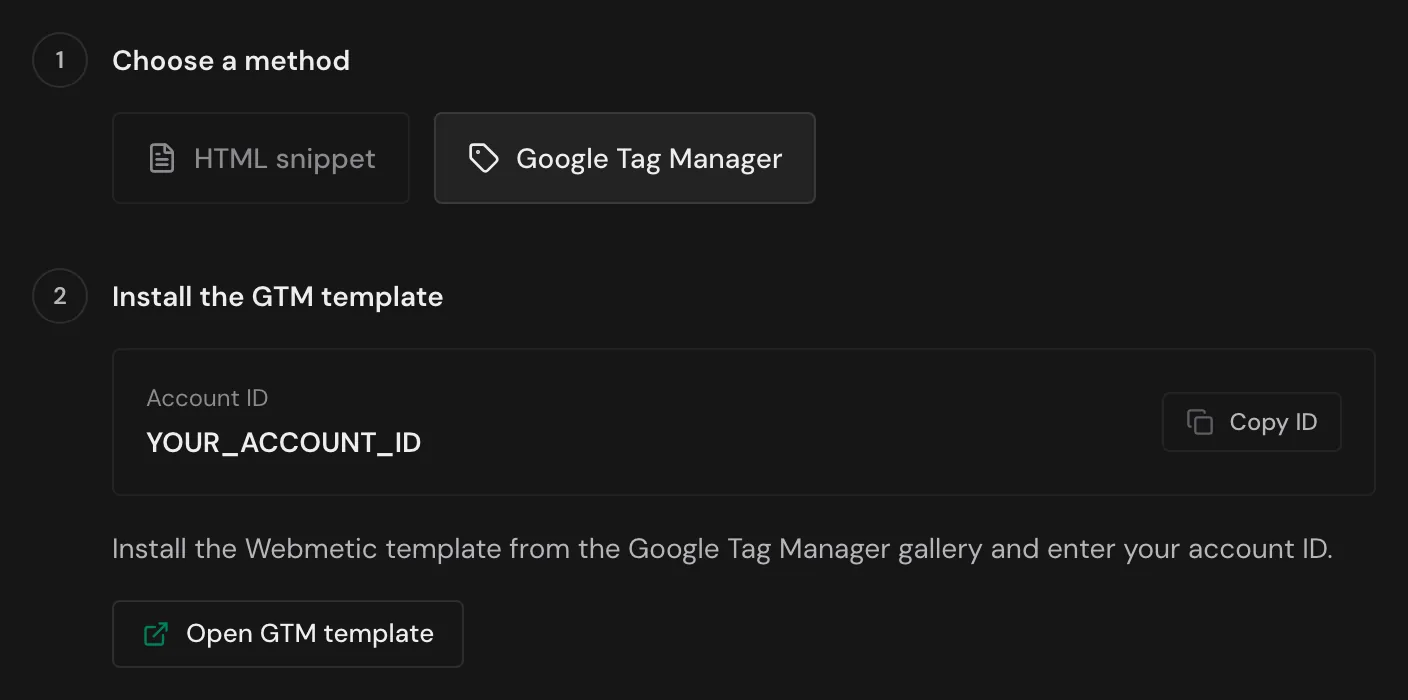
As long as no website is Active yet, the setup assistant also shows the ID on the WordPress plugin path.
2. Install the plugin
- Sign in to WordPress at
your-website.com/wp-admin. - Open Plugins > Add Plugin. On WordPress 6.4 to 6.7 the menu item is called Add New Plugin.
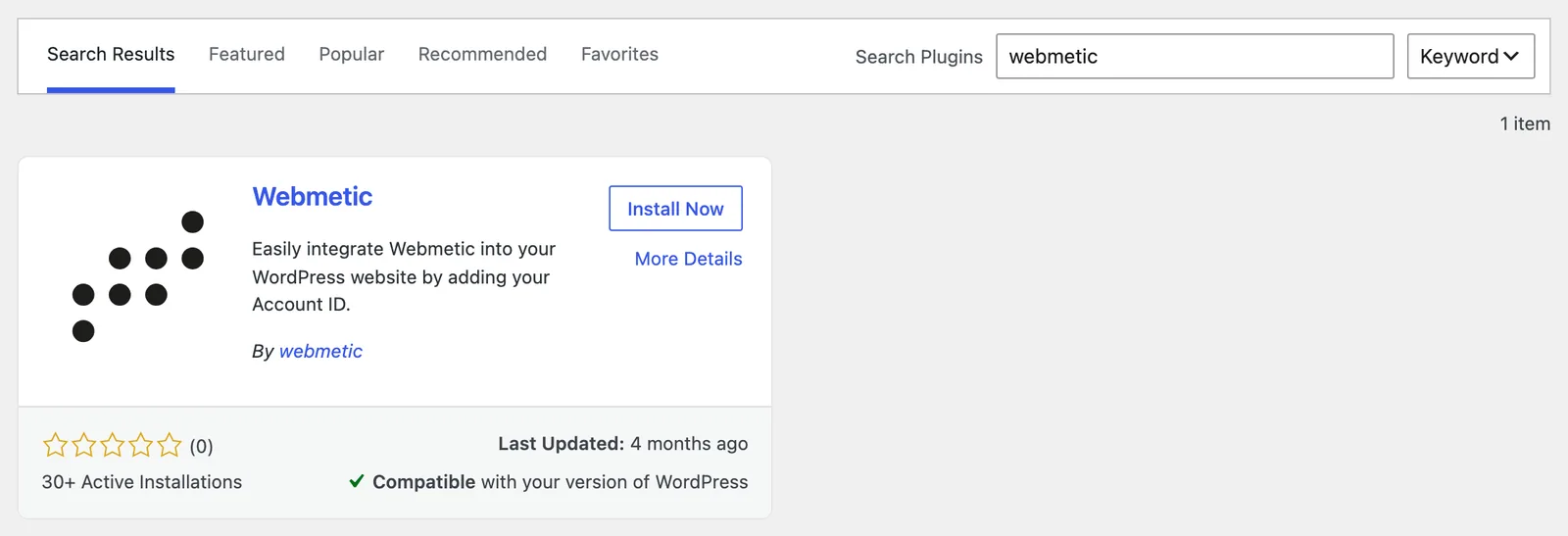
- Type "Webmetic" into the Search Plugins field. WordPress shows the "Webmetic" card by Webmetic GmbH.
- On the card, click Install Now.
- Click Activate. Without an account ID, the plugin doesn't add the tracking code yet.
3. Set up the plugin
- In WordPress, open Settings > Webmetic, or click the Settings link next to the plugin under Plugins > Installed Plugins. The Webmetic Settings page opens.
- Paste your account ID into the Account ID field exactly, because the plugin doesn't check it.
- Leave the Script Placement option on Footer (Recommended). Either way the tracking code loads in the background, so only its position in the page source changes.
- Optional: Tick Enable Session Replay. The box starts unticked in the plugin, while the dashboard's tracking code has it ticked.
- Click Save Settings. WordPress shows "Settings saved." at the top.
- If your website uses a caching plugin, clear its page cache there. Until then, the cache serves your pages without the tracking code, because the Webmetic plugin doesn't clear it.
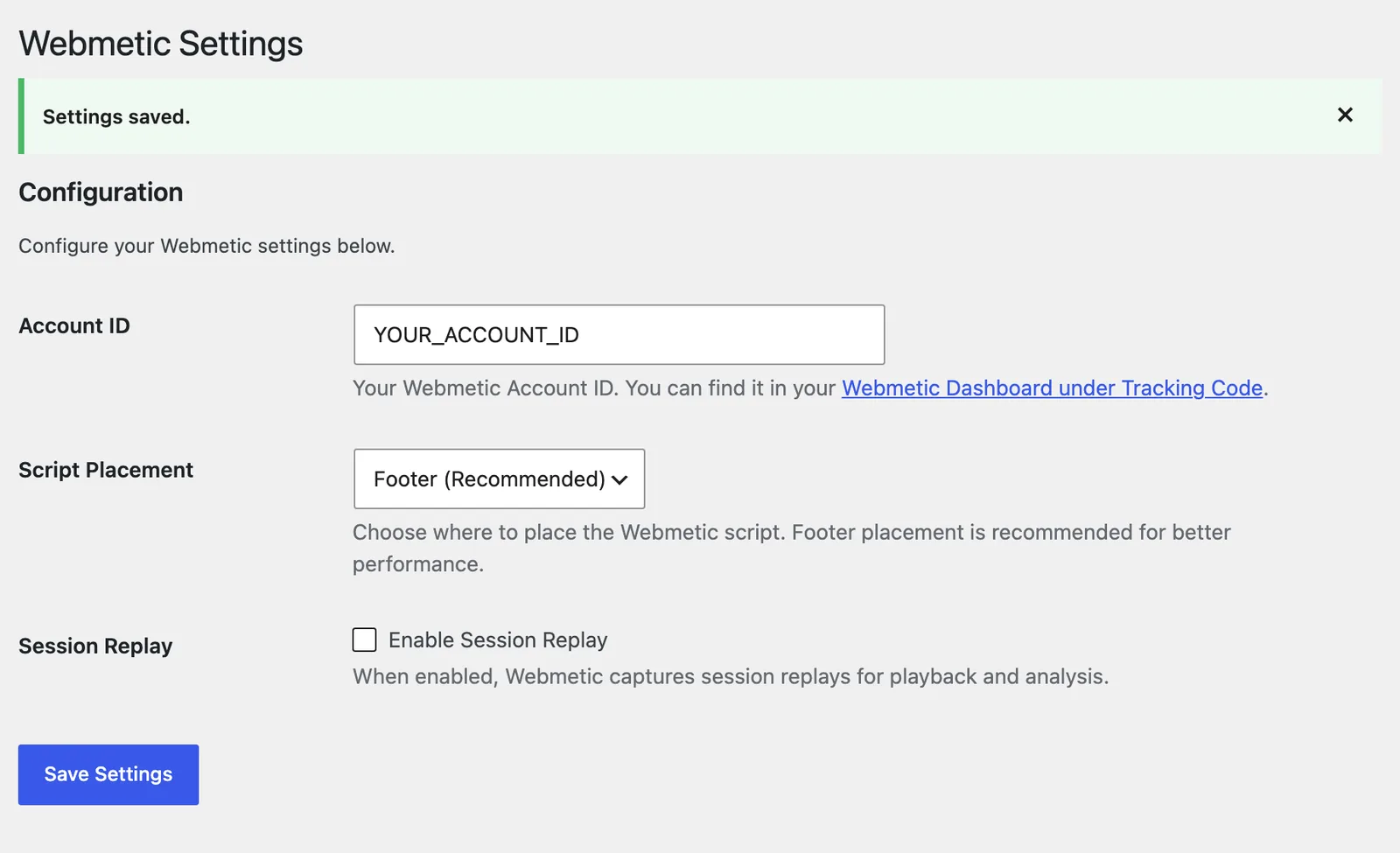
The checkbox switches on session recording: Webmetic records mouse movements, clicks, and scrolling, while form inputs stay hidden.
You can watch recordings during the trial and on the Growth plan or higher. If your plan includes them, tick the box.
With WP Rocket, LiteSpeed Cache, Perfmatters, SG Optimizer, FlyingPress, Autoptimize, and W3 Total Cache, the Webmetic plugin excludes the tracking code from the most common optimizations. If a plugin still delays the code, see "Optimization plugin" under "If nothing arrives".
You copy the text for your privacy policy in the Tracking Code window under Privacy notice. You'll also find the text in German and English under Add the privacy notice.
Check your installation
- Open a public page of your website. Your own visit counts, because the plugin also tracks logged-in WordPress users and admins.
- Optional: Open the page source and search for
webmetic-bootstrap. If you find it, the plugin is adding the tracking code. - In Webmetic, open Menu > Tracking code and click Quick check under Verify installation. Webmetic shows right away whether data is arriving.
- Open Menu > Websites and click the Refresh status icon (↻). Your website now shows the status Active.
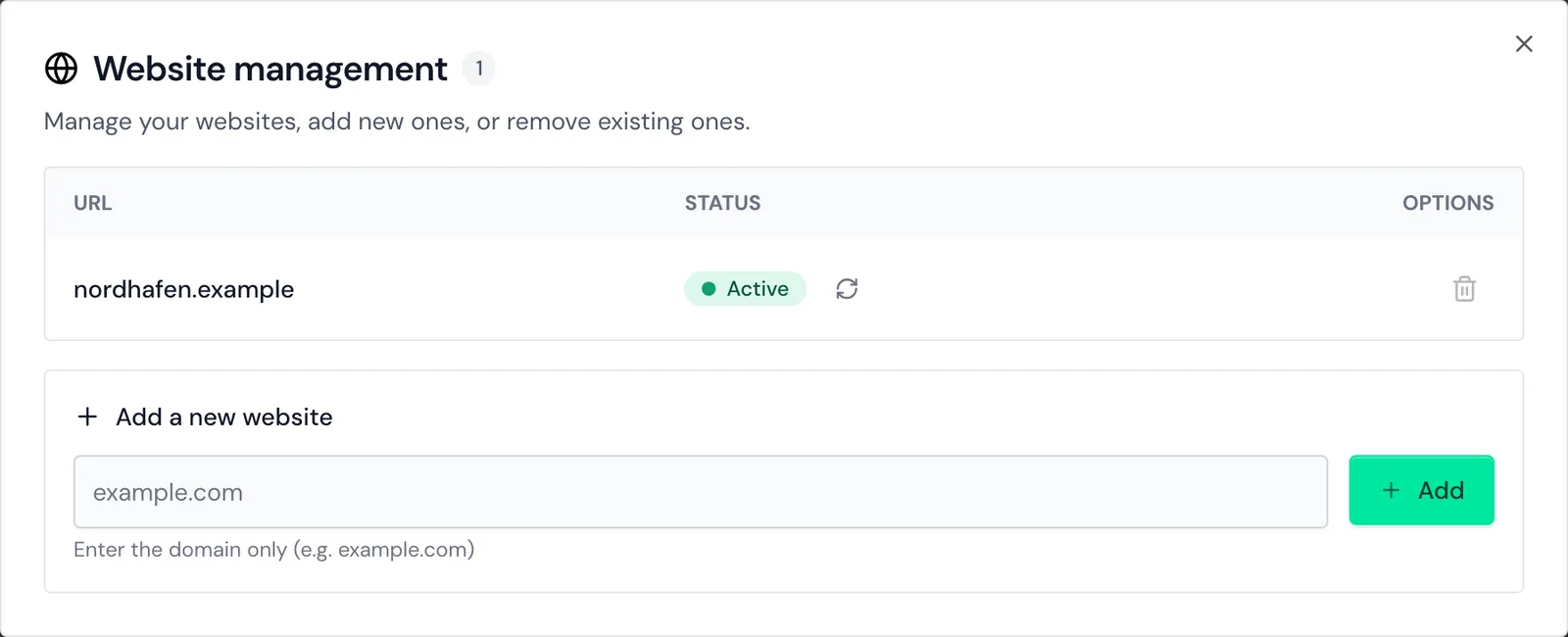
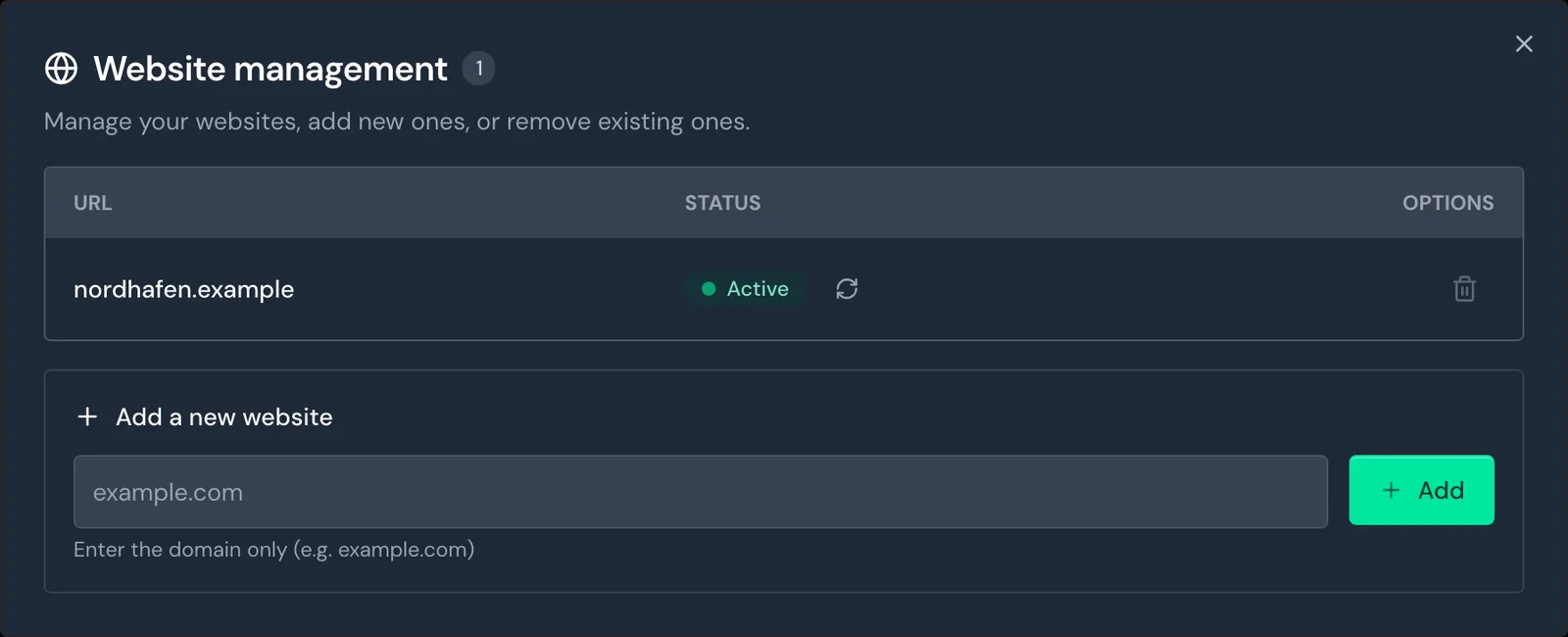
Active means Webmetic has received data with your account ID in the last 24 hours. The first data arrives after a few minutes. The first companies appear within minutes to hours, depending on how much traffic your website gets.
The Deep check opens your website and looks for the tracking code there, but only on the first website in your account, and only on its home page. For details, see Check your installation.
If nothing arrives
- Status Not integrated: A typo in the account ID leads to this status. Check the ID in WordPress, because the plugin doesn't flag a wrong ID.
- Nothing in the page source: Check that the plugin is active and an account ID is saved, then clear the page cache.
- Still nothing in the source: Switch the Script Placement option to Header and save, because some themes don't output the footer area.
- Website missing from the list: Add your domain under Menu > Websites. How many domains you can add depends on your plan.
- Optimization plugin: In your optimization plugin, exclude
t.webmetic.de/iav.jsfrom combining, delaying, and minifying. - Consent tool: If your consent tool blocks the tracking code until someone agrees, Webmetic only records visits after that click, so give consent yourself for the test.
For more cases, see Special cases.
- Download the plugin as a ZIP file from wordpress.org.
- In WordPress, open Plugins > Add Plugin and click Upload Plugin.
- Choose the ZIP file and install the plugin.
- Click Activate Plugin.
On a network, enter the account ID on every website under Settings > Webmetic, because each website keeps its own settings. Each domain must also be listed in Website management.
A deactivated plugin stops adding the tracking code but keeps your settings. If you delete the plugin, WordPress also removes these settings, on a multisite network on every website.
With a nonce-based Content Security Policy, your IT team adds the nonce through the WordPress filter for inline scripts.