

Create a segment
Use the segment builder to define which companies belong to a segment, and save the selection for your team.
A segment is a saved selection from your company list, for example every company with 51 to 500 employees. Webmetic evaluates it again each time you use it, so new matching companies show up on their own.
At the end you'll have:
- a segment that every user in your account finds under Select segment
- the company list filtered to this segment
- optionally, tags that Webmetic assigns to matching companies automatically
Before you start
- Time: A segment with one condition takes a few minutes.
- Account: You need a Webmetic account with at least one website.
- Access: To create segments, you need a window at least 1,024 pixels wide. On smaller screens, you can only pick segments.
- Rights: Every user in your account can create segments, even without admin rights. All users see the same segments.
- Plan: Segments are available on every plan, including Free and the trial, and don't cost credits.
Open the segment builder
A segment belongs to the website you create it on and always shows that website's companies.
- Open the Visitor Intelligence tab.
- Check in the website picker in the top left that the right website is open.
- Above the list, under Select segment, click the plus next to the picker. Alternatively, click the picker and then Create segment at the bottom.
The Segment builder opens, and next to it you see a preview of the matching companies.
If a subdomain view is open, the new segment applies to that subdomain only. To cover the whole website, create it without a subdomain view.
If you click Cancel, press Esc, or click outside the builder, Webmetic closes the builder without asking. You lose your entries.
Set the name and date range
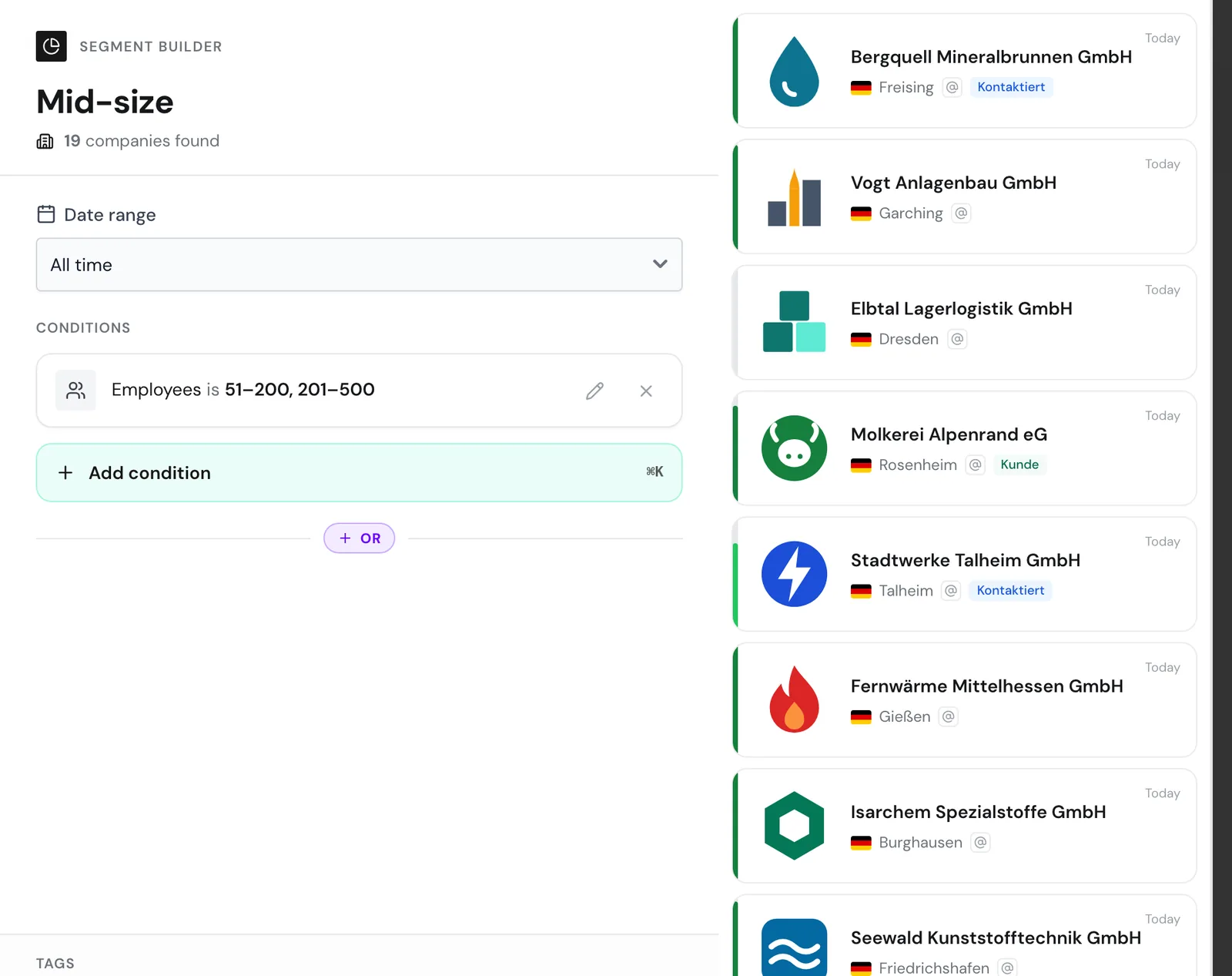
- Enter a name at the top of the builder, for example Mid-size. The name can be up to 30 characters long.
- Under Date range, choose which visits count. New segments start with All time.
If you leave the name empty, Webmetic suggests one from the field and value of your first condition, and you can overwrite it.
Under Date range, you can choose Today, Yesterday, This week, Last week, the current month and the two months before it, the current year and the two years before it, and All time.
With Custom range..., you pick a start and end date in the Set date range window and click Apply.
The segment only shows you companies with at least one visit in this date range. Conditions about visits and pages only check visits in this date range.
Today, Yesterday, This week, and Last week move with the calendar, in the list, in notifications, and for automatic tags. The day counts in German time, and a week runs from Monday to Sunday.
Every other date range stays as you saved it. So a segment with the current month keeps showing that month later on.
Add the first condition
- Under Conditions, click Add condition. The Select attribute picker opens and groups the fields into the sections Company, Session, User data, NACE, and Tags.
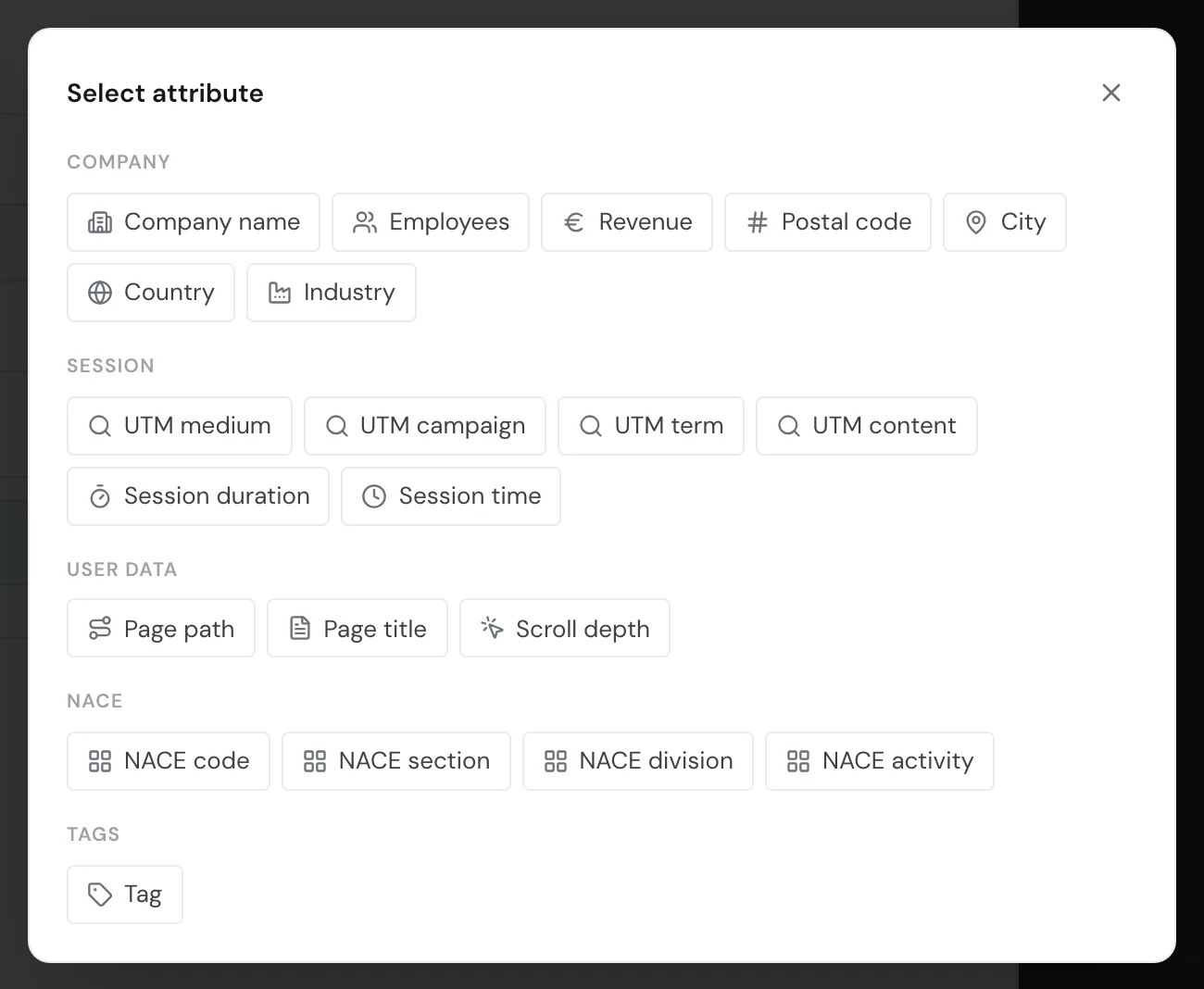
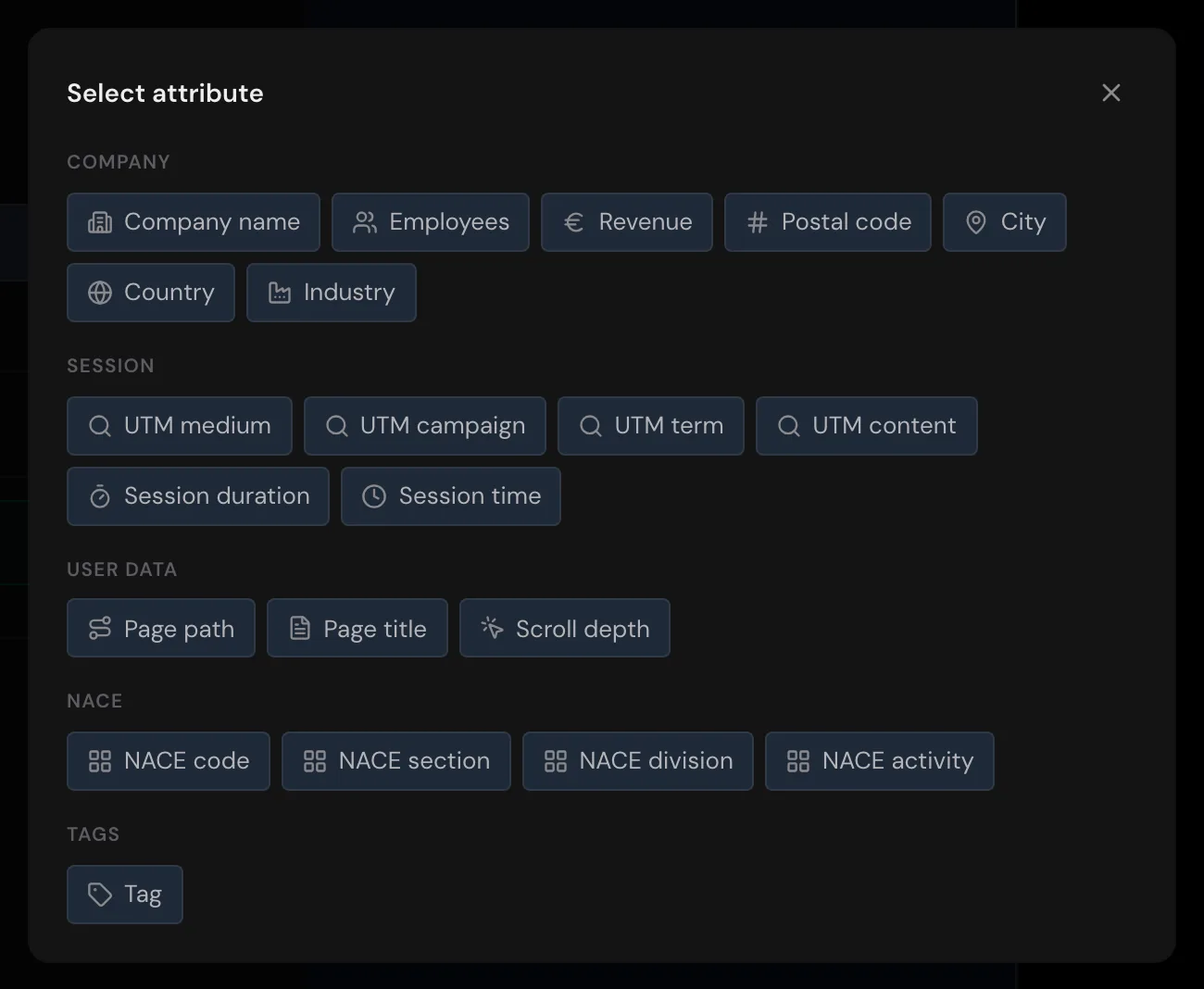
- Click a field, for example Employees. Webmetic shows the operator and the available values below it.
- Choose the operator, for example is.
- Choose one or more values, for example 51–200 and 201–500. Several values mean "any of these".
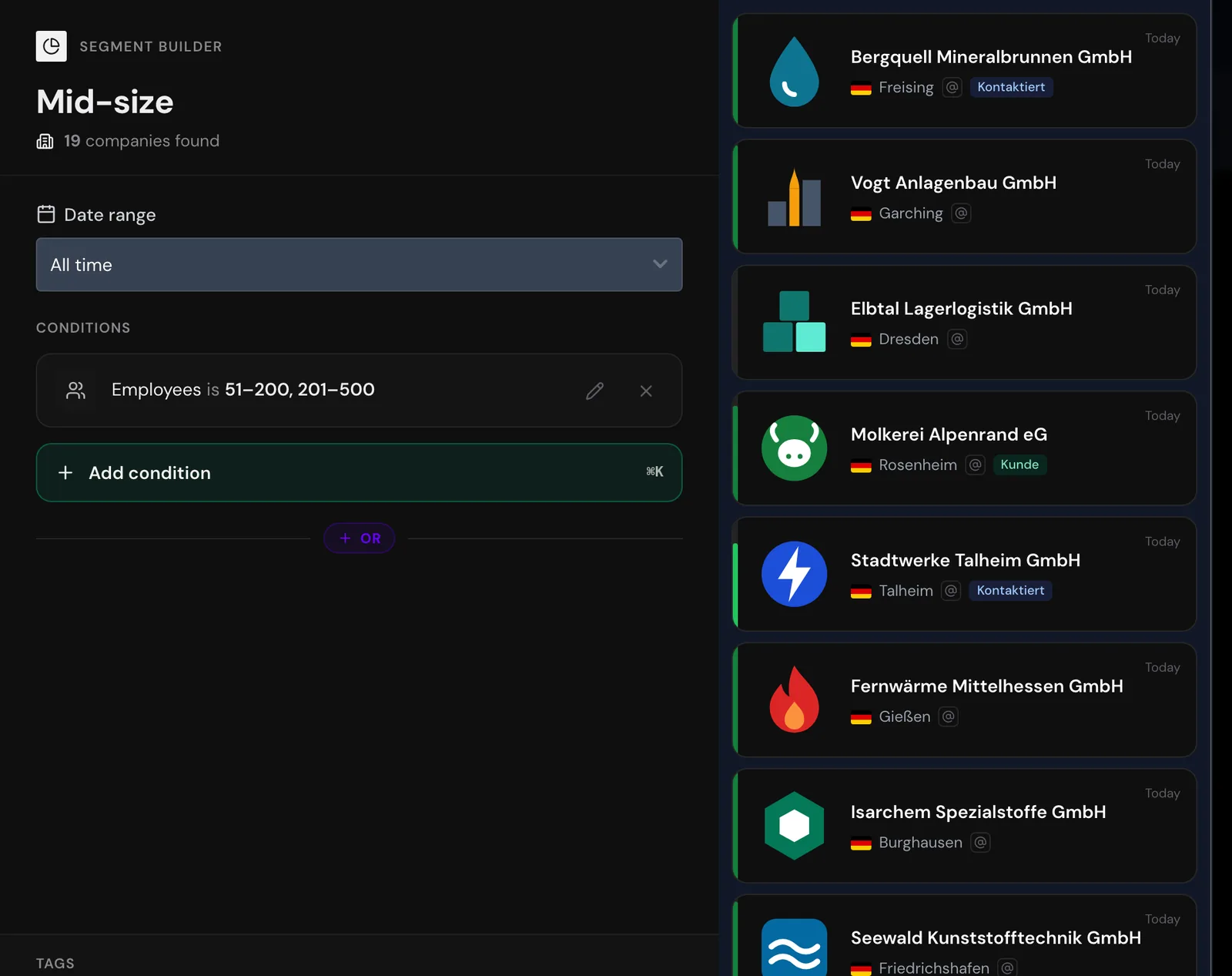
- Click Apply condition. The condition appears as a card under Conditions.
How you enter the value depends on the field: you click values, type text, or choose a tag.
For Session duration and Session time, you enter seconds. The Apply condition button only becomes active once the field, operator, and value are set.
For a specific page, choose Page path with the operator contains and part of the address, for example /preise or /pricing. Webmetic checks the full address of the page here.
The filter reference lists the operators for each field.
To change a condition, click its card or the pencil. Clicking the X removes the condition immediately, without asking.
Check the matches
Below the name, Webmetic shows how many companies match, for example 19 companies found, and next to it you see the preview with these companies.
The number and the preview update every time you change a condition or the date range, and they follow the same rules as the saved segment.
- Click a company in the preview. Webmetic opens its profile next to it.
- Check whether the company belongs in the selection.
If you save a segment without conditions, it contains every company in the date range.
Combine conditions with AND
- Click Add condition again.
- Choose the field, operator, and value, and click Apply condition.
All conditions in a group must be true, even though you won't see an "AND" label between the cards. The Add condition button always adds the new condition to the last group.
Within a group, conditions about visits must be true for the same visit. With Page path contains /preise and Session duration greater than 60, the segment therefore finds companies with a visit in which someone opens the pricing page and that lasts longer than 60 seconds.
Add an OR group
With an OR group, you add companies that meet a second selection. A company belongs to the segment if it meets every condition of at least one group.
- Below the conditions, click OR. Webmetic creates a new group and opens the Select attribute picker.
- Set the first condition of the group and click Apply condition. A line labeled OR now separates the groups.
- Optional: Click Add condition to extend the new group.
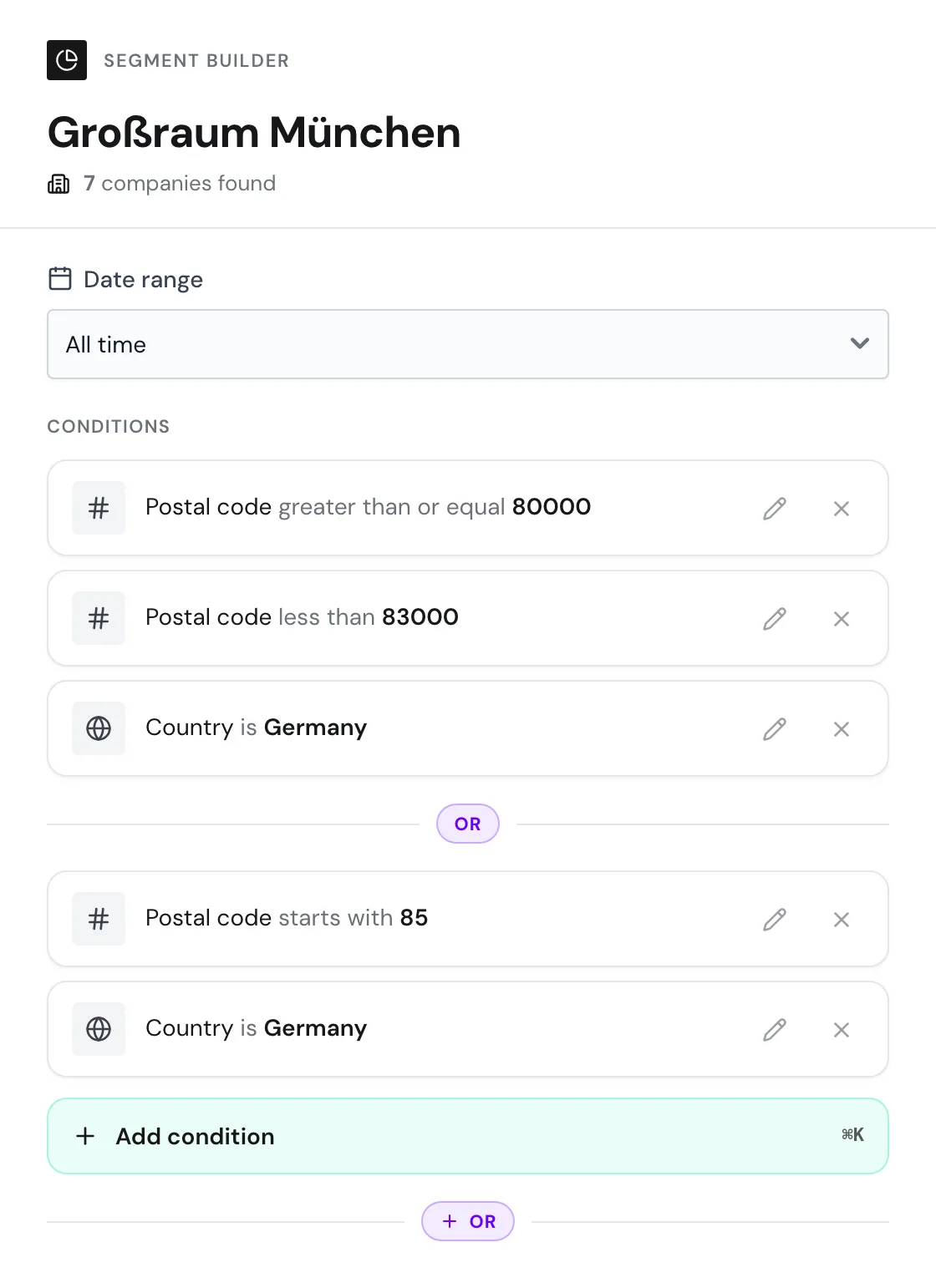
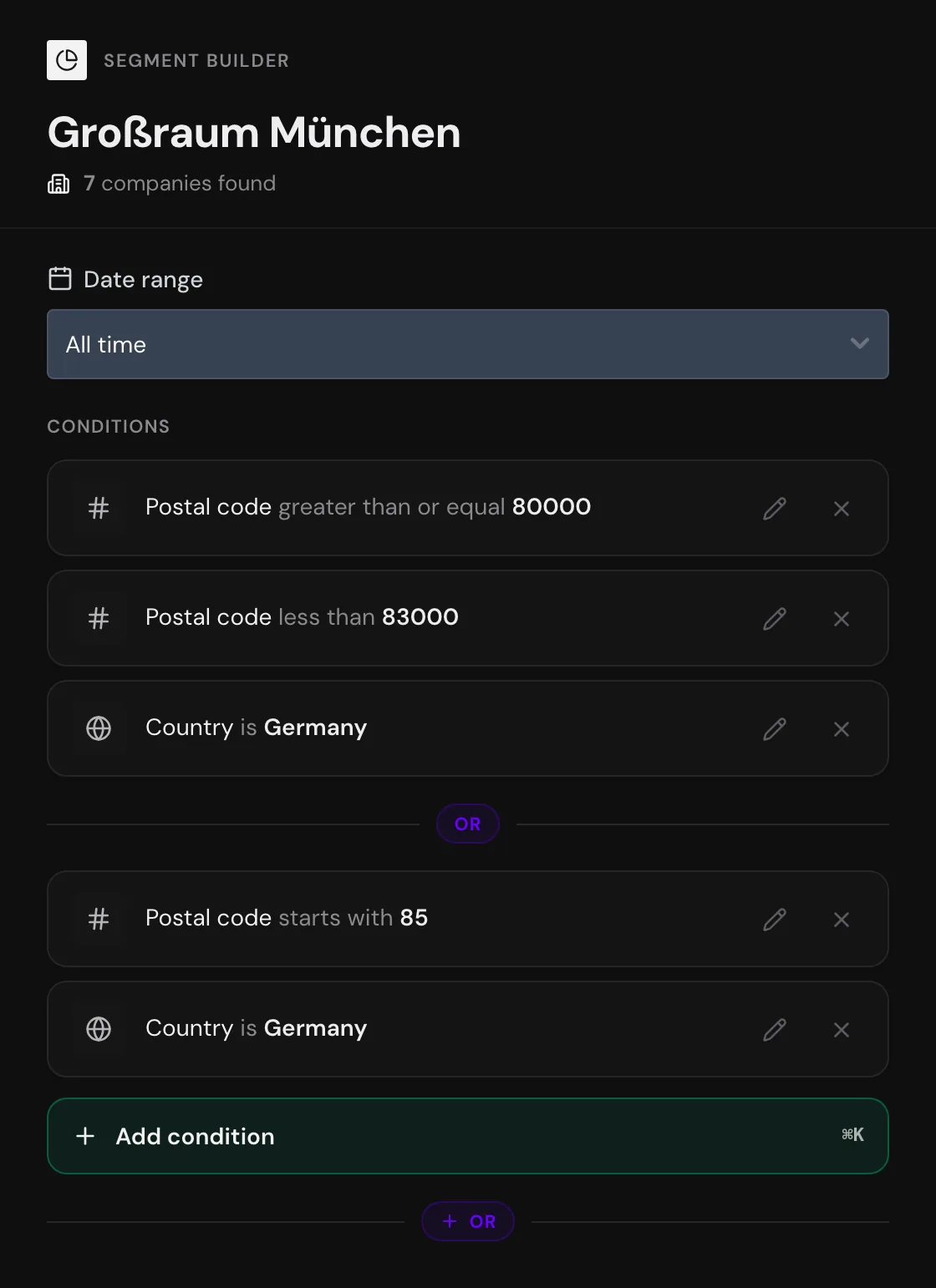
You see the OR button once you've added at least one condition. If you remove the last condition of a group, the group disappears.
For "page A or page B", create two OR groups, one per page.
If a condition should apply to all groups, add it to every OR group. If you're looking for companies from Germany, for example, Country is Germany belongs in every group.
Assign tags automatically
A segment can assign tags to matching companies automatically.
When you save, Webmetic assigns the tags to every matching company in the segment's date range. After that, Webmetic checks every 15 minutes during the day which companies newly match.
Webmetic never removes these tags, so a company that drops out of the segment keeps its tag.
So use a dedicated tag for each segment, never an existing tag such as your customer tag.
Removing a tag from a segment affects the whole website
If you remove a tag from a segment, Webmetic removes that tag from every company on the website, including where you assigned it by hand.
- At the bottom, in the Tags section, click Assign tag.
- Choose one or more tags. With Create new tag, you create a tag of your own.
The trash icon in the tag picker deletes the tag in your whole account, not only in the segment.
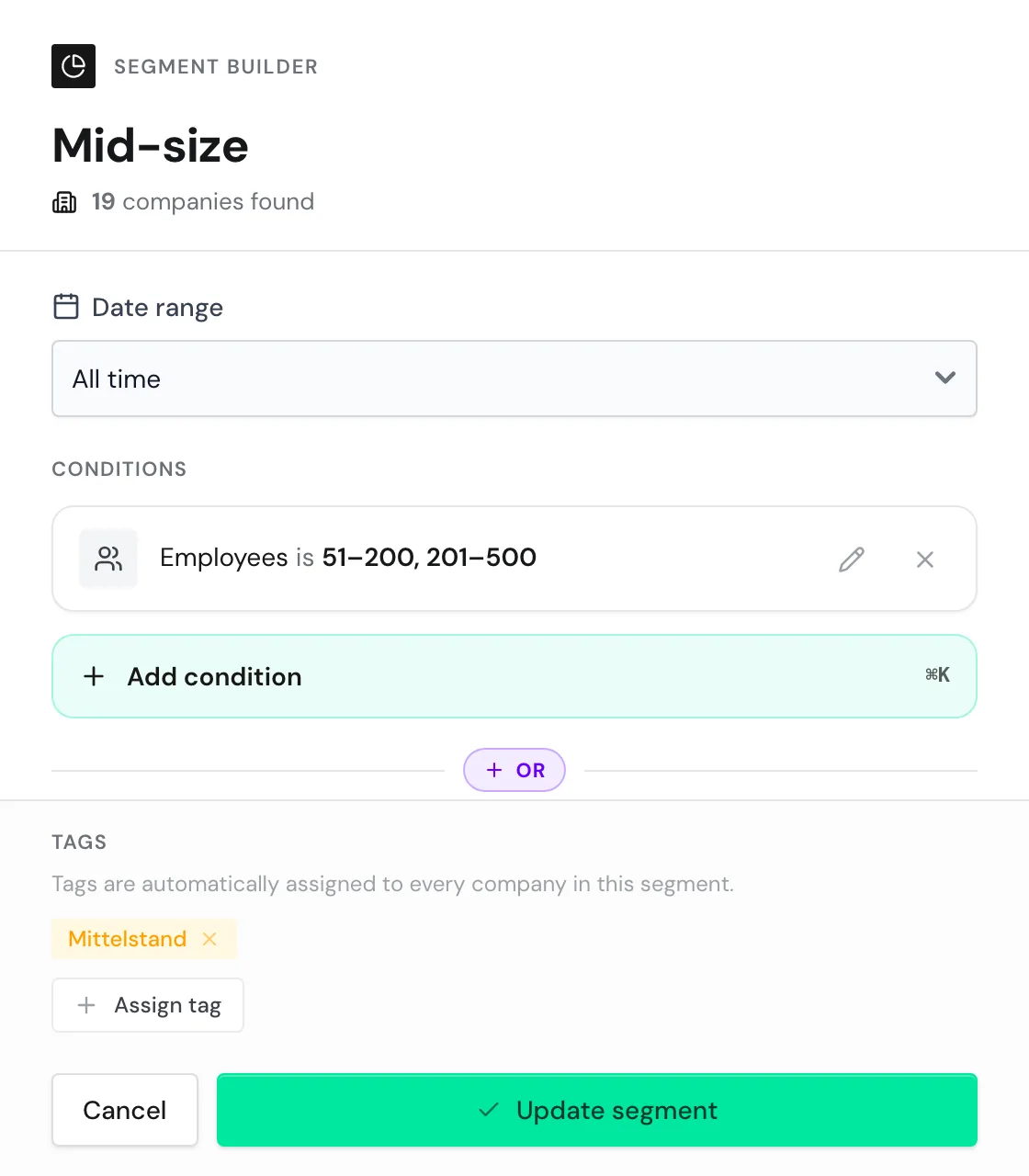
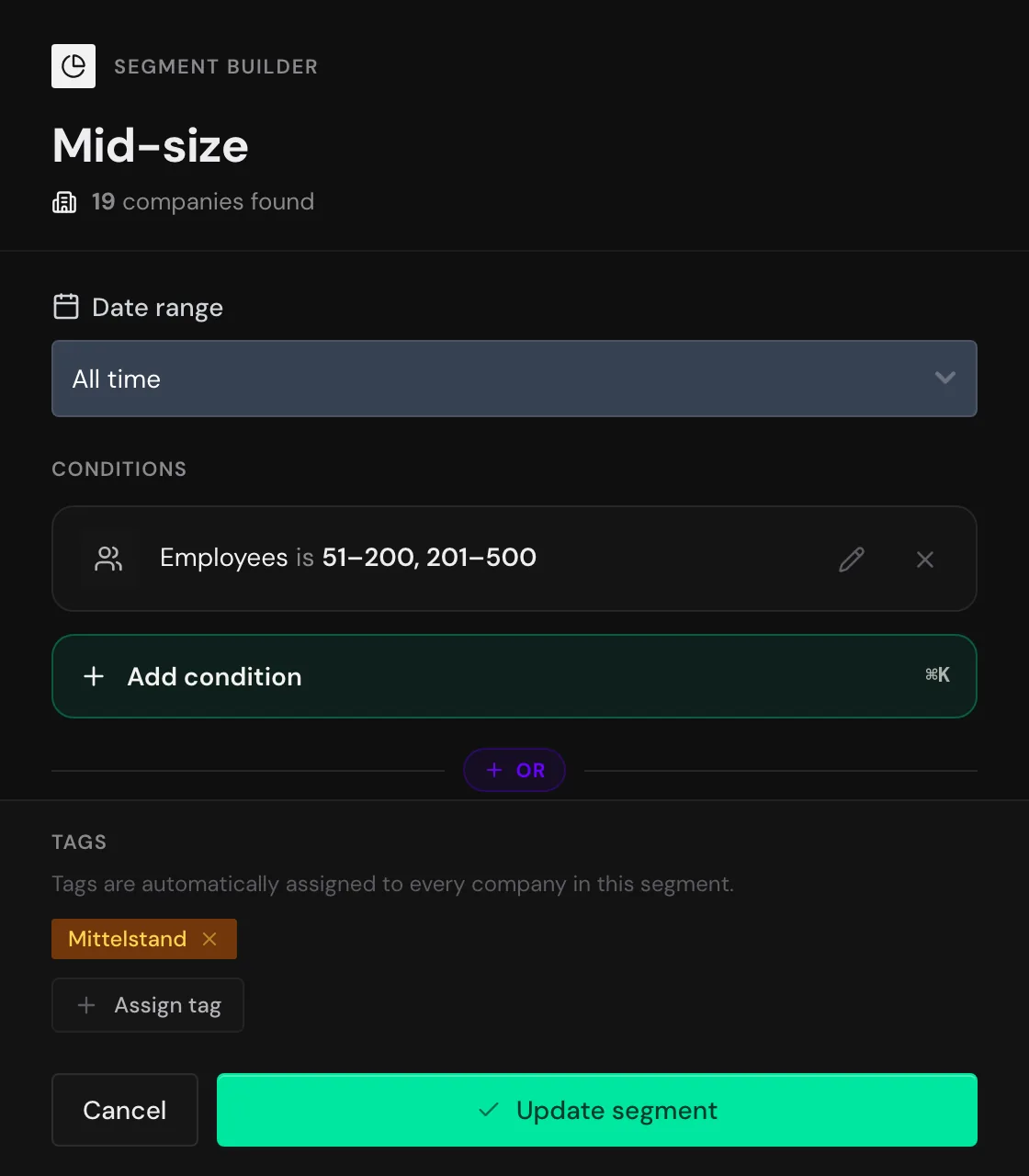
A tag you create here exists in your whole account right away, even if you cancel afterward.
If the segment itself checks a tag as a condition, Webmetic assigns the segment's tags only when you save. For more on tags, see Assign tags.
Save the segment
The Save segment button becomes active once the segment has a name.
- Click Save segment.
Webmetic closes the builder and shows the list with the new segment and its date range. From then on:
- Every user in your account finds the segment under Select segment.
- New companies that match the segment show up without any action from you.
- Webmetic has already assigned the segment's tags.
- You can choose the segment in a notification of type Segment.
To edit a segment, see Manage segments.
For how the segment and the date range work together in the list, see Choose a segment.