

Segment recipes
Rebuild ready-made segments for hot leads, sales territories, target customers, and campaigns.
Each recipe gives you the goal, the conditions, the date range, and what you can do with the result. At the end you'll have:
- saved segments that show exactly the companies the recipe describes
- if you like, an email to you or your sales team with the companies of a segment
- if you like, a tag that Webmetic assigns to matching companies automatically
Before you start
- Time: You can rebuild a recipe in a few minutes.
- Account: You need a Webmetic account with an active tracking code and identified companies. Recipes about visits need visits in the chosen date range.
- Access: To create segments, you need a window at least 1,024 pixels wide. On smaller screens you can only pick a segment.
- Rights: Every user of your account can create segments, even without admin rights.
- Plan: Segments are available on every plan, including Free and the trial, and cost no credits.
To open the segment builder, click the All companies picker under Select segment above the company list, and then click Create segment. Create a segment shows each step in detail.
A condition about visits only counts visits inside the segment's Date range. New segments start with All time. Today, Yesterday, This week, and Last week move with the calendar, in the list, in notifications, and for automatic tags. Every other date range stays as you saved it.
Report hot leads from the pricing page
Goal: Every weekday, your sales team learns which companies read your pricing page this week and stayed longer than a minute.
Add these conditions in one group:
- Page path contains
/preise - Session duration greater than
60
Date range: This week
Enter the path of your pricing page, for example /preise or /pricing. Choose contains, because Webmetic compares the full address of the page. Enter the value for Session duration in seconds. You need both conditions to be true in the same visit.
If your demo page should count too, click OR and add a second group: Page path contains /demo and again Session duration greater than 60. If both paths are in one group, the segment only finds visits that include both pages.
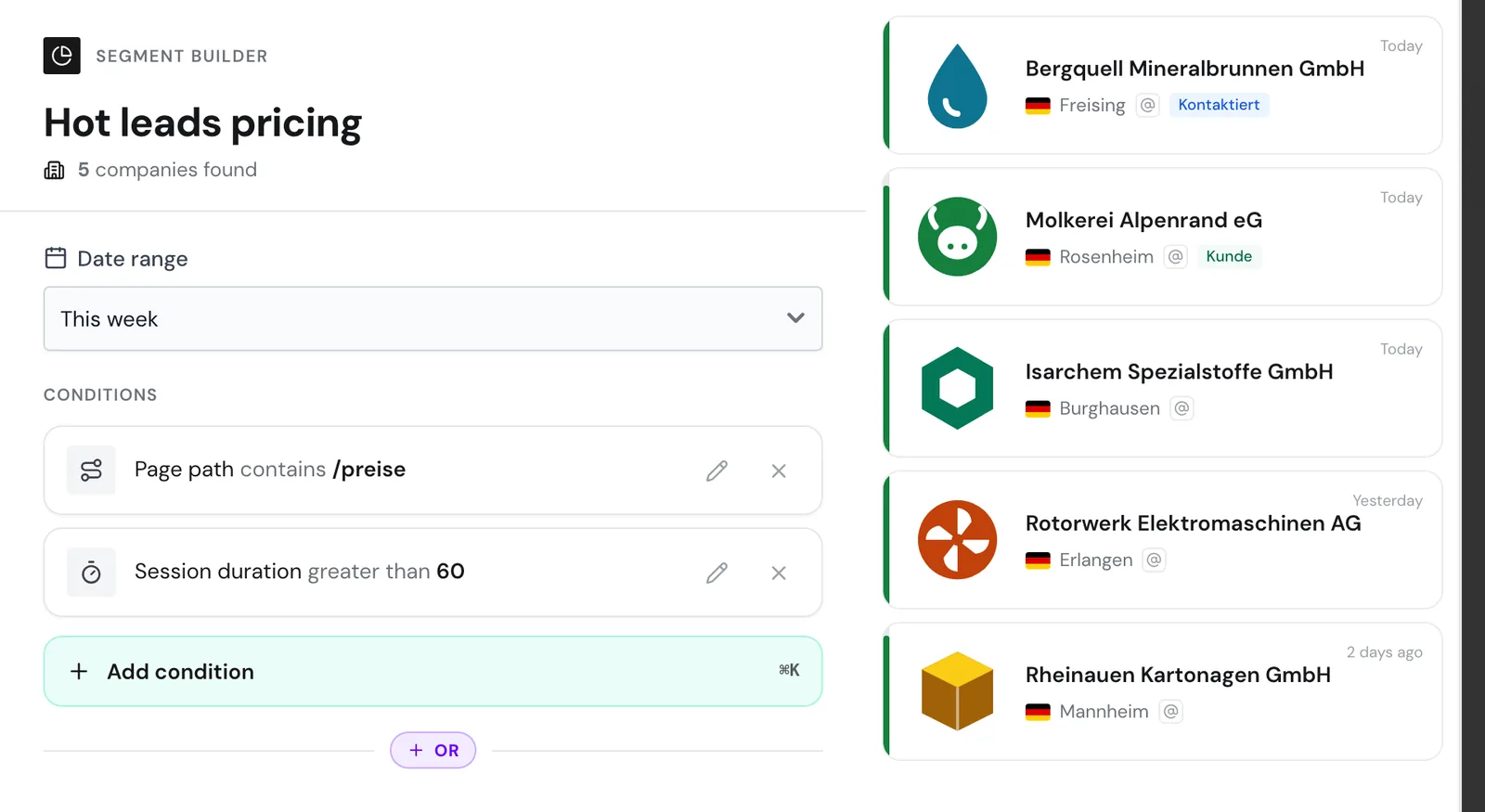
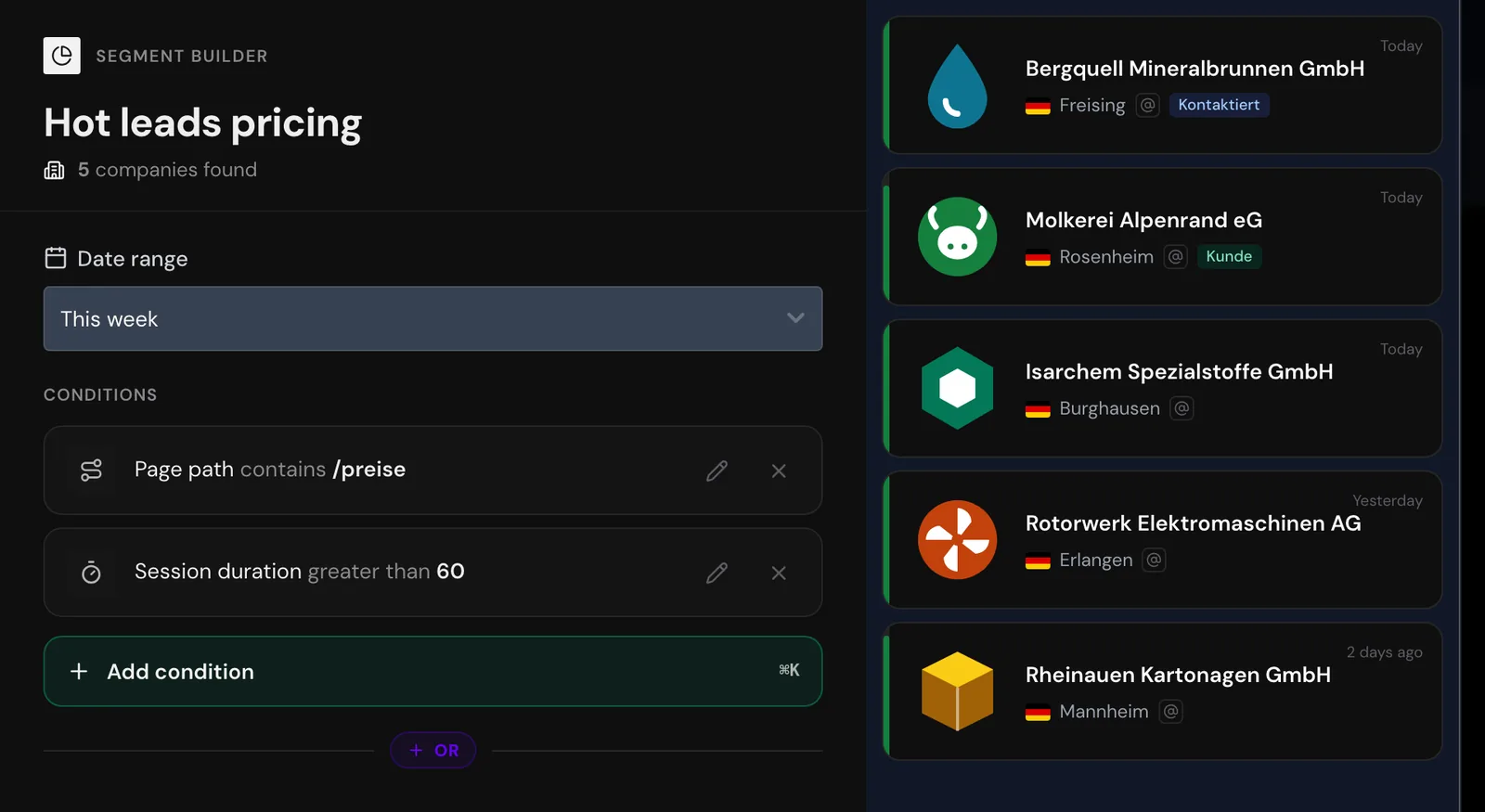
Save the segment, for example as "Hot leads pricing". Create a notification of type Segment for it, as described in Set up a segment notification, and choose Complete under File content. So your sales team hears about them quickly, choose Monday to Friday as the sending days.
Webmetic reads the segment again at every send, so each email contains every company from the current week. The Incremental option, by contrast, only sends companies whose first visit came after the previous email. This notification doesn't contain visits after Friday's send and at the weekend. For a complete overview, also create a copy of the segment with Last week, which Webmetic sends with Complete on Monday.
The segment builder has no field for the number of visits. To find companies that keep coming back, you use the notification type Returning companies or sort the list by Highest activity.
Set up a sales territory by postal code
Goal: Each person in your field sales team sees the companies from their territory and receives them by email. Webmetic doesn't assign companies to anyone: you build each territory as a segment with its own notification.
Add these conditions in one group:
- Postal code starts with
85 - Country is Germany
Date range: All time
Postal code is the postal code of the company's address, not the location of the visit. With starts with 85, you find every postal code from 85000 to 85999. The condition Country is Germany belongs in every group with Postal code, because Austria and Switzerland have four-digit postal codes that would otherwise fall into German territories. Companies without a postal code don't appear in any territory.
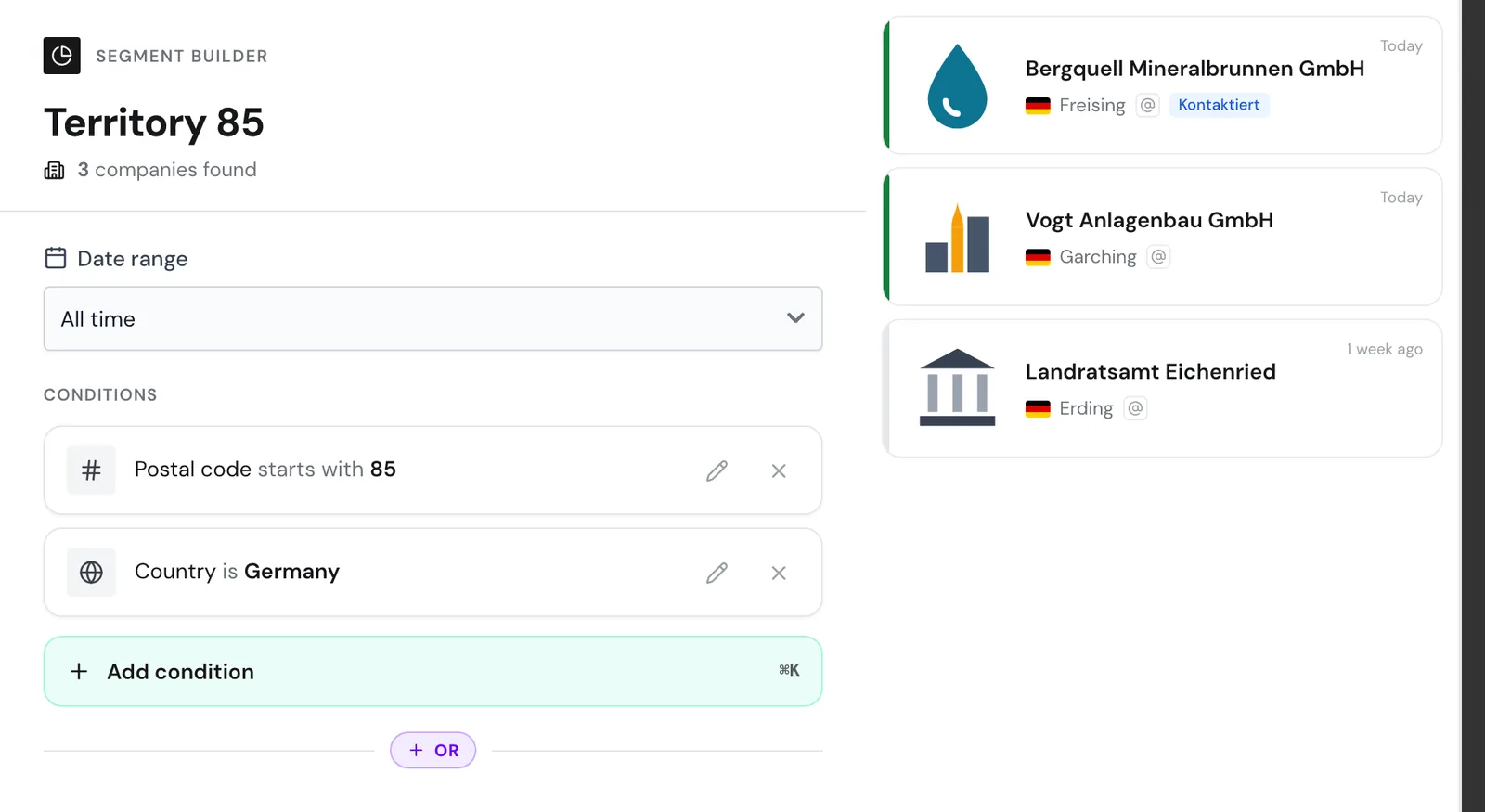
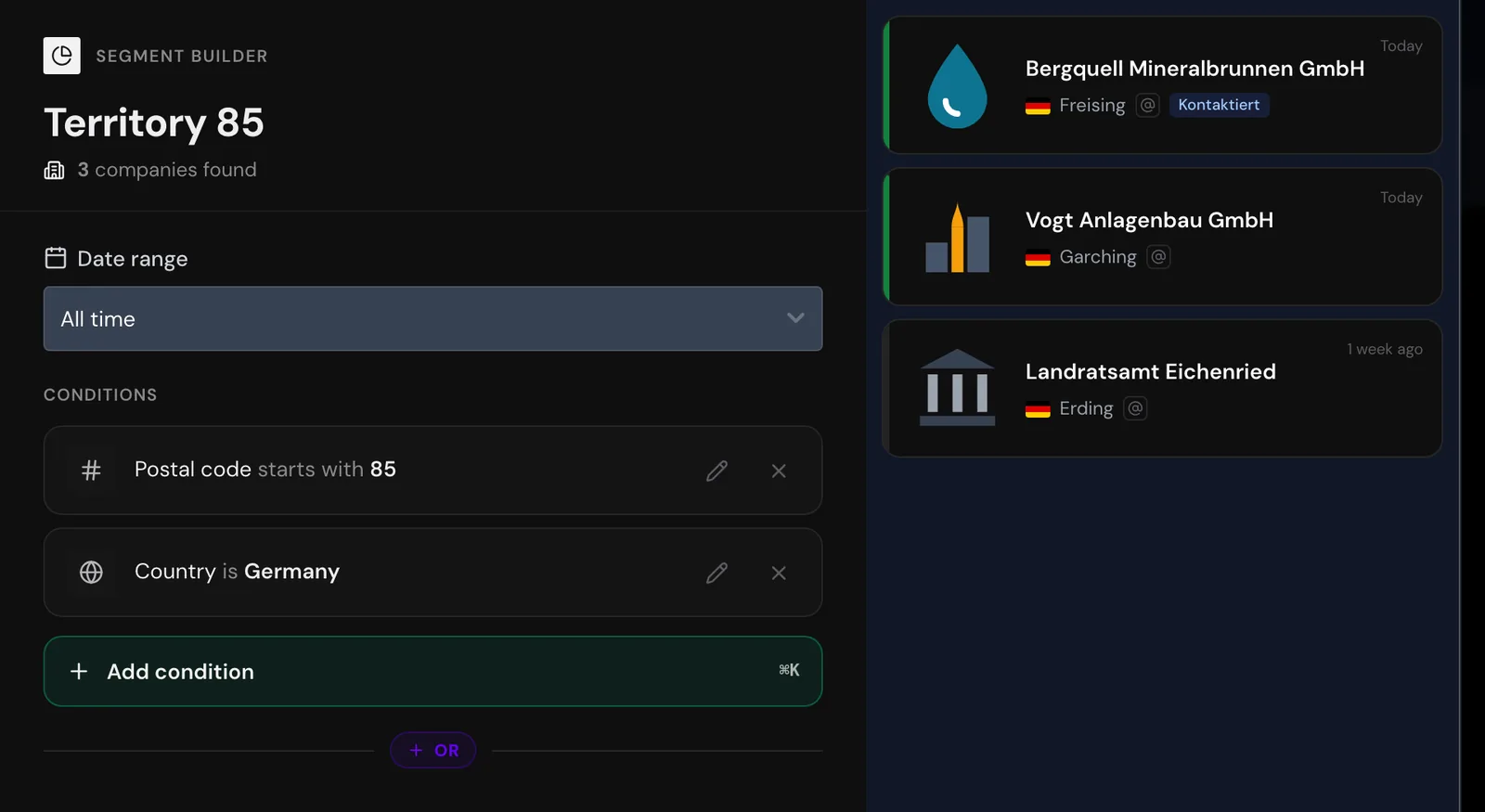
To extend the territory:
- More areas: Click OR and add a group with Postal code starts with for each area, for example
86. Repeat Country is Germany in every group. - Individual target accounts: If a company outside these postal codes belongs to the territory, add another group with Company name contains.
The Add condition button always adds to the last group, so finish each group before you click OR.
When you start, Webmetic creates the sample segment Großraum München with two postal code groups. Both groups contain Country is Germany.
To send each person the companies in their territory by email:
- Save one segment per territory, for example "Territory South".
- Copy the segment and set the copy to Last week. The copy gives you the companies from the previous week, including the weekend.
- Create a notification of type Segment for the copy, with Complete and sending on Monday.
- Add the person responsible under Recipients. This also works for people without a user account.
To copy a segment, see Manage segments.
Find target customers by industry and size
Goal: You get a fixed list of your ideal customers, for example manufacturers with 51 to 5,000 employees in the DACH region.
Add these conditions in one group:
- Industry is Industrie & Fertigung
- Employees is 51–200, 201–500, 501–1.000, 1.001–5.000
- Country is Germany, Austria, Switzerland
Date range: All time
For Industry, Employees, and Country, you can pick several values in one condition. A company matches if one of them applies. Industry names are German in the English dashboard too.
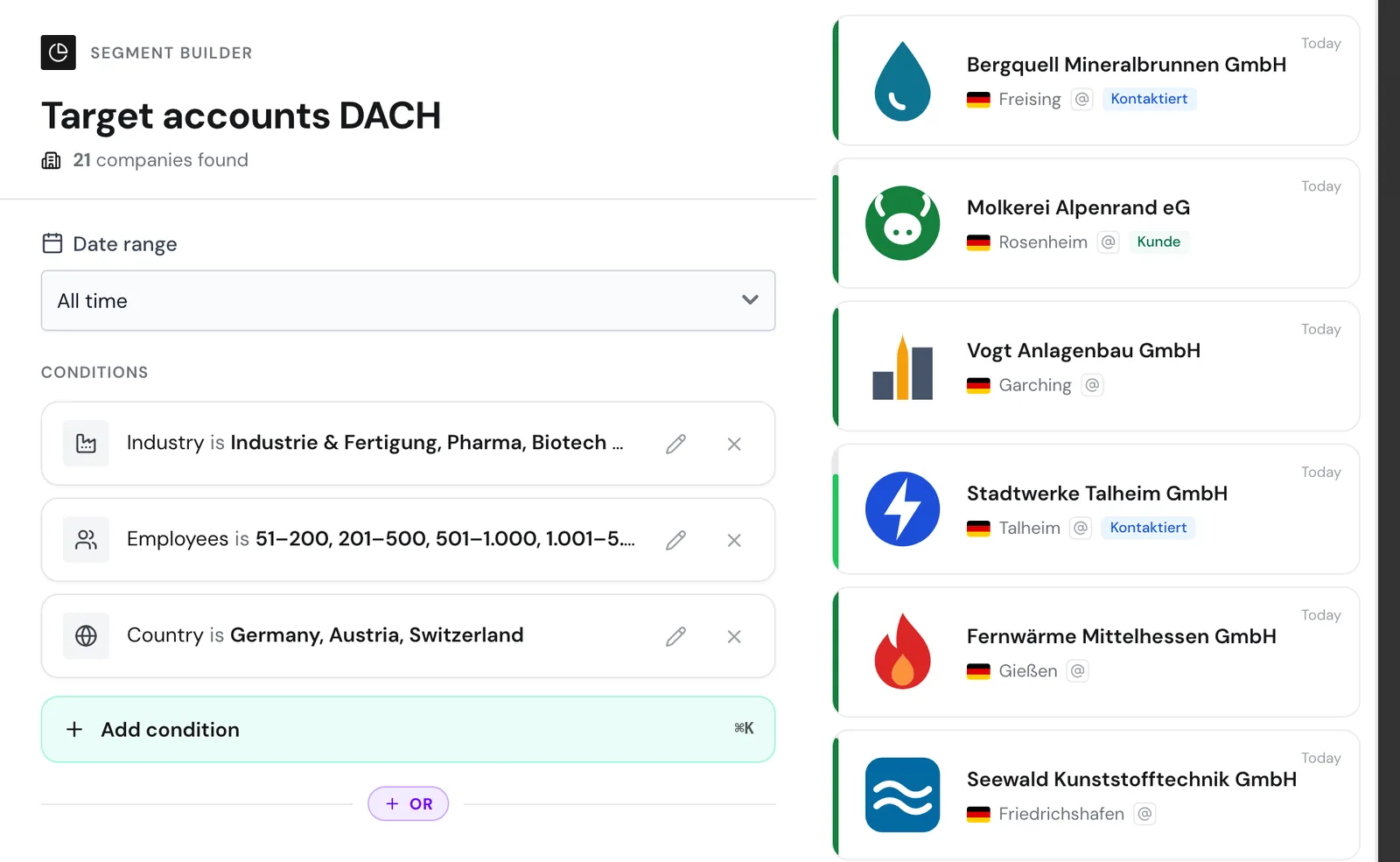
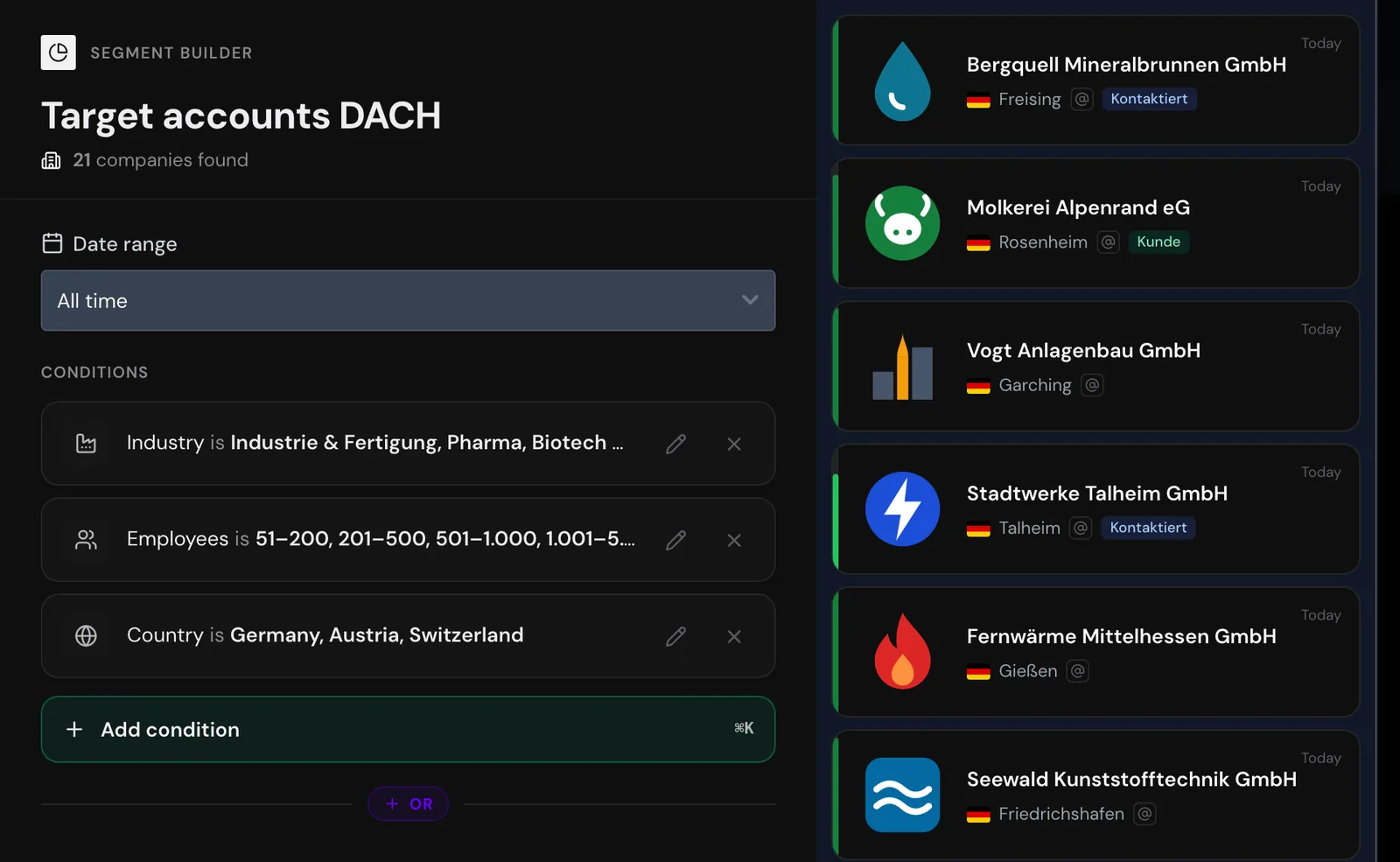
So your team recognizes these companies on every card, the segment assigns a tag.
Removing a tag from a segment affects the whole website
If you remove a tag from a segment, Webmetic removes that tag from every company on the website, including where you assigned it by hand.
- At the bottom, in the Tags section, click Assign tag.
- Pick a tag of its own for this segment, for example "Target account", not an existing tag such as your customer tag. To create a new tag, use Create new tag.
- Click Save segment. Webmetic assigns the tag to every matching company in the segment's date range.
After that, Webmetic checks every 15 minutes during the day which companies have started to match. Webmetic never removes an automatically assigned tag, even when a company stops matching later. For details, see Assign tags.
A segment can't filter by the rating from your ideal customer profile. Sort the list by Highest relevance for that. For details, see Relevance, activity, and fit.
Find companies from a campaign
Goal: You see which companies reached your website through a campaign such as your LinkedIn ads, and hand the list to your sales team.
Add these conditions in one group:
- UTM campaign is your campaign
- Optional: Page path contains
/preise
Date range: the month in which the campaign ran, or a custom range for older campaigns
When you choose is, Webmetic shows the campaigns that occurred in visits to your website. If the campaign appears in several spellings, pick all of them. The second condition finds companies that reached your website through the campaign and read your pricing page in the same visit.
Pick the segment in the list and click the download icon Export. You get a file with only the segment's companies. For details, see Export companies. Campaigns and channels explains how UTM parameters arrive.
Hide existing customers
Goal: The list shows only companies that aren't your customers yet.
Add this condition to a segment:
- Tag is not your customer tag
Tag is not also finds companies without any tags. If the segment has several OR groups, repeat the condition in every group. Don't let this segment automatically assign the tag it filters by.
A notification or an export with this segment leaves out your customers too.