

Manage segments
Choose, edit, copy, and delete the segments your whole team works with.
Segments belong to your account, not to individual users, so every change applies to your whole team. Segments explains what a segment is.
At the end you'll have:
- a list that shows only the companies of one segment
- an edited segment, or a copy as the starting point for a new one
- a segment picker without the segments your team no longer needs
Before you start
- Time: Each task on this page takes a few minutes.
- Account: You need a Webmetic account with at least one segment. At the start, Webmetic creates the sample segment Großraum München (Greater Munich).
- Access: To edit, copy, and delete segments, you need a window at least 1,024 pixels wide. On smaller screens, you can only choose a segment.
- Rights: All users in your account see the same segments, and there are no private segments. Anyone can edit, copy, and delete any segment, even without admin rights.
- Plan: Segments are part of every plan, including the Free plan and the trial, and they don't cost credits.
You can't undo deleting a segment.
Choose a segment
- Above the company list, under Select segment, click the picker, which shows All companies or the name of the active segment.
- Choose a segment, and the list shows only its companies. The date range turns gray and shows the segment's own range.
- To end the segment, choose All companies, and the date range switches back to All time.
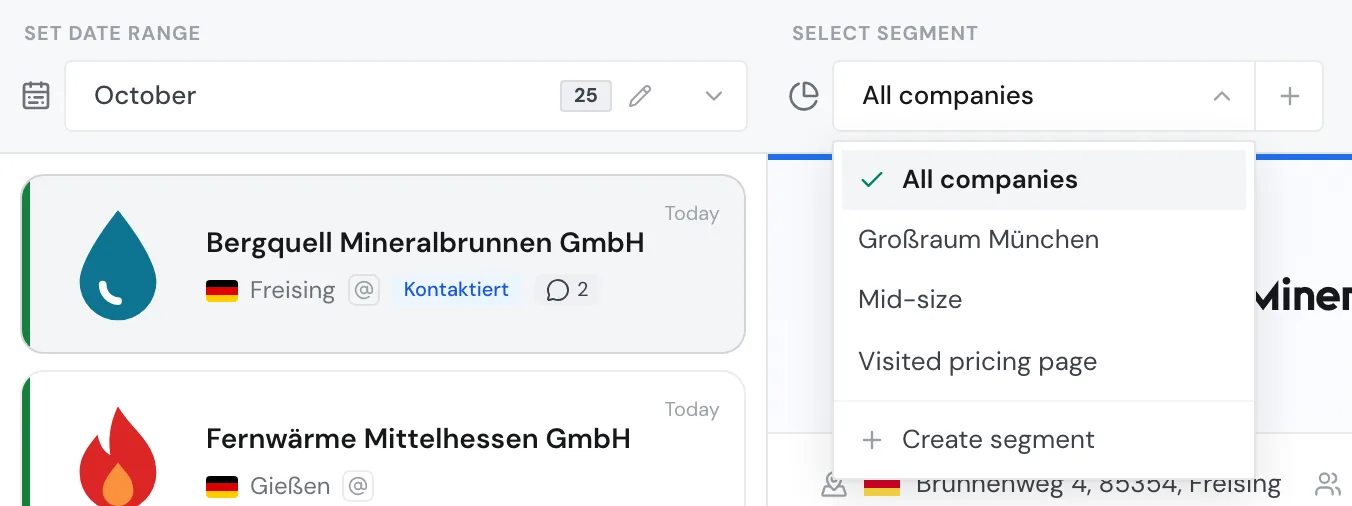
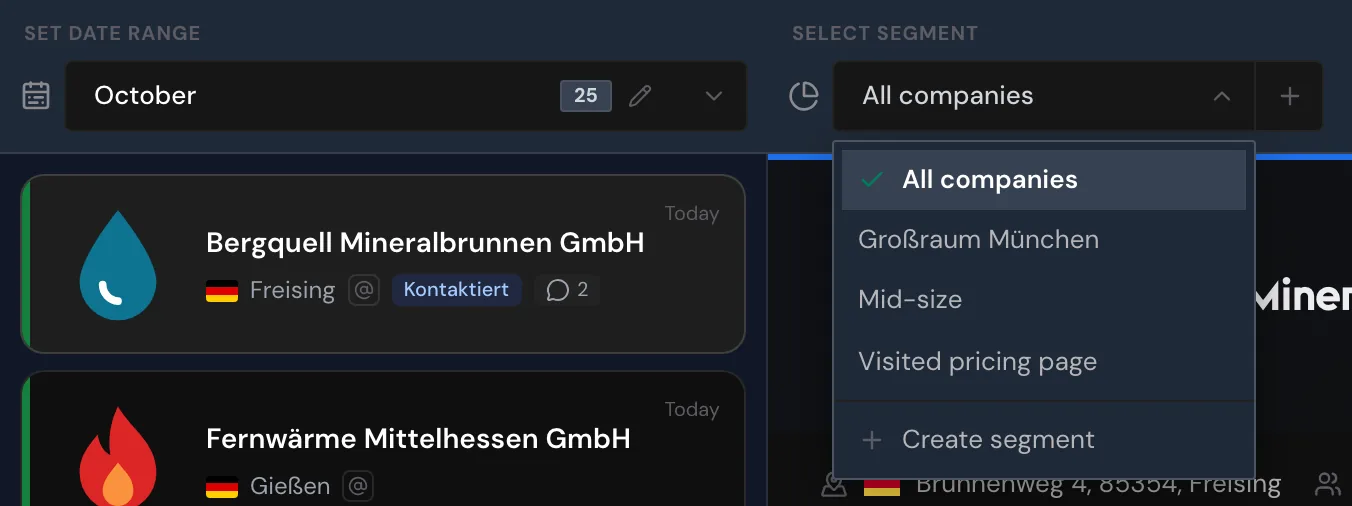
If you choose a new date range in the list, that also ends the segment. For details, see Choose a date range.
On a smartphone, tap More options and then Select segment. On a tablet, you find the segment picker as its own button next to the date range.
Edit a segment
- Open the segment's website in the website picker. The segment picker shows only the segments of this website.
- Open the segment picker and hover over the segment. A pencil, a copy icon, and a trash can appear on the right of the row.
- Click the pencil to open the segment builder with the name, date range, conditions, and tags.
- Change what you need. Create a segment explains how conditions work, and the Filter reference lists every field.
- Click Update segment. The change applies right away, and every user in your account sees it.
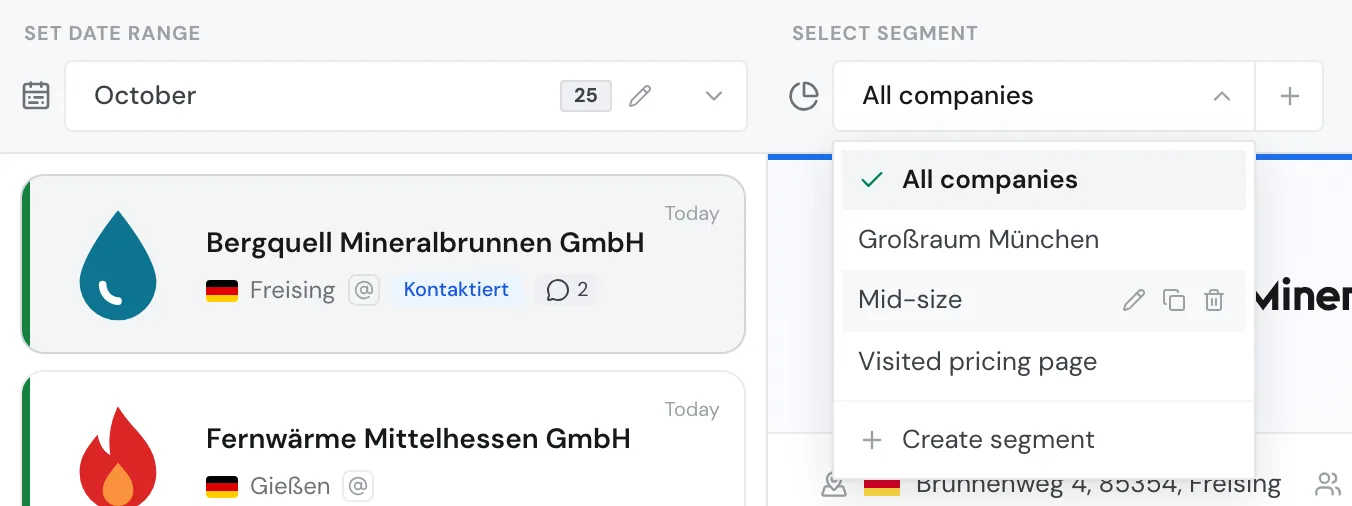
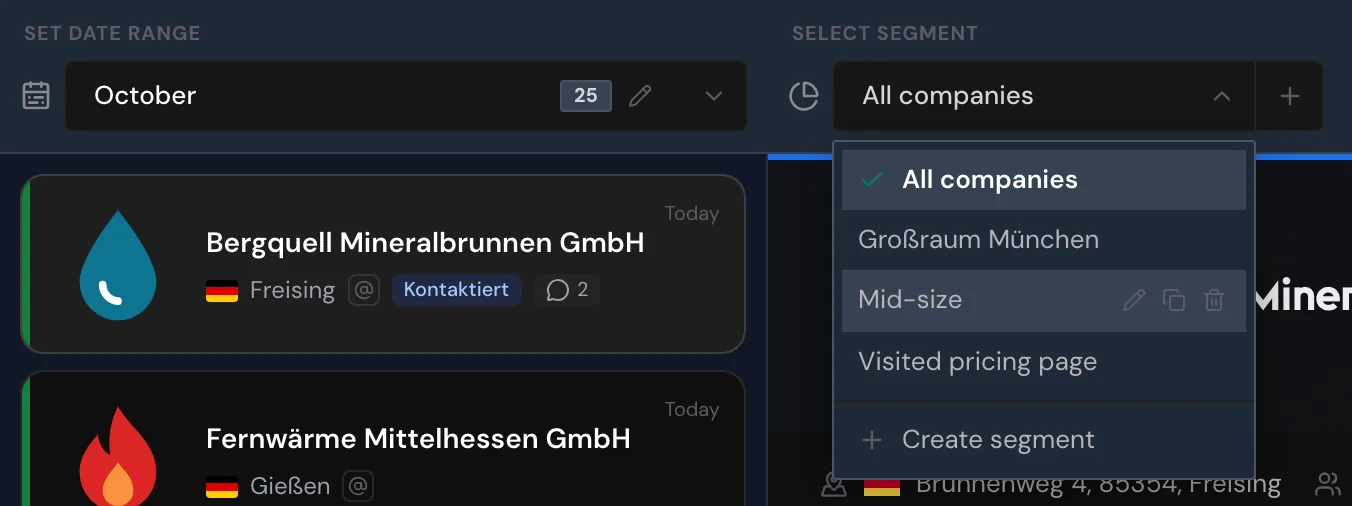
If a notification uses this segment, its next email already reflects your change.
Removing a tag from a segment affects the whole website
If you remove a tag from a segment, Webmetic removes that tag from every company on the website, including where you assigned it by hand.
Copy a segment
A copy lets you build a similar segment without entering every condition again.
- Open the segment picker and hover over the segment you want to copy.
- Click the copy icon, and the segment builder opens with all conditions, the date range, and the tags. The name gets "(copy)" added, for example "Großraum München (copy)".
- Enter a new name and change the conditions that should differ.
- Click Save segment. Webmetic creates a new segment and leaves the original unchanged.
If the copy contains tags, Webmetic assigns those tags to every matching company when you save it.
Delete a segment
A deleted segment pauses the emails
When you delete a segment, Webmetic pauses its active notifications. To keep the emails coming, choose another segment in the notification first. Segment notifications and export shows how.
- Open the segment picker and hover over the segment you want to delete.
- Click the trash can, and the row shows the prompt Delete segment? with Yes and No. If active notifications use the segment, the prompt names those notifications.
- Click Yes, and Webmetic deletes the segment for every user in your account. You can't undo this. If you click No, nothing is deleted.
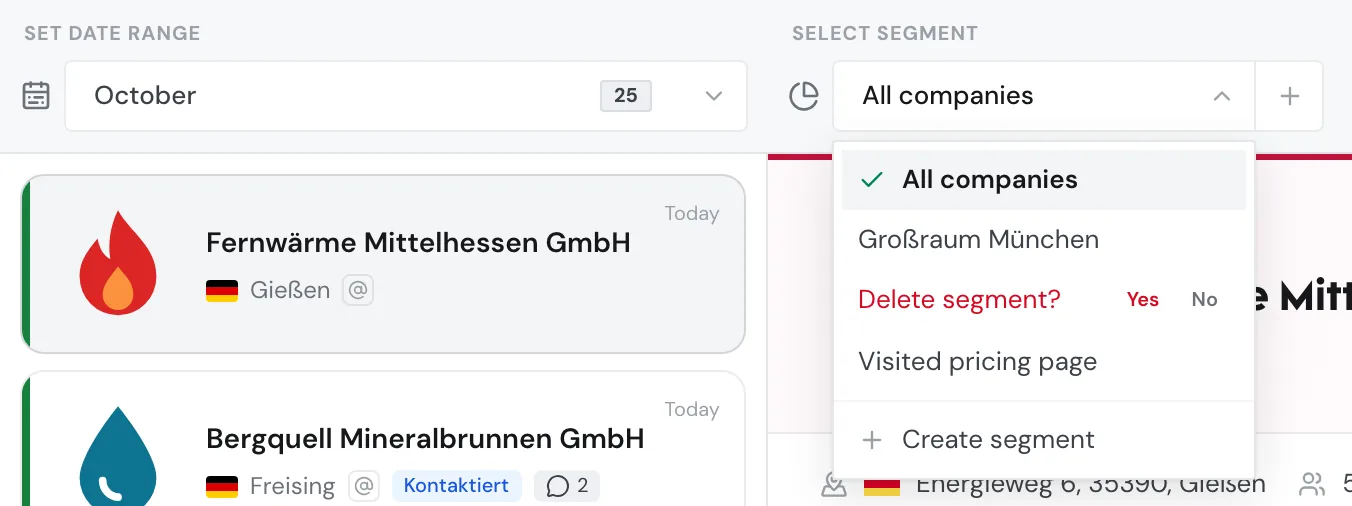
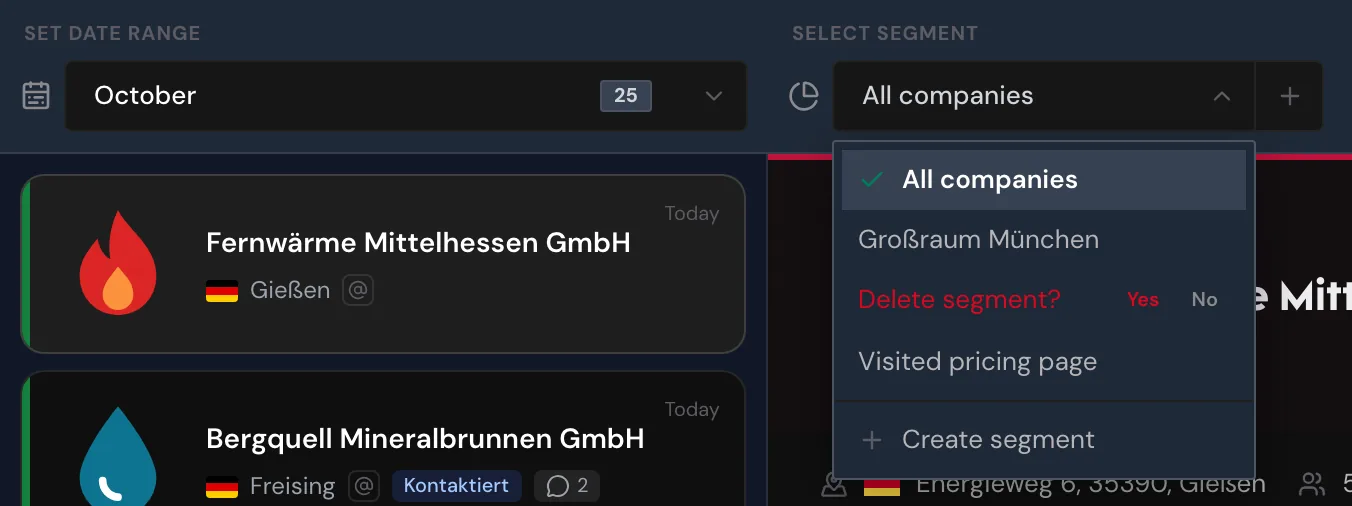
If the segment was active in your list, Webmetic ends it there. The tags that the segment assigned stay on the companies after you delete it.
Use segments on several websites
A segment belongs to the website you create it on and always shows that website's companies. The segment picker and the notification form show only the segments of the chosen website.
A copy belongs to the website of the original, too.
If you create a segment while a subdomain view is open, it applies to that subdomain only. The segment picker and the segment builder then show a badge next to the name, for example Only shop.your-website.com. This limit stays when you edit or copy the segment, and you can't remove it. If the segment should apply to the whole website, create it again outside the subdomain view.