

Set up notifications
Get the companies visiting your website by email on fixed weekdays.
A notification sends you and your team an email with an overview of companies, and optionally a CSV or Excel file. You decide which companies the email contains, who receives it, and when Webmetic sends it. At the end you'll have:
- an email on the weekdays and at the hour you chose, with an overview and optionally a file
- as many notifications as you need, each with its own type, recipients, and schedule
Before you start
- Time: You can set up a notification in a few minutes.
- Account: You need a Webmetic account with at least one website. For the Segment type, you also need a segment of that website. Get started shows how to save a segment.
- Permissions: Every user can create, edit, and delete notifications. You don't need admin rights.
- Plan: Notifications are available in every plan and cost no credits. On the Free plan, the email contains only the companies you see by name. For details, see Free plan.
Notifications belong to the account, not to a user, so everyone in your account sees and edits the same list as you.
Open notifications
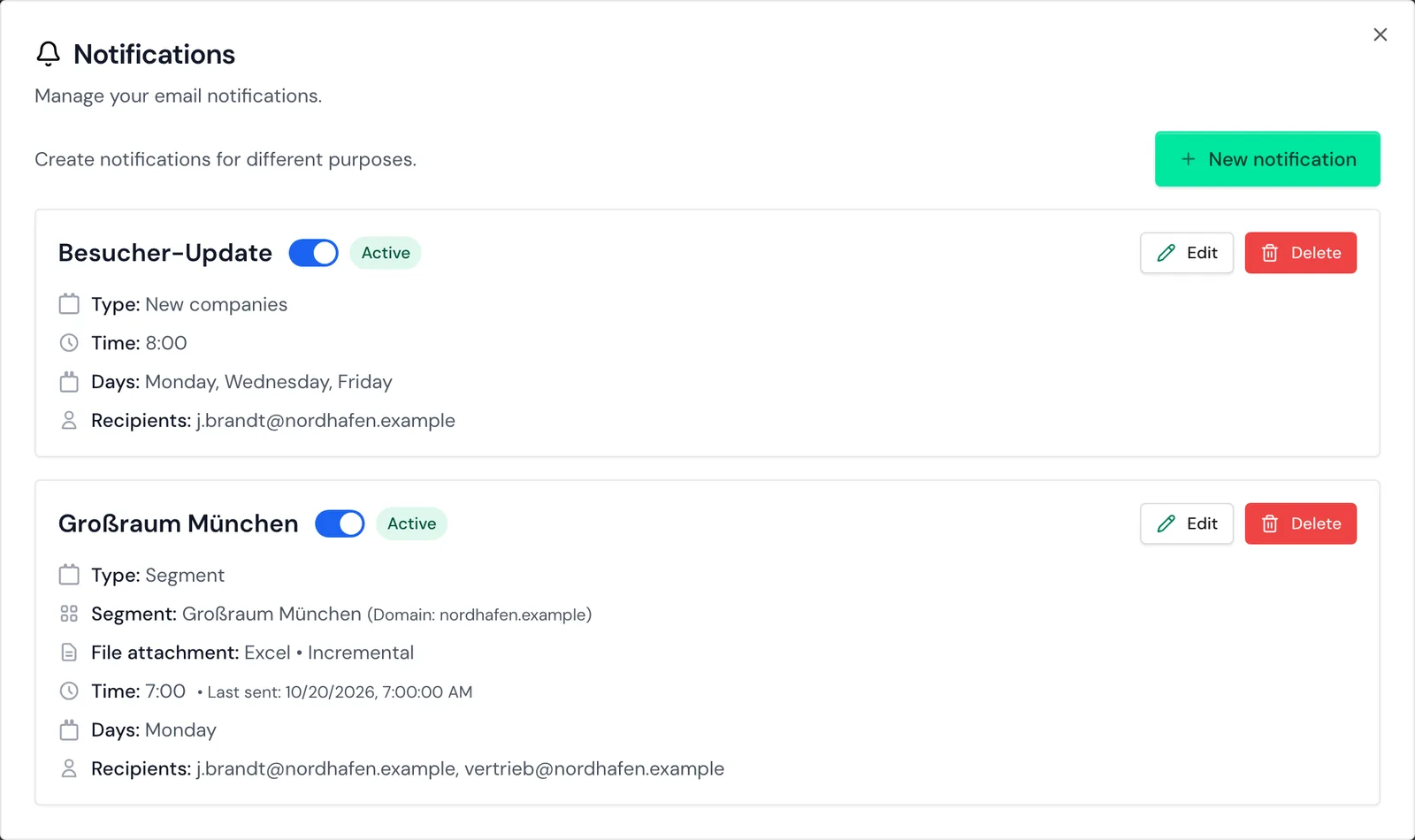
- Open your profile menu in the top right and click Notifications. The Notifications window shows every notification in your account.
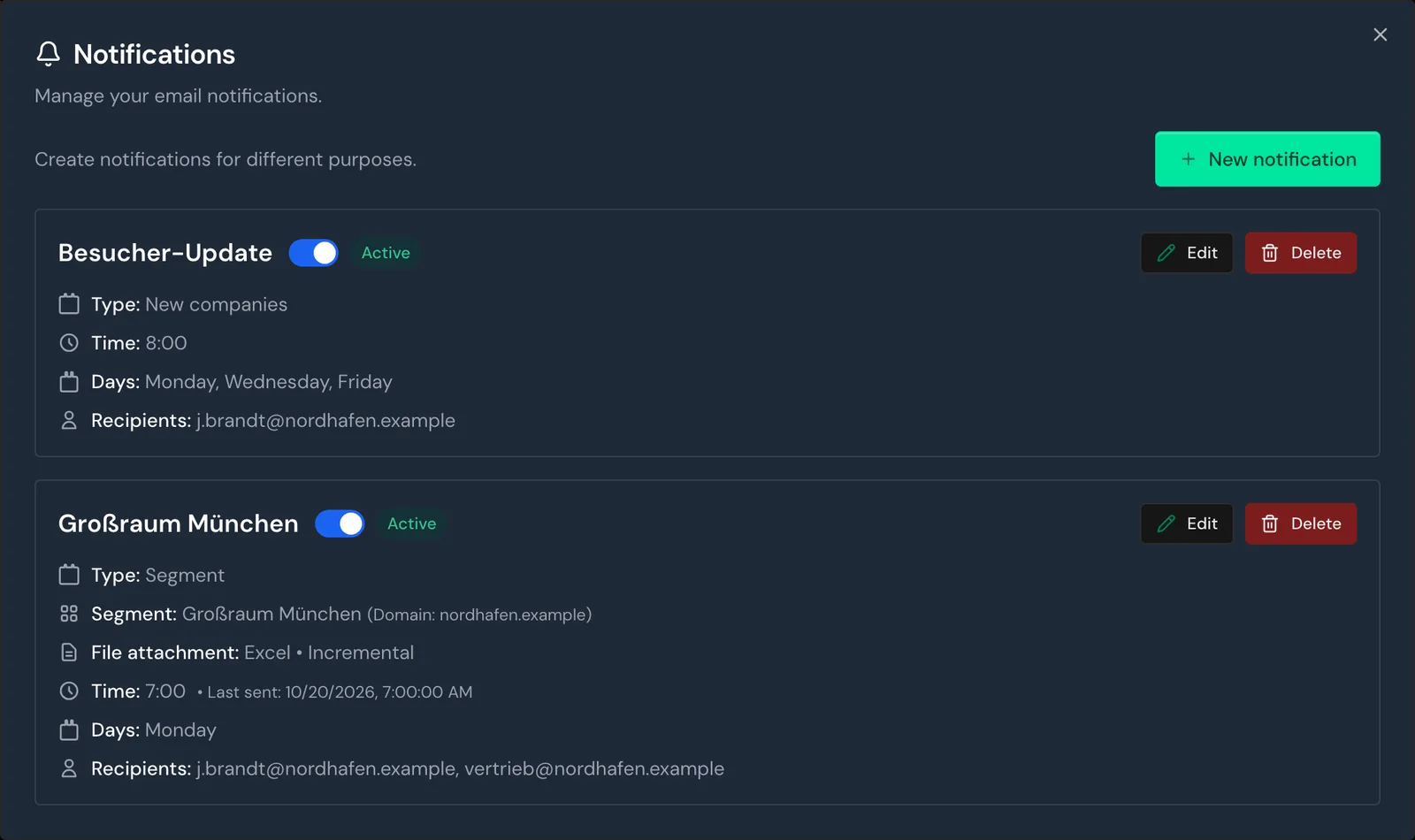
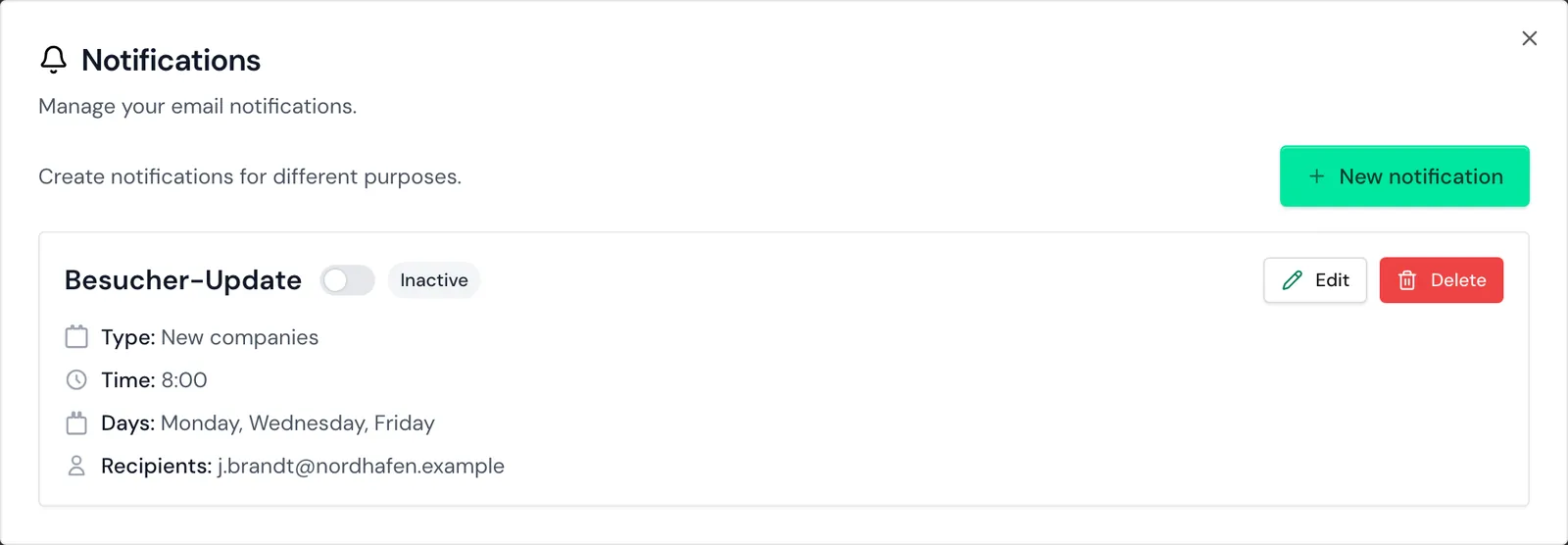
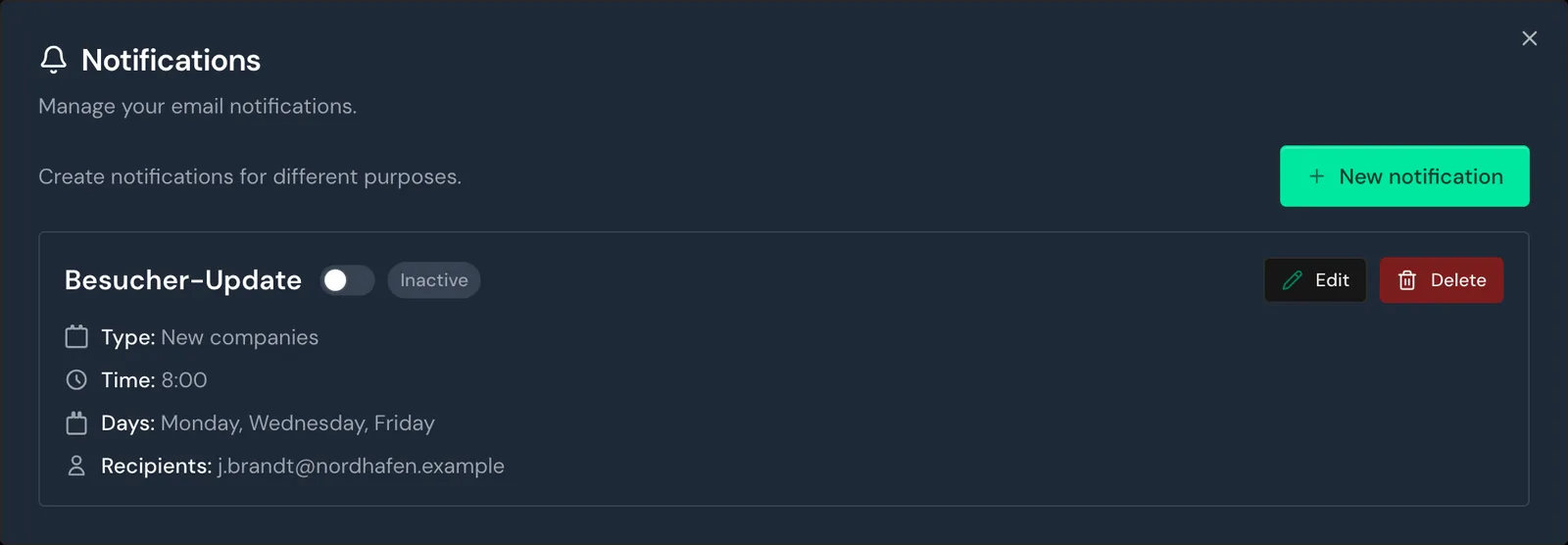
Each card shows you Type, Time, Days, and Recipients, and Last sent tells you when the most recent email went out.
Create a notification
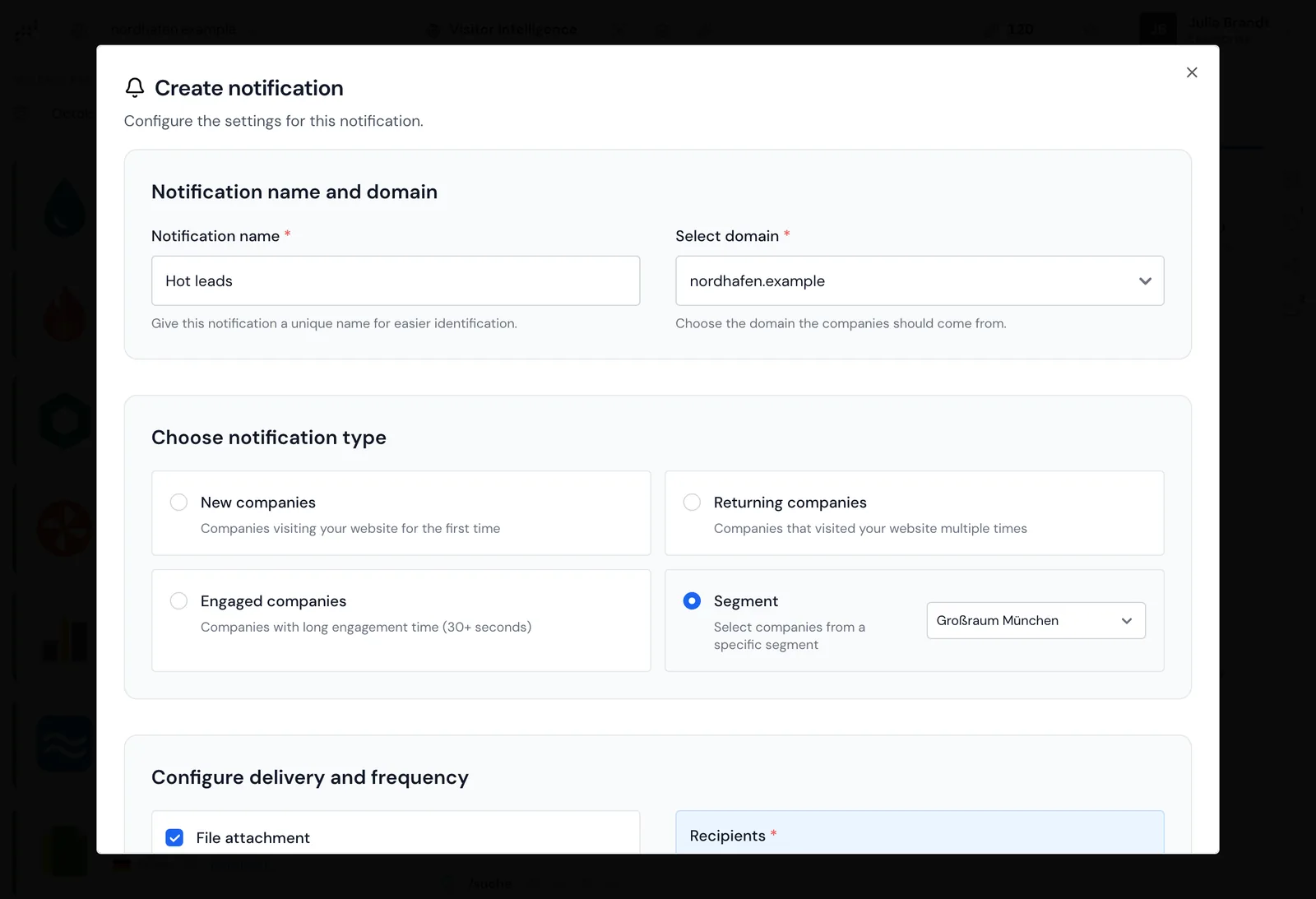
- Click New notification. The Create notification form opens.
- Optional: Enter a name under Notification name. If you leave it empty, Webmetic picks one, for example "Notification #2".
- Choose the website under Select domain. Webmetic suggests the first website in your account.
Then you choose the type, the file, the recipients, and the schedule, and finally you click Save.
Choose the type
The type decides which companies the email contains:
| Type | Companies in the email |
|---|---|
| New companies | Companies visiting your website for the first time. |
| Returning companies | Companies that visited your website multiple times. |
| Engaged companies | Companies with a long engagement time, from 30 seconds. |
| Segment | Companies from a segment you saved. |
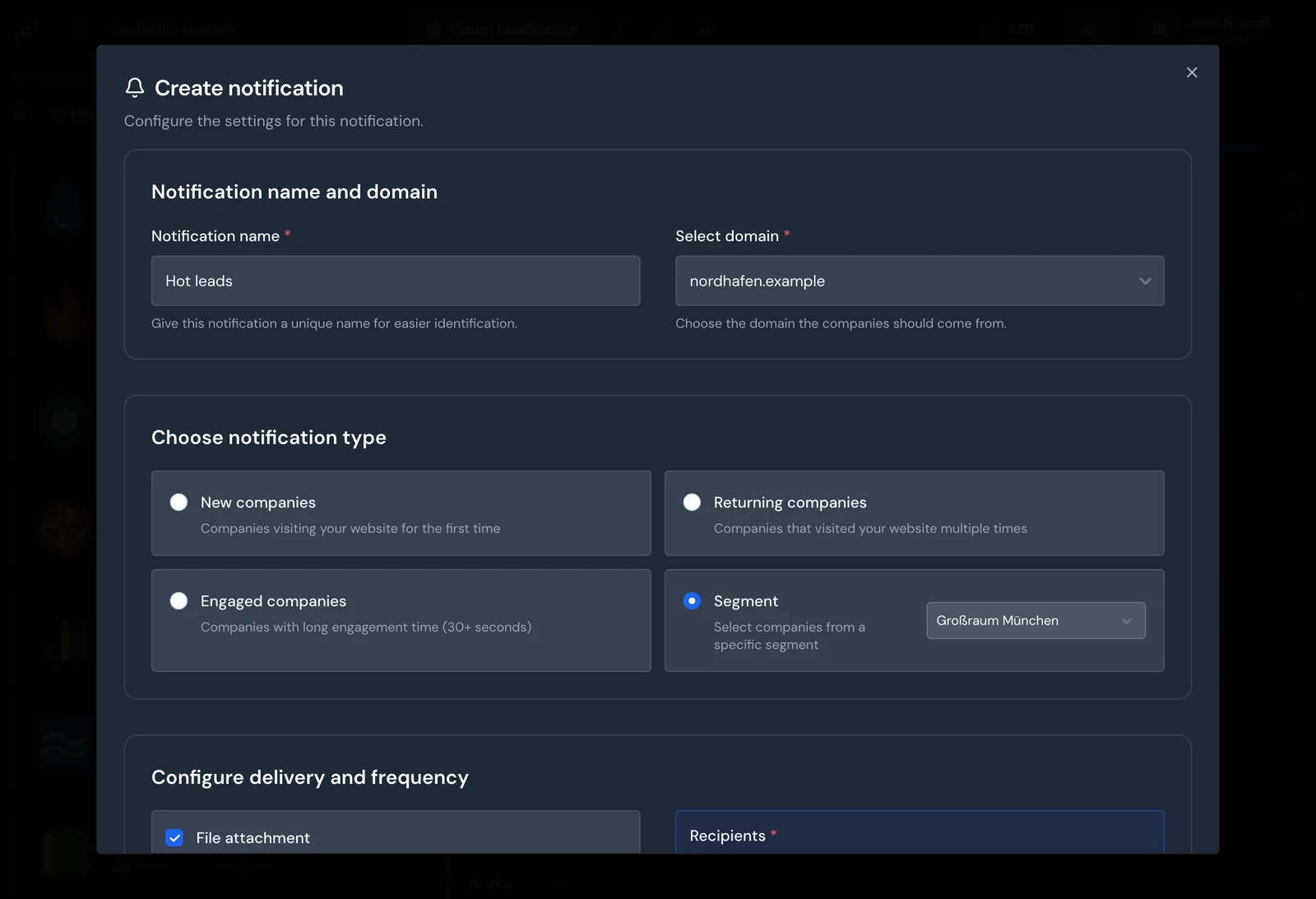
- Click a type under Choose notification type.
- If you chose Segment, pick a segment next to it. The list shows only segments of this website.
If you change the website afterwards, Webmetic clears the segment. A segment brings its saved date range. Webmetic recalculates the date ranges Today, Yesterday, This week, and Last week at every send, while every other date range stays as you saved it.
Attach a file
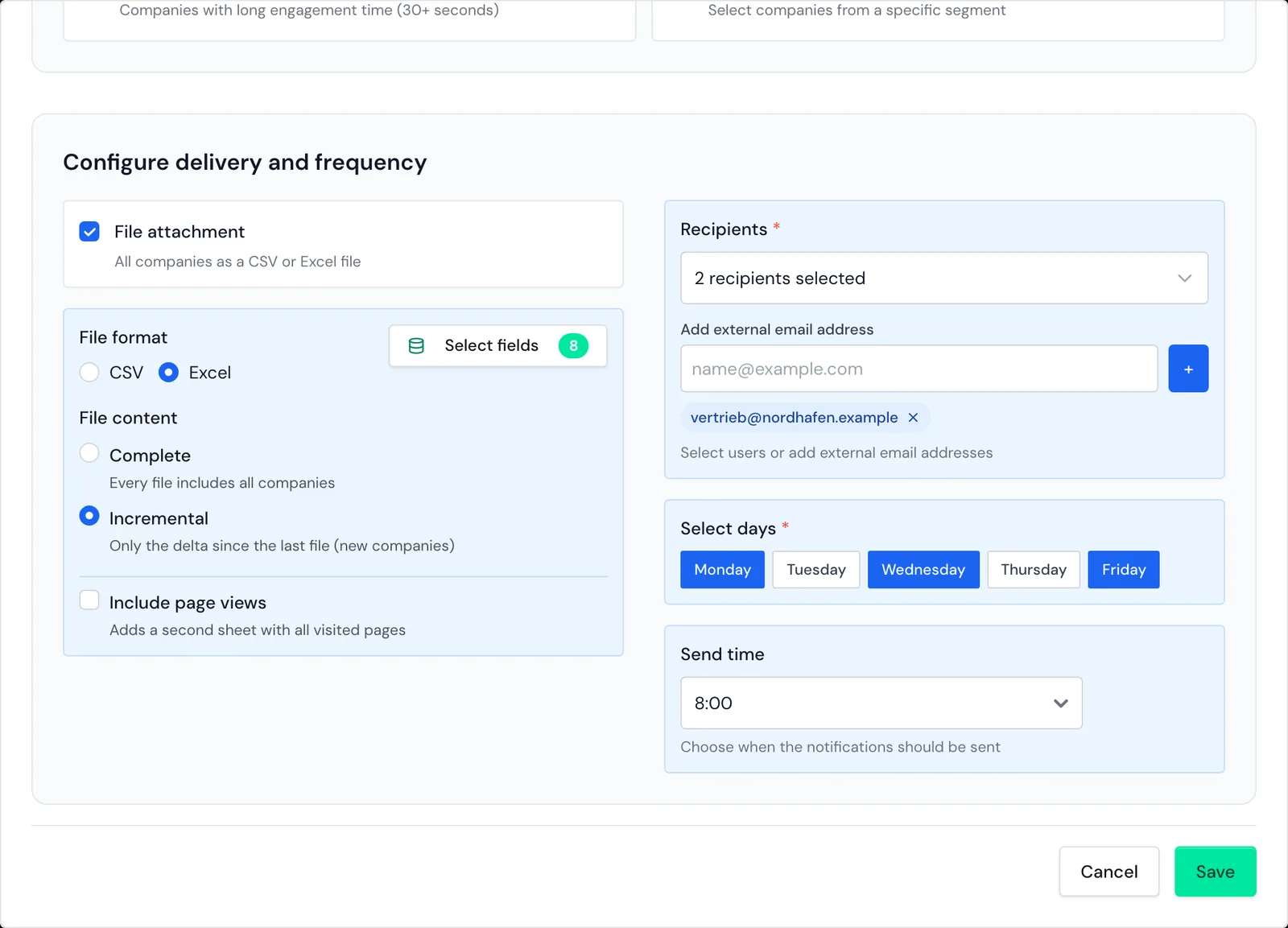
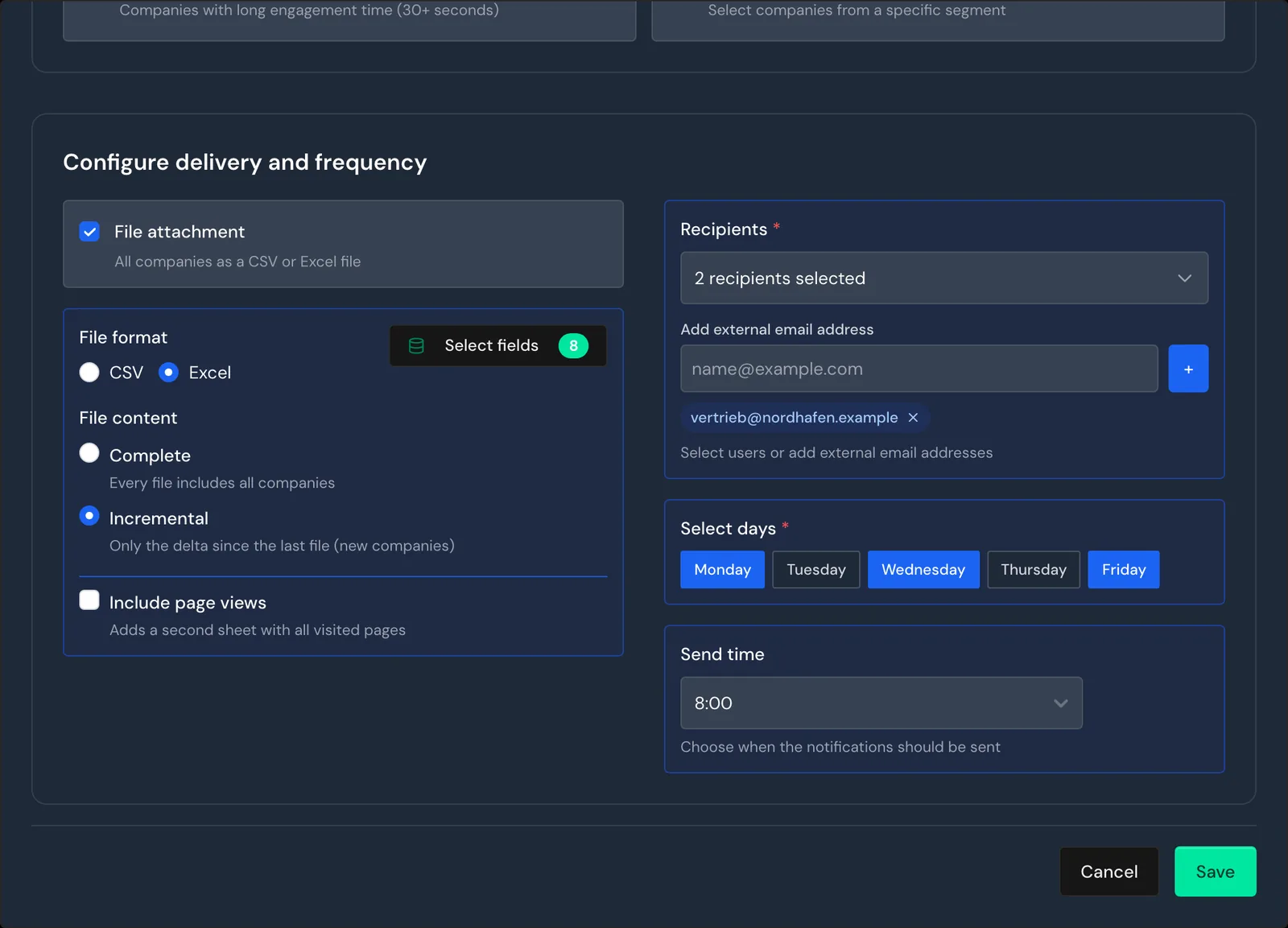
Under Configure delivery and frequency, the option File attachment is already ticked, with CSV and Incremental selected. If you untick it, the email contains only the overview, and the card shows Overview only.
- Choose CSV or Excel under File format. The CSV file separates columns with semicolons.
- Optional: Click Select fields and choose the columns of the file. If you choose nothing, the file contains eight default fields.
- Optional, Excel only: Turn on Include page views. The file then receives a second sheet with every single page view.
- Choose Complete or Incremental under File content.
For New companies, Returning companies, and Engaged companies, Webmetic searches every visit it has recorded on the website. It doesn't stop at the visits since the last email. This means:
- Complete: Every email contains all matching companies. For New companies, that's every company your account has ever recorded on the website.
- Incremental: Every email contains only companies whose first visit came after the previous email, and the first email contains all of them.
- Overview only: Without a file, the notification behaves like Complete and shows all matching companies every time.
Recommended: File attachment with Incremental if you want to see only the companies added since the last email. A company that visited your website before the previous email won't appear again, even when it returns.
The overview in the email shows at most 20 companies with name, number of pages, and city, in no fixed order. You'll find all other companies in the file.
Choose recipients
- Open the list under Recipients and tick users of your account.
- Optional: Enter an external email address and click + or press Enter.
External recipients can also be people without a user account, for example from your sales team. If you remove a user from the account, they stay a recipient and appear as an external address. So check your recipients when someone leaves your team.
Choose weekdays and time
- Choose at least one weekday under Select days. Monday, Wednesday, and Friday are preselected.
- Choose a full hour between 7 a.m. and 7 p.m. under Send time. 9 a.m. is preselected.
- Click Save. The new card appears in the Notifications window.
If you leave out a recipient, a weekday, or the segment for the Segment type, Webmetic marks the field red and doesn't save.
Edit a notification
- Click Edit on the card. The Edit notification form opens.
- Change the settings.
- Click Save.
Pause a notification
- Click the switch next to the name on the card. Webmetic saves your change at once, and the card shows Inactive.
- To turn the notification back on, click the switch again. The card shows Active.
Delete a notification
You can't undo deleting, and the notification disappears for every user in your account. If you only need a break from the notification, pause it instead.
- Click Delete on the card. Webmetic asks for confirmation in the Delete notification window.
- Click Delete.
Adjust the Besucher-Update
When your trial starts, Webmetic creates the Besucher-Update notification. Like the other starter defaults, it keeps its German name in both languages. It has the type New companies and no file. Webmetic sends it on Mondays, Wednesdays, and Fridays at 8 a.m. for the first website in your account, and the first admin is the only recipient.
Because the Besucher-Update attaches no file, it behaves like Complete. So every email you get contains every company identified so far, and the overview shows at most 20 of them. To receive only the new companies:
- Click Edit on the Besucher-Update card.
- Turn on File attachment and choose Incremental.
- Click Save.
Timing and sender
- Email only: Webmetic sends notifications by email only, not through Slack or Teams. If your system should receive company visits automatically, use webhooks.
- Timing: The time is German time. Webmetic sends the email shortly after the full hour and only from Monday to Friday, but never the moment a company visits.
- Sender: Webmetic sends the emails from
notification@webmetic.de, so add this address to the exceptions of your spam filter. - Language: For now, the email and the attached file are in German, including the column names.
- No matches: If no company matches, Webmetic still sends the email, but without a file.
- Cancelled or payment failed: If your account is cancelled or a payment failed, Webmetic sends no more scheduled notifications. This applies even if your account then continues on the Free plan.
- Test: Webmetic doesn't send a test email, but Last sent on the card shows when Webmetic last sent an email.