

Special cases
Check whether Webmetic works with your setup, from single-page apps and subdomains to your consent tool.
Each section covers one case and stands on its own. For the basic setup, see Installation.
Before you start
- Account: You need a Webmetic account and your tracking code from Menu > Tracking code.
- Rights: Any user in your account can add websites, so you don't need admin rights.
- Access: Depending on the case, you need access to your website's HTML, your tag manager, your CMS plugins, or your server headers.
- Plan: How many domains you can add depends on your plan. Nothing on this page costs credits.
Track single-page apps
Webmetic detects page changes in single-page apps on its own, so your app needs no extra code. Every new path and every new query string counts as a page view, including a changed filter parameter.
- 1Click a linkThe address changes without the page reloading.
- 2Detect the changeWebmetic compares the address, without the part after
#, with the previous one. - 3Close the pageWebmetic sends the scroll depth and active time of the previous page.
- 4Send the page viewWebmetic reports the new page with its current title.
Three things decide whether the data is right:
- Hash routes: Addresses like
/#/pricingproduce no page views, so Webmetic only records the first page of the visit. Webmetic has no setting to change this. - Page title: Webmetic reads the title shortly after the address changes. Set it together with the route. Otherwise, the page view carries the title of the previous page.
- Add it once: Add the tracking code once to the HTML shell or root layout. The tracking code from the dashboard starts only once even if it loads twice. The short form from the Content Security Policy section counts twice.
In Google Tag Manager, you don't need a separate trigger for page changes.
Track subdomains
Webmetic collects all subdomains under the main domain. Visits to www.your-website.com, shop.your-website.com, and your-website.com appear in the same company list.
- 1Subdomains send dataThe tracking code runs on
www.,shop., andcareers.your-website.com. - 2Assign the main domainWebmetic stores all visits under
your-website.com. - 3One listAll companies appear in the main domain's list.
- 4Filter the viewIf you like, you show only the visits to one subdomain.
A subdomain needs no entry of its own and cannot get one. If you enter a subdomain under Websites, Webmetic adds the main domain or shows the message This website has already been added.
If a visitor moves between your subdomains on the same day, it stays one visit with no new source. The visit timeline shows the click as Subdomain click.
Here's how to look at one subdomain only:
- Open the company list for your domain.
- Click your website's name in the top left. The subdomains with enough visits are listed indented below it.
- Choose a subdomain. The list shows only visits that touched this subdomain.
Segments, tags, and settings stay with the main domain. The main domain's own row takes you back to the full list.
Add several domains
The tracking code contains only your account ID and no domain, so you use the same code on all your domains. A domain only appears in the dashboard once you add it.
- Open Menu > Websites. Website management opens.
- Under Add a new website, enter the domain only, for example
your-website.co.uk. - Click Add. The domain starts as Not integrated.
- Add the tracking code to the new domain.
- Click Refresh status. As soon as data with your account ID arrives, Webmetic shows the status Active.
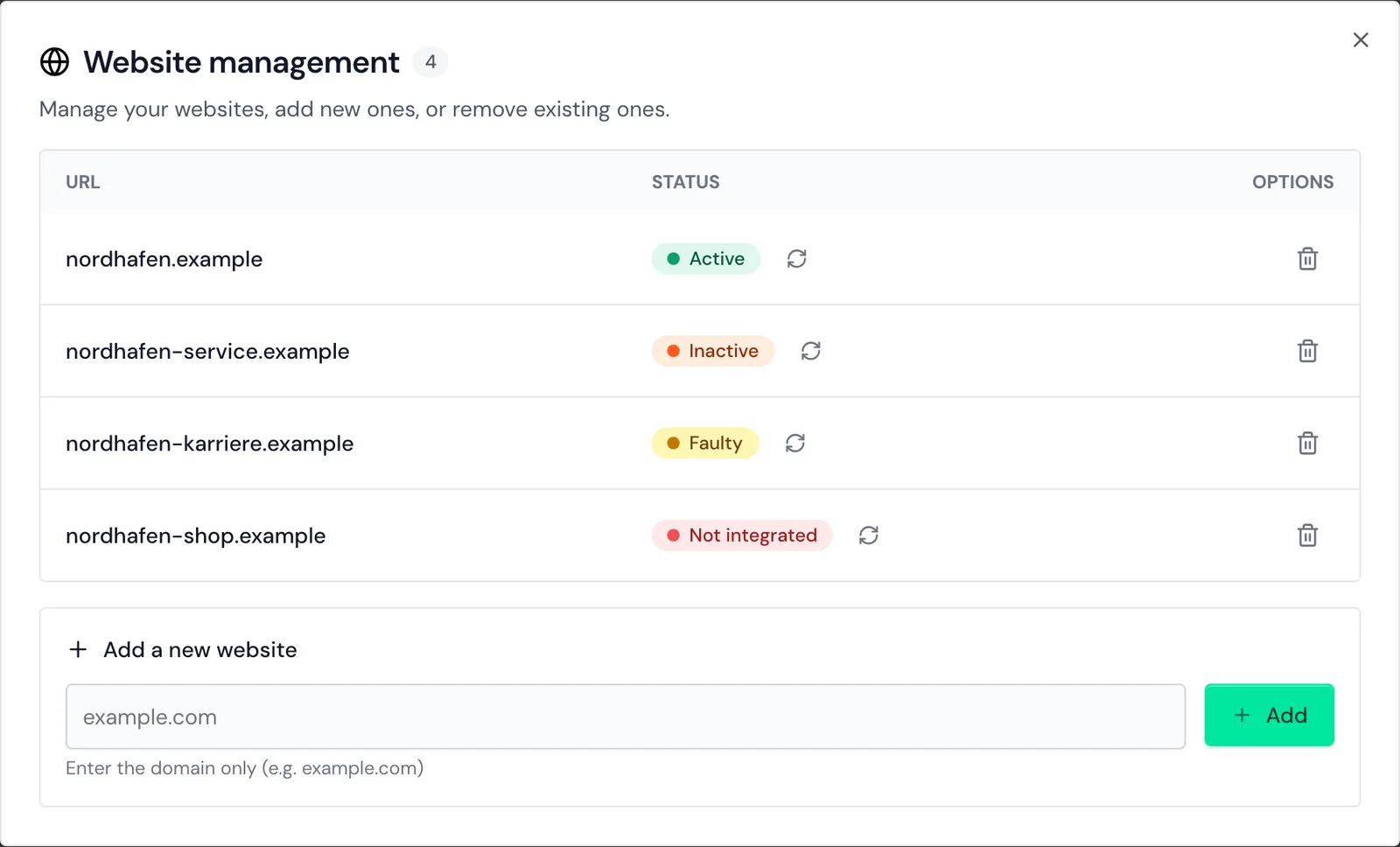
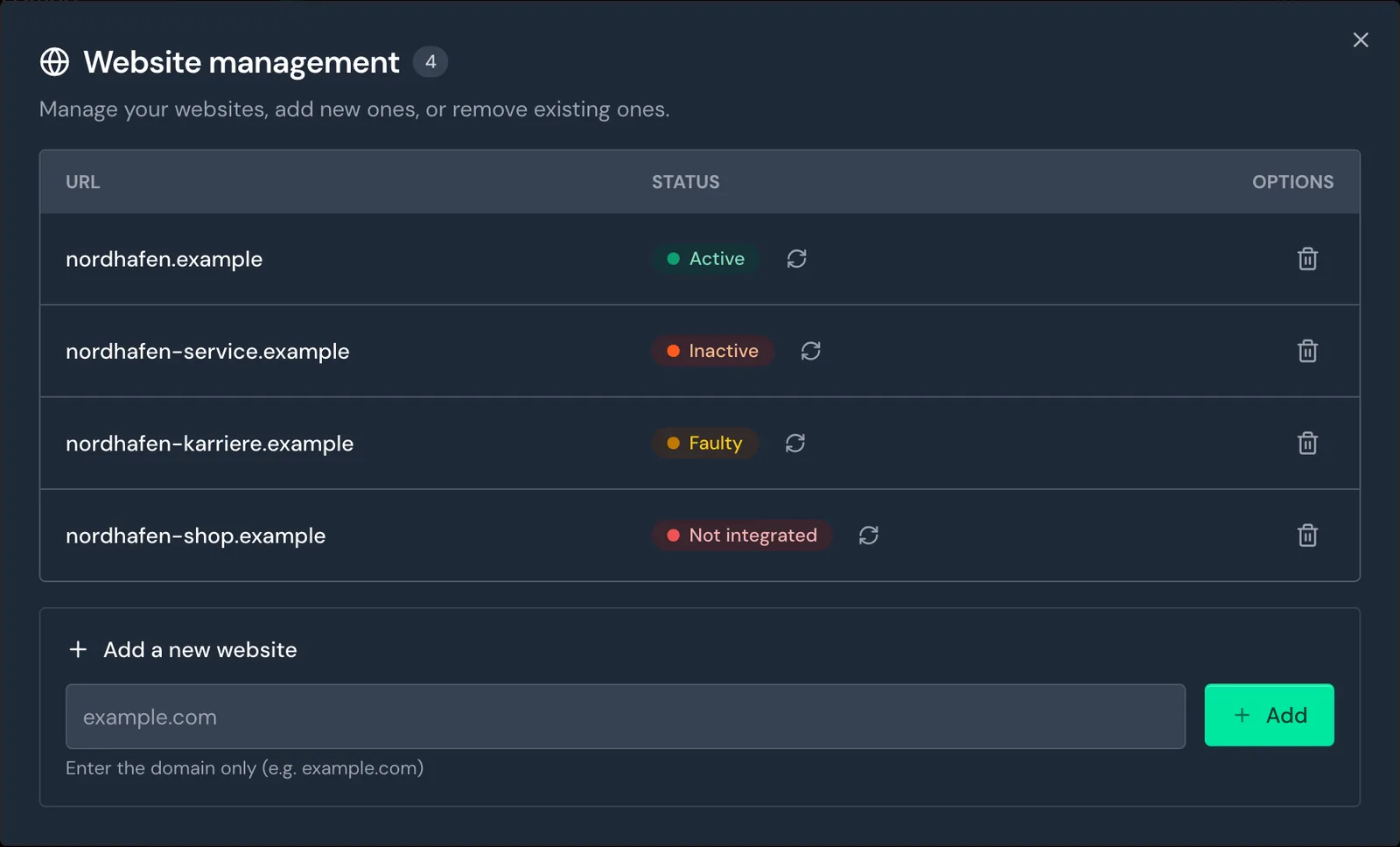
Webmetic shows the status for each domain separately, and each domain has its own company list. You switch between them with the website picker in the top left. Webmetic doesn't join visits across domains: on the second domain, the first one appears as the source.
When you reach your plan's limit, Webmetic shows the Upgrade to Growth button instead of the form.
Configure caching and optimization plugins
A page cache causes no problems, because the tracking code is the same for every visit. Problems come from features that delay, combine, or change JavaScript:
- Don't delay it: Webmetic sends the first page view only when the code runs. If it loads on the first interaction, every visit without a click or scroll is missing.
- Add an exclusion: Exclude
t.webmetic.de/iav.jsfrom minifying, combining, deferring, and delaying, and leave the tracking code from the dashboard unchanged. - Don't host it yourself: A copy of
iav.json your server gets no updates, and session recording doesn't work. With the short form, the account ID is lost as well, and the domain shows Faulty.
The WordPress plugin adds the exclusion itself in WP Rocket, LiteSpeed Cache, Perfmatters, SG Optimizer, FlyingPress, Autoptimize, and W3 Total Cache. In Cloudflare Rocket Loader, Jetpack Boost, WP-Optimize, Hummingbird, Breeze, and NitroPack, you add it yourself.
Adjust your Content Security Policy
If your website sends a Content Security Policy (CSP), add these entries:
script-src https://t.webmetic.de;
connect-src https://t.webmetic.de;
img-src https://t.webmetic.de;- script-src: This loads
iav.jsand, with session recording on, the recording script. The tracking code from the dashboard is an inline script. If your CSP doesn't allow'unsafe-inline', it needs a nonce or a hash. - connect-src: Webmetic sends page views, events, and recordings through it.
- img-src: Webmetic uses this path only when the others fail.
The tracking code contacts no other addresses, and you don't need worker-src or blob:. The WordPress plugin gives the inline script the ID webmetic-bootstrap, so you can target it with a nonce. If you use Google Tag Manager, its own requirements apply as well.
The short form loads iav.js directly, without an inline script, so you don't need a nonce for it.
<script src="https://t.webmetic.de/iav.js?id=YOUR_ACCOUNT_ID" async></script>For session recording, append &sr=true to the address. The Deep check still shows the notice Session recording inactive, because it only detects recording in the tracking code from the dashboard. The short form starts twice if it loads twice, so add it only once. We still recommend the tracking code from the dashboard.
Tie the tracking code to consent
Webmetic processes the data in pseudonymized form. The script sets no cookies of its own, but reads the ID of an existing Google Analytics cookie, if there is one.
You decide as the controller whether the tracking code loads before or only after consent.
The tracking code has no consent interface and no command to start or stop it. So you control consent through loading:
- Consent tool: Your tool blocks the tracking code until consent is given.
- Google Tag Manager: You fire the Webmetic tag only after consent, for example with a suitable trigger. The Webmetic template has no consent settings of its own.
If someone consents in the middle of a visit, recording starts on the current page. A withdrawal takes effect from the next full page load, which in a single-page app means after a reload.
The Deep check under Menu > Tracking code shows whether the code loads before or only after consent. If the code loads only after consent, the deep check shows the notice Code loads only after consent. Webmetic then doesn't record visits before consent.
The check tests only the home page of the first website in your account.
Your visitors can object at webmetic.de/opt-out with the Activate opt-out button. The objection applies to that device and that internet connection on all websites that use Webmetic.
Exclude staging and test environments
A staging subdomain like staging.your-website.com belongs to the main domain, so its test visits appear in your live website's list. To keep tests out, don't add the tracking code to staging. Alternatively, use a separate domain that you don't add under Websites.
Track only your own domain, not platform addresses like *.myshopify.com, *.vercel.app, or *.netlify.app. Otherwise, Webmetic doesn't count the data toward your domain.
localhost, IP addresses, and file:// never appear in the dashboard. Test on the published website instead, with Quick check or Deep check.
Handle iframes and AMP pages
The tracking code always records the page it runs in. In an iframe, Webmetic counts page views for the iframe's domain, not the surrounding page.
Webmetic can't see forms in third-party iframes, for example from embedded form tools, because the browser prevents it. Videos from YouTube and Vimeo are the exception.
Webmetic has no dedicated setup for AMP pages.
Use automatic events
Without extra code, Webmetic records these events:
- Forms: start, submit, and abandon, except search forms with
role="search" - Downloads: links to files, detected by file extension or the
downloadattribute - Clicks: on email and phone links, to other websites, and between your subdomains
- Search: search forms and parameters like
qorsearchin the address - Video and audio: YouTube only with
enablejsapi=1in the iframe address, also viayoutube-nocookie.com; Vimeo with no extra parameter; your own videos except muted autoplay ones; audio - Behavior: scroll depth, active time, and printing
The timeline doesn't show email and phone clicks or audio for now. Recorded events describes which events a visit shows.
You can't send custom events or page views from code, because the tracking code has no interface for that.