

Matomo Tag Manager
Add the tracking code as a tag in Matomo Tag Manager without changing your website's code.
If a Matomo Tag Manager container already runs on your website, you add the tracking code there as a tag of its own. At the end you'll have:
- the tracking code on every page that loads your container
- your website with the status Active in Webmetic
- the message Data received in the Quick check
Before you start
- Time: The first data arrives after a few minutes. The first companies appear within minutes to hours, depending on how much traffic your website gets.
- Account: You need a Webmetic account with your website listed under Menu > Websites.
- Access: A Matomo Tag Manager container already runs on every page of your website.
- Rights: In Matomo, only admins or users with the Publish Live Container capability can publish to Live. You don't need admin rights in Webmetic.
- Plan: The tracking code works on every plan and costs no credits. You can watch session recordings during the trial and on the Growth plan or higher.
The Webmetic plugin for Matomo is a different thing: it shows the identified companies inside Matomo, but it doesn't add the tracking code.
The labels below come from Matomo 6, and a few of them differ slightly in Matomo 5.
1. Copy the tracking code
- Open Menu > Tracking code, where HTML snippet is already selected under Choose a method.
- Under Copy the snippet, decide whether the Session recording option stays ticked.
- Click Copy. The copied code already contains your account ID, so there's nothing to change in it.
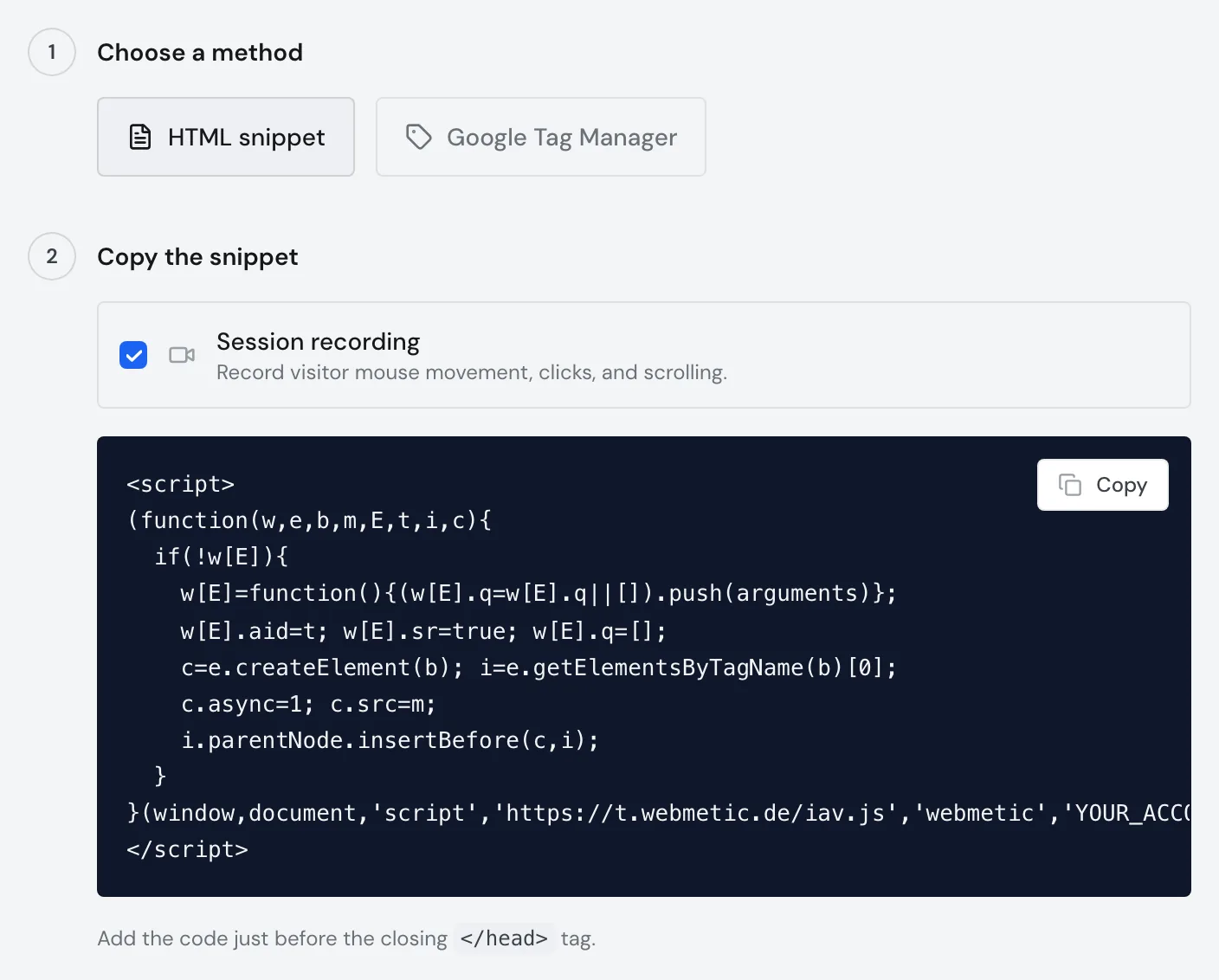
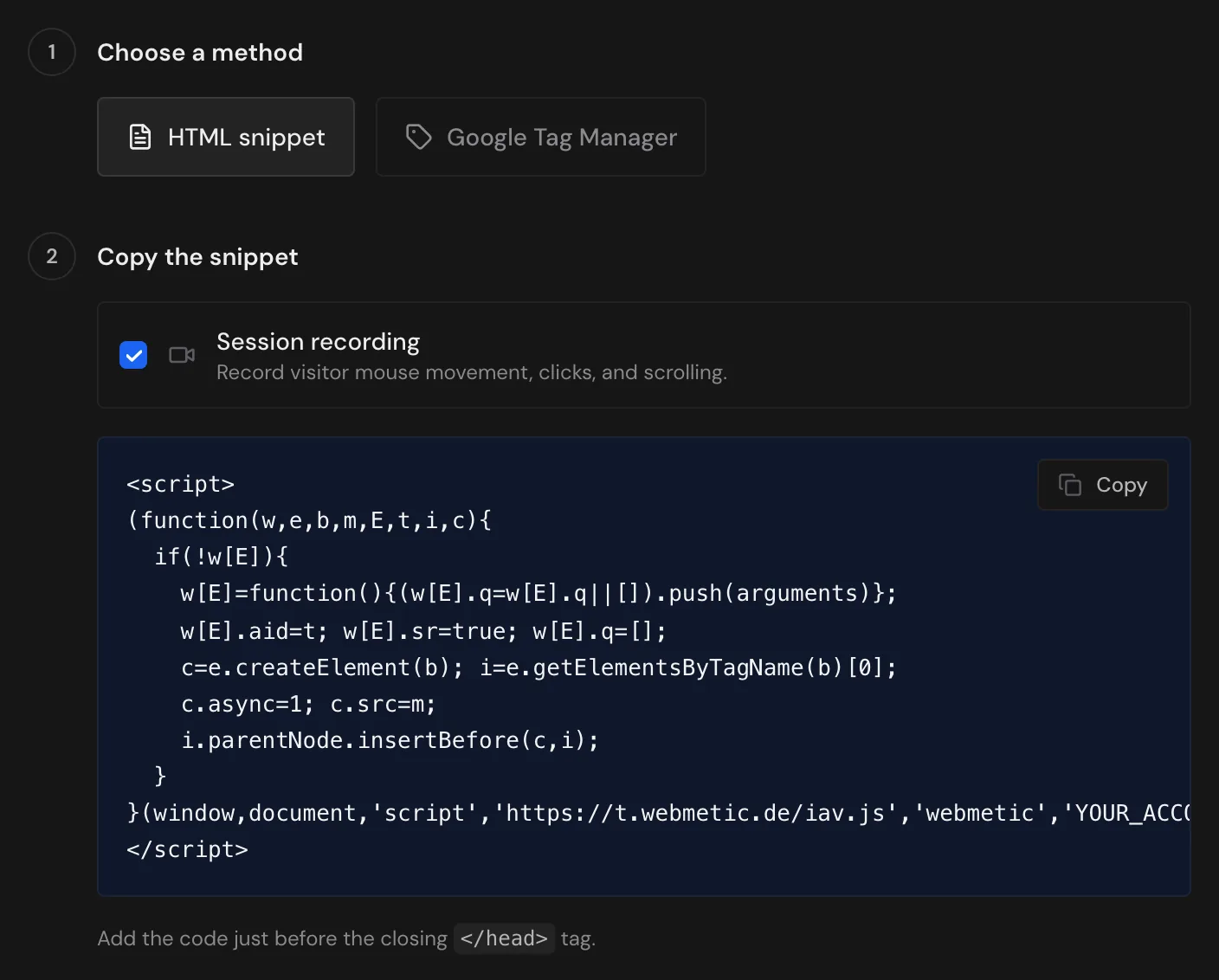
Session recording captures mouse movement, clicks, and scrolling, and Webmetic hides anything typed into form fields. If your plan includes session recording, leave the box ticked. Otherwise, untick it.
You copy the text for your privacy policy in the Tracking Code window under Privacy notice. You'll also find the text in German and English under Add the privacy notice.
The code from the dashboard loads only once, even if it's also in your website's source code by mistake. Tracking code in the HTML shows what the code looks like.
2. Create the tag
- In Matomo, open Tag Manager.
- At the top, choose your website's container in the Choose a container list.
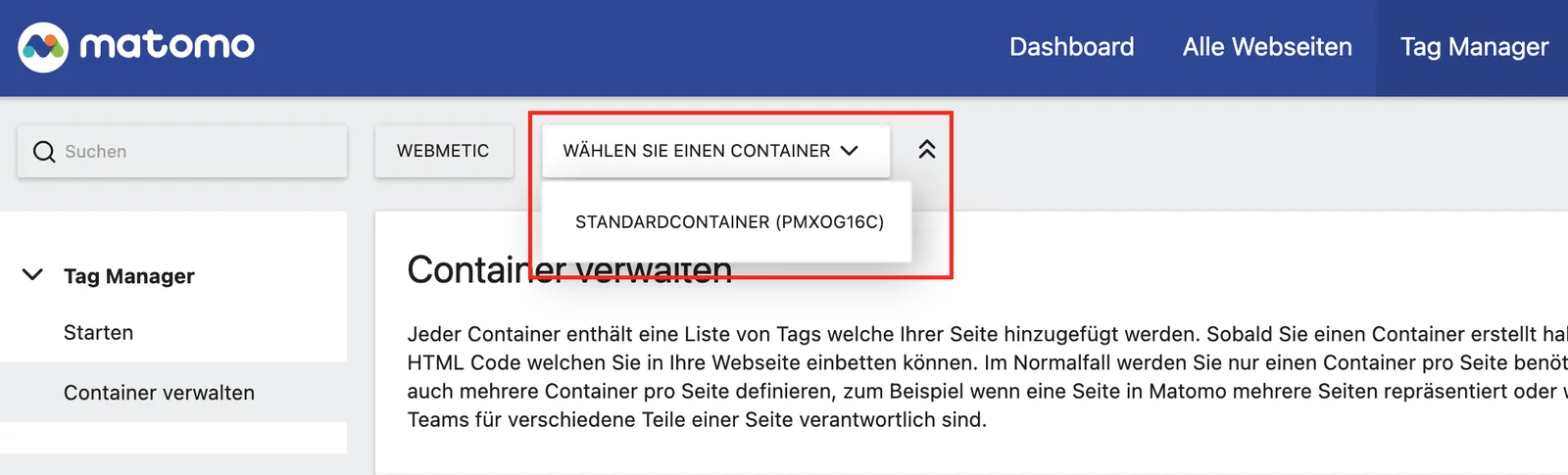
- Open Tags and click Create new tag. Matomo shows the list of tag types.
- In the Custom category, choose the type Custom HTML.
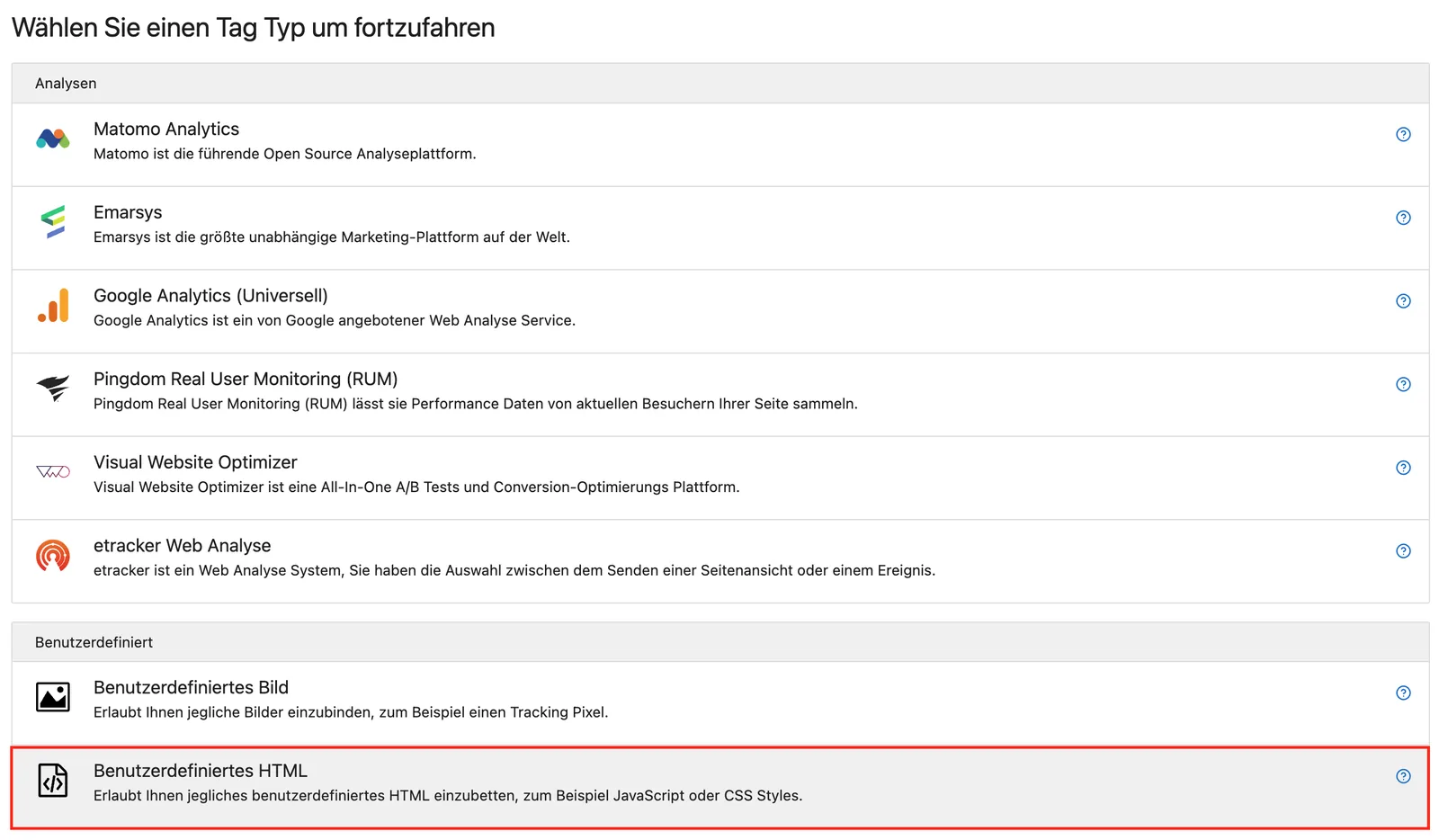
- Paste the tracking code into the field for the HTML code.
- Under Position, choose Head End, which matches the spot directly before
</head>that the dashboard names.
The default is Body End: the code works there too, but it sends the page view later, because it sits further down the page.
If Custom HTML is missing from the list, an admin may have blocked this tag type. Ask your Matomo administrator to unblock it or to create the tag for you.
3. Set the trigger
- In the section Configure when the tag should do this, choose the trigger Pageview, which Matomo creates by default.
- Save the tag so that it fires on every page view. Matomo confirms that the tag was created and offers a link to publish a new version.
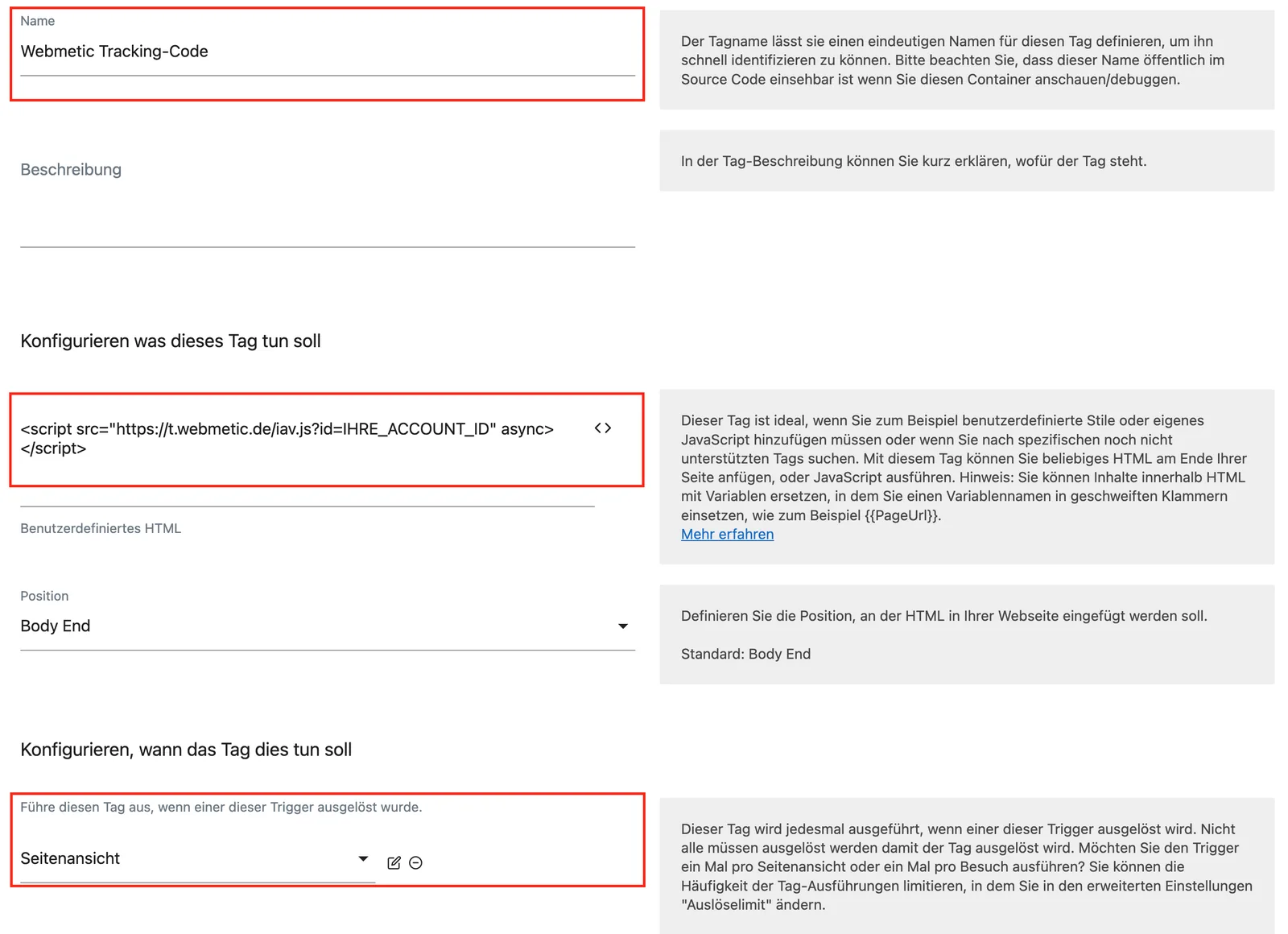
The image shows the short form of the tracking code and the default position Body End. Both work. We recommend the code from the dashboard and Head End.

If the Pageview trigger is missing, create it under Triggers > Create new Trigger > Pageview. Matomo has no separate trigger for all pages like Google Tag Manager, and Pageview serves the same purpose.
4. Publish a version
- In the left menu, click Publish.
- Enter a name for the version, for example
Webmetic. - Choose Live as the environment so that the version reaches your website.
- Click Create new version and publish release, and from now on every page with your container loads the tracking code.
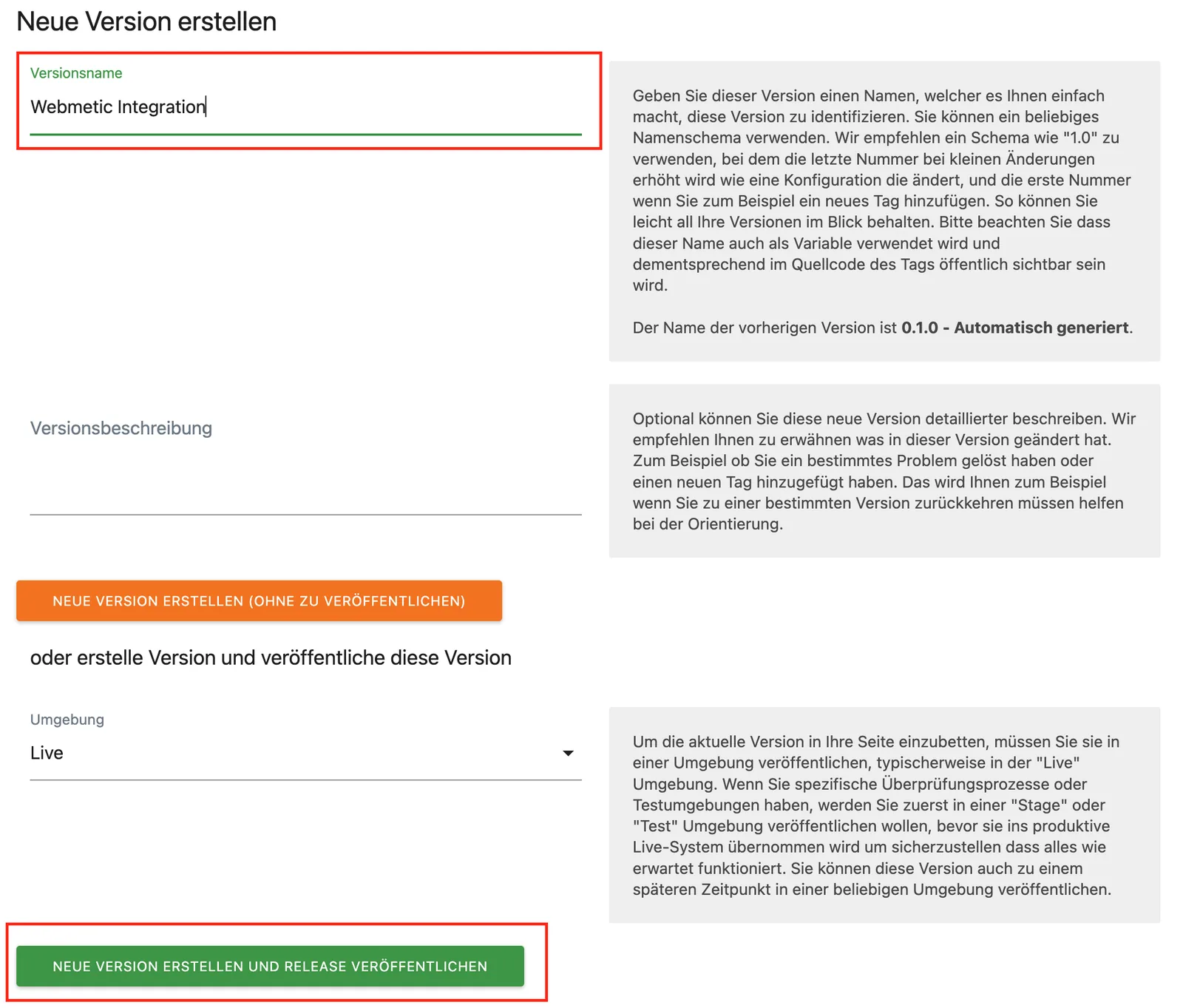
Before you publish, you can check the container in the preview:
- In Matomo, click Preview / Debug.
- Enter the address of the page you want to test.
- Click Debug to start the preview.
Check your installation
- Open your website in a new browser window and visit a few pages.
- In Webmetic, open Menu > Tracking code and click Quick check under Verify installation. Webmetic shows the message Data received.
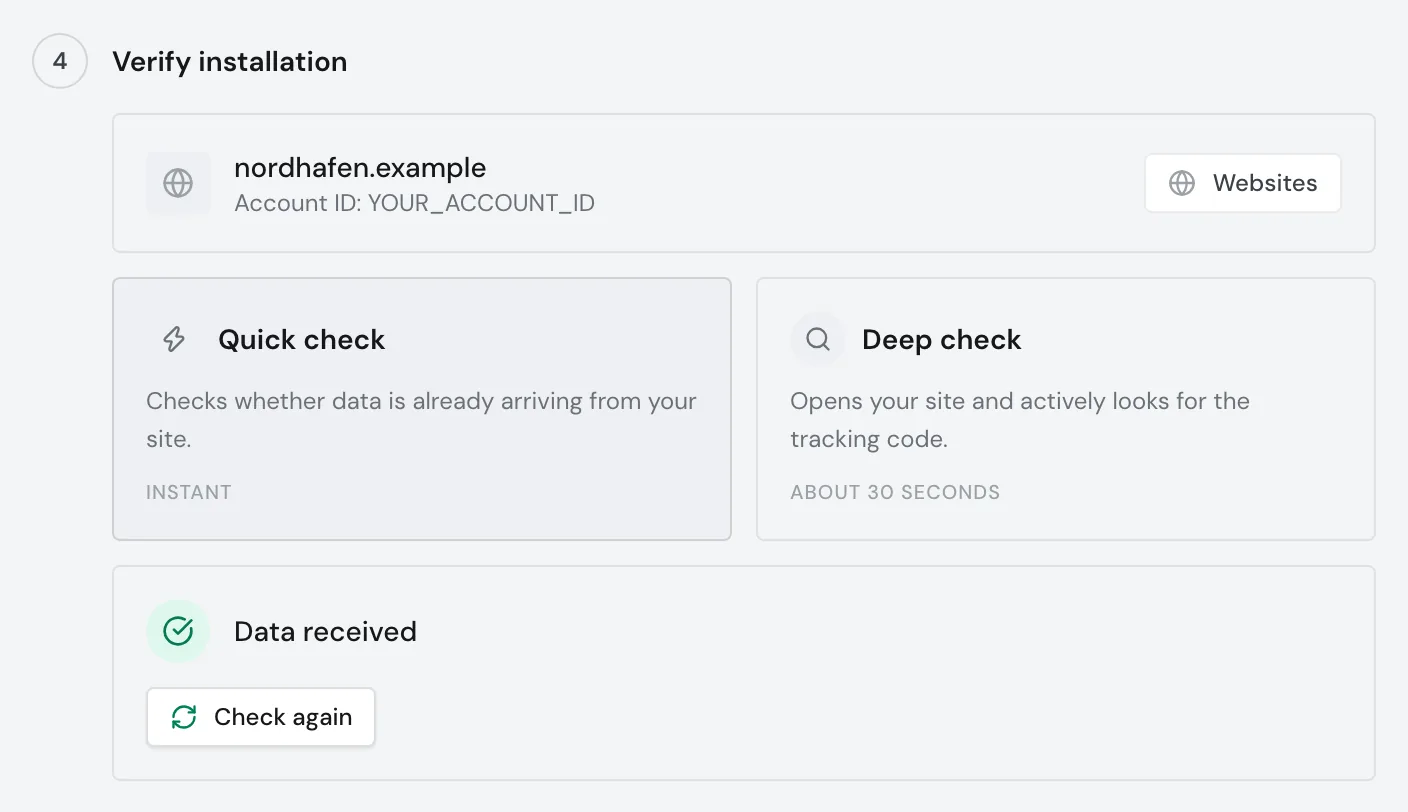
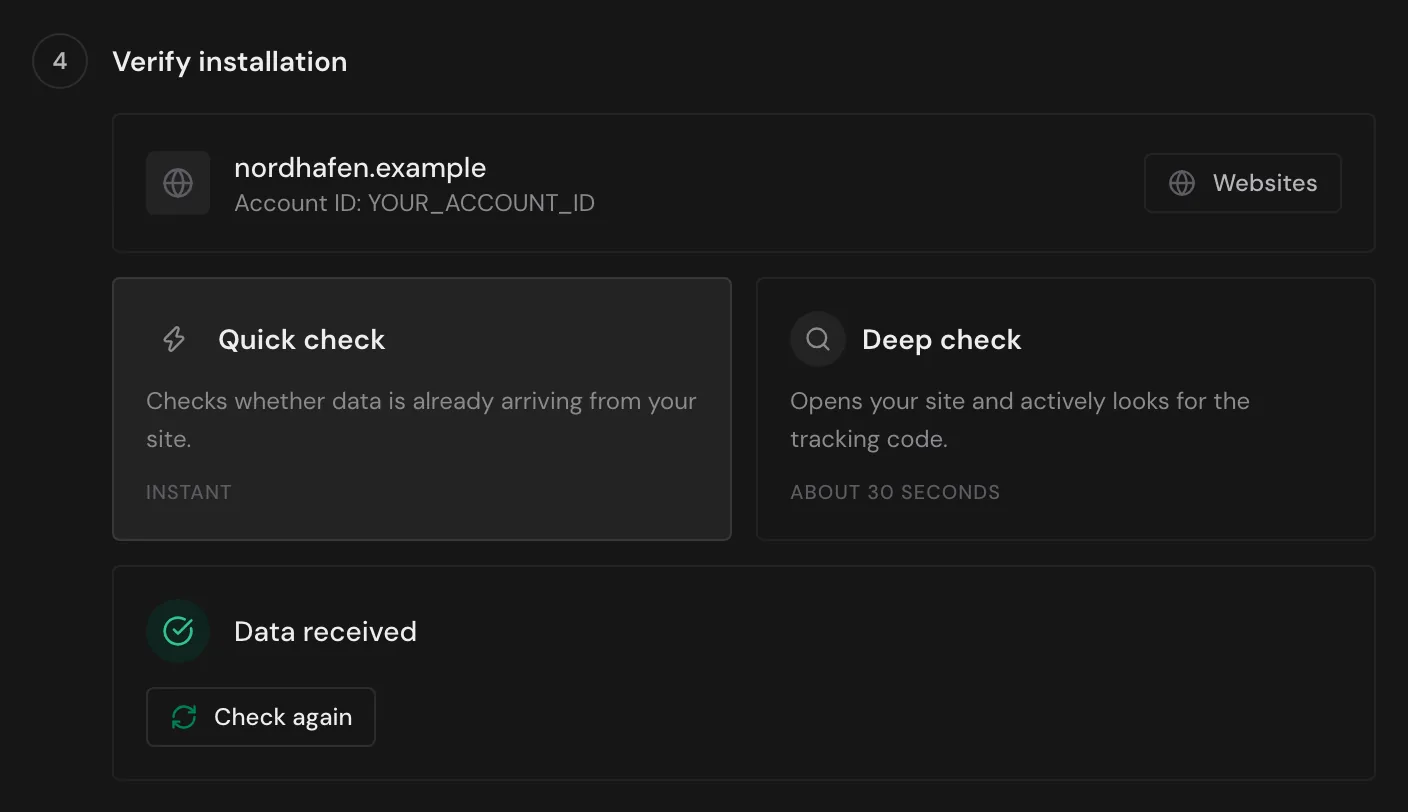
The quick check reports data as soon as any website in your account sends data. If you have several websites, also open Menu > Websites and check that your website shows Active there.
If nothing arrives
If the quick check shows the message No data yet, wait a few minutes and click Check again. If the message stays, confirm these points:
- The new version is published to the Live environment.
- The tag uses the Pageview trigger.
- The container runs on the page you visited.
- No cache is still serving the old version of your pages.
Webmetic sets no cookies of its own and processes the data in pseudonymised form. If present, however, the script reads the identifier of a Google Analytics cookie.
Whether the code may load before consent is a question for your data protection advisor. If it loads only after consent, Webmetic records only the visits after consent.
If the code should load only after consent, you set that up yourself. Your consent tool then blocks the tag until consent, or you fire the tag in Matomo only after consent. Webmetic has no setting of its own for this.