

Editor
Pick the texts of your page in the editor and see what a company reads.
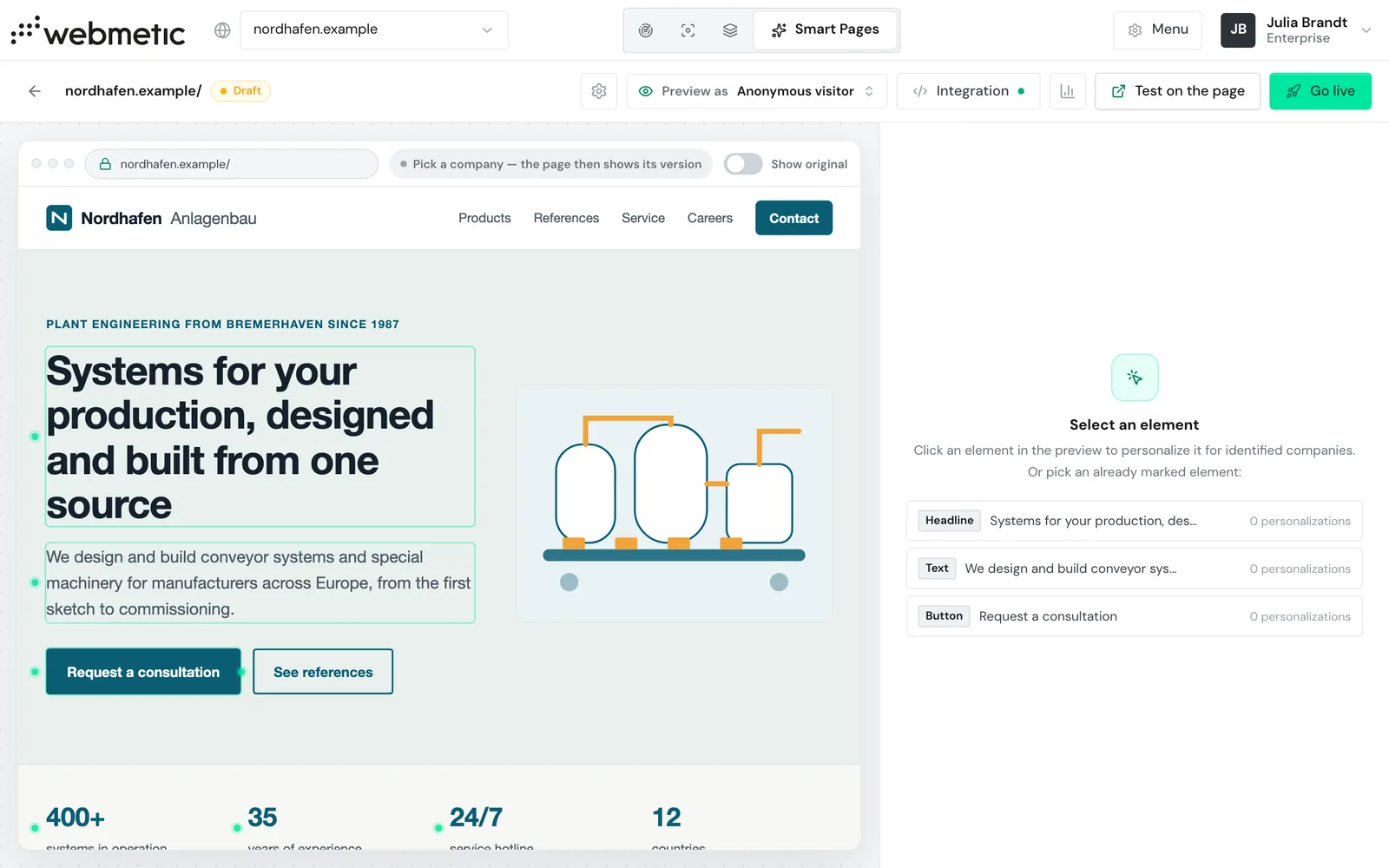
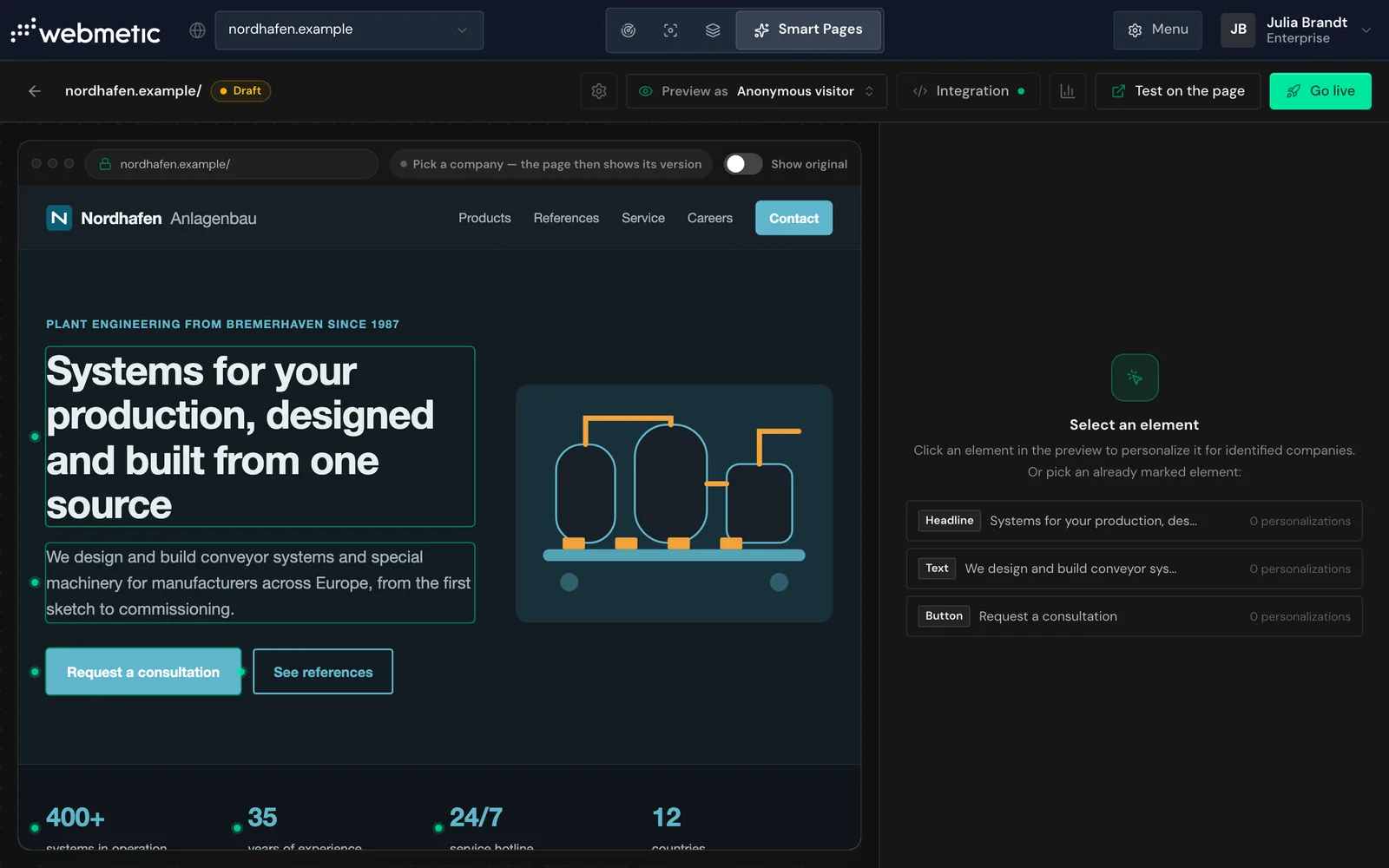
In the editor you decide which texts on a page change for each company. On the left you see a copy of your page, on the right the side panel for the selected element. The editor never changes your website itself.
Before you start
- Plan: On every plan, you can design Smart Pages, preview them, and test them on your website. You can publish them and choose the AI text per company method only in the trial, the Growth plan, and Enterprise. White-label customers of a partner don't see the tab.
- Rights: Every user in your account can create, edit, publish, and delete Smart Pages, even without admin rights.
- Cost: Smart Pages cost no credits.
- Smart Page: You need a Smart Page for the page you want to change. To create one, see Your first Smart Page.
- Screen: The editor needs a screen at least 1,024 pixels wide. On smaller screens you only see the list of your Smart Pages.
Open the editor
In a narrower window the Smart Pages tab shows only its icon, and the name appears when you point at it. On a smartphone, choose Smart Pages in the dropdown at the top.
- Click the Smart Pages tab at the top.
- Click your Smart Page in the list. Webmetic then opens the editor for this page.
The first time you open it, Webmetic makes a copy of the page once, which takes a little longer. The copy shows the page the way a desktop browser displays it.
Check the suggested elements
If a Smart Page has no elements yet, the editor suggests up to three when you open it:
- the main heading of the page
- the first longer paragraph after it
- the first short link or button that isn't part of running text
The link or button can also sit above the main heading.
Webmetic saves the suggestions at once and outlines them in mint, personalized elements in purple. While no element is selected, the side panel lists all elements: personalized ones first, then in page order.
- Click an element in the list. The editor highlights it in the copy and opens it in the side panel.
- If a suggestion doesn't fit, remove it as described under Remove an element.
Add an element
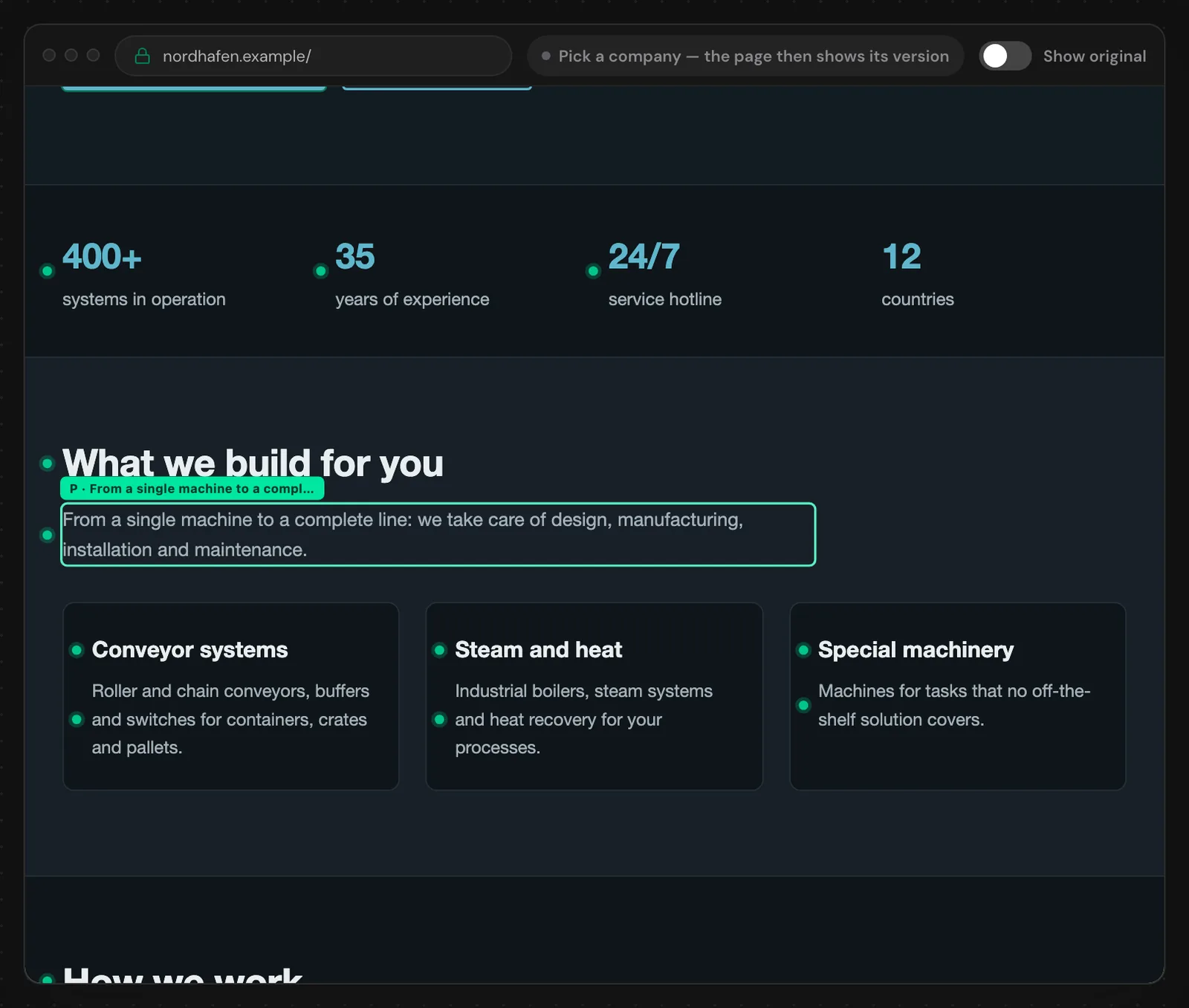
- Point at a text in the copy. If you can select it, it receives an outline and a tag with its kind, for example H2.
- Click the text. Webmetic adds the element at once and opens it in the side panel as Headline, Text, or Button.
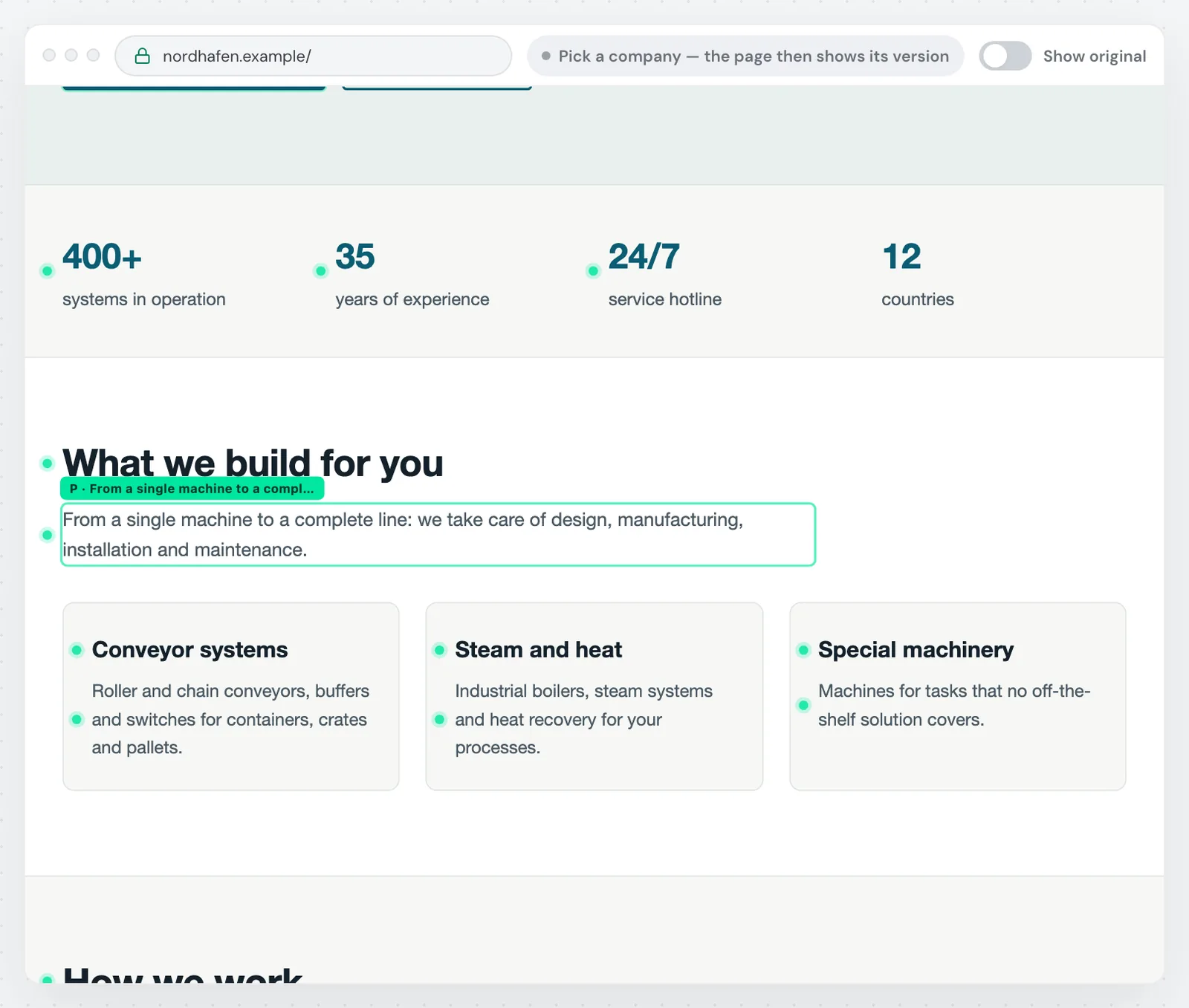
Links count as Button.
You can select visible texts with 2 to 1,200 characters:
- headings, paragraphs, links, and buttons
- other text blocks, for example list items
You can't select:
- images, videos, and form fields
- texts in the navigation and the page header, except the main heading
- text blocks of a single word
- loose text blocks in the footer, in forms, and in popups
If a link sits inside a paragraph, clicking the link selects only the link. For the whole paragraph, click the text next to the link.
A new text replaces the whole element with plain text, so bold words and links inside it are lost. Choose elements without links or highlighting in the text. Link targets, images, and the layout never change.
Choose the method
For each element you decide in the side panel who writes the new text:
- AI text per company: The AI writes a version of its own for every identified company. This method is available for texts of 45 characters or more, but not for very long texts, buttons, and links.
- Your own text per audience: You write the text yourself and choose which audience sees it. This method is available for every element.
An element uses only one method: if you save the other method, it replaces the previous one, and the editor warns you first. If you switch from your own texts back to AI text per company, the earlier AI texts come back.
Visitors that Webmetic doesn't match to a company always see the original.
Remove an element
Webmetic deletes a removed element with all its texts, including the stored AI texts. You can't undo it.
- Click the element in the copy or in the list.
- Click the trash icon Remove element in the header of the side panel, next to the element's name.
- Confirm with Remove element. Webmetic saves the change at once.
The trash icon Remove personalization in the method row below removes only the texts, and the element stays marked.
Hide layers
If a popup such as a trade fair invitation covers the copy, you can hide this layer in the editor.
- Click a free spot of the layer, for example its edge. Clicking its text adds the text as an element.
- Click Hide this layer. The editor then shows the note 1 layer hidden.
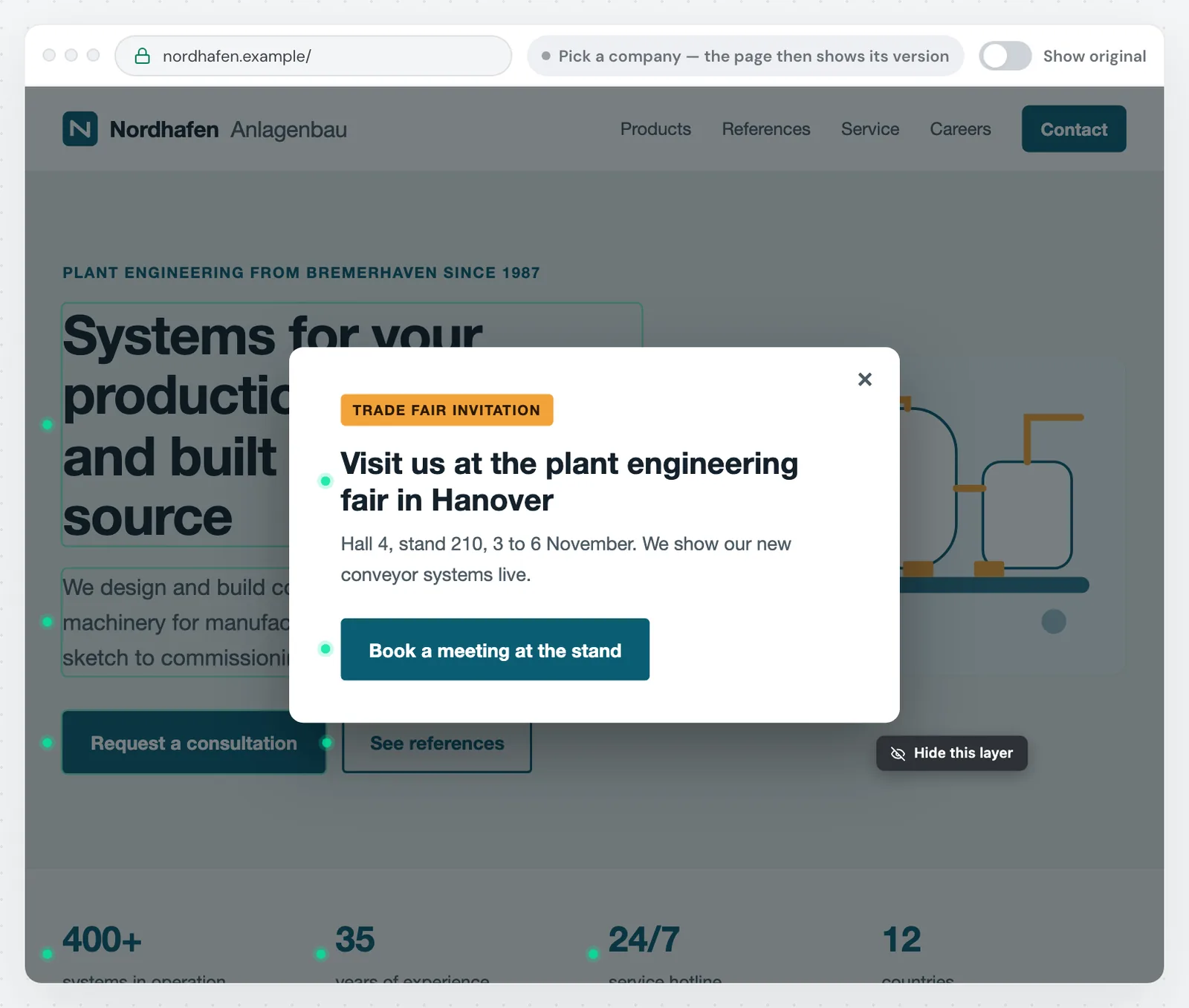
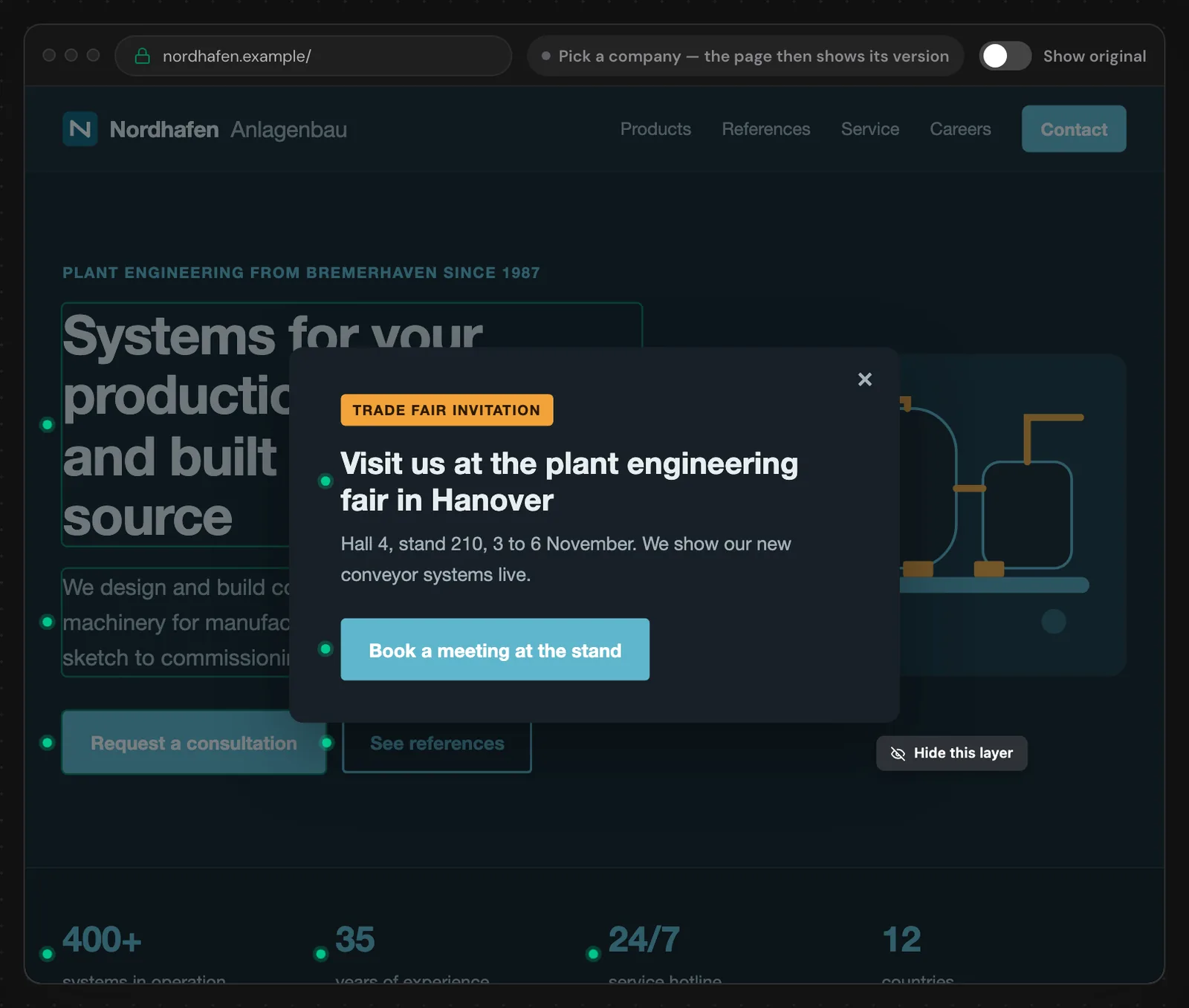
Hidden layers apply only in the editor, and the popup still appears on your website. With Show again you bring all of them back at once.
The editor hides cookie banners by itself, but you can't hide the page header or the navigation.
View the page as a company
The Preview as selector shows the page the way a specific company sees it on your website.
- Click Preview as at the top.
- Search for a company or pick one from the list. The copy now shows the version of the page for this company.
- Optional: Click Show original to compare with the original. The selected company stays selected.
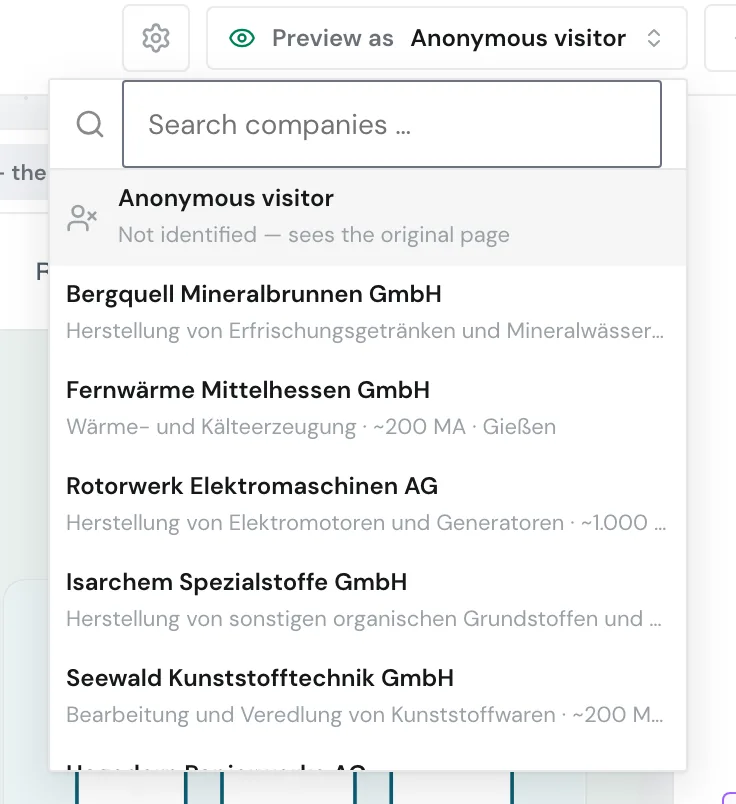
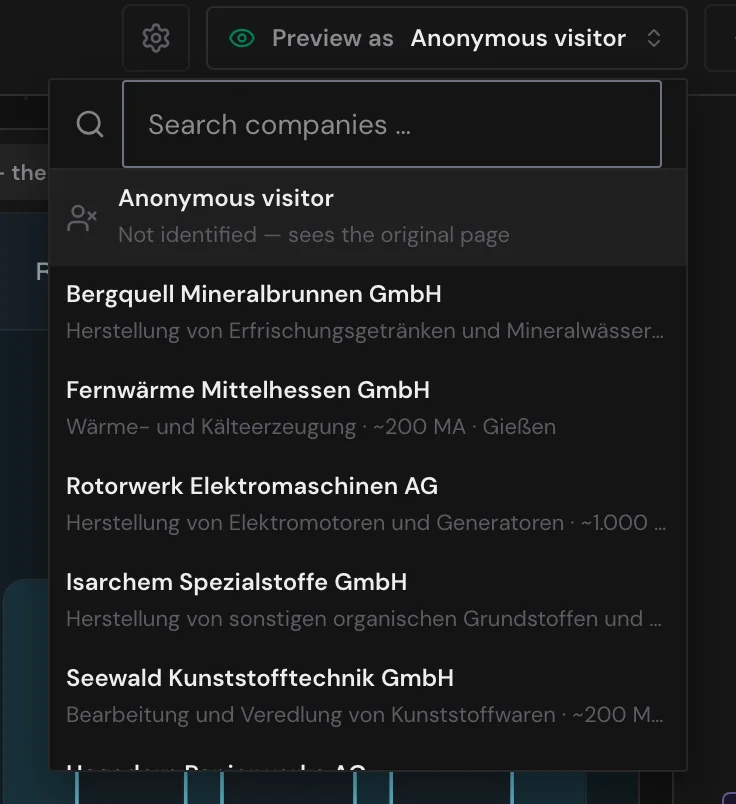
Changed elements carry a tag with the audience name, or with AI and the company name.
The list shows up to 12 companies that visited your website, highest activity first. On the Free plan these are only the identified companies you can read in the dashboard. On every plan, example companies follow, so the preview works even without visits. The Anonymous visitor entry shows the original, as visitors without an identified company see it.
Keep this in mind for the preview:
- With the AI text per company method, Webmetic writes that company's text during the preview and stores it. The company later reads the same text, unless the automatic check discards it.
- The preview doesn't check campaign and device, so use the test link with UTM parameters for those, as described in Test and go live.
Save changes
Webmetic saves new and removed elements, audiences, and hidden layers at once. If saving fails, the top bar shows a notice that you click to try again.
Webmetic saves texts only with Save text or Save personalization. If you switch the element, the view, or the method first, the editor discards the draft without asking.
When you leave the editor, Webmetic saves changes to elements. If the Smart Page is live, visitors see saved changes after a short time, without publishing again.
Create the Smart Page again after website changes
Webmetic makes the copy of the page once and doesn't refresh it. If you change a text on your website, the Smart Page no longer applies to that element. The element then shows the current text of your website, without a swap.
Create the Smart Page for this page again and delete the old one as soon as the new one is live.