

Report
Check in the report which companies saw which text and how personalized visits behave.
Every Smart Page has its own report. It shows you four key figures, a comparison between the original and the personalized page, and the identified companies with the text they received.
Before you start
- Time: Reading the report takes a few minutes, but you only see meaningful figures once your live page has had visits.
- Plan: You can design Smart Pages, preview them, and test them on your website on every plan. You can publish them in the trial, the Growth plan, and Enterprise. You can open the report on every plan. Webmetic only counts new impressions while it delivers the page live, though. White-label customers of a partner don't see the tab.
- Rights: Every user of your account can open the report. You don't need admin rights for it.
- Cost: Smart Pages cost no credits.
- Smart Page: You need a Smart Page with the status Live and the Smart Pages code on that page, because Webmetic doesn't count drafts.
- Tracking code: For the comparison, the tracking code must also run on the same page. Without it, you only see the impressions and the identified companies.
Open the report
In a narrower window the Smart Pages tab shows only its icon, and the name appears when you point at it.
- Click the Smart Pages tab at the top. On a smartphone, choose Smart Pages in the dropdown at the top.
- In the row of your page, click the three dots (⋯). The page menu opens.
- Click Report. Webmetic shows the report for this page.
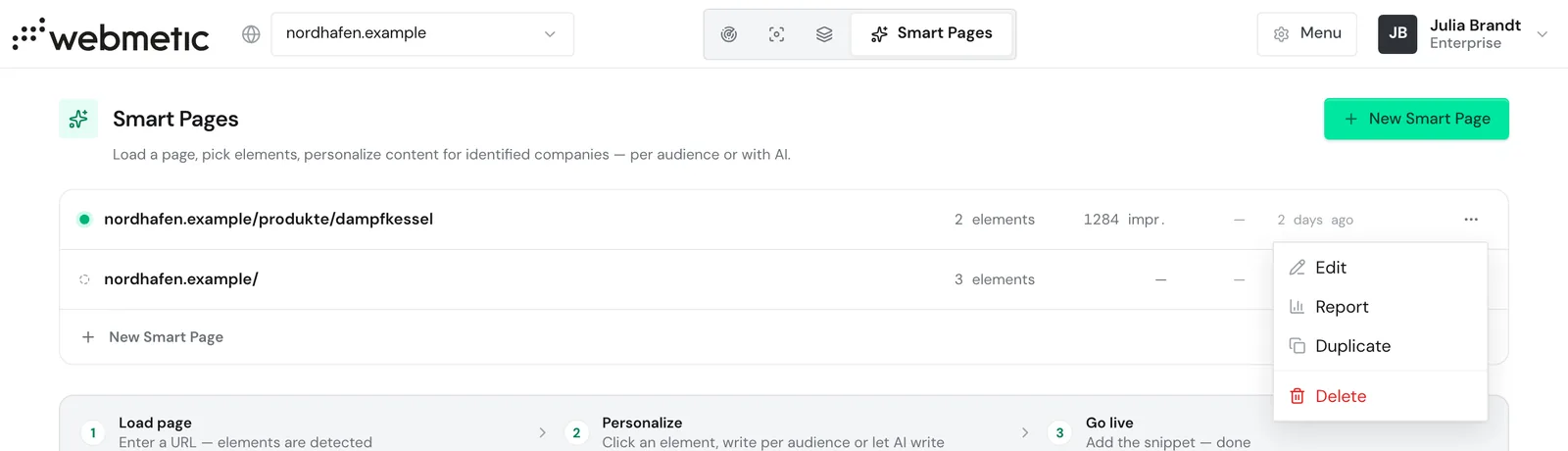
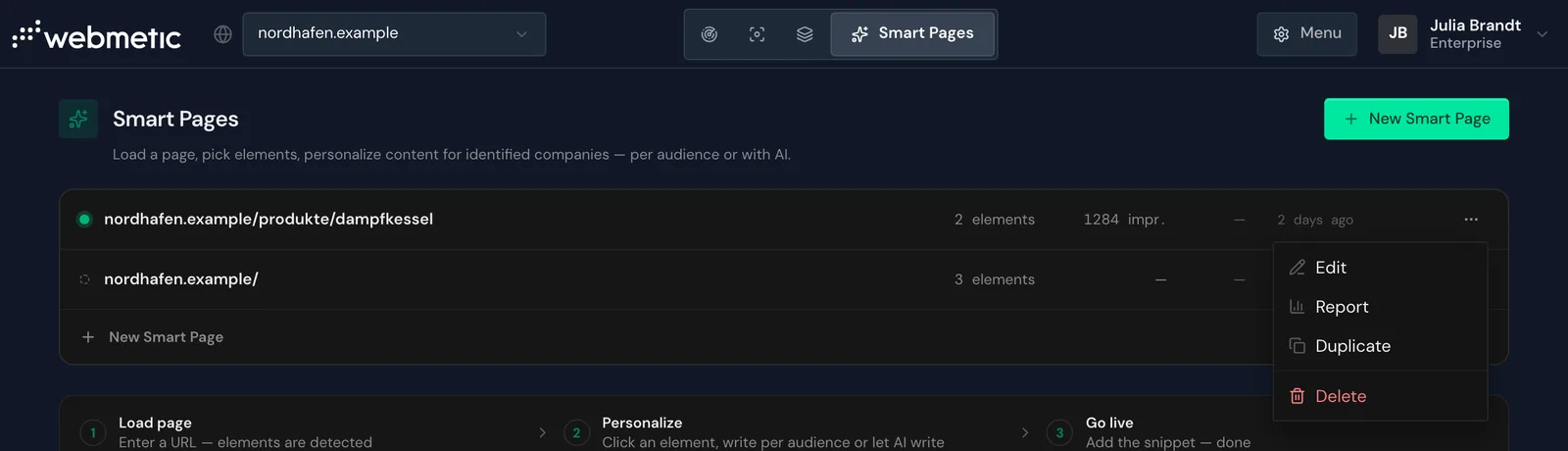
On a desktop it's quicker: point at the row and click the chart icon. In the editor you find the same icon in the top bar. If you click the row itself, the editor opens.
The report has no address of its own, so you always reach it from the list or the editor. Smart Pages at the top takes you back to the list, and Open editor takes you to the editor of this page.
Read the key figures
At the top you see four key figures:
- Impressions: how often visits loaded the page with the Smart Pages code, counting every reload.
- Identified visits: how many of these page views Webmetic could assign to a company. Despite the name, every page view counts here, not every visit.
- Companies reached: how many different companies loaded the page at least once.
- Time-on-page uplift: by what percentage personalized visits stay on the page longer than visits that saw the original. The figure is green when they stay longer and red when they leave sooner.
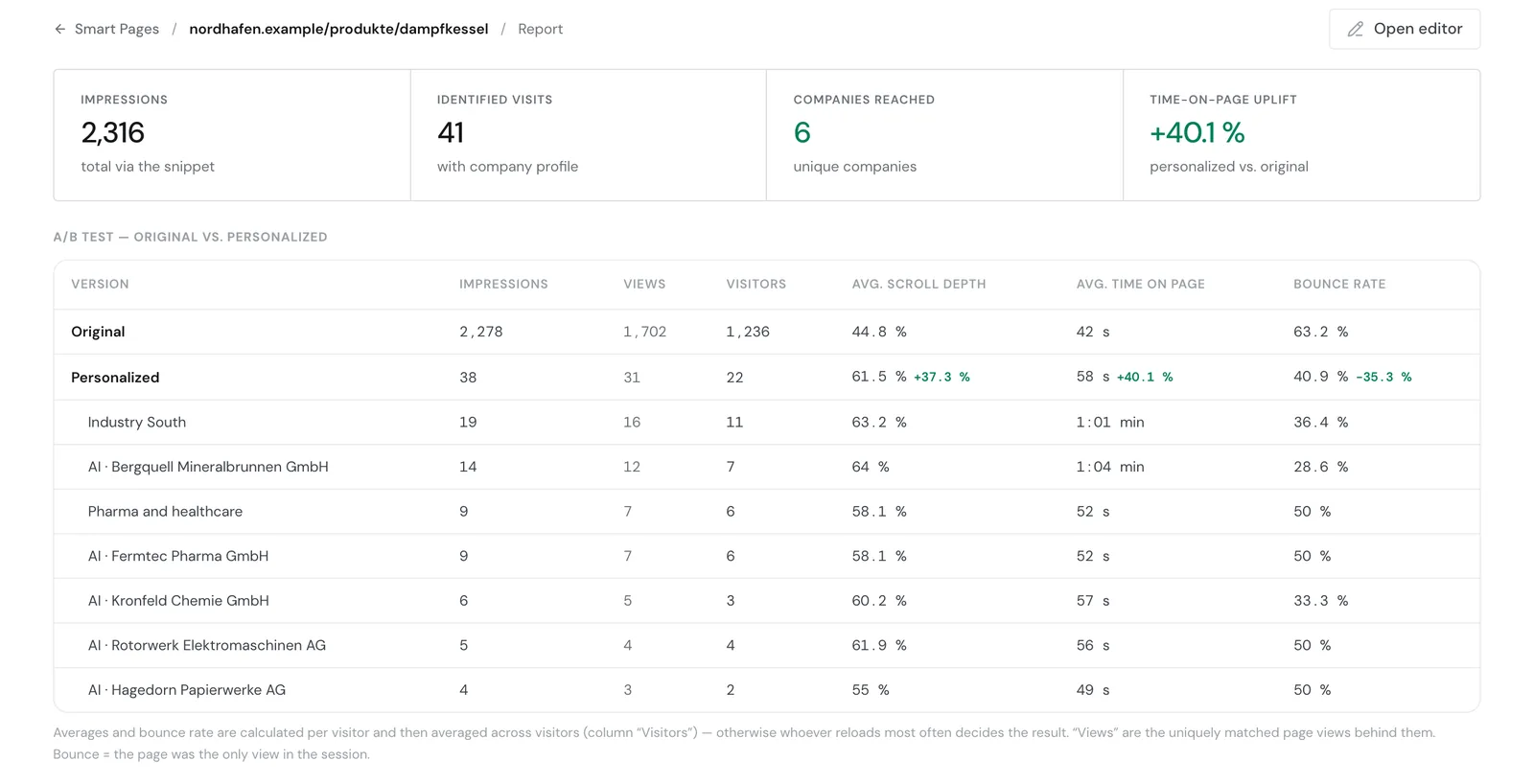
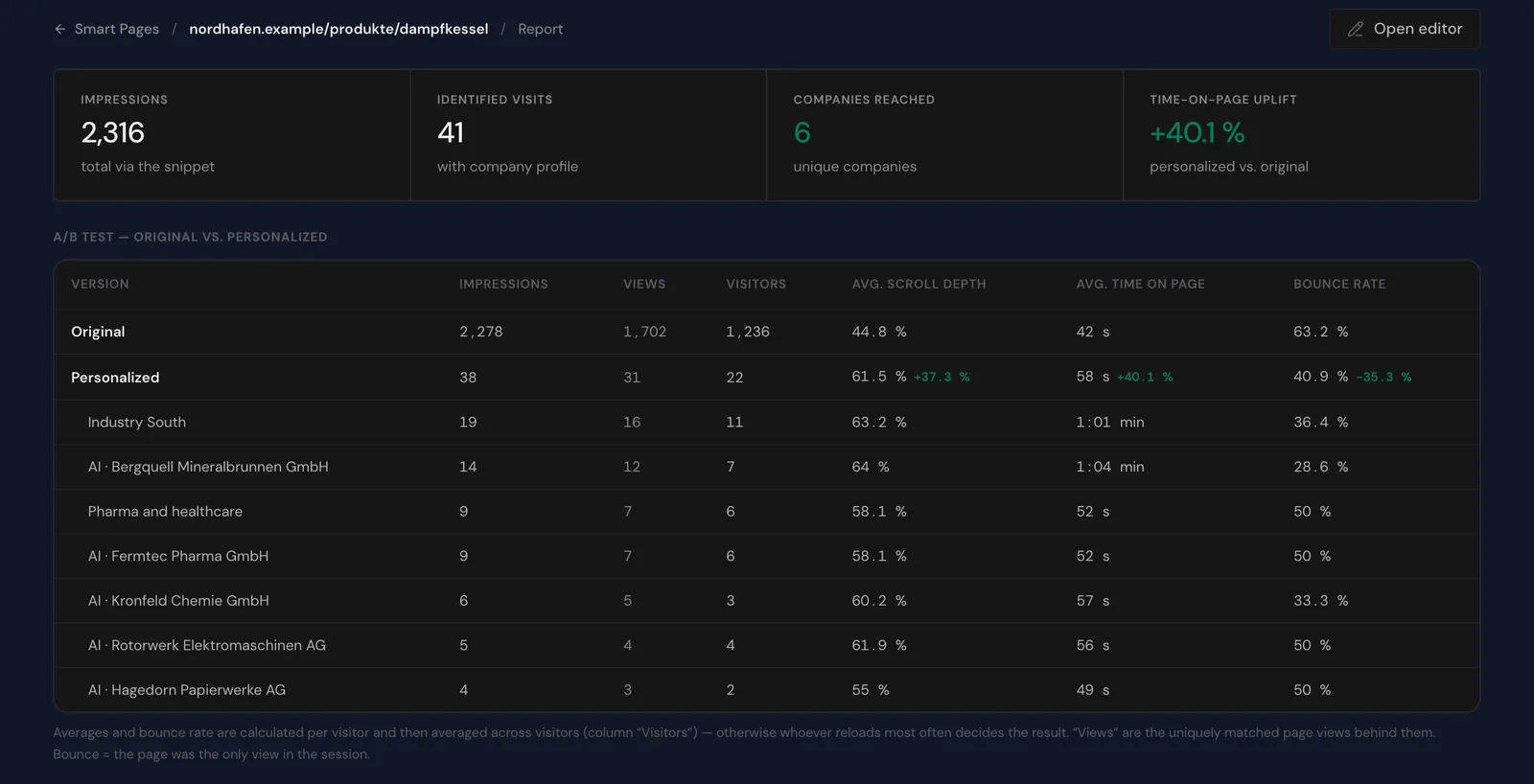
Webmetic only shows the uplift once both groups have enough visitors. Until then the tile shows the note not enough visitors yet instead of a number. Without the tracking code on the page, the tile keeps showing this note.
Even without the tracking code you see the key figures Impressions, Identified visits, and Companies reached. For the uplift you need it.
Compare original and personalized
Below the key figures you find the A/B test section. It splits all impressions into two groups:
- Original: page views where Webmetic changed no text. This includes visits without an identified company and companies that match neither an audience nor an AI text.
- Personalized: page views where Webmetic changed at least one element.
The groups are not assigned at random. Despite the heading, this is not a randomized test, because recognition and your audiences decide who sees the new text.
Under Personalized there is an indented row for each audience, with its name. For AI texts there is one row per company, for example AI · Kronfeld Chemie GmbH. When you point at an audience, you see its criteria.
The columns mean:
- Impressions: how often the page was loaded in this group. In the rows for audiences and AI texts, too, every page view counts.
- Views: page views that Webmetic could match to a page view of the tracking code.
- Visitors: how many different visitors are behind these views, which is the basis for the averages. Webmetic tells them apart by a visitor ID that changes daily.
- Avg. scroll depth and Avg. time on page: how far visits scrolled down the page and how long they stayed.
- Bounce rate: the share of views that were the only page view of their session.
Webmetic first calculates the averages per visitor ID and then averages across all of them. That way, a visitor who reloads the page many times can't skew the result. In the Personalized row, Webmetic shows the difference from the original next to each average. Green means better. For the bounce rate, a minus is therefore green.
For the columns Views and Visitors, the averages, and the bounce rate, you need the tracking code.
Read the comparison correctly
The comparison shows whether personalized visits behave differently from visits that saw the original. It doesn't prove that the new text makes the difference.
The Original group mostly holds visits without an identified company. The Personalized group holds companies that match your audiences. These companies may behave differently because they're already interested in what you offer.
So treat an uplift as a hint, not as proof. You can't set up a random control group in Webmetic. The report doesn't measure clicks, forms, or inquiries, so check your CRM to see whether the page brings more of them.
Check identified companies
At the bottom you find the table Identified companies & what was served. Each row is a company, with the most recently active one at the top.
- Company and Industry: who loaded the page. If the industry is missing, the column shows a dash.
- Served: which text the company received on its first personalized view. That's the name of the audience, an entry like AI · Kronfeld Chemie GmbH, or Original if no text ever changed. If several elements changed, the column shows the first one.
- Visits: how often the company loaded the page, counting every reload.
- Last visit: when the company was last on the page, for example yesterday, or a date once it was more than seven days ago.
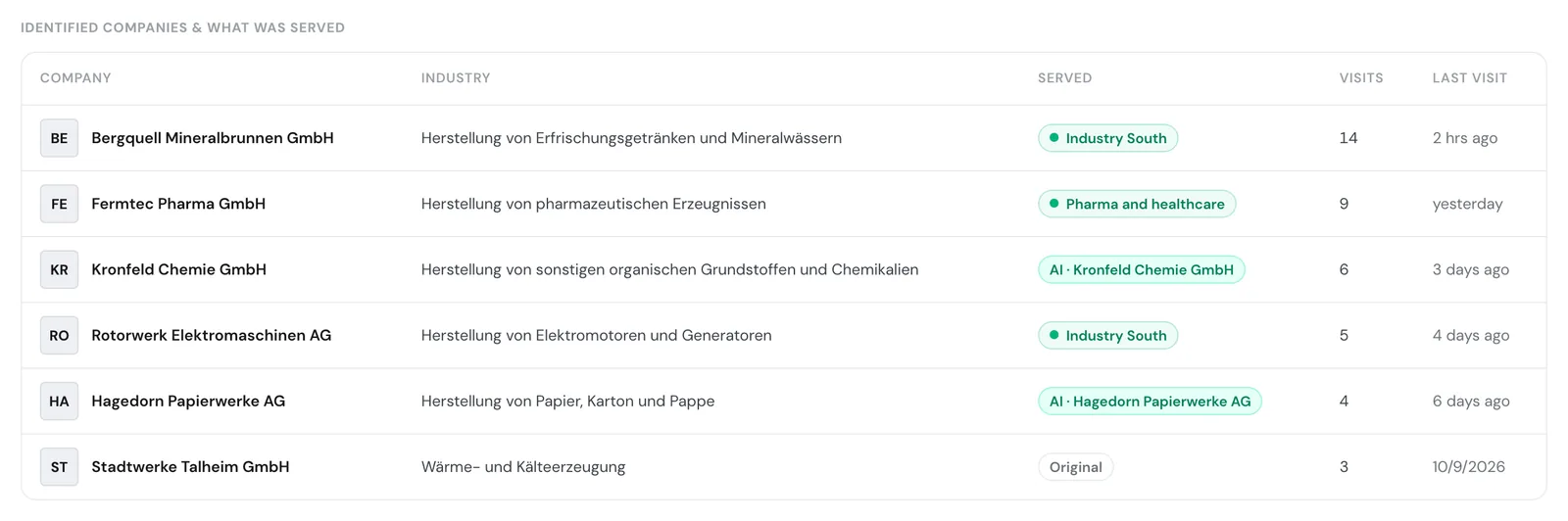
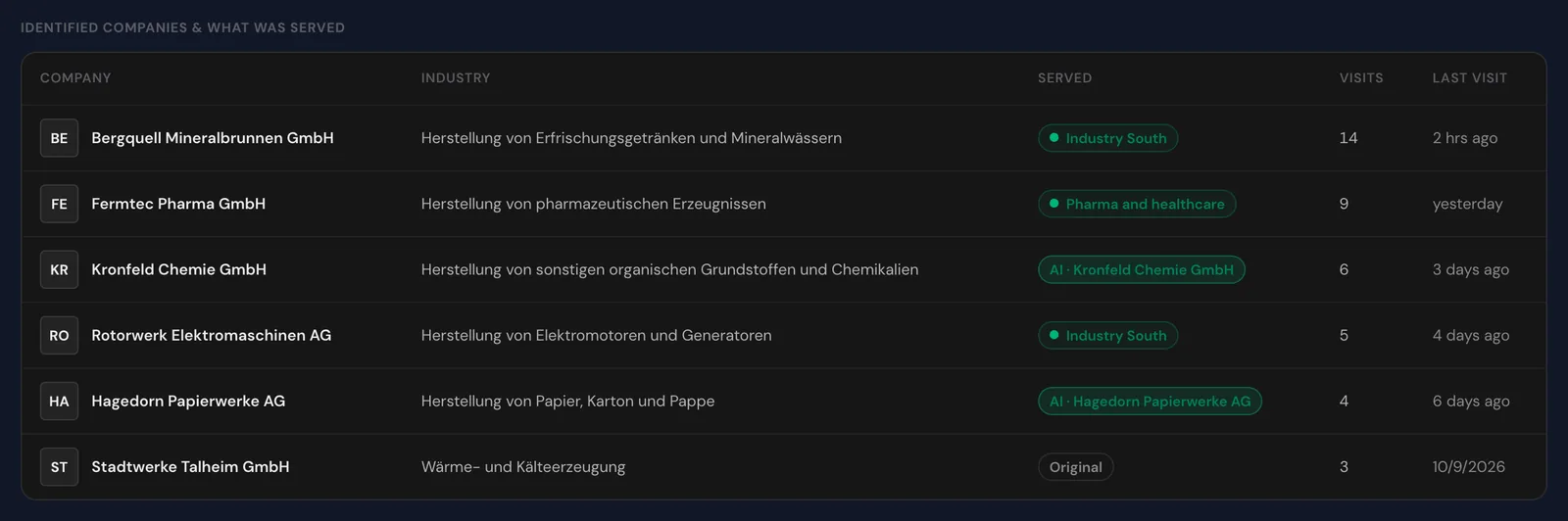
You don't see here how long a single company stayed, because Webmetic shows time on page only per group and per audience. Unlike the comparison, you can use this table without the tracking code.
Time range and limits
These rules apply to the report:
- Time range: The report covers the last 90 days. You can't choose another time range, and Webmetic deletes older impressions.
- Freshness: Webmetic recalculates the report every time you open it, and the figures don't change while it's open.
- List: The impressions number in the Smart Pages list only covers the last 30 days, so it can be lower than in the report.
- Tests: Views through a valid test link from Test on the page don't count, so your own tests don't distort the figures.
- Plan: If your account loses the plan, the list shows the page as Paused: visible with Growth. Webmetic then counts no new impressions, but the report stays readable.
- Export: You can't export the report.
- Delete: When you delete a Smart Page, Webmetic removes its report too. This can't be undone. A duplicated page gets a report of its own, which starts empty.