

Audiences
Create audiences and write your own text for each one, which only matching companies see.
An audience defines which companies see a text, for example manufacturers from Bavaria with 51 or more employees. In the editor of a Smart Page, you write your own text per element for each audience.
Companies without a matching audience and visitors that Webmetic doesn't identify always see the original.
Before you start
- Plan: On every plan, you can design Smart Pages, preview them, and test them on your website. You can publish them and choose the AI text per company method only in the trial, the Growth plan, and Enterprise. White-label customers of a partner don't see the tab.
- Rights: Every user in your account can create, edit, publish, and delete Smart Pages, even without admin rights.
- Cost: Smart Pages cost no credits.
- Smart Page: You need a Smart Page with at least one marked element. To create one, see Your first Smart Page.
- Screen: The editor needs a screen at least 1,024 pixels wide. On smaller screens you only see the list of your Smart Pages.
Create an audience
You can use an audience on every element of a Smart Page, but only on that page. When you copy a Smart Page with Duplicate in the list, you get a draft with the same audiences and your own texts.
In a narrower window the Smart Pages tab shows only its icon, and the name appears when you point at it. On a smartphone, choose Smart Pages in the dropdown at the top.
- Click the Smart Pages tab at the top.
- Click your Smart Page in the list, and Webmetic opens the editor.
- Click an element in the copy of the page, or pick an element you already marked in the side panel.
- Choose Your own text per audience.
- Under Who should see this text?, open the dropdown and choose + Create a new audience. Webmetic opens the New audience dialog.
- Under Name, enter a name, for example Industry South.
- Under Industry, select one or more industries.
- Click Add criterion and choose a criterion. Webmetic then adds a row for this criterion.
- Set the value in the row. For each further criterion, repeat steps 8 and 9.
- Click Save audience. Webmetic selects the new audience for the element.
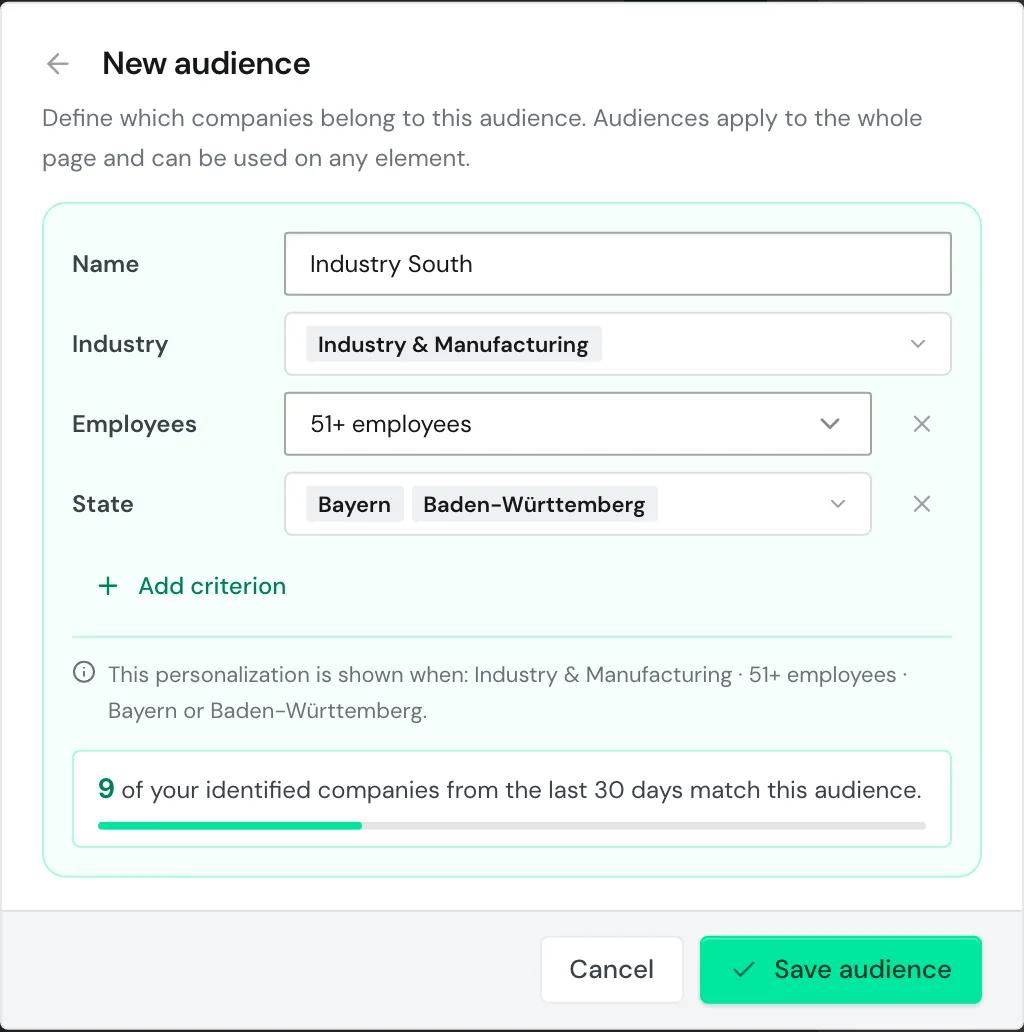
Visitors never see the name, but you find it in the editor, in the test box, and in the report. If you don't enter a name, Webmetic names the audience after its criteria.
If Webmetic identified companies on this website in the last 30 days, the dialog shows how many of them match.
Choose criteria
You can add each criterion once, and the Remove criterion icon (×) next to its row takes it out again.
| Criterion | Value | A company matches if |
|---|---|---|
| Industry | one or more of 12 industries, for example Industry & Manufacturing | one of its industries is in a selected one |
| Employees | a minimum: 11+, 51+, 201+, 501+, 1,001+, or 5,001+ employees, or Any | its employee count reaches the minimum |
| Revenue | a minimum: at least 1, 5, 10, 50, or 100 million euros, or Any | its revenue reaches the minimum |
| Country | one or more of 10 countries. The list shows them by their German names, for example Deutschland, Österreich, and Schweiz | it is based in a selected country |
| State | one or more of the 16 German states, listed by their German names, for example Bayern | it is based in a selected state. Webmetic derives it from the postcode, so only in Germany |
| Postcode | postcode prefixes separated by commas, for example 80, 81, 9 | its postcode starts with one of the prefixes |
| City | contains or doesn't contain and a city name, for example Munich | its city contains or doesn't contain the name. Upper and lower case don't matter |
| Campaign (UTM) | Source, Medium, and Campaign, each field optional | the address of the page being viewed contains the values in the matching UTM parameters |
| Device | Mobile or Desktop | the visit comes from this type of device |
All criteria you set in an audience must match. Within one criterion, one value is enough, so two industries mean "either of the two".
For a rule like "IT or 501+ employees", create two separate audiences.
If a detail is missing, the company doesn't match that criterion. Without a known employee count it never matches Employees, and without a postcode it never matches State or Postcode.
Only doesn't contain under City also matches when the city is unknown. This option is also the only exclusion, and you can't set maximum values.
An audience without criteria matches every identified company. The summary in the dialog then shows All identified visitors.
Write a text per audience
The field for the new text starts with the element's current text.
- Under Which content should be shown instead?, write your text. The copy shows your draft as you type.
- Click Save text.
- Optional: To add a text for another audience, click Another audience in the list Your texts by audience.
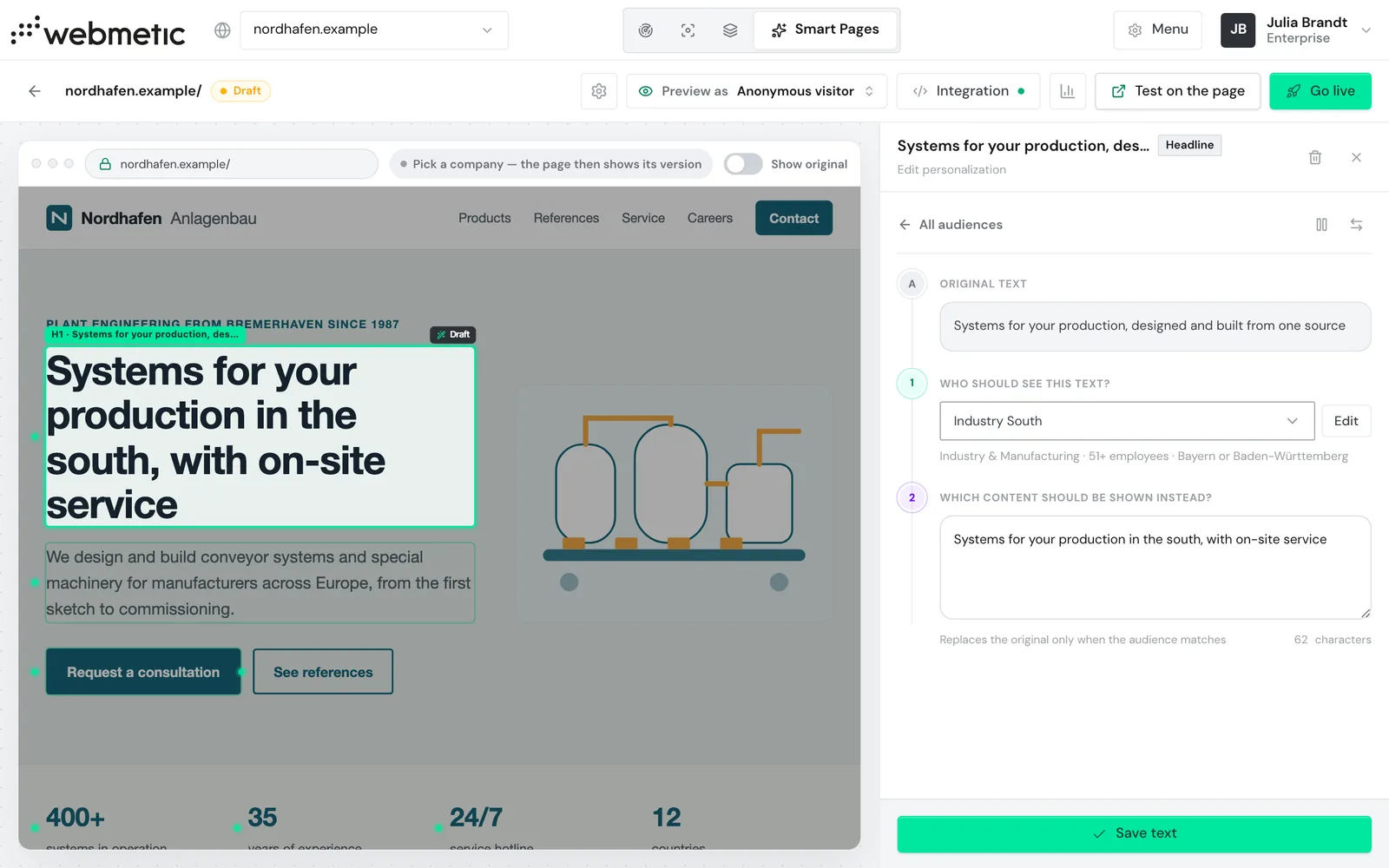
An element can carry texts for several audiences, but only one text per audience.
Your own texts work on every element, including buttons and links. Webmetic only replaces the text, while link targets, images, and layout stay.
Bold text and links inside the element are lost, though, so choose elements without formatting where you can.
Webmetic doesn't limit the length, so check in the copy whether the text fits the layout.
If the element already has AI text per company, your own text replaces it when you save.
To switch a text off without deleting it, click the Pause icon and then Save text.
Set the order
If a company matches several audiences, the first one in the list applies. Webmetic picks the audience again on every page view. So if a visitor reloads the page without UTM parameters, another audience can apply.
The link for changing the order appears as soon as an element has texts for two audiences.
- Under Your texts by audience, click Change order, or under Who should see this text?, choose the entry Manage audiences in the dropdown. The Manage audiences dialog opens.
- Drag an audience by its handle to another position, and the number in front of it shows its rank.
- Click Cancel to close the dialog. Webmetic saved the order while you dragged.
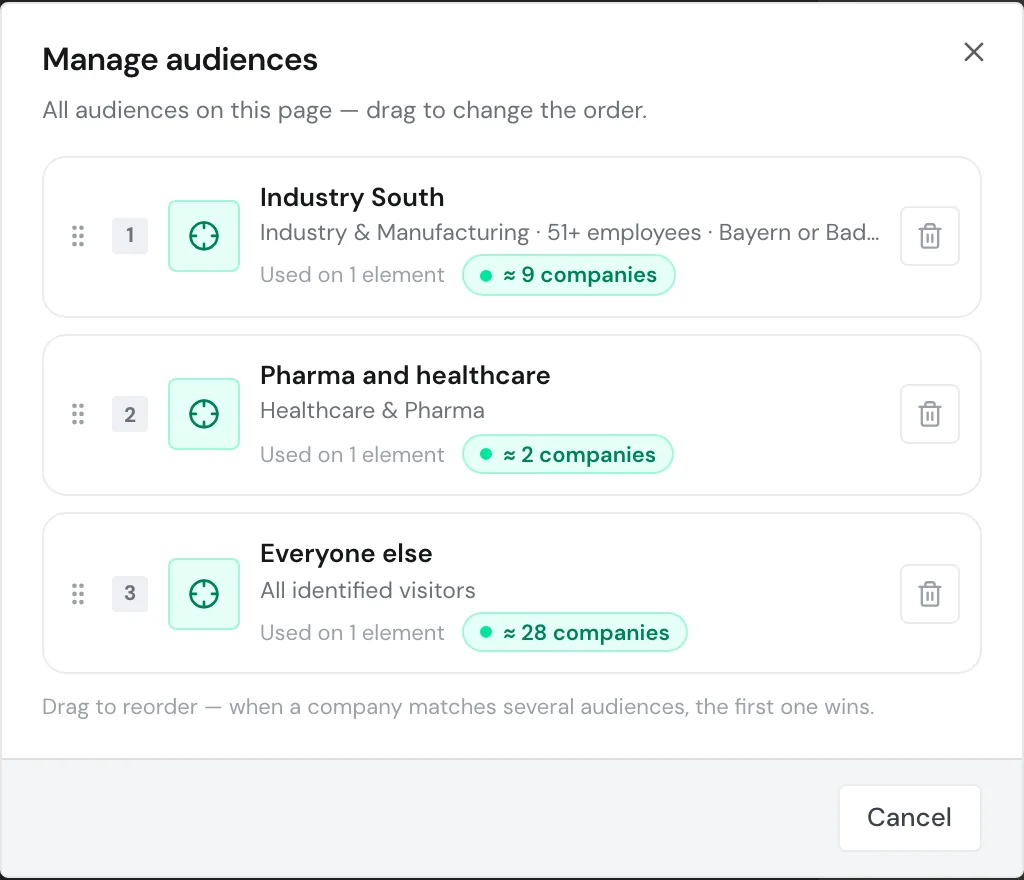
Webmetic doesn't move on to the next matching audience for an element. If the first matching audience has no text for an element, or its text is paused, that element shows the original.
There is no separate default text. We recommend an audience without criteria in last place, for example Everyone else, because it catches all remaining identified companies.
For example, a machine builder from Bavaria with 300 employees matches Industry South and Everyone else. It sees the texts of Industry South, because that audience comes first.
If Industry South has no text for the button, the company sees the original there, not the text of Everyone else.
Check a company's audience
In the editor, Preview as shows which audience applies to a company.
- Click Preview as at the top of the editor and choose a company.
- Click an element in the copy. If it has a text for the matching audience, the bar above the copy shows a message such as Audience “Industry South” matches. Otherwise the bar says that no audience matches.
The list shows identified companies of your website and, on every plan, example companies. On the Free plan, it only includes those of your identified companies that you can read in the dashboard.
The Preview as selector in the editor doesn't check Campaign (UTM) and Device, but the test box with a chosen company does. For details, see Test and go live.
Edit or delete an audience
To edit an audience, select it under Who should see this text? and click Edit. In the Edit audience dialog, every change applies to all elements of the page.
To delete one, click the Delete audience icon in the Manage audiences dialog. If the audience has texts, Webmetic asks first and tells you how many.
Webmetic then deletes all texts of this audience on the page, and you can't undo this.