

AI text per company
Let the AI rewrite one element of your Smart Page for every identified company.
With AI text per company, every identified company reads its own version of a text on your Smart Page, while unidentified visitors always see the original.
Before you start
- Plan: On every plan, you can design Smart Pages, preview them, and test them on your website. You can publish them and choose the AI text per company method only in the trial, the Growth plan, and Enterprise. White-label customers of a partner don't see the tab.
- Rights: Every user of your account can create, edit, publish, and delete Smart Pages, even without admin rights.
- Cost: Smart Pages cost no credits.
- Smart Page: You need a Smart Page with at least one element. Your first Smart Page describes how to create one.
- Screen: The editor needs a screen at least 1,024 pixels wide. On smaller screens you only see the list of your Smart Pages.
What the AI text changes
The AI keeps what you offer and changes only who the text is written for. For example, the home page of Nordhafen Anlagenbau says:
"We design and build conveyor systems and special machinery for manufacturers across Europe, from the first sketch to commissioning."
A mineral water producer reads in the same place:
"We design and build filling and conveyor systems for mineral water producers across Europe, from the first sketch to commissioning."
The AI knows what the visiting company does and knows the other texts on your page. It does not get the company's size, revenue, location, activity, or earlier visits.
The new text is never longer than the original, and the AI is told not to name the visiting company. Link targets, images, and layout stay as they are.
You can't set tone or length, only the page language.
Suitable elements
The AI text per company method is available for headings, paragraphs, and text blocks from 45 characters, but not for very long texts. For buttons, links, and short texts the card is grayed out. For these elements, choose Your own text per audience, as described in Audiences.
The AI replaces the whole element with plain text, so bold words and links inside the paragraph are lost. Choose elements without links and formatting.
Switch on the AI text
In a narrower window the Smart Pages tab shows only its icon, and the name appears when you point at it. On a smartphone, choose Smart Pages in the dropdown at the top.
- Click the Smart Pages tab at the top.
- Click your Smart Page in the list. The editor opens.
- Click the element in the copy of the page on the left, and the side panel asks: How should the new content be written?
- Click AI text per company. The side panel shows the Check the result section.
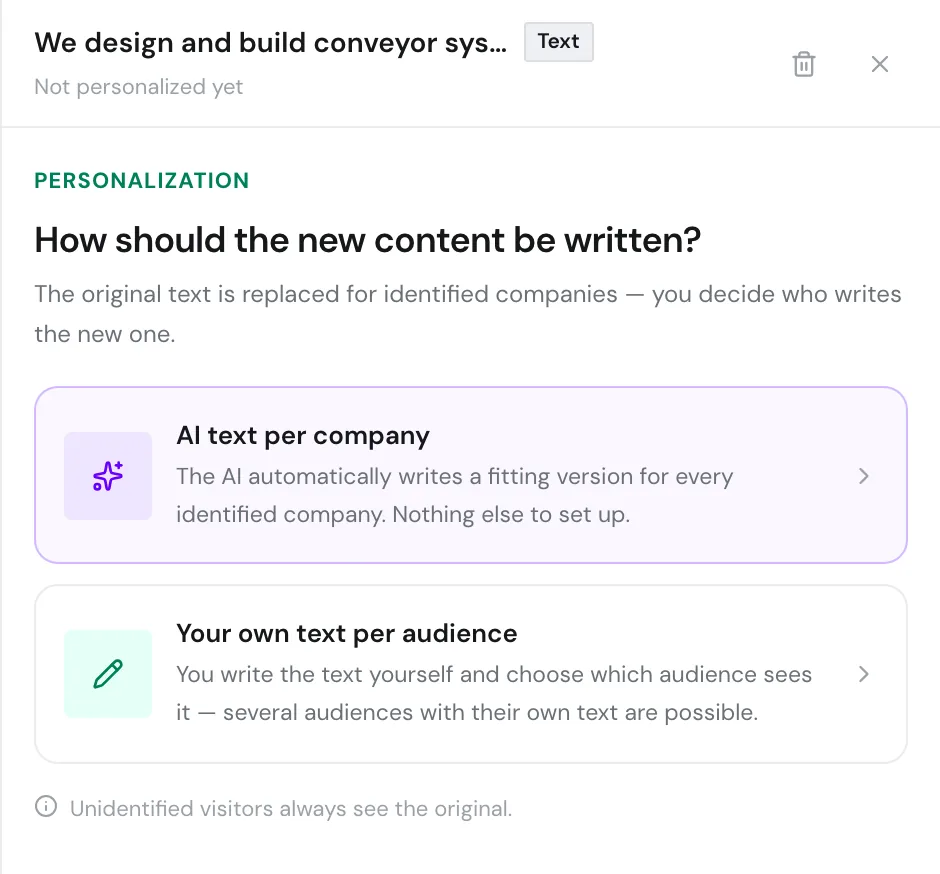
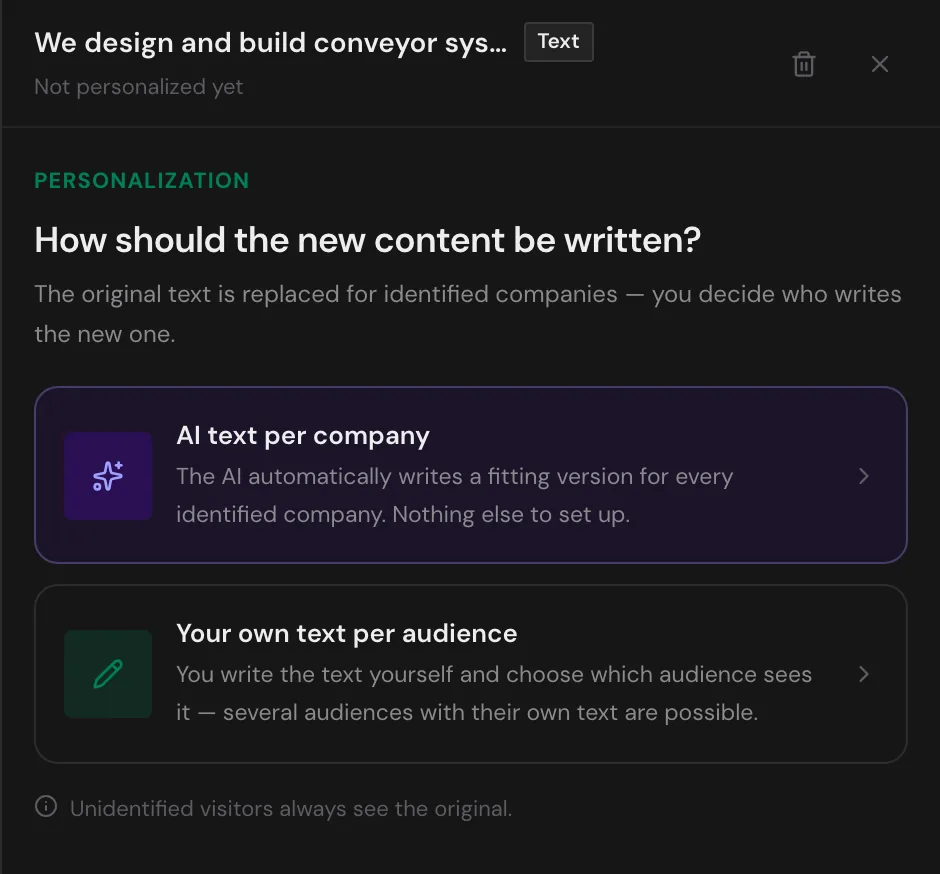
If the element already has your own texts per audience, the AI text replaces them when you save.
Check the AI text in the preview
- Under Check the result, click the Pick a preview company above first button. The Preview as list opens.
- Select a company, for example Bergquell Mineralbrunnen. The preview starts by itself, and on the left the page shows the new text with the badge AI · Bergquell Mineralbrunnen GmbH.
- Optional: Click Write a new one. Webmetic writes a new text for this company.
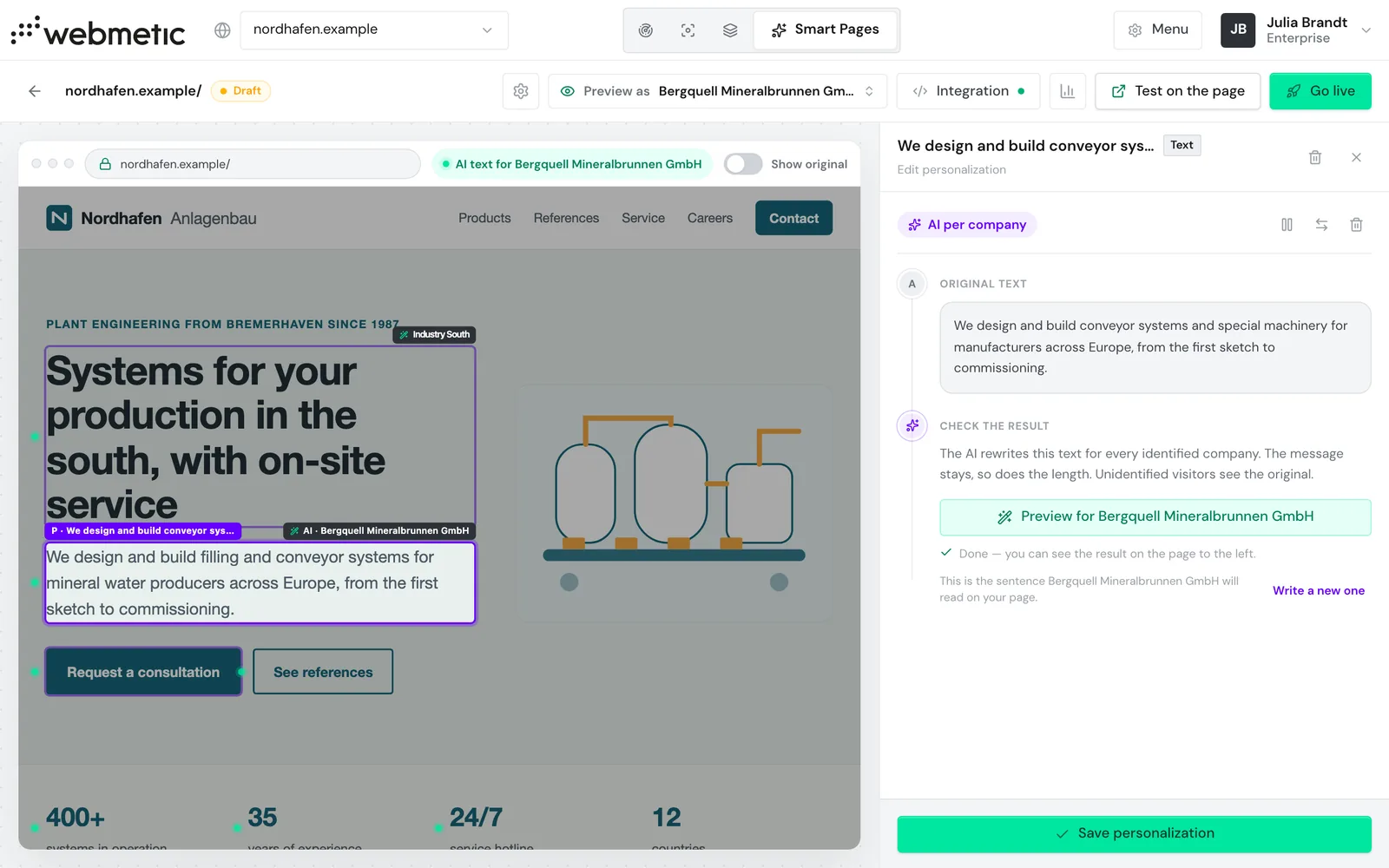
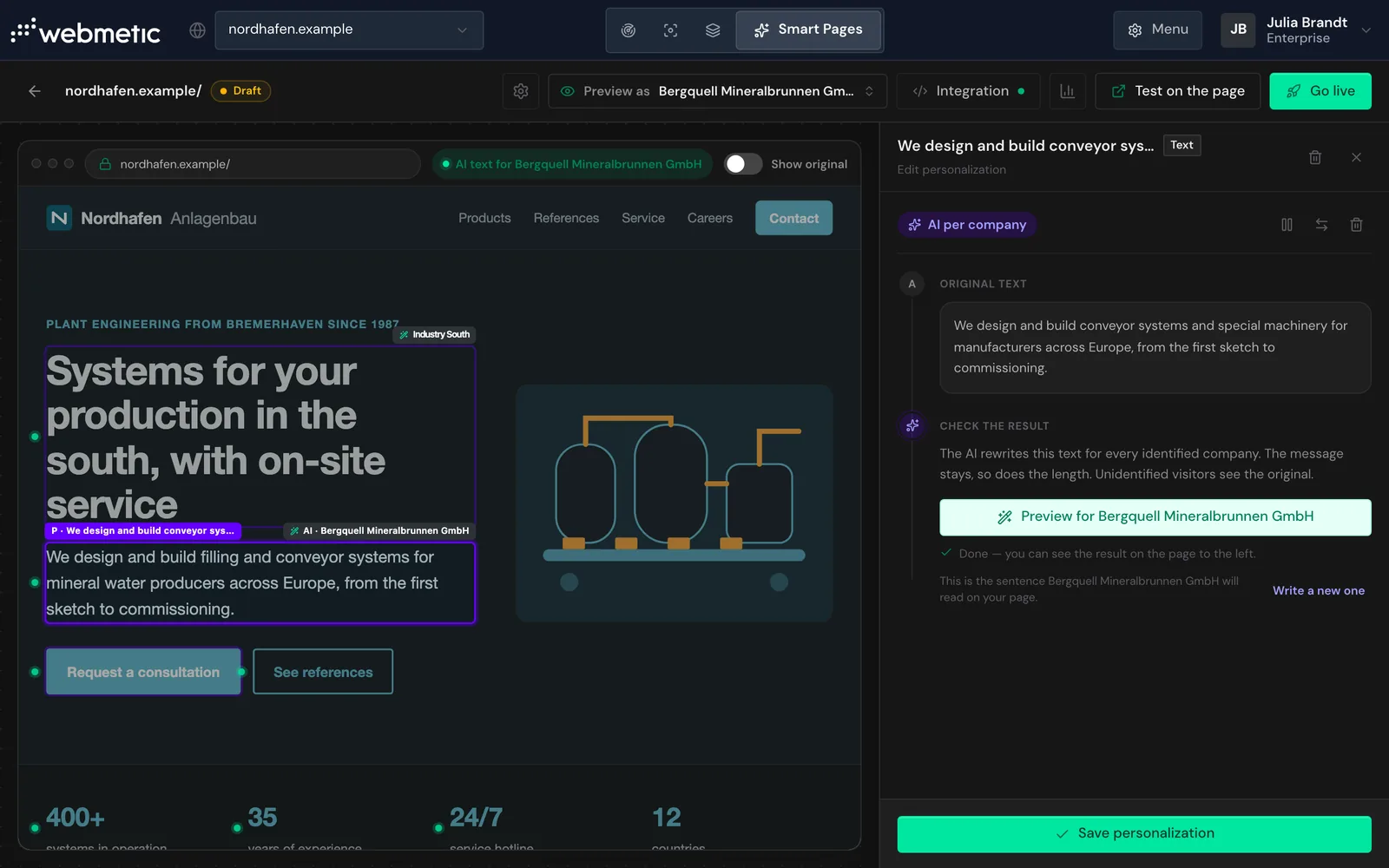
The preview shows the text this company reads on your page, unless the automatic check discards it.
The Preview as selector lists up to 12 companies that visited your website and a few example companies.
Save the AI text
- Click Save personalization. The side panel shows the message Personalization saved.
On a draft page, your visitors see the text only after you go live. If the page is already live, saving is enough, and the change reaches your visitors after a short time.
Change the page language
The AI writes in German or English. When the page first loads, Webmetic takes the language of your website, otherwise the language of your dashboard.
When you switch the language, Webmetic discards all AI texts of this page and rewrites them in the new language. You can't get the earlier texts back.
- Click the gear icon Settings at the top of the editor.
- Under Page language, select Deutsch or English.
- Confirm the prompt.
When texts are written
Webmetic writes a text the first time an identified company opens the live page, or when you preview that company in the editor.
After that, Webmetic keeps the text with no expiry date, and every further visitor from this company sees the same text. If the text is not ready in time on the first visit, or if an error occurs, the original stays.
Nobody reviews the texts before they are delivered. Webmetic checks every text automatically afterwards and shows the original text again if the check fails.
Webmetic writes a new text only when you click Write a new one or switch the language.
If you change the text on your website, the copy in the editor no longer matches it. The element then shows the current text of your website, without a swap. Create the Smart Page for this page again and delete the old one as soon as the new one is live.
Pause the AI text
- Click the element in the editor.
- In the side panel, click the pause icon Pause in the method row AI per company. The row now shows the status Paused.
- Click Save personalization.
The element then shows the original to every visitor, and the AI texts are kept. To show them again, click the play icon Activate and save again.
Remove the AI text
- Click the element in the editor.
- In the side panel, click the trash icon Remove personalization in the method row. Webmetic removes the AI text at once and shows the message Personalization removed.
The element stays marked. The trash icon Remove element in the header of the side panel, next to the element's name, removes the whole element instead. To use your own texts instead of the AI text, click the arrows icon Change method in the same row and choose Your own text per audience.
What visitors without an AI text see
Visitors that Webmetic can't match to a company see the original right away. The same applies to companies that Webmetic knows nothing more about. If Webmetic knows a company but not what it does, the AI text stays general.