Test and go live
Check a Smart Page on your website, then publish it for identified companies.
A test link shows the Smart Page on your real website before any visitor sees it. After that you can publish, change, pause, or delete the page.
Before you start
- Plan: You can design Smart Pages, preview them, and test them on your website on every plan. You can publish them in the trial, the Growth plan, and Enterprise. White-label customers of a partner don't see the tab.
- Rights: Every user in your account can create, edit, publish, and delete Smart Pages. You don't need admin rights for this.
- Cost: Smart Pages cost no credits.
- Smart Page: You have a Smart Page with at least one saved text, and the Smart Pages code is on your website. For details, see Your first Smart Page and Install Smart Pages.
- Screen: You open the editor on a screen at least 1,024 pixels wide. On smaller screens you only see the list of your Smart Pages.
- Tracking code: You don't need the tracking code to test or publish. Only the comparison figures in the report require it.
Test on your website
The test link opens your page with the new texts, even while the Smart Page is still a draft. Anyone who knows the link can open it for 10 hours, without logging in. In a narrower window the Smart Pages tab shows only its icon and shows the name only when you point at it.
- Click the Smart Pages tab at the top, then click your Smart Page in the list. The editor opens.
- In the editor, click Test on the page at the top. Your website opens in a new tab.
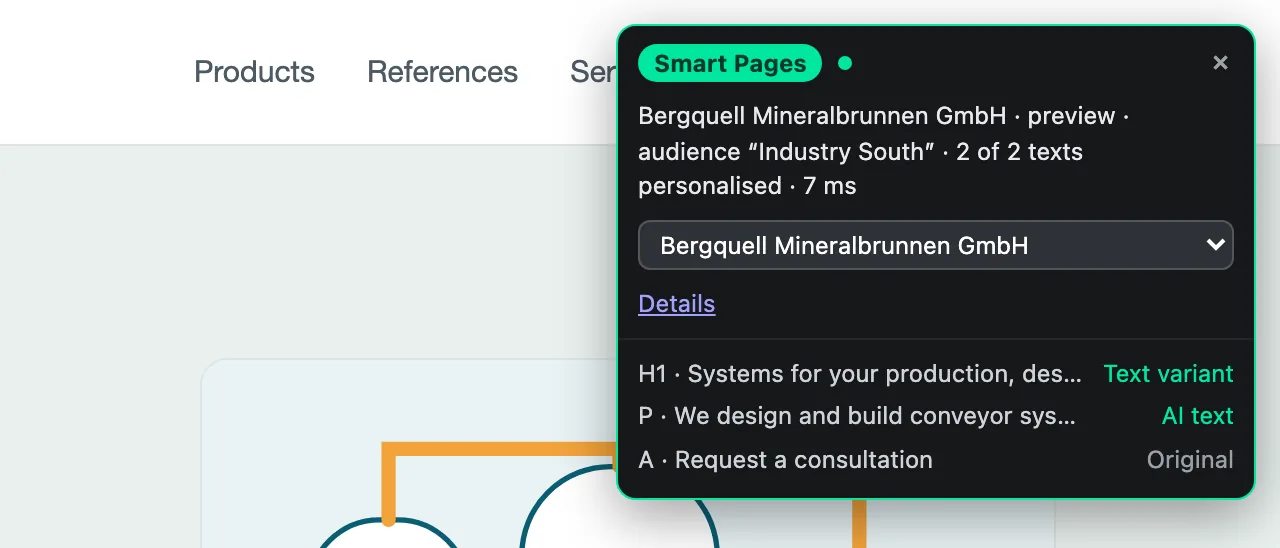
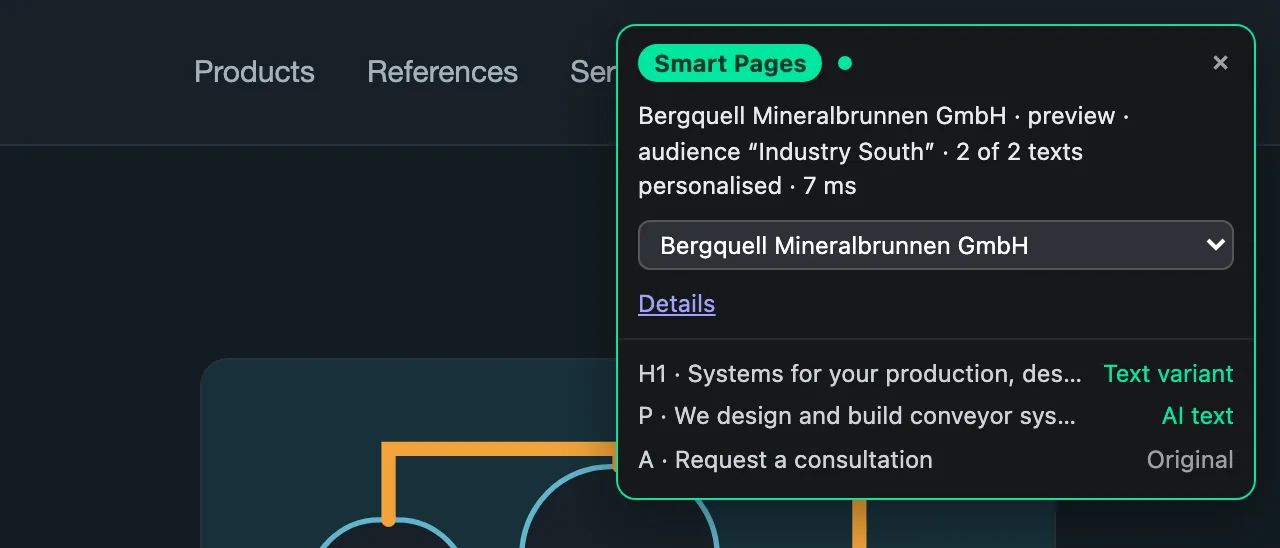
- Wait until the Smart Pages test box appears in the top right. The test box shows the identified company, its audience, and how many texts Webmetic replaced.
- Click Details in the test box. The test box shows for each element whether your own text, an AI text, or the original appears. If the page could not replace a text, the test box says so too.
- Optional: In the test box's dropdown, choose one of the identified companies on your website. The page reloads and shows the texts for that company. The first entry, My own visit, shows your own visit again.
Share the link only with people who should check the page. Test visits don't count in the report.
When the link expires after 10 hours, click Test on the page again to get a new link.
If Webmetic can't find the Smart Pages code, the Install Smart Pages dialog opens first. If the code is installed and only the check fails, open the test link with Test anyway.
The Preview as selector in the editor doesn't check campaign and device. The test box checks both once you choose a company there. To do this, add the UTM parameters to the test link's address and open the link on the matching device.
Publish a Smart Page
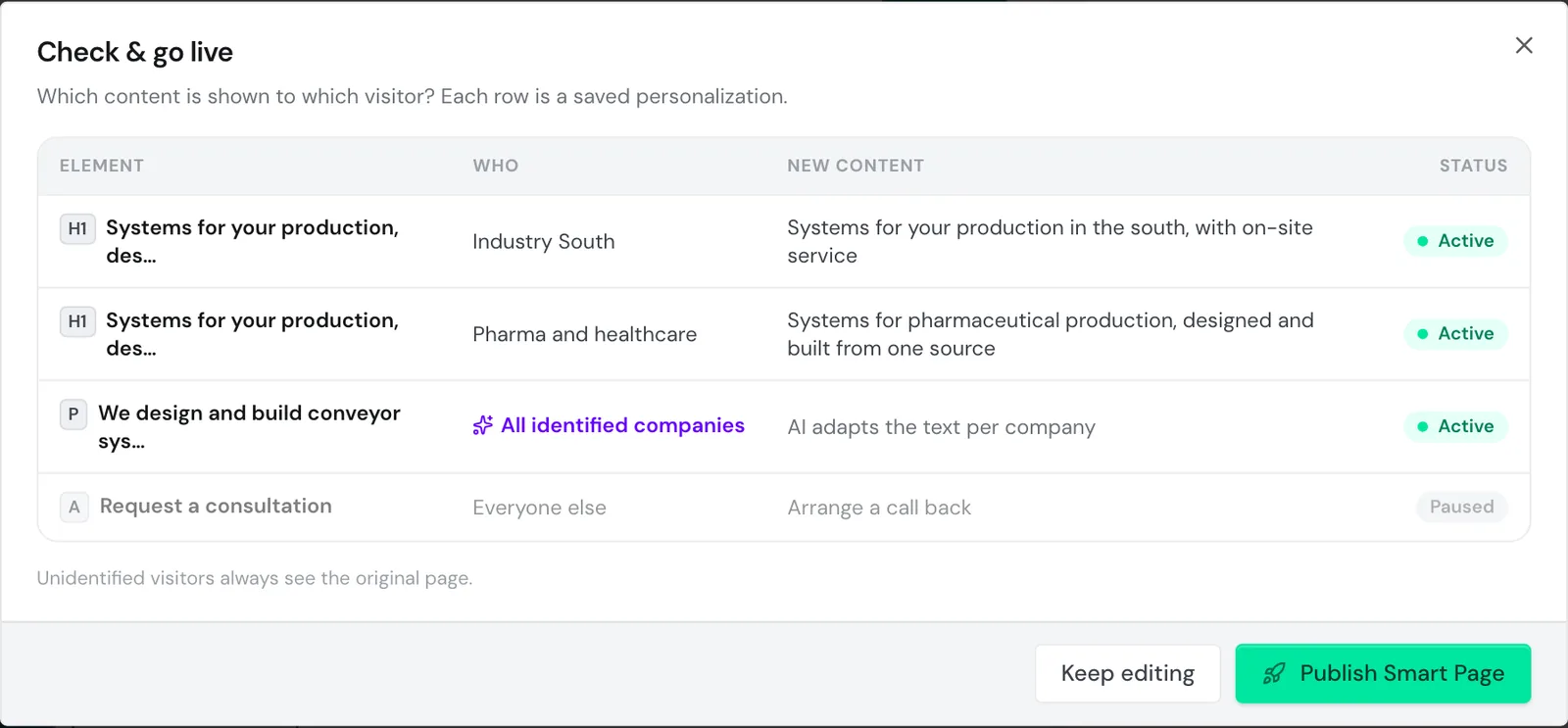
- In the editor, click Go live at the top. The Check & go live dialog opens.
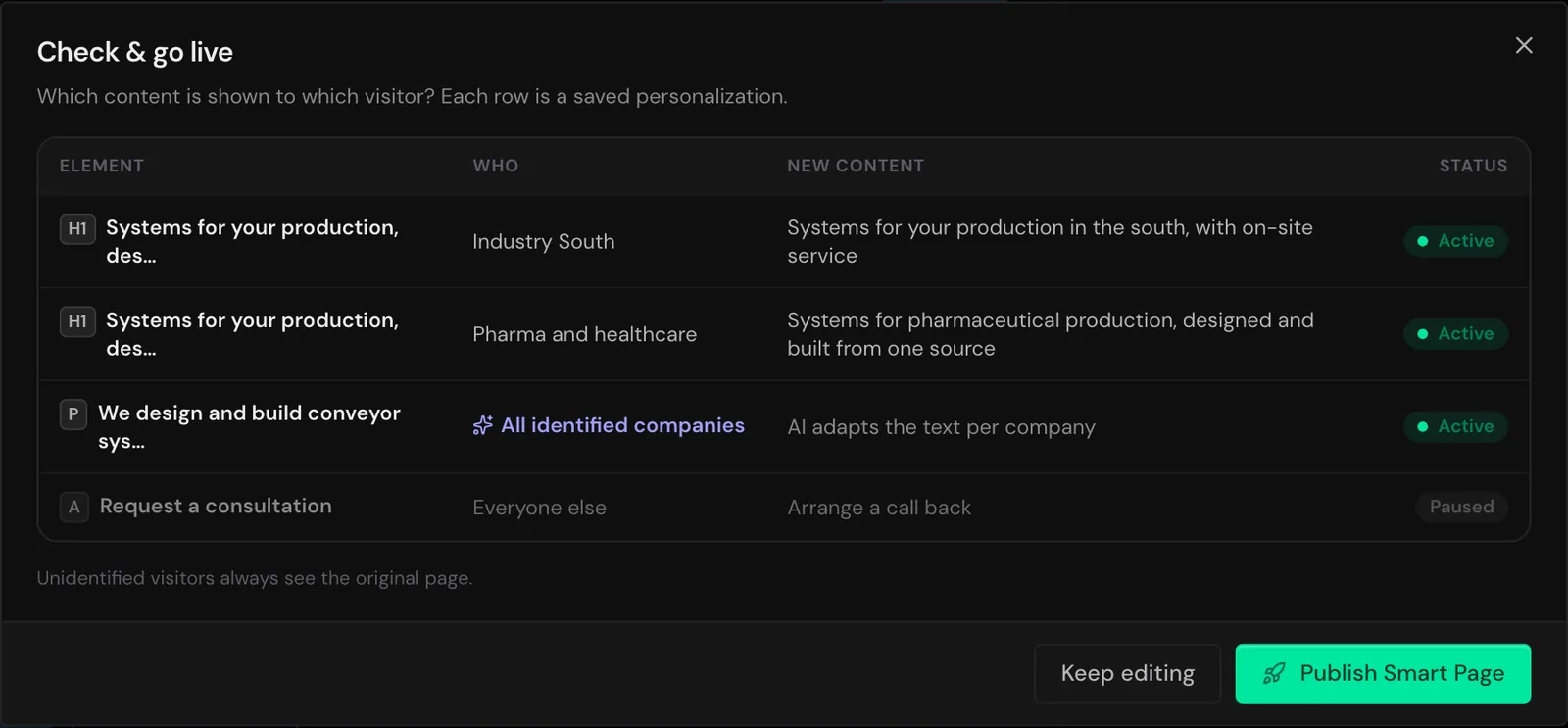
- Check the table. Each row shows an element, who the text is for, the new text, and the status Active or Paused.
- Click Publish Smart Page. Webmetic saves any pending changes and sets the page to Live.
On Free and Starter the button Publish with Growth appears instead of Go live and opens an upgrade window.
The new texts reach identified companies after a short time, while unidentified visitors always see the original.
If Webmetic can't find the Smart Pages code, the Install Smart Pages dialog opens first, and the Publish anyway button then opens the Check & go live dialog. Visitors see the page as soon as the code is on the website.
If your account loses the plan, for example when the trial ends, a live page shows the status Paused: visible with Growth. Visitors then see the original.
After an upgrade the page comes back by itself. Only while the page is paused this way can you turn it back into a draft with Back to draft.
Change a live page
On a live page the top bar shows Live content instead of Go live. The button opens the This is live right now dialog, which shows which text currently applies to whom.
- Change a text in the editor or add a new one.
- Click Save text or Save personalization. You don't need to publish again.
The change reaches your visitors after a short time, and you can check the result with Test on the page.
If the text on your website changes, Webmetic no longer replaces it, and the element shows the current text of your website. Create the Smart Page for this page again and delete the old one as soon as the new one is live.
Stop a Smart Page
As long as your plan includes Smart Pages, you can't set a live page back to draft. To stop a live page, pause its texts or delete the page.
A paused text stays saved, but Webmetic doesn't deliver it. Companies it applies to see the original in that spot.
- In the editor, click the element. The side panel opens on the right.
- For Your own text per audience, click the audience in the list.
- Click the pause icon Pause at the top of the side panel. The side panel now shows the status Paused.
- Click Save text or Save personalization.
In the This is live right now dialog, paused texts appear greyed out with the status Paused. To turn a text back on, click Activate in the side panel and save again.
Even with paused texts the page stays live: Webmetic still identifies the company and counts the page views. This only ends when no Smart Page on your website is live any more.
Delete a Smart Page
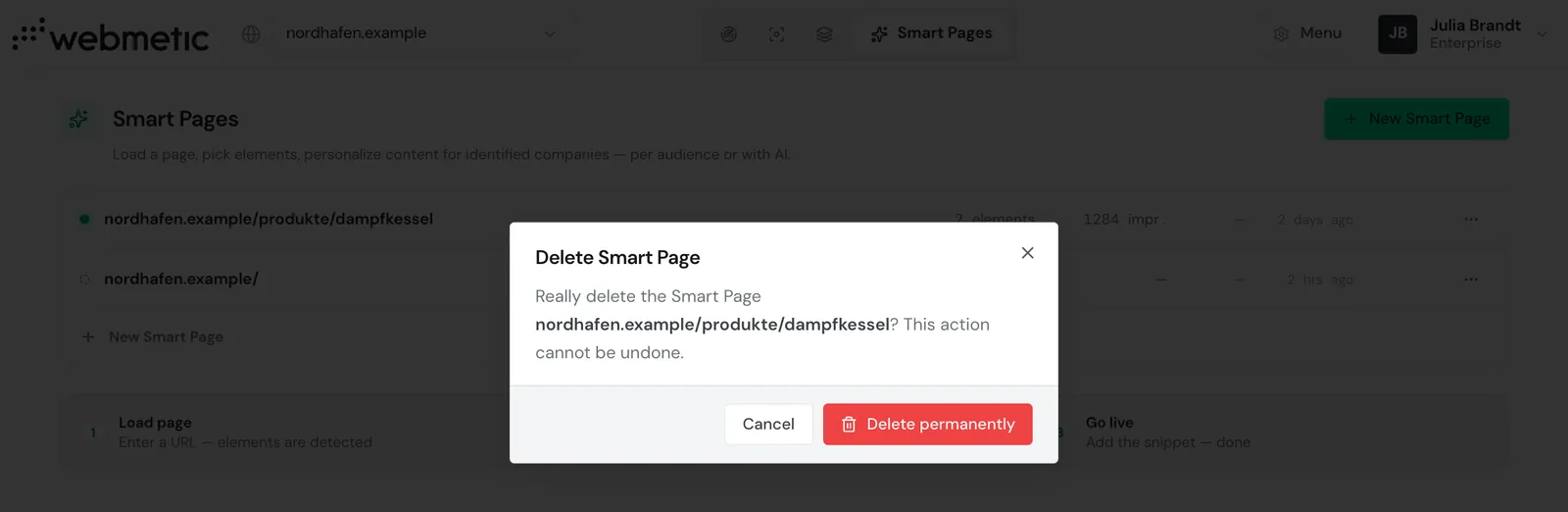
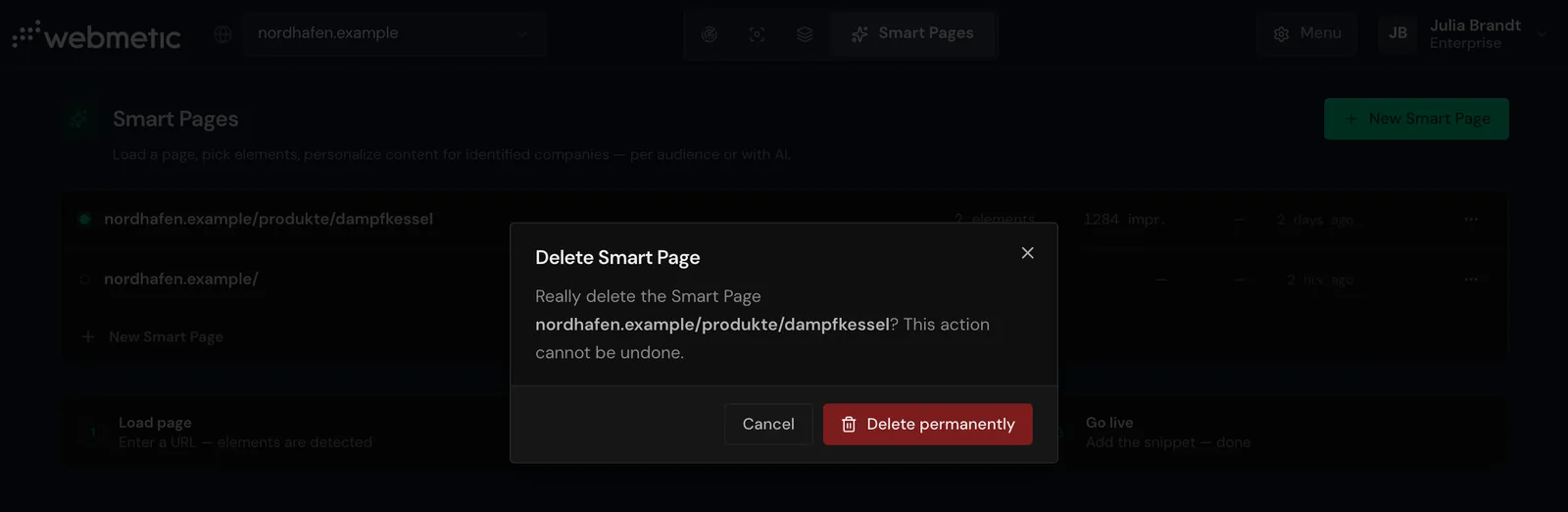
When you delete a Smart Page, Webmetic removes it with all its texts, including the AI texts. This can't be undone.
The dialog doesn't warn you separately when the page is live. Afterwards your visitors see the original of your website again.
Each row in the list has a menu (⋯) with Duplicate and Delete. If you want to keep your texts, click Duplicate before you delete. The copy is a draft with your own texts and audiences. Webmetic writes new AI texts for the copy.
You can delete a Smart Page only in the list, not in the editor.
- Open the Smart Pages tab. On a smartphone, choose Smart Pages in the dropdown at the top.
- In the page's row, click the three dots (⋯), then click Delete. The Delete Smart Page dialog opens.
- Click Delete permanently. The page disappears from the list.