

Troubleshooting
Find the cause when a Smart Page doesn't swap texts or doesn't go live.
If this page doesn't solve your problem, open Support in your profile menu. Send us the test link on which you see the problem, so we can look at it with you.
Before you start
- Plan: You can design Smart Pages, preview them, and test them on your website on every plan. You can publish them in the trial, the Growth plan, and Enterprise. White-label customers of a partner don't see the tab.
- Rights: Every user in your account can create, edit, publish, and delete Smart Pages. You don't need admin rights for this.
- Cost: Smart Pages cost no credits.
- Access: For fixes to the Smart Pages code, you need the person who maintains your website.
Diagnosis with the test link
The test link shows you your real page the way a specific company sees it. The test box in the top right corner explains what Webmetic did on your page and why.
To open the test link:
- Click the Smart Pages tab at the top and then your Smart Page. The editor opens.
- Click Test on the page at the top. A new tab shows your page with the test box in the top right corner.
- Read the first line of the test box. This line names the company, the audience, and the number of texts Webmetic swapped.
- Click Details. The test box lists every element with its outcome, for example Text variant, AI text, Original, or Could not be replaced.
- Optional: Choose another identified company of your website in the test box's dropdown. The page reloads as if this company were visiting your website.
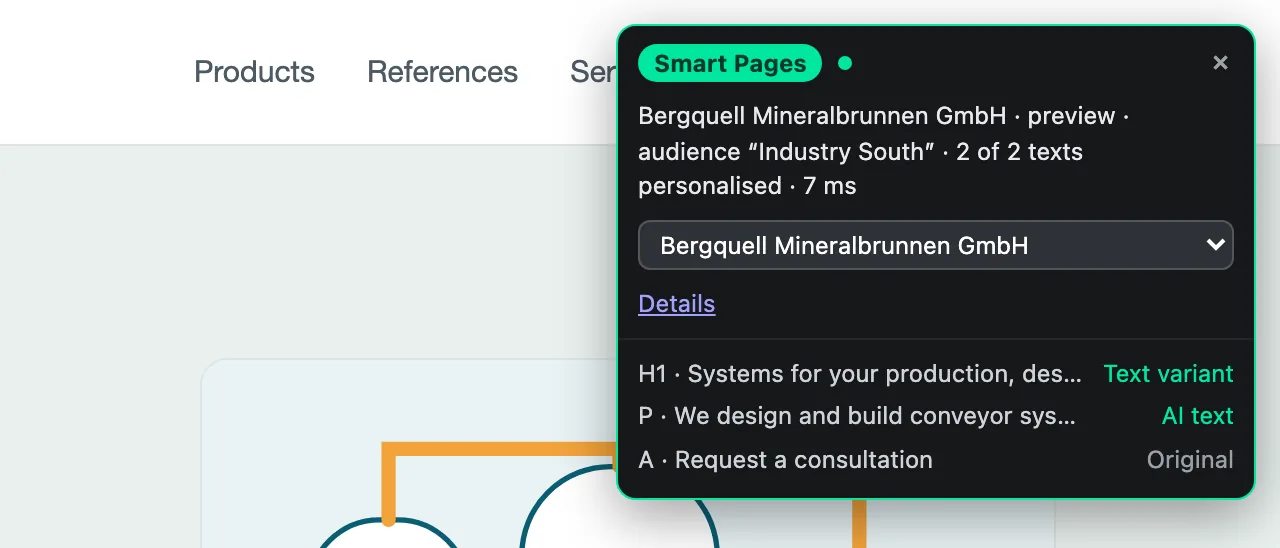
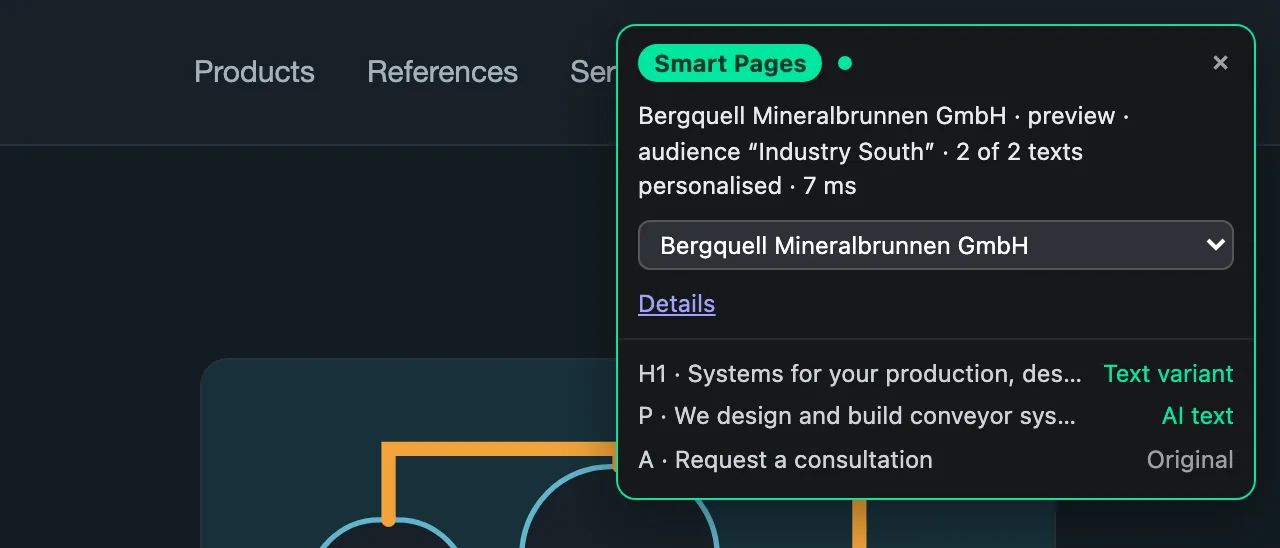
Choose My own visit, the first entry in the list, to go back to your real visit. Your own visit only shows a company if Webmetic recognizes your network, so from a home office or a mobile network you'll usually see the original.
The link also works for drafts and on every plan. Anyone who has the link can open it for 10 hours without logging in. Visits through the test link don't count in your report.
If no test box appears, the Smart Pages code is missing on your page, or a redirect removed the link's parameters. If the background check has already found that out, your click opens the Install Smart Pages dialog instead. In that case, open the test link with Test anyway.
Texts on the website
Why does a company see the original text?
Whenever something goes wrong, Webmetic shows your original, and no text stays hidden. The test box on the test link shows most causes. You'll find its messages under All messages. These are the most common causes and how you fix them:
| Cause | Fix |
|---|---|
| Your Smart Page is a Draft, and visitors only see Smart Pages with the status Live. | Publish the page as described in Test and go live. |
| The Smart Pages code is missing on this page. | In the editor, click Integration and then Check integration. If the code is missing, add it as described in Install Smart Pages. |
| Webmetic doesn't identify the visit as a company. This isn't an error. | None, because unidentified visitors always see the original. |
The address doesn't match, because host and path must match exactly. www., parameters after ?, and # don't count. The test link doesn't show this cause, because it always opens the page you created it for. Compare the address in the browser with the address of the Smart Page. | Create a separate Smart Page for every other path, for example for the language version under /en/. |
| The element's text is set to Paused. | Open the paused text in the editor, click Activate, and save. |
| The AI text wasn't ready on the company's first visit. | Wait, because the company sees the AI text on its next page view. |
| Your consent tool blocks the Smart Pages code until consent. | None, because Webmetic then shows the texts only after consent. Whether the code may load before consent is a question for your data protection advisor. |
Changes you save on a live Smart Page reach your visitors after a short time.
Why doesn't an element change?
The editor works with a copy of your page. On your real page, Webmetic only swaps an element if it appears there exactly once and still has the same text. Otherwise the element shows the current text of your website unchanged. The Details in the test box show the message Could not be replaced for this element. This has three possible reasons:
- Page changed: Someone changed the text on your website after the copy, and Webmetic never reloads a copy once it has loaded. Create the Smart Page for this page again with New Smart Page, and delete the old one as soon as the new one is live. Duplicate doesn't help you here, because the duplicate keeps the old original texts of the elements.
- Element not unique: The element appears more than once on your real page. In the editor, choose an element that appears only once on the page.
- Navigation in a web app: The Smart Pages code only swaps texts when the page loads. If your website changes the page without reloading, your visitors see the original. Webmetic waits a few seconds after loading for elements that render late.
Why does the wrong audience win?
Webmetic picks exactly one audience for the whole page on every page view. The first audience in your list whose criteria all match wins.
If this audience has no text for an element, the element shows the original, and Webmetic doesn't move on to the next audience.
To fix the problem:
- In the editor, click the element.
- In the side panel, open the audience selection and choose the entry Manage audiences. The Manage audiences dialog opens. If the element has texts for two or more audiences, the Change order link below the texts leads there too.
- Drag your more specific audiences to the top. Webmetic saves the new order right away.
- Check the result with the Preview as selector in the editor.
An audience without criteria matches every identified company and therefore belongs at the end of the list. For details, see Audiences.
Why does UTM only match in the preview?
The Preview as selector in the editor only checks the company's data and skips Campaign (UTM) and Device. An audience with these criteria therefore matches there as soon as the company data matches. The real page also checks campaign and device.
To fix the problem:
- Open the test link with Test on the page.
- In the test box's dropdown, choose a company that fits the audience. The page reloads.
- Add the UTM parameter to the address, for example
&utm_source=linkedin, and reload the page. - For the Device criterion, open this address on your smartphone.
Webmetic reads the UTM parameters from the address of each single page view. A later page view without these parameters can therefore match another audience.
Test link
Why doesn't the test link work anymore?
A test link is valid for 10 hours. After that, the test box shows the message Test link expired or invalid. and no details.
To fix the problem:
- Open your Smart Page in the editor.
- Click Test on the page again. Webmetic creates a new link that is valid for another 10 hours.
If the test box doesn't appear at all, either the Smart Pages code is missing, or your website redirects the address and drops the link's parameters. In the second case, create the Smart Page with the address your website shows without a redirect.
Editor
Why doesn't the copy of the page load?
Webmetic loads the copy without logging in. A page behind a login therefore only shows the login page or doesn't load at all. Bot protection on your website can also stop the page from loading. The editor then shows the message The page could not be loaded. Check that the URL is reachable.
To fix the problem:
- Click Try again below the message.
- Check that you can reach the page without logging in.
- If bot protection stops the page from loading, contact support.
Why does a popup cover the page?
Webmetic accepts the consent banner itself while it loads the copy. If a consent banner still remains, the editor hides it automatically. Other popups stay visible in the copy.
To fix the problem:
- Click the popup in the copy.
- Click Hide this layer. The bar above the copy shows the note 1 layer hidden.
Hiding only affects the editor, not your website. Click Show again whenever you want the layer back.
Go live
Why can't I go live?
Without a matching plan, the editor shows the Publish with Growth button instead of Go live, and your click opens the upgrade dialog.
If your account loses the plan, a live Smart Page shows Paused: visible with Growth. After you upgrade, it comes back by itself.
To fix the problem:
- Click Publish with Growth, or Upgrade to Growth in the banner.
- Choose a plan that includes Smart Pages.
If the check doesn't find the code, the Go live button first opens the Install Smart Pages dialog. The Publish anyway button opens the Check & go live dialog, where you publish the page with Publish Smart Page. Visitors see it as soon as the code is on your website.
Report
Why are figures missing in the report?
Your report only counts real visits to a live Smart Page, so no test links and no drafts. Webmetic calculates the comparison between original and personalized visits from the tracking code. If the tracking code is missing on your page, the comparison stays empty.
The Time-on-page uplift tile shows the note not enough visitors yet until both groups have enough visitors.
To fix the problem:
- Add the tracking code to the page as described in Installation.
- Check the tracking code as described in Check your installation.
- Wait until enough companies have visited your page.
All messages
| Message | Cause | Fix |
|---|---|---|
| Test link expired or invalid. | The test link is older than 10 hours or was changed. | Click Test on the page again. |
| This Smart Page no longer exists | Someone deleted the Smart Page. | Open the test link of an existing Smart Page. |
| No company identified | Webmetic doesn't identify your visit as a company. | Choose a company in the test box's dropdown. |
| We have no data on this company | Webmetic identifies the company but has no profile for it. | None, because this visitor always sees the original. |
| No Smart Page is set up for this address. Address and path must match exactly | The test link is incomplete, for example because your website drops parameters when it redirects. | Create the Smart Page with the address your website shows without a redirect. |
| Could not be replaced | The element is missing on the real page, appears more than once, or has a different text. | See Why doesn't an element change?. |
| This company is hidden on your plan | On the Free plan, Webmetic doesn't show this company by name. | Choose another company in the test box's dropdown. |
| No connection to Webmetic | The browser didn't reach Webmetic, so the page shows the original. | Check the connection and reload the page. |
| Webmetic did not answer in time | The answer came too late, so the page shows the original. | Reload the page. |
| Error at Webmetic | Webmetic couldn't deliver the texts. | Test again later, otherwise contact support. |
| Could not create the test link | Webmetic couldn't create a test link. | Click Test on the page again. |
| The page could not be loaded. Check that the URL is reachable. | A login or bot protection stops the page from loading, or the page isn't reachable. | Click Try again. |
| Elements could not be detected | The editor couldn't read the copy of the page. | Open the Smart Page again. |
| Publish with Growth | Your plan doesn't include Smart Pages. | Choose a plan with Smart Pages. |
| Paused: visible with Growth | Your account lost the plan with Smart Pages. | Upgrade or choose Back to draft. |
| Publishing failed | Webmetic couldn't publish the page. | Click Go live again. |
| not enough visitors yet | One of the two groups doesn't have enough visitors yet. | Wait until more companies visit the page. |
| No identified companies yet. | No identified company has visited the page yet. | Publish the page, check the code, and wait. |