

Your first Smart Page
Create your first Smart Page so that identified companies read a fitting text on your website.
In this guide you personalize one page of your website from start to finish. At the end you'll have:
- a Smart Page for one page of your website, with the status Live
- at least one element whose text changes for identified companies
- the Smart Pages code on your website
- a test on your real page
Before you start
- Plan: On every plan, you can design Smart Pages, preview them, and test them on your website. You can publish them and choose the AI text per company method only in the trial, the Growth plan, and Enterprise. White-label customers of a partner don't see the tab.
- Rights: Every user in your account can create, edit, publish, and delete Smart Pages, even without admin rights.
- Cost: Smart Pages cost no credits.
- Smart Page: The page you personalize must be publicly reachable and belong to the website you selected in the dashboard. Subdomains of that website work too.
- Screen: The editor needs a screen at least 1,024 pixels wide. On smaller screens you only see the list of your Smart Pages.
- Tracking code: The tracking code is only needed for the comparison figures in the report, not for replacing the texts.
1. Open Smart Pages
The Smart Pages overview describes where to find the tab on every device. To open the list of your Smart Pages:
- Click the Smart Pages tab at the top. Webmetic shows the list of your Smart Pages.
- If you have several websites, select the website your page belongs to at the top.
In a narrower window the tab shows only its icon, and the name appears when you point at it. On a smartphone, choose Smart Pages in the dropdown at the top.
2. Create a page from a URL
A Smart Page belongs to exactly one page address. Webmetic loads a copy of that page into the editor, and your website does not change.
- Click New Smart Page. The New Smart Page dialog opens.
- Under Page URL, add the path after your domain, for example
services. For the home page, leave the field as it is. - Click Load & scan page. Webmetic creates the Smart Page as a Draft and opens the editor.
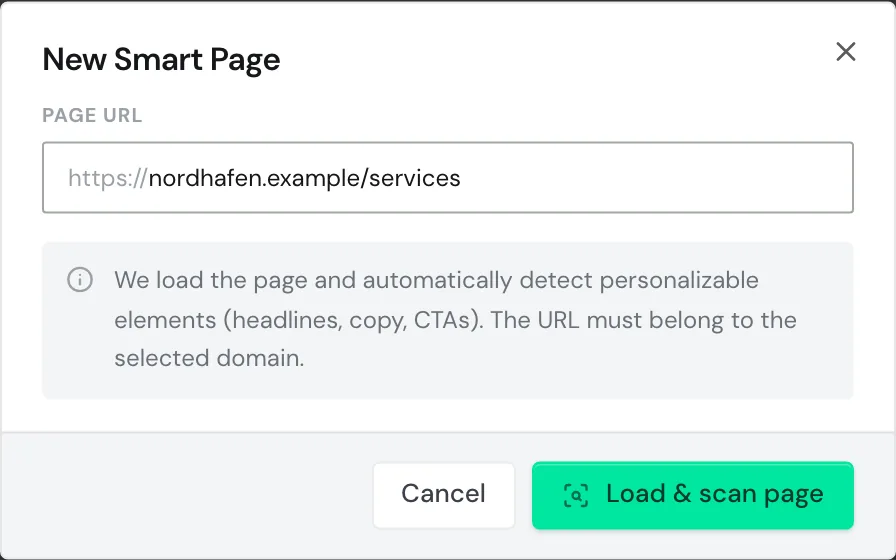
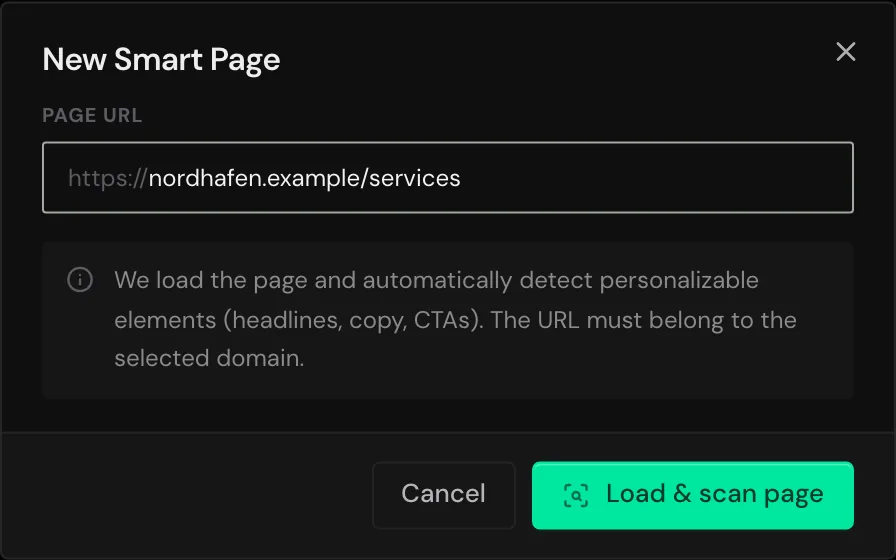
The first time, Webmetic loads the page, and a countdown shows the wait. If the page does not load, check that the URL is publicly reachable and click Try again.
3. Check the detected elements
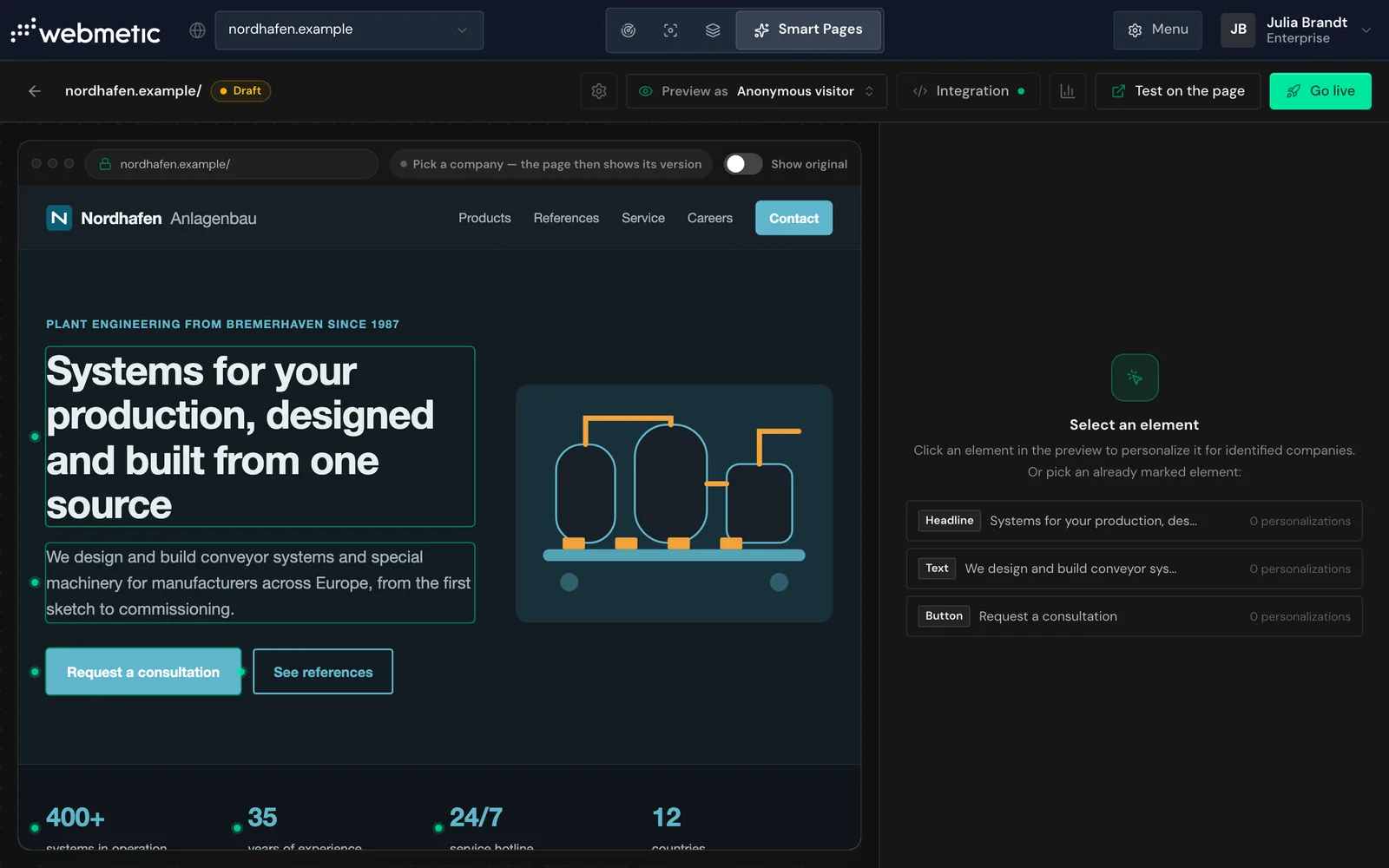
Elements are the texts Webmetic replaces, but not images. On a new Smart Page, Webmetic marks up to three elements: the main heading, the first longer paragraph below it, and a short button or link. For details, see Editor.
- Click a marked element in the preview, or select it on the right under Select an element.
- Optional: Click another text in the preview to add it as an element.
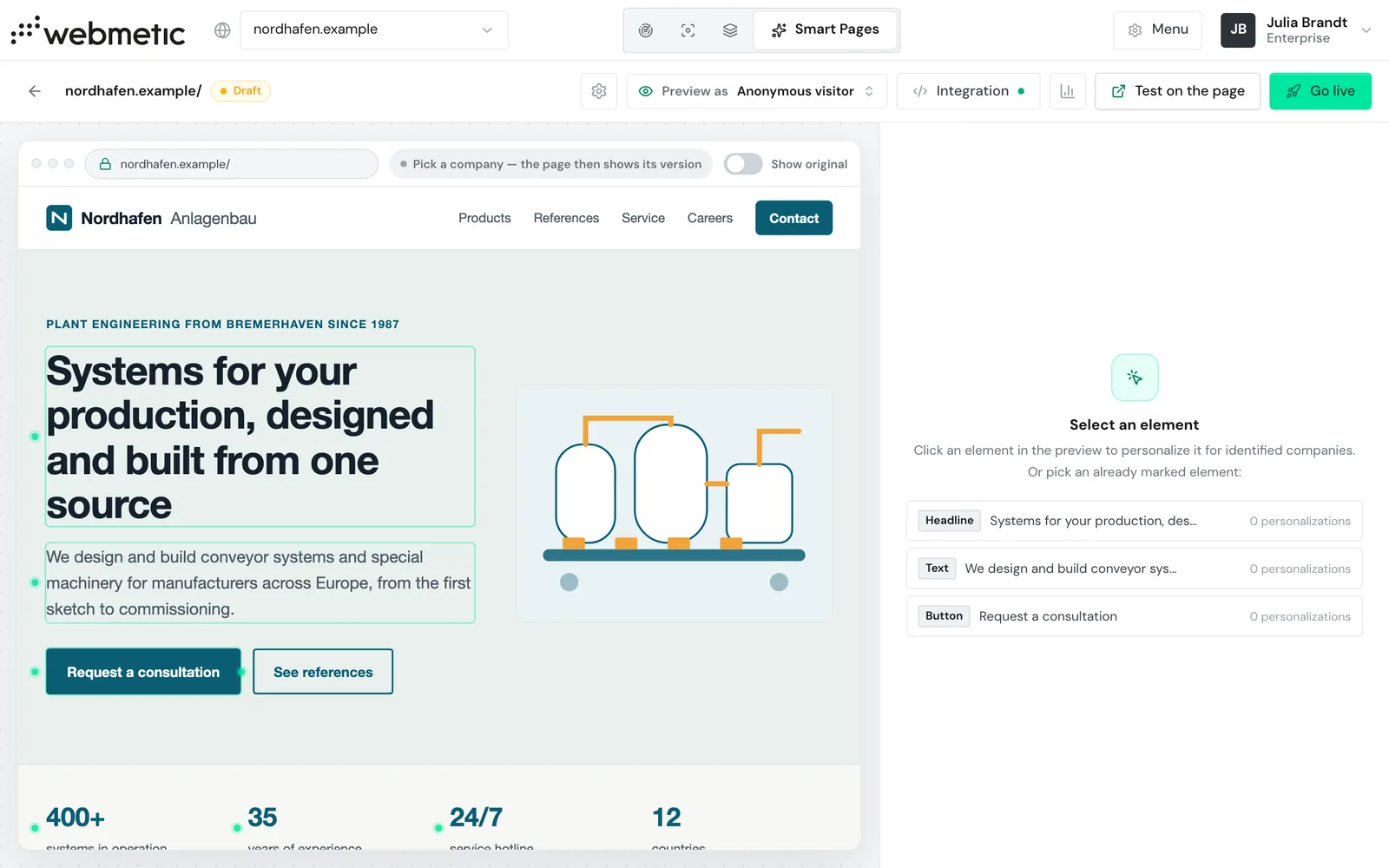
Choose texts without links and without bold words inside them, because this formatting is lost when the text is replaced.
4. Set a new text for an element
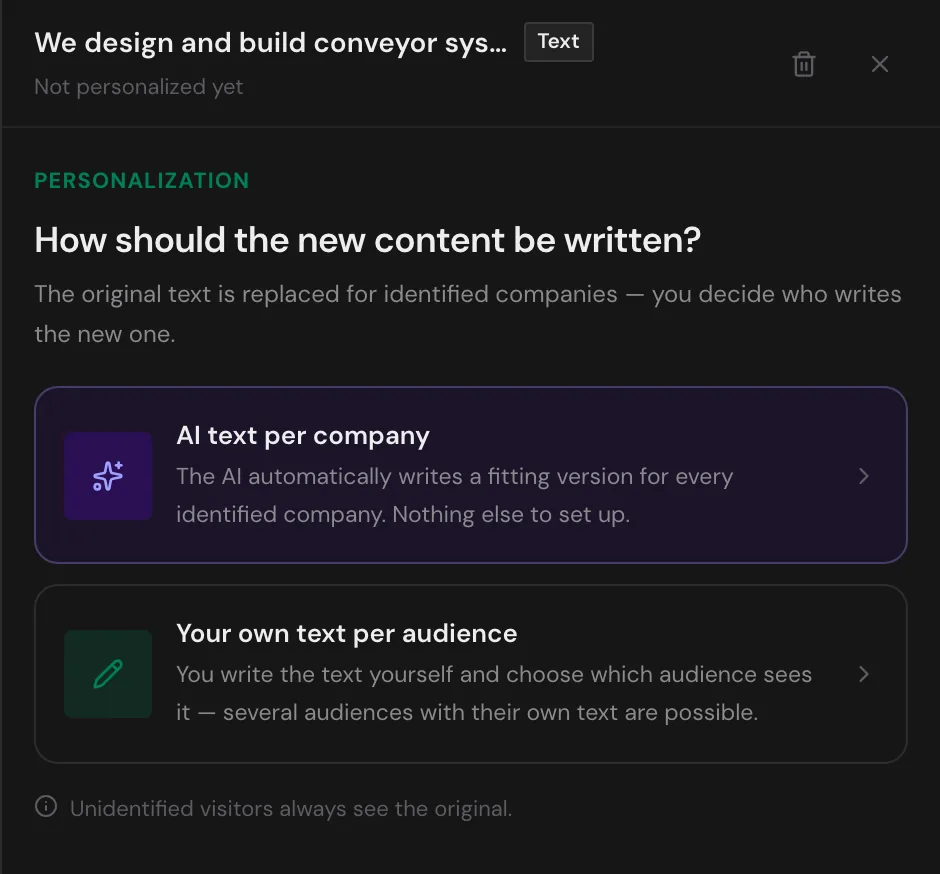
In the side panel, Webmetic asks: How should the new content be written? For each element you choose one of the two methods, which AI text per company and Audiences describe in detail:
- AI text per company: Webmetic writes its own version for every identified company. This method is available for texts of 45 characters or more, but not for very long texts and not for buttons and links.
- Your own text per audience: You write the text yourself and decide which audience sees it.
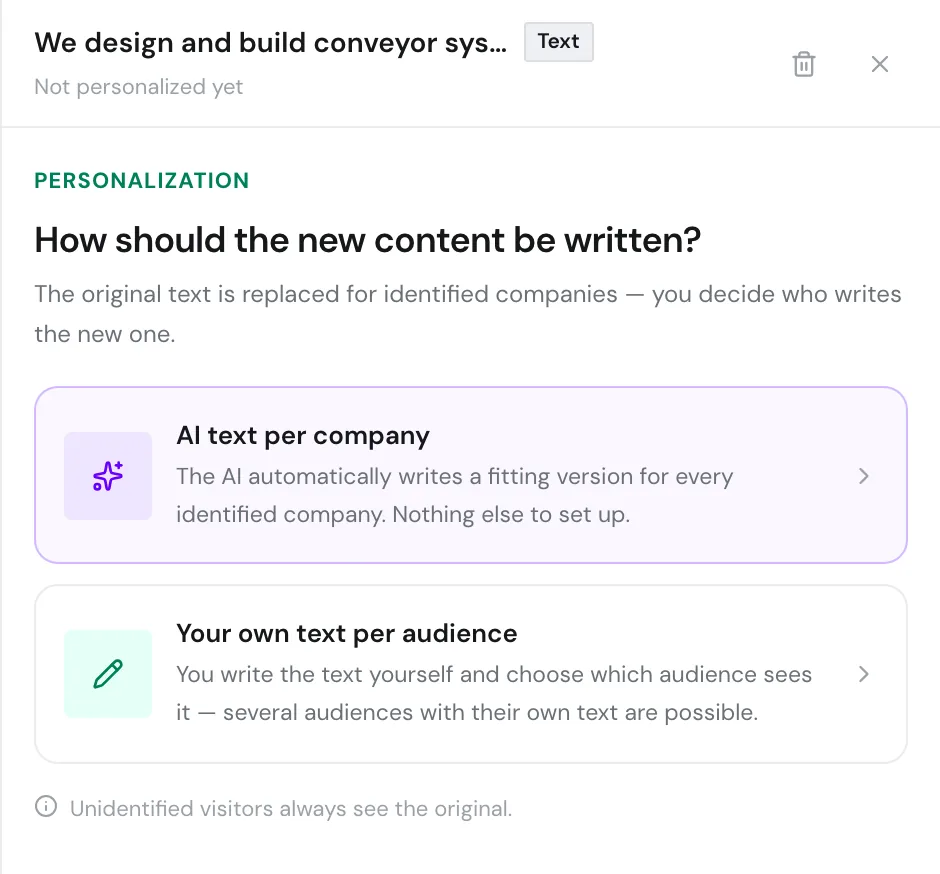
To set a text with AI text per company:
- Click AI text per company.
- Select a company under Preview as at the top.
- Click the Preview for button with the company's name. The preview shows the text this company reads on your page, unless the automatic check discards it.
- Click Save personalization.
Nobody reviews the texts before they are delivered. Webmetic checks every text automatically afterwards and shows the original text again if the check fails.
To set a text with Your own text per audience:
- Click Your own text per audience.
- Under Who should see this text?, select an audience or click + Create a new audience.
- Under Which content should be shown instead?, enter your text.
- Click Save text.
When you select a company under Preview as at the top, you see the result, and Show original switches back.
5. Install the Smart Pages code
The Smart Pages code replaces the texts on your website and is separate from the tracking code. Without it, neither the test nor the live page shows your texts. For details, see Install Smart Pages.
- Click Integration at the top of the editor. The Install Smart Pages dialog opens.
- Copy the code in the dialog.
- Add it to the head section of every page with a Smart Page, ideally as the first script. Otherwise, send the code to the person who looks after your website.
- Click Check integration. If everything is right, Webmetic shows the message Snippet installed correctly within a minute.
The WordPress plugin and the Google Tag Manager template only add the tracking code, not the Smart Pages code.
6. Test on your website
The test shows your texts on the real website, also for a draft and on every plan. For details, see Test and go live.
- Click Test on the page at the top. Your page opens with a test link in a new tab.
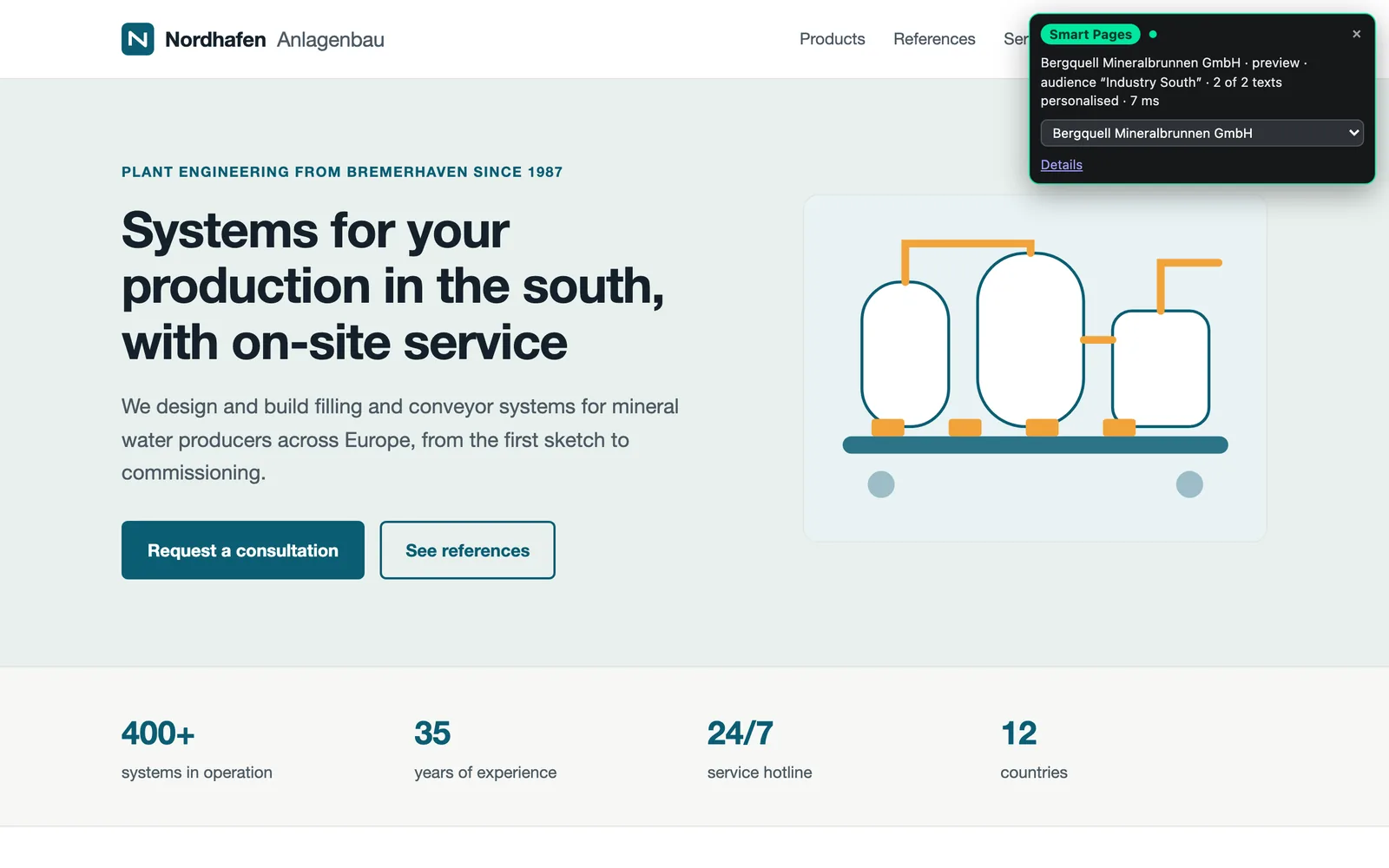
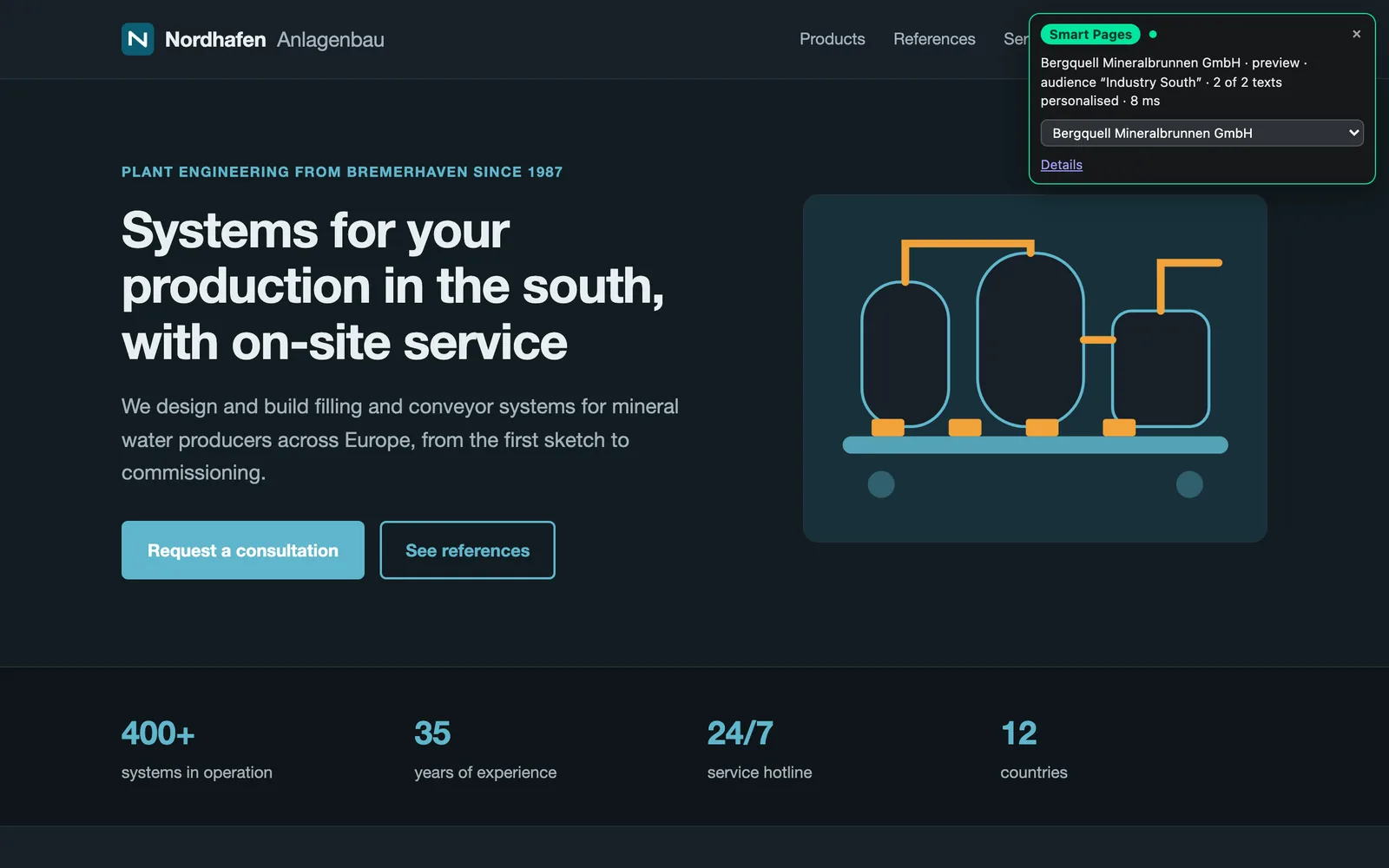
- Check the Webmetic test box on the page, which shows the identified company, the matching audience, and how many texts changed.
- Optional: In the test box's dropdown, choose one of the identified companies on your website. The page reloads and shows the texts for that company.
Because the test link needs no login, anyone who knows the link can open it for 10 hours. Test visits do not count in the report.
7. Go live with the Smart Page
As long as your plan includes Smart Pages, there is no way back to draft. You can pause single texts while the page stays live. The only way to stop the Smart Page completely is to delete it. For details, see Test and go live.
On Free and Starter, the button reads Publish with Growth instead of Go live.
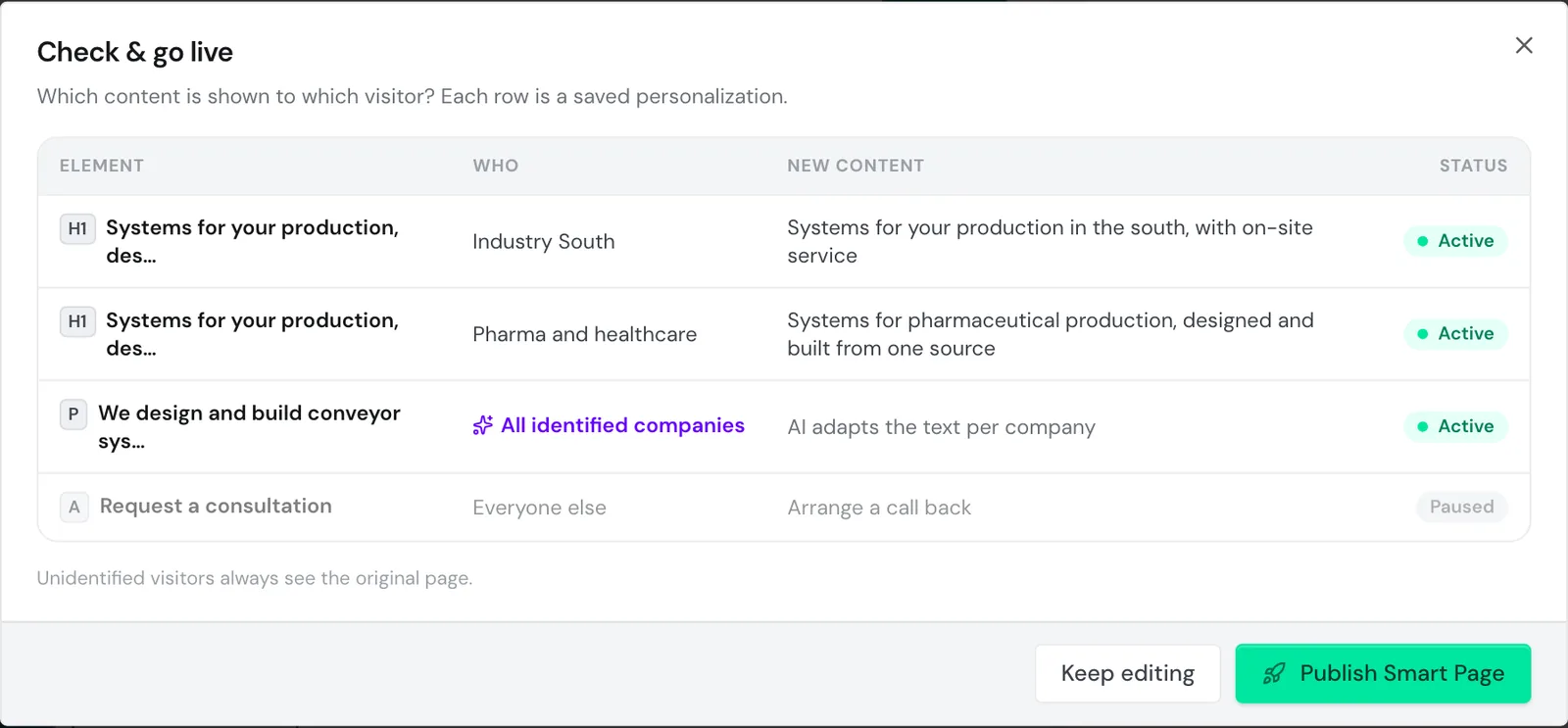
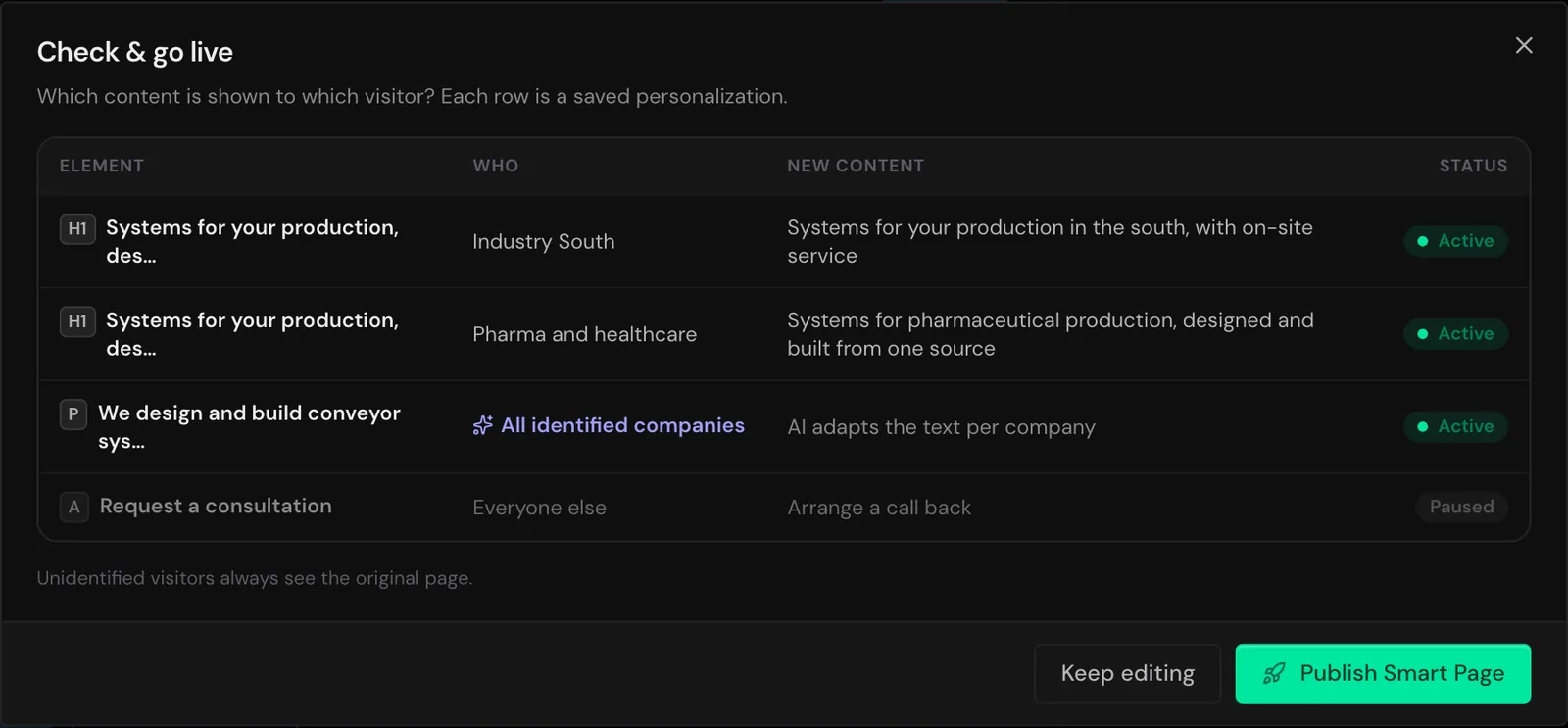
- Click Go live at the top. The Check & go live dialog shows every element with its new content and states who sees it.
- Click Publish Smart Page. The Smart Page is now Live.
When you change something later, you save the change in the editor and don't need to go live again. Your visitors see the changes after a short time.
What you set up
- Your Smart Page is live and applies to exactly one page address.
- Identified companies read their own text there.
- Visitors without an identified company see the original.
- The Smart Pages code runs on your website.