

Matomo plugin
Install the Webmetic plugin in Matomo and see the identified companies right in your reports.
With the Webmetic plugin, you see in your own Matomo which companies visit your website. For example, the visits log shows which company read your pricing page yesterday, and adds its industry and size. At the end you'll have:
- the report Companies under Visitors and the widget Identified companies in your Matomo
- the company's name, industry, size, and revenue class next to every identified visit in the Visits Log and in the visitor profile
- five segments in the category Webmetic that filter any report by company, industry, size, or revenue
Before you start
- Time: You install the plugin and fill in two settings. Companies then appear from the next new visits on.
- Account: You need a Webmetic account and Matomo On-Premise version 5 on your own server. The plugin doesn't run on Matomo 6. In Matomo Cloud you don't install plugins yourself: ask Matomo support whether they can add the plugin.
- Access: Your Matomo server must reach the Webmetic API over the internet, because the plugin queries the API on new visits.
- Rights: Only admins see the Integrations menu item. If a partner manages your account, the partner decides whether it appears.
- Rights in Matomo: Only superusers can install and set up the plugin.
- Plan: Integrations are available on every plan, including the Free plan. On the Free plan, Webmetic sends only the companies you see by name. For details, see Free plan.
- Cost: The integration costs no credits. The plugin's lookups don't appear under Usage.
The plugin doesn't add the tracking code. You need the tracking code for the Webmetic dashboard and on the Free plan. You can add it, for example, through the Matomo Tag Manager.
1. Copy the Data Layer key
You need the key from the Data Layer card, because the plugin rejects the keys from the other cards, for example Visitor Intelligence.
- In Webmetic, click Menu > Integrations > API. The API keys window opens.
- In the Data Layer card, click Generate key. You now see the new key.
- Click the Copy icon to copy the key.
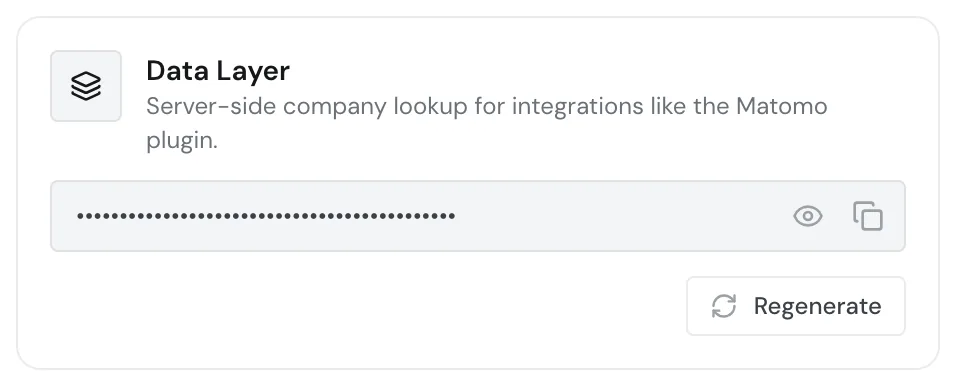
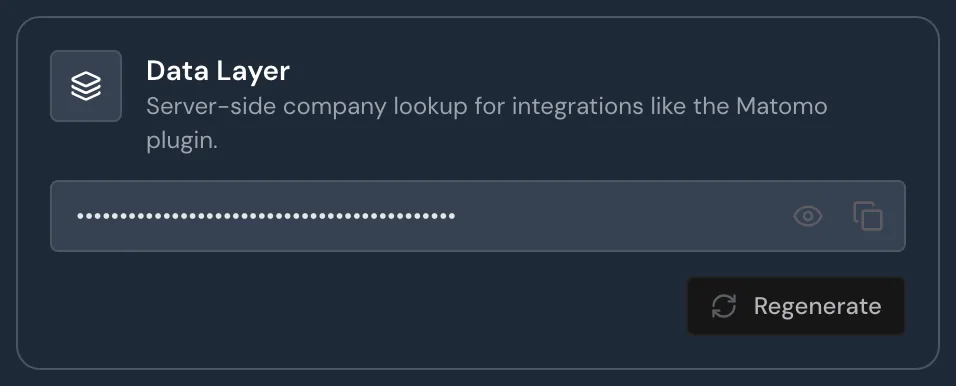
If a key already exists, copy it with the same icon. If you click Regenerate twice, the old key stops working at once. Matomo then identifies no companies until you enter the new key there.
2. Install the plugin
- In Matomo, open the administration with the gear icon at the top right.
- In the menu on the left, click Platform > Marketplace.
- Search for "Webmetic" and click Install on the plugin.
- Click Activate plugin to turn it on in your Matomo.
You can also find the free plugin on plugins.matomo.org.
3. Set up the plugin
- In the administration, click System > General settings.
- In the Webmetic section, paste the key into the field Data Layer API key.
- Tick Enable company identification to turn on the lookups.
- Click Save. Matomo checks the key with Webmetic and saves it only if it's valid.
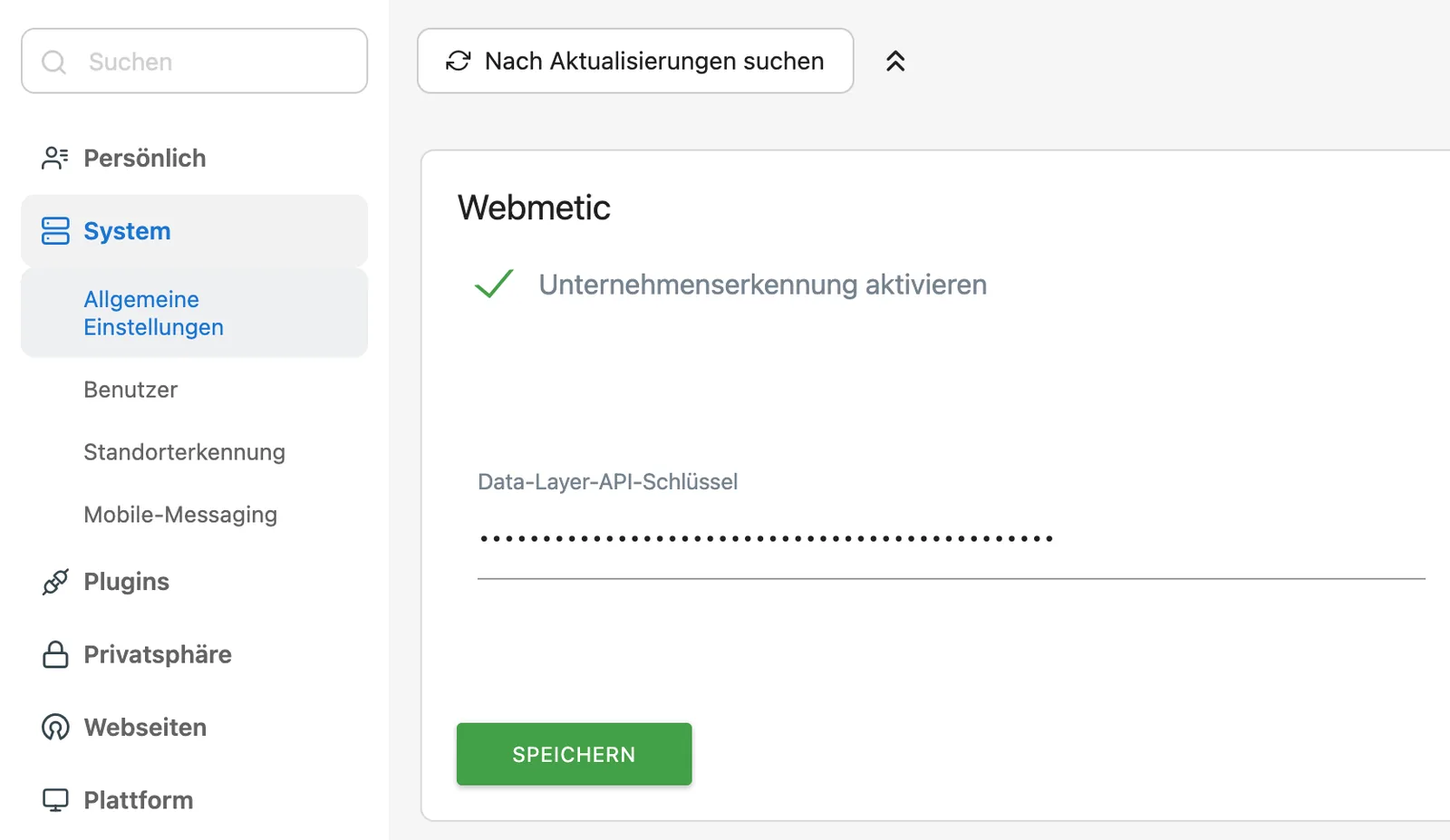
The settings apply to your whole Matomo: with the one key, the plugin enriches every website you measure in Matomo.
4. Check the IP setting
- In the administration, click Privacy > Anonymize data.
- In the section Anonymize Tracking Data, check that Also use the Anonymized IP addresses when enriching visits. is set to No, which is the Matomo default.
If the value is set to Yes, the plugin doesn't ask Webmetic, and you see no companies. You can leave the anonymization of the IP addresses that Matomo stores turned on. If IP anonymization is turned off, Matomo doesn't show this setting, and you don't need to do anything.
Data sent
Matomo asks Webmetic for the company on new visits, and nothing flows back from Matomo into the Webmetic dashboard. For every identified visit, Matomo stores five values from Webmetic:
| Field in Matomo | Content |
|---|---|
| Webmetic Company | Name of the company |
| Webmetic Company ID | The company's ID in Webmetic |
| Webmetic Industry | One of 19 fixed industries, always in German, for example "IT, Software & Telekommunikation" |
| Webmetic Company size | Range of employees, for example 51-200 or 10001+ |
| Webmetic Revenue class | Revenue range, for example 5M-10M € |
If Webmetic doesn't know a value, you see an empty field. You don't get contacts, relevance, tags, or comments from Webmetic in Matomo.
The plugin sends Webmetic the SHA-256 hash of the IP address and your key, never the IP address itself. It doesn't send page addresses, page titles, or cookies.
When Matomo shows companies
- The plugin asks only when a new visit starts, so further page views in the same visit don't trigger a lookup.
- The plugin only enriches visits that start after you activate it. Older visits stay without a company.
- A visit keeps the values from the time of the visit, even if the data in Webmetic changes later.
- If Matomo can't reach Webmetic, Matomo keeps measuring as usual, and only the company is missing for that visit.
- Visits from home connections or mobile networks stay without a company.
On every plan except Free, you get every identified company in Matomo, and you don't need the tracking code for it. On the Free plan, you get only the companies you see by name in the dashboard, and other visits show no company in Matomo.
On the Free plan, Webmetic counts a new company only if the Webmetic tracking code records the visit. So you see new companies in Matomo only if the tracking code runs on the same website. A company that visits your website for the first time then appears in Matomo only from a later visit on.
Find companies in Matomo
- In Matomo, open Visitors > Companies. With Matomo's usual metrics, the report shows only visits with an identified company.
- Optional: On the dashboard, click Manage Dashboard > Add widget to this dashboard and choose the widget Identified companies under Visitors.
- Open Visitors > Visits Log. Every identified visit has a line Webmetic Company with name, industry, size, and revenue.
- On a visit, click View visitor profile. The block Webmetic company shows the company of the most recent identified visit.
- Above a report, click All visits and then Create new segment. In the category Webmetic, you find the five fields from the table above.
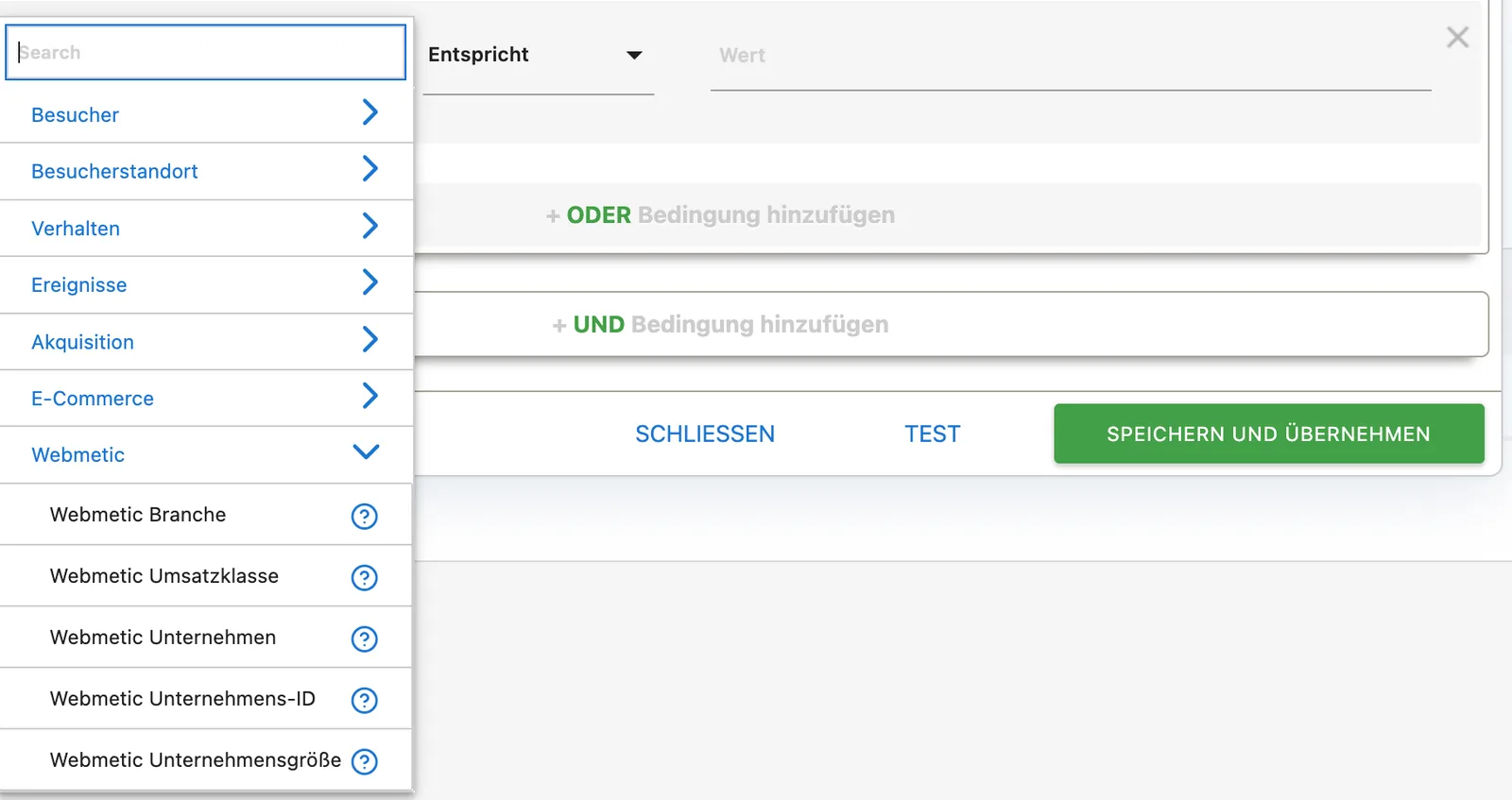
The report Companies follows the archiving of your Matomo reports. Your Webmetic dashboard doesn't show the companies from the plugin. For companies to appear there, you need the tracking code.
Troubleshooting
What does the message on saving mean?
With each of these messages, Matomo doesn't save the key.
| Message | Cause | Solution |
|---|---|---|
| "This does not look like a valid Webmetic API key" | The text in the field isn't a complete key. | Copy the key again from the Data Layer card. |
| "The Webmetic API rejected this key." | The key comes from another card or was regenerated. | Copy the current key from the Data Layer card. |
| "The key could not be verified" | Your Matomo server can't reach the Webmetic API. | Check with your IT team whether the server may access the internet, and save again. |
Why don't any companies appear?
If no companies appear in Matomo, check these points:
- Enable company identification is ticked.
- The IP setting from step 4 is set to No.
- Your website has had new visits since you activated the plugin.
- On the Free plan, the Webmetic tracking code runs on the same website.
FAQ
Do I need the Webmetic tracking code?
No, except on the Free plan. There the plugin needs the tracking code on the same website, so that new companies appear in Matomo. For the Webmetic dashboard you need it on every plan.
Can I enter a separate key for each website?
No. A single key applies to your whole Matomo and so to every website in it.