

Filters and search
Search the company list by name, visited page, or campaign, and share the view as a link.
Search narrows the company list, for example to every company that read your pricing page. At the end you'll have:
- a list of the companies that match a name, a visited page, or a campaign
- if you like, combined with a segment
- a link to exactly this view for your team
Before you start
- Time: The steps take a few minutes.
- Account: You need a Webmetic account with a website where Webmetic has already identified companies.
- Rights: Every user of your account can search and open links. You don't need admin rights.
- Plan: Search is part of every plan and costs no credits. On the Free plan, a name search only finds companies you can read.
Search by name
- Under Search companies, click the search field.
- Check that the Name mode is selected on the right of the field. Name is the default.
- Enter part of the name, for example
bergquell. After a short pause, your list shows the matching companies. - To clear the search, click the X in the field.
The name search works like this:
- Upper and lower case don't matter, and part of a word is enough.
- If you type several words, they must appear in the name in the order you typed them.
- Webmetic also searches the company's website.
- An entry like
bergquell.examplesearches only the website address.
Search by visited page
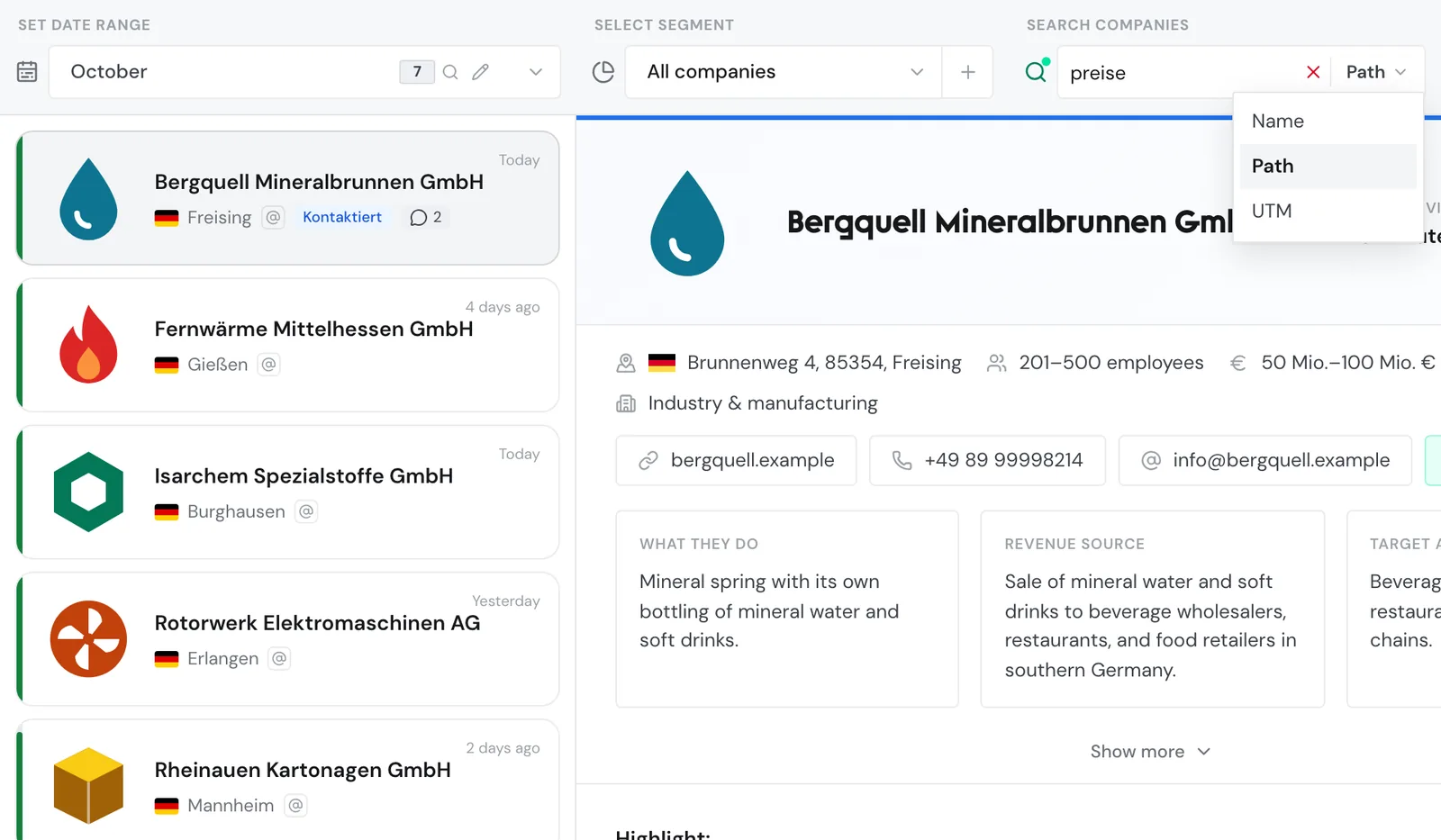
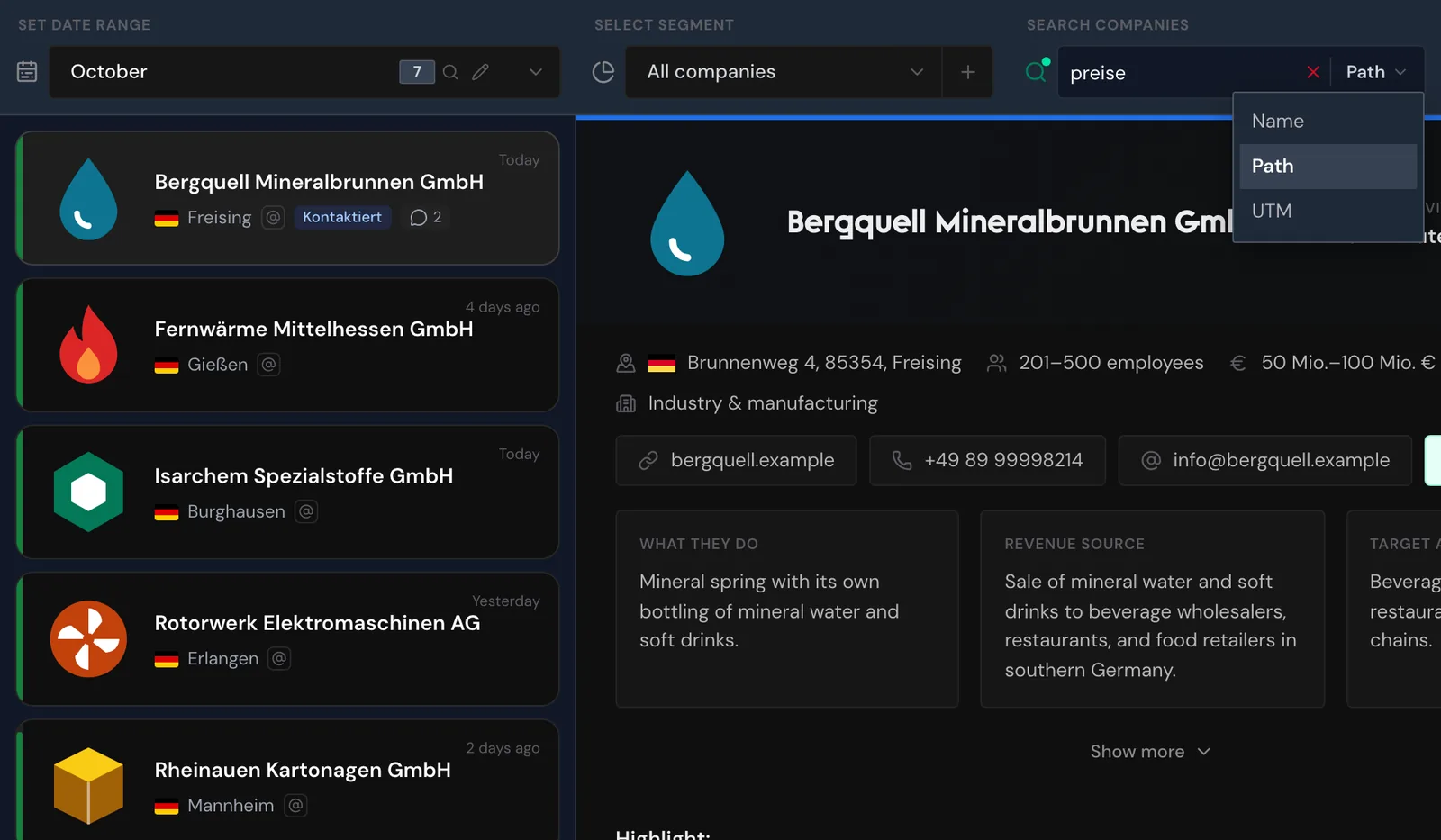
With the Path mode, you find companies that viewed a specific page.
- On the right of the search field, click Name and choose Path.
- Enter part of the address, for example
preise. The list shows every company with at least one view of a matching page.
Webmetic splits your entry at every /, and each part must appear in the address in any order:
| Entry | Finds, for example |
|---|---|
preise | /preise and /de/preise/enterprise |
produkte/dampfkessel | /produkte/dampfkessel and /dampfkessel/produkte |
shop.your-website.com/preise | pages with preise on shop.your-website.com |
If your entry contains a host name, the host must match too.
Search by campaign
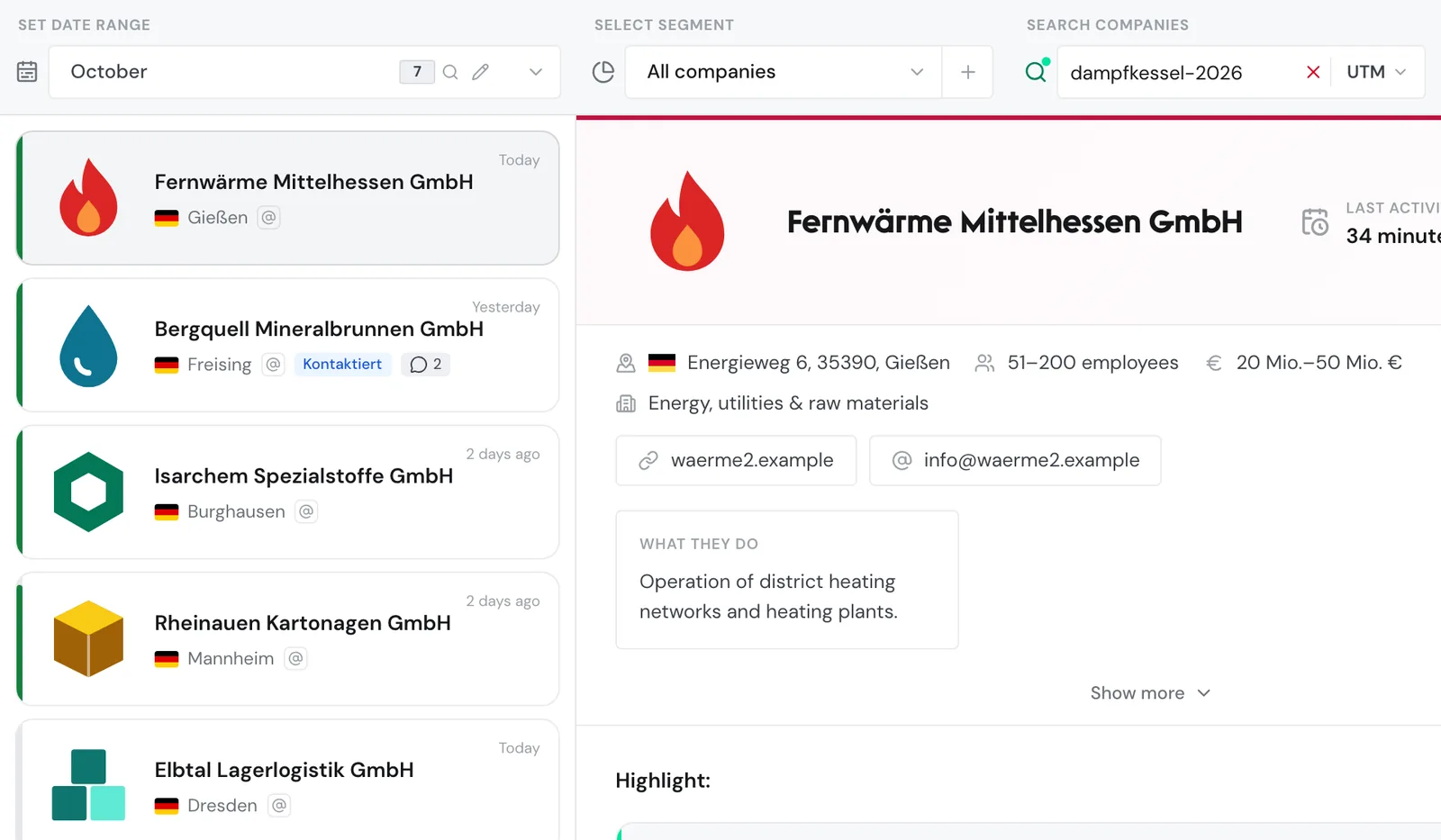
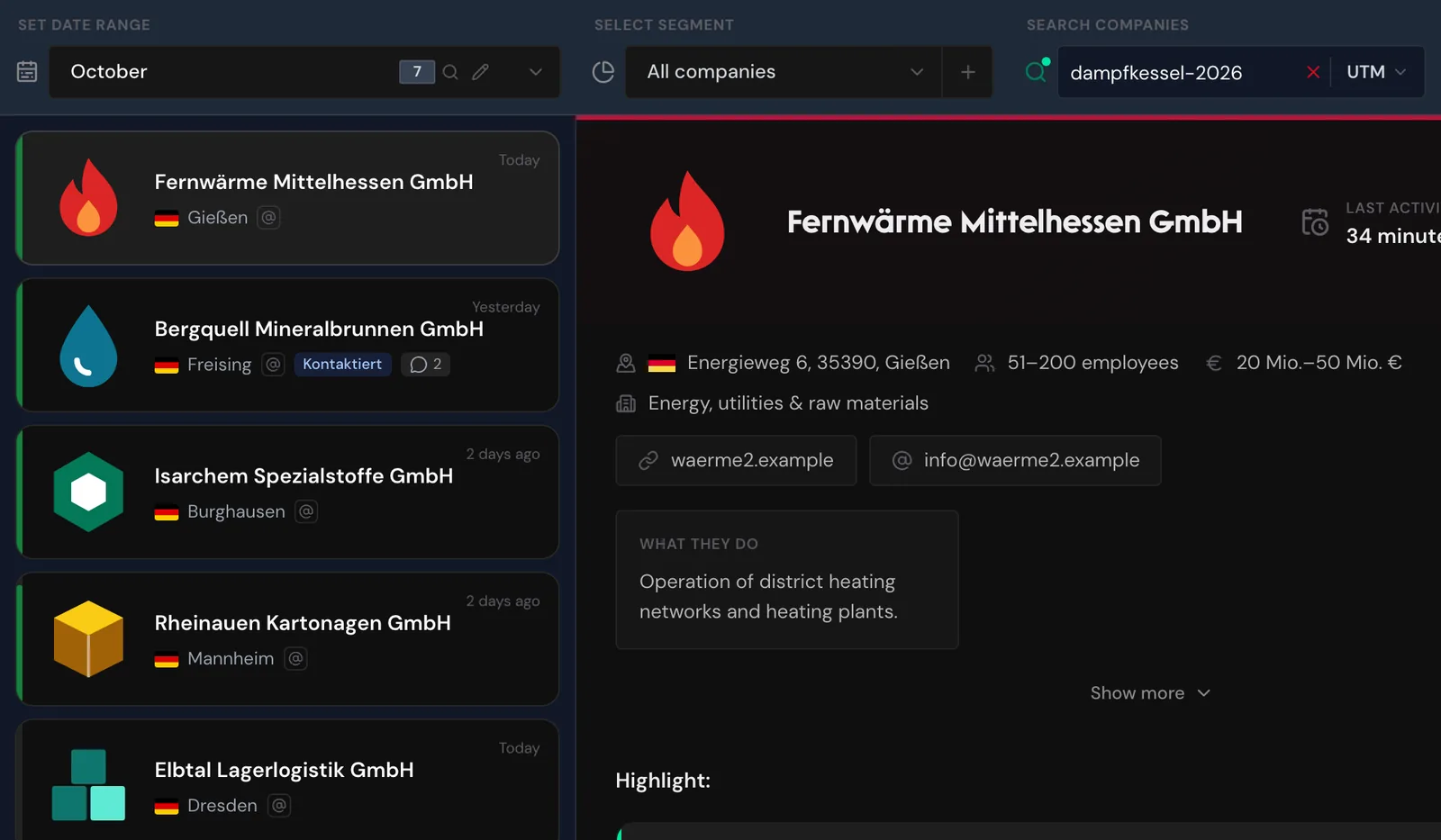
With the UTM mode, you find companies that came to your website through a specific campaign. Webmetic searches the visit's utm_source, utm_medium, utm_campaign, utm_term, and utm_content.
- On the right of the search field, click the mode and choose UTM.
- Enter a value, for example
dampfkessel-2026. The list shows the companies with visits through that campaign.
Enter only one value per search, that is a source, a medium, or a campaign:
| Entry | Result |
|---|---|
dampfkessel-2026 | Only visits with exactly this value, because values with - or _ must match in full. |
newsletter | Visits where a UTM field contains the word. |
google cpc | Nothing, if google is in utm_source and cpc in utm_medium. Search for google and cpc one after the other. |
Upper and lower case don't matter for exact values either. Campaigns and channels explains how Webmetic assigns campaigns.
Combine search with segment and date range
Every search runs only within the chosen date range. So you only find a company that read your pricing page last month once the date range includes last month.
- Under Select segment, choose a segment, for example the example segment Großraum München, which Webmetic creates in German.
- Enter a name in the search field, for example
vogt. The list shows only matching companies from the segment.
When a segment is active, the field only searches by name. The date range is then grayed out and shows the segment's range. If you apply a custom date range with the calendar icon, Webmetic ends the segment.
The number in the date range shows your result with search and segment. Small icons next to it tell you that a search or a segment is active.


On the Free plan, path and UTM searches can also find hidden companies, which you see blurred.
Reset filters
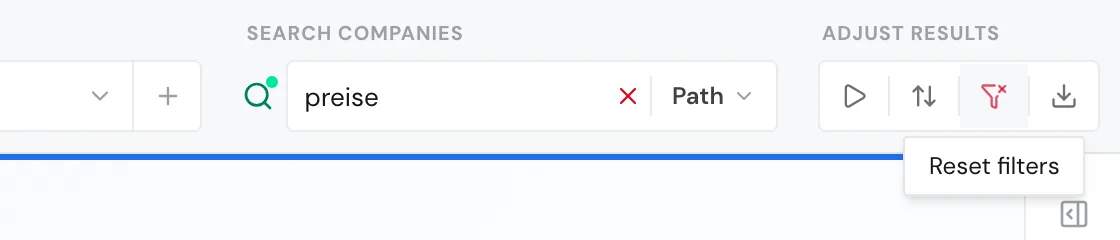
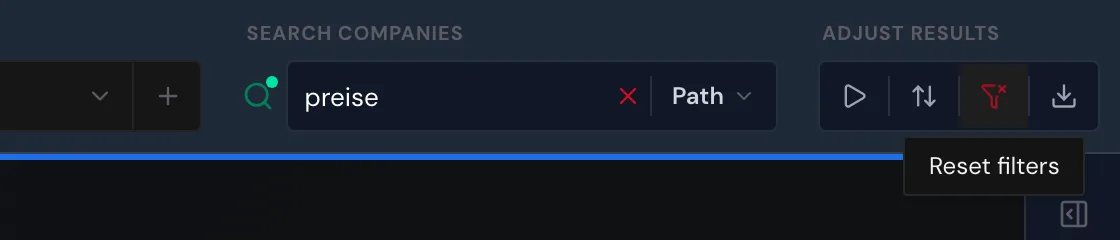
Under Adjust results, a red filter icon appears as soon as a filter is active. Filters are a search, a segment, the Path or UTM mode, and any sort order other than Highest relevance.
- Click the red filter icon with the hint Reset filters. On a smartphone, you'll find Reset filters under More options.
Webmetic removes your search, segment, mode, and sort order, but the date range, real-time updates, and the subdomain view stay as they are.
Export takes over every active filter: date range, search, segment, subdomain view, and sort order. For details, see Export companies.
Share a view as a link
Webmetic writes every setting of the list into the address. To share exactly your view:
- Set the date range, segment, search, and sort order.
- Copy the address from your browser's address bar.
- Send the link to your team.
The link only works for users of your account. If the website isn't part of their account, Webmetic opens their own first website. If the segment no longer exists, Webmetic shows the message "The selected segment wasn't found and has been reset."
This is what an address looks like:
https://app.webmetic.de/your-website.com/companies?from_date=2026-10-01&to_date=2026-10-19&q=preise&search_mode=path| Parameter | Meaning |
|---|---|
from_date, to_date | Date range in the format YYYY-MM-DD |
segment_id | Active segment |
q | Search text |
search_mode | path or utm; without the parameter, Name applies |
sort | relevance_desc, relevance_asc, date_desc, date_asc, name_asc, name_desc, score_desc, or score_asc; without the parameter, relevance_desc applies |
realtime | 1 turns on real-time updates |
host | Subdomain view |
company_id | Opens one company |
score_desc and score_asc stand for Highest activity and Lowest activity, date_desc and date_asc for Newest first and Oldest first.
If you build a link yourself, always include from_date and to_date. Without these parameters, Webmetic sets the default date range and removes segment_id and company_id.
Filter by tag, city, or industry
The filter bar has no filter for tags, city, country, or industry. Instead, you save such selections as a segment, for example with a tag, city, postal code, NACE code, employees, or revenue. To create a segment, click Create segment under Select segment. Get started shows how to save the segment.
Also note:
- The list has no columns to sort by. You choose the order in the sort menu (the icon with two arrows).
- You can't select or edit several companies at once.
- You can't save searches, but you can share a view through its link.
- On a smartphone, you can't set custom date ranges or edit segments.